


-
What is HDP for SaaS?
-
System requirements
-
Before you start
-
Manage HDP for SaaS users
-
Create HDP for SaaS users
-
Configure HDP for SaaS user roles
-
-
Configure domains in HDP for SaaS
-
Add domains to HDP for SaaS
-
Add subdomains to HDP for SaaS
-
Manage domain users
-
-
Configure HDP for SaaS licenses
-
Purchase and activate HDP for SaaS licenses
-
Assign HDP for SaaS licenses to domain users
-
Assign HDP for SaaS licenses to domain services
-
-
Back up domain data
-
Manage backed-up domain data
-
Manage HDP for SaaS tasks
-
Further reading and resources
Starting from version 2.4, the product previously known as Boxafe has been renamed to HDP for SaaS.
What is HDP for SaaS?
HDP for SaaS is a NAS-based backup solution for cloud services such as Google Workspace and Microsoft 365. You can use HDP for SaaS to back up cloud data from supported cloud services manually or automatically by schedule. HDP for SaaS also supports backing up multiple versions of data. You can view and search your backed-up cloud data in HDP for SaaS, and if needed, restore data to cloud services. If you have a large administrative/IT team in your organization, you can delegate HDP for SaaS tasks, such as recurring cloud data backups, to other team members by utilizing custom HDP for SaaS users and user roles. HDP for SaaS is ideal for medium to large-sized organizations that need to record or safeguard cloud data of many users.
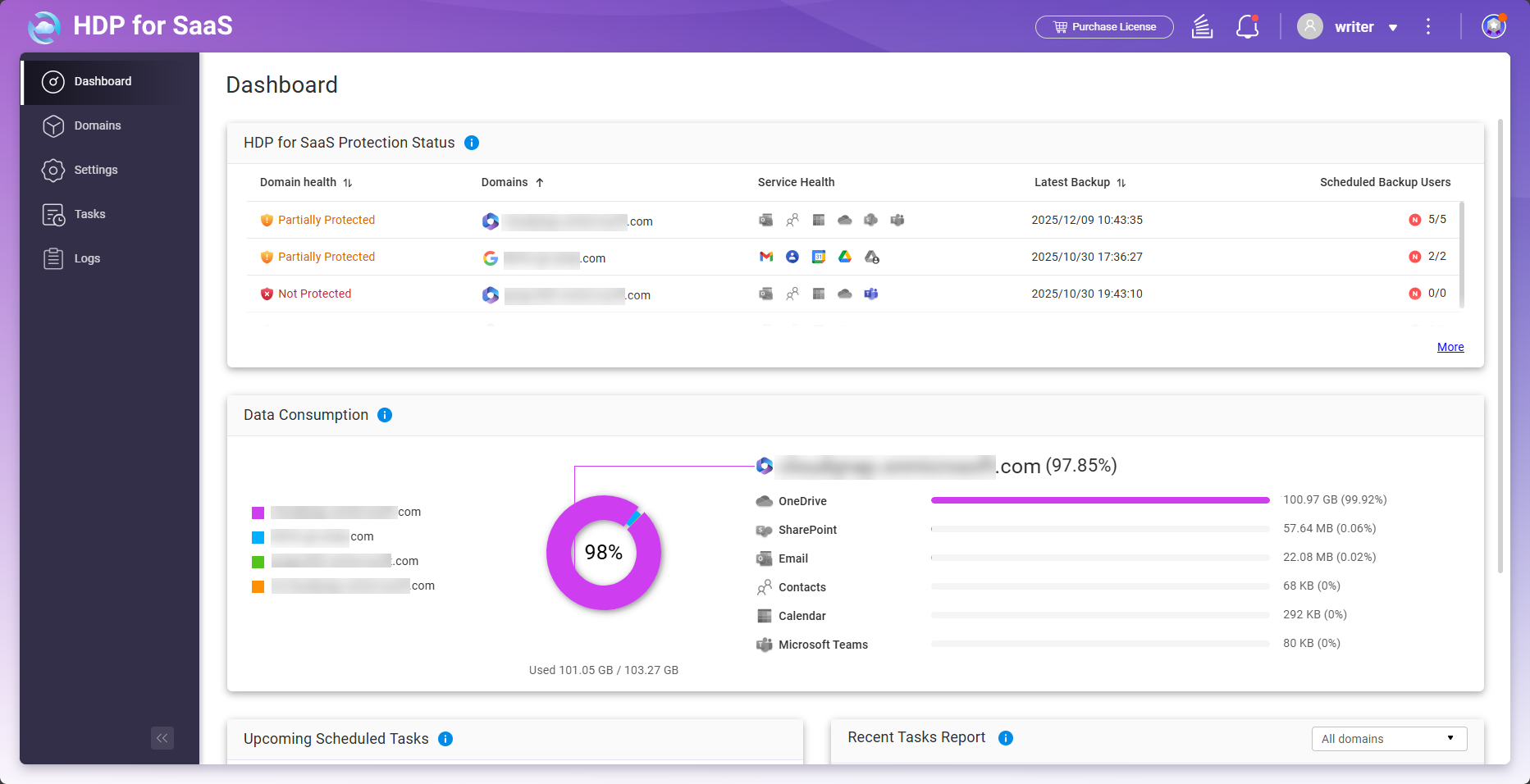
Cloud services supported by HDP for SaaS
| Cloud Service Provider | Supported Services |
|---|---|
| Google Workspace |
|
| Microsoft 365 |
|
System requirements
Supported NAS operating systems:
- QTS 5.0.0 or later
- QuTS hero h5.0.0 or later
Before you start
Before you start using HDP for SaaS, perform the following steps:
- Log onto your NAS as an administrator.
- Install HDP for SaaS.
- Open App Center.
- Click
 to open the search bar.
 - Enter "Boxafe".
- Under the HDP for SaaS app icon, click Install.
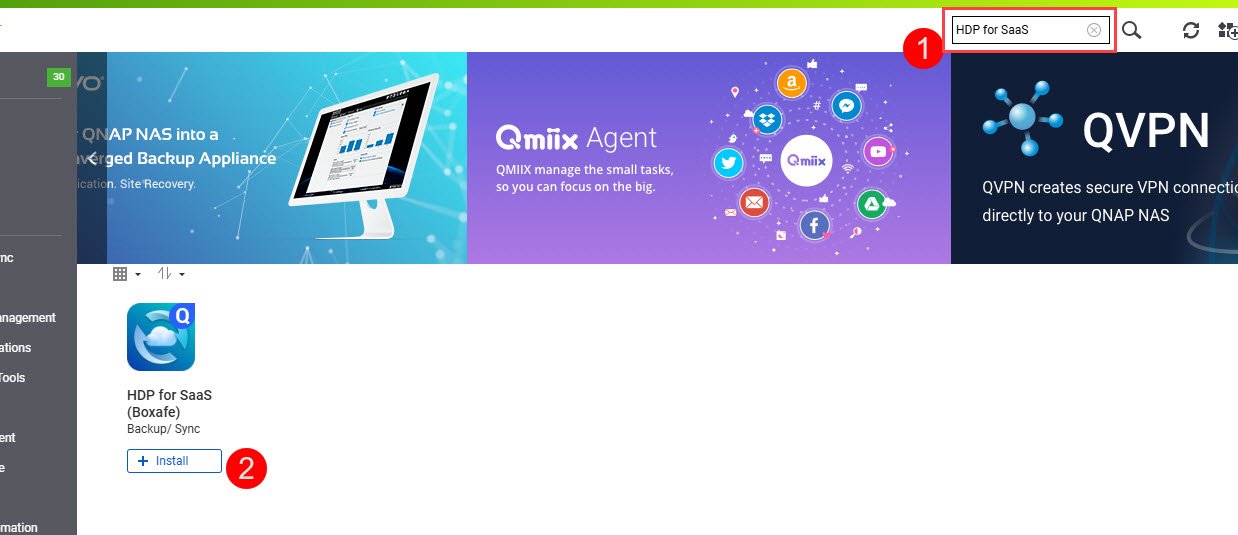
- Select a storage pool to install HDP for SaaS and click OK.
- Obtain authorization for HDP for SaaS from your domains:
- Optional: Purchase and activate premium HDP for SaaS licenses.
For details, see the Configure HDP for SaaS licenses section. - Open HDP for SaaS.
HDP for SaaS opens in a new browser tab. If you open HDP for SaaS via a URL, then you need to log in to HDP for SaaS with your NAS user account.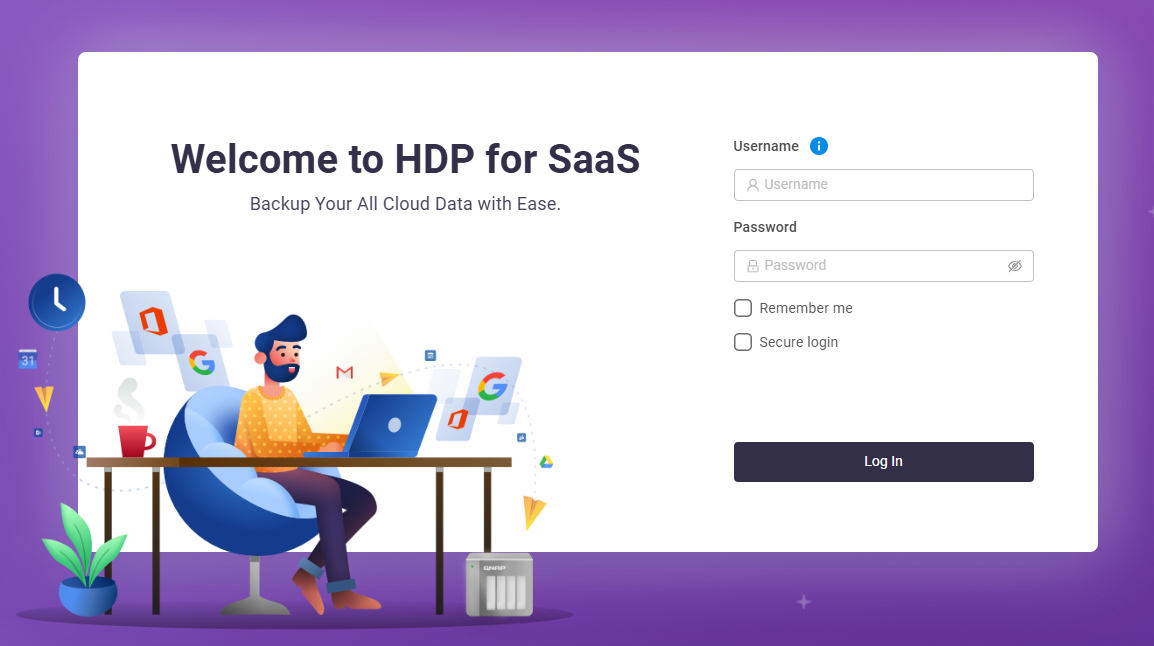 The Storage Path Configuration window opens.
 - For Storage path options, select an option.
For details on configuring the storage path, see How do I set up or change the storage path in HDP for SaaS 2.0 and later?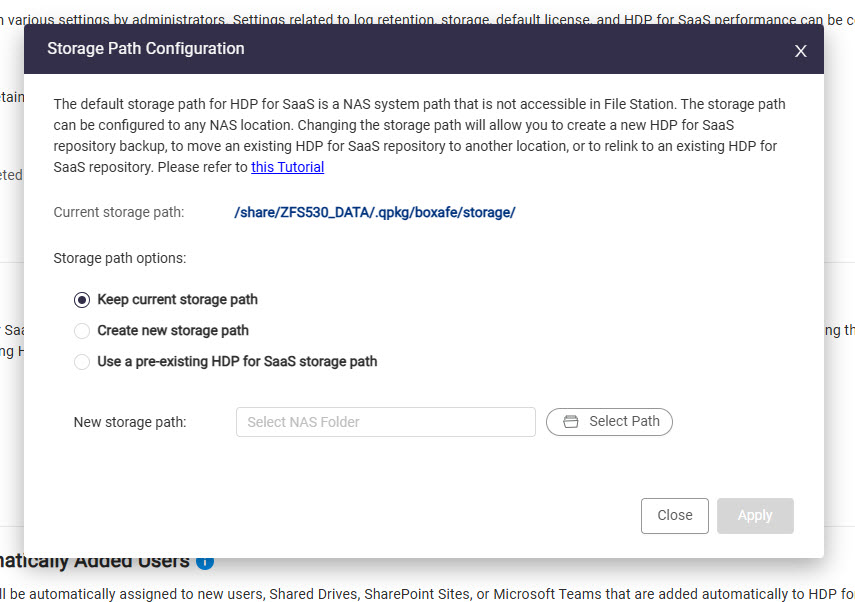
- Click Apply.
- To back up data from a domain, perform the following steps:
- Optional: Create HDP for SaaS users.
- Optional: Configure HDP for SaaS roles.
- Add one or more domains.
- Assign HDP for SaaS licenses to domain users.
- Assign HDP for SaaS licenses to domain services.
- Back up domain data.
Manage HDP for SaaS users
A HDP for SaaS user is a NAS user that has permission to perform HDP for SaaS tasks. Creating HDP for SaaS users allows HDP for SaaS administrators to delegate HDP for SaaS tasks to other NAS users. You can also create and assign roles to HDP for SaaS users. Roles grant permissions that assigned users can perform in HDP for SaaS.
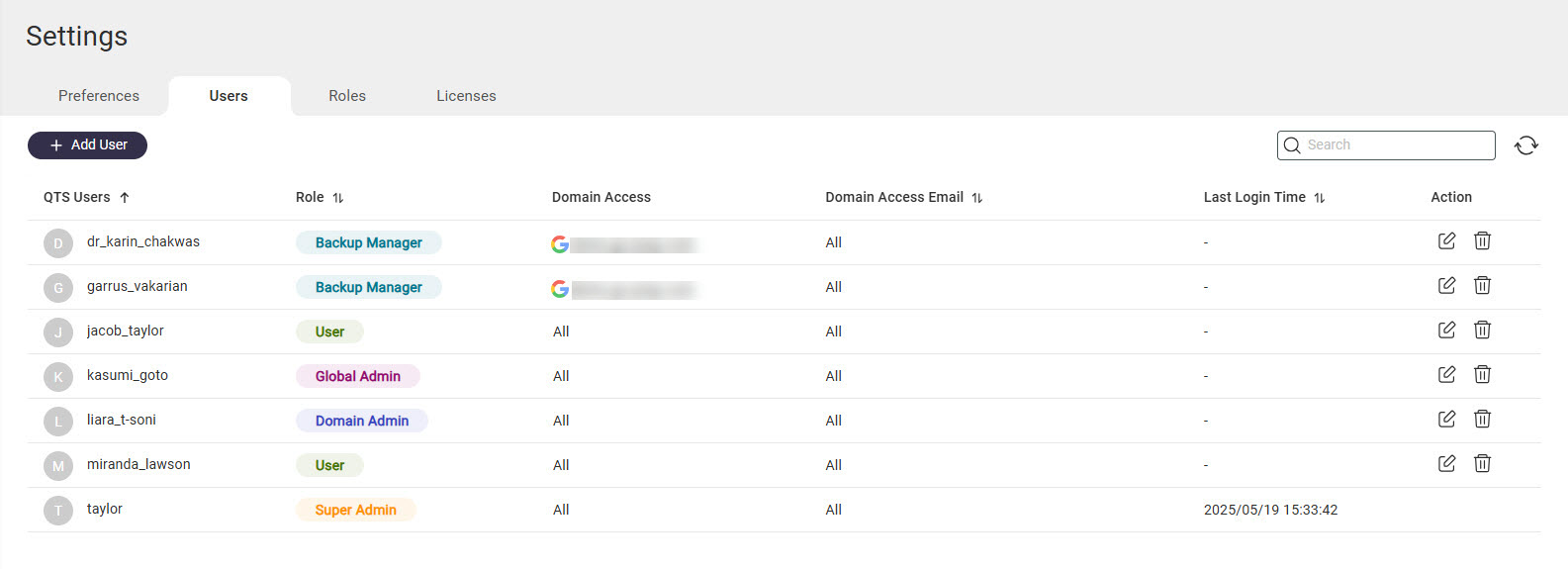
Create HDP for SaaS users
- Open HDP for SaaS.
- Go to Settings > Users.
- Click + Add User.
- For Select user, select a NAS user.
- For Select a role, select a HDP for SaaS role. See Configure HDP for SaaS user roles for details on HDP for SaaS roles.
- For Select domain, select a domain if needed. If a domain is selected, the user will have access to that domain and will not have access to other domains.TipUsers with the role Super Admin or Global Admin can access all domains in HDP for SaaS.
- Click Apply.
Configure HDP for SaaS user roles
- Open HDP for SaaS.
- Go to Settings > Roles.
- Click + Create Role to create a new role or click
 next an existing role to edit the role.
 - If creating a new role, specify a name for the role in the Role field.
- Select one or more permissions.
- Click Apply.
The selected permissions are applied to the role.
Configure domains in HDP for SaaS
To back up or restore the data of a domain, the domain must be first added to HDP for SaaS. You can also add subdomains of a domain to HDP for SaaS.
Add domains to HDP for SaaS
Before adding a domain, you must authorize HDP for SaaS to access the domain. For details, see the steps in Before you start.
- Open HDP for SaaS.
- Go to Domains.
- Click + Add Domain.
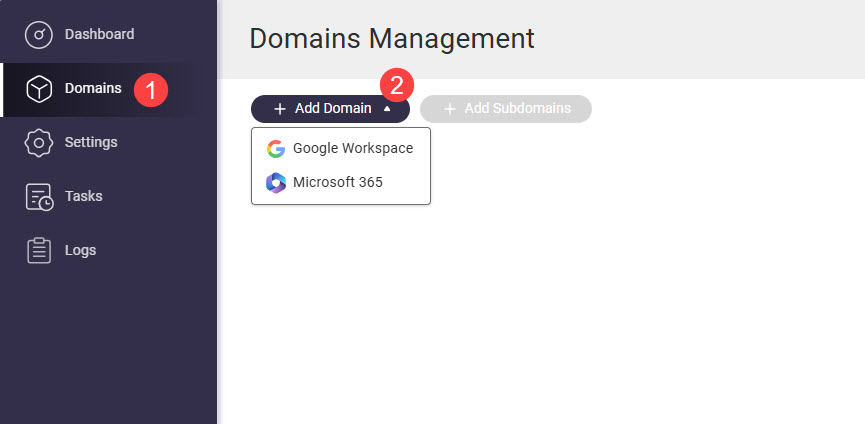
- Select Google Workspace or Microsoft 365.
The Add Domain window appears. - Authorize the domain by performing the following steps:
Domain Type Steps Google Workspace - Specify the following fields:
- Domain admin email address: Email address of the Google Workspace administrator used when generating a service key in Before you start.
- Service key: Upload the private service key JSON file generated in Before You start.
- Click Authorize.
- Google authorizes HDP for SaaS to use the domain and the Domain info tab opens.
Microsoft 365 - Specify the following fields:
- Microsoft 365 endpoint
- Certificate password: HDP for SaaS will generate a certificate file that can be used later to re-authenticate your Microsoft 365 domain. You will need to provide this password and the certificate file when you re-authenticate your Microsoft 365 domain.
- Confirm certificate password
- Click Authorize.
- Log into your Microsoft 365 domain.
- Microsoft authorizes HDP for SaaS to use the domain.
- Your browser downloads the generated certificate file.
- HDP for SaaS opens the Domain info tab.
- Specify the following fields:
- Verify that the Domain name and Admin email are correct.
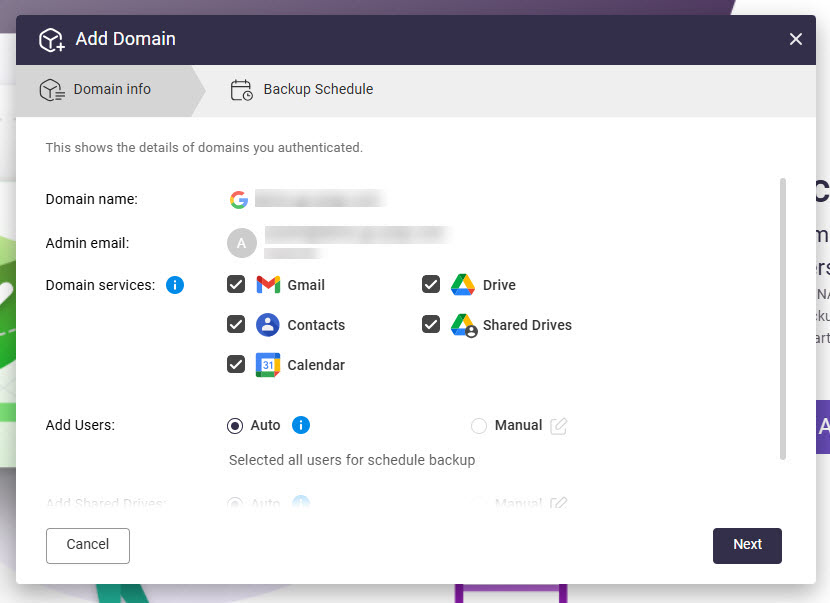
- For Domain services, select the domain services you want to back up.
- For Add Users, select one of the following:
- Auto: Automatically add all users of the domain to HDP for SaaS.
- Manual: Manually add users of the domain to HDP for SaaS by clicking and then selecting users.
- For Add Shared Drives (Google Workspace only), select one of the following:
- Auto: Automatically add all shared drives of the domain to HDP for SaaS.
- Manual: Manually add shared drives of the domain to HDP for SaaS by clicking and then selecting shared drives.
- For Add SharePoint Site (Microsoft 365 only), select one of the following:
- Auto: Automatically add all SharePoint sites of the domain to HDP for SaaS.
- Manual: Manually add shared drives of the domain to HDP for SaaS by clicking and then selecting SharePoint sites.
- For Add Microsoft Teams (Microsoft 365 only), select one of the following:
- Auto: Automatically add all teams of the domain to HDP for SaaS.
- Manual: Manually add Teams of the domain to HDP for SaaS by clicking and then selecting Teams.
- Click Next.
The Backup Schedule tab opens. - Configure a backup schedule. For details on configuring backup schedules, see Configure backup schedules for domain data.
- Click Add.
The domain is added to HDP for SaaS.
Add subdomains to HDP for SaaS
After adding a domain to HDP for SaaS, you can add the subdomains of the domain and back up and restore data of the subdomain in the same way as backing up and restoring data for a domain.
- Open HDP for SaaS.
- Go to Domains.
- Locate a domain and click
 to select it. This will be the parent domain of the subdomain.
 - Click
 .
.
The Add Subdomains window opens. - Click a subdomain to select it.
- Click Add Subdomains.
A confirmation window appears. - Click OK.
The subdomain is added to HDP for SaaS and appears on the Domains page under the parent domain.
Manage domain users
- Open HDP for SaaS.
- Go to Domains.
- Locate the domain and click in the Action column.
The Domain Settings page opens. - Go to the Users tab.
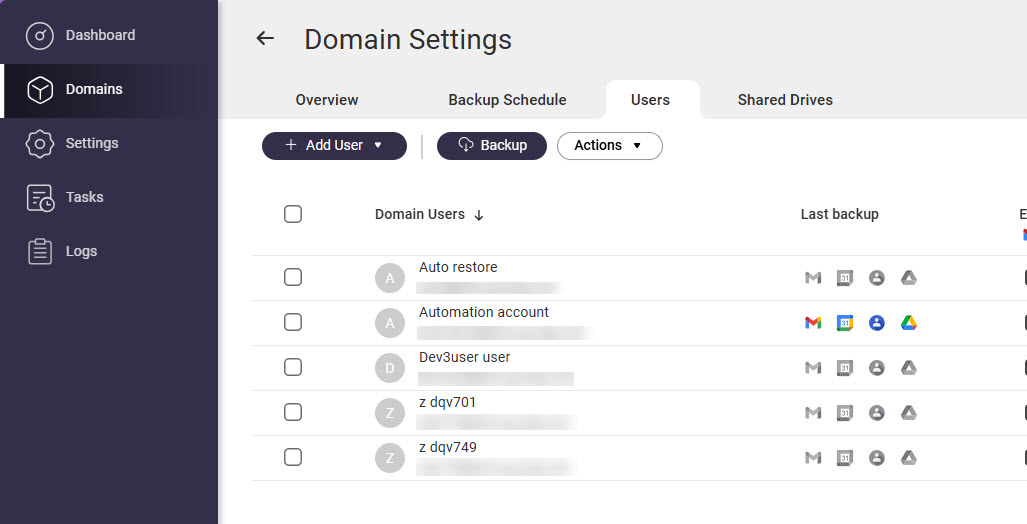 The Users page appears. Here you can view domain users added to HDP for SaaS, add additional domain users, delete domain users, export a list of domain users, assign HDP for SaaS licenses to users, and more.
Configure HDP for SaaS licenses
Backing up and restoring domain service data in HDP for SaaS requires HDP for SaaS licenses. There are free HDP for SaaS licenses available allowing you to back up and restore domain service data without purchasing any premium HDP for SaaS licenses. The free HDP for SaaS licenses available are:
| Free HDP for SaaS License Type | Description |
|---|---|
| HDP for SaaS for Google Workspace | Allows you to back up and restore the following:
|
| HDP for SaaS for Microsoft 365 | Allows you to back up and restore the following:
|
To back up domain data for additional users or services, premium HDP for SaaS licenses are required. To use a premium HDP for SaaS license, the license must be purchased, activated, and then assigned individually to domain users and services in HDP for SaaS.
Purchase and activate HDP for SaaS licenses
- Go to the QNAP Software Store and purchase premium HDP for SaaS licenses.
To back up a Google Workspace domain, a HDP for SaaS For Google Workspace license is required. To back up a Microsoft 365 domains, a HDP for SaaS for Microsoft 365 license is required. For details on purchasing licenses, see "Licenses > Buying a license using QNAP ID" in the QTS User Guide or QuTS hero User Guide. - Activate the HDP for SaaS licenses. For details, see "Licenses > License activation" in the QTS User Guide or QuTS hero User Guide..
Assign HDP for SaaS licenses to domain users
Assigning a HDP for SaaS license to a domain user allows you to back up and restore the following user data:
| Service Provider | Domain services |
|---|---|
| Google Workspace |
|
| Microsoft 365 |
|
- Open HDP for SaaS.
- Go to Domains.
- Locate the domain and click in the Action column.
The Domain Settings page opens. - Go to the Users tab.
- Select one or more users.
- Go to Actions > Licenses > Assign.
- Select a license.
- Click Select.
The selected license is assigned to the selected users.
Assign HDP for SaaS licenses to domain services
Assigning a HDP for SaaS license to a domain service allows you to back up and restore data from the service. The following services are supported:
| Service Provider | Domain services |
|---|---|
| Google Workspace |
|
| Microsoft 365 |
|
- Open HDP for SaaS.
- Go to Domains.
- Locate the domain and click in the Action column.
The Domain Settings page opens. - Go to a service tab.
- Select one or more items.
- Go to Actions > Licenses > Assign.
- Select a license.
- Click Select.
The selected license is assigned to the selected items.
Back up domain data
You can configure a backup schedule to automatically back up domain data or manually back up domain data by selecting the users to back up or by selecting the services to back up.
Manually back up domain data for selected users
- Open HDP for SaaS.
- Go to Domains.
- Locate the domain and click in the Action column.
The Domain Settings page opens. - Go to the Users tab.
- Select one or more users.
- Click
 .
.
The Backup window appears.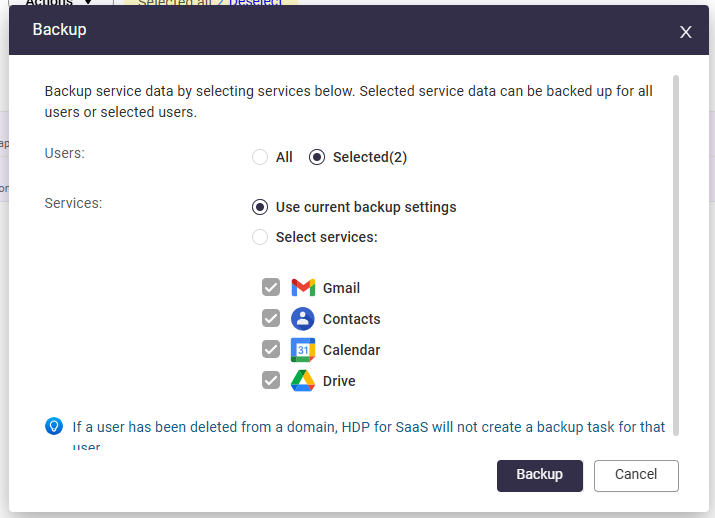
- For Services, select Select services and then select the domain services you want to back up.
- Click Backup.
HDP for SaaS creates a backup task for the selected services and selected users. You can view backup tasks in Tasks.
Manually back up domain data for selected services
- Open HDP for SaaS.
- Go to Domains.
- Locate the domain and click in the Action column.
The Domain Settings page opens. - Go to the tab of the service you want to back up. For example, if you want to back up Shared Drives, go to the Shared Drives tab.
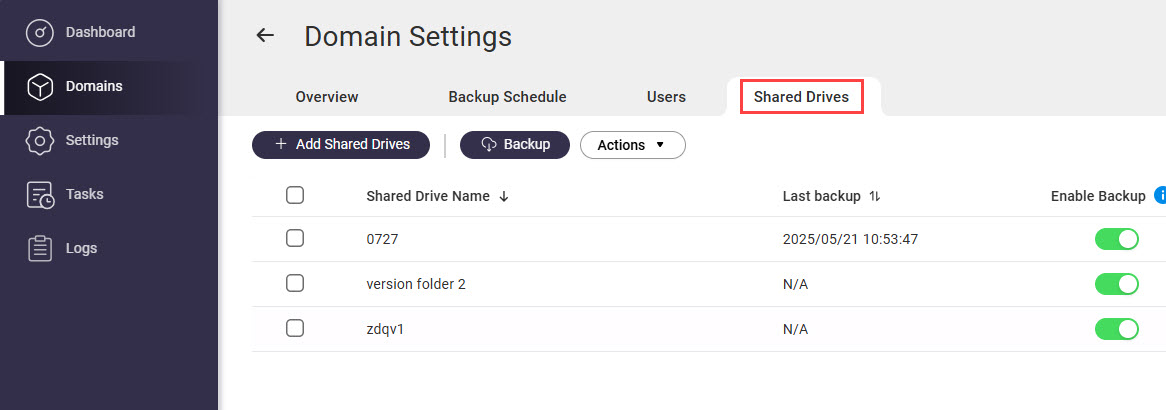
- Select one or more services.
- Click .
- Click Backup.
HDP for SaaS creates a backup task for the selected domain services. You can view backup tasks in Tasks.
Configure backup schedules for domain data
You can configure a single backup schedule for an entire domain, or configure individual schedules for each domain service.
Configure a backup schedule for a domain
- Open HDP for SaaS.
- Go to Domains.
- Locate the domain and click in the Action column.
- Go to the Backup Schedule tab.
- For Define backup schedule policy for, select All applications.
- For Backup type, select Scheduled.
- Specify the remaining settings.
- Click Update.
- Optional: Exclude users from scheduled backups.
- Go to Users.
- Locate a user.
- In the Enable Backup column, disable the domain services for the user you don't want to be included in the scheduled backup.
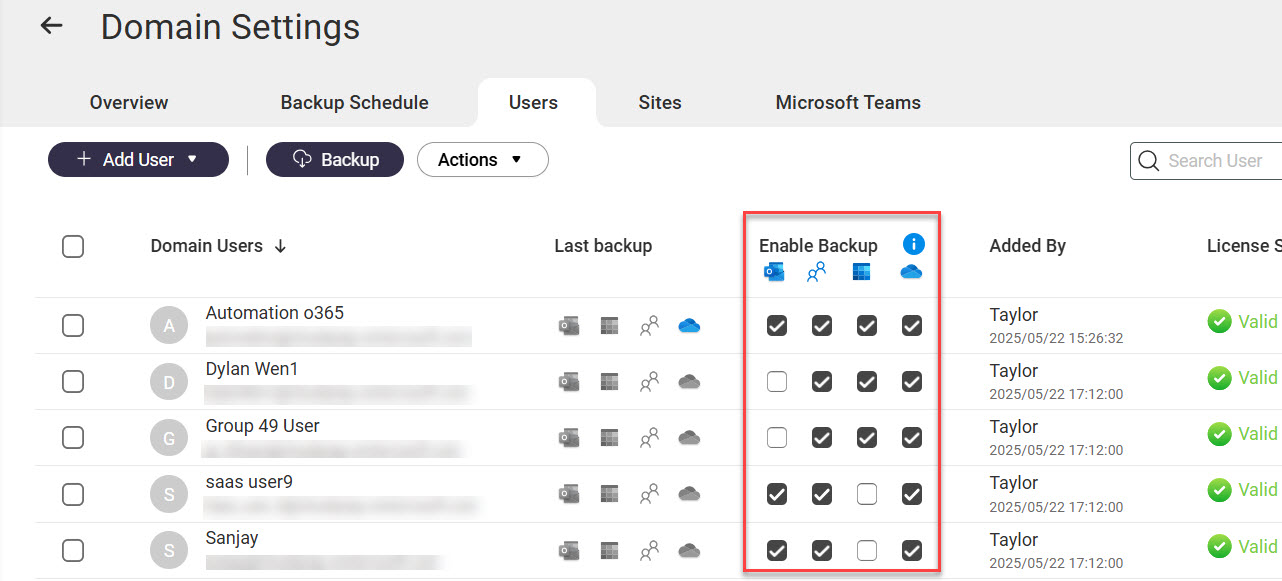
- Optional: Exclude domain services from scheduled backups.
- Go to the tab of the service you want to back up. For example, the Shared Drives tab.
- Locate the services.
- In the Enable Backup column, disable the toggle to exclude the service from scheduled backups.
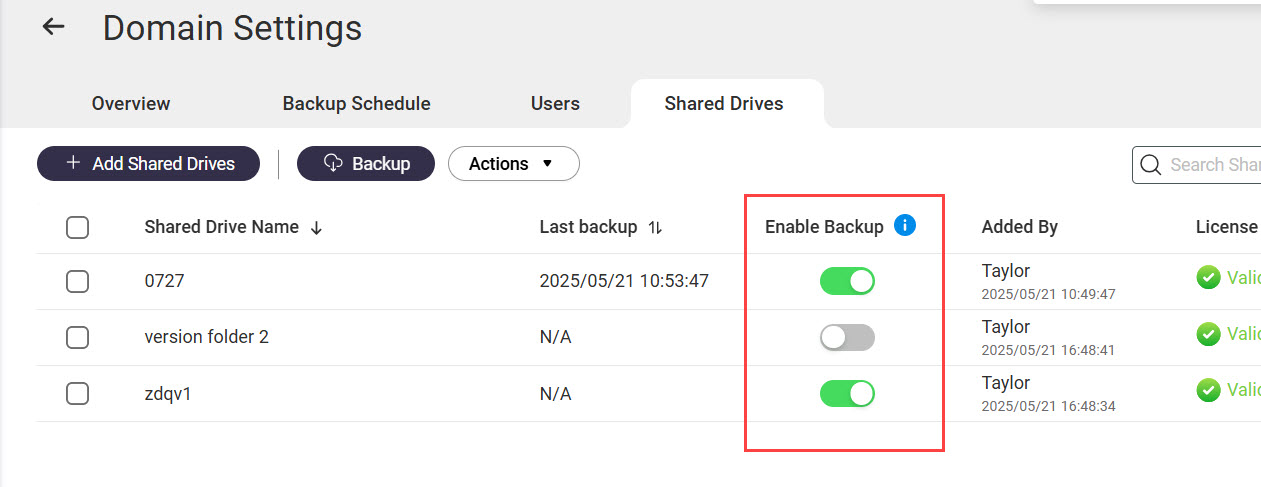
Configure individual backup schedules for domain services
- Open HDP for SaaS.
- Go to Domains.
- Locate the domain and click in the Action column.
- Go to the Backup Schedule tab.
- For Define backup schedule policy for, select Individual applications.
A confirmation window appears. - Click OK.
- Go to the tab of the service you want to back up.
- For Backup type, select Scheduled.
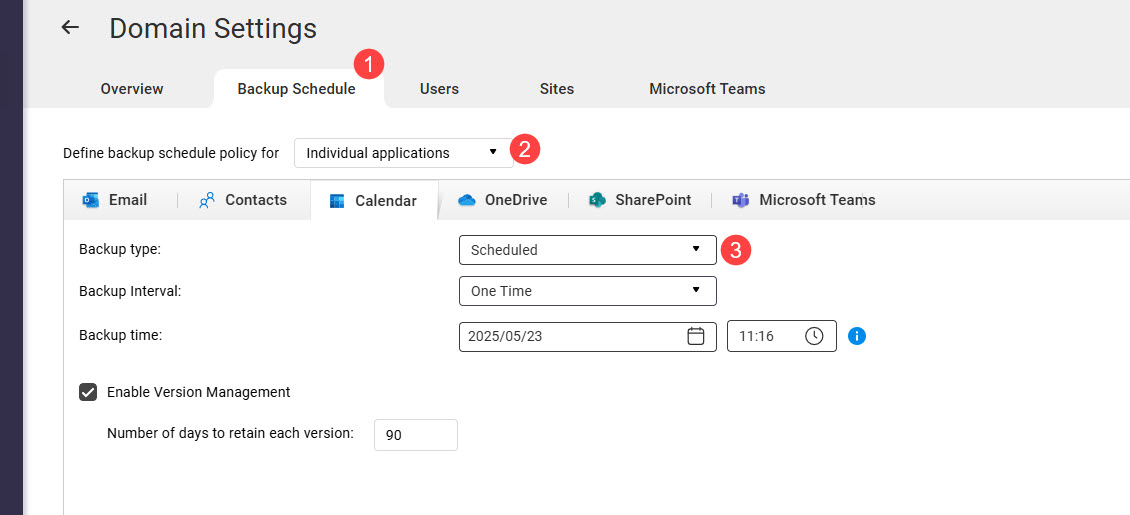
- Specify the remaining settings.
- Click Update.
Manage backed-up domain data
Domain data backed up in HDP for SaaS can be viewed, restored, and exported.
View backed-up domain data
- Open HDP for SaaS.
- Go to Domains.
- Click on a domain name.
- Go to one of the service tabs.
- In the top right corner, select an item.
The backed-up service data is displayed. Different services will display data differently and provide different user actions.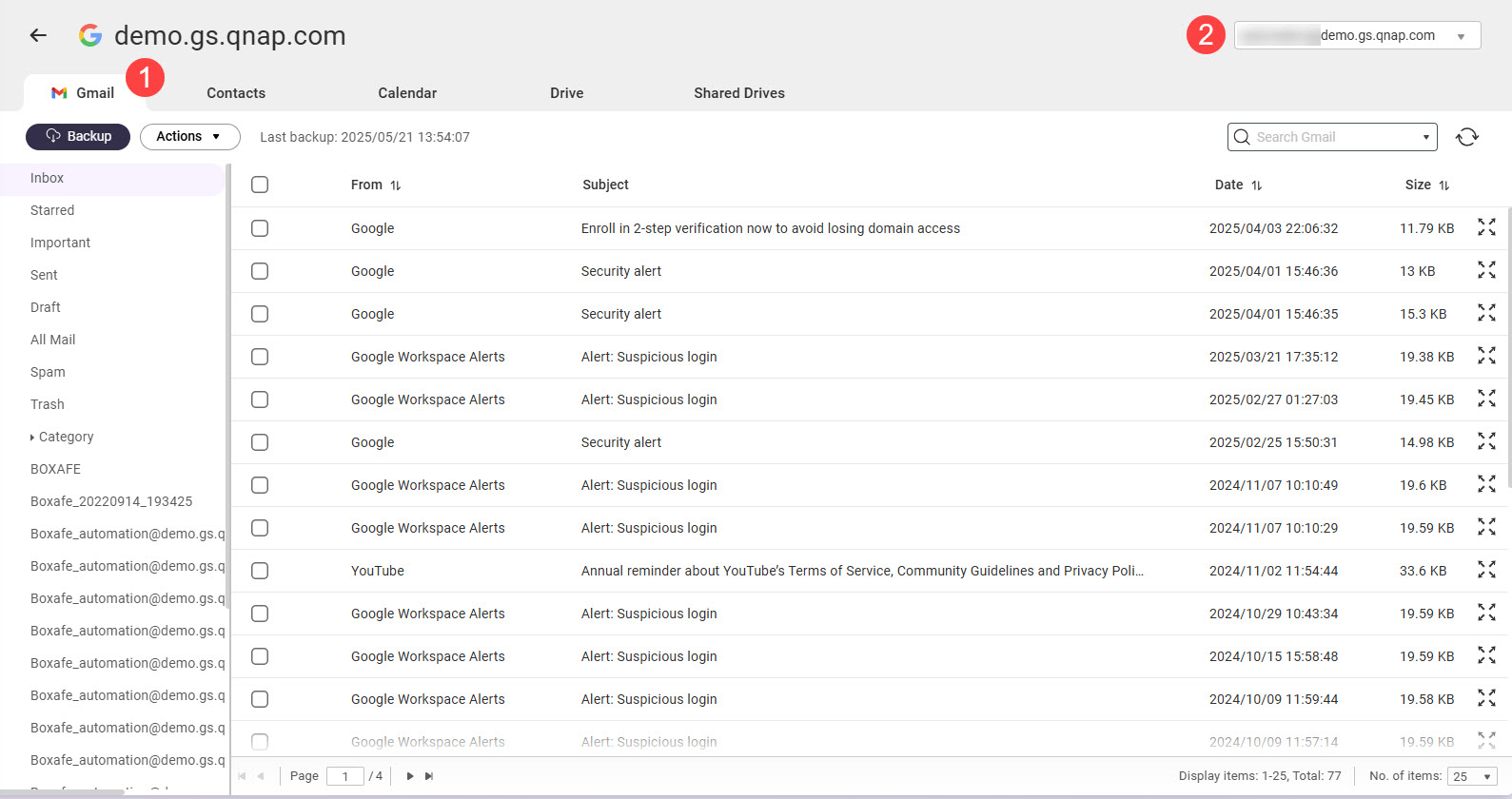
Restore backed-up domain data
- Open HDP for SaaS.
- Go to Domains.
- Click on a domain name.
- Go to one of the service tabs.
- In the top right corner, select an item.
- For Version, select a backup version.
- Select one or more items.
- Go to Actions > Restore.
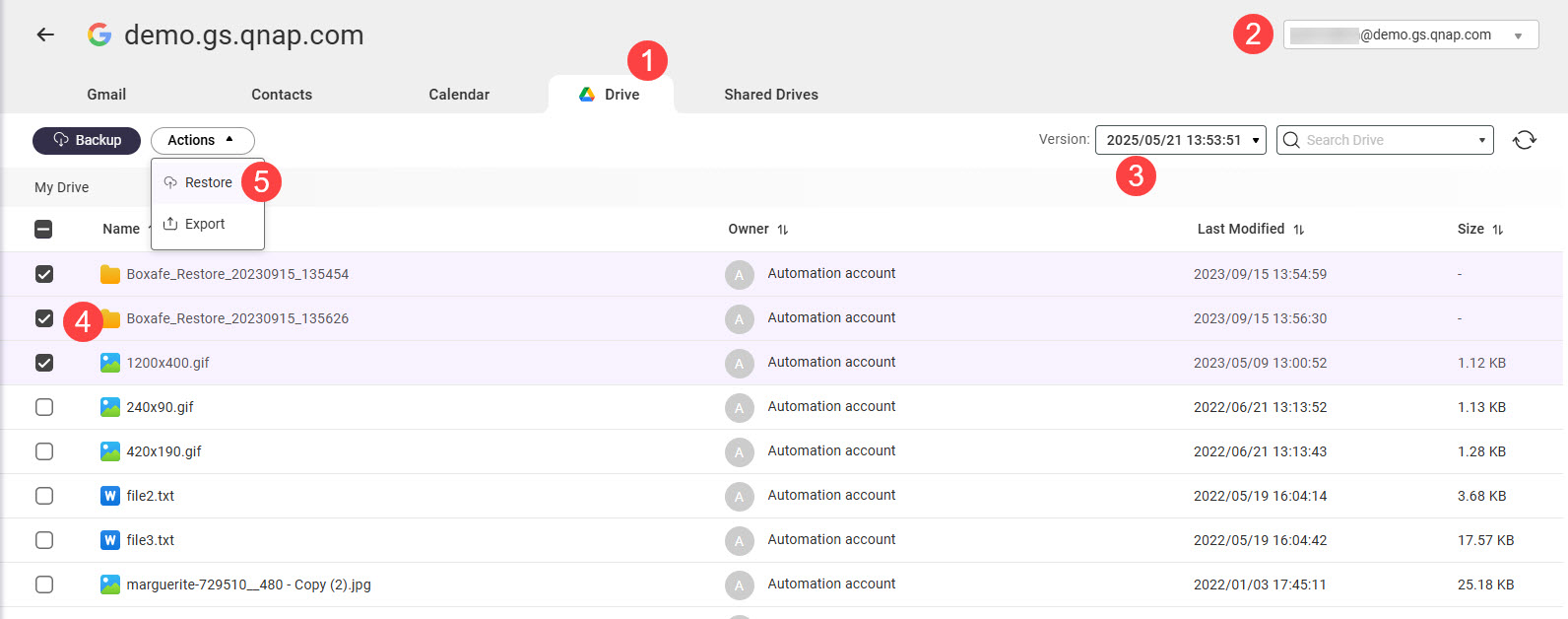 The Restore window opens.
 - Specify restore settings.
- Click Restore.
HDP for SaaS creates a task to restore the selected data.
Export backed-up domain data
- Open HDP for SaaS.
- Go to Domains.
- Click on a domain name.
- Go to one of the service tabs.
- In the top right corner, select an item.
- For Version, select a backup version.
- Select one or more items.
- Go to Actions > Export.
The Export window opens. - For Export to, select one of the following options:
- NAS (where HDP for SaaS is hosted): HDP for SaaS saves the exported data to the location specified by Export path.
- Download to local computer: Your browser downloads the exported data.
- Specify remaining export settings.
- Click Export.
A confirmation window opens. - Click Continue.
HDP for SaaS exports the selected data.
Manage HDP for SaaS tasks
HDP for SaaS creates tasks to perform long-running actions such as backing up data. You can manage tasks in Tasks.
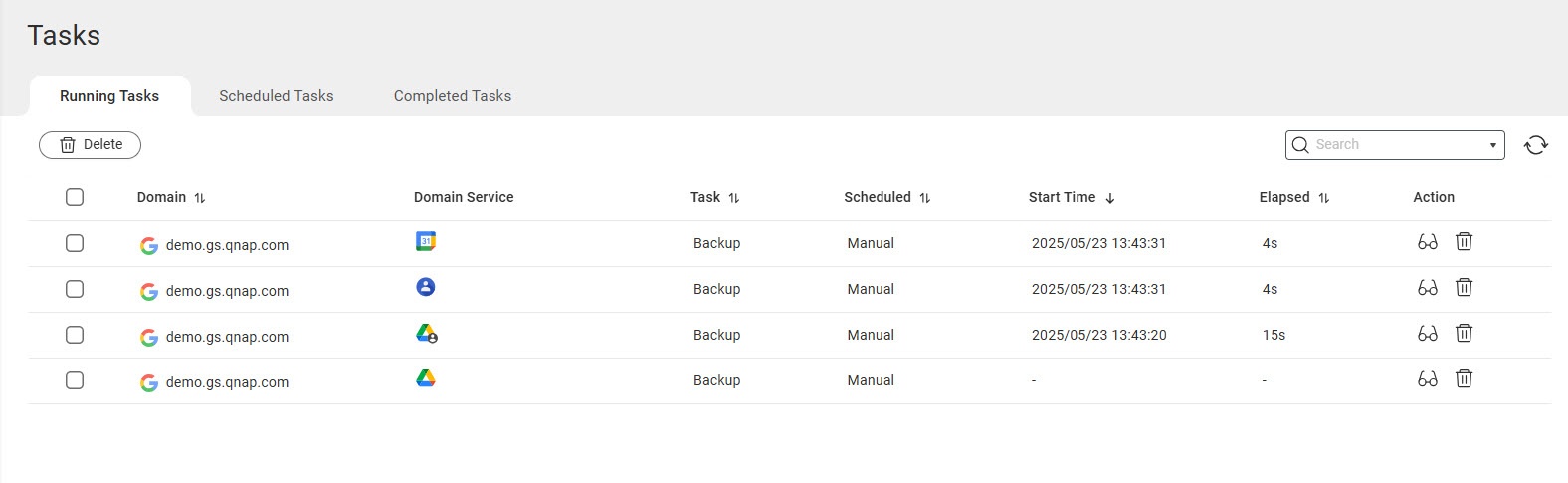
There are three types of tasks:
- Running tasks: Tasks that HDP for SaaS is currently performing
- Scheduled tasks: Tasks that HDP for SaaS will perform soon
- Completed tasks: Tasks that HDP for SaaS recently completed
Stop running tasks
- Open HDP for SaaS.
- Go to Tasks.
- Go to the Running Tasks tab.
- Locate a task and click
 .
.
A confirmation window appears.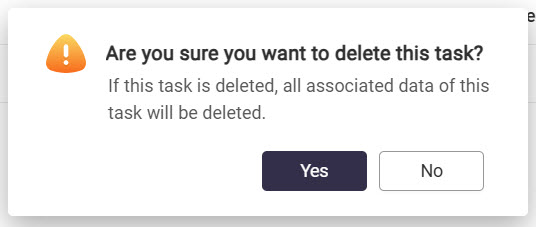
- Click Yes.
View subtasks of a task
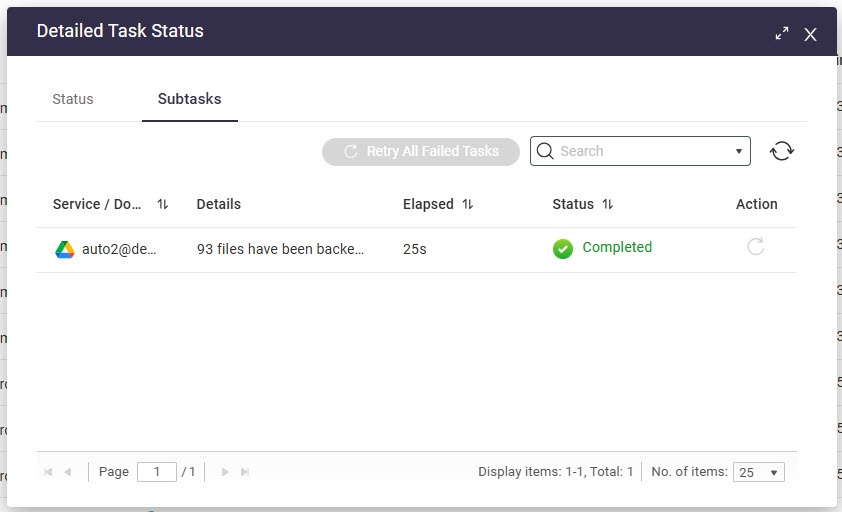
When a backup/restore task is created, a subtask for each domain service will be created to perform the action. You can view the status of a task's subtasks and retry failed subtasks.
- Open HDP for SaaS.
- Go to Tasks.
- Go to the Running Tasks or Completed Tasks tab.
- Locate a task and click
 .
.
The Detailed Task Status window appears. - Go to the Subtasks tab.
Further reading and resources
- HDP for SaaS: QNAP product page for HDP for SaaS
- Knowledge Base: Searchable database of FAQs, tutorials, and web helps
- QNAP College: Instructional video tutorials
- QTS User Guide: Web help for the latest version of QTS
- QuTS hero User Guide: Web help for the latest version of QuTS hero
For further assistance, ask other users and QNAP experts in the community. Go to QNAP Community


