Applicable Products
QTS, QuTS hero, HBS3 (Hybrid Backup Sync 3)
Overview
As businesses increasingly adopt cloud services like Microsoft 365 and OneDrive for Business, it's important to have a reliable backup strategy to protect your cloud-stored data. While cloud providers offer some level of redundancy, they do not replace the need for dedicated backup, especially when dealing with accidental deletions, ransomware, or compliance requirements.
QNAP offers a comprehensive backup solution through Hybrid Backup Sync (HBS3), which allows users to seamlessly back up, restore, and synchronize data across local NAS, remote servers, and popular cloud platforms. HBS3 provides solutions for backup, restoration, and synchronization across local, remote, and cloud storage. HBS3 also allows you to protect your NAS data by backing it up to supported cloud services like OneDrive for Business — and in some configurations, also retrieving data from the cloud back to the NAS.
Procedure
Follow these steps to back up data from the QNAP NAS to Microsoft OneDrive for Business using HBS3:
Step 1: Add OneDrive for Business as a Storage Space
Open HBS3 in the App Center or from the Main Menu.
In the left panel, go to Storage Spaces, and click + Add.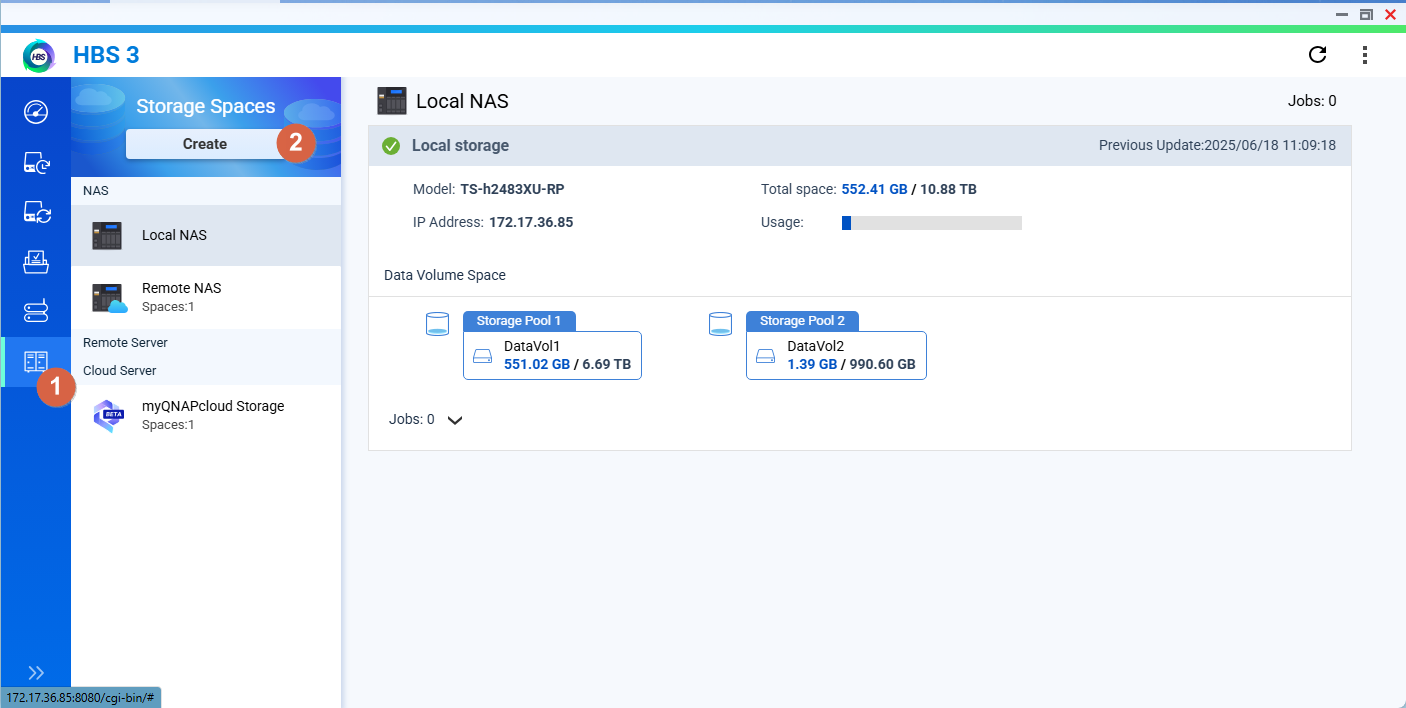
Choose OneDrive for Business from the list of supported cloud services.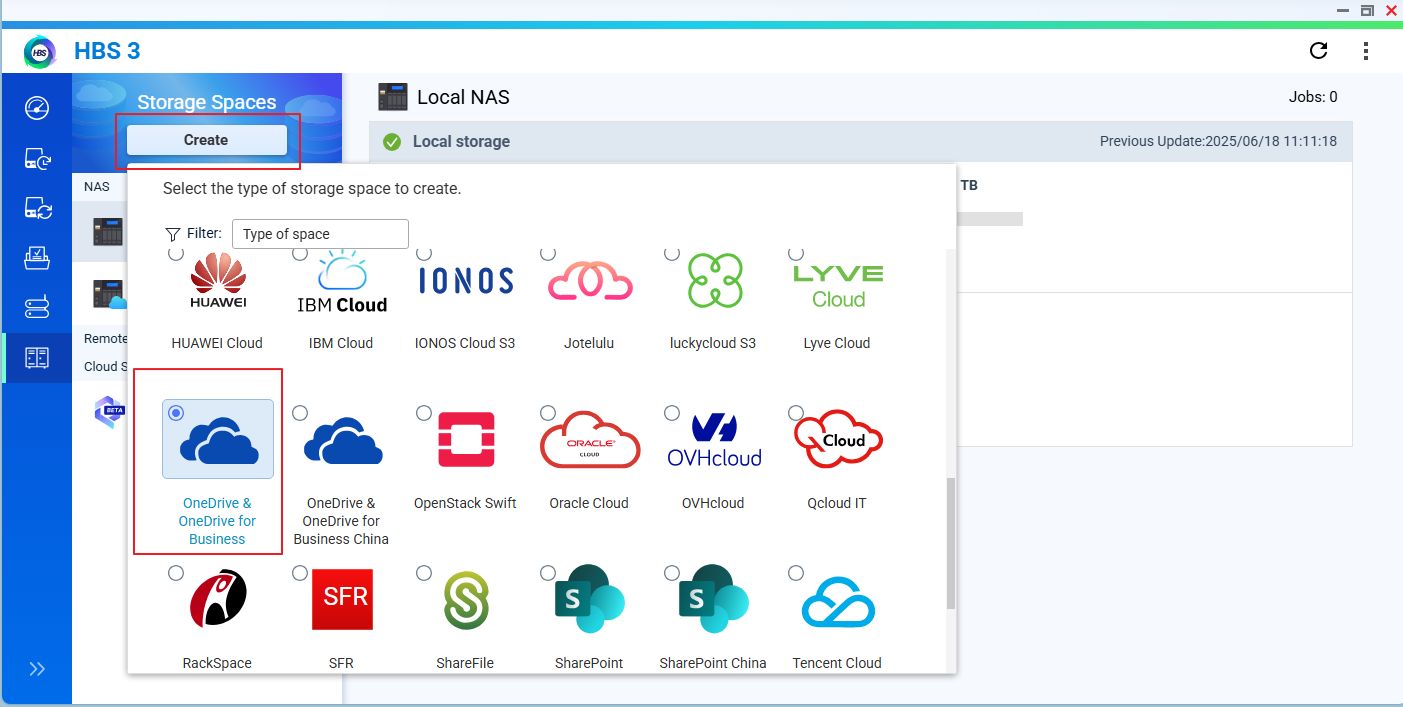
Sign in with your Microsoft 365 account and grant necessary permissions.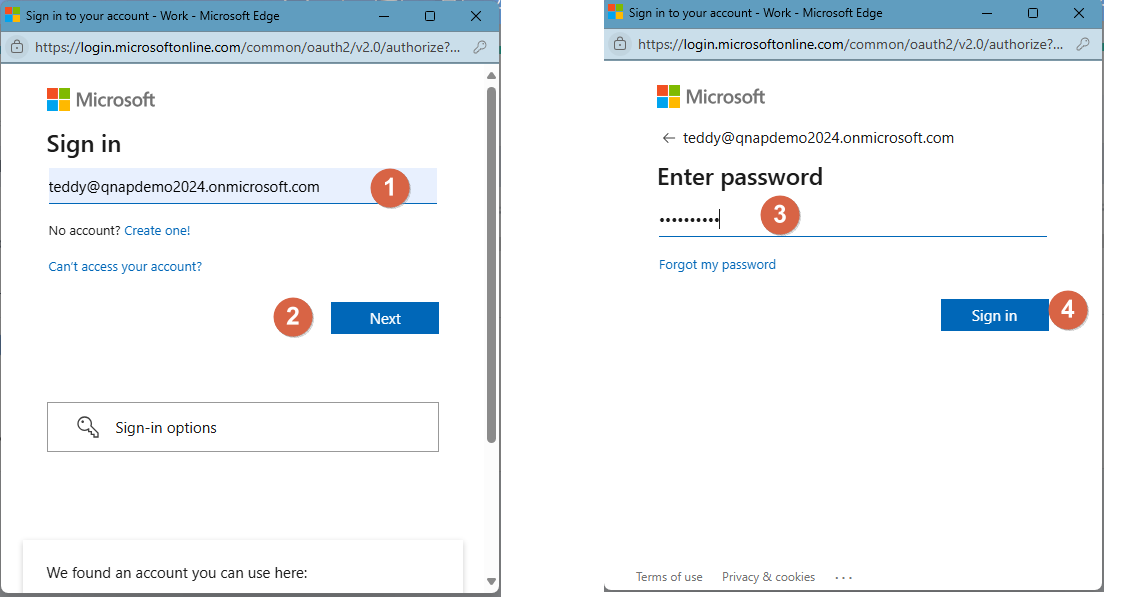
After authentication, OneDrive for Business will appear as a cloud storage destination.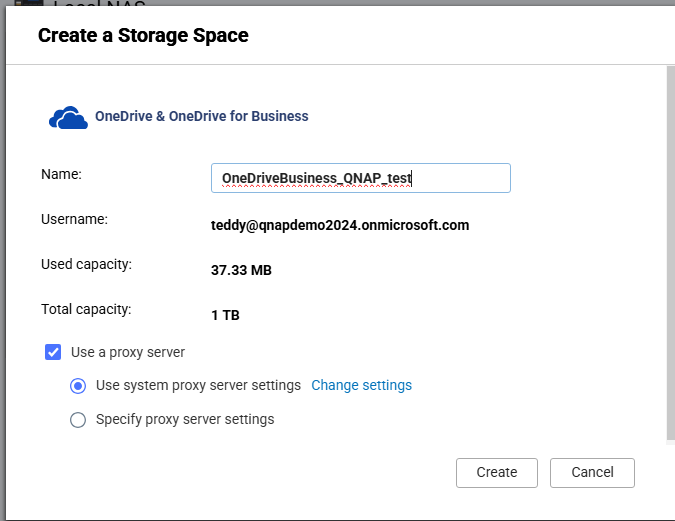
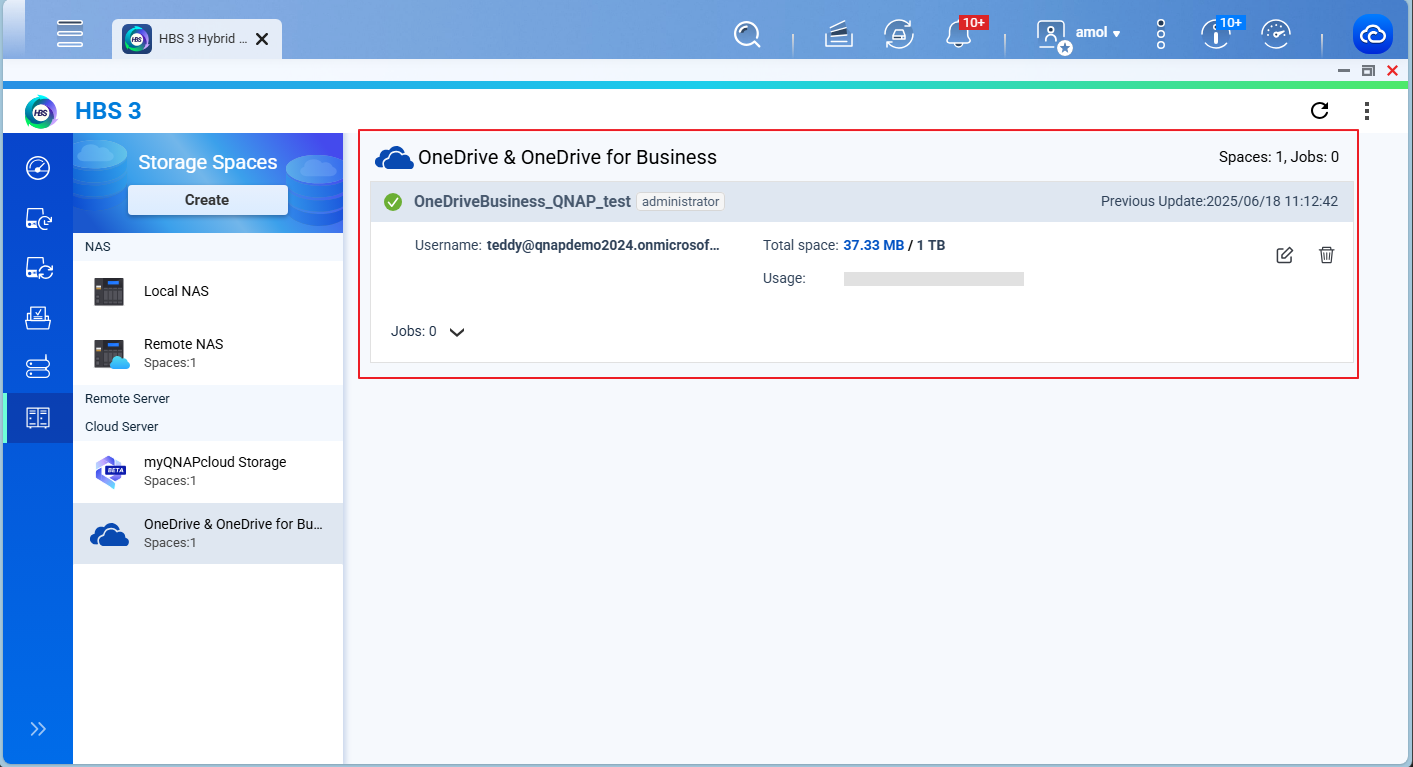
Step 2: Create a Backup Job
Go to Backup & Restore > Backup Job > New Backup Job.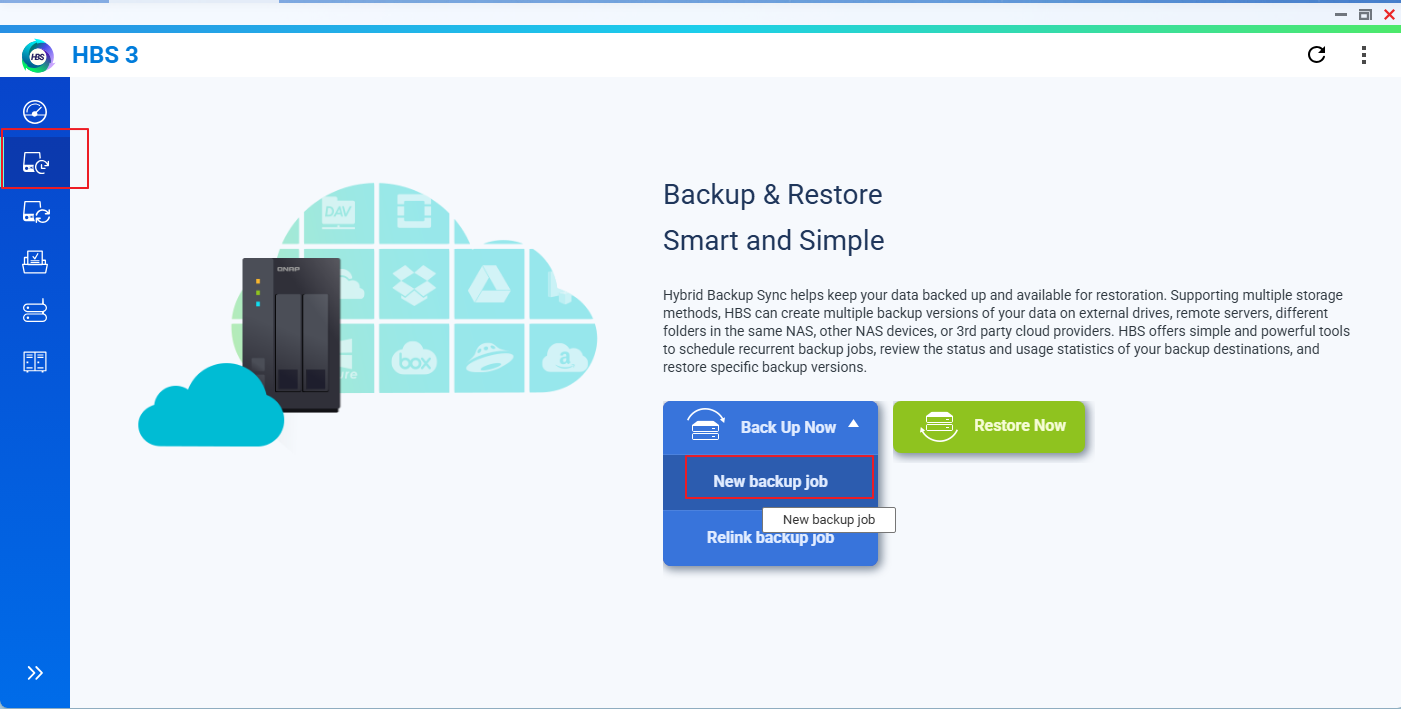
Select the source folders on your NAS that you want to back up.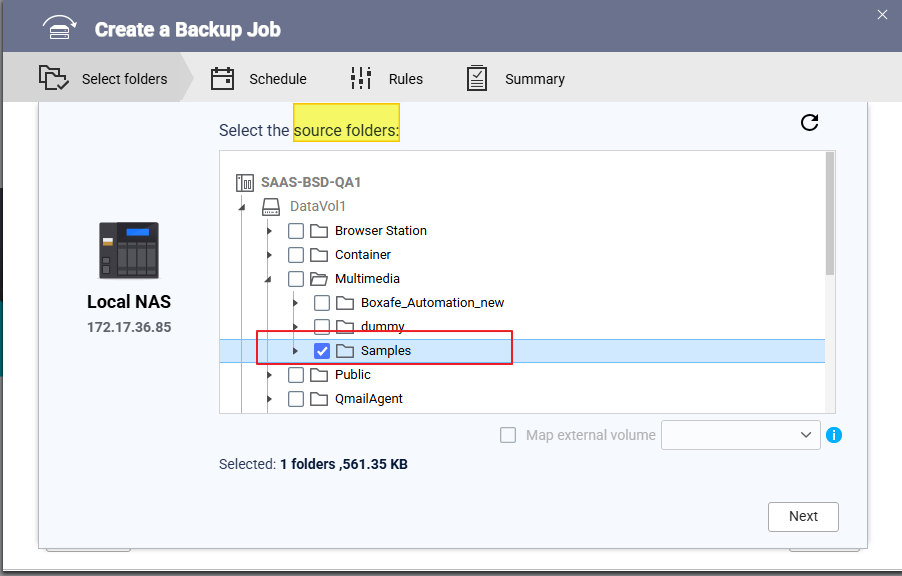
Choose OneDrive for Business as the destination.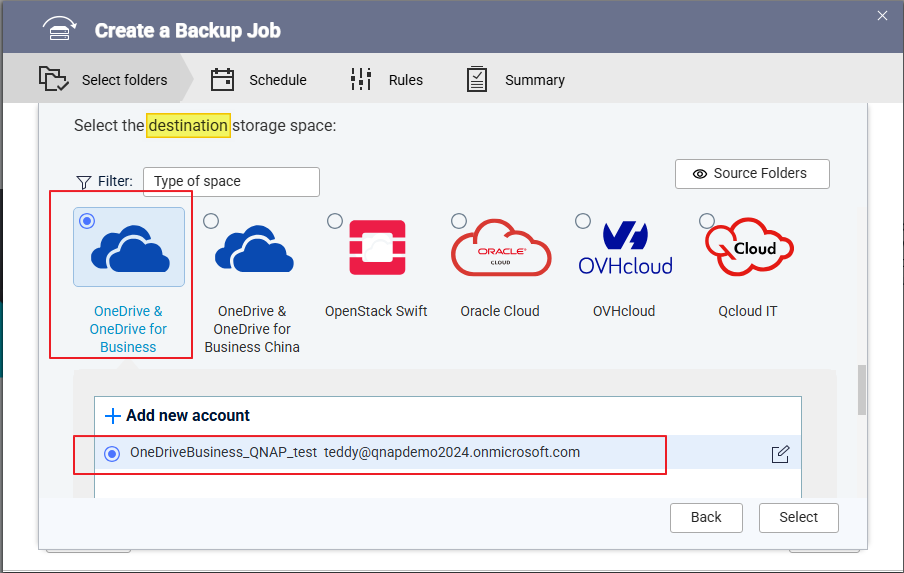
Verify source and destination details and enter an appropriate Job Name. Click Next.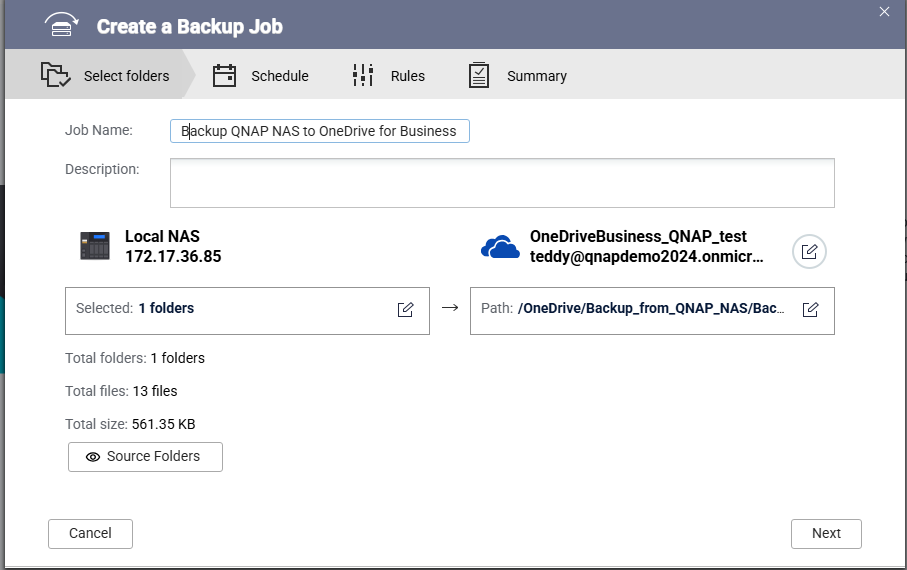
(Optional) Configure additional options such as:
Click Create to save and activate the backup job.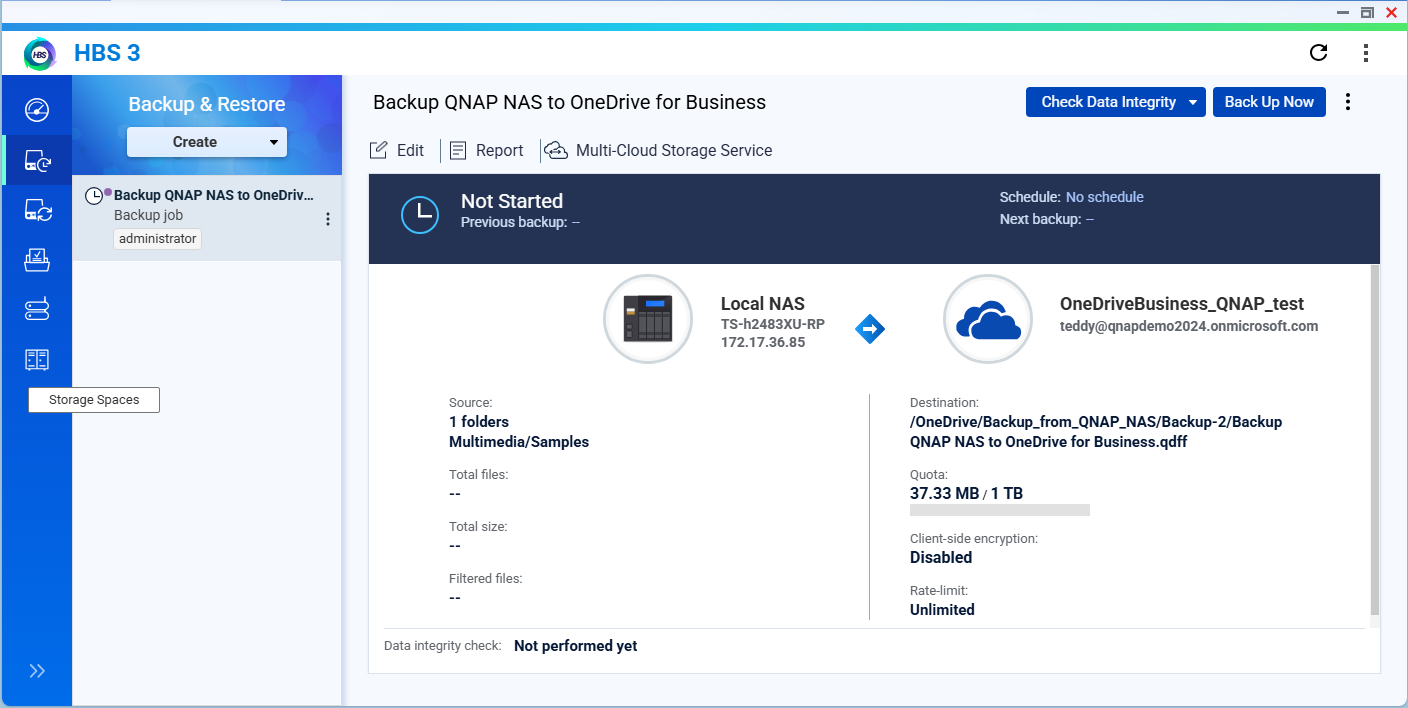
Step 3: Run the Backup Job
You can run the backup job immediately or only run the job based on a specified schedule. 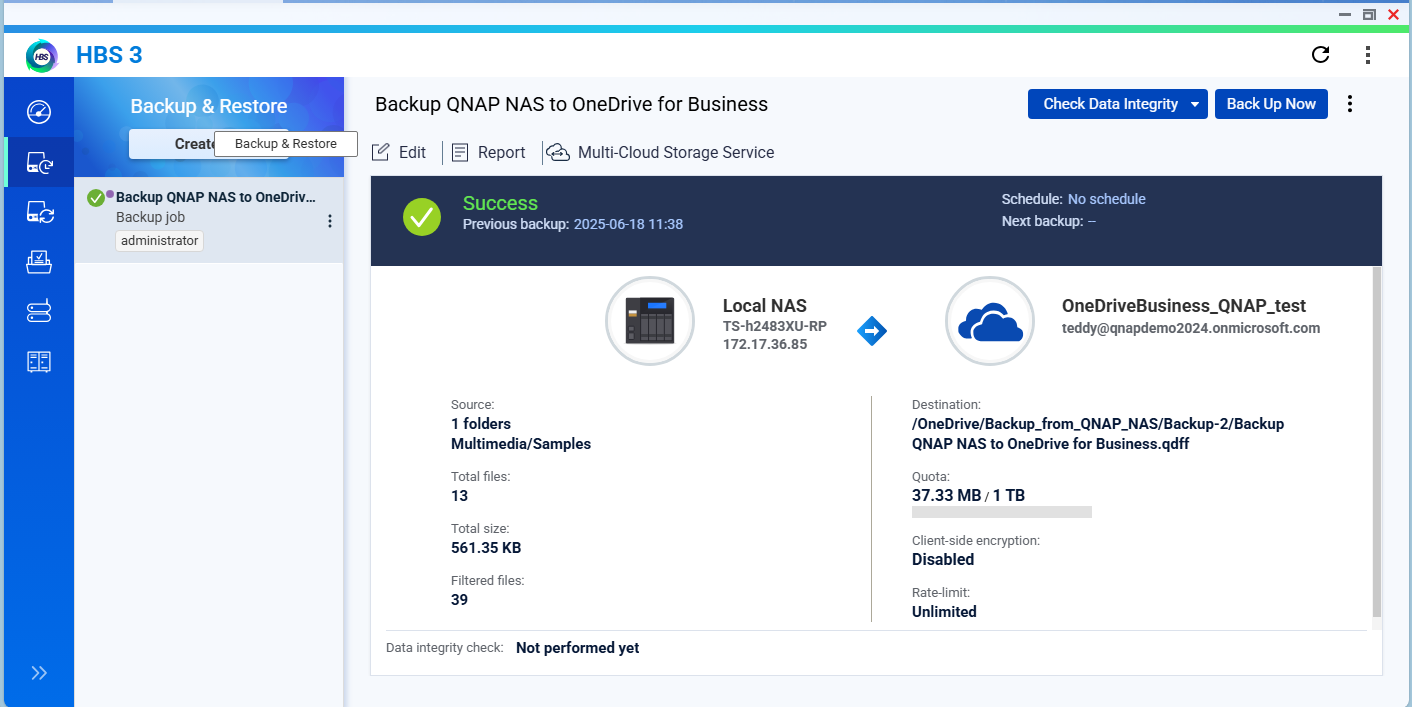
After job completion, you may log in to the OneDrive for Business portal and check whether the data is backed up successfully. 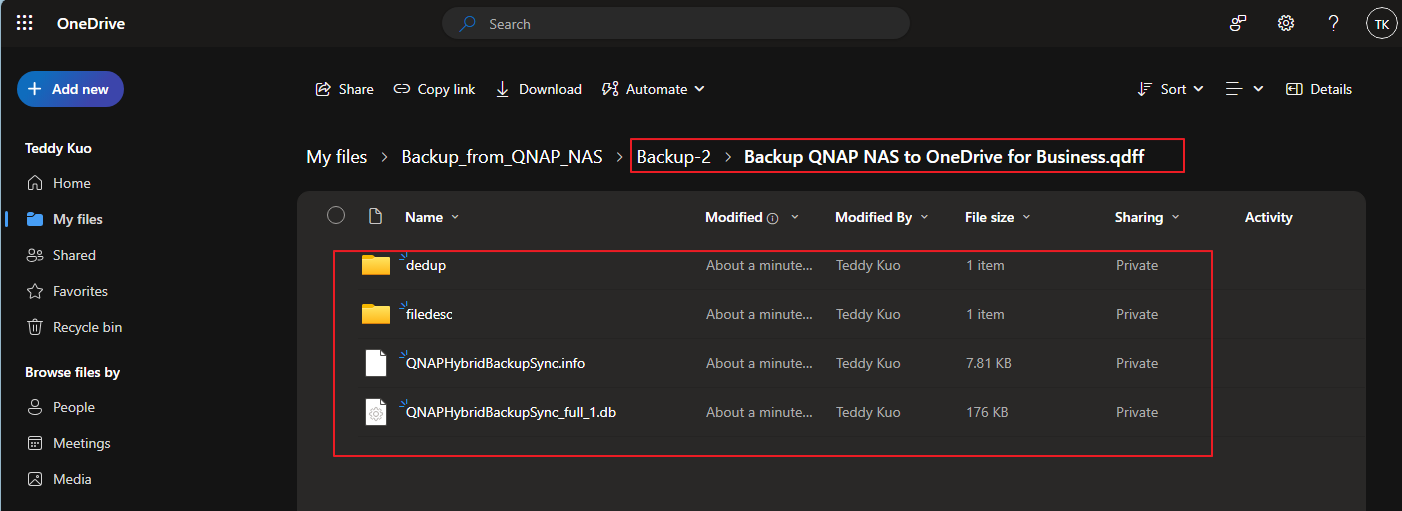
Tip
You may also explore options to use QNAP
HDP for SaaS to back up data from OneDrive for Business to QNAP NAS if you have such requirements.
Further Reading
Scenarios for Using Active Sync in HBS 3
適用產品
QTS、QuTS hero、HBS3 (Hybrid Backup Sync 3)
概述
隨著企業越來越多地採用 Microsoft 365 和 OneDrive for Business 等雲端服務,擁有可靠的備份策略以保護雲端儲存的資料變得非常重要。雖然雲端供應商提供一定程度的冗餘,但它們並不能取代專用備份的需求,尤其是在處理意外刪除、勒索軟體或合規要求時。
QNAP 提供全面的備份解決方案,透過Hybrid Backup Sync (HBS3),讓使用者能夠無縫備份、還原和同步本地 NAS、遠端伺服器和流行雲端平台上的資料。HBS3 提供 本地、遠端和雲端儲存空間的備份、還原和同步解決方案。HBS3 也允許您透過備份至支援的雲端服務(如 OneDrive for Business)來保護 NAS 資料,並在某些配置中,將雲端資料取回 NAS。
程式
按照以下步驟使用 HBS3 將 QNAP NAS 的資料備份到 Microsoft OneDrive for Business:
步驟 1:將 OneDrive for Business 添加為儲存空間空間
在 App Center 或主選單中打開 HBS3。
在左側面板中,前往儲存空間空間,然後點選 + 新增。
選擇OneDrive for Business從支援的雲端服務列表中。
使用您的 Microsoft 365 帳戶登入並授予必要的許可權。
驗證後,OneDrive for Business 將顯示為雲端儲存空間目的地。
步驟 2:建立備份工作
前往備份與還原 > 備份工作 > 新備份工作。
選擇來源資料夾在您想要備份的 NAS 上。
選擇OneDrive for Business作為目的地。
驗證來源和目的地詳細資訊並輸入適當的工作名稱。按一下下一步。
(可選)配置其他選項,例如:
按一下建立以儲存並啟動備份工作。
步驟 3:執行備份工作
提示
如果有需求,您也可以探索使用 QNAP
HDP for SaaS將 OneDrive for Business 的資料備份到 QNAP NAS 的選項。
進一步閱讀
在 HBS 3 中使用 Active Sync 的情境


