Applicable Products
QTS, QuTS hero, HBS3 (Hybrid Backup Sync 3)
Overview
As businesses increasingly adopt cloud services like Microsoft 365 and OneDrive for Business, it's important to have a reliable backup strategy to protect your cloud-stored data. While cloud providers offer some level of redundancy, they do not replace the need for dedicated backup, especially when dealing with accidental deletions, ransomware, or compliance requirements.
QNAP offers a comprehensive backup solution through Hybrid Backup Sync (HBS3), which allows users to seamlessly back up, restore, and synchronize data across local NAS, remote servers, and popular cloud platforms. HBS3 provides solutions for backup, restoration, and synchronization across local, remote, and cloud storage. HBS3 also allows you to protect your NAS data by backing it up to supported cloud services like OneDrive for Business — and in some configurations, also retrieving data from the cloud back to the NAS.
Procedure
Follow these steps to back up data from the QNAP NAS to Microsoft OneDrive for Business using HBS3:
Step 1: Add OneDrive for Business as a Storage Space
Open HBS3 in the App Center or from the Main Menu.
In the left panel, go to Storage Spaces, and click + Add.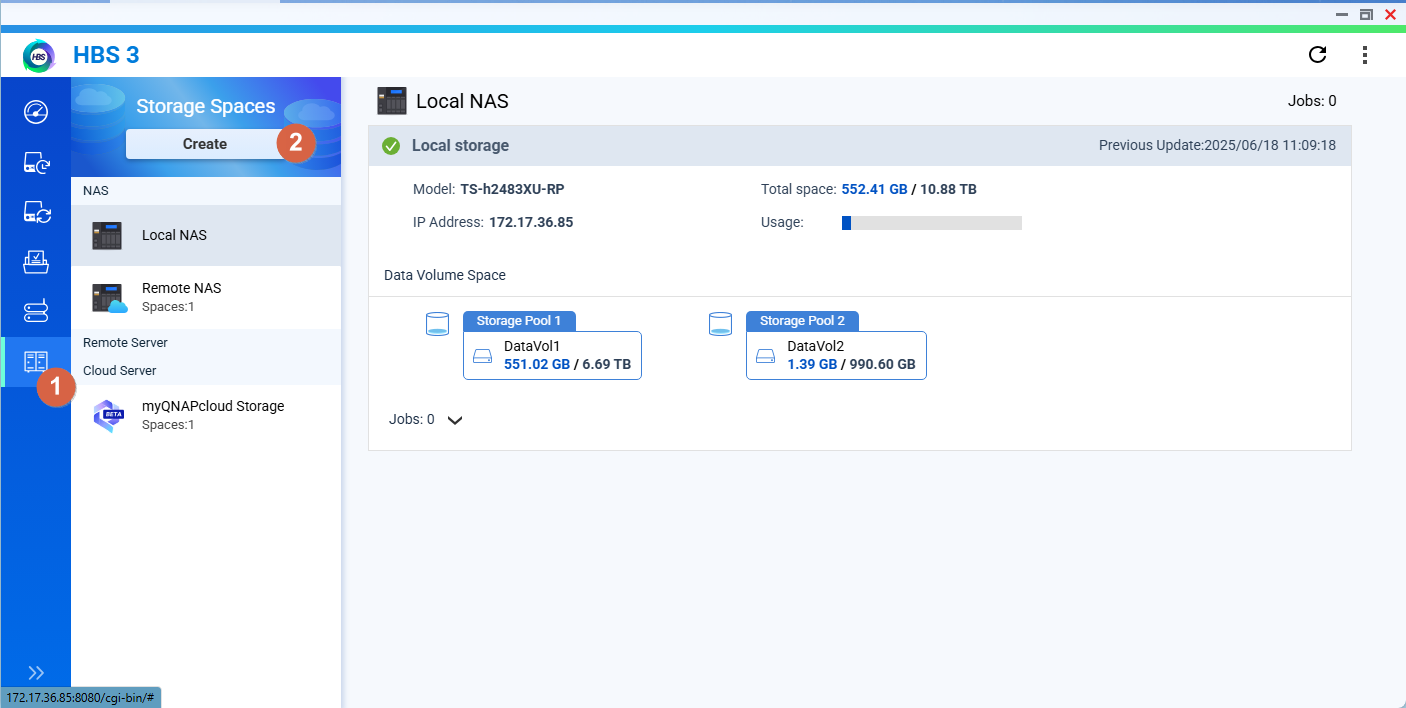
Choose OneDrive for Business from the list of supported cloud services.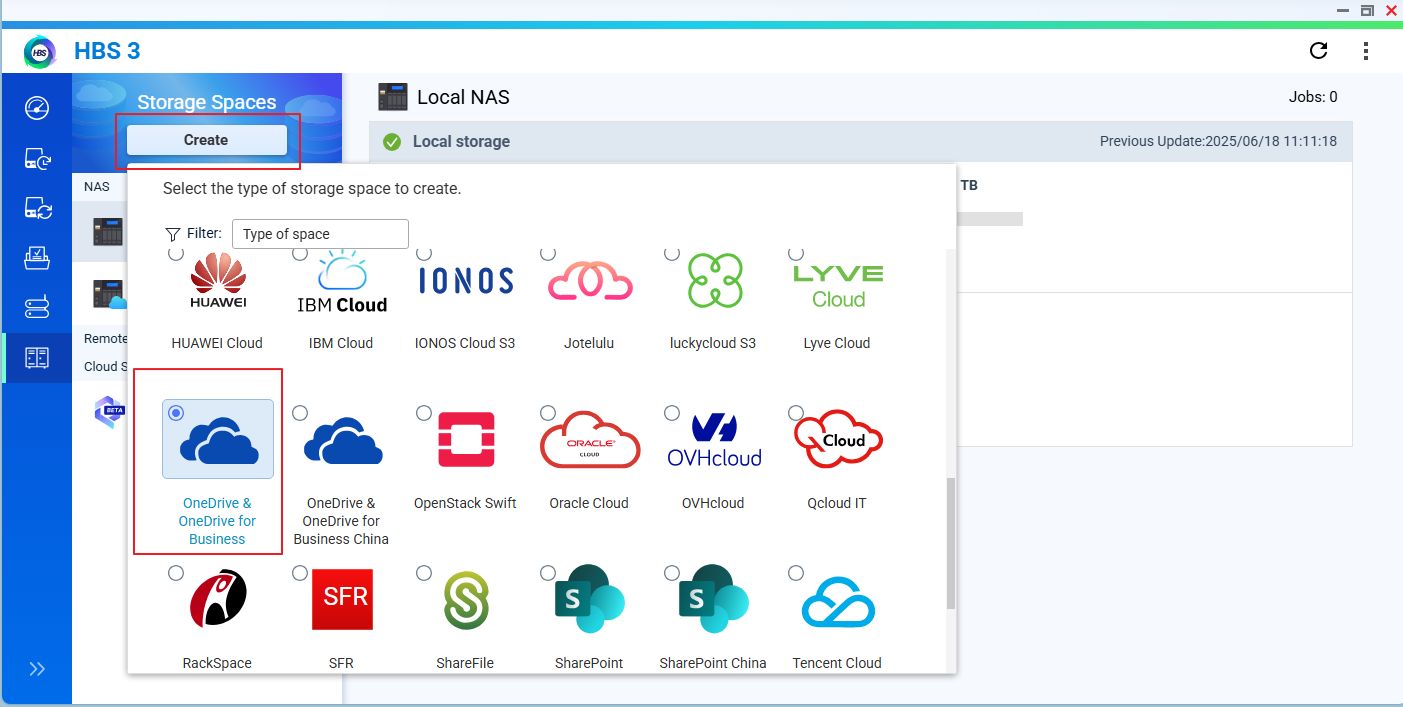
Sign in with your Microsoft 365 account and grant necessary permissions.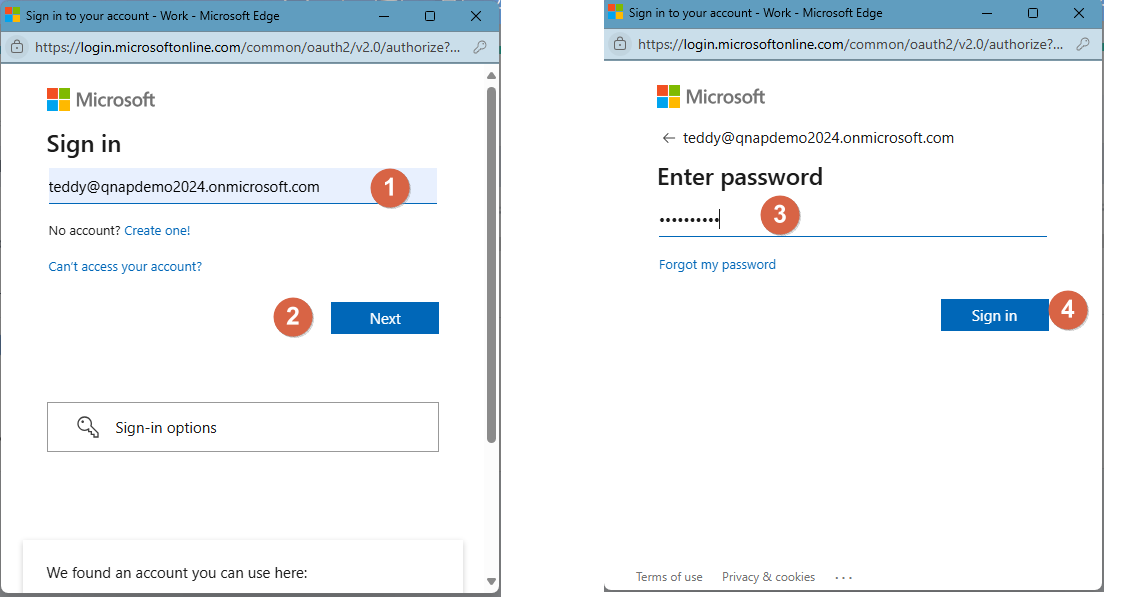
After authentication, OneDrive for Business will appear as a cloud storage destination.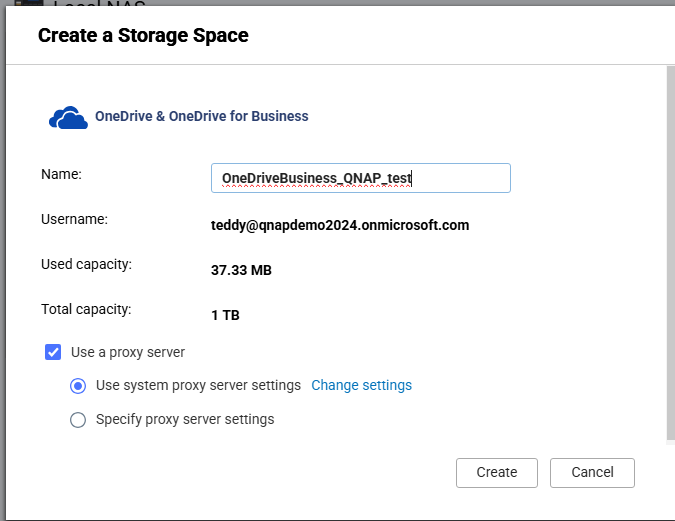
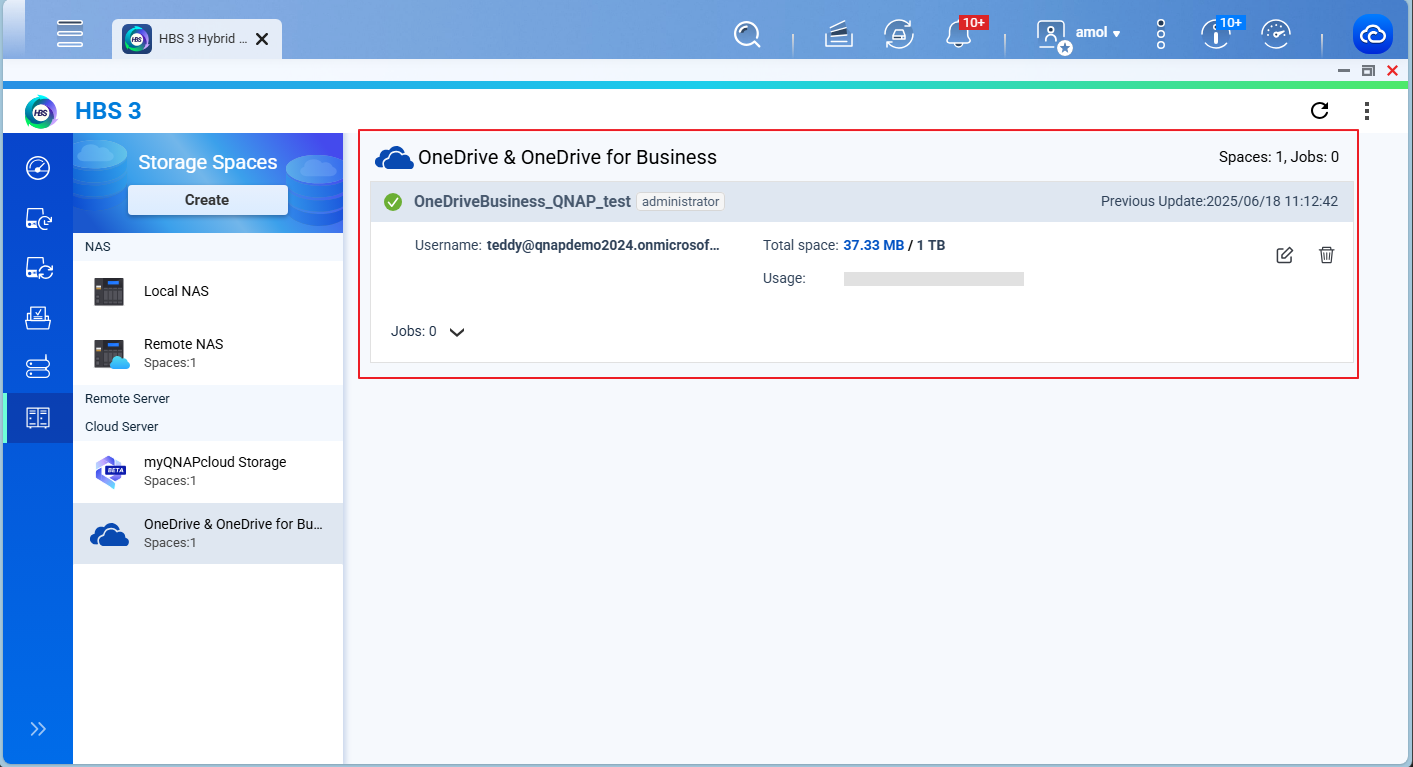
Step 2: Create a Backup Job
Go to Backup & Restore > Backup Job > New Backup Job.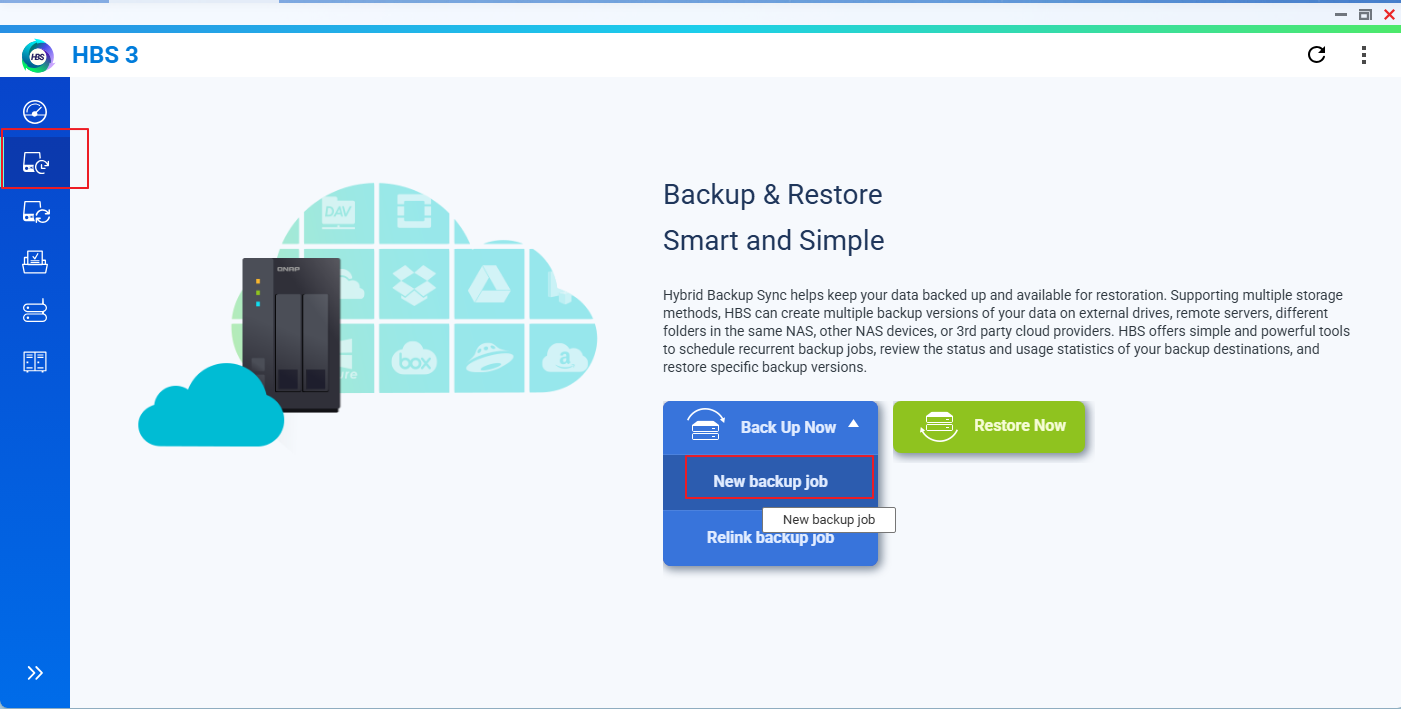
Select the source folders on your NAS that you want to back up.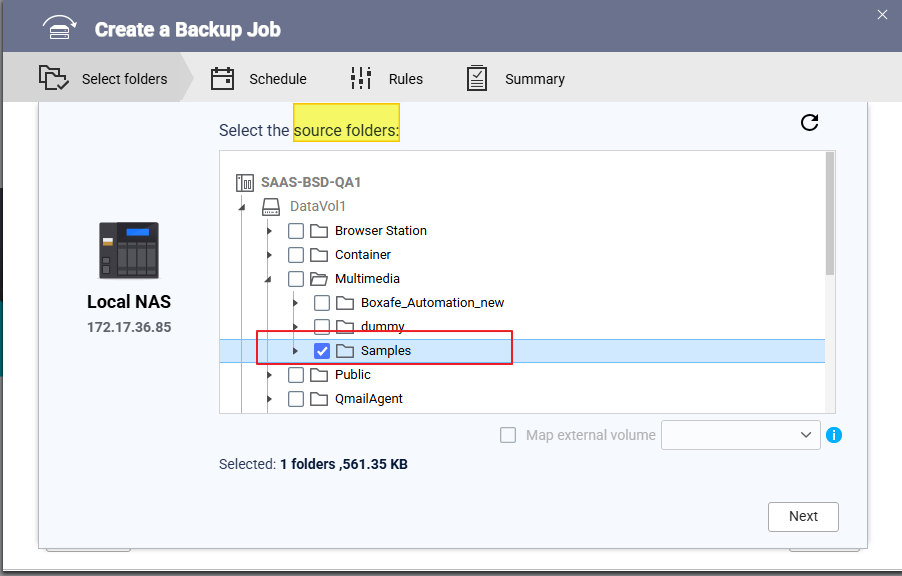
Choose OneDrive for Business as the destination.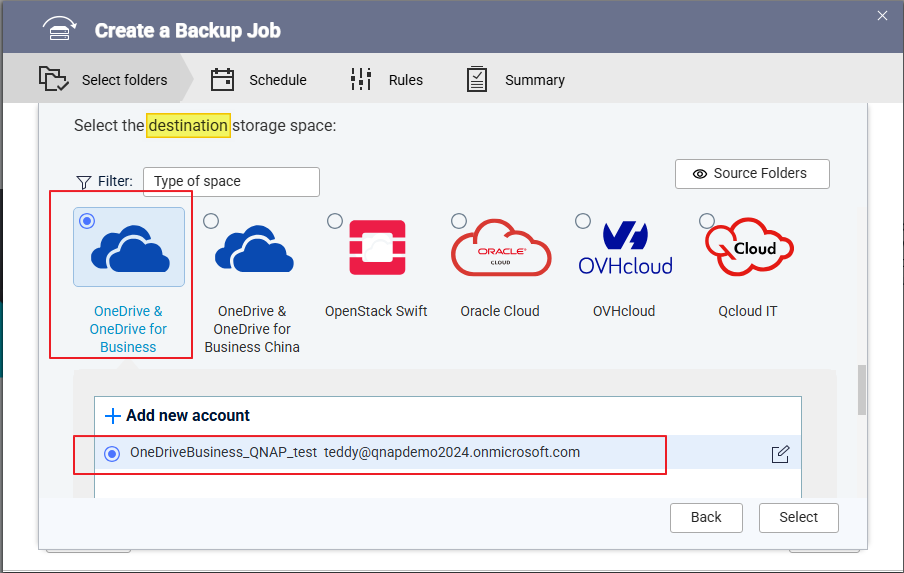
Verify source and destination details and enter an appropriate Job Name. Click Next.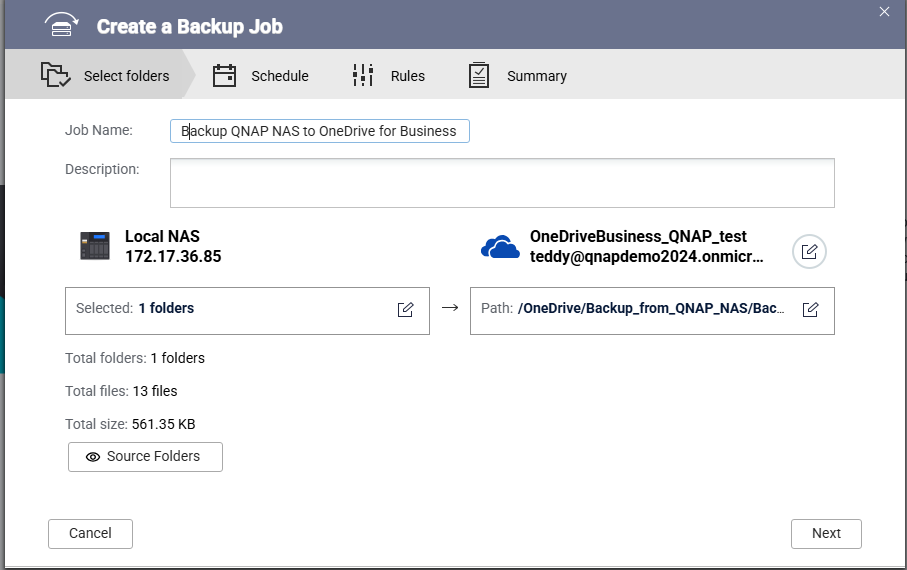
(Optional) Configure additional options such as:
Click Create to save and activate the backup job.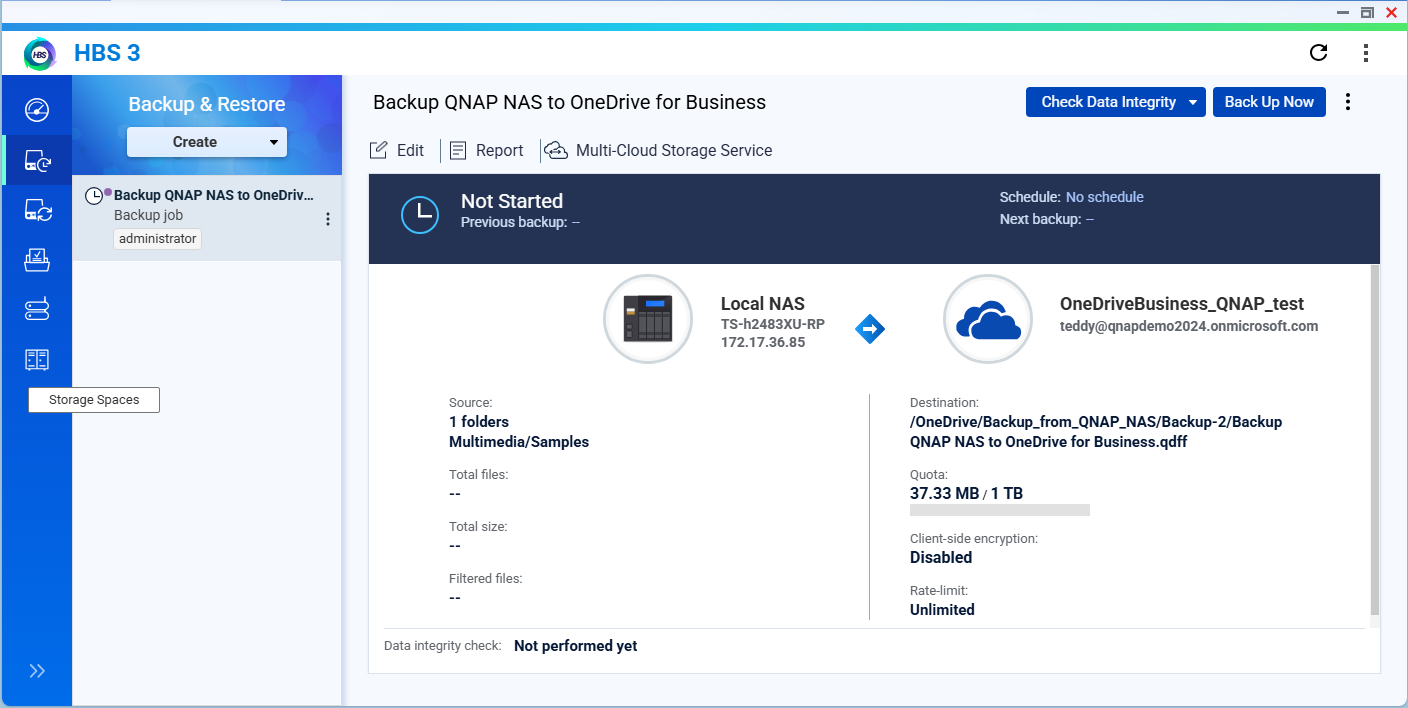
Step 3: Run the Backup Job
You can run the backup job immediately or only run the job based on a specified schedule. 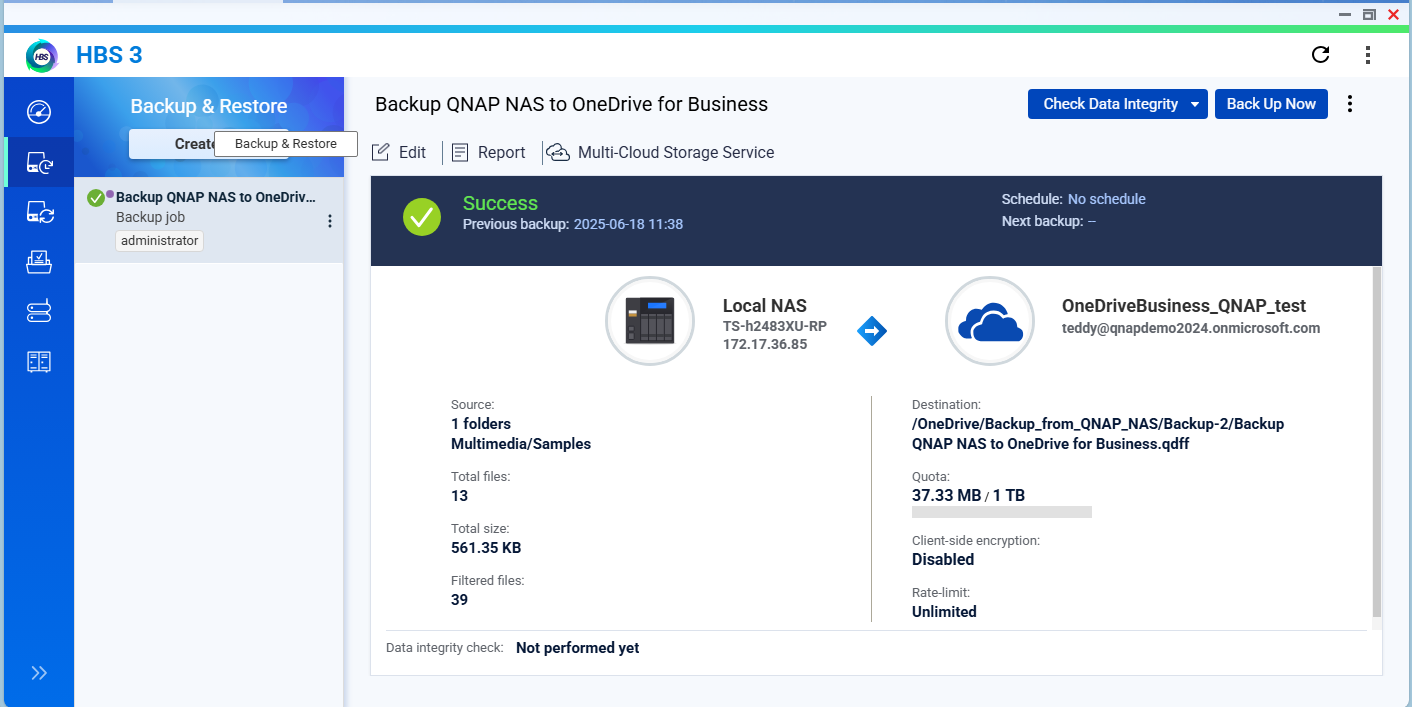
After job completion, you may log in to the OneDrive for Business portal and check whether the data is backed up successfully. 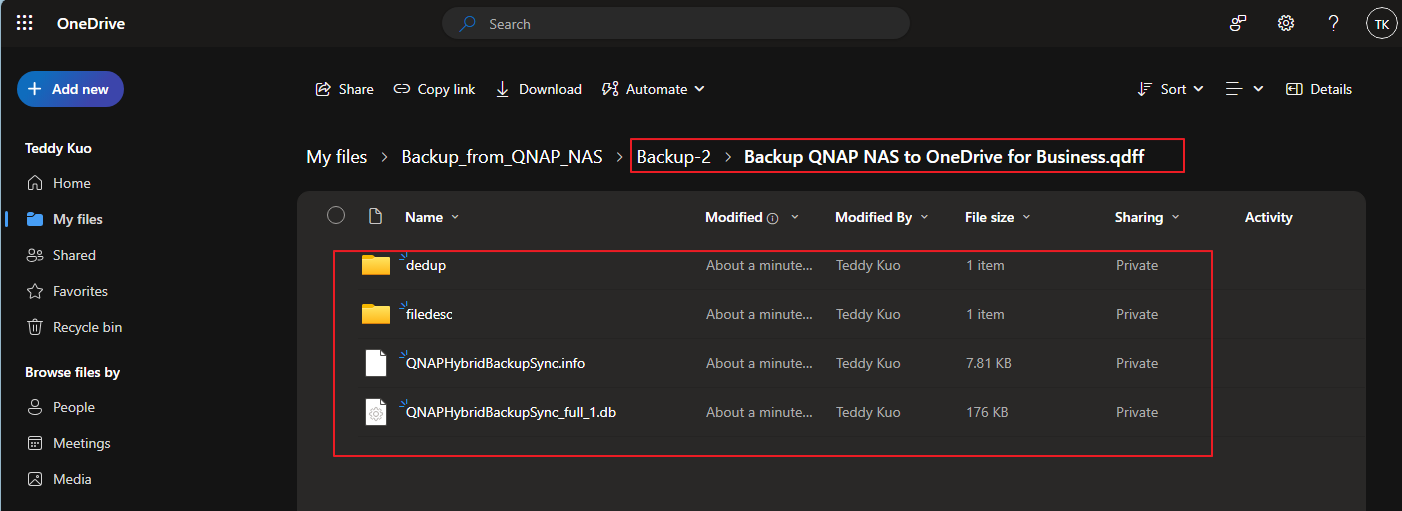
Tip
You may also explore options to use QNAP
HDP for SaaS to back up data from OneDrive for Business to QNAP NAS if you have such requirements.
Further Reading
Scenarios for Using Active Sync in HBS 3
対象製品
QTS、QuTS hero、HBS3 (Hybrid Backup Sync 3)
概要
企業が Microsoft 365 や OneDrive for Business などのクラウドサービスをますます採用する中で、クラウドに保存されたデータを保護するための信頼性の高いバックアップ戦略を持つことが重要です。クラウドプロバイダーはある程度の冗長性を提供しますが、専用のバックアップの必要性を置き換えるものではありません、特に誤削除、ランサムウェア、またはコンプライアンス要件に対処する場合。
QNAP は、Hybrid Backup Sync (HBS3)を通じて包括的なバックアップソリューションを提供し、ユーザーがローカル NAS、リモートサーバー、および一般的なクラウドプラットフォーム間でデータをシームレスにバックアップ、復元、同期できるようにします。HBS3 は、ローカル、リモート、およびクラウドストレージ間でのバックアップ、復元、同期のための ソリューションを提供します。HBS3 はまた、OneDrive for Business などのサポートされているクラウドサービスにバックアップすることで NAS データを保護し、いくつかの構成ではクラウドから NAS へのデータの取得も可能にします。
手順
HBS3 を使用して QNAP NAS から Microsoft OneDrive for Business にデータをバックアップするには、次の手順に従います:
ステップ 1: OneDrive for Business をストレージスペースとして追加
App Center またはメインメニューから HBS3 を開きます。
左側のパネルで、ストレージスペースに移動し、クリックします + 追加。
選択OneDrive for Businessサポートされているクラウドサービスのリストから。
Microsoft 365 アカウントでサインインし、必要な権限を付与します。
認証後、OneDrive for Business がクラウドストレージの宛先として表示されます。
ステップ 2: バックアップジョブを作成
に移動バックアップ & 復元 > バックアップジョブ > 新しいバックアップジョブ。
選択ソースフォルダバックアップしたい NAS 上の。
選択 OneDrive for Business を 宛先として。
確認 ソース と 宛先 詳細を確認し、適切な ジョブ名を入力します。 クリック 次へ。
(オプション) 以下のような追加オプションを設定します:
スケジュール (例:毎日、毎週)
ファイルフィルター
バージョン管理
クリック 作成してバックアップジョブを保存し、アクティブ化します。
ステップ 3: バックアップジョブを実行する
ヒント
必要に応じて、QNAP
SaaS 向け HDPを使用して OneDrive for Business から QNAP NAS にデータをバックアップするオプションを検討することもできます。
さらに読む
HBS 3 で Active Sync を使用するシナリオ


