Applicable Products
All QNAP NAS models
Solution
You may try the following methods to see if it can resolve the FW004 error.
- Check the firmware file:
- Ensure you have downloaded the correct firmware version for your NAS model from the QNAP Download Center.
- Verify that the firmware file is not corrupted. If in doubt, download it again.
- If your device requires it, extract the firmware package before uploading.
- Perform the firmware update again.
- Reboot the NAS and retry the update:
- Restart your NAS.
- Attempt the firmware update again using the verified firmware file.
- Update firmware using Qfinder Pro:
- Power off your NAS and remove all hard drives. (Important: Label the drives and note their order for reinstallation.)
- Power on the NAS without disks. Wait for one short beep followed by one long beep.
- Run Qfinder Pro to locate your NAS.
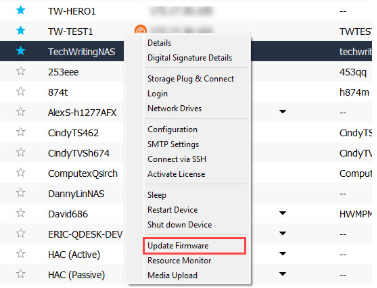
- Right-click your device's row and select Update Firmware to start the update process.

Note: Removing disks will not delete data, but please make sure disks are reinstalled in the same order after the update.
If you continue to receive the FW004 error after performing the above steps, the issue may be caused by a defective NAS DOM (Disk On Module). The DOM is an internal component that stores firmware. If it is faulty, firmware updates may fail.
In this case, please contact QNAP Support for assistance. Provide details about the error, your NAS model, and the troubleshooting steps you have already tried. Repair or replacement may be required.
Further Reading
対象製品
すべての QNAP NAS モデル
ソリューション
FW004 エラーを解決するために、以下の方法を試してみてください。
- ファームウェアファイルを確認してください:
- QNAP ダウンロードセンターから NAS モデルに適したファームウェアバージョンをダウンロードしていることを確認してください。
- ファームウェアファイルが破損していないことを確認してください。疑わしい場合は、再度ダウンロードしてください。
- デバイスが必要とする場合は、アップロード前にファームウェアパッケージを解凍してください。
- ファームウェア更新を再度実行してください。
- NAS を再起動して、更新を再試行してください:
- NAS を再起動してください。
- 確認済みのファームウェアファイルを使用してファームウェア更新を再度試みてください。
- Qfinder Pro を使用してファームウェアを更新してください:
- NAS の電源を切り、すべてのハードドライブを取り外してください。(重要:ドライブにラベルを付け、再インストールのために順序をメモしてください。)
- ディスクなしで NAS の電源を入れます。短いビープ音の後に長いビープ音が鳴るのを待ちます。
- Qfinder Proを実行して NAS を見つけてください。
- デバイスの行を右クリックし、Update ファームウェアを選択して更新プロセスを開始します。
注意:ディスクを取り外してもデータは削除されませんが、更新後にディスクを同じ順序で再インストールしてください。
上記の手順を実行した後も FW004 エラーが続く場合、問題は欠陥のある NAS によって引き起こされている可能性があります。DOM (Disk On Module)DOM はファームウェアを保存する内部コンポーネントです。故障している場合、ファームウェア更新が失敗する可能性があります。
この場合は、QNAP サポートに連絡してサポートを受けてください。エラーの詳細、NAS モデル、および既に試したトラブルシューティング手順を提供してください。修理または交換が必要になる場合があります。
さらに読む