Applicable Products
All QNAP NAS models
Solution
You may try the following methods to see if it can resolve the FW004 error.
- Check the firmware file:
- Ensure you have downloaded the correct firmware version for your NAS model from the QNAP Download Center.
- Verify that the firmware file is not corrupted. If in doubt, download it again.
- If your device requires it, extract the firmware package before uploading.
- Perform the firmware update again.
- Reboot the NAS and retry the update:
- Restart your NAS.
- Attempt the firmware update again using the verified firmware file.
- Update firmware using Qfinder Pro:
- Power off your NAS and remove all hard drives. (Important: Label the drives and note their order for reinstallation.)
- Power on the NAS without disks. Wait for one short beep followed by one long beep.
- Run Qfinder Pro to locate your NAS.
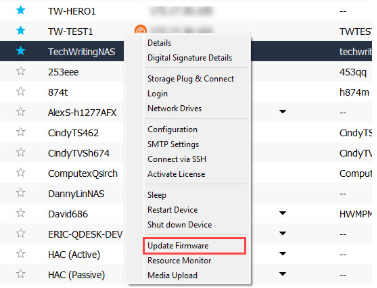
- Right-click your device's row and select Update Firmware to start the update process.

Note: Removing disks will not delete data, but please make sure disks are reinstalled in the same order after the update.
If you continue to receive the FW004 error after performing the above steps, the issue may be caused by a defective NAS DOM (Disk On Module). The DOM is an internal component that stores firmware. If it is faulty, firmware updates may fail.
In this case, please contact QNAP Support for assistance. Provide details about the error, your NAS model, and the troubleshooting steps you have already tried. Repair or replacement may be required.
Further Reading
적용되는 제품
모든 QNAP NAS 모델
솔루션
FW004 오류를 해결할 수 있는지 확인하려면 다음 방법을 시도해 보십시오.
- 펌웨어파일 확인:
- QNAP 다운로드 센터에서 NAS 모델에 맞는 올바른펌웨어버전을 다운로드했는지 확인하십시오.
- 펌웨어파일이 손상되지 않았는지 확인하십시오. 의심스러우면 다시 다운로드하십시오.
- 장치가 필요로 하는 경우, 업로드하기 전에펌웨어패키지를 추출하십시오.
- 펌웨어 업데이트을 다시 수행하십시오.
- NAS를 재부팅하고 업데이트를 다시 시도하십시오:
- NAS를 재시작하십시오.
- 검증된펌웨어파일을 사용하여펌웨어 업데이트을 다시 시도하십시오.
- Qfinder Pro를 사용하여펌웨어업데이트:
- NAS의 전원을 끄고 모든 하드 드라이브를 제거합니다. (중요: 드라이브에 라벨을 붙이고 재설치를 위해 순서를 기록해 둡니다.)
- 디스크 없이 NAS를 켜고 짧은 경고음 한 번과 긴 경고음 한 번이 울릴 때까지 기다립니다.
- Qfinder Pro을 실행하여 NAS를 찾습니다.
- 장치의 행을 마우스 오른쪽 버튼으로 클릭하고Update 펌웨어을 선택하여 업데이트 프로세스를 시작합니다.
참고:디스크를 제거해도 데이터가 삭제되지 않지만, 업데이트 후 디스크가 동일한 순서로 재설치되었는지 확인하십시오.
위의 단계를 수행한 후에도 FW004 오류가 계속 발생하면, 문제는 결함이 있는 NAS 때문일 수 있습니다.DOM (Disk On Module). DOM은펌웨어을 저장하는 내부 구성 요소입니다. 고장난 경우펌웨어 업데이트이 실패할 수 있습니다.
이 경우, QNAP 지원에 문의하여 도움을 받으십시오. 오류, NAS 모델 및 이미 시도한 문제 해결 단계에 대한 세부 정보를 제공하십시오. 수리 또는 교체가 필요할 수 있습니다.
추가 읽기