Applicable Products
- QuTS hero
- HBS 3 Hybrid Backup Sync 26 (or later)
- Storage Manager
Introduction
WORM (Write Once, Read Many) is a data protection solution that ensures data integrity by preventing files from being modified or deleted. Once data is written, it cannot be changed or removed within the configured retention period, protecting your data against ransomware attacks and unauthorized modifications.
In QuTS hero, you can enable WORM on a shared folder. You can then use HBS to back up files to the WORM shared folder, ensuring the backup data will be immutable, thereby preventing any accidental or malicious modifications.
This tutorial provides a step-by-step guide on how to set up a WORM shared folder and then create a backup job in HBS to back up files to the WORM shared folder.
Note
HBS currently only supports backing up to WORM shared folders. Syncing to WORM shared folders is not supported.
Instructions
Because WORM cannot be enabled, disabled, or modified on an existing shared folder, you must create a new shared folder and enable WORM during creation. After the WORM shared folder is created, you can create a backup job in HBS using the WORM shared folder as destination, and then monitor the job status after it runs for the first time. If you run out of space on the WORM shared folder, you can expand the folder capacity as needed.
A. Create a WORM shared folder.
Note
Only the required settings and WORM settings are covered in the following steps.
For details on other shared folder settings, see "Creating a shared folder" in the
QuTS hero User Guide.
- Log in to your NAS as an administrator.
- Open Control Panel.
- Go to System > Shared Folders > Shared Folder.
- Click Create > Shared Folder.
The Create Shared Folder Wizard opens.
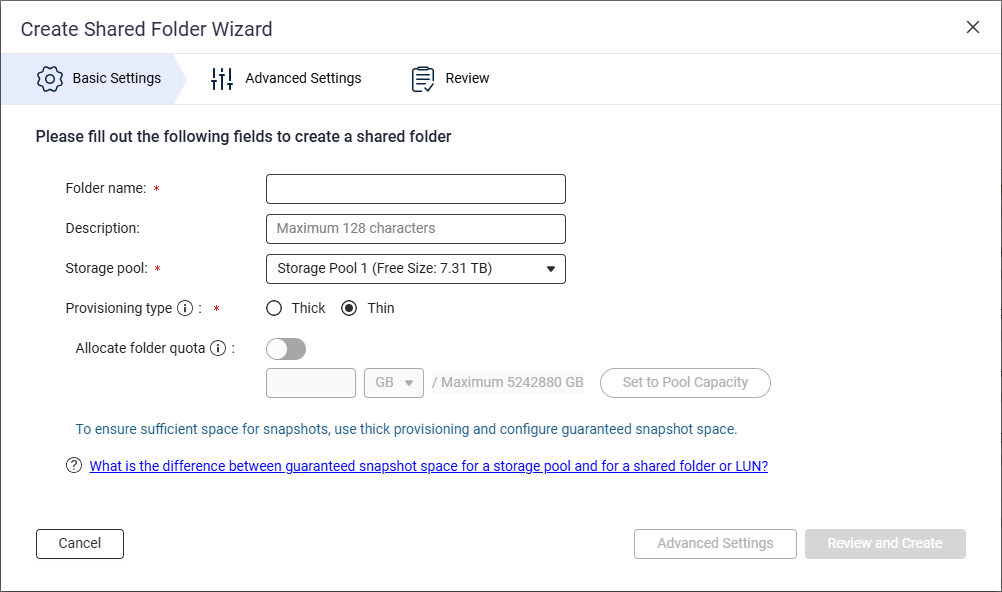
- Next to Folder name, specify the shared folder name.
- Next to Storage pool, select the storage pool in which to create the shared folder.
- Next to Provisioning type, select a provisioning type.
- Click Advanced Settings.
- Configure WORM.
- Next to Security Settings, click
 .
.
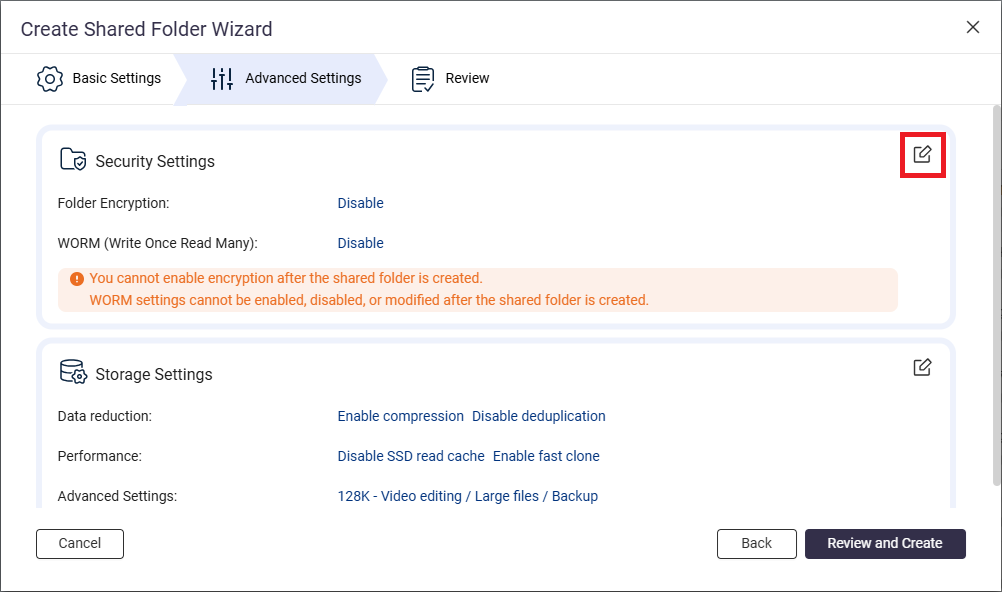
- Go to the WORM (Write Once Read Many) section.
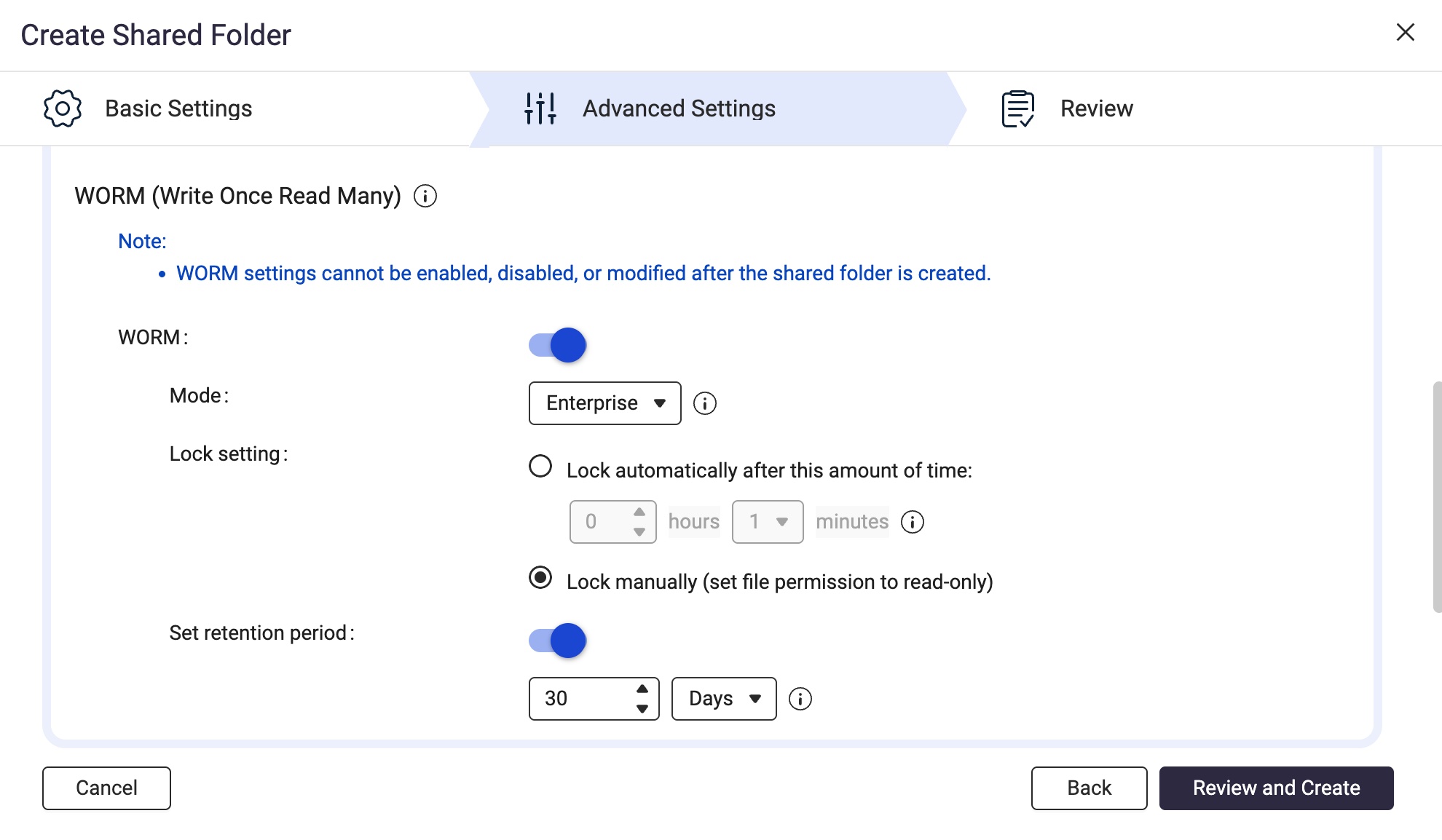
- Next to WORM, click
 .
. - Next to Mode, select one of the following WORM modes:
- Enterprise: Users can delete the shared folder.
- Compliance: Users cannot delete the shared folder. An administrator must delete the parent storage pool in order to delete the shared folder.
- Next to Lock setting, select Lock manually (set file permission to read-only).
This option requires a user with the appropriate privileges to manually set the file permission to read-only in order to lock the file.
Note
To use a WORM shared folder as a destination in HBS, you must select the Lock manually option.
- Enable the retention period.
The retention period limits how long WORM applies to each file and folder in the shared folder. Files and folders can be deleted after the specified retention period.
Note
To use a WORM shared folder as a destination in HBS, you must enable the retention period on the shared folder.
- Next to Set retention period, click .
- Specify the number of days, months, or years.
- Click Review and Create.
- Review the settings, and then click Create.
The system creates the WORM shared folder.
B. Create a backup job in HBS with the WORM shared folder as destination.
For illustration purposes, we'll create a local backup job where the source and destination folders are on the same NAS device.
Note
Only the required settings are covered in the following steps.
For details on other job settings, see
Creating a backup job.
- Open HBS 3 Hybrid Backup Sync.
- Go to Backup & Restore.
- Click Create, and then click New backup Job.
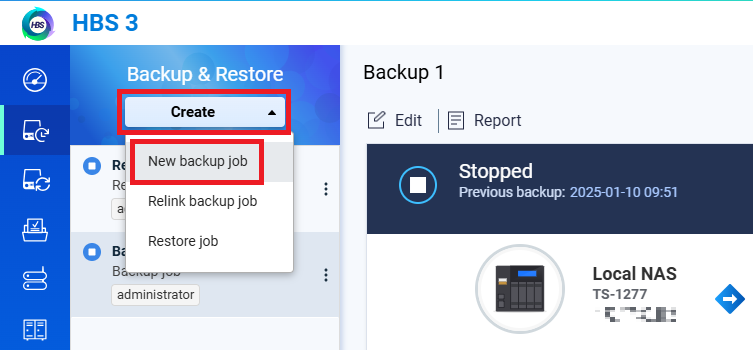 The Create a Backup Job wizard opens.
 - Select the source folder, and then click Next.
- Select Local NAS for the destination NAS, and then click Select.
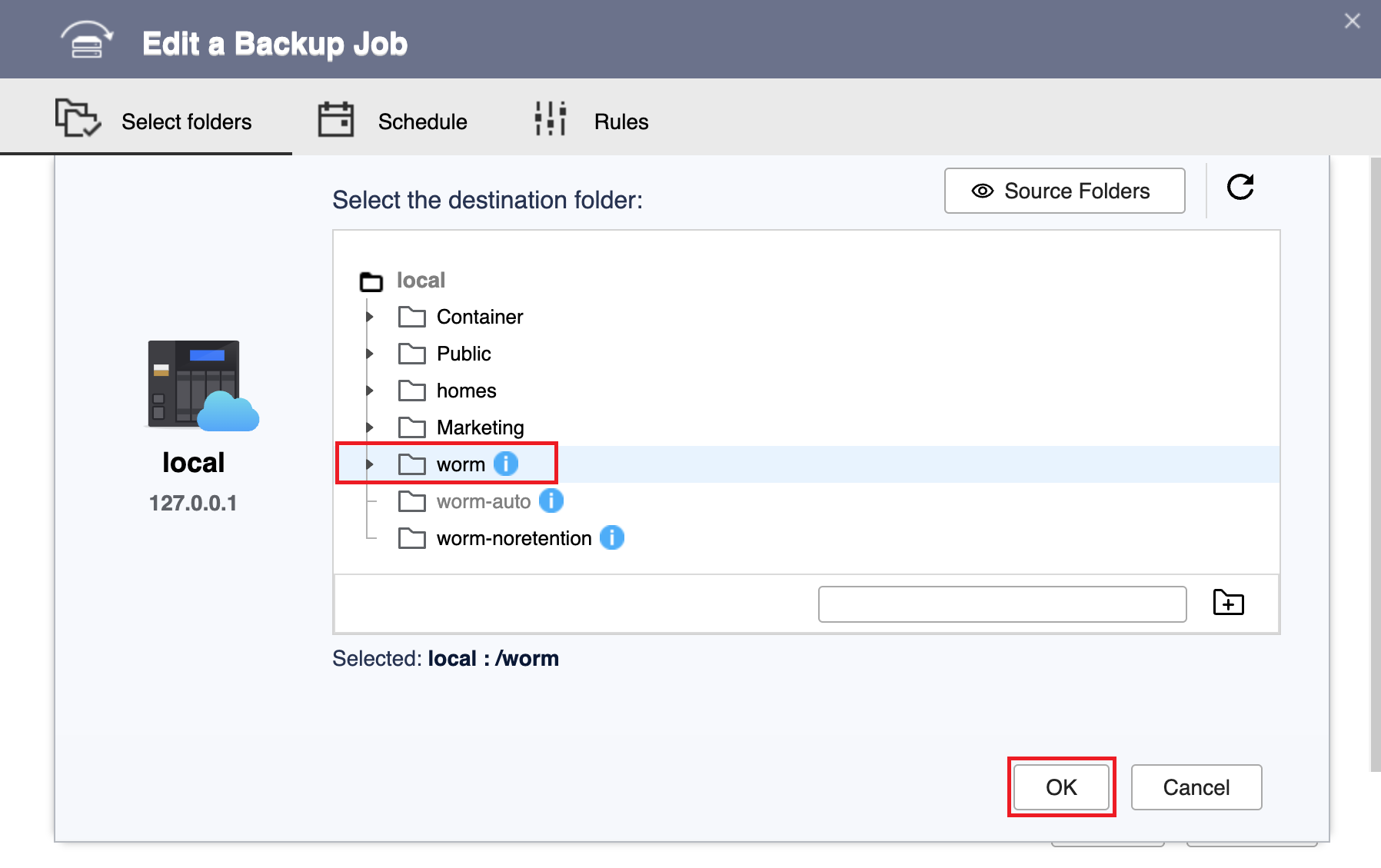
- Select the WORM shared folder you created as the destination folder, and then click OK.
Note
To select a WORM shared folder for the destination folder, the folder's WORM lock setting must be set to Lock manually and the retention period must be enabled.
For details, see earlier instructions in this tutorial.
- Click Next.
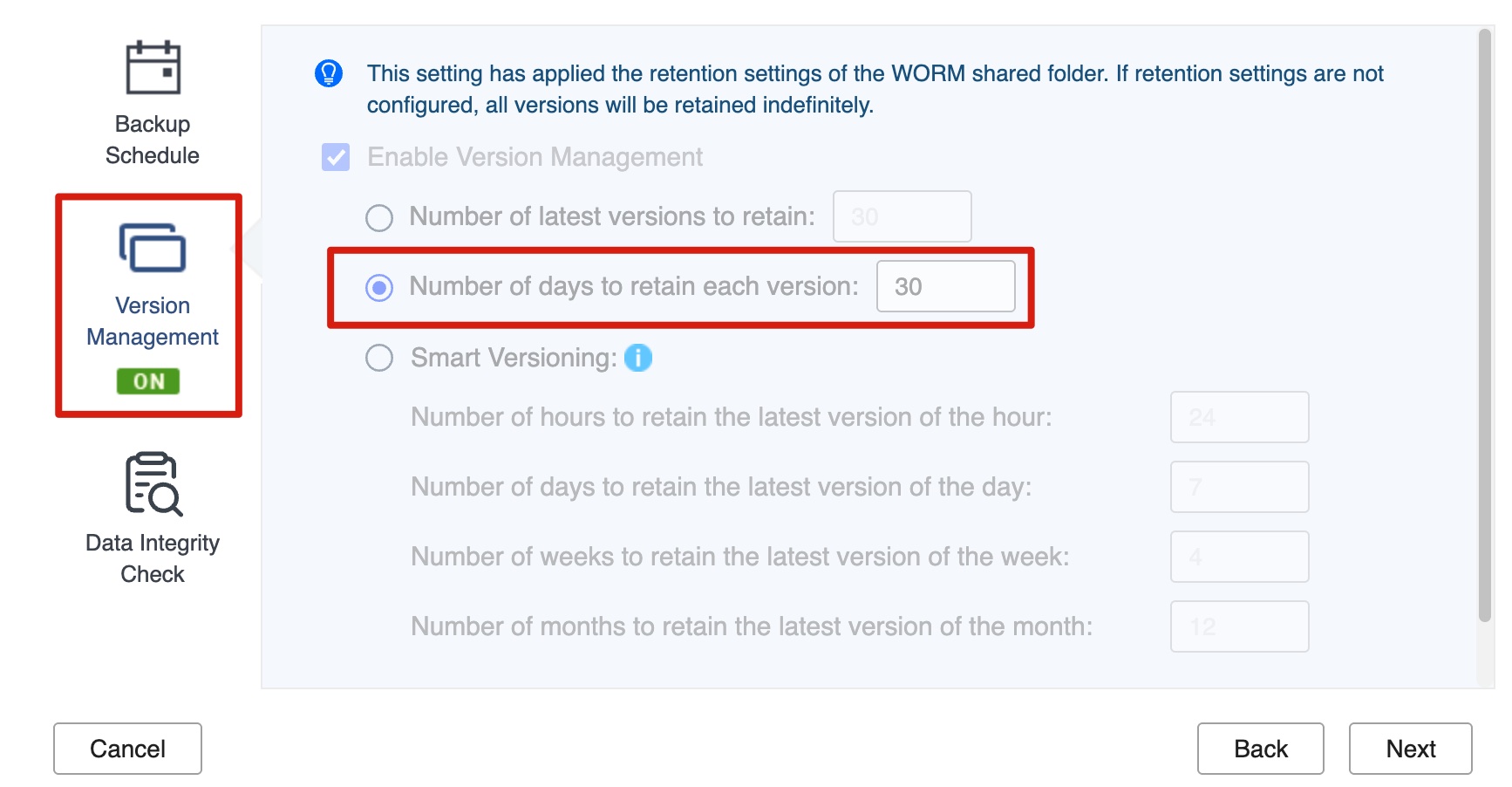
- Confirm that version management has been configured automatically to match the WORM retention period.
Note
- HBS automatically enables and configures the version management setting to match the retention period of the destination WORM shared folder.
- You cannot change this setting.
- This keeps backup versions retained for exactly as long as the WORM files remain immutable, so versions are neither purged early nor kept longer than necessary.
- Click Version Management. The panel shows the following read-only state:
- Enable Version Management is already selected (greyed out; it cannot be cleared).
- Number of days to retain each version is set automatically to match the WORM shared folder's retention period (greyed out; it cannot be modified).
- Click Next.
- Optional: Configure job rules.
- Click Next.
- Review the summary, and then click Create.
HBS creates the backup job.
C. Run and monitor the backup job in HBS.
- Manually run the backup job.
Note
You can skip this step if you configured the job to run immediately after creation or if you want the job to run according to the schedule you configured.
- Go to HBS > Backup & Restore.
- Select the backup job you created.
- Click Back Up Now.
- After the job runs for the first time, check the job report to ensure the job ran smoothly.
- Go to HBS > Backup & Restore.
- Select the backup job.
- Click Report.
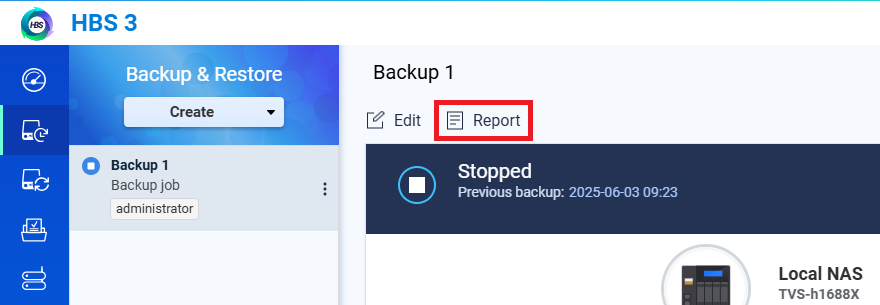 The Report window opens.
 - Go to the Logs tab.
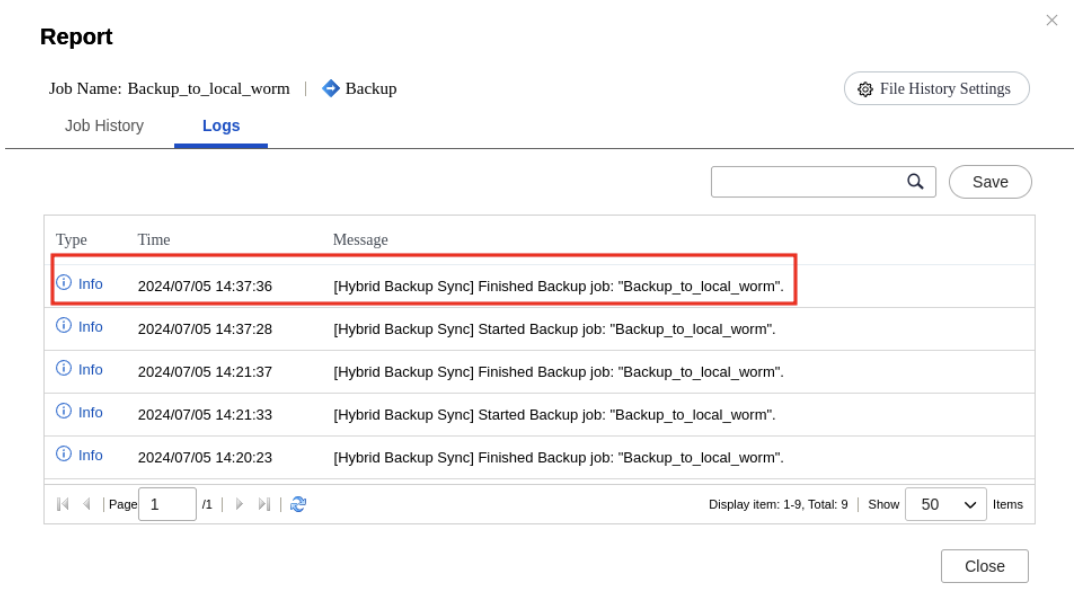
- Check for a message that mentions the job name and includes the words "Finished Backup job".
For example:
D. Expand the WORM shared folder if you run out of space.
If your backup job fails due to the destination shared folder running out of space, and the folder's parent storage pool still has free space, you can increase the capacity of the shared folder.
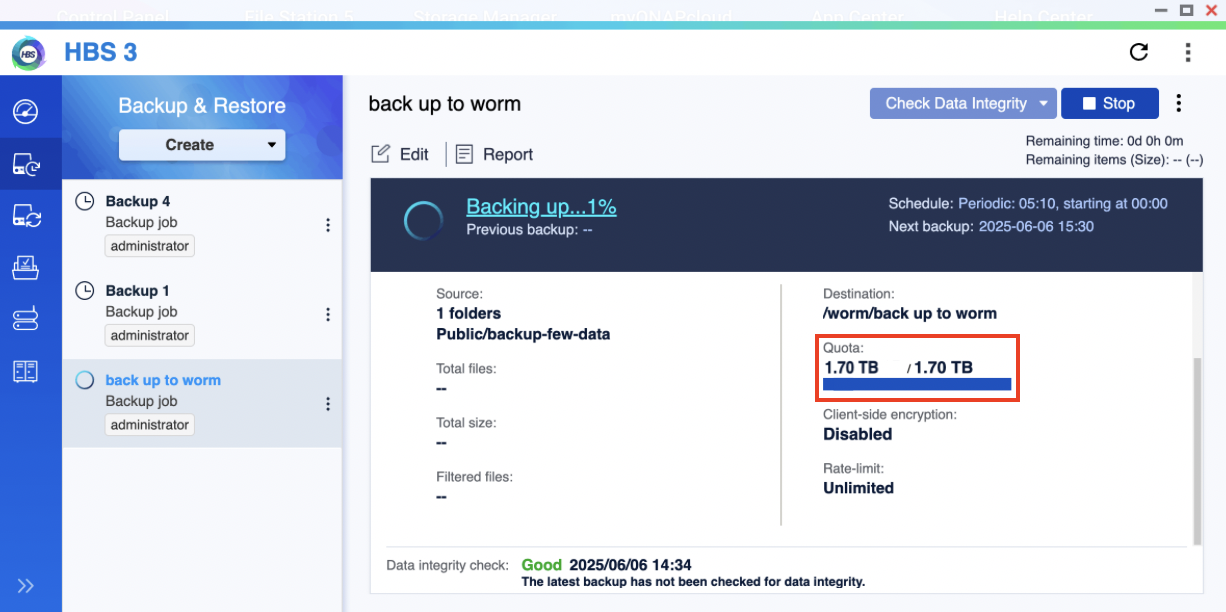
You can see that the destination shared folder is full by checking the Quota field of your job in HBS > Backup & Restore:
Note
The used quota shown here in HBS may not reflect the actual used capacity of the shared folder in its parent storage pool. The actual used capacity in the storage pool subtracts the amount reduced by data reduction. You can check the data reduction by going to
Storage Manager > Storage Space, identifying the shared folder, and then clicking
 > Manage
 under
Action.
To expand your WORM shared folder, follow these instructions:
- Go to Storage Manager > Storage Space.
- Locate the shared folder.
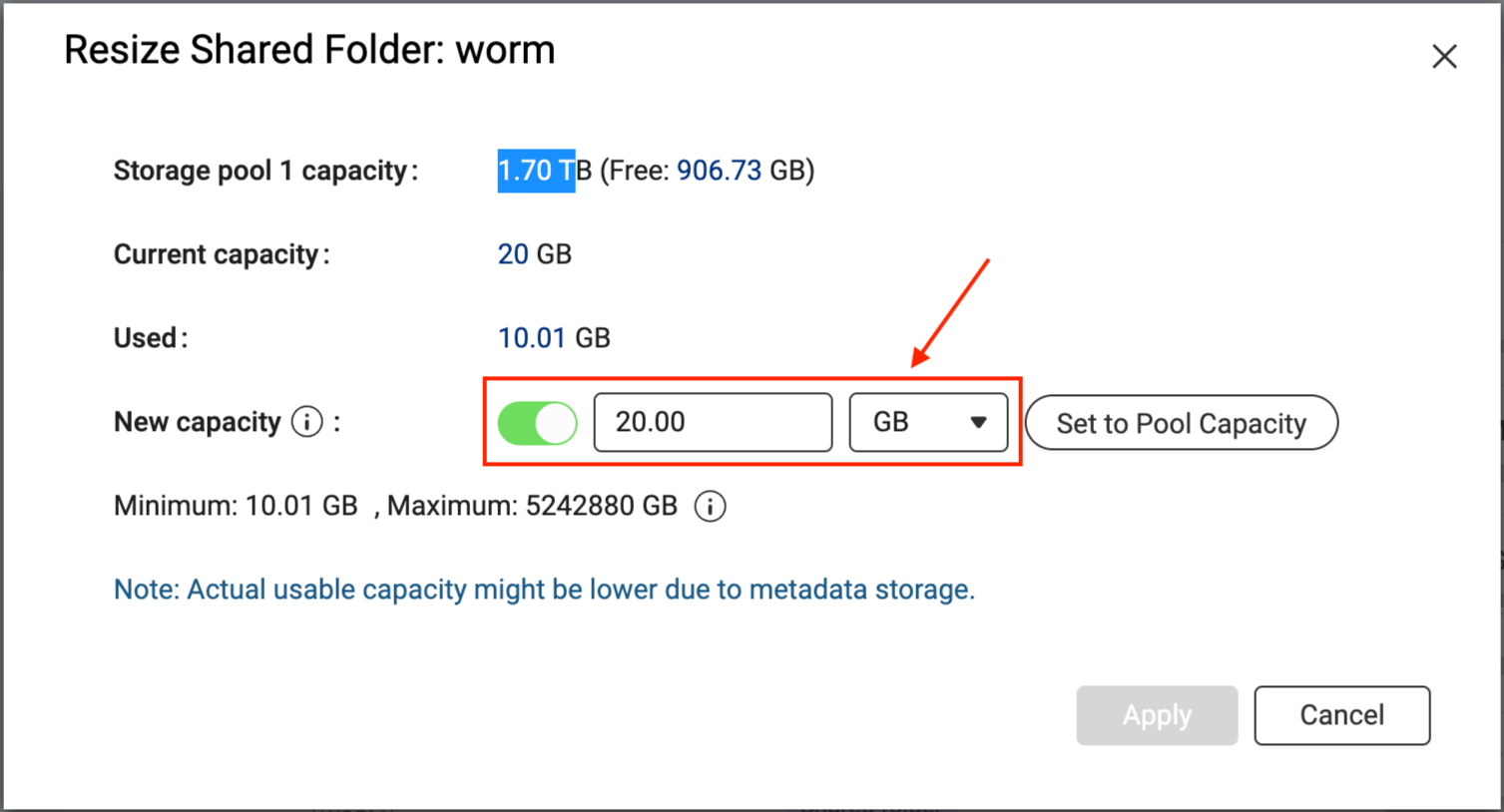
- Under Action, click > Resize Shared Folder.
The Resize Shared Folder window opens. - Next to New capacity, specify a greater size for the shared folder.
- Click Apply.
The system expands the shared folder. This process may take a while.
After the shared folder has been expanded, you can go to HBS and run the backup job again.
Further Reading and Resources
適用產品
- QuTS hero
- HBS 3 Hybrid Backup Sync 26 (or later)
- Storage Manager
簡介
WORM (Write Once, Read Many) 是一種資料保護解決方案,透過防止檔案被修改或刪除來確保資料完整性。資料一旦寫入,在設定的保留期間內就無法更改或移除,從而保護您的資料免受勒索攻擊和未授權的修改。
在 QuTS hero 中,您可以在共用資料夾上啟用 WORM。然後,您可以使用 HBS 將檔案備份到 WORM 共用資料夾,確保備份資料將不可變,從而防止任何意外或惡意的修改。
本教學提供逐步指南,說明如何設定 WORM 共用資料夾,然後在 HBS 中建立備份工作以將檔案備份到 WORM 共用資料夾。
註
HBS 目前僅支援備份到 WORM 共用資料夾。不支援同步到 WORM 共用資料夾。
指示
由於 WORM 無法在現有的共用資料夾上啟用、停用或修改,您必須建立新的共用資料夾並在建立時啟用 WORM。WORM 共用資料夾建立後,您可以在 HBS 中建立備份工作,使用 WORM 共用資料夾作為目的地,然後在首次執行後監控工作狀態。如果 WORM 共用資料夾空間不足,您可以根據需要擴充套件資料夾容量。
A. 建立 WORM 共用資料夾。
- 以系統管理員身份登入您的 NAS。
- 開啟控制台。
- 前往系統 > 共用資料夾 > 共用資料夾。
- 按一下建立 > 共用資料夾。
開啟建立共用資料夾精靈。
- 在資料夾名稱旁,指定共用資料夾名稱。
- 在儲存空間儲存池旁,選擇要建立共用資料夾的儲存空間儲存池。
- 在Provisioning type旁,選擇一個配置類型。
- 點擊Advanced Settings。
- 配置 WORM。
- 在Security Settings旁,點擊。
- 前往WORM (Write Once Read Many)部分。
- 在WORM旁,點擊。
- 在模式旁,選擇以下其中一種 WORM 模式:
- 企業:使用者可以刪除共用資料夾。
- 合規:使用者無法刪除共用資料夾。必須由系統管理員刪除父儲存空間池才能刪除共用資料夾。
- 在鎖定設定旁,選擇手動鎖定(將檔案權限設為唯讀)。
此選項需要具有適當權限的使用者手動將檔案權限設為唯讀以鎖定檔案。
註
要在 HBS 中使用 WORM 共用資料夾作為目的地,您必須選擇手動鎖定選項。
- 啟用保留期限。
保留期限限制 WORM 在共用資料夾中每個檔案和資料夾的應用時間。檔案和資料夾可以在指定的保留期限後刪除。
註
要在 HBS 中使用 WORM 共用資料夾作為目的地,您必須在共用資料夾上啟用保留期限。
- 在設定保留期限旁,按一下。
- 指定天數、月數或年數。
- 按一下檢視並建立。
- 檢視設定,然後按一下建立。
系統會建立 WORM 共用資料夾。
B. 在 HBS 中建立備份工作,將 WORM 共用資料夾作為目的地。
為了說明,我們將建立一個本地備份工作,其中來源和目的資料夾位於同一 NAS 裝置上。
註
以下步驟僅涵蓋必要的設定。
有關其他工作設定的詳細資訊,請參見
建立備份工作。
- 開啟HBS 3 Hybrid Backup Sync。
- 前往備份與還原。
- 按一下建立,然後按一下新的備份工作。
建立備份工作精靈會開啟。 - 選擇來源資料夾,然後按一下下一步。
- 選擇本地 NAS作為目的地 NAS,然後按一下選擇。
- 選擇您建立的 WORM 共用資料夾作為目的資料夾,然後按一下確定。
注意
要選擇 WORM 共用資料夾作為目的資料夾,資料夾的 WORM 鎖定設定必須設為手動鎖定,並且必須啟用保留期限。
詳細資訊,請參閱本教程中的早期指示。
- 按一下下一步。
- 確認版本管理已自動配置以符合 WORM 保留期限。
注意
- HBS 自動啟用並配置版本管理設定以符合目的地 WORM 共用資料夾的保留期限。
- 您無法更改此設定。
- 這可確保備份版本保留的時間與 WORM 檔案保持不變的時間完全一致,因此版本不會提前清除或保留超過必要的時間。
- 按一下版本管理。面板顯示以下唯讀狀態:
- 啟用版本管理已選擇(灰色顯示;無法清除)。
- 保留每個版本的天數已自動設置以符合 WORM 共用資料夾的保留期限(灰色顯示;無法修改)。
- 按一下下一步。
- 選擇性:配置工作規則。
- 按一下下一步。
- 檢閱摘要,然後按一下建立。
HBS 建立備份工作。
C. 在 HBS 中執行並監控備份工作。
- 手動執行備份工作。
注意
如果您已設定工作在建立後立即執行,或希望工作按照您設定的排程執行,則可以跳過此步驟。
- 前往HBS > 備份與還原。
- 選擇您建立的備份工作。
- 按一下立即備份。
- 工作首次執行後,檢查工作報告以確保工作順利執行。
- 前往HBS > 備份與還原。
- 選擇備份工作。
- 按一下報告。
報告視窗隨即開啟。 - 前往日誌標籤。
- 檢查提到工作名稱並包含「完成備份工作」字樣的訊息。
例如:
D. 如果空間不足,擴充套件 WORM 共用資料夾。
如果您的備份工作因目的地共用資料夾空間不足而失敗,且資料夾的父儲存空間池仍有空間,您可以增加共用資料夾的容量。
您可以透過檢查配額欄位來查看目的地共用資料夾是否已滿,位於HBS > 備份與還原:
注意
此處 HBS 顯示的使用配額可能不反映共用資料夾在其父儲存空間池中的實際使用容量。儲存空間池中的實際使用容量減去資料縮減所減少的量。您可以前往
儲存空間管理器 > 儲存空間空間,識別共用資料夾,然後在
操作下按一下
> 管理來檢查資料縮減。
要擴充套件您的 WORM 共用資料夾,請遵循以下指示:
- 前往儲存空間管理員 > 儲存空間空間。
- 找到共用資料夾。
- 在操作下,點擊 > 調整共用資料夾大小。
調整共用資料夾大小視窗開啟。 - 在新容量旁,指定共用資料夾的更大大小。
- 點擊套用。
系統擴展共用資料夾。此過程可能需要一些時間。
共用資料夾擴展後,您可以前往 HBS 並再次執行備份工作。
進一步閱讀和資源


