Applicable Products
Scenario
My NAS file transfer is much slower than expected. What preliminary checks I can do to help expedite the problem solved.
Solution
You may perform the following three quick tests before opening a support case. These checks help confirm whether the bottleneck is in the NAS network path, NAS disks, or the client-side storage.
Test 1: Verify NAS network link speed
- Log in to the NAS web interface.
- Go to Control Panel > Network & Virtual Switch > Interfaces > Information > Hardware.
- Check the active LAN port link speed (for example, 1GbE, 2.5GbE, 10GbE).
- Confirm the negotiated speed matches your expected hardware capability.
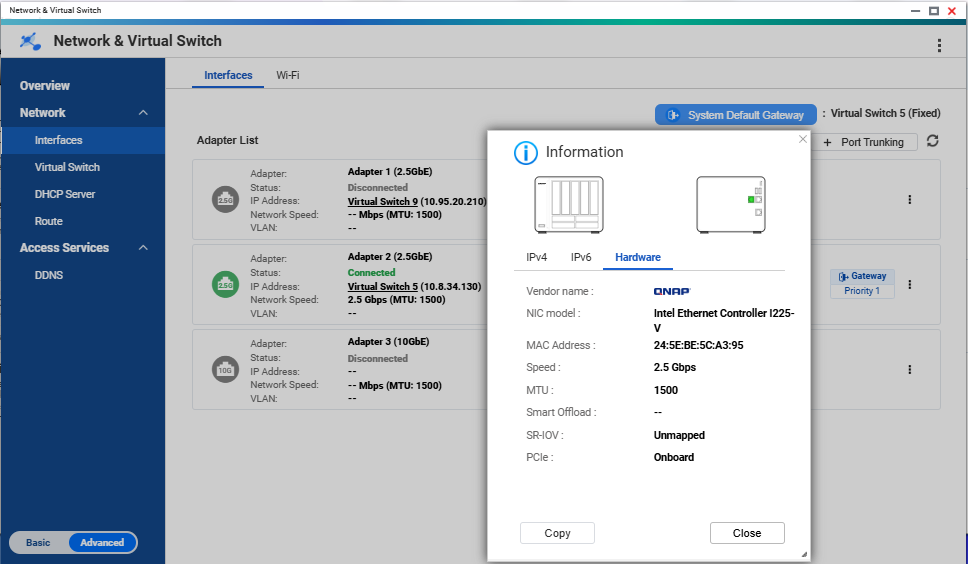
Speed: NAS interface page showing the active adapter and negotiated link speed.
If the link speed is lower than expected, check cable type, switch port capability, and NIC negotiation settings first.
Test 2: Test NAS disk speed (identify abnormally slow disk)
- Go to Storage & Snapshots.
- Open Disks/VJBOD.
- Run the disk performance/Sequential Read Test on all disks. .
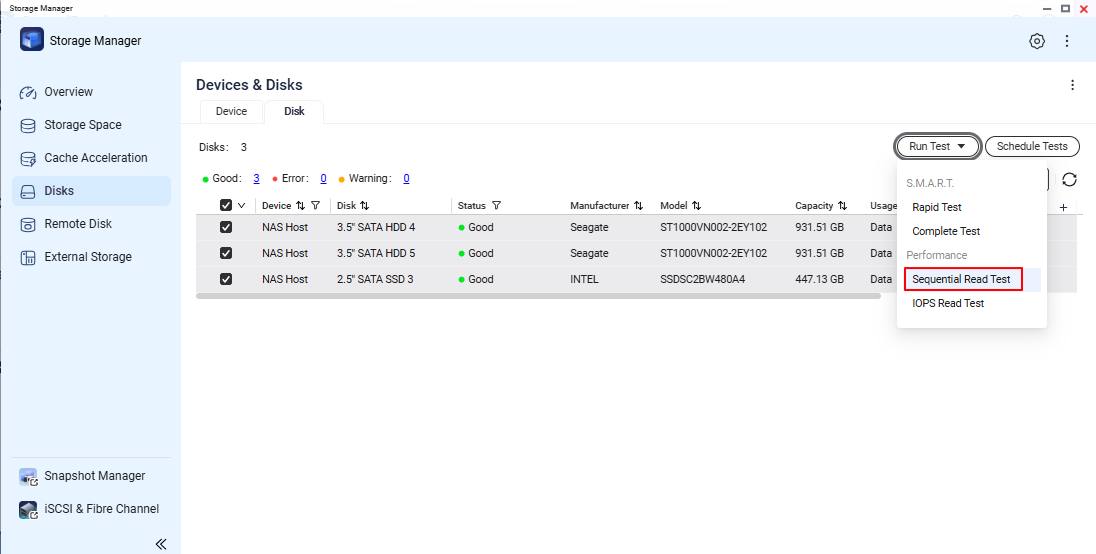
- Compare each disk result and verify there is no single disk with extremely low performance.
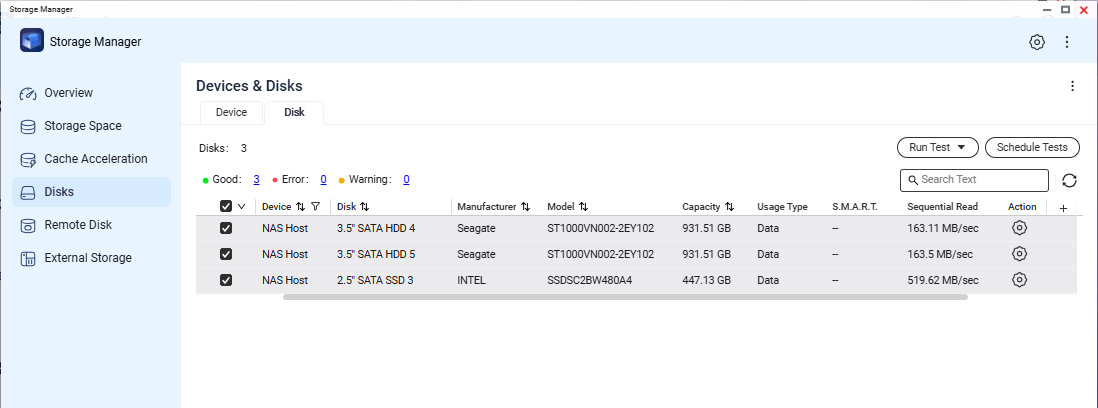
Screenshot needed 2: Disk list or test result screen showing per-disk status/performance values.
If one disk is significantly slower than others, record the slot number and disk model/serial for support analysis.
Test 3: Validate client machine disk performance with a USB external drive
- Connect a USB external drive to the client machine.
- On the client machine, run a local read/write test to that USB external drive.
- Verify the client-side disk path can deliver normal read/write speed for that system.
This step helps rule out local client storage bottlenecks that can be mistaken as NAS transfer issues.
Verification Checklist
- NAS link speed is confirmed and documented.
- NAS disk test confirms no specific disk with abnormally low speed.
- Client-side USB external drive read/write performance is confirmed to be normal.
After performing the above preliminary checks, if each item of checklist is normal but the problem is still not solved. You may conatct QNAP support for further assisitances.
While opening a support request, enclose the following information can help expedite the process:
- NAS model and firmware version.
- NAS system dump logs.
- Test 1 result (network link speed) with screenshot.
- Test 2 result (disk check) with screenshot.
- Test 3 result summary (client local USB read/write test).
- Brief topology note (client <-> switch <-> NAS).
Further Reading
対象製品
シナリオ
NAS のファイル転送が予想よりも遅いです。問題解決を迅速化するためにできる予備チェックは何ですか。
解決策
サポートケースを開く前に、以下の 3 つの簡単なテストを実行できます。これらのチェックは、ボトルネックが NAS のネットワーク経路、NAS ディスク、またはクライアント側のストレージにあるかどうかを確認するのに役立ちます。
テスト 1: NAS ネットワークリンク速度の確認
- NAS のウェブインターフェースにログインします。
- コントロールパネル > ネットワークと仮想スイッチ > インターフェース > 情報 > ハードウェアに移動します。
- アクティブな LAN ポートのリンク速度を確認します(例: 1GbE、2.5GbE、10GbE)。
- 交渉された速度が期待するハードウェア能力と一致していることを確認します。
速度: NAS インターフェースページにアクティブなアダプターと交渉されたリンク速度が表示されます。
リンク速度が期待より低い場合は、ケーブルの種類、スイッチポートの能力、NIC の交渉設定を最初に確認してください。
テスト 2: NAS ディスク速度のテスト(異常に遅いディスクを特定)
- ストレージ&スナップショットに移動します。
- ディスク /VJBODを開きます。
- すべてのディスクでディスクパフォーマンス / シーケンシャルリードテストを実行します。
- 各ディスクの結果を比較し、極端に低いパフォーマンスのディスクがないことを確認します。
スクリーンショット必要 2:ディスクリストまたはテスト結果画面にディスクごとのステータス / パフォーマンス値が表示されます。
他のディスクよりも著しく遅いディスクがある場合は、スロット番号とディスクモデル / シリアルを記録してサポート分析に備えます。
テスト 3: クライアントマシンのディスクパフォーマンスを USB 外付けドライブで検証
- USB 外付けドライブをクライアントマシンに接続します。
- クライアントマシンで、その USB 外付けドライブに対してローカルの読み書きテストを実行します。
- クライアント側のディスクパスがそのシステムで通常の読み書き速度を提供できることを確認します。
このステップは、NAS 転送の問題と誤解される可能性のあるローカルクライアントストレージのボトルネックを排除するのに役立ちます。
確認チェックリスト
- NAS のリンク速度が確認され、記録されています。
- NAS ディスクテストで、異常に低速な特定のディスクがないことが確認されました。
- クライアント側の USB 外付けドライブの読み書き性能が正常であることが確認されました。
上記の予備チェックを実施した後、チェックリストの各項目が正常であるにもかかわらず問題が解決しない場合は、さらなる支援のためにQNAP サポートに連絡することができます。
サポートリクエストの開き方際に、以下の情報を同封するとプロセスを迅速化できます:
- NAS モデルとファームウェアバージョン。
- NAS システムのダンプログ。
- テスト 1 の結果(ネットワークリンク速度)とスクリーンショット。
- テスト 2 の結果(ディスクチェック)とスクリーンショット。
- テスト 3 の結果概要(クライアントローカル USB 読み書きテスト)。
- 簡単なトポロジーメモ(クライアント <-> スイッチ <-> NAS)。
さらに読む


