Applicable Products
Scenario
My NAS file transfer is much slower than expected. What preliminary checks I can do to help expedite the problem solved.
Solution
You may perform the following three quick tests before opening a support case. These checks help confirm whether the bottleneck is in the NAS network path, NAS disks, or the client-side storage.
Test 1: Verify NAS network link speed
- Log in to the NAS web interface.
- Go to Control Panel > Network & Virtual Switch > Interfaces > Information > Hardware.
- Check the active LAN port link speed (for example, 1GbE, 2.5GbE, 10GbE).
- Confirm the negotiated speed matches your expected hardware capability.
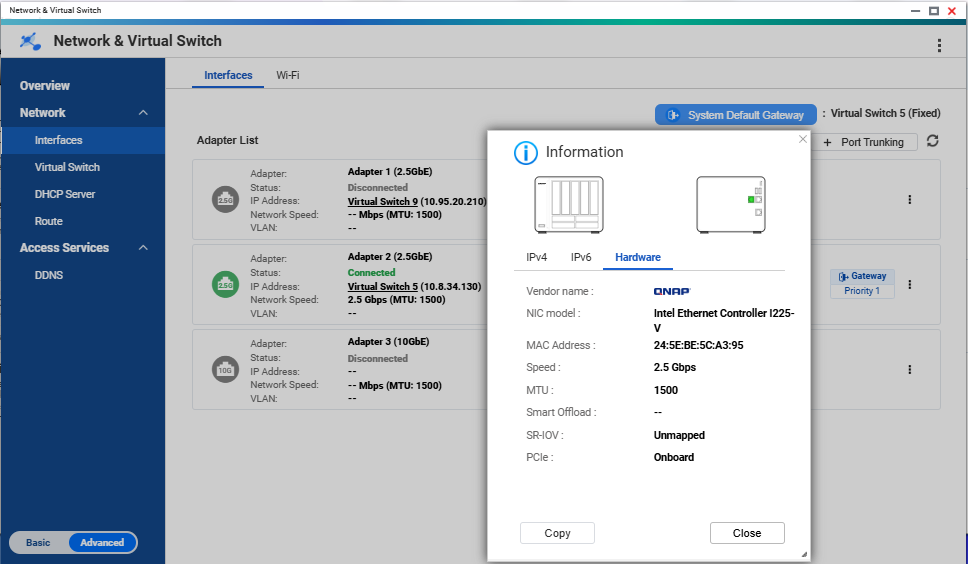
Speed: NAS interface page showing the active adapter and negotiated link speed.
If the link speed is lower than expected, check cable type, switch port capability, and NIC negotiation settings first.
Test 2: Test NAS disk speed (identify abnormally slow disk)
- Go to Storage & Snapshots.
- Open Disks/VJBOD.
- Run the disk performance/Sequential Read Test on all disks. .
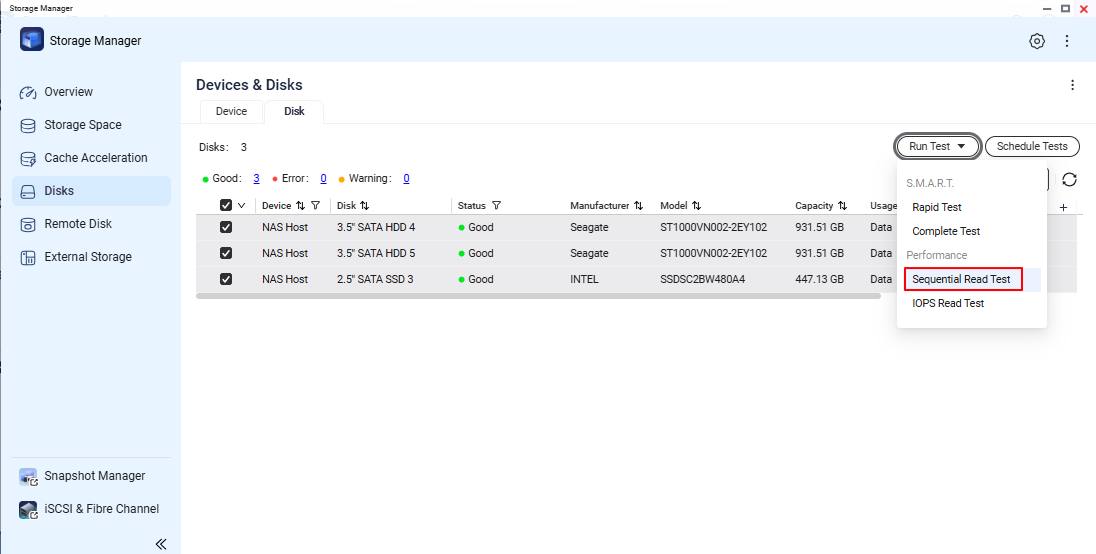
- Compare each disk result and verify there is no single disk with extremely low performance.
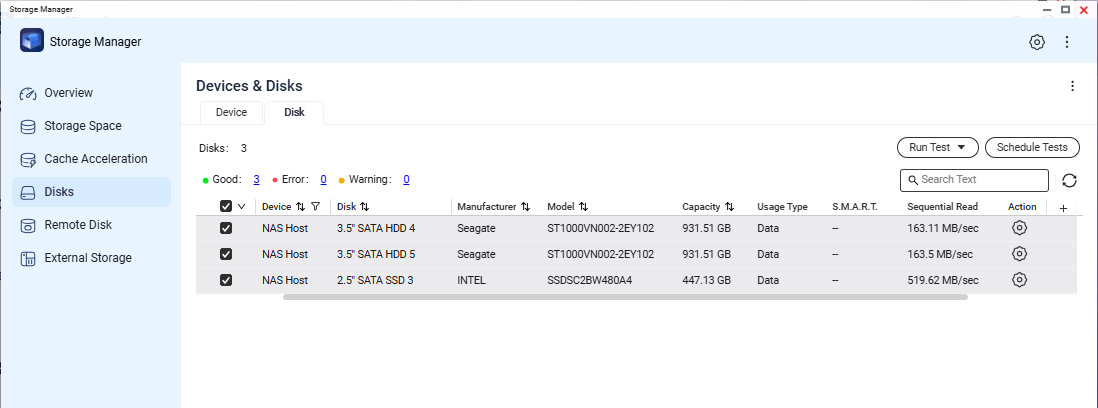
Screenshot needed 2: Disk list or test result screen showing per-disk status/performance values.
If one disk is significantly slower than others, record the slot number and disk model/serial for support analysis.
Test 3: Validate client machine disk performance with a USB external drive
- Connect a USB external drive to the client machine.
- On the client machine, run a local read/write test to that USB external drive.
- Verify the client-side disk path can deliver normal read/write speed for that system.
This step helps rule out local client storage bottlenecks that can be mistaken as NAS transfer issues.
Verification Checklist
- NAS link speed is confirmed and documented.
- NAS disk test confirms no specific disk with abnormally low speed.
- Client-side USB external drive read/write performance is confirmed to be normal.
After performing the above preliminary checks, if each item of checklist is normal but the problem is still not solved. You may conatct QNAP support for further assisitances.
While opening a support request, enclose the following information can help expedite the process:
- NAS model and firmware version.
- NAS system dump logs.
- Test 1 result (network link speed) with screenshot.
- Test 2 result (disk check) with screenshot.
- Test 3 result summary (client local USB read/write test).
- Brief topology note (client <-> switch <-> NAS).
Further Reading
適用產品
情境
我的 NAS 檔案傳輸速度比預期慢得多。我可以進行哪些初步檢查來加快問題解決。
解決方案
您可以在開啟支援案件之前進行以下三項快速測試。這些檢查有助於確認瓶頸是否在 NAS 網路路徑、NAS 硬碟或客戶端儲存空間。
測試 1:驗證 NAS 網路連結速度
- 登入 NAS 網頁介面。
- 前往控制台 > 網路與虛擬交換器 > 介面 > 資訊 > 硬體。
- 檢查活動 LAN 埠的連結速度(例如,1GbE、2.5GbE、10GbE)。
- 確認協商速度符合您預期的硬體能力。
速度: NAS 介面頁面顯示活動的適配器和協商的連結速度。
如果連結速度低於預期,請先檢查纜線型別、交換機埠能力和 NIC 協商設定。
測試 2:測試 NAS 硬碟速度(識別異常緩慢的硬碟)
- 前往儲存與快照總管。
- 開啟磁碟/VJBOD。
- 在所有硬碟上執行硬碟效能 / 順序讀取測試。.
- 比較每個硬碟的結果,並確認沒有單一硬碟效能極低。
需要的截圖 2:顯示每個硬碟狀態 / 效能值的硬碟列表或測試結果畫面。
如果某個硬碟顯著比其他硬碟慢,請記錄插槽號碼和硬碟型號 / 序號以供支援分析。
測試 3:使用 USB 外接硬碟驗證客戶端機器硬碟效能
- 將 USB 外接硬碟連線到客戶端機器。
- 在客戶端機器上,對該 USB 外接硬碟進行本地讀寫測試。
- 確認客戶端磁碟路徑能夠提供該系統正常的讀寫速度。
此步驟有助於排除可能被誤認為是 NAS 傳輸問題的本地客戶端儲存空間瓶頸。
驗證清單
- NAS 連線速度已確認並記錄。
- NAS 磁碟測試確認沒有特定磁碟速度異常低。
- 客戶端 USB 外接硬碟讀寫效能確認正常。
在執行上述初步檢查後,如果清單中的每個項目都正常但問題仍未解決,您可以聯絡QNAP 支援以獲得進一步協助。
當開啟支援請求時,附上以下資訊可以加快處理速度:
- NAS 型號和韌體版本。
- NAS 系統傾印記錄。
- 測試 1 結果(網路連線速度)附截圖。
- 測試 2 結果(磁碟檢查)附截圖。
- 測試 3 結果摘要(客戶端本地 USB 讀寫測試)。
- 簡要拓撲註記(客戶端 <-> 交換器 <-> NAS)。
進一步閱讀


