Applicable Products
- QuTS hero
- HBS 3 Hybrid Backup Sync 26 (or later)
- Storage Manager
Introduction
WORM (Write Once, Read Many) is a data protection solution that ensures data integrity by preventing files from being modified or deleted. Once data is written, it cannot be changed or removed within the configured retention period, protecting your data against ransomware attacks and unauthorized modifications.
In QuTS hero, you can enable WORM on a shared folder. You can then use HBS to back up files to the WORM shared folder, ensuring the backup data will be immutable, thereby preventing any accidental or malicious modifications.
This tutorial provides a step-by-step guide on how to set up a WORM shared folder and then create a backup job in HBS to back up files to the WORM shared folder.
Note
HBS currently only supports backing up to WORM shared folders. Syncing to WORM shared folders is not supported.
Instructions
Because WORM cannot be enabled, disabled, or modified on an existing shared folder, you must create a new shared folder and enable WORM during creation. After the WORM shared folder is created, you can create a backup job in HBS using the WORM shared folder as destination, and then monitor the job status after it runs for the first time. If you run out of space on the WORM shared folder, you can expand the folder capacity as needed.
A. Create a WORM shared folder.
Note
Only the required settings and WORM settings are covered in the following steps.
For details on other shared folder settings, see "Creating a shared folder" in the
QuTS hero User Guide.
- Log in to your NAS as an administrator.
- Open Control Panel.
- Go to System > Shared Folders > Shared Folder.
- Click Create > Shared Folder.
The Create Shared Folder Wizard opens.
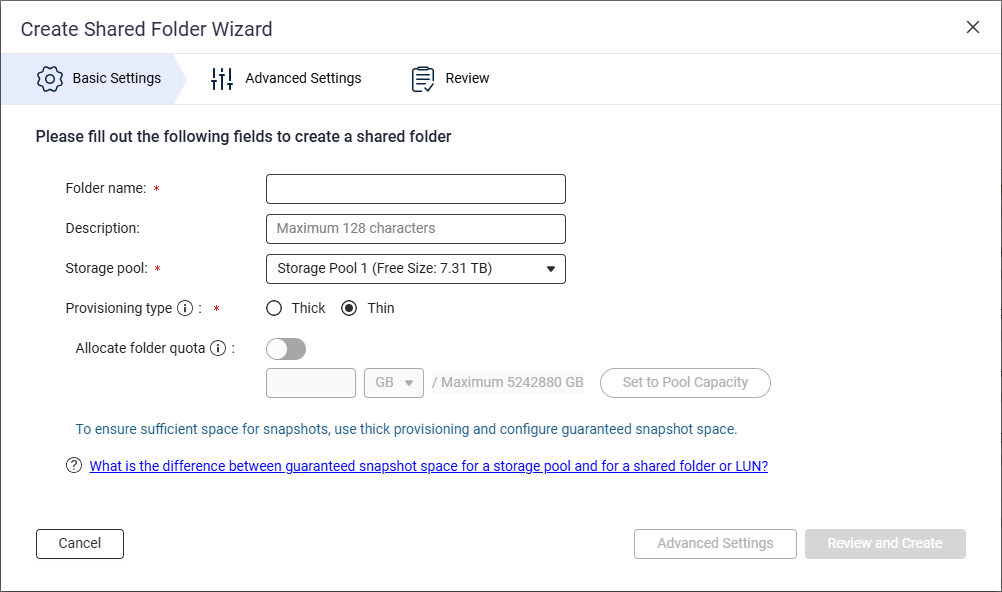
- Next to Folder name, specify the shared folder name.
- Next to Storage pool, select the storage pool in which to create the shared folder.
- Next to Provisioning type, select a provisioning type.
- Click Advanced Settings.
- Configure WORM.
- Next to Security Settings, click
 .
.
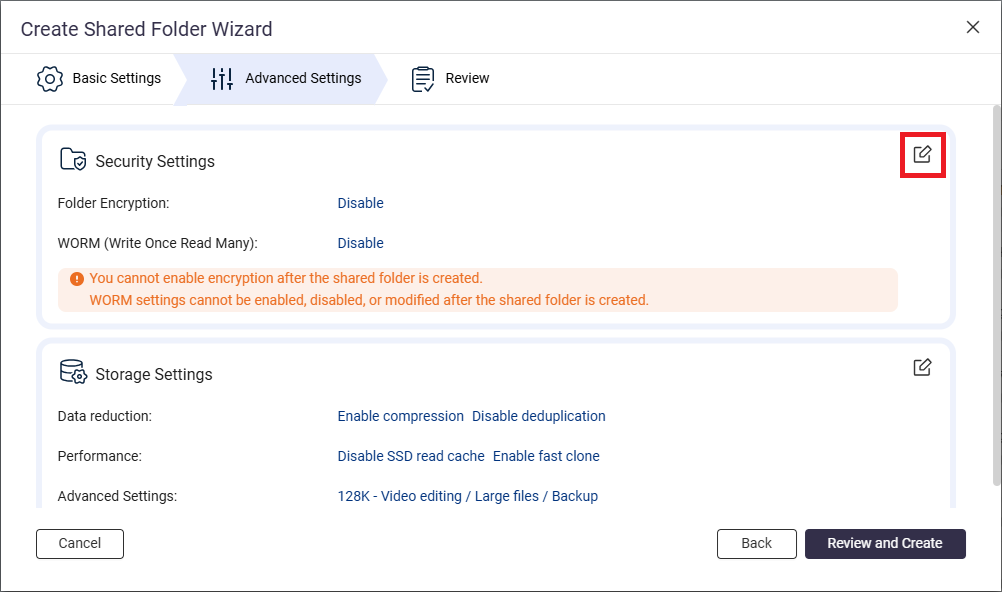
- Go to the WORM (Write Once Read Many) section.
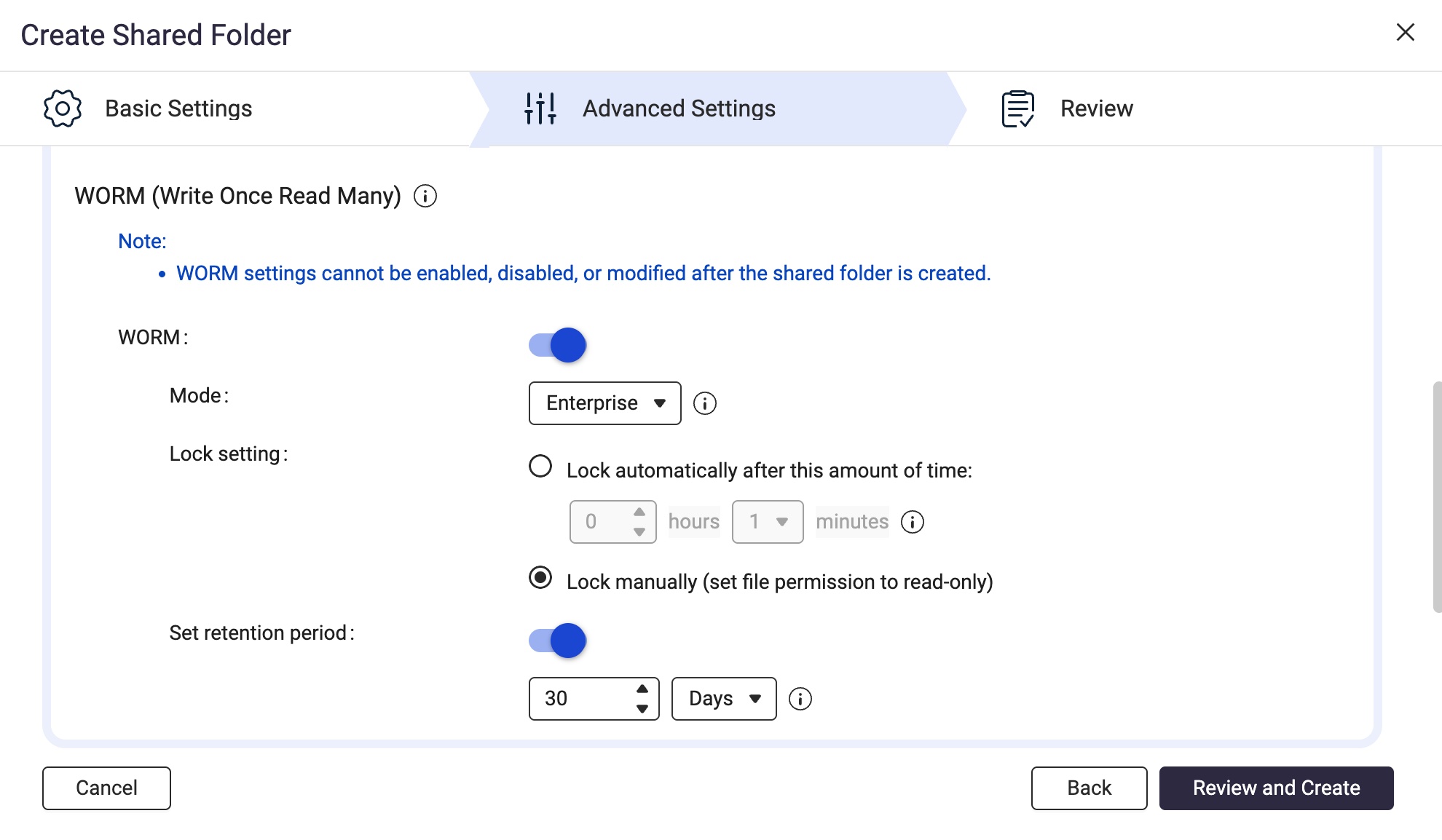
- Next to WORM, click
 .
. - Next to Mode, select one of the following WORM modes:
- Enterprise: Users can delete the shared folder.
- Compliance: Users cannot delete the shared folder. An administrator must delete the parent storage pool in order to delete the shared folder.
- Next to Lock setting, select Lock manually (set file permission to read-only).
This option requires a user with the appropriate privileges to manually set the file permission to read-only in order to lock the file.
Note
To use a WORM shared folder as a destination in HBS, you must select the Lock manually option.
- Enable the retention period.
The retention period limits how long WORM applies to each file and folder in the shared folder. Files and folders can be deleted after the specified retention period.
Note
To use a WORM shared folder as a destination in HBS, you must enable the retention period on the shared folder.
- Next to Set retention period, click .
- Specify the number of days, months, or years.
- Click Review and Create.
- Review the settings, and then click Create.
The system creates the WORM shared folder.
B. Create a backup job in HBS with the WORM shared folder as destination.
For illustration purposes, we'll create a local backup job where the source and destination folders are on the same NAS device.
Note
Only the required settings are covered in the following steps.
For details on other job settings, see
Creating a backup job.
- Open HBS 3 Hybrid Backup Sync.
- Go to Backup & Restore.
- Click Create, and then click New backup Job.
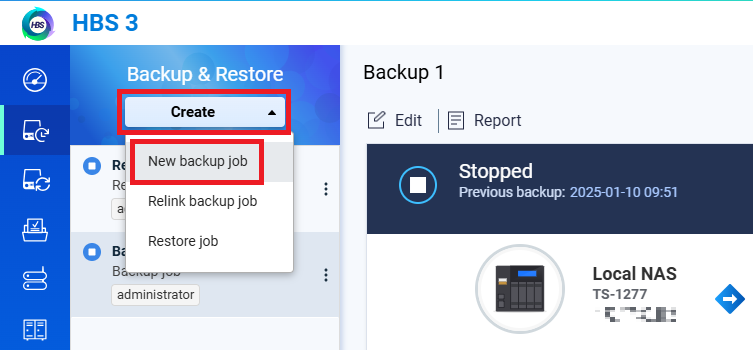 The Create a Backup Job wizard opens.
 - Select the source folder, and then click Next.
- Select Local NAS for the destination NAS, and then click Select.
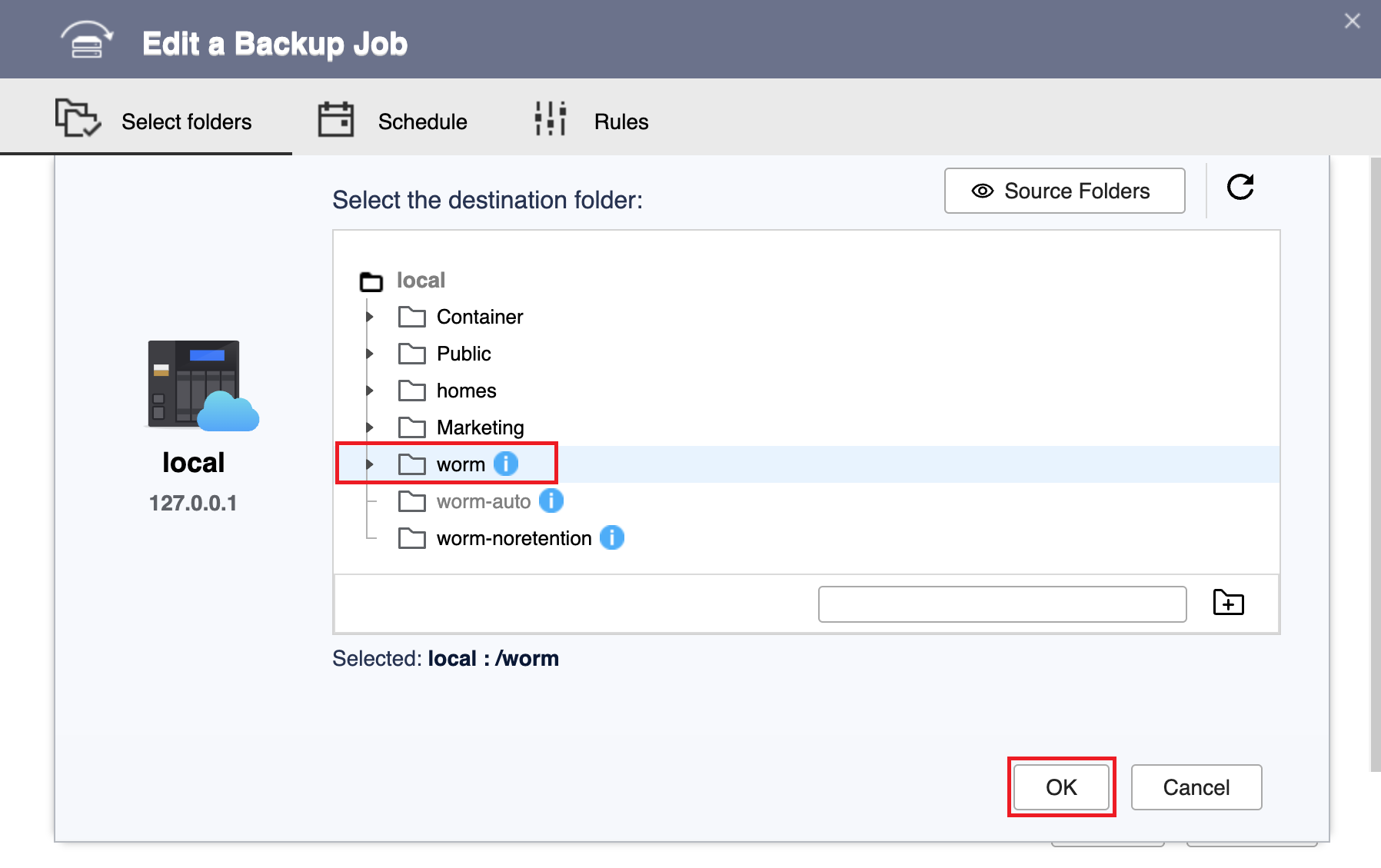
- Select the WORM shared folder you created as the destination folder, and then click OK.
Note
To select a WORM shared folder for the destination folder, the folder's WORM lock setting must be set to Lock manually and the retention period must be enabled.
For details, see earlier instructions in this tutorial.
- Click Next.
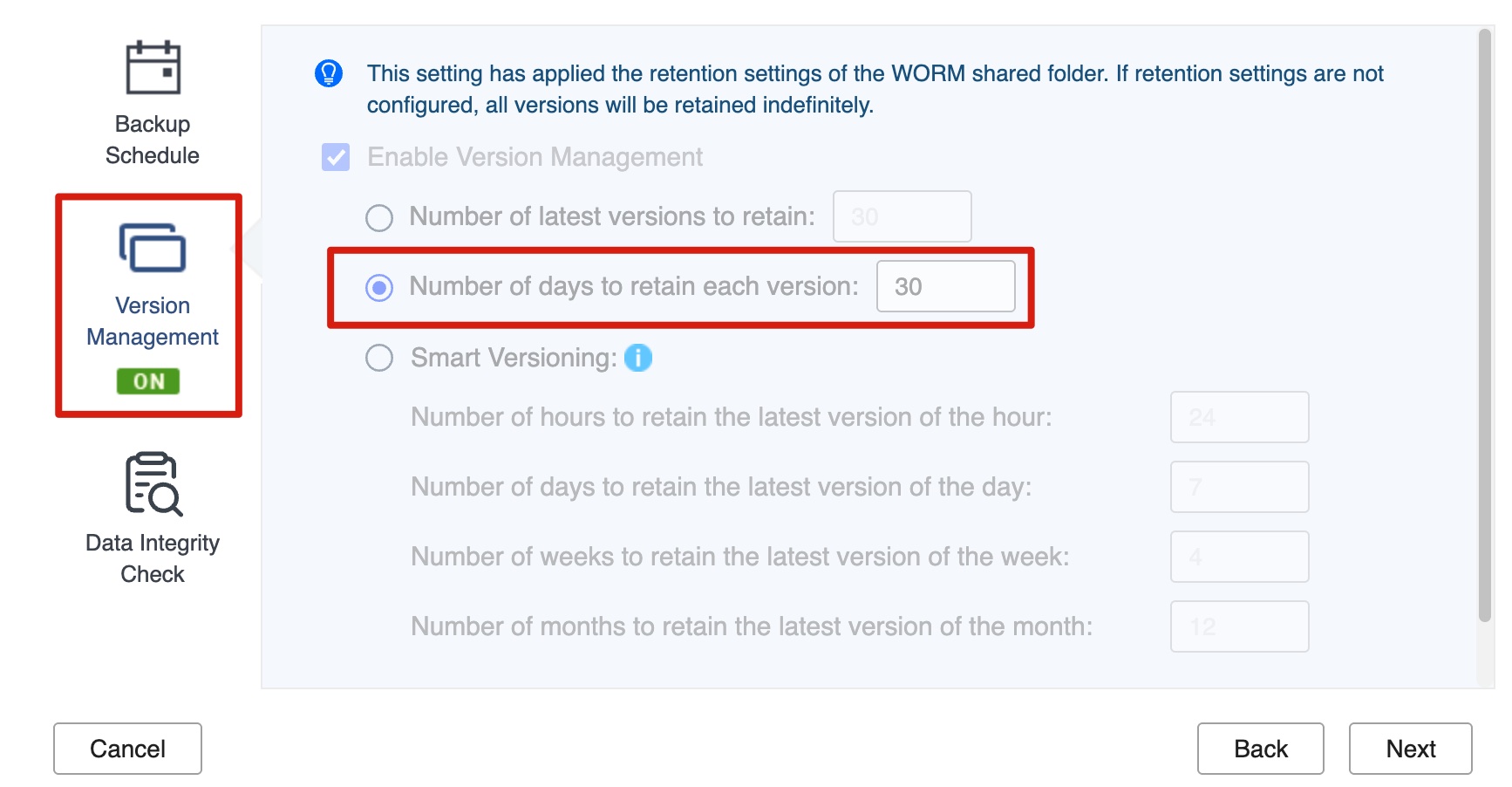
- Confirm that version management has been configured automatically to match the WORM retention period.
Note
- HBS automatically enables and configures the version management setting to match the retention period of the destination WORM shared folder.
- You cannot change this setting.
- This keeps backup versions retained for exactly as long as the WORM files remain immutable, so versions are neither purged early nor kept longer than necessary.
- Click Version Management. The panel shows the following read-only state:
- Enable Version Management is already selected (greyed out; it cannot be cleared).
- Number of days to retain each version is set automatically to match the WORM shared folder's retention period (greyed out; it cannot be modified).
- Click Next.
- Optional: Configure job rules.
- Click Next.
- Review the summary, and then click Create.
HBS creates the backup job.
C. Run and monitor the backup job in HBS.
- Manually run the backup job.
Note
You can skip this step if you configured the job to run immediately after creation or if you want the job to run according to the schedule you configured.
- Go to HBS > Backup & Restore.
- Select the backup job you created.
- Click Back Up Now.
- After the job runs for the first time, check the job report to ensure the job ran smoothly.
- Go to HBS > Backup & Restore.
- Select the backup job.
- Click Report.
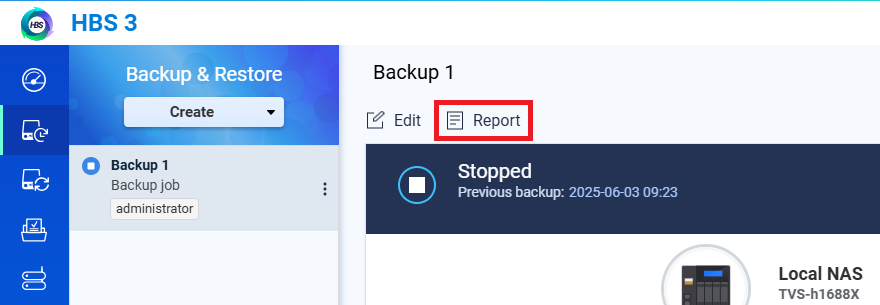 The Report window opens.
 - Go to the Logs tab.
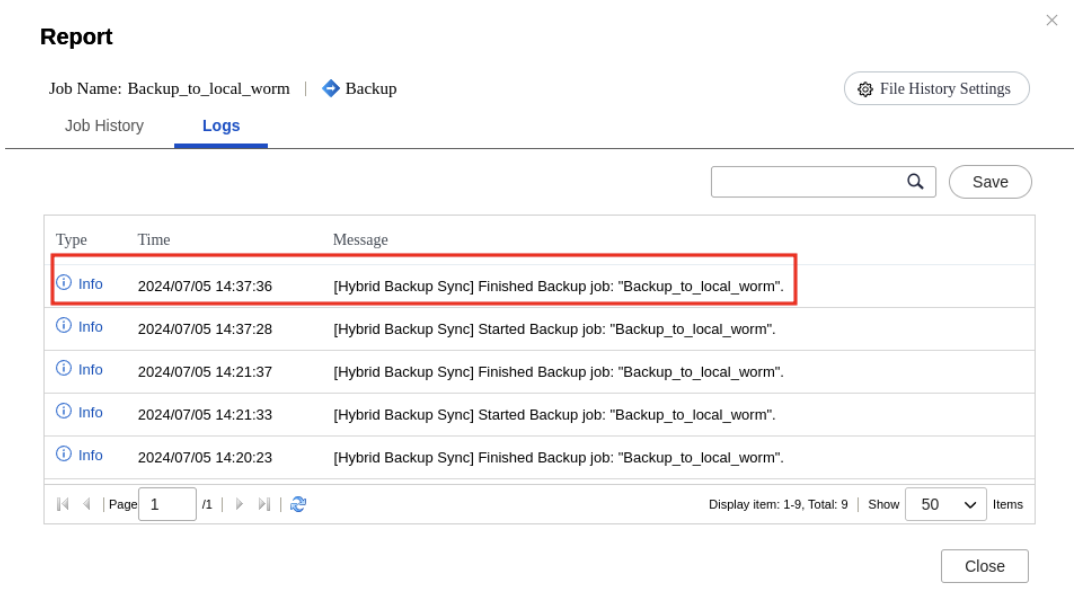
- Check for a message that mentions the job name and includes the words "Finished Backup job".
For example:
D. Expand the WORM shared folder if you run out of space.
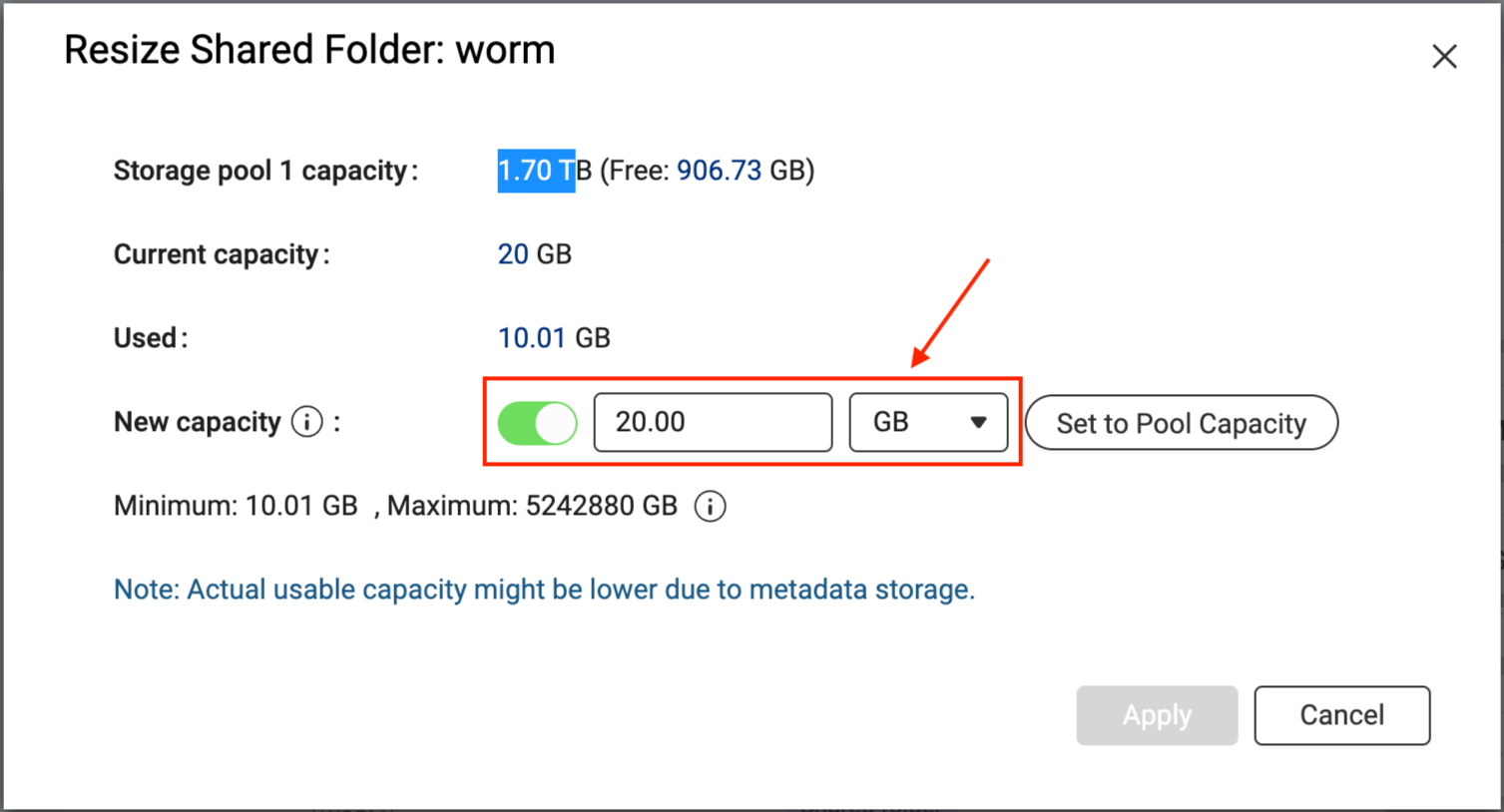
If your backup job fails due to the destination shared folder running out of space, and the folder's parent storage pool still has free space, you can increase the capacity of the shared folder.
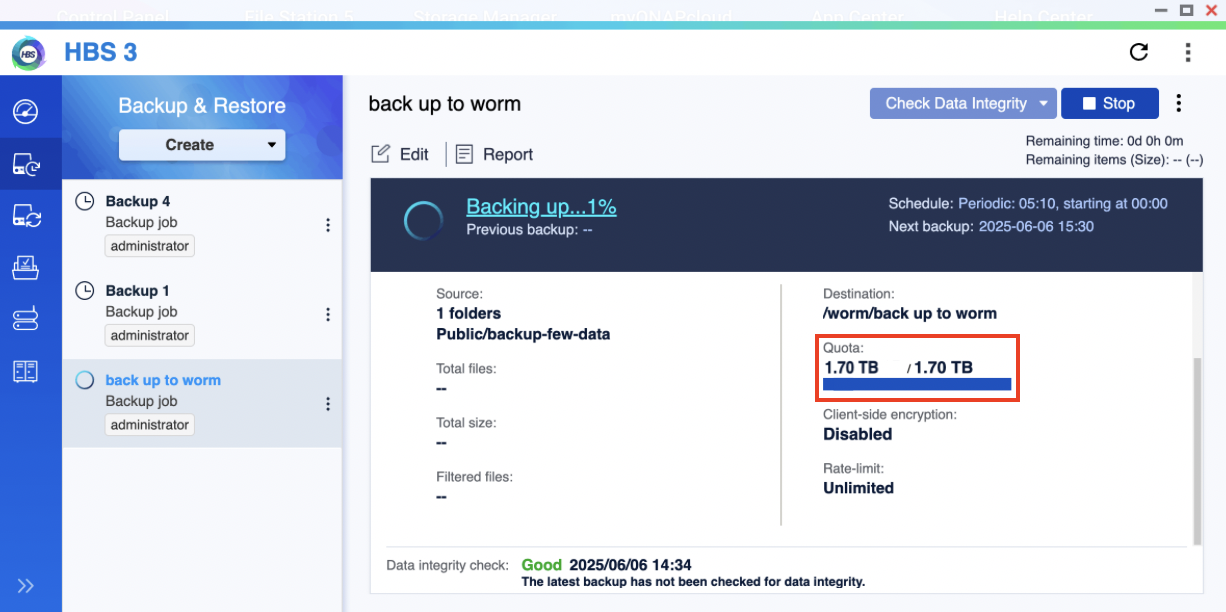
You can see that the destination shared folder is full by checking the Quota field of your job in HBS > Backup & Restore:
Note
The used quota shown here in HBS may not reflect the actual used capacity of the shared folder in its parent storage pool. The actual used capacity in the storage pool subtracts the amount reduced by data reduction. You can check the data reduction by going to
Storage Manager > Storage Space, identifying the shared folder, and then clicking
 > Manage
 under
Action.
To expand your WORM shared folder, follow these instructions:
- Go to Storage Manager > Storage Space.
- Locate the shared folder.
- Under Action, click > Resize Shared Folder.
The Resize Shared Folder window opens. - Next to New capacity, specify a greater size for the shared folder.
- Click Apply.
The system expands the shared folder. This process may take a while.
After the shared folder has been expanded, you can go to HBS and run the backup job again.
Further Reading and Resources
対象製品
- QuTS hero
- HBS 3 Hybrid Backup Sync 26 (or later)
- Storage Manager
導入
WORM(Write Once, Read Many)は、データの改ざんや削除を防ぎ、データの整合性を確保するデータ保護ソリューションです。一度データが書き込まれると、設定された保持期間内に変更や削除ができなくなり、ランサムウェア攻撃や不正な変更からデータを保護します。
QuTS hero では、共有フォルダで WORM を有効にできます。その後、HBS を使用してファイルを WORM 共有フォルダにバックアップし、バックアップデータが変更不可となり、偶発的または悪意のある変更を防ぎます。
このチュートリアルでは、WORM 共有フォルダの設定方法と、HBS でバックアップジョブを作成してファイルを WORM 共有フォルダにバックアップする手順をステップバイステップで説明します。
注意
HBS は現在、WORM 共有フォルダへのバックアップのみをサポートしています。WORM 共有フォルダへの同期はサポートされていません。
手順
既存の共有フォルダでは WORM を有効化、無効化、変更することはできないため、新しい共有フォルダを作成し、作成時に WORM を有効にする必要があります。WORM 共有フォルダが作成された後、HBS でバックアップジョブを作成し、WORM 共有フォルダを宛先として使用し、初回実行後にジョブのステータスを監視できます。WORM 共有フォルダの容量が不足した場合は、必要に応じてフォルダ容量を拡張できます。
A. WORM 共有フォルダを作成します。
注意
以下の手順では、必要な設定と WORM 設定のみを扱います。
他の共有フォルダ設定の詳細については、
QuTS hero ユーザーガイドの「共有フォルダの作成」を参照してください。
- 管理者として NAS にログインします。
- コントロールパネルを開きます。
- システム > 共有フォルダ > 共有フォルダに移動します。
- 作成 > 共有フォルダをクリックします。
共有フォルダ作成ウィザードが開きます。
- フォルダ名の横に、共有フォルダ名を指定します。
- ストレージプールの横に、共有フォルダを作成するストレージプールを選択します。
- プロビジョニングタイプの横にあるプロビジョニングタイプを選択します。
- 詳細設定をクリックします。
- WORM を設定します。
- セキュリティ設定の横にあるをクリックします。
- WORM(Write Once Read Many)セクションに移動します。
- WORMの横にあるをクリックします。
- モードの横で、次の WORM モードのいずれかを選択します:
- エンタープライズ: ユーザーは共有フォルダを削除できます。
- コンプライアンス: ユーザーは共有フォルダを削除できません。共有フォルダを削除するには、親ストレージプールを管理者が削除する必要があります。
- ロック設定の横で、手動でロック(ファイルの権限を読み取り専用に設定)を選択します。
このオプションは、適切な権限を持つユーザーがファイルの権限を手動で読み取り専用に設定してファイルをロックする必要があります。
注意
HBS で WORM 共有フォルダを宛先として使用するには、手動でロックオプションを選択する必要があります。
- 保持期間を有効にします。
保持期間は、共有フォルダ内の各ファイルとフォルダに WORM が適用される期間を制限します。指定された保持期間後にファイルとフォルダを削除できます。
注意
HBS で WORM 共有フォルダを宛先として使用するには、共有フォルダで保持期間を有効にする必要があります。
- 保持期間を設定の横で、をクリックします。
- 日数、月数、または年数を指定します。
- レビューと作成をクリックします。
- 設定を確認し、作成をクリックします。
システムは WORM 共有フォルダを作成します。
B. WORM 共有フォルダを宛先として HBS でバックアップジョブを作成します。
説明のために、ソースと宛先フォルダが同じ NAS デバイスにあるローカルバックアップジョブを作成します。
注意
以下の手順では必要な設定のみを扱います。
他のジョブ設定の詳細については、
バックアップジョブの作成を参照してください。
- HBS 3 Hybrid Backup Sync を開きます。
- バックアップとリストアに移動します。
- 作成をクリックし、次に新しいバックアップジョブをクリックします。
バックアップジョブの作成ウィザードが開きます。 - ソースフォルダを選択し、次に次へをクリックします。
- 宛先 NAS としてローカル NASを選択し、次に選択をクリックします。
- 宛先フォルダとして作成した WORM 共有フォルダを選択し、次にOKをクリックします。
注意
宛先フォルダとして WORM 共有フォルダを選択するには、フォルダの WORM ロック設定を手動でロックに設定し、保持期間を有効にする必要があります。
詳細については、このチュートリアルの前の説明を参照してください。
- 次へをクリックします。
- バージョン管理が WORM 保持期間に合わせて自動的に設定されていることを確認します。
注意
- HBS は、宛先の WORM 共有フォルダーの保持期間に合わせてバージョン管理設定を自動的に有効化し、設定します。
- この設定は変更できません。
- これにより、バックアップバージョンは WORM ファイルが変更不可の間だけ保持され、早期に削除されたり、必要以上に長く保持されたりすることはありません。
- バージョン管理をクリックします。パネルには以下の読み取り専用状態が表示されます:
- バージョン管理を有効にするが既に選択されています(グレーアウトされており、解除できません)。
- 各バージョンを保持する日数は、WORM 共有フォルダーの保持期間に合わせて自動的に設定されます(グレーアウトされており、変更できません)。
- 次へをクリックします。
- オプション:ジョブルールを設定します。
- 次へをクリックします。
- 概要を確認し、作成をクリックします。
HBS がバックアップジョブを作成します。
C. HBS でバックアップジョブを実行し、監視します。
- バックアップジョブを手動で実行します。
注意
ジョブを作成後すぐに実行するように設定した場合や、設定したスケジュールに従ってジョブを実行したい場合は、このステップをスキップできます。
- HBS > Backup & Restoreに移動します。
- 作成したバックアップジョブを選択します。
- 今すぐバックアップをクリックします。
- ジョブが初めて実行された後、ジョブレポートを確認して、ジョブがスムーズに実行されたことを確認します。
- HBS > Backup & Restoreに移動します。
- バックアップジョブを選択します。
- レポートをクリックします。
レポートウィンドウが開きます。 - ログタブに移動します。
- ジョブ名が記載され、「バックアップジョブ完了」という言葉が含まれているメッセージを確認します。
例えば:
D. 容量が不足した場合、WORM 共有フォルダーを拡張します。
バックアップジョブが宛先共有フォルダーの容量不足で失敗した場合、フォルダーの親ストレージプールにまだ空きがある場合は、共有フォルダーの容量を増やすことができます。
クォータフィールドを確認することで、宛先共有フォルダーがいっぱいであることがわかります。HBS > Backup & Restore:
注意
ここで HBS に表示される使用済みクォータは、親ストレージプール内の共有フォルダーの実際の使用容量を反映していない場合があります。ストレージプール内の実際の使用容量は、データ削減によって減少した量を差し引いたものです。データ削減を確認するには、
ストレージマネージャー > ストレージスペースに移動し、共有フォルダーを特定してから、
> 管理をクリックします。
アクションの下で。
WORM 共有フォルダーを拡張するには、以下の手順に従ってください:
- ストレージマネージャー > ストレージスペースに移動します。
- 共有フォルダーを見つけます。
- アクションの下で、 > 共有フォルダーのサイズ変更をクリックします。
共有フォルダーのサイズ変更ウィンドウが開きます。 - 新しい容量の横に、共有フォルダーのより大きなサイズを指定します。
- 適用をクリックします。
システムが共有フォルダーを拡張します。このプロセスには時間がかかる場合があります。
共有フォルダーが拡張された後、HBS に移動してバックアップジョブを再度実行できます。
さらに読むための資料


