


-
What is Qsirch?
-
System requirements
-
Install Qsirch
-
Set up your NAS for Qsirch AI
-
Configure folder indexing
-
Enable multimedia indexing
-
Activate AI engine
-
-
Search with Qsirch
-
Basic image search
-
Advanced AI image search
-
Object detection and categorization
-
People search
-
Object search
-
Document search
-
Other types of searches
-
-
Supported file types
-
Further reading and resources
This guide applies to Qsirch 5.6.0 and later versions.
What is Qsirch?
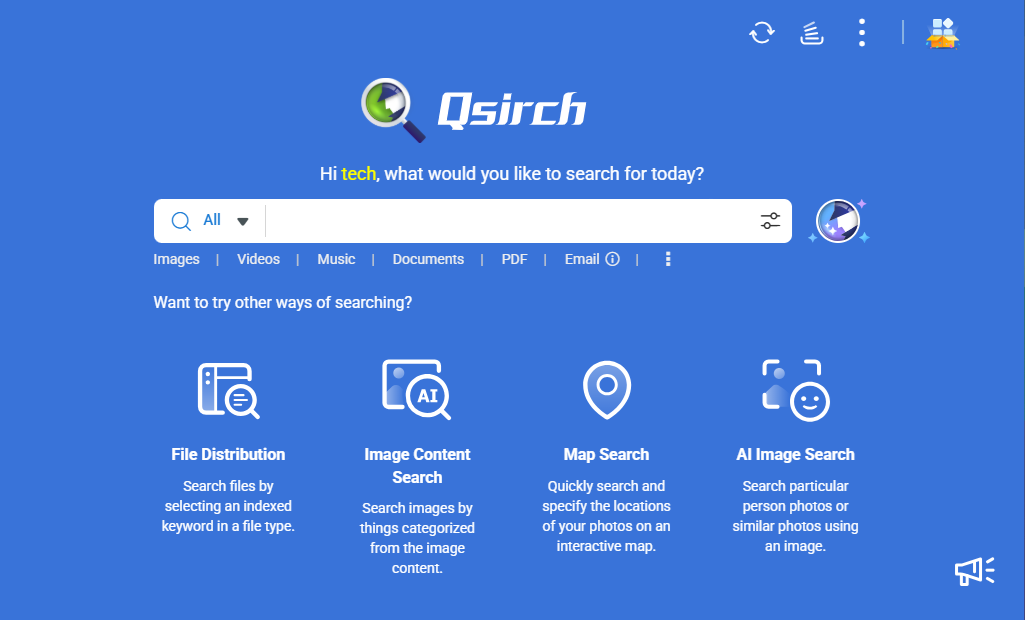
Qsirch is a full-text search and AI-powered semantic search engine designed for QNAP NAS devices, allowing you to quickly find files stored on your NAS using keywords or semantic search queries. You can search for files, images, videos, music, and emails. With AI-powered image recognition, you can also perform semantic image searches to find specific images based on objects and themes.
System requirements
Operating system
- QTS 5.0.1 or later
- QuTS hero h5.0.1 or later
Basic search / keyword search
- 4GB RAM is recommended for optimal performance
Al semantic search
- Qsirch 5.4.0 (or later)
- 8GB RAM is recommended for optimal performance
- QNAP AI Core must be installed in App Center
RAG search
- Qsirch 5.6.0 (or later versions)
- 4GB RAM is recommended for optimal performance
Install Qsirch
- Log in to QTS or QuTS hero as an administrator.
Non-administrators cannot open App Center or install apps. - Open App Center.
- Click
 , and then enter "Qsirch".
Qsirch appears in the search results. - Click Install.
The system installs Qsirch.
Set up your NAS for Qsirch AI
Qsirch integrates advanced AI technologies to enhance the search experience, especially for multimedia content. Before using AI features, you'll need to select folders for indexing and enable multimedia indexing on your NAS.
Configure folder indexing
Indexing helps reduce system load and prevents unnecessary files from being included in search results. You can optimize the performance and relevance of Qsirch searches on your NAS by carefully selecting which folders to include or exclude.
- Exclude folders from indexing.
- Open Qsirch.
- Go to Settings > Administrator setting > Exclude folders.
- Select the folders to exclude.
- Select folders for indexing.
- Open Multimedia Console.
- Go to Content Management > Qsirch, and then click Edit.
- Select the folders to include in the search index.
Enable multimedia indexing
Multimedia indexing helps your NAS manage and organize multimedia content by generating thumbnails and transcoding files, improving media browsing, management, and playback across your devices.
- Open Multimedia Console on your NAS.
- Go to Indexing and enable the function.
Activate AI engine
QNAP AI Core is QNAP's AI-powered engine that provides facial, object, and similar photo recognition. By enabling QNAP AI Core, users can automatically organize, search, and manage media files more efficiently.
- Log in to QTS or QuTS hero as an administrator.
- Open App Center.
- Click , and then enter "QNAP AI Core".
QNAP AI Core appears in the search results. - Go to Multimedia Console > AI Engines, and then enable QNAP AI Core.
Search with Qsirch
Qsirch provides powerful search capabilities by analyzing metadata and using AI-powered search technologies. You can search for images (and people or objects within images), documents, emails, videos, music, and Microsoft Office files.
Basic image search
Qsirch can retrieve images based on embedded file details, including file name, type, modification date, and size.
- Using metadata to find an image: You can refine your image search by using the following attributes:
File name, file type, general file information, date and time, camera and lens information, photography settings, and F-number. - Using map search: You can search for images and videos based on their geographical metadata if your device has recorded the location data of your photos.
Advanced AI image search
Qsirch utilizes advanced AI-powered search to help you find images based on content, meaning, and visual elements.
- Using keyword search: Keyword search can detect and retrieve images that contain specific keywords, even if they are not present in the file name. Additionally, it allows users to refine search results based on attributes such as keywords, colors, and object detection to ensure more accurate and relevant results.
- Using semantic search: Semantic search analyzes word relationships, user behavior, and search context to deliver more precise and relevant results.
Object detection and categorization
Qsirch automatically detects objects within images and categorizes them into groups such as people, sports, animals, food, nature, and transportation, allowing users to find images using keywords related to these categories.
- Using color search: Color search allows users to filter images based on specific colors. This feature is particularly useful for finding images with a certain aesthetic or theme.
- Using AI OCR (Optical Character Recognition): AI OCR can detect and extract text from scanned documents, images, and image-based PDFs. It recognizes individual characters, forms words and sentences, transforming scanned content into an editable and searchable text document.
People search
Qsirch allows you to search for images based on a person's face.
- Select AI Image Search on the Qsirch home page.
- Upload a picture containing the person you want to search for from your computer browser or NAS folder.
- After uploading the image, select People Image Search.
The AI engine will detect the person's face and display a box around it. - Click on the person's face to search for other images that also include this person.
The search results will display all relevant images stored on your NAS.
Object search
In addition to people search, AI Image Search allows you to find similar objects within images.
- Upload an image containing the object you want to search for from your computer browser or NAS folder.
- Select Crop to Search, then crop the image to focus on the specific item.
- Qsirch will analyze the cropped selection and display images containing similar objects from your NAS.
Document search
Document search enables users to quickly locate documents stored on their QNAP NAS using an advanced full-text search engine. This feature helps users efficiently retrieve files based on their content, metadata, and other criteria.
Other types of searches
Qsirch also supports other searching emails, videos, music, and Microsoft Office documents.
Supported file types
The following file types are supported by Qsirch:
Documents:
- Microsoft Word: .doc, .docm, .docx, .dot, .dotm, .dotx, .rtf
- Microsoft Excel: .xls, .xlsx, .xlt, .xltx, .xlsm
- Microsoft PowerPoint: .pot, .potm, .potx, .pps, .ppsm, .ppsx, .ppt, .pptm, .pptx
- PDF: .pdf
- Email: .eml
- Text: .txt
- Structured Data: .xml
- E-books: .epub
- Images: .3fr, .arw, .bmp, .cr2, .crw, .dcr, .dng, .erf, .gif, .heic, .iiq, .insp, .jpe, .jpeg, .k25, .kdc, .mef, .mos, .mrw, .nef, .orf, .pef, .png, .ptx, .raf, .raw, .rw2, .sr2, .srf, .tga, .tif, .tiff, .x3fNoteYou may need to download the HEIF Image Extensions utility on Windows.
- Music: .aac, .aif, .aiff, .ape, .au, .dff, .dsf, .flac, .m4a, .m4b, .m4r, .mka, .MP3, .mpa, .ogg, .ra, .wav, .wma, .wv
- Video: 3gp, .asf, .avi, .bdmv, .divx, .f4v, .flv, .ifo, .insv, .iso, .m1v, .m2t, .m2ts, .m2v, .m4v, .mkv, .mod, .mp2v, .mp4, .mpeg, .mpg, .mpv2, .mts, .rm, .rmp4, .rmvb, .tod, .tp, .trp, .ts, .wmvNoteYou may need to download the HEVC Video Extensions utility on Windows.
The following file types are supported by the RAG search feature of Qsirch:
- Documents:
- Microsoft Word: .doc, .docx
- Microsof Excel: .xls, .xlsx
- Microsoft PowerPoint: .ppt, .pptx
- PDF: .pdf
- Email: .eml
- Text: .txt
Further reading and resources
- Qsirch: QNAP official web page for Qsirch
- Multimedia Console: QNAP official web page for Multimedia Console
- Knowledge Base: Searchable database of FAQs, tutorials, and web helps
- QNAP College: Instructional video tutorials
For further assistance, ask other users and QNAP experts in the community. Go to QNAP Community


