Applicable Products
- All QNAP NAS series
- Windows Server (any supported version)
Scenario
A user accesses a QNAP NAS shared folder via Network File Services (NFS) from a Windows Server running a supported version. When copying a file with the same name, Windows displays the Replace or Skip Files prompt, indicating that an existing file is present on the NAS.
However, after selecting Replace the file in the destination, the operation fails with an access denied or permission error, preventing the file from being overwritten or updated.
Root Cause
This behavior is a known limitation of the Client for NFS feature in Windows Server and is independent of the NAS configuration. The same behavior is observed across all supported Windows Server versions that include Client for NFS.
- Client for NFS supports only NFSv2 and NFSv3 and does not support NFSv4 ACLs. As a result, it cannot negotiate or modify POSIX ACLs over NFS.
- By default, Client for NFS accesses NFS shares using an anonymous UID and GID. If the NAS does not grant write permissions to this anonymous identity, write operations fail.
- Access is denied unless the anonymous UID and GID are explicitly mapped to a UID and GID that the NAS recognizes and allows to write to the shared folder, regardless of the shared folder’s configured write permissions.
Note
These settings must be configured on the Windows Server.
Solution
To resolve this issue, map the anonymous NFS user on the Windows Server to a UID and GID that the NAS allows to write to the shared folder.
You can apply the configuration using one of the following methods.
Method 1: Configure Using PowerShell (Recommended)
- Open PowerShell as an Administrator.
- Launch PowerShell with administrative privileges.
- Run the following commands to map the anonymous UID and GID to
0, which corresponds to the QNAP root user.Set-ItemProperty -Path "HKLM:\SOFTWARE\Microsoft\ClientForNFS\CurrentVersion\Default" -Name AnonymousUid -Value 0 -PropertyType DWord
Set-ItemProperty -Path "HKLM:\SOFTWARE\Microsoft\ClientForNFS\CurrentVersion\Default" -Name AnonymousGid -Value 0 -PropertyType DWord
- Run the following command to restart Client for NFS or reboot the system to apply the changes:
nfsadmin client restart
Tip
Alternatively, you can restart the Windows Server.
Method 2: Configure Using the Windows Registry
- Press Win + R.
- Type
regedit. - Press Enter.
- Navigate to the following registry path:
HKEY_LOCAL_MACHINE\SOFTWARE\Microsoft\ClientForNFS\CurrentVersion\Default
- Go to Edit > New, and then click DWORD (32-bit) Value.
- Create the following two DWORD (32-bit) values inside the default folder:
- AnonymousUid = 0
- AnonymousGid = 0
- Apply the changes by restarting the NFS client:
nfsadmin client restart
Tip
Alternatively, you can restart the Windows Server.
Important
- Mapping the UID and GID to
0 allows Client for NFS to access the NAS as the root user. Ensure that the NAS shared folder grants write permissions to this identity. - Apply these settings on each Windows Server that accesses the NFS share.
- This applies to all Windows versions that support the Client for NFS feature.
- For environments that require fine-grained permission control or NFSv4 ACL support, Windows Server acting as an NFS client is not supported.
Further Reading
対象製品
- All QNAP NAS series
- Windows Server (any supported version)
シナリオ
ユーザーがサポートされているバージョンの Windows Server からネットワークファイルサービス (NFS) を介して QNAP NAS の共有フォルダーにアクセスします。同じ名前のファイルをコピーすると、Windows は ファイルの置換またはスキップ プロンプトを表示し、NAS に既存のファイルがあることを示します。
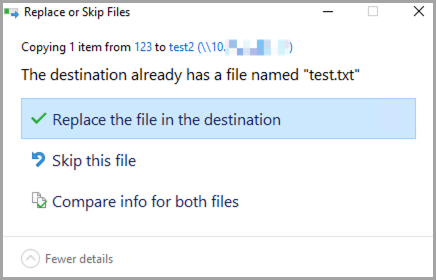
しかし、 宛先のファイルを置換を選択すると、アクセス拒否または権限エラーが発生し、ファイルの上書きや更新ができません。
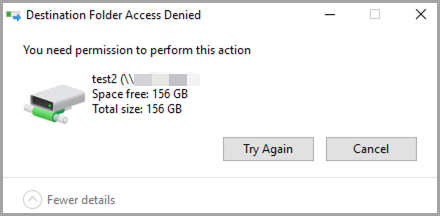
根本原因
この動作は、Windows Server の NFS クライアント機能の既知の制限であり、NAS の設定とは無関係です。NFS クライアントを含むすべてのサポートされている Windows Server バージョンで同じ動作が観察されます。
- NFS クライアントは NFSv2 と NFSv3 のみをサポートし、NFSv4 ACL をサポートしていません。その結果、NFS 経由で POSIX ACL を交渉または変更することができません。
- デフォルトでは、NFS クライアントは匿名の UID と GID を使用して NFS 共有にアクセスします。NAS がこの匿名のアイデンティティに書き込み権限を付与しない場合、書き込み操作は失敗します。
- 匿名の UID と GID が、NAS が認識し、共有フォルダーに書き込みを許可する UID と GID に明示的にマッピングされない限り、アクセスは拒否されます。共有フォルダーの設定された書き込み権限に関係なく。
注意
これらの設定は Windows Server 上で構成する必要があります。
解決策
この問題を解決するには、Windows Server 上の匿名 NFS ユーザーを、NAS が共有フォルダーに書き込みを許可する UID と GID にマッピングします。
次の方法のいずれかを使用して設定を適用できます。
方法 1: PowerShell を使用して構成 (推奨)
- PowerShell を管理者として開きます。
- 起動 PowerShell管理者権限で。
- 匿名の UID と GID をマッピングするために次のコマンドを実行します
0、これは QNAP の root ユーザーに対応します。Set-ItemProperty -Path "HKLM:\SOFTWARE\Microsoft\ClientForNFS\CurrentVersion\Default" -Name AnonymousUid -Value 0 -PropertyType DWord
Set-ItemProperty -Path "HKLM:\SOFTWARE\Microsoft\ClientForNFS\CurrentVersion\Default" -Name AnonymousGid -Value 0 -PropertyType DWord
- 次のコマンドを実行して NFS クライアントを再起動するか、システムを再起動して変更を適用します:
nfsadmin client restart
ヒント
または、Windows Server を再起動することもできます。
方法 2: Windows レジストリを使用して構成
- 押す Win + R.
- タイプ
regedit。 - 押す Enter。
- 次のレジストリパスに移動します:
HKEY_LOCAL_MACHINE\SOFTWARE\Microsoft\ClientForNFS\CurrentVersion\Default
- 移動 編集 > New、そしてクリック DWORD (32-bit) 値。
- デフォルトフォルダ内に次の 2 つの DWORD (32-bit) 値を作成します:
- AnonymousUid = 0
- AnonymousGid = 0
- NFS クライアントを再起動して変更を適用します:
nfsadmin client restart
ヒント
または、Windows Server を再起動することができます。
重要
- UID と GID をマッピングすることで
0 Client for NFS が NAS にルートユーザーとしてアクセスできるようになります。このアイデンティティに書き込み権限を付与する NAS 共有フォルダを確認してください。 - NFS 共有にアクセスする各 Windows Server にこれらの設定を適用します。
- これは、Client for NFS 機能をサポートするすべての Windows バージョンに適用されます。
- 細かい権限制御や NFSv4 ACL サポートが必要な環境では、NFS クライアントとしての Windows Server はサポートされていません。
さらに読む