Applicable Products
Ubuntu Linux Station
Overview
QNAP NAS is designed not only as a storage platform but also as a secure foundation for running virtualized and experimental tasks. Ubuntu Linux Station is a key component of this design, providing a Linux desktop environment while enforcing clear security boundaries to protect user data stored on the NAS.
Ubuntu Linux Station's file exchange mechanism provides a balanced approach between usability and security. It enables developers to safely experiment with advanced workloads while maintaining strong isolation between experimental environments and critical NAS data.
Explanation
Security-by-Design Approach
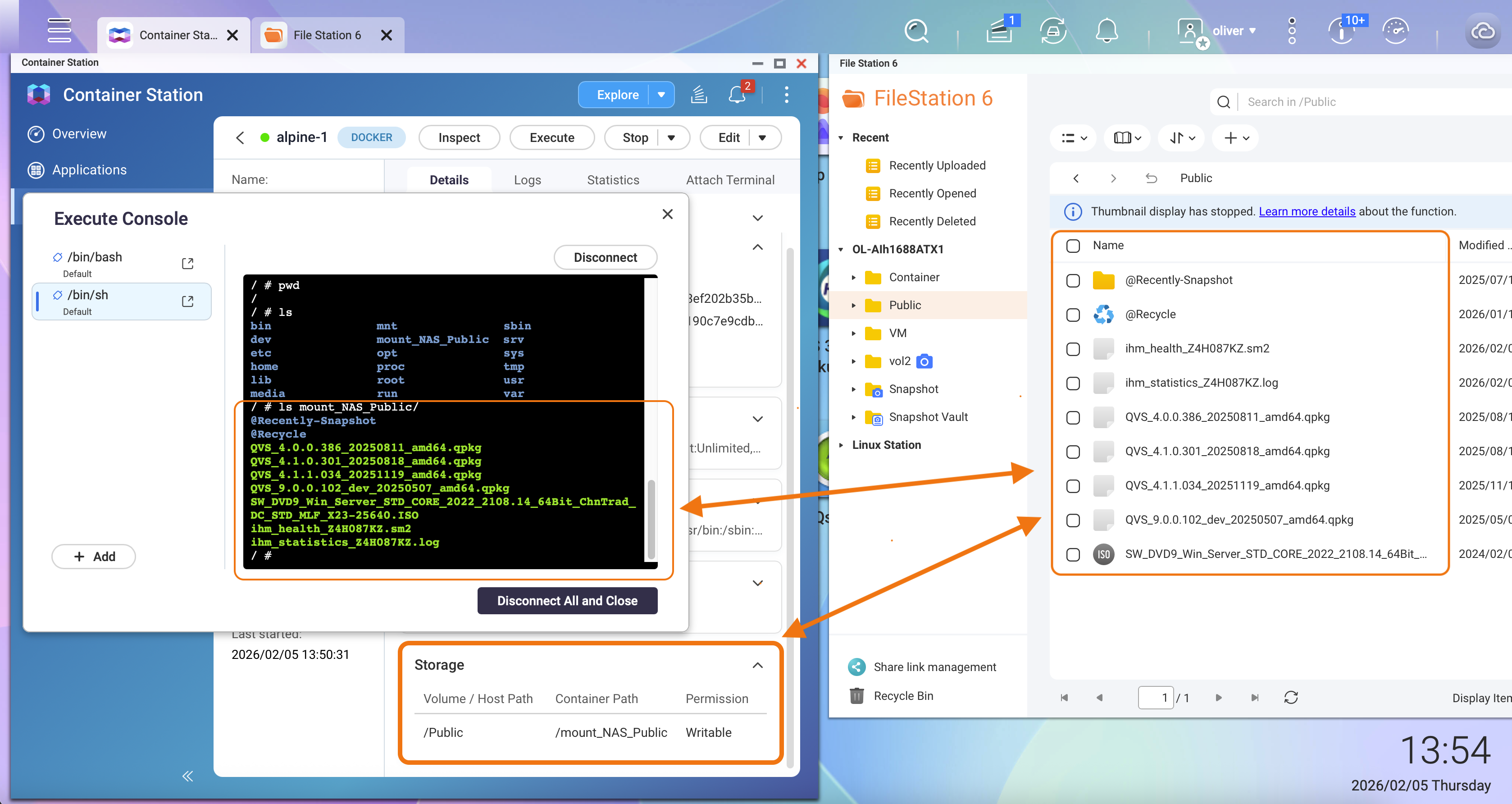
Unlike traditional container-based deployments where NAS folders can be freely mounted as writable volumes, Ubuntu Linux Station adopts a security-by-design approach. The system intentionally limits how and where data can be exchanged between the Linux environment and the NAS.
This design reduces the risk of accidental data exposure, misconfiguration, or unintended file access, especially when users run experimental or autonomous applications.
Controlled Data Access Model
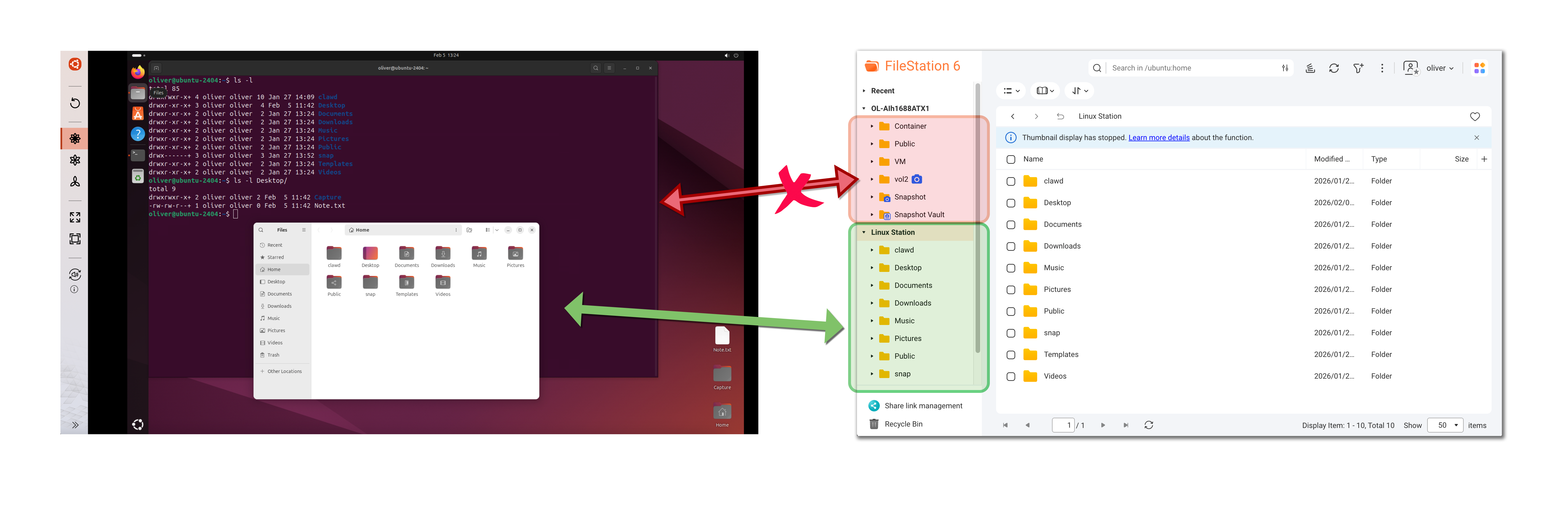
Applications running inside Ubuntu Linux Station do not have direct access to NAS shared folders such as Public, Container, or user home directories.
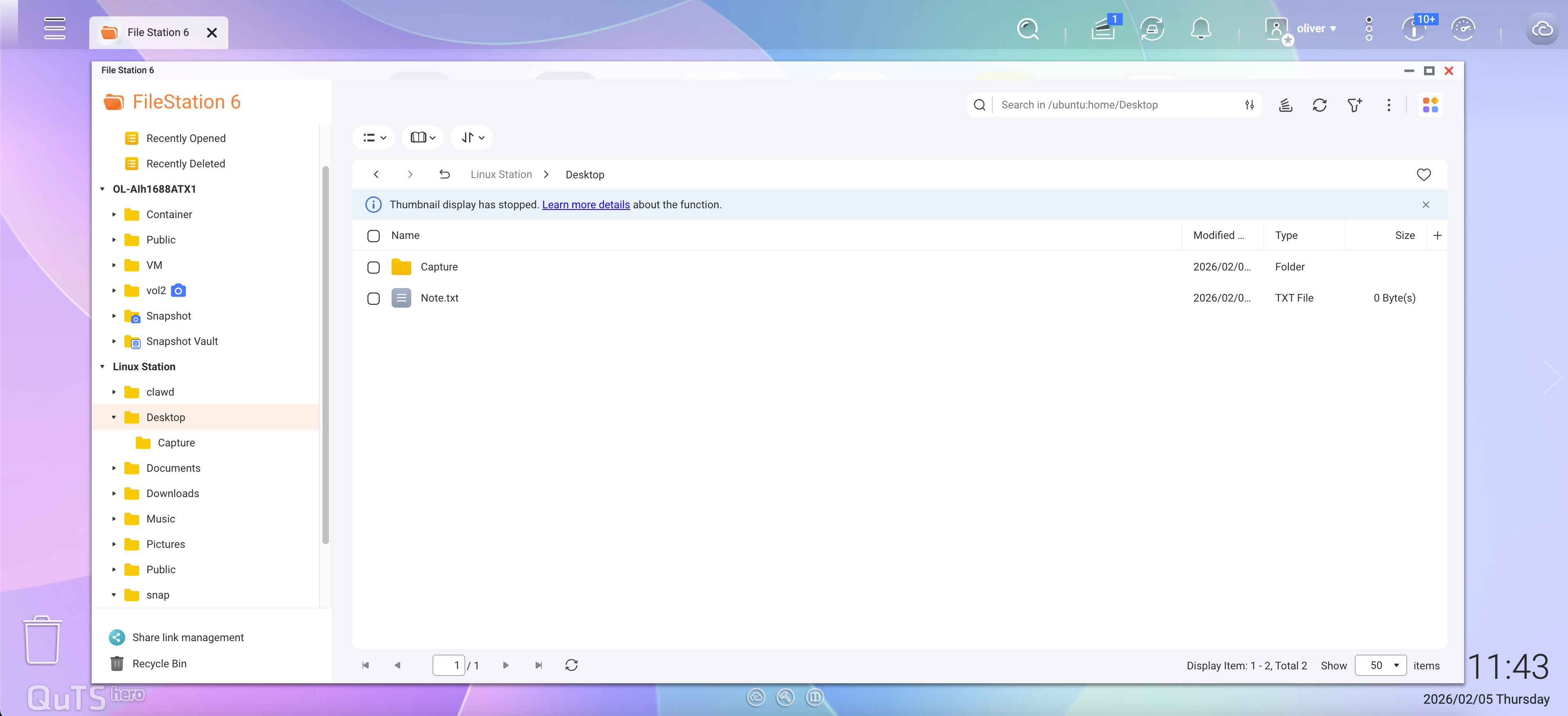
In File Station, a dedicated Linux Station section appears in the left panel. This section contains folders such as:
- Desktop
- Documents
- Downloads
- Music
- Pictures
- Videos
- (Other folders under the ~/ directory)
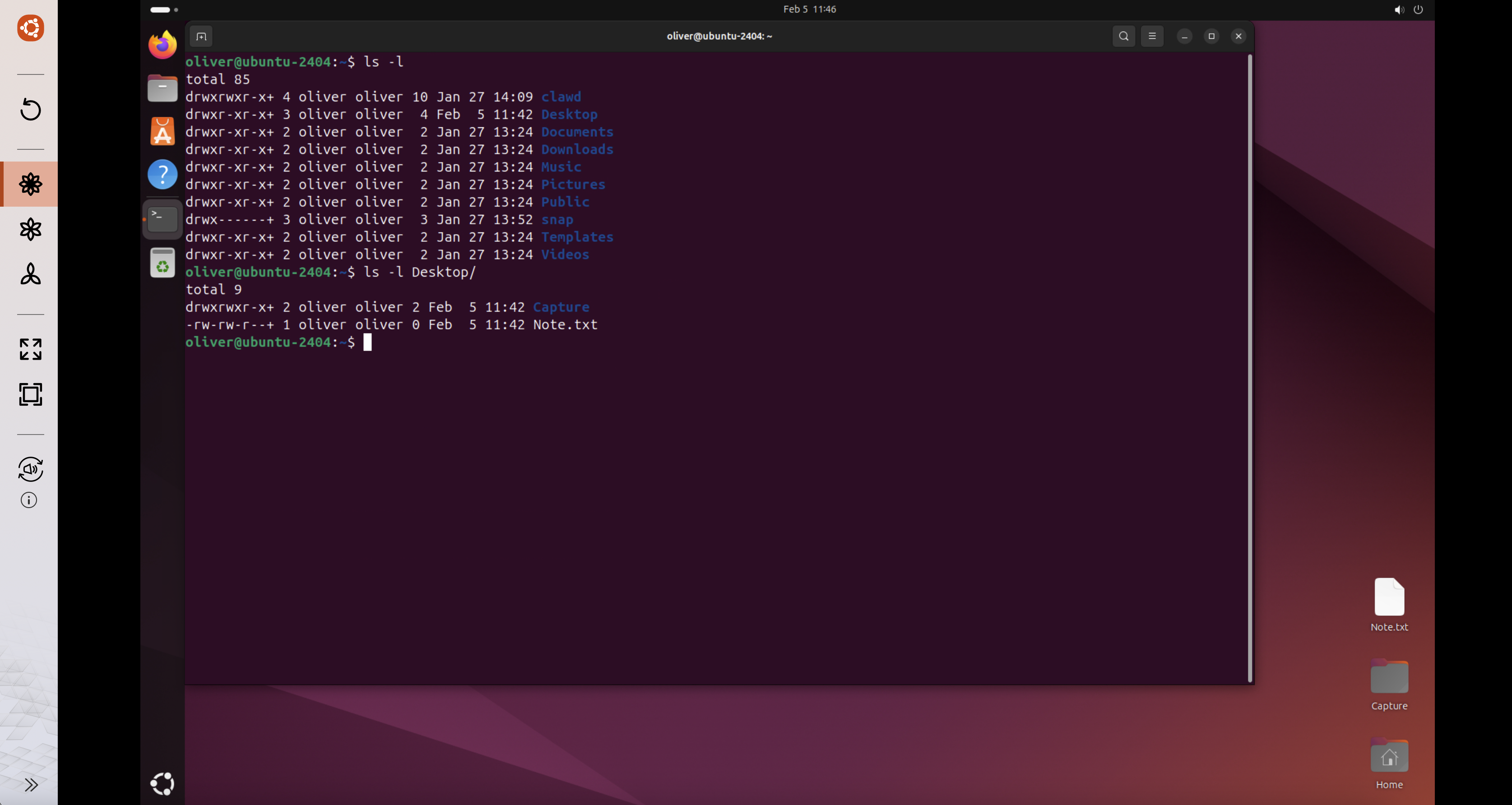
These folders correspond directly to the Ubuntu user's home directory (/home/<user>) inside the Linux Station environment.
Security Benefits of This Design
This architecture ensures that:
- Ubuntu applications cannot browse or scan the entire NAS file system.
- No NAS shared folders are mounted as volumes inside the Ubuntu environment.
- Only explicitly copied files are accessible to applications running in Linux Station.
As a result, even if an application or AI agent behaves unexpectedly or is compromised, the impact is limited to the Linux Station directories visible in File Station.
Best Practice for AI Agent Workloads
When experimenting with autonomous AI agents or third-party application, QNAP strongly recommends:
- Only copy files that are strictly required into the Linux Station folders.
- Avoid placing sensitive or confidential data in these directories.
- Treat the Linux Station file area as a controlled exchange zone, not a data repository.
Why This Approach Is More Secure Than Traditional Containers
While this design may require manually copying files instead of mounting NAS folders directly, it significantly reduces the risk of large-scale data exposure.
This trade-off prioritizes data protection while still preserving flexibility for development, testing, and experimentation.
Removal or Uninstallation
Users may consider reinstalling or uninstalling the Ubuntu environment in the following situations:
- All experimental applications are no longer required.
- The environment was used for testing untrusted or third-party workloads.
- Unexpected behavior or configuration drift is suspected.
- You want to reset the environment to a clean and known state.
Why Removal or Reinstallation Improves Security
Autonomous or experimental workloads may leave behind residual data, configuration changes, or installed components that are difficult to fully audit. Reinstalling or uninstalling the Ubuntu Linux Station instance ensures:
- All application data and user files inside the Linux Station environment are removed.
- Potential misconfigurations are fully reset.
- The NAS returns to a minimal and predictable security state.
This approach is especially recommended after experimenting with AI agents or other high-risk applications.
How to Reinstall or Uninstall Ubuntu Linux Station
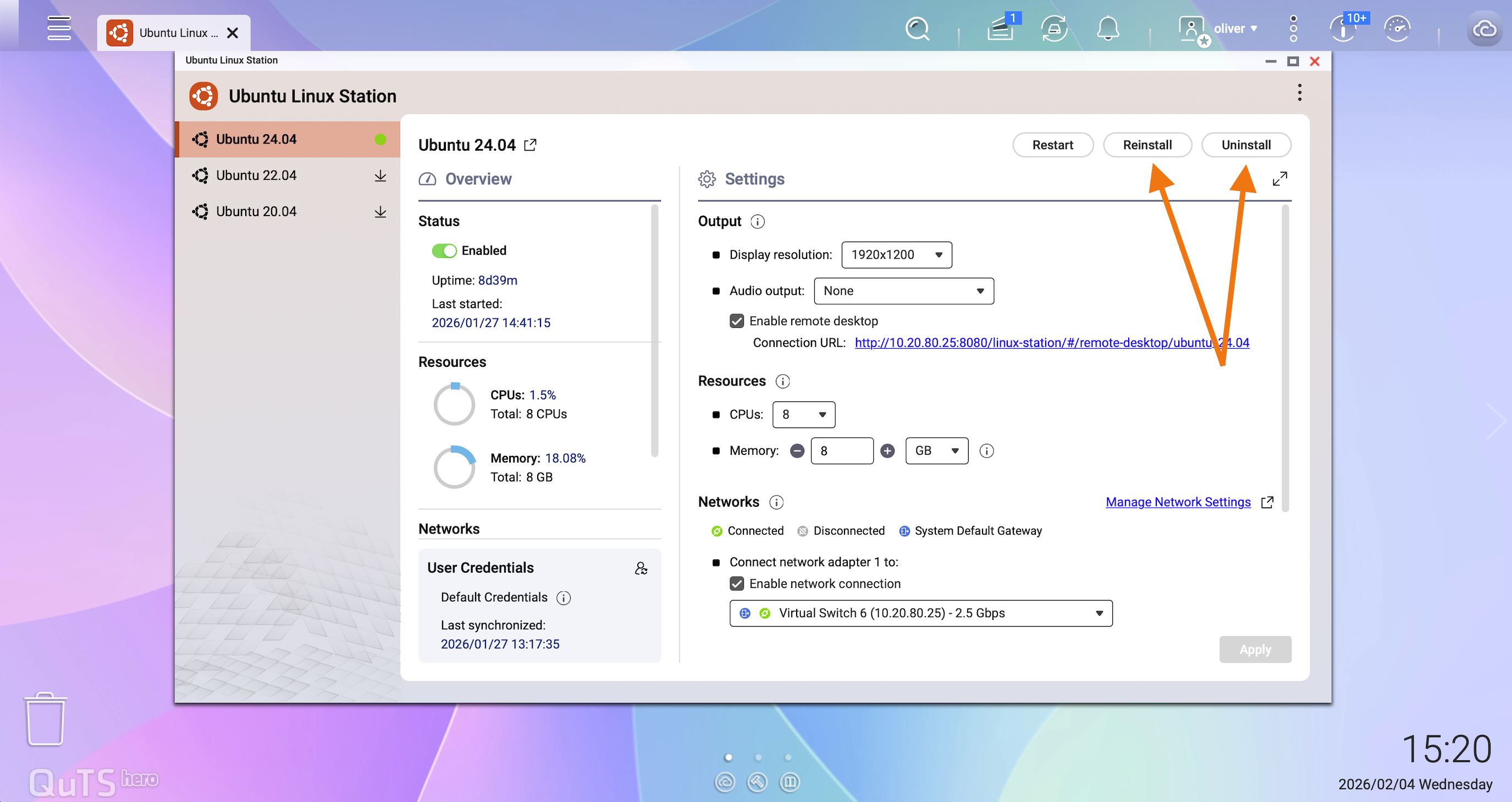
You can manage the Ubuntu Linux Station instance directly from the Linux Station management interface:
- Open Ubuntu Linux Station from the QNAP App Center.
- Select the installed Ubuntu version (for example, Ubuntu 24.04).
- Click Reinstall to reset the environment, or Uninstall to remove it completely.
適用產品
Ubuntu Linux 工作站
概覽
QNAP NAS 不僅被設計為儲存空間平台,還作為運行虛擬化和實驗性任務的安全基礎。Ubuntu Linux 工作站是此設計的關鍵組成部分,提供 Linux 桌面環境,同時強化安全界限以保護儲存在 NAS 上的使用者資料。
Ubuntu Linux 工作站的檔案交換機制在可用性和安全性之間提供了平衡的方法。它使開發者能夠安全地進行高級工作負載的實驗,同時保持實驗環境與重要 NAS 資料之間的強隔離。
說明
安全設計方法
與傳統的容器部署方式不同,NAS 資料夾可以自由掛載為可寫卷,Ubuntu Linux 工作站採用安全設計方法。系統有意限制在 Linux 環境與 NAS 之間交換資料的方式和位置。
此設計降低了意外資料暴露、配置錯誤或未預期的檔案存取風險,尤其是在使用者執行實驗性或自主應用程式時。
受控資料存取模型
在 Ubuntu Linux 工作站中運行的應用程式無法直接存取 NAS 共用資料夾,例如Public、Container或使用者主目錄。
在 File Station 中,專用的Linux Station區段會出現在左側面板。此區段包含以下資料夾:
- 桌面
- 檔案
- 下載
- 音樂
- 圖片
- 影片
- (~/ 目錄下的其他資料夾)
這些資料夾直接對應到 Ubuntu 使用者的主目錄 (/home/<user>) 在 Linux Station 環境中。
此設計的安全效益
此架構確保:
- Ubuntu 應用程式無法瀏覽或掃描整個 NAS 檔案系統。
- 沒有 NAS 共用資料夾被掛載為 Ubuntu 環境中的卷。
- 只有明確複製的檔案可供在 Linux Station 中執行的應用程式存取。
因此,即使應用程式或 AI 代理行為不如預期或被攻擊,影響也僅限於 File Station 中可見的 Linux Station 目錄。
AI 代理工作負載的最佳實踐
當您嘗試使用自主 AI 代理或第三方應用程式時,QNAP 強烈建議:
- 僅將絕對必要的檔案複製到 Linux Station 資料夾中。
- 避免將敏感或機密資料放置在這些目錄中。
- 將 Linux Station 檔案區域視為受控交換區,而非資料儲存庫。
為何此方法比傳統容器更安全
雖然此設計可能需要手動複製檔案,而不是直接掛載 NAS 資料夾,但它顯著降低了大規模資料曝光的風險。
此取捨優先考慮資料保護,同時仍保留開發、測試和實驗的靈活性。
移除或解除安裝
使用者可能會在以下情況下考慮重新安裝或解除安裝 Ubuntu 環境:
- 所有實驗性應用程式不再需要。
- 環境曾用於測試不受信任或第三方工作負載。
- 懷疑出現意外行為或配置漂移。
- 您希望將環境重置為乾淨且已知的狀態。
為何移除或重新安裝能提高安全性
自主或實驗性工作負載可能會留下殘餘資料、配置更改或已安裝的元件,這些都難以完全審核。重新安裝或解除安裝 Ubuntu Linux 工作站實例可確保:
- 移除 Linux Station 環境中的所有應用程式資料和使用者檔案。
- 潛在的錯誤配置得到完全重置。
- NAS 恢復到最小且可預測的安全狀態。
此方法特別建議在嘗試 AI 代理或其他高風險應用程式後使用。
如何重新安裝或解除安裝 Ubuntu Linux 工作站
您可以直接從 Linux Station 管理介面管理 Ubuntu Linux 工作站實例:
- 開啟 Ubuntu Linux 工作站 從 QNAP App Center。
- 選擇已安裝的 Ubuntu 版本(例如,Ubuntu 24.04)。
- 按一下 重新安裝 以重置環境,或 解除安裝 以完全移除。