Applicable Products
Ubuntu Linux Station
Overview
QNAP NAS is designed not only as a storage platform but also as a secure foundation for running virtualized and experimental tasks. Ubuntu Linux Station is a key component of this design, providing a Linux desktop environment while enforcing clear security boundaries to protect user data stored on the NAS.
Ubuntu Linux Station's file exchange mechanism provides a balanced approach between usability and security. It enables developers to safely experiment with advanced workloads while maintaining strong isolation between experimental environments and critical NAS data.
Explanation
Security-by-Design Approach
Unlike traditional container-based deployments where NAS folders can be freely mounted as writable volumes, Ubuntu Linux Station adopts a security-by-design approach. The system intentionally limits how and where data can be exchanged between the Linux environment and the NAS.
This design reduces the risk of accidental data exposure, misconfiguration, or unintended file access, especially when users run experimental or autonomous applications.
Controlled Data Access Model
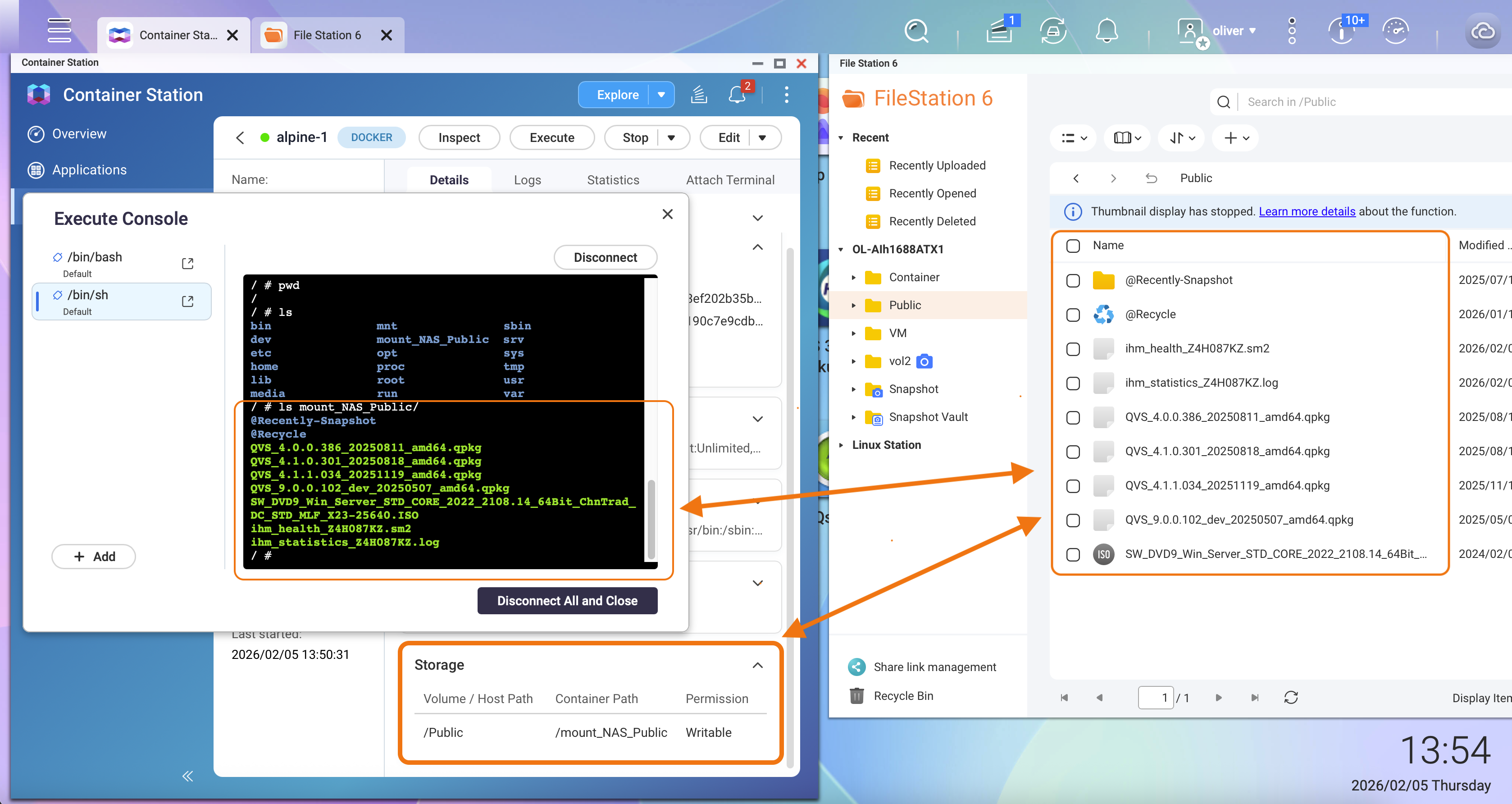
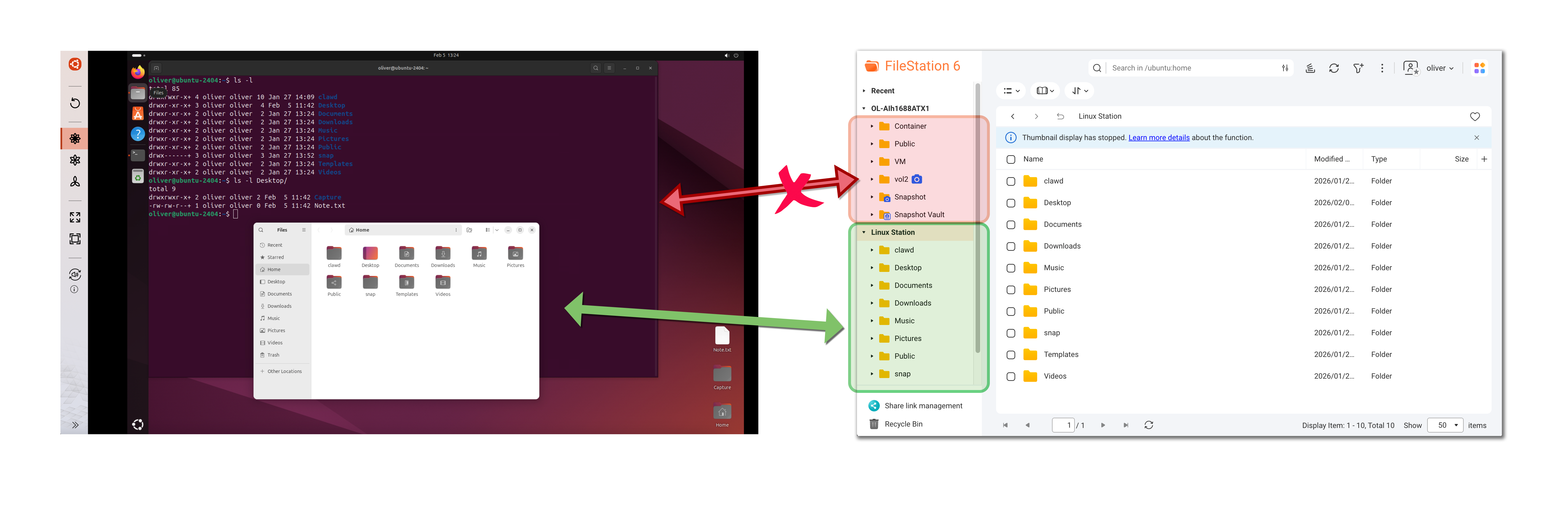
Applications running inside Ubuntu Linux Station do not have direct access to NAS shared folders such as Public, Container, or user home directories.
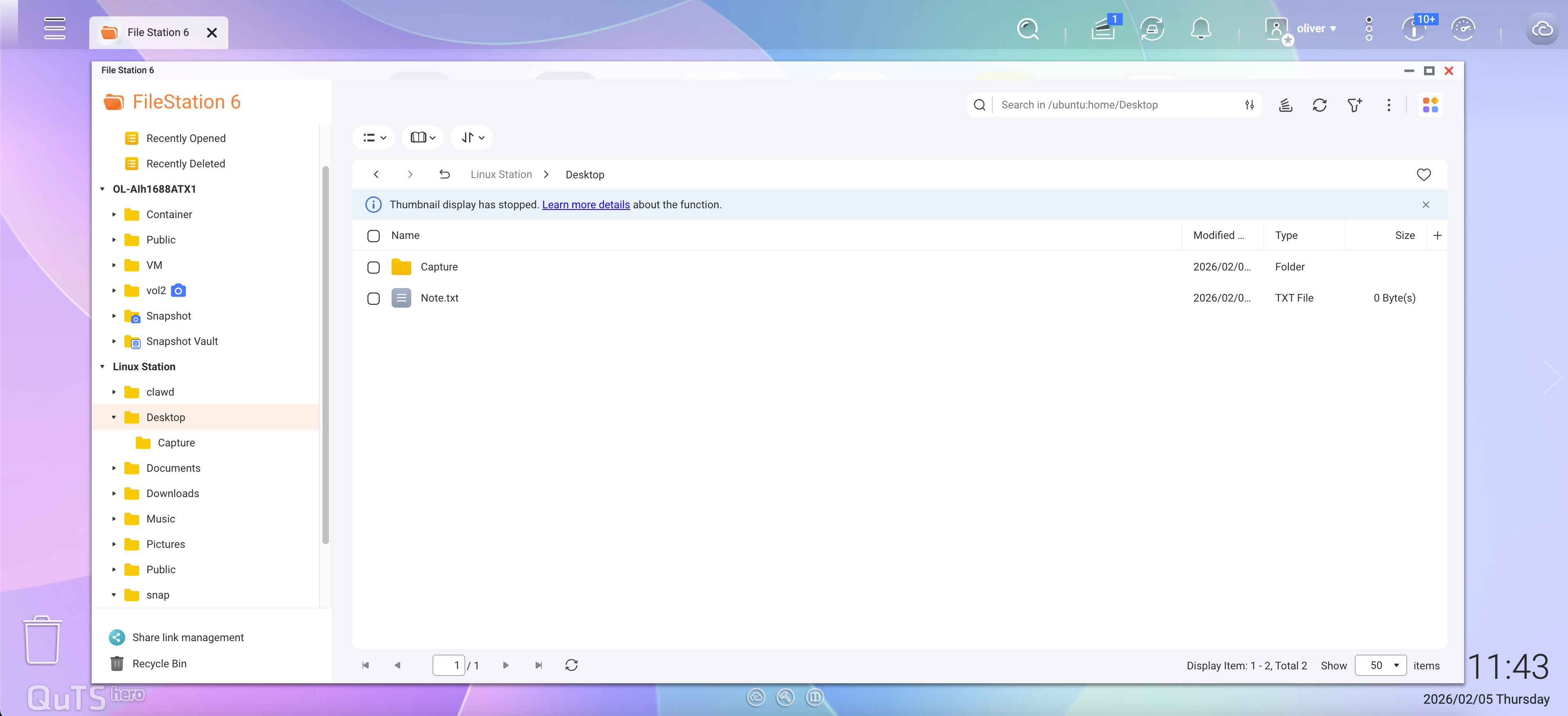
In File Station, a dedicated Linux Station section appears in the left panel. This section contains folders such as:
- Desktop
- Documents
- Downloads
- Music
- Pictures
- Videos
- (Other folders under the ~/ directory)
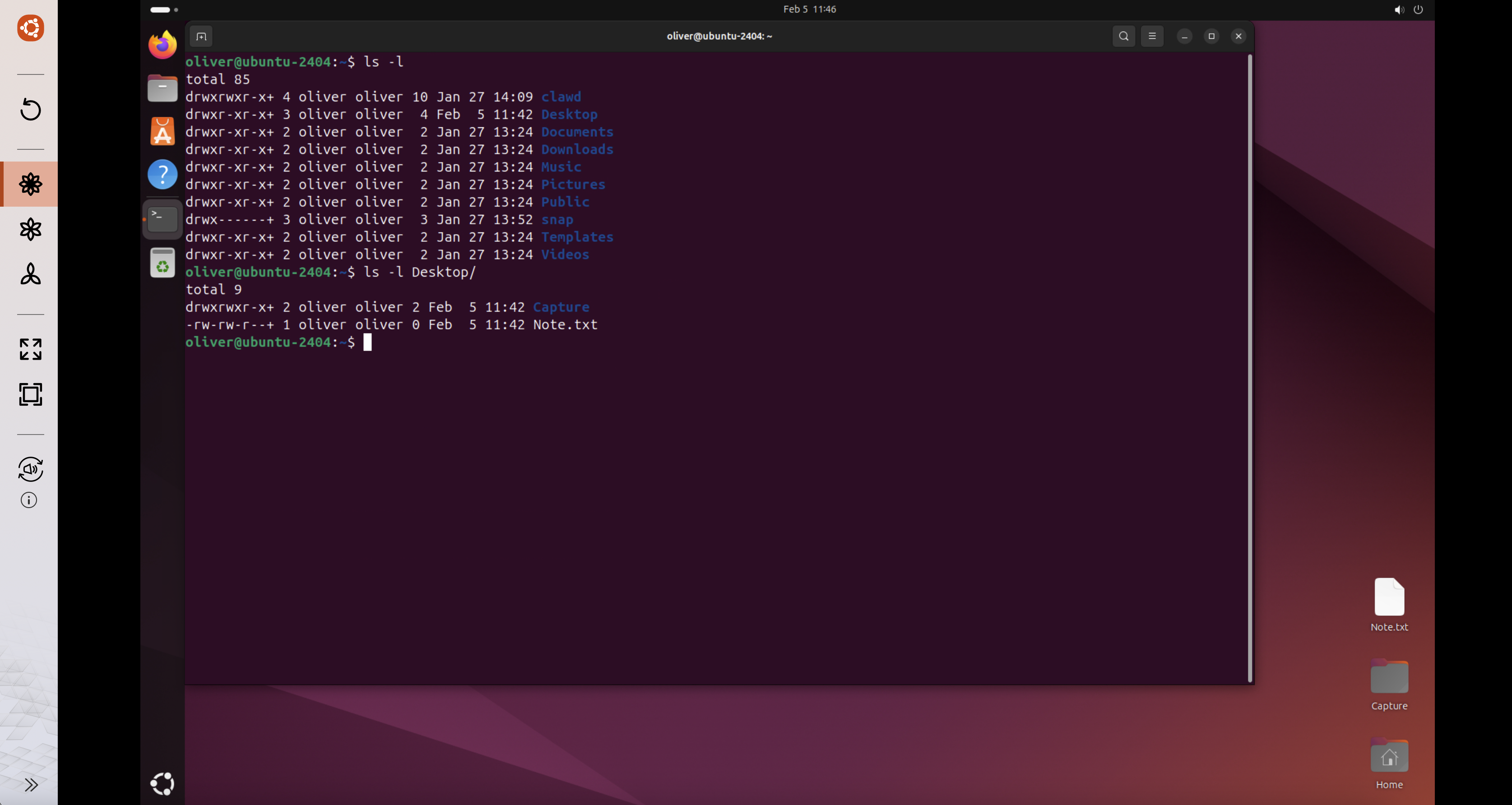
These folders correspond directly to the Ubuntu user's home directory (/home/<user>) inside the Linux Station environment.
Security Benefits of This Design
This architecture ensures that:
- Ubuntu applications cannot browse or scan the entire NAS file system.
- No NAS shared folders are mounted as volumes inside the Ubuntu environment.
- Only explicitly copied files are accessible to applications running in Linux Station.
As a result, even if an application or AI agent behaves unexpectedly or is compromised, the impact is limited to the Linux Station directories visible in File Station.
Best Practice for AI Agent Workloads
When experimenting with autonomous AI agents or third-party application, QNAP strongly recommends:
- Only copy files that are strictly required into the Linux Station folders.
- Avoid placing sensitive or confidential data in these directories.
- Treat the Linux Station file area as a controlled exchange zone, not a data repository.
Why This Approach Is More Secure Than Traditional Containers
While this design may require manually copying files instead of mounting NAS folders directly, it significantly reduces the risk of large-scale data exposure.
This trade-off prioritizes data protection while still preserving flexibility for development, testing, and experimentation.
Removal or Uninstallation
Users may consider reinstalling or uninstalling the Ubuntu environment in the following situations:
- All experimental applications are no longer required.
- The environment was used for testing untrusted or third-party workloads.
- Unexpected behavior or configuration drift is suspected.
- You want to reset the environment to a clean and known state.
Why Removal or Reinstallation Improves Security
Autonomous or experimental workloads may leave behind residual data, configuration changes, or installed components that are difficult to fully audit. Reinstalling or uninstalling the Ubuntu Linux Station instance ensures:
- All application data and user files inside the Linux Station environment are removed.
- Potential misconfigurations are fully reset.
- The NAS returns to a minimal and predictable security state.
This approach is especially recommended after experimenting with AI agents or other high-risk applications.
How to Reinstall or Uninstall Ubuntu Linux Station
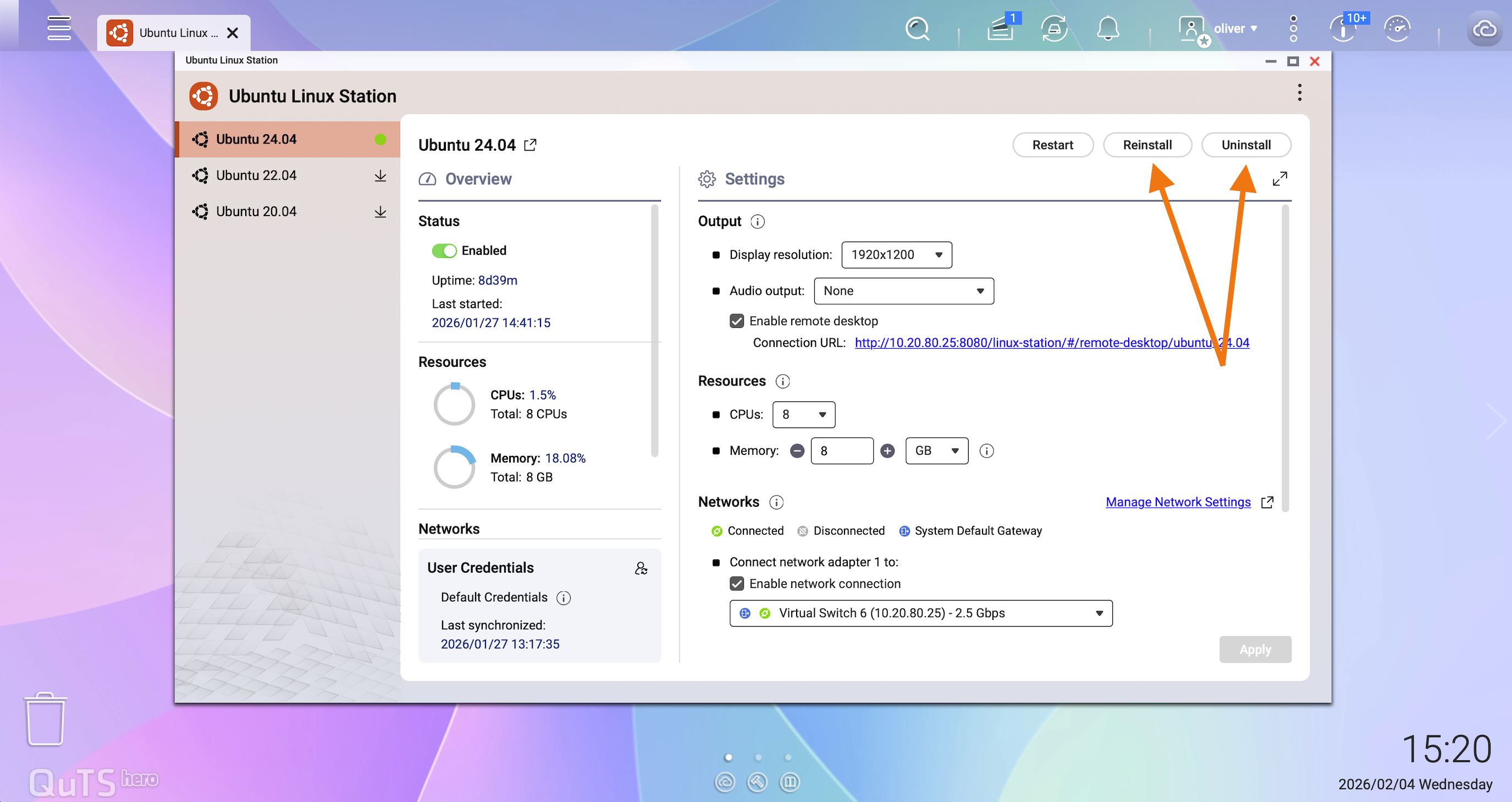
You can manage the Ubuntu Linux Station instance directly from the Linux Station management interface:
- Open Ubuntu Linux Station from the QNAP App Center.
- Select the installed Ubuntu version (for example, Ubuntu 24.04).
- Click Reinstall to reset the environment, or Uninstall to remove it completely.
적용되는 제품
Ubuntu Linux Station
개요
QNAP NAS는스토리지플랫폼뿐만 아니라 가상화 및 실험적 작업을 실행하기 위한 안전한 기반으로 설계되었습니다. Ubuntu Linux Station는 이 설계의 핵심 구성 요소로, NAS에 저장된 사용자 데이터를 보호하기 위해 명확한 보안 경계를 유지하면서 Linux 데스크탑 환경을 제공합니다.
Ubuntu Linux Station의 파일 교환 메커니즘은 사용성과 보안 사이의 균형 잡힌 접근 방식을 제공합니다. 개발자가 실험적 환경과 중요한 NAS 데이터 간의 강력한 격리를 유지하면서 고급 작업을 안전하게 실험할 수 있도록 합니다.
설명
보안 중심 설계 접근법
NAS 폴더를 쓰기 가능한 볼륨으로 자유롭게 마운트할 수 있는 전통적인 컨테이너 기반 배포와 달리, Ubuntu Linux Station는 보안 중심 설계 접근법을 채택합니다. 시스템은 Linux 환경과 NAS 간의 데이터 교환 방법과 위치를 의도적으로 제한합니다.
이 설계는 특히 사용자가 실험적 또는 자율 애플리케이션을 실행할 때 실수로 인한 데이터 노출, 잘못된 구성 또는 의도하지 않은 파일 액세스의 위험을 줄입니다.
제어된 데이터 액세스 모델
Ubuntu Linux Station내부에서 실행되는 애플리케이션은Public, Container또는 사용자 홈 디렉토리와 같은 NAS 공유 폴더에 직접 액세스할 수 없습니다.
File Station에서 전용Linux Station섹션이 왼쪽 패널에 나타납니다. 이 섹션에는 다음과 같은 폴더가 포함되어 있습니다:
- 데스크탑
- 문서
- 다운로드
- 음악
- 사진
- 비디오
- (~/ 디렉토리 아래의 다른 폴더)
이 폴더들은 Ubuntu 사용자의 홈 디렉토리와 직접적으로 대응됩니다 (/home/<user>) Linux Station 환경 내에서.
이 설계의 보안 혜택
이 아키텍처는 다음을 보장합니다:
- Ubuntu 애플리케이션은 NAS 파일 시스템 전체를 탐색하거나 스캔할 수 없습니다.
- Ubuntu 환경 내에 NAS 공유 폴더가 볼륨으로 마운트되지 않습니다.
- 명시적으로 복사된 파일만 Linux Station에서 실행되는 애플리케이션에 접근할 수 있습니다.
결과적으로, 애플리케이션이나 AI 에이전트가 예기치 않게 작동하거나 손상되더라도 영향은File Station에서 보이는 Linux Station 디렉토리로 제한됩니다.
AI 에이전트 작업 부하에 대한 모범 사례
자율 AI 에이전트 또는 타사 애플리케이션을 실험할 때, QNAP은 다음을 강력히 권장합니다:
- Linux Station 폴더에 엄격히 필요한 파일만 복사하십시오.
- 이 디렉토리에 민감하거나 기밀 데이터를 배치하지 마십시오.
- Linux Station 파일 영역을 데이터 저장소가 아닌 통제된 교환 구역으로 취급하십시오.
이 접근 방식이 전통적인 컨테이너보다 더 안전한 이유
이 설계는 NAS 폴더를 직접 마운트하는 대신 파일을 수동으로 복사해야 할 수도 있지만, 대규모 데이터 노출 위험을 크게 줄입니다.
이 절충안은 개발, 테스트 및 실험을 위한 유연성을 유지하면서 데이터 보호를 우선시합니다.
제거 또는 제거
사용자는 다음 상황에서 Ubuntu 환경을 다시 설치하거나 제거하는 것을 고려할 수 있습니다:
- 모든 실험적 애플리케이션이 더 이상 필요하지 않습니다.
- 환경이 신뢰할 수 없는 작업이나 타사 작업을 테스트하는 데 사용되었습니다.
- 예상치 못한 동작이나 구성 드리프트가 의심됩니다.
- 환경을 깨끗하고 알려진 상태로 재설정하고 싶습니다.
제거 또는 재설치가 보안을 개선하는 이유
자율적이거나 실험적인 작업은 잔여 데이터, 구성 변경 또는 설치된 구성 요소를 남길 수 있으며, 이를 완전히 감사하기 어려울 수 있습니다. Ubuntu Linux Station인스턴스를 다시 설치하거나 제거하면 다음을 보장합니다:
- Linux Station 환경 내의 모든 애플리케이션 데이터와 사용자 파일이 제거됩니다.
- 잠재적인 잘못된 구성은 완전히 재설정됩니다.
- NAS가 최소한의 예측 가능한 보안 상태로 돌아갑니다.
이 접근 방식은 AI 에이전트 또는 기타 고위험 애플리케이션을 실험한 후 특히 권장됩니다.
Ubuntu Linux Station를 다시 설치하거나 제거하는 방법
Linux Station 관리 인터페이스에서Ubuntu Linux Station인스턴스를 직접 관리할 수 있습니다:
- 열기 Ubuntu Linux Station QNAP App Center에서.
- 설치된 Ubuntu 버전을 선택합니다 (예: Ubuntu 24.04).
- 클릭 다시 설치 환경을 재설정하거나 제거 완전히 제거합니다.