Applicable Products
Ubuntu Linux Station
Overview
QNAP NAS is designed not only as a storage platform but also as a secure foundation for running virtualized and experimental tasks. Ubuntu Linux Station is a key component of this design, providing a Linux desktop environment while enforcing clear security boundaries to protect user data stored on the NAS.
Ubuntu Linux Station's file exchange mechanism provides a balanced approach between usability and security. It enables developers to safely experiment with advanced workloads while maintaining strong isolation between experimental environments and critical NAS data.
Explanation
Security-by-Design Approach
Unlike traditional container-based deployments where NAS folders can be freely mounted as writable volumes, Ubuntu Linux Station adopts a security-by-design approach. The system intentionally limits how and where data can be exchanged between the Linux environment and the NAS.
This design reduces the risk of accidental data exposure, misconfiguration, or unintended file access, especially when users run experimental or autonomous applications.
Controlled Data Access Model
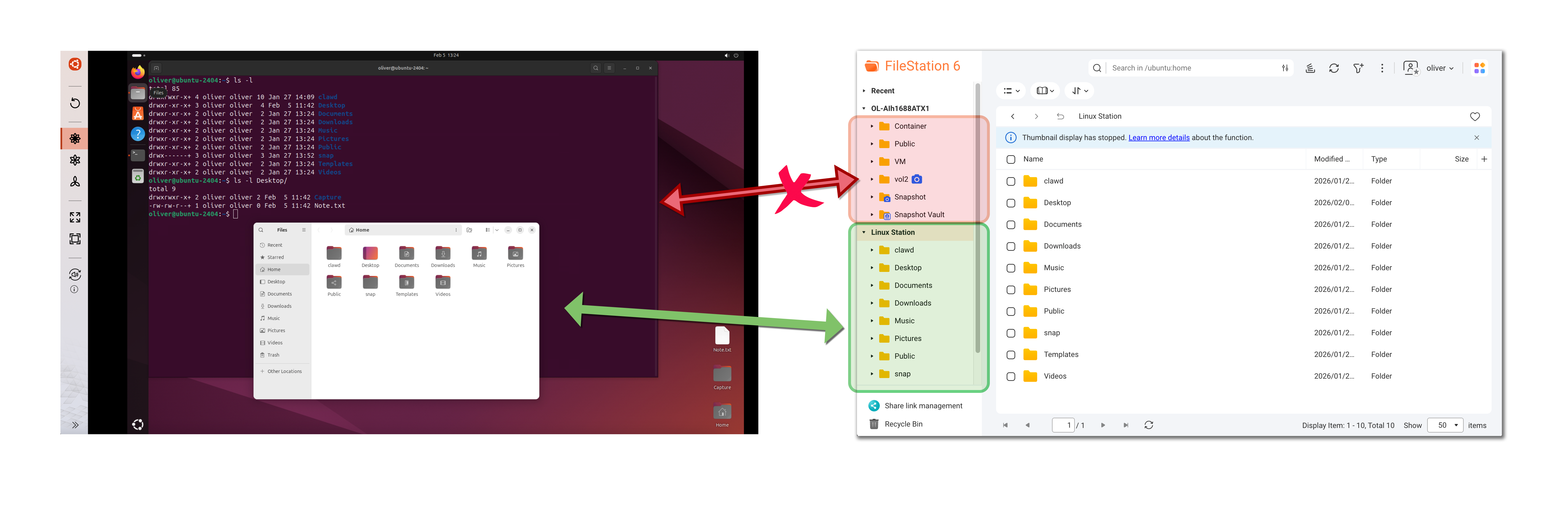
Applications running inside Ubuntu Linux Station do not have direct access to NAS shared folders such as Public, Container, or user home directories.
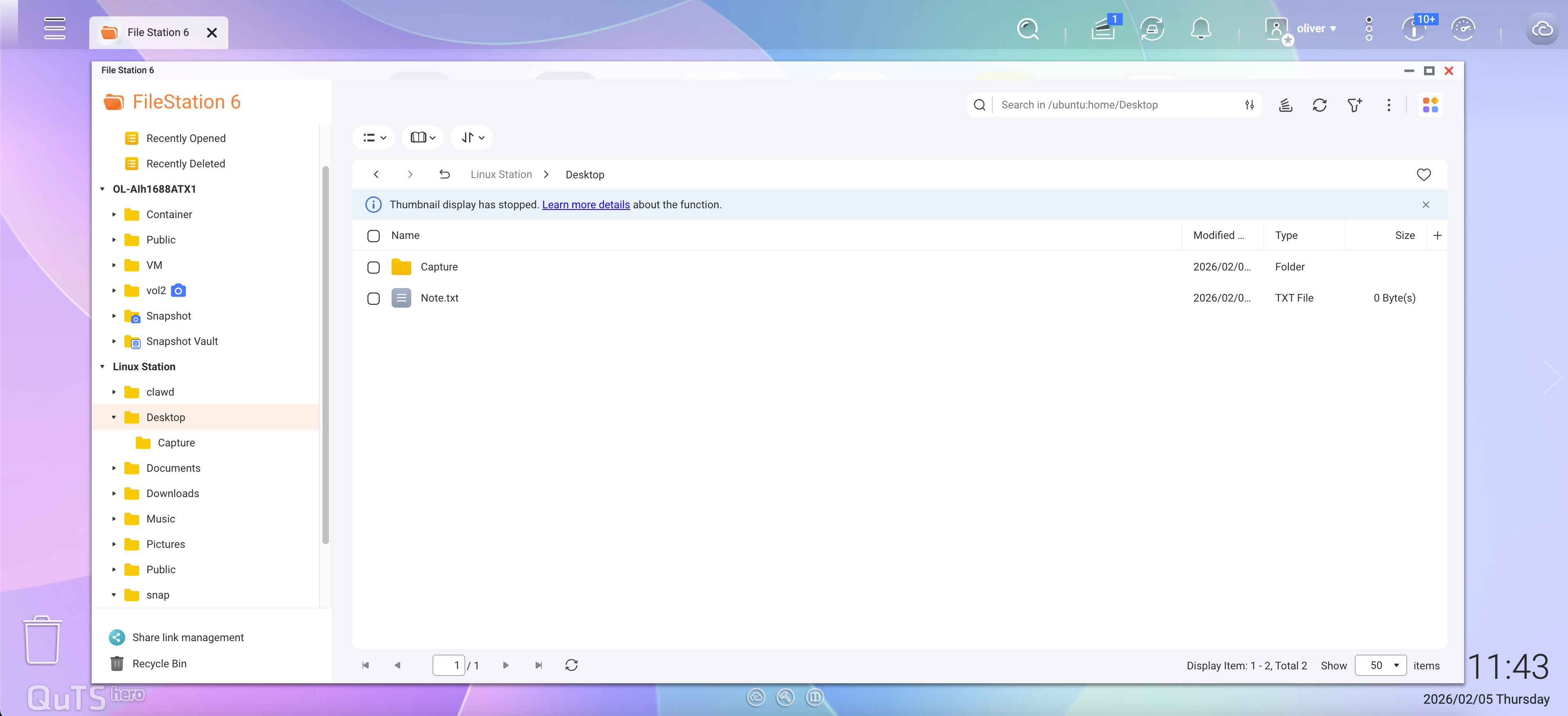
In File Station, a dedicated Linux Station section appears in the left panel. This section contains folders such as:
- Desktop
- Documents
- Downloads
- Music
- Pictures
- Videos
- (Other folders under the ~/ directory)
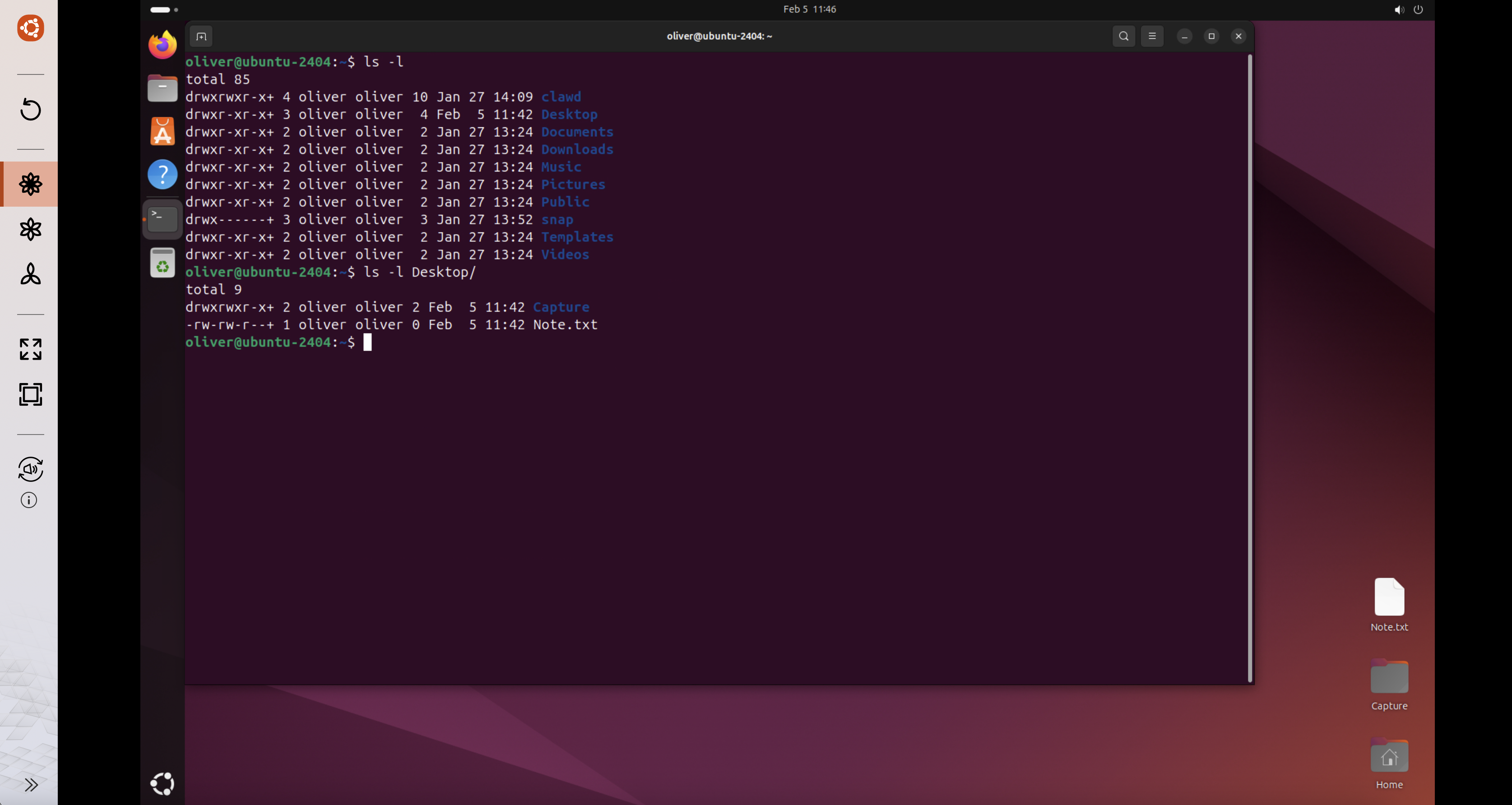
These folders correspond directly to the Ubuntu user's home directory (/home/<user>) inside the Linux Station environment.
Security Benefits of This Design
This architecture ensures that:
- Ubuntu applications cannot browse or scan the entire NAS file system.
- No NAS shared folders are mounted as volumes inside the Ubuntu environment.
- Only explicitly copied files are accessible to applications running in Linux Station.
As a result, even if an application or AI agent behaves unexpectedly or is compromised, the impact is limited to the Linux Station directories visible in File Station.
Best Practice for AI Agent Workloads
When experimenting with autonomous AI agents or third-party application, QNAP strongly recommends:
- Only copy files that are strictly required into the Linux Station folders.
- Avoid placing sensitive or confidential data in these directories.
- Treat the Linux Station file area as a controlled exchange zone, not a data repository.
Why This Approach Is More Secure Than Traditional Containers
While this design may require manually copying files instead of mounting NAS folders directly, it significantly reduces the risk of large-scale data exposure.
This trade-off prioritizes data protection while still preserving flexibility for development, testing, and experimentation.
Removal or Uninstallation
Users may consider reinstalling or uninstalling the Ubuntu environment in the following situations:
- All experimental applications are no longer required.
- The environment was used for testing untrusted or third-party workloads.
- Unexpected behavior or configuration drift is suspected.
- You want to reset the environment to a clean and known state.
Why Removal or Reinstallation Improves Security
Autonomous or experimental workloads may leave behind residual data, configuration changes, or installed components that are difficult to fully audit. Reinstalling or uninstalling the Ubuntu Linux Station instance ensures:
- All application data and user files inside the Linux Station environment are removed.
- Potential misconfigurations are fully reset.
- The NAS returns to a minimal and predictable security state.
This approach is especially recommended after experimenting with AI agents or other high-risk applications.
How to Reinstall or Uninstall Ubuntu Linux Station
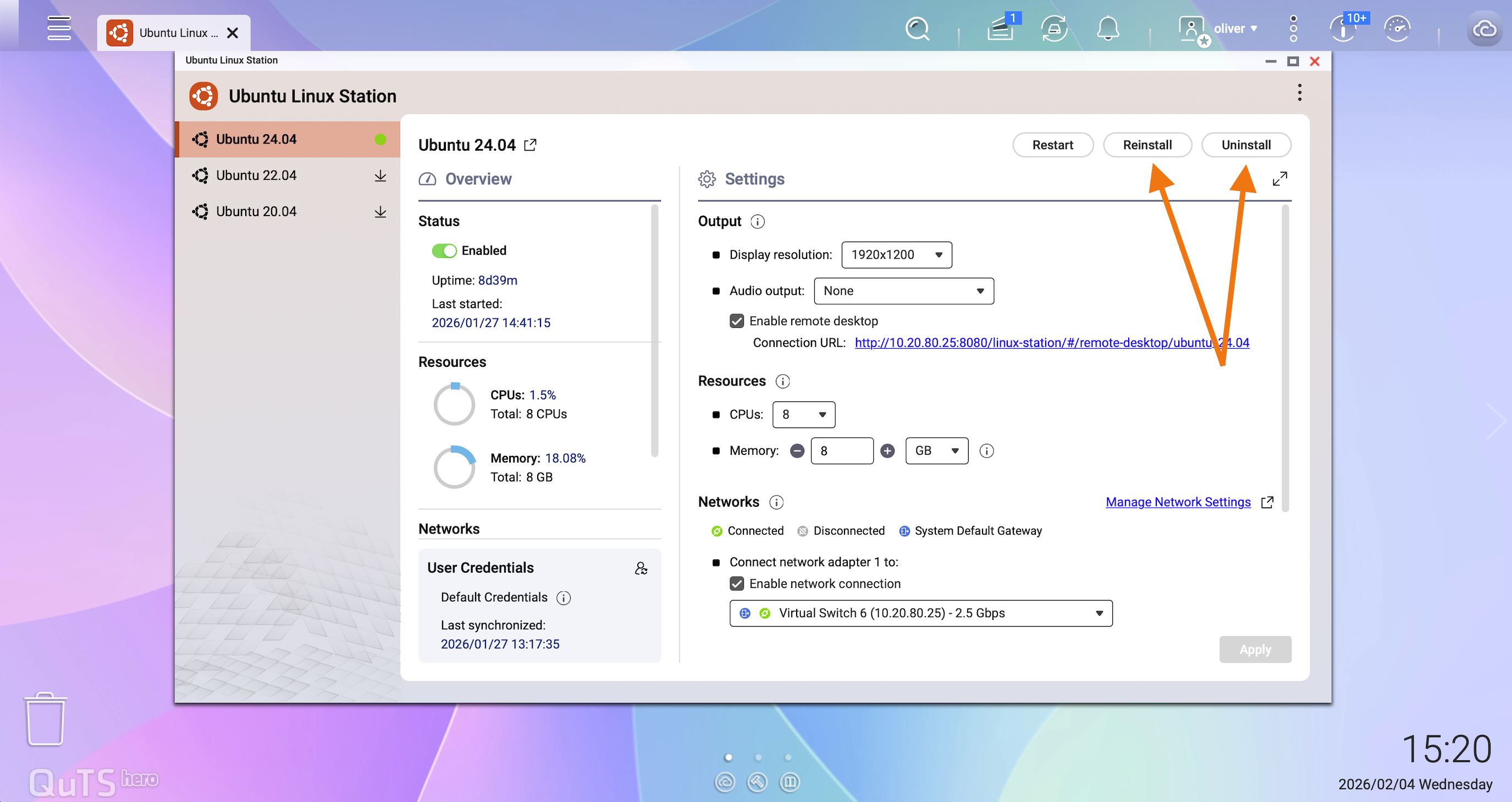
You can manage the Ubuntu Linux Station instance directly from the Linux Station management interface:
- Open Ubuntu Linux Station from the QNAP App Center.
- Select the installed Ubuntu version (for example, Ubuntu 24.04).
- Click Reinstall to reset the environment, or Uninstall to remove it completely.
対象製品
Ubuntu Linux Station
概要
QNAP NAS は、ストレージプラットフォームとしてだけでなく、仮想化および実験的なタスクを実行するための安全な基盤として設計されています。Ubuntu Linux Station はこの設計の重要なコンポーネントであり、Linux デスクトップ環境を提供しながら、NAS に保存されたユーザーデータを保護するための明確なセキュリティ境界を強化します。
Ubuntu Linux Station のファイル交換メカニズムは、使いやすさとセキュリティのバランスを提供します。これにより、開発者は高度なワークロードを安全に実験しながら、実験環境と重要な NAS データの間に強力な隔離を維持できます。
説明
セキュリティ・バイ・デザインのアプローチ
従来のコンテナベースのデプロイメントでは、NAS フォルダーを自由に書き込み可能なボリュームとしてマウントできますが、Ubuntu Linux Station はセキュリティ・バイ・デザインのアプローチを採用しています。このシステムは、Linux 環境と NAS の間でデータを交換する方法と場所を意図的に制限します。
この設計により、特にユーザーが実験的または自律的なアプリケーションを実行する際に、偶発的なデータ漏洩、設定ミス、意図しないファイルアクセスのリスクが軽減されます。
制御されたデータアクセスモデル
Ubuntu Linux Station 内で実行されるアプリケーションは、Public、Container、またはユーザーホームディレクトリなどの NAS 共有フォルダーに直接アクセスすることはできません。
File Station では、専用のLinux Stationセクションが左パネルに表示されます。このセクションには以下のフォルダーが含まれています:
- デスクトップ
- ドキュメント
- ダウンロード
- 音楽
- 写真
- ビデオ
- (~/ ディレクトリ内のその他のフォルダー)
これらのフォルダーは、Ubuntu ユーザーのホームディレクトリに直接対応しています (/home/<user>) Linux Station 環境内。
この設計のセキュリティ上の利点
このアーキテクチャにより、以下が保証されます:
- Ubuntu アプリケーションは NAS ファイルシステム全体を閲覧またはスキャンすることができません。
- NAS 共有フォルダーは Ubuntu 環境内でボリュームとしてマウントされていません。
- 明示的にコピーされたファイルのみが Linux Station 内で実行されるアプリケーションにアクセス可能です。
その結果、アプリケーションや AI エージェントが予期せず動作したり、侵害された場合でも、影響は File Station に表示される Linux Station ディレクトリに限定されます。
AI エージェントワークロードのベストプラクティス
自律型 AI エージェントやサードパーティアプリケーションを試す際、QNAP は次のことを強く推奨します:
- Linux Station フォルダに厳密に必要なファイルのみをコピーしてください。
- これらのディレクトリに機密情報や秘密データを置かないようにしてください。
- Linux Station のファイル領域をデータリポジトリではなく、管理された交換ゾーンとして扱ってください。
このアプローチが従来のコンテナよりも安全な理由
この設計では NAS フォルダを直接マウントする代わりに手動でファイルをコピーする必要があるかもしれませんが、大規模なデータ漏洩のリスクを大幅に減少させます。
このトレードオフは、開発、テスト、実験の柔軟性を維持しながらデータ保護を優先します。
削除またはアンインストール
ユーザーは以下の状況で Ubuntu 環境の再インストールまたはアンインストールを検討するかもしれません:
- すべての実験的アプリケーションが不要になった。
- 環境が信頼できないまたはサードパーティのワークロードのテストに使用された。
- 予期しない動作や設定のずれが疑われる。
- 環境をクリーンで既知の状態にリセットしたい。
削除または再インストールがセキュリティを向上させる理由
自律型または実験的なワークロードは、残留データ、設定変更、または完全に監査するのが難しいインストールされたコンポーネントを残す可能性があります。Ubuntu Linux Station インスタンスを再インストールまたはアンインストールすることで、次のことが保証されます:
- Linux Station 環境内のすべてのアプリケーションデータとユーザーファイルが削除されます。
- 潜在的な設定ミスが完全にリセットされます。
- NAS が最小限で予測可能なセキュリティ状態に戻ります。
このアプローチは、AI エージェントやその他の高リスクアプリケーションを試した後に特に推奨されます。
Ubuntu Linux Station の再インストールまたはアンインストール方法
Linux Station 管理インターフェースから Ubuntu Linux Station インスタンスを直接管理できます:
- 開く Ubuntu Linux Station QNAP App Center から。
- インストールされた Ubuntu バージョンを選択します(例: Ubuntu 24.04)。
- クリック 再インストール 環境をリセットするために、または アンインストール 完全に削除するために。