Applicable Products
QTS, QuTS hero
Container Station
What is Open WebUI?
Open WebUI is a ChatGPT-style, self-hosted web interface designed to connect to local Large Language Models (LLMs) like Ollama. It provides a polished, user-friendly chat experience without requiring cloud subscriptions or sending your data to external servers. Once deployed on your QNAP NAS, you can access Open WebUI from any browser on your network.
What You'll Learn
This tutorial covers:
- Creating a Docker Compose YAML file for Open WebUI
- Configuring network connectivity between Open WebUI and Ollama
- Deploying the container and creating an admin account
- Selecting an LLM and testing the chat interface
- Connecting to a remote Ollama instance if needed
Understanding Docker Networking
When both Open WebUI and Ollama run in separate containers on the same QNAP NAS, they communicate via a shared Docker network. The key point: containers communicate using service names (for example: ollama, but not localhost).
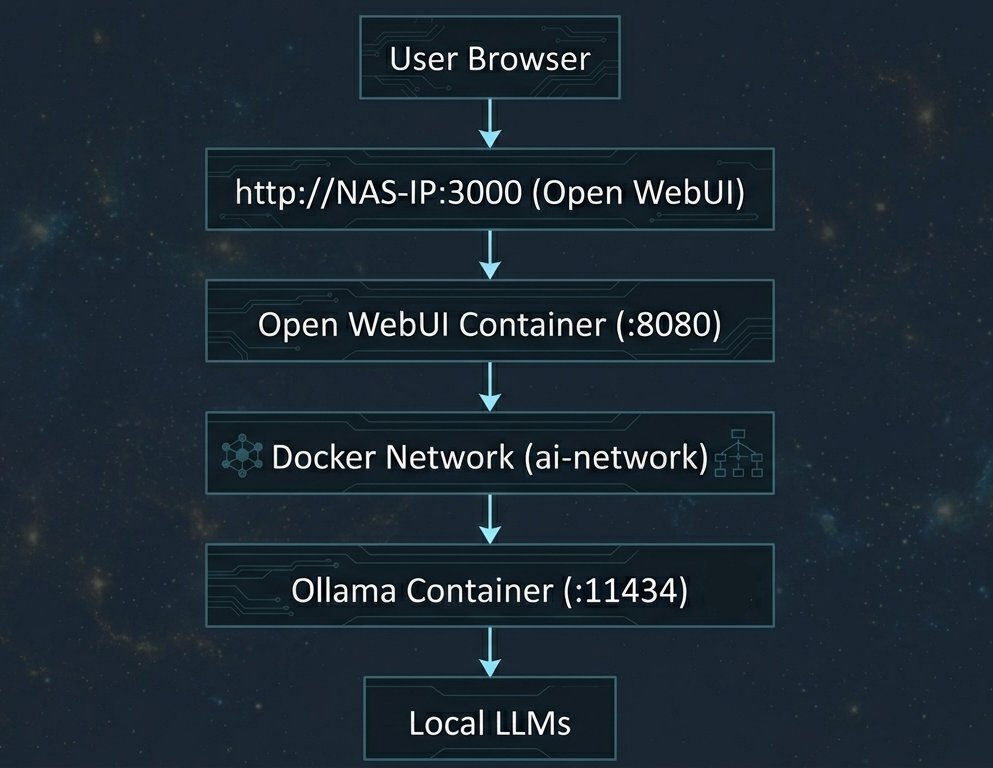
The OLLAMA_BASE_URL environment variable tells Open WebUI where to find Ollama. When both containers are on the same Docker network named ai-network, the URL is http://ollama:11434 (using the container service name).
Prerequisites
- QNAP NAS running QTS 5.2 / QuTS hero h5.2 or later versions
- Container Station 3
- Ollama, deployed on the same QNAP NAS
- At least 2GB of free space for the Open WebUI container and persistent data
- Familiarity with Container Station and Docker Compose basics
Procedure
Step 1: Create Storage Folder
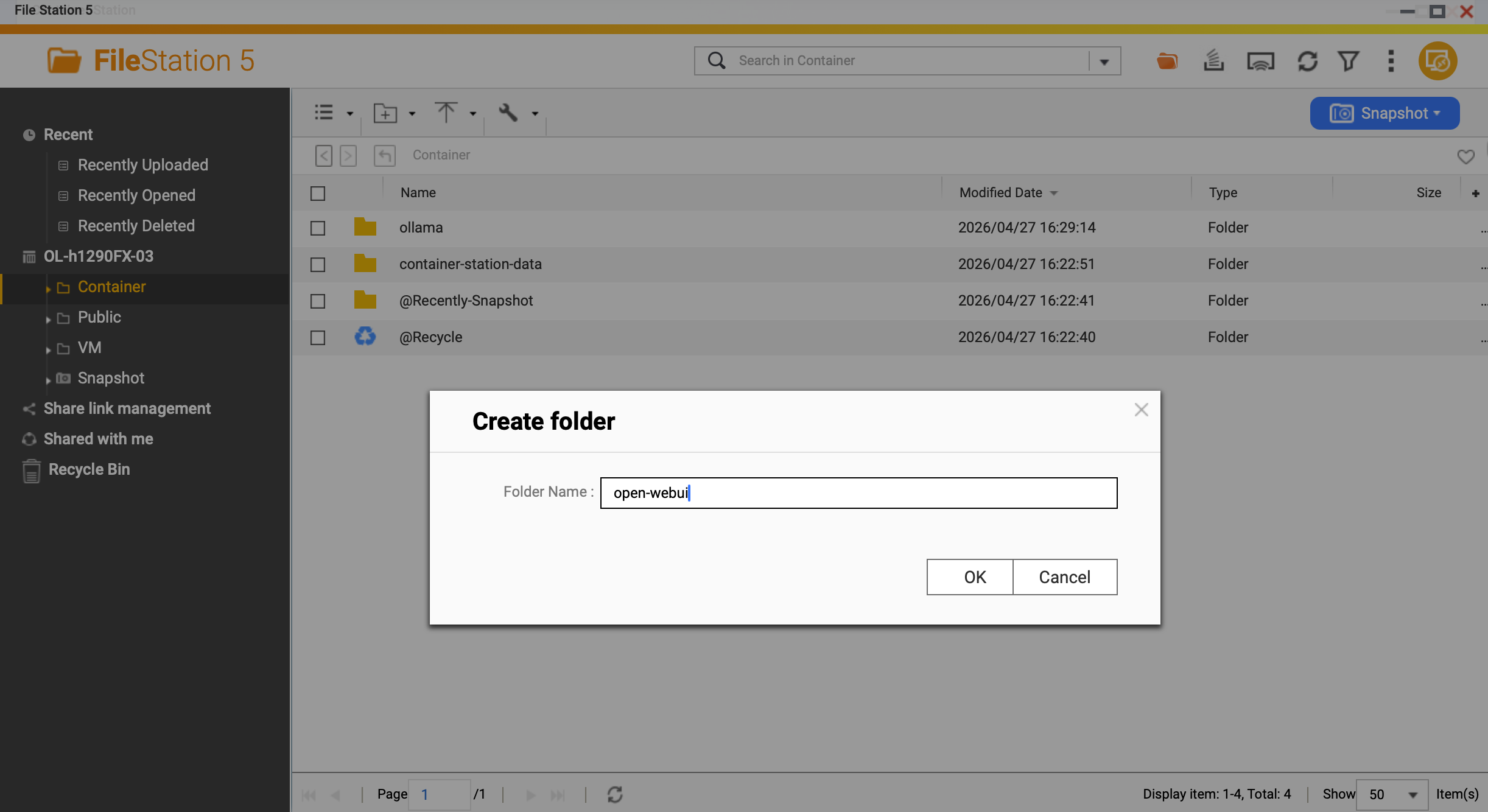
Open SSH or File Station on your QNAP NAS. Create a directory for Open WebUI persistent data:
/share/Container/open-webui
This directory stores chat history, user settings, and configuration data. Without this volume mount, all your conversations disappear when the container restarts.
Step 2: Create the Application
In Container Station, create a new Application with the following content:
version: '3.8'
services:
  open-webui:
    image: ghcr.io/open-webui/open-webui:main
    container_name: open-webui
    ports:
      - "3000:8080"
    volumes:
      - /share/Container/open-webui:/app/backend/data
    environment:
      OLLAMA_BASE_URL: http://ollama:11434
    networks:
      - ai-network
    restart: unless-stopped

networks:
  ai-network:
    name: ai-network
    driver: bridge
Key Configuration Explained
- Image:
ghcr.io/open-webui/open-webui:main — Official Open WebUI image from GitHub Container Registry - Port:
3000:8080 — Access from browser at http://NAS-IP:3000, mapped to container port 8080 - Volume:
/share/Container/open-webui:/app/backend/data — Persistent storage for chats and settings - OLLAMA_BASE_URL:
http://ollama:11434 — Must match your Ollama container service name and port - Network:
ai-network — Shared bridge network with Ollama container - Restart:
unless-stopped — Container restarts automatically after QNAP reboots
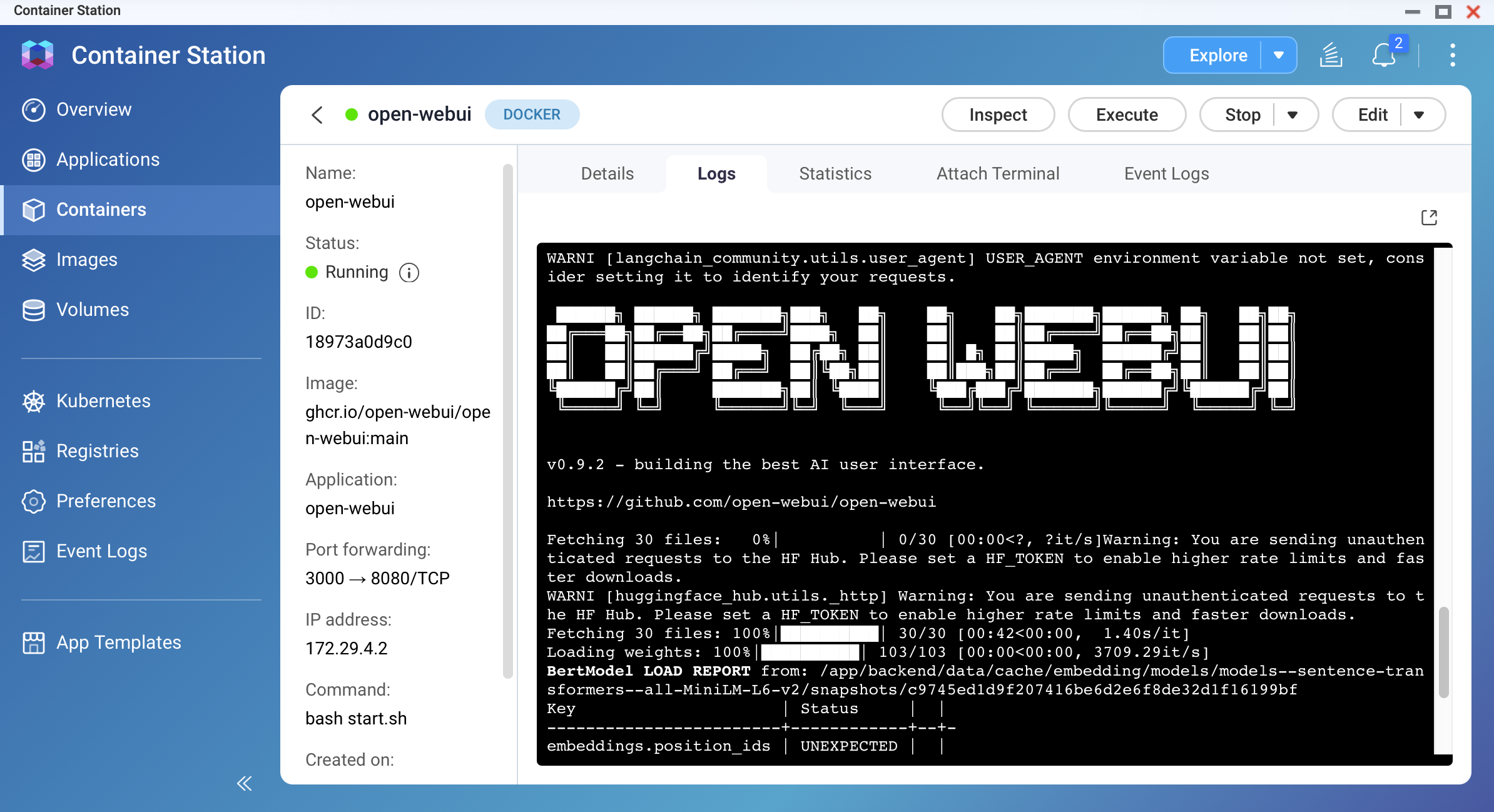
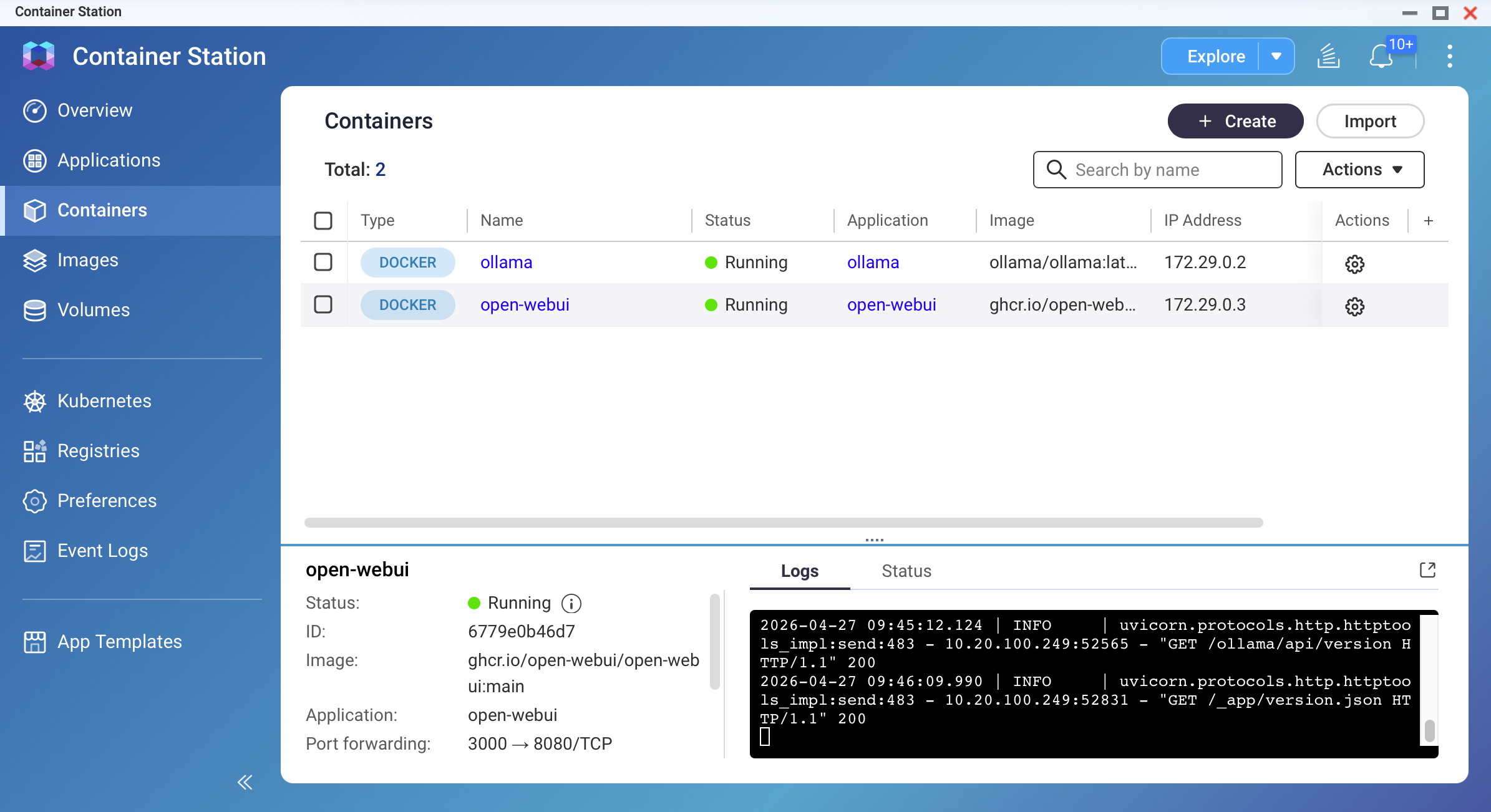
Wait 30-60 seconds for the container to start. Check logs in Container Station.
Step 3: Create Admin Account and Initial Setup
Open your browser and navigate to:
http://YOUR-NAS-IP:3000
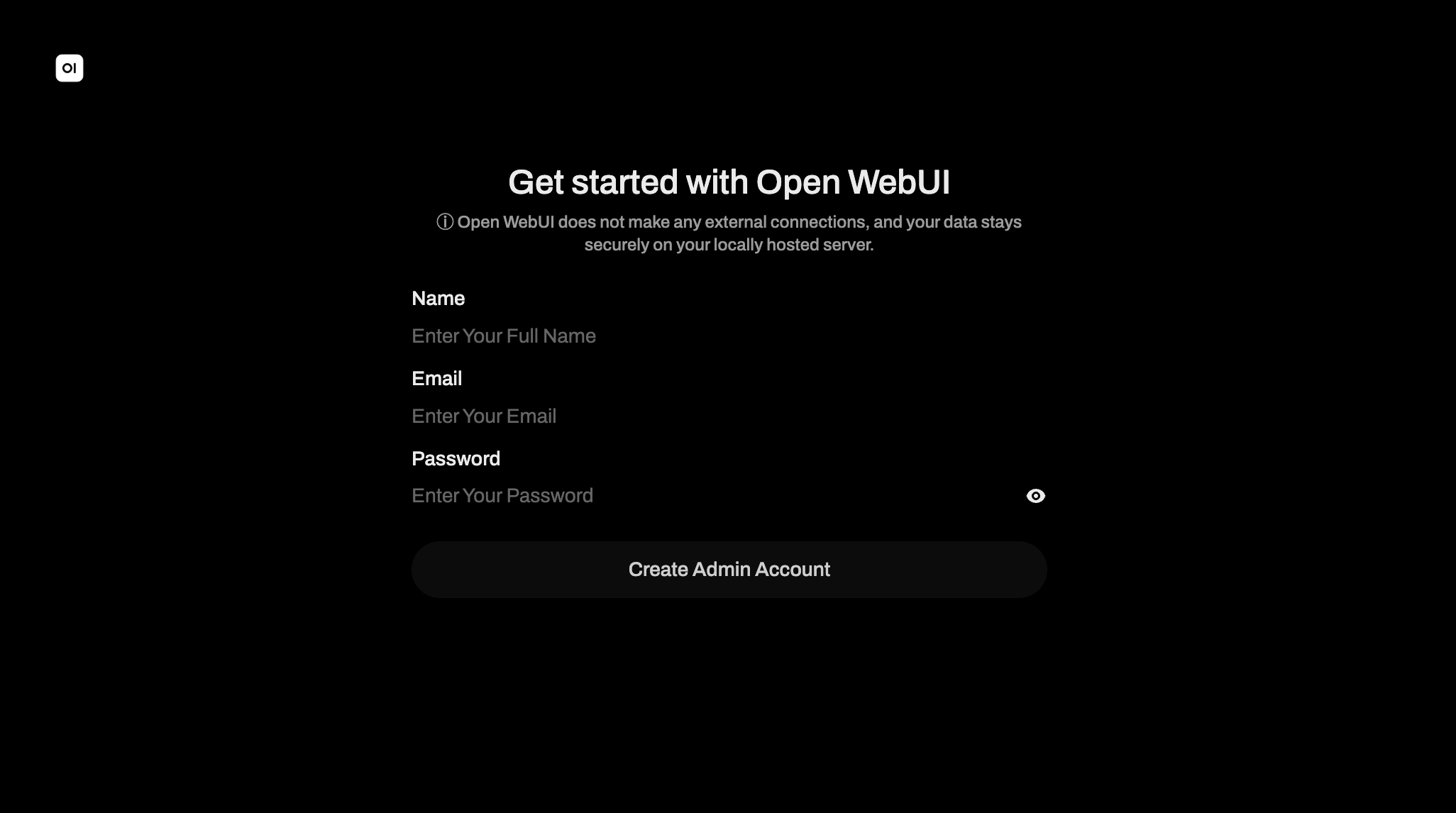 Screenshot: Open WebUI login screen with sign-up fields
On first access, Open WebUI displays a sign-up form. Fill in:
- Name: Your display name
- Email: An email address (does not need to be valid)
- Password: A secure password for your account
The first account created automatically becomes the admin account. You must create this account before the interface unlocks. Click Create Account.
Warning
The first account created becomes admin with full system access. If your QNAP NAS is accessible from the internet, set up a strong password immediately. Do not leave the default or empty credentials.
Step 4: Select a Model and Test
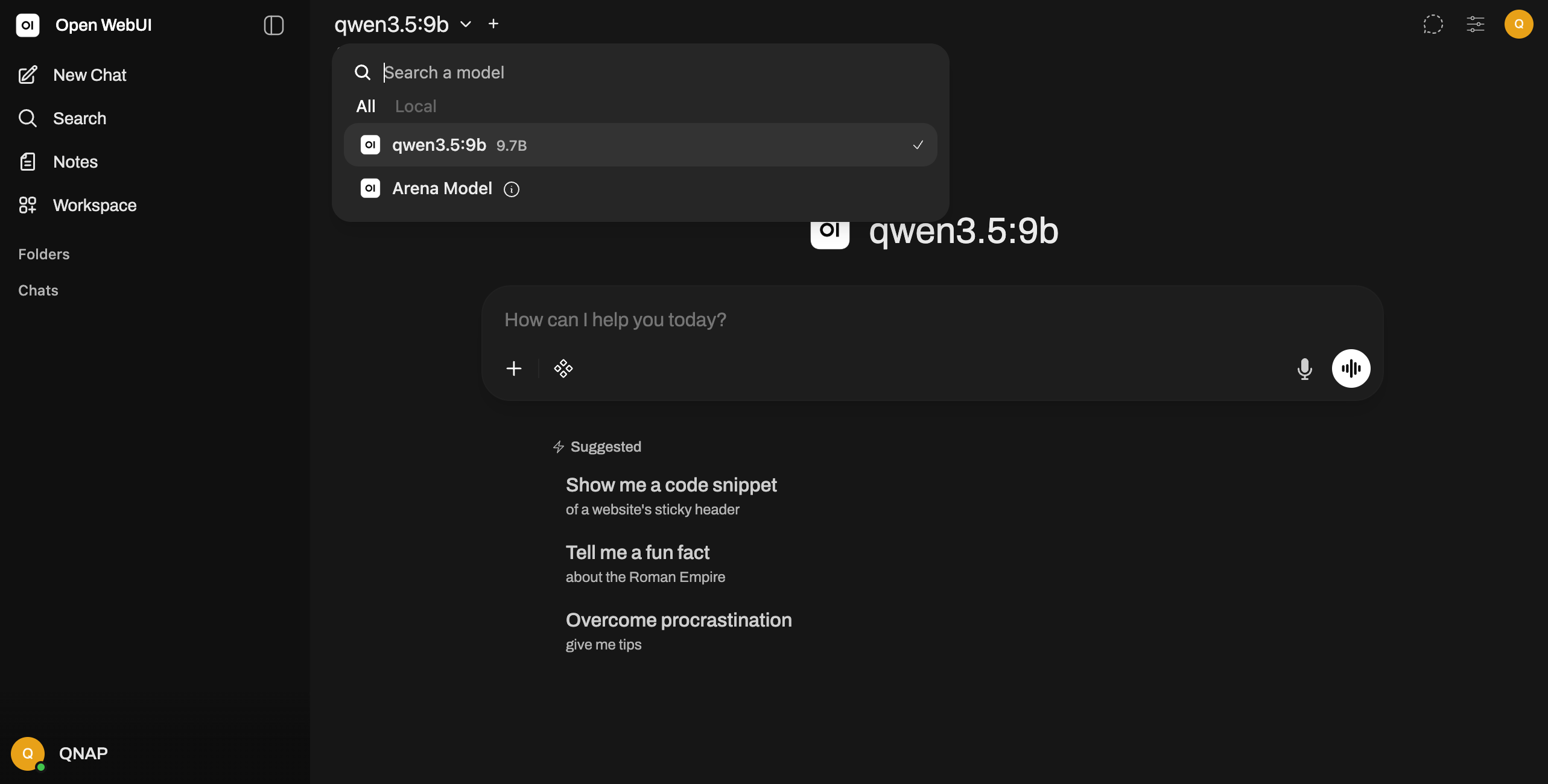
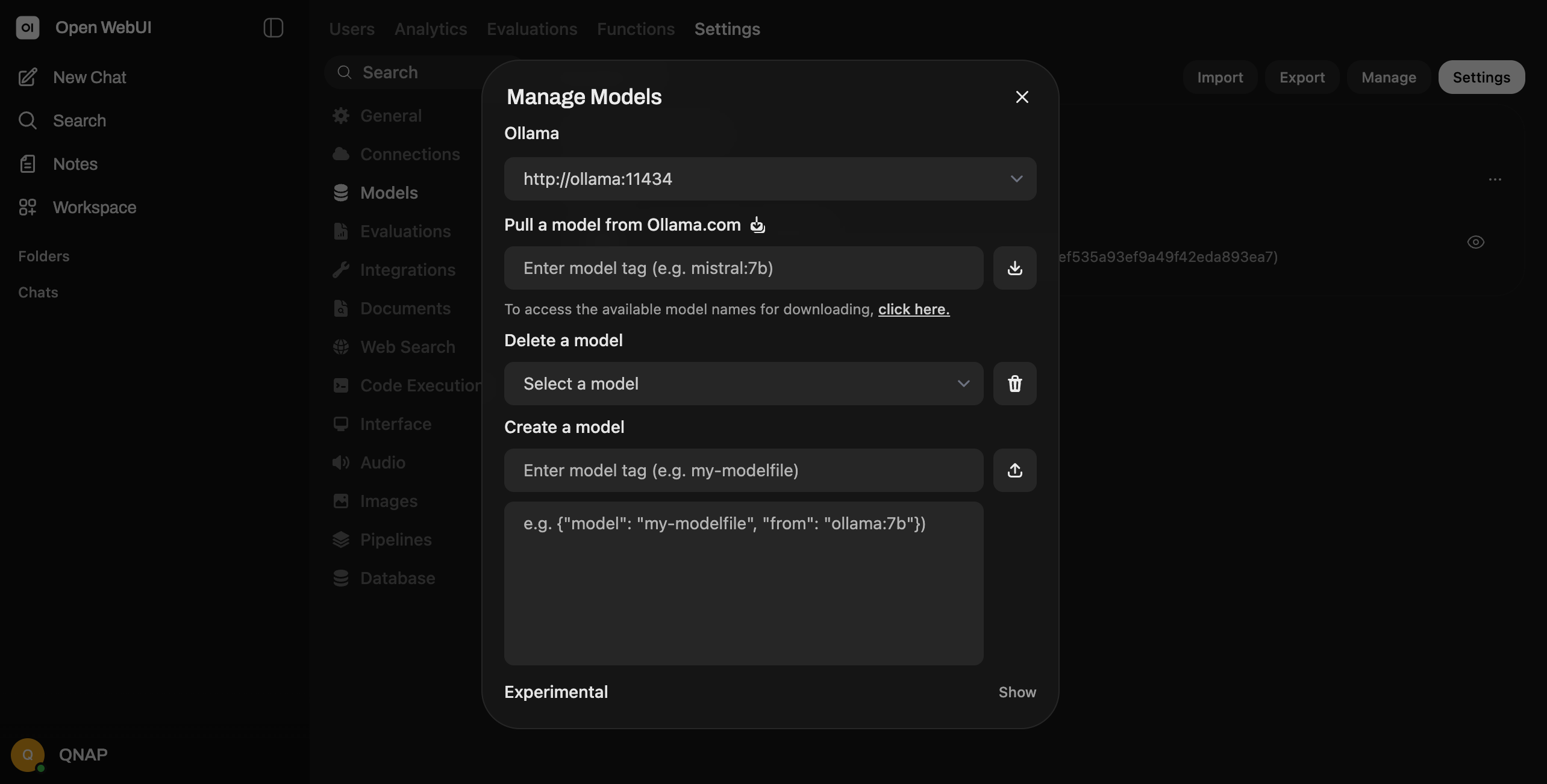
After signing in, Open WebUI shows a model selector. If you have already pulled models in Ollama, they appear here automatically. If no models are listed:
- Go to the Admin Panel menu
- Select Setting -> Models
- Verify Ollama connections and display model availability.
- Pull a model directly from Open WebUI or return to Ollama to pull one first
Select a model from the dropdown (e.g., Gemma, Qwen, Deepseek).
Step 5: Start Chatting
Type a message in the text box at the bottom and press Enter. Open WebUI sends your message to Ollama, which processes it using the selected model and returns a response. The interface stores the full conversation in your persistent volume.
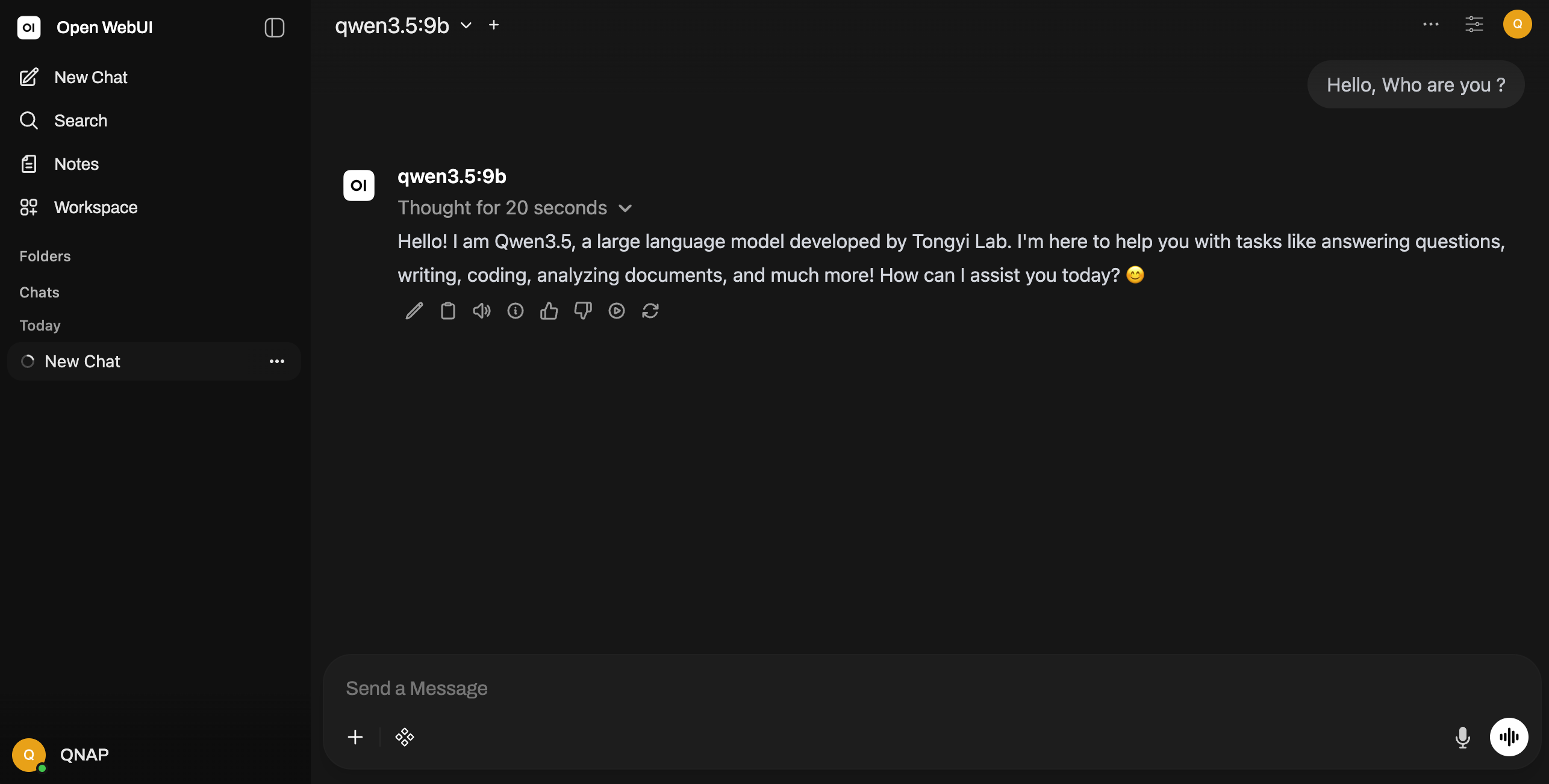
Screenshot: Open WebUI chat interface with a sample conversation
Connecting to a Remote Ollama Instance
If you want Open WebUI to connect to Ollama running on a different QNAP NAS or machine (not the same physical host), modify the environment variable:
OLLAMA_BASE_URL: http://OTHER-NAS-IP:11434
Replace OTHER-NAS-IP with the IP address of the remote machine running Ollama. Ensure that machine's firewall allows port 11434 traffic from your QNAP NAS. Both machines must be on the same network or have proper routing configured.
対象製品
QTS、QuTS hero
Container Station
Open WebUI とは何ですか?
Open WebUI は、Ollama のようなローカルの大規模言語モデル (LLM) に接続するために設計された ChatGPT スタイルのセルフホスト型ウェブインターフェースです。クラウドサブスクリプションを必要とせず、データを外部サーバーに送信することなく、洗練されたユーザーフレンドリーなチャット体験を提供します。QNAP NAS にデプロイされると、ネットワーク内の任意のブラウザから Open WebUI にアクセスできます。
学べること
このチュートリアルでは以下を扱います:
- Open WebUI 用の Docker Compose YAML ファイルの作成
- Open WebUI と Ollama 間のネットワーク接続の設定
- コンテナのデプロイと admin アカウントの作成
- LLM の選択とチャットインターフェースのテスト
- 必要に応じてリモート Ollama インスタンスに接続
Docker ネットワークの理解
Open WebUI と Ollama が同じ QNAP NAS 上で別々のコンテナとして実行される場合、共有された Docker ネットワークを介して通信します。重要な点: コンテナはサービス名を使用して通信します(例: ollama、ただしlocalhostは使用しません)。
OLLAMA_BASE_URL 環境変数は、Open WebUI に Ollama の場所を伝えます。両方のコンテナが同じ Docker ネットワークai-networkにある場合、URL はhttp://ollama:11434です(コンテナサービス名を使用)。
前提条件
- QTS 5.2 / QuTS hero h5.2 以降を実行している QNAP NAS
- Container Station 3
- 同じ QNAP NAS にデプロイされた Ollama
- Open WebUI コンテナと永続データのために少なくとも 2GB の空き容量
- Container Station と Docker Compose の基本知識
手順
ステップ 1: ストレージフォルダーを作成する
QNAP NAS で SSH または File Station を開きます。Open WebUI 永続データ用のディレクトリを作成します:
/share/Container/open-webui
このディレクトリは、チャット履歴、ユーザー設定、構成データを保存します。このボリュームマウントがないと、コンテナが再起動するたびにすべての会話が消えてしまいます。
ステップ 2: アプリケーションを作成する
Container Station で、以下の内容で新しいアプリケーションを作成します:
version: '3.8'
services:
  open-webui:
    image: ghcr.io/open-webui/open-webui:main
    container_name: open-webui
    ports:
      - "3000:8080"
    volumes:
      - /share/Container/open-webui:/app/backend/data
    environment:
      OLLAMA_BASE_URL: http://ollama:11434
    networks:
      - ai-network
    restart: unless-stopped

networks:
  ai-network:
    name: ai-network
    driver: bridge
キー設定の説明
- イメージ:
ghcr.io/open-webui/open-webui:main — GitHub Container Registry からの公式 Open WebUI イメージ - ポート:
3000:8080 — ブラウザからhttp://NAS-IP:3000にアクセスし、コンテナポート 8080 にマッピング - ボリューム:
/share/Container/open-webui:/app/backend/data — チャットと設定のための永続的なストレージ - OLLAMA_BASE_URL:
http://ollama:11434 — Ollama コンテナサービス名とポートに一致する必要があります - ネットワーク:
ai-network — Ollama コンテナとの共有ブリッジネットワーク - 再起動:
unless-stopped — QNAP が再起動した後にコンテナが自動的に再起動します
コンテナが起動するまで 30〜60 秒待ちます。Container Station でログを確認してください。
ステップ 3: admin アカウントを作成し、初期設定を行う
ブラウザを開き、次の URL に移動します:
http://YOUR-NAS-IP:3000
スクリーンショット: Open WebUI のログイン画面とサインアップフィールド
初回アクセス時に、Open WebUI はサインアップフォームを表示します。以下を入力してください:
- 名前:表示名
- メール:メールアドレス(有効である必要はありません)
- パスワード:アカウントの安全なパスワード
最初に作成されたアカウントは自動的に admin アカウントになります。このアカウントを作成する必要があります。インターフェースが解除される前に、アカウントを作成をクリックしてください。
警告
最初に作成されたアカウントは admin となり、システム全体へのアクセス権を持ちます。QNAP NAS がインターネットからアクセス可能な場合は、すぐに強力なパスワードを設定してください。デフォルトや空の資格情報を残さないでください。
ステップ 4: モデルを選択してテスト
サインイン後、Open WebUI はモデルセレクターを表示します。Ollama でモデルをすでに取得している場合、それらは自動的にここに表示されます。モデルが一覧にない場合:
- admin パネルメニューに移動
- 設定 -> モデルを選択
- Ollama の接続を確認し、モデルの利用可能性を表示します。
- Open WebUI から直接モデルを取得するか、Ollama に戻って最初に取得します
ドロップダウンからモデルを選択(例: Gemma, Qwen, Deepseek)。
ステップ 5: チャットを開始
下部のテキストボックスにメッセージを入力し、Enter キーを押します。Open WebUI はメッセージを Ollama に送信し、選択されたモデルを使用して処理し、応答を返します。インターフェースは会話全体を永続ボリュームに保存します。
スクリーンショット: Open WebUI チャットインターフェースとサンプル会話
リモート Ollama インスタンスへの接続
Open WebUI が異なる QNAP NAS またはマシン(同じ物理ホストではない)で動作している Ollama に接続したい場合、環境変数を変更します:
OLLAMA_BASE_URL: http://OTHER-NAS-IP:11434
リモートマシンで動作している Ollama の IP アドレスにOTHER-NAS-IPを置き換えます。そのマシンのファイアウォールが QNAP NAS からのポート 11434 の通信を許可していることを確認してください。両方のマシンは同じネットワーク上にあるか、適切なルーティングが設定されている必要があります。


