Applicable Products
QuMagie
Analysis
If you can't see an image or video file in QuMagie, it may be caused by one or more of the following:
The file format of the image/video is not supported
If your file has a format or codec that is not supported by QuMagie, then that image/video will not appear in QuMagie or will not be displayed correctly. For a list of supported file formats, see What file formats and codecs do Photo Station & QuMagie support?
The file format of the image/video requires a license
Certain media file formats require a CAYIN Media Viewer license. If you do not have the required license activated, then the image/video will not appear in QuMagie or will be displayed with a default generic thumbnail. For details on how to purchase and activate licenses, see "Licenses" in the QTS User Guide or QuTS hero User Guide.
The image/video is not in a content source folder
QuMagie only displays images/videos from content source folders. To ensure that QuMagie displays your image/video, you can move your image/video file into an existing content source folder, or add the parent folder of the image/video to QuMagie's content source folder list. To add folders to QuMagie's content source folders list:
Warning
Only shared folders can be content source folders. When adding a folder to QuMagie's content source folder list, ensure that the folder is a shared folder. For details on shared folders, see "Shared Folders" in the
QTS User Guide or
QuTS hero User Guide.
Tip
You can also manage QuMagie's content source folder list in QuMagie > Settings > Content Management (tab) > Content Sources (setting).
- Open Multimedia Console.
- Go to Content Management.
- Select the QuMagie tab.
- Under Content Sources, click Edit.
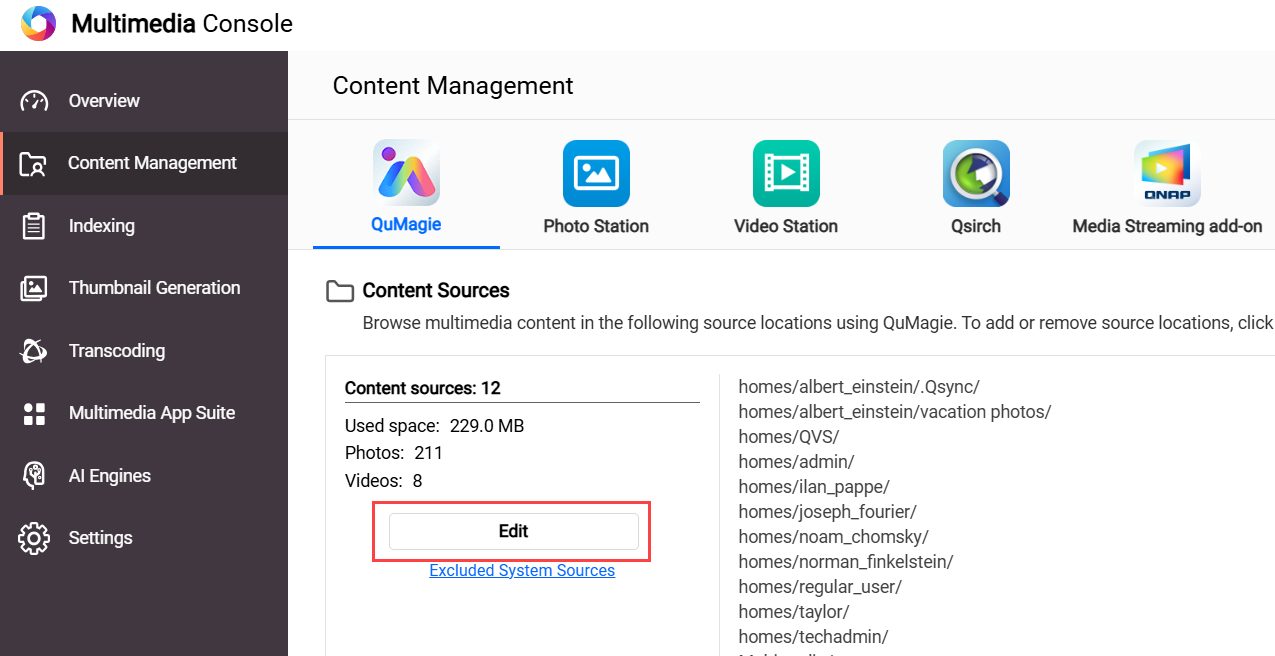 The Edit sources window opens.
 - In the Select Folders panel, select one or more folders.
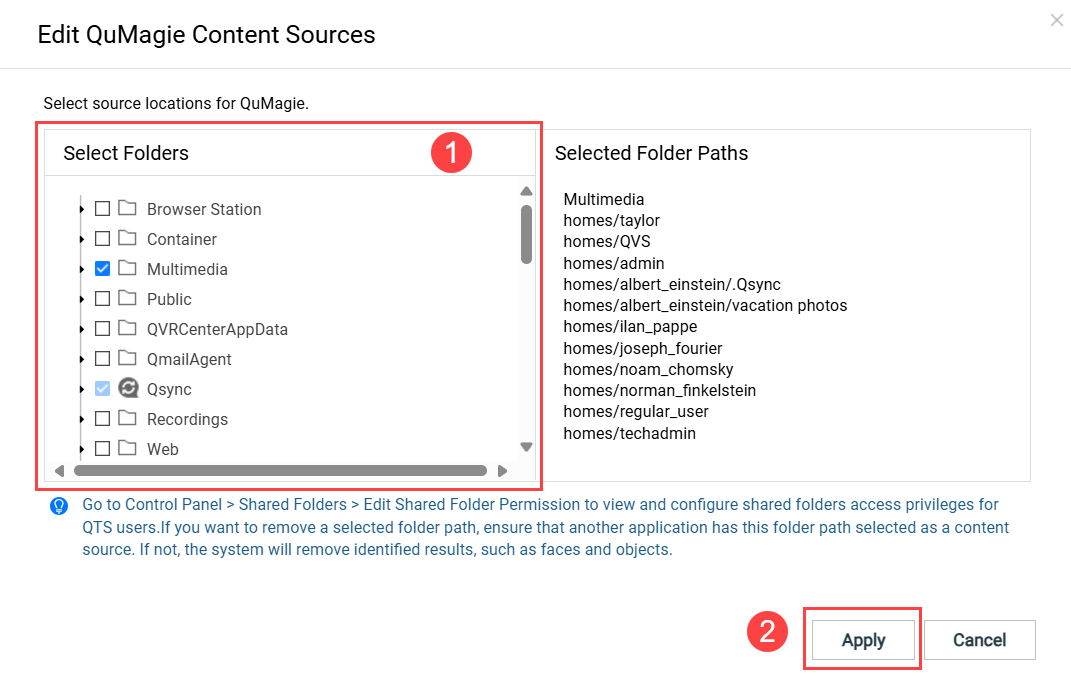
- Click Apply.
Multimedia Console adds the content sources.
You do not have read permissions for the image/video
If you do not have sufficient permissions for the image/video, then the image/video will not appear in QuMagie. To ensure you have sufficient permissions, do the following:
- Ensure you have sufficient permission for the content source folder.
- Open Control Panel.
- Go to Privilege > Shared Folders > Shared folder (tab).
- Locate the shared folder containing your image/video and click
 .
.
The Edit Shared Folder Permission window opens. - Enable either "Read Only" or "Read/Write" permissions for the appropriate users.
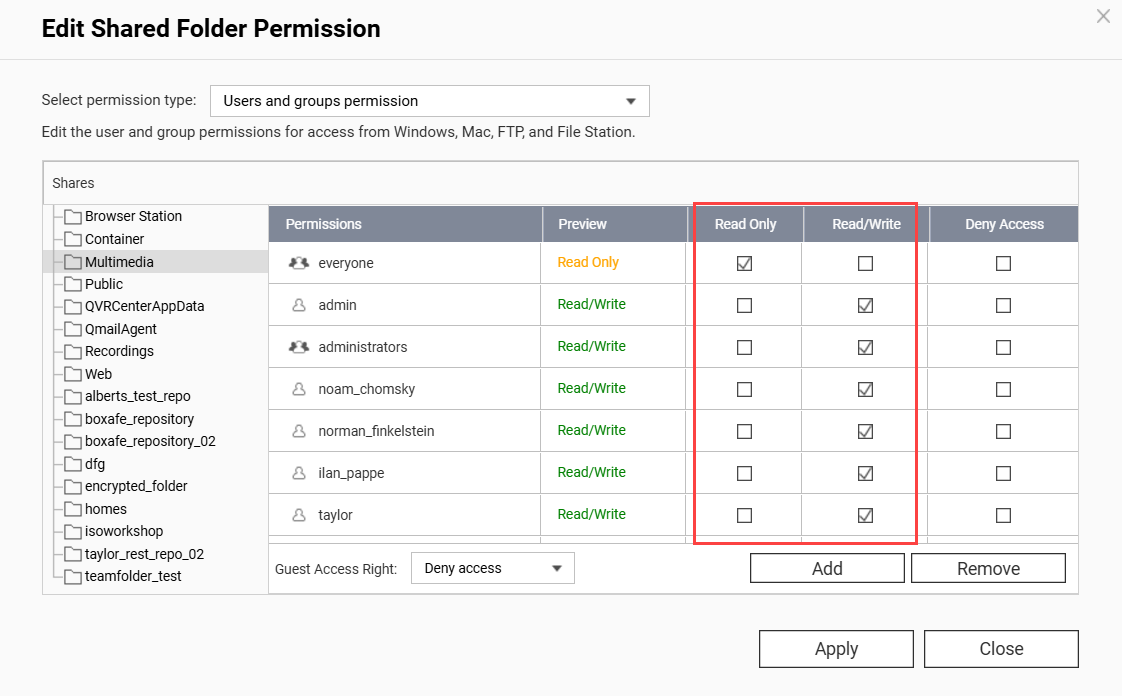
- Click Apply.
- Ensure you have sufficient permission on the individual image/video.
- Open File Station.
- Locate your image/video.
- Right click on the image/video to open the context menu and click Properties.
The Properties window opens. - Select the Permissions tab.
- Enable the "Read" permission for the appropriate groups.
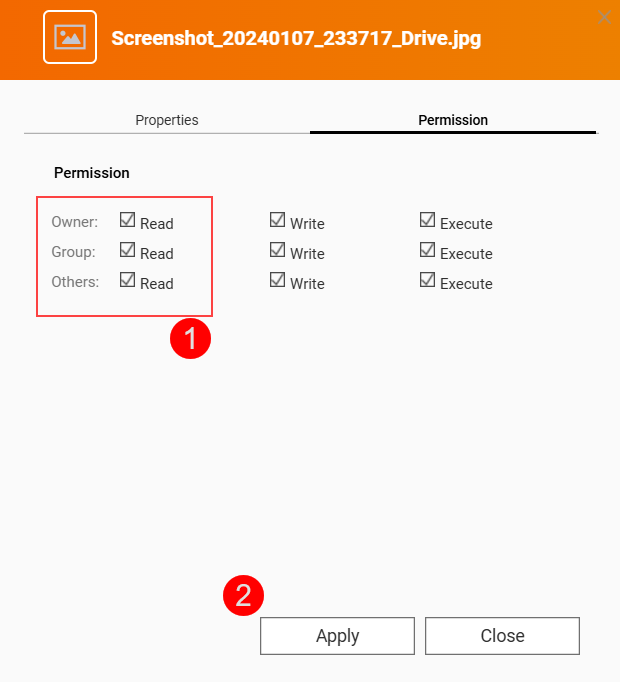
- Click Apply.
QuMagie now has sufficient permissions to display your image/folder.
Your image/video file is above the maximum supported size
QuMagie may not display your image/video correctly if any of the following apply:
- The width x height of the image/video is greater than 500,000,000 pixels.
- Your NAS device has 2058 MB of total RAM or less and the width x height of the image/video is greater than 240,000,000 pixels.
- Your NAS device has 1024 MB of total RAM or less and the width x height of the image/video is greater than 51,000,000 pixels.
- The file size of the image/video is greater than 1/8 of your NAS device's total RAM.
- For TAS files, if the file is greater than 60 MB.
QuMagie settings are hiding images/videos with no thumbnails
To allow QuMagie to display images/videos even when those images/videos do not have thumbnails, do the following:
- Click on your profile icon on the top right.
- Click on Settings.
The Settings window appears. - Go to Miscellaneous (tab) > Display.
- Disable Only display media files with generated thumbnails.
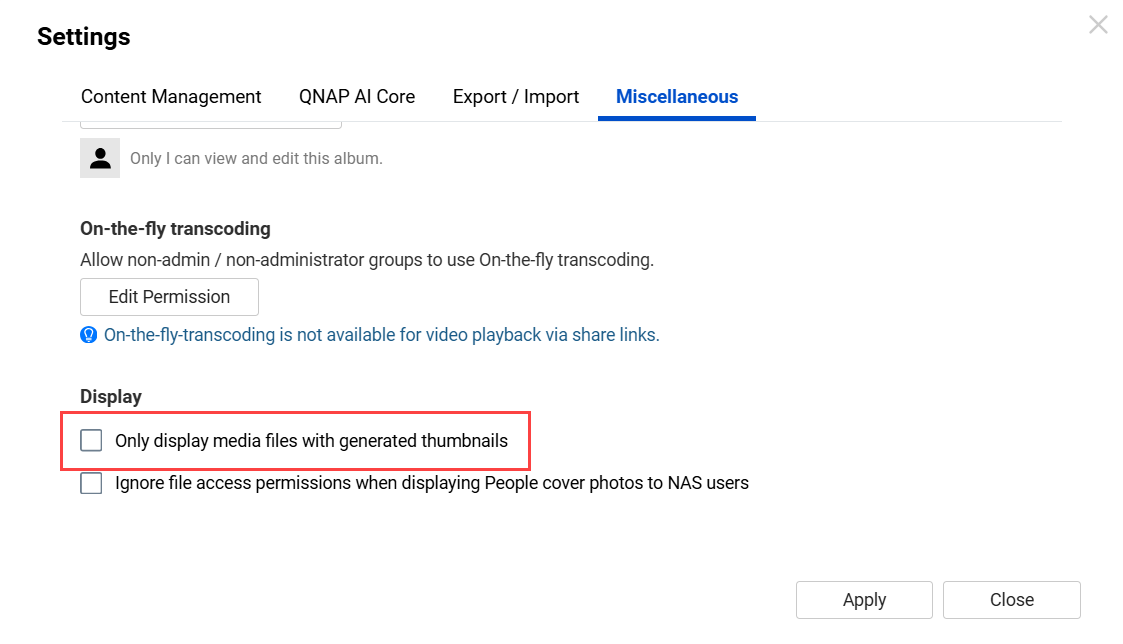
- Click Apply.
QuMagie now displays images/videos that do not have thumbnails.
The image/video file isn't indexed yet
For many multimedia apps, such as QuMagie, to display images/videos the image/video files must be indexed by your system. Indexing is a process of analyzing and storing media files so that they can be more efficiently used by multimedia apps. To ensure that your images/videos have been indexed, do the following:
- Open Multimedia Console.
- Go to Indexing.
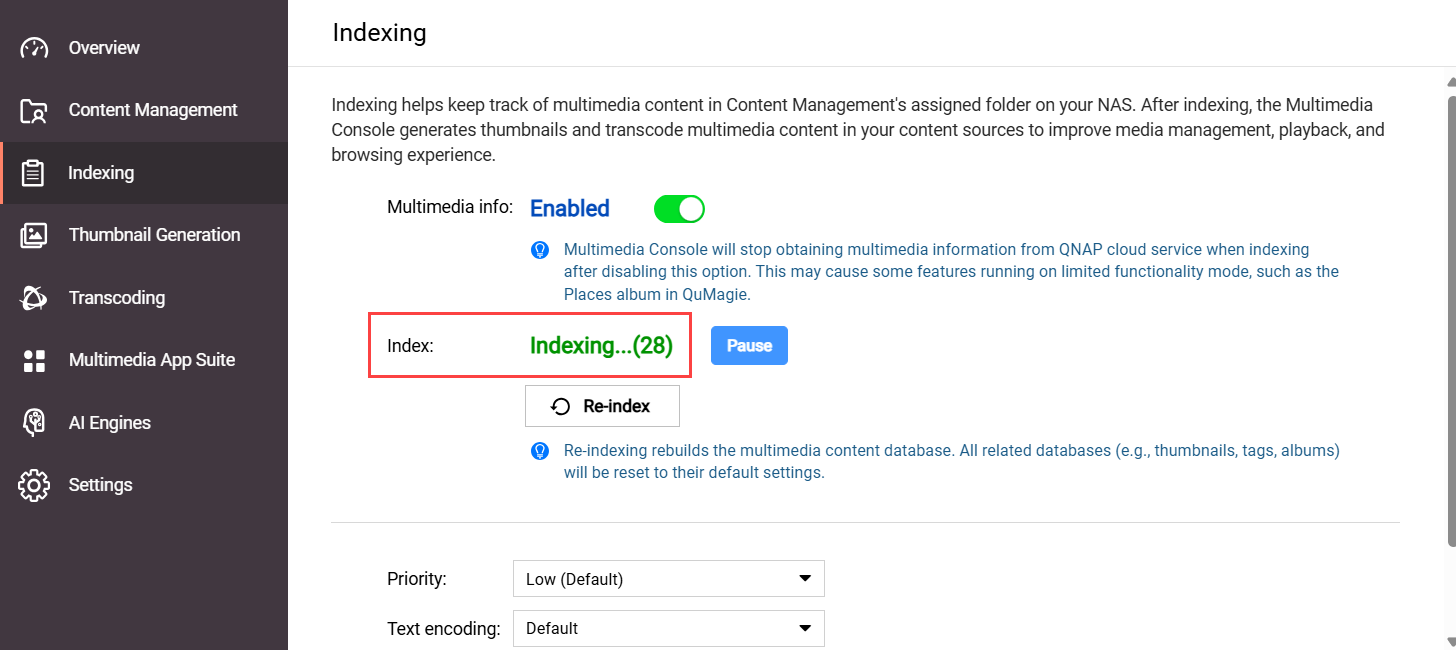
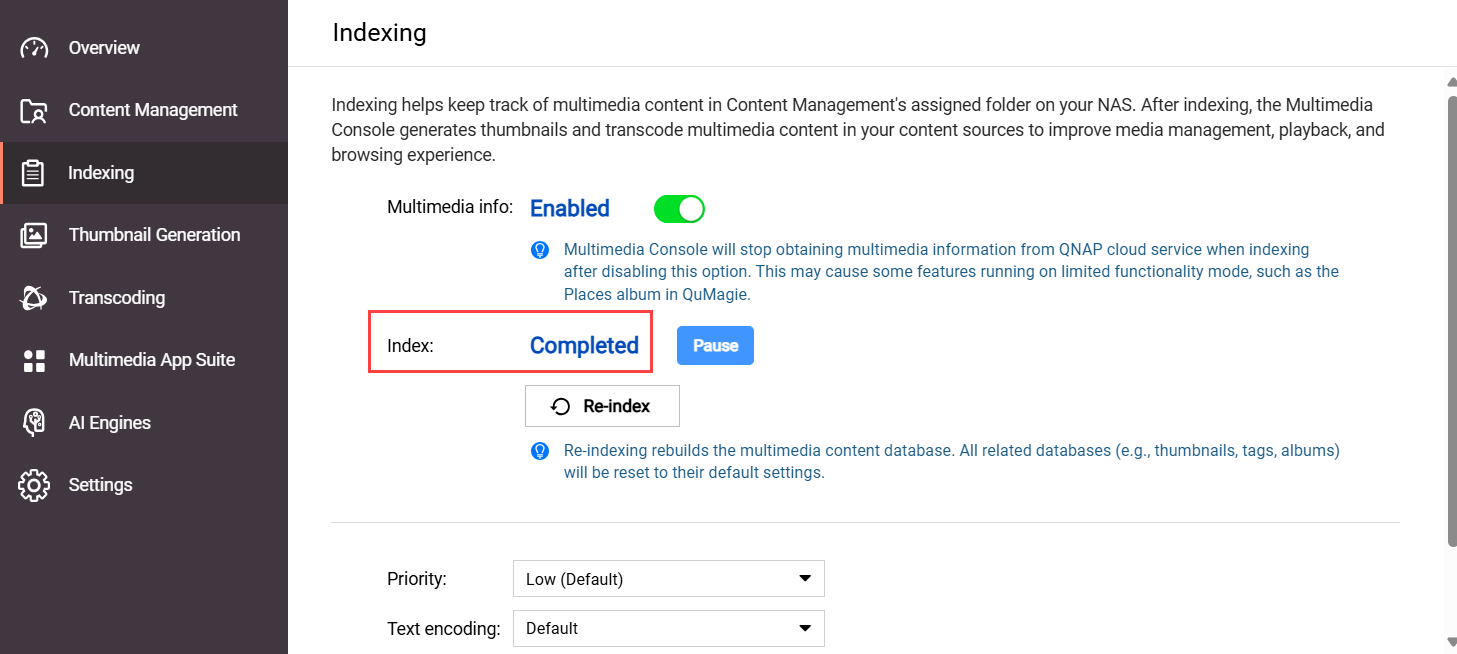
- Under Settings, locate the Index field.
If your system is still indexing files, the Index field will be "Indexing...":
 If your system has finished indexing files, the Index field will be "Completed":
- If your system is still indexing files, wait until the indexing finishes, and then check your image/video in QuMagie again.
If the indexing status is Completed, but your image/video is still missing from QuMagie or not displayed correctly, see the section "The system media file index has been corrupted" in this FAQ.
The system file index has been corrupted
QuMagie may not be able to display images/videos, or display them correctly, if the system media index (also sometimes called the "Multimedia Console index/database") has become corrupted. For various reasons, the system media index may become corrupted. There is no way to confirm if the system file index is corrupted or not, but you can re-index the system file index and see if that resolves your issue:
Warning
Re-indexing the system media file index will delete and rebuild all indexed data. Data that will be deleted includes thumbnails, media file tags, QuMagie albums, and other things. Media files themselves are not affected.
- Open Multimedia Console.
- Go to Indexing.
- Under Settings, click Re-index.
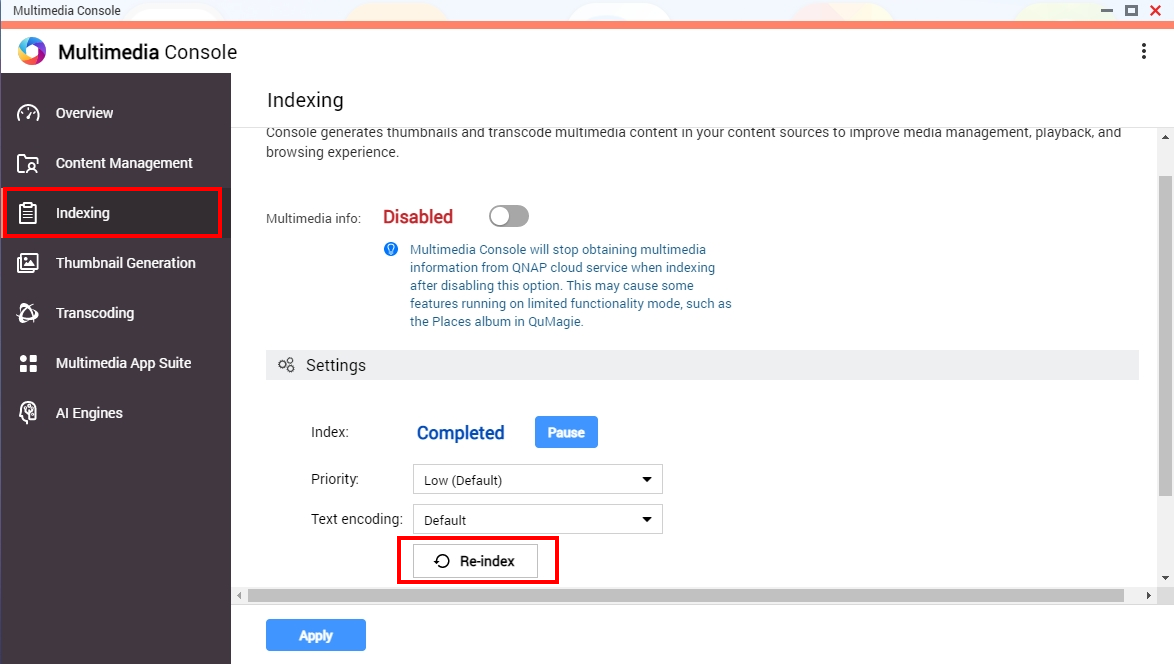 Your system will re-index all media files in your content source folders (not only QuMagie's content source folders). This may take some time. After the indexing is complete, you can check your image/video in QuMagie again.
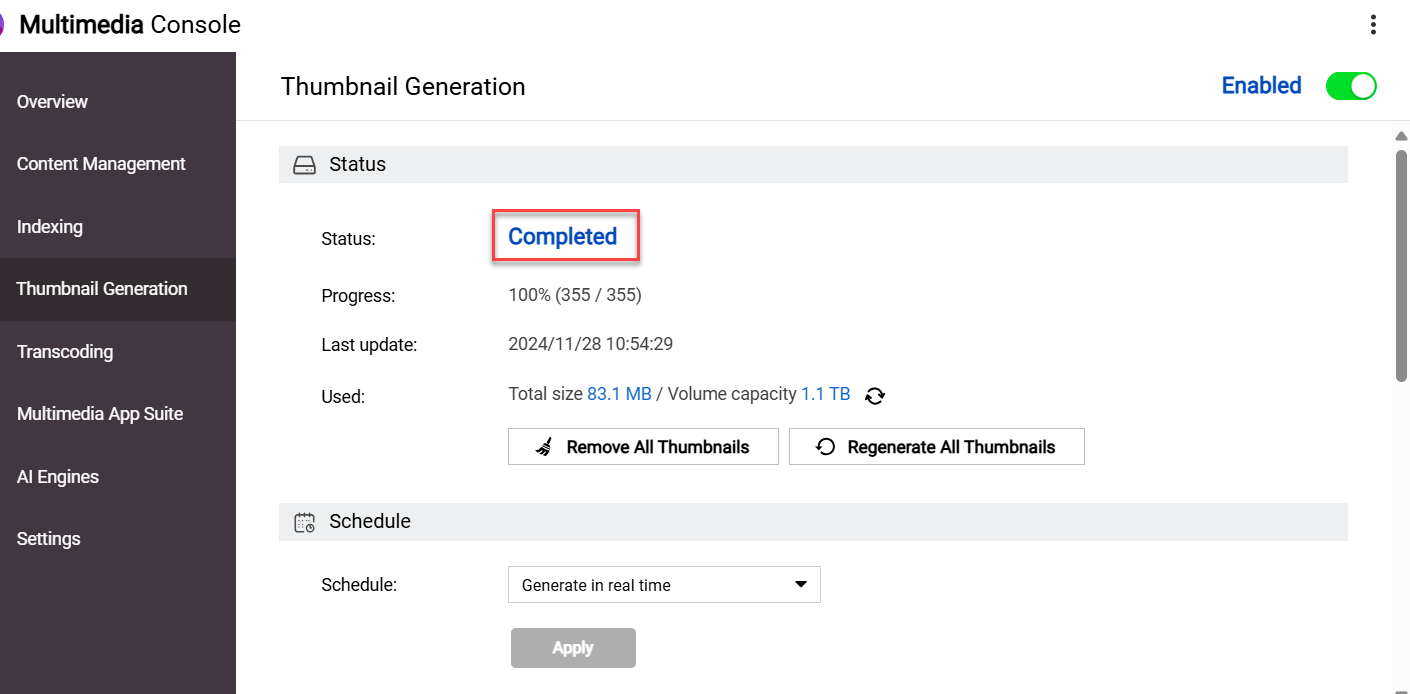
After resolving any of the above issues, you may still need to wait some time before seeing your image/video displayed correctly in QuMagie because your system must first generate a thumbnail for your image/video. To check the status of this thumbnail generation, go to Multimedia Console > Thumbnail Generation > Status. The status should be Completed:
If your images/videos appear in QuMagie but they are not displayed correctly, see Why are some images not displayed correctly in QuMagie?
If your images/videos are still not being displayed correctly in QuMagie, you can content QNAP support for further assistance.
Further Reading
適用產品
QuMagie
分析
如果您無法在 QuMagie 中看到圖片或影片檔案,可能是由以下一個或多個原因造成:
不支援圖片 / 影片的檔案格式
如果您的檔案格式或編解碼器不被 QuMagie 支援,則該圖片 / 影片將不會出現在 QuMagie 中或無法正確顯示。支援的檔案格式列表,請參閱Photo Station 和 QuMagie 支援哪些檔案格式和編解碼器?
圖片 / 影片的檔案格式需要授權
圖片 / 影片不在內容來源資料夾中
QuMagie 只顯示來自內容來源資料夾的圖片 / 影片。為確保 QuMagie 顯示您的圖片 / 影片,您可以將圖片 / 影片檔案移至現有的內容來源資料夾,或將圖片 / 影片的父資料夾新增至 QuMagie 的內容來源資料夾列表。要將資料夾新增至 QuMagie 的內容來源資料夾列表:
提示
您也可以在QuMagie > 設定 > 內容管理 (標籤) > 內容來源 (設定) 中管理 QuMagie 的內容來源資料夾清單。
- 開啟Multimedia Console。
- 前往內容管理。
- 選擇QuMagie 標籤。
- 在內容來源下,按一下編輯。
隨即開啟編輯來源 視窗。 - 在選擇資料夾面板中,選擇一個或多個資料夾。
- 按一下套用。
Multimedia Console 新增了內容來源。
您沒有影像 / 影片的讀取權限
如果您沒有足夠的影像 / 影片權限,則影像 / 影片將不會出現在 QuMagie 中。為確保您擁有足夠的權限,請執行以下操作:
- 確保您擁有內容來源資料夾的足夠許可權。
- 開啟控制台。
- 前往權限 > 共用資料夾 > 共用資料夾 (標籤)。
- 找到包含您影像 / 影片的共用資料夾並按一下。
隨即開啟編輯共用資料夾權限視窗。 - 為適當的使用者啟用「唯讀」或「讀寫」權限。
- 按一下套用。
- 確保您對個別的影像 / 影片擁有足夠的權限。
- 開啟File Station。
- 找到您的影像 / 影片。
- 右鍵點擊影像 / 影片以開啟內容選單,然後按一下屬性。
屬性視窗隨即開啟。 - 選擇權限索引標籤。
- 為適當的群組啟用「讀取」權限。
- 按一下套用。
QuMagie 現在擁有足夠的權限來顯示您的影像 / 資料夾。
您的影像 / 影片檔案超過支援的最大尺寸
如果符合以下任何情況,QuMagie 可能無法正確顯示您的影像 / 影片:
- 影像 / 影片的寬度 x 高度超過 500,000,000 像素。
- 您的 NAS 設備總 RAM 為 2058 MB 或更少,且影像 / 影片的寬度 x 高度大於 240,000,000 像素。
- 您的 NAS 設備總 RAM 為 1024 MB 或更少,且影像 / 影片的寬度 x 高度大於 51,000,000 像素。
- 影像 / 影片的檔案大小大於您 NAS 設備總 RAM 的 1/8。
- 對於 TAS 檔案,如果檔案大於 60 MB。
QuMagie 設定隱藏沒有縮圖的影像 / 影片
若要讓 QuMagie 顯示即使沒有縮圖的影像 / 影片,請執行以下操作:
- 點選右上角的個人資料圖示。
- 點擊設定。
設定視窗隨即顯示。 - 前往其他 (標籤) > 顯示。
- 停用僅顯示已生成縮圖的媒體檔案。
- 按一下套用。
QuMagie 現在顯示沒有縮圖的影像 / 影片。
影像 / 影片檔案尚未建立索引
為了讓許多多媒體應用程式(例如 QuMagie)顯示影像 / 影片,影像 / 影片檔案必須由您的系統建立索引。索引是一種分析和儲存媒體檔案的過程,以便多媒體應用程式更有效地使用。要確保您的影像 / 影片已建立索引,請執行以下操作:
- 開啟Multimedia Console。
- 前往索引。
- 在設定下,找到索引欄位。
如果您的系統仍在建立檔案索引,索引欄位將顯示「索引中...」:
如果您的系統已完成檔案索引,索引欄位將顯示「已完成」:
- 如果您的系統仍在建立檔案索引,請等待索引完成,然後再次在 QuMagie 中檢查您的影像 / 影片。
如果索引狀態顯示為已完成,但您的影像 / 影片仍然在 QuMagie 中遺失或顯示不正確,請參閱本常見問題中的「系統媒體檔案索引已損壞」部分。
系統檔案索引已損壞
如果系統媒體索引(有時也稱為「Multimedia Console 索引 / 資料庫」)已損壞,QuMagie 可能無法顯示影像 / 影片或正確顯示。由於各種原因,系統媒體索引可能會損壞。無法確認系統檔案索引是否損壞,但您可以重新索引系統檔案索引,看看是否能解決您的問題:
警告
重新索引系統媒體檔案索引將刪除並重建所有索引資料。被刪除的資料包括縮圖、媒體檔案標籤、QuMagie 相簿及其他專案。媒體檔案本身不受影響。
- 開啟Multimedia Console。
- 前往索引。
- 在設定下,點擊重新索引。
您的系統將重新索引內容來源資料夾中的所有媒體檔案(不僅限於 QuMagie 的內容來源資料夾)。這可能需要一些時間。索引完成後,您可以再次檢查 QuMagie 中的影像 / 影片。
解決上述任何問題後,您可能仍需等待一段時間才能在 QuMagie 中正確顯示影像 / 影片,因為系統必須先為影像 / 影片生成縮圖。要檢查縮圖生成的狀態,請前往Multimedia Console > 縮圖生成 > 狀態。狀態應顯示為已完成:
如果您的影像 / 影片在 QuMagie 中出現但顯示不正確,請參閱為什麼有些影像在 QuMagie 中無法正確顯示?
如果您的影像 / 影片在 QuMagie 中仍然顯示不正確,您可以聯絡QNAP 支援以獲得進一步協助。
進一步閱讀


