Applicable Products
HDP for PC/VM, HDP PC Agent
Starting from version 2.3.1, the product previously known as HDP has been renamed to HDP for PC/VM.
Starting from version 1.3.0, the product previously known as HDP PC Agent has been renamed to HDP PC Agent.
Introducing HDP PC Agent
HDP PC Agent is a flexible and powerful Windows PC and Windows server application that can back up your Windows PC/server to your QNAP NAS. The operating system and data of your Windows PC/server are backed up to your NAS via HDP for PC/VM. Backups can be performed manually when needed or automatically according to a customized schedule.
To restore your PC/server to a previous backup version, you can use HDP Recovery Media Creator to create bootable recovery media (USB or ISO). For details on restore procedures, see How to Restore Your Windows PC with HDP Recovery Media Creator.
Alternatively, you can restore individual files and folders over the internet with HDP Backup Explorer. For details, see How do I restore files to my Windows PC or server with HDP Backup Explorer?
Requirements
To back up your Windows PC/server, ensure the following:
- Your QNAP NAS user account is an administrator account.
- HDP for PC/VM 2.0 or later is installed on your QNAP NAS.
- HDP PC Agent is installed on your Windows PC/server.
Install HDP PC Agent
1. Go to the download page of QNAP Utilities.
2. Download the installer file of HDP PC Agent.
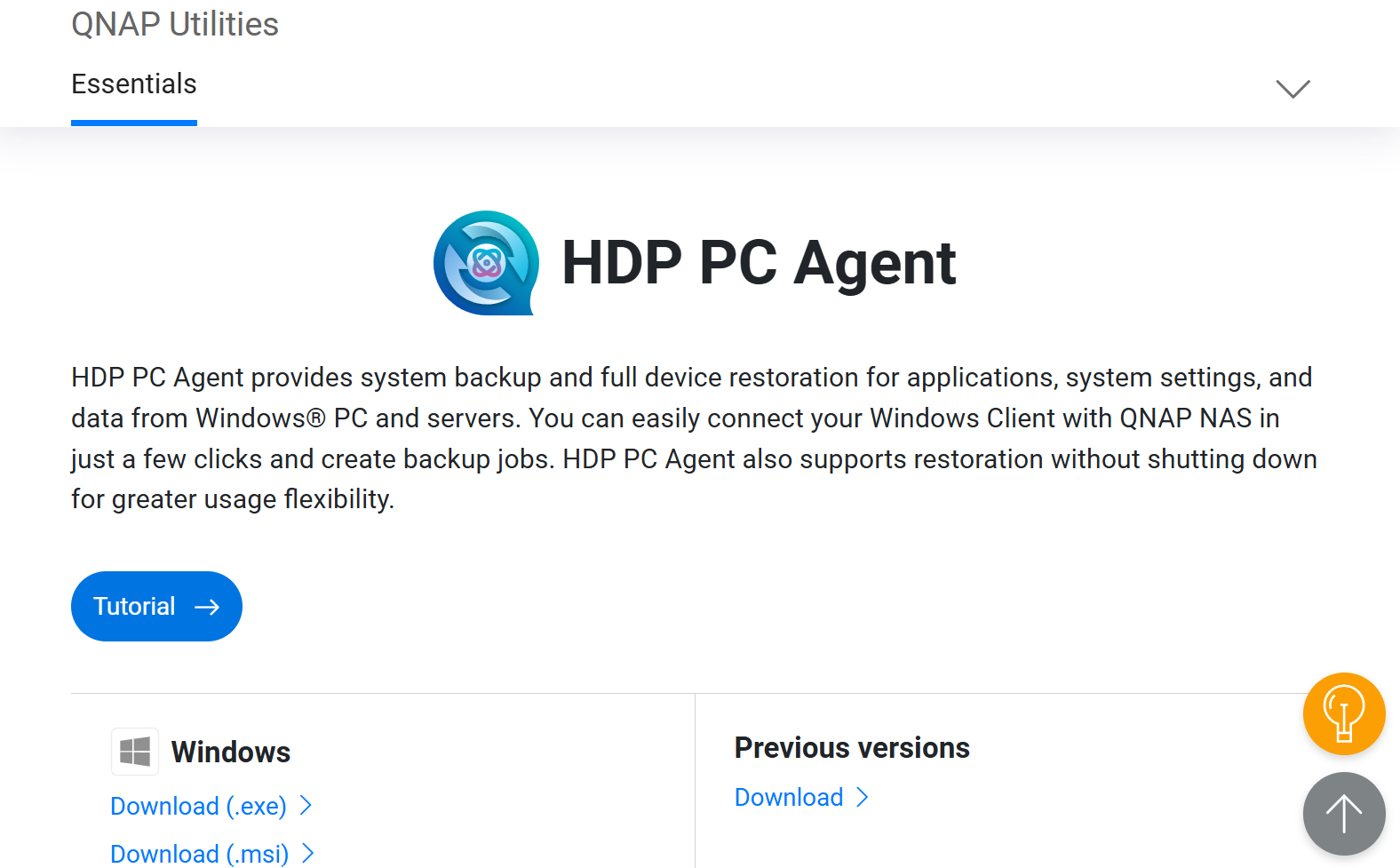
3. Run the installer file.
4. Select a language and click OK.
5. Read the License Agreement and then click I Agree.
6. Click Finish when the installation is complete.
7. Click Start.
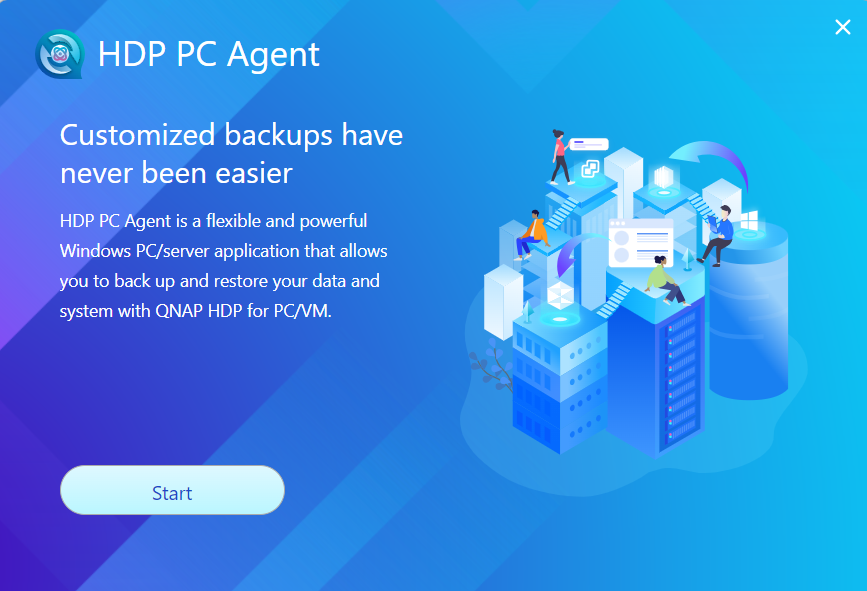
HDP PC Agent is now ready to use on your computer. See the next section for the initial setup.
Back Up Your Windows PC or Server
- Open HDP PC Agent on your Windows PC or server.
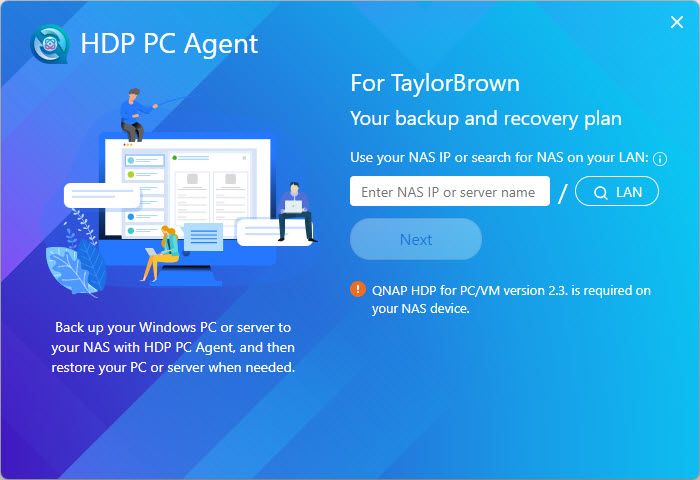
- Log into your QNAP NAS.
- Enter your NAS IP address or NAS server name. Alternatively, if your NAS is connected to your computer's local network, then you can find your NAS by clicking the search LAN button.
- Enter your NAS username and password.
After logging in to the NAS, HDP PC Agent automatically creates an HDP inventory for this PC/server:
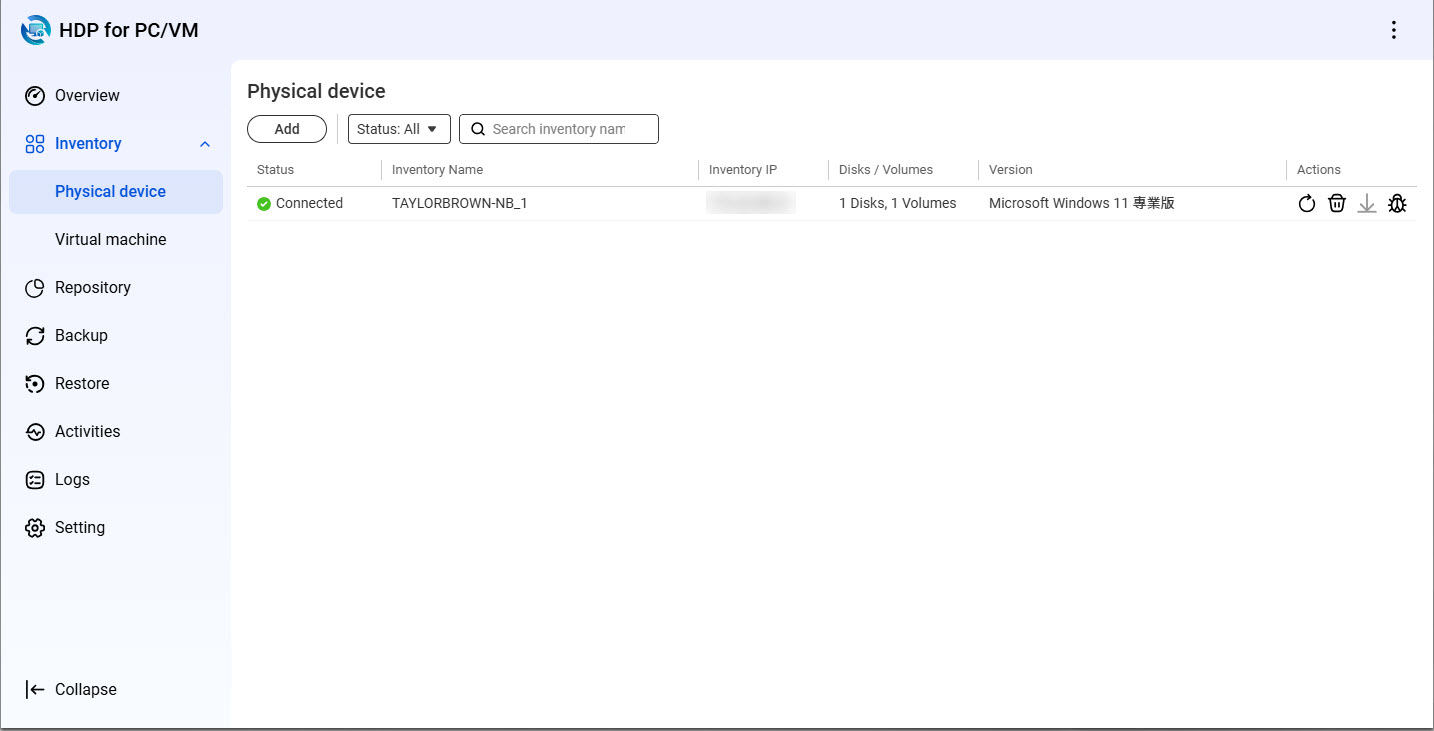
- Create a repository on your NAS. A repository is a location on your NAS where the backed-up data of your PC/server will be stored.
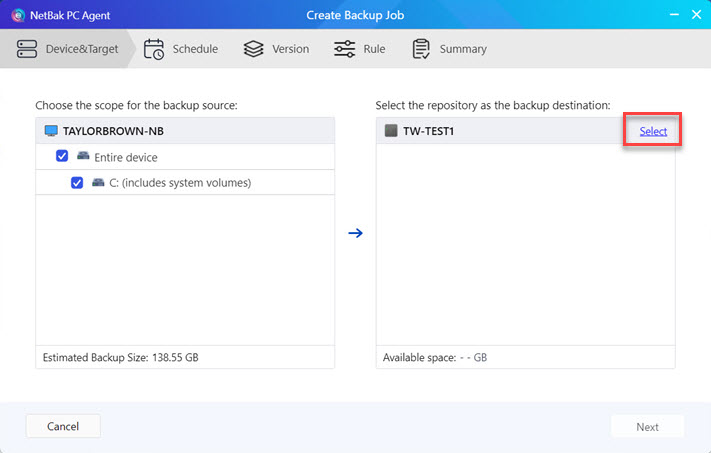
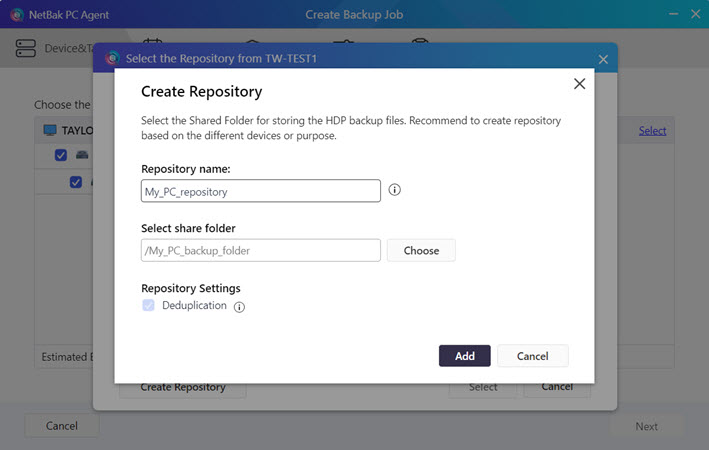
- Enter a name for the repository.
- Select a shared folder for the repository.
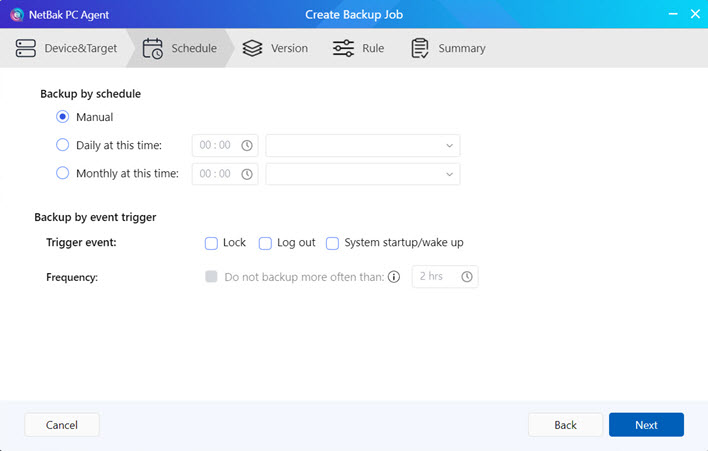
- Create a schedule for the backup job. Backups can be performed manually, automatically on a daily or monthly basis, or after certain system events are triggered.
Tip
Specifying a schedule with re-occurring backups will ensure your system is protected from data loss resulting from unexpected system failure.
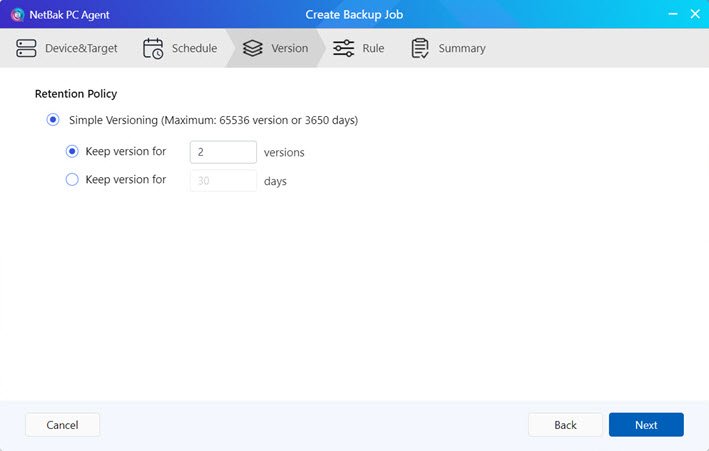
- Specify how many backup versions will be kept in the repository. When restoring your PC/server, you will select one of the backup versions to use for the restore.
- Specify further miscellaneous options to apply.
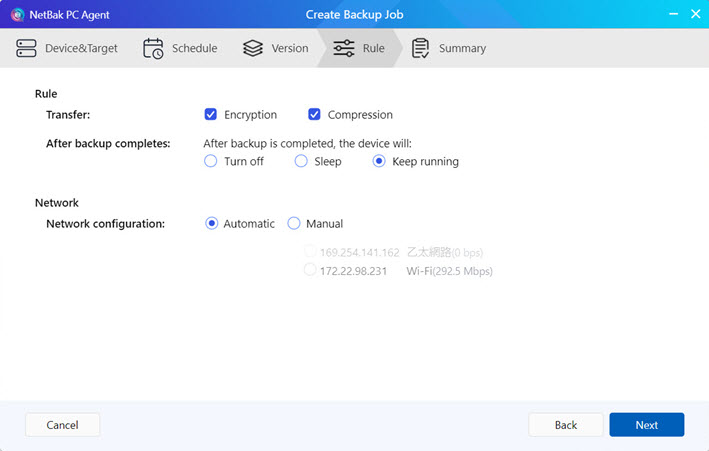
- Review the settings of your backup job before finishing.
- Complete the backup job creation.
- After the backup job is created, perform an immediate backup.
Warning
Do not power off, sleep, or log out of your device while the backup job is running.
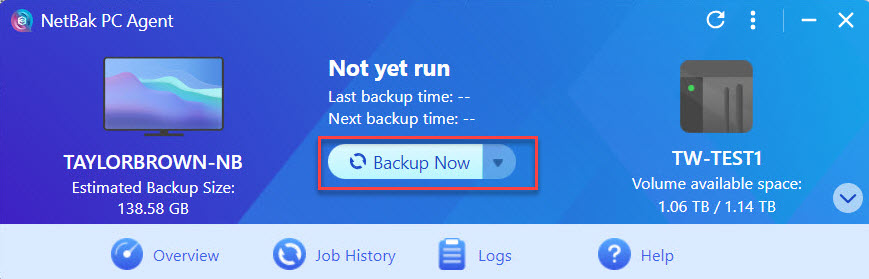
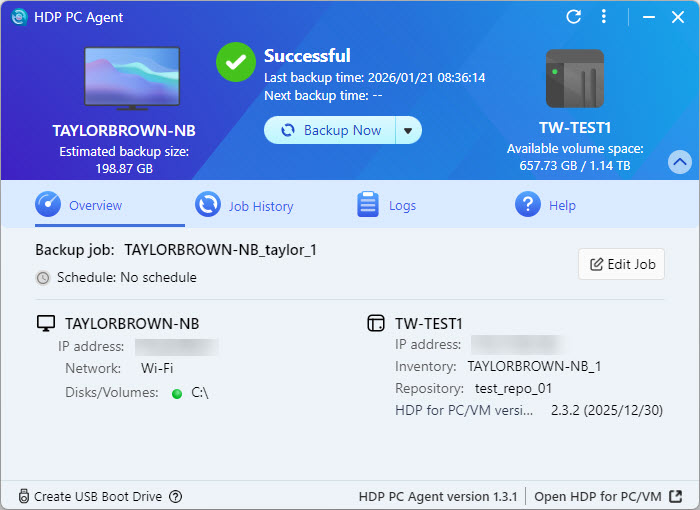
- After the backup job is finished, a backup version is created.
Further Reading
How to Restore Your Windows PC with HDP Recovery Media Creator
How do I restore files to my Windows PC or server with HDP Backup Explorer?
Using HDP for PC/VM to Back Up Hypervisors to a QNAP NAS
How to Back Up and Import HDP Repositories to a Remote QNAP NAS
対象製品
HDP for PC/VM、HDP PC Agent
バージョン 2.3.1 以降、以前は HDP として知られていた製品は HDP for PC/VM に改名されました。
バージョン 1.3.0 以降、以前は HDP PC Agent として知られていた製品は HDP PC Agent に改名されました。
HDP PC Agent の紹介
HDP PC Agent は、Windows PC および Windows サーバーの柔軟で強力なアプリケーションで、Windows PC/ サーバーを QNAP NAS にバックアップできます。Windows PC/ サーバーのオペレーティングシステムとデータは、HDP for PC/VM を介して NAS にバックアップされます。バックアップは必要に応じて手動で、またはカスタマイズされたスケジュールに従って自動的に実行できます。
PC/ サーバーを以前のバックアップバージョンに復元するには、HDP Recovery Media Creator を使用して起動可能なリカバリメディア(USB または ISO)を作成できます。復元手順の詳細については、HDP Recovery Media Creator を使用して Windows PC を復元する方法を参照してください。
または、HDP バックアップ エクスプローラーを使用してインターネット経由で個々のファイルやフォルダーを復元できます。詳細については、HDP Backup Explorer を使用して、Windows PC またはサーバーにファイルを復元するにはどうすればよいですか?を参照してください。
要件
Windows PC/ サーバーをバックアップするには、以下を確認してください:
- QNAP NAS ユーザーアカウントが管理者アカウントであること。
- QNAP NAS に HDP for PC/VM 2.0 以降がインストールされていること。
- Windows PC/ サーバーに HDP PC Agent がインストールされていること。
HDP PC Agent のインストール
1. QNAP ユーティリティのダウンロードページにアクセスします。
2. HDP PC Agent のインストーラーファイルをダウンロードします。
3. インストーラーファイルを実行します。
4. 言語を選択し、OKをクリックします。
5. ライセンス契約を読み、同意するをクリックします。
6. インストールが完了したら、完了をクリックします。
7. 開始をクリックします。
HDP PC Agent はコンピュータで使用可能になりました。初期設定については次のセクションを参照してください。
Windows PC またはサーバーのバックアップ
- Windows PC またはサーバーでHDP PC Agentを開きます。
- QNAP NAS にログインします。
- NAS の IP アドレスまたは NAS サーバー名を入力します。あるいは、NAS がコンピュータのローカルネットワークに接続されている場合は、検索 LAN ボタンをクリックして NAS を見つけることができます。
- NAS のユーザー名とパスワードを入力します。
NAS にログインすると、HDP PC Agentがこの PC/ サーバーのために自動的に HDP インベントリを作成します:
- NAS にリポジトリを作成します。リポジトリは、PC/ サーバーのバックアップデータが保存される NAS 上の場所です。
- リポジトリの名前を入力します。
- リポジトリの共有フォルダーを選択します。
- バックアップジョブのスケジュールを作成します。バックアップは手動で、または毎日や毎月の自動実行、あるいは特定のシステムイベントがトリガーされた後に実行できます。
ヒント
再発するバックアップを指定するスケジュールを設定することで、予期しないシステム障害によるデータ損失からシステムを保護できます。
- リポジトリに保持するバックアップバージョンの数を指定します。PC/ サーバーを復元する際には、使用するバックアップバージョンを選択します。
- 適用するその他のオプションを指定します。
- 終了する前にバックアップジョブの設定を確認します。
- バックアップジョブの作成を完了します。
- バックアップジョブが作成された後、すぐにバックアップを実行します。
警告
バックアップジョブが実行中は、デバイスの電源を切ったり、スリープ状態にしたり、ログアウトしないでください。
- バックアップジョブが完了すると、バックアップバージョンが作成されます。
さらに読む
HDP Recovery Media Creator を使用して Windows PC を復元する方法
HDP バックアップ エクスプローラーを使用して、Windows PC またはサーバーにファイルを復元するにはどうすればよいですか?
HDP for PC/VM を使用してハイパーバイザーを QNAP NAS にバックアップする方法
HDP リポジトリをリモート QNAP NAS にバックアップおよびインポートする方法


