Applicable Products
HDP for PC/VM, HDP PC Agent
Starting from version 2.3.1, the product previously known as HDP has been renamed to HDP for PC/VM.
Starting from version 1.3.0, the product previously known as HDP PC Agent has been renamed to HDP PC Agent.
Introducing HDP PC Agent
HDP PC Agent is a flexible and powerful Windows PC and Windows server application that can back up your Windows PC/server to your QNAP NAS. The operating system and data of your Windows PC/server are backed up to your NAS via HDP for PC/VM. Backups can be performed manually when needed or automatically according to a customized schedule.
To restore your PC/server to a previous backup version, you can use HDP Recovery Media Creator to create bootable recovery media (USB or ISO). For details on restore procedures, see How to Restore Your Windows PC with HDP Recovery Media Creator.
Alternatively, you can restore individual files and folders over the internet with HDP Backup Explorer. For details, see How do I restore files to my Windows PC or server with HDP Backup Explorer?
Requirements
To back up your Windows PC/server, ensure the following:
- Your QNAP NAS user account is an administrator account.
- HDP for PC/VM 2.0 or later is installed on your QNAP NAS.
- HDP PC Agent is installed on your Windows PC/server.
Install HDP PC Agent
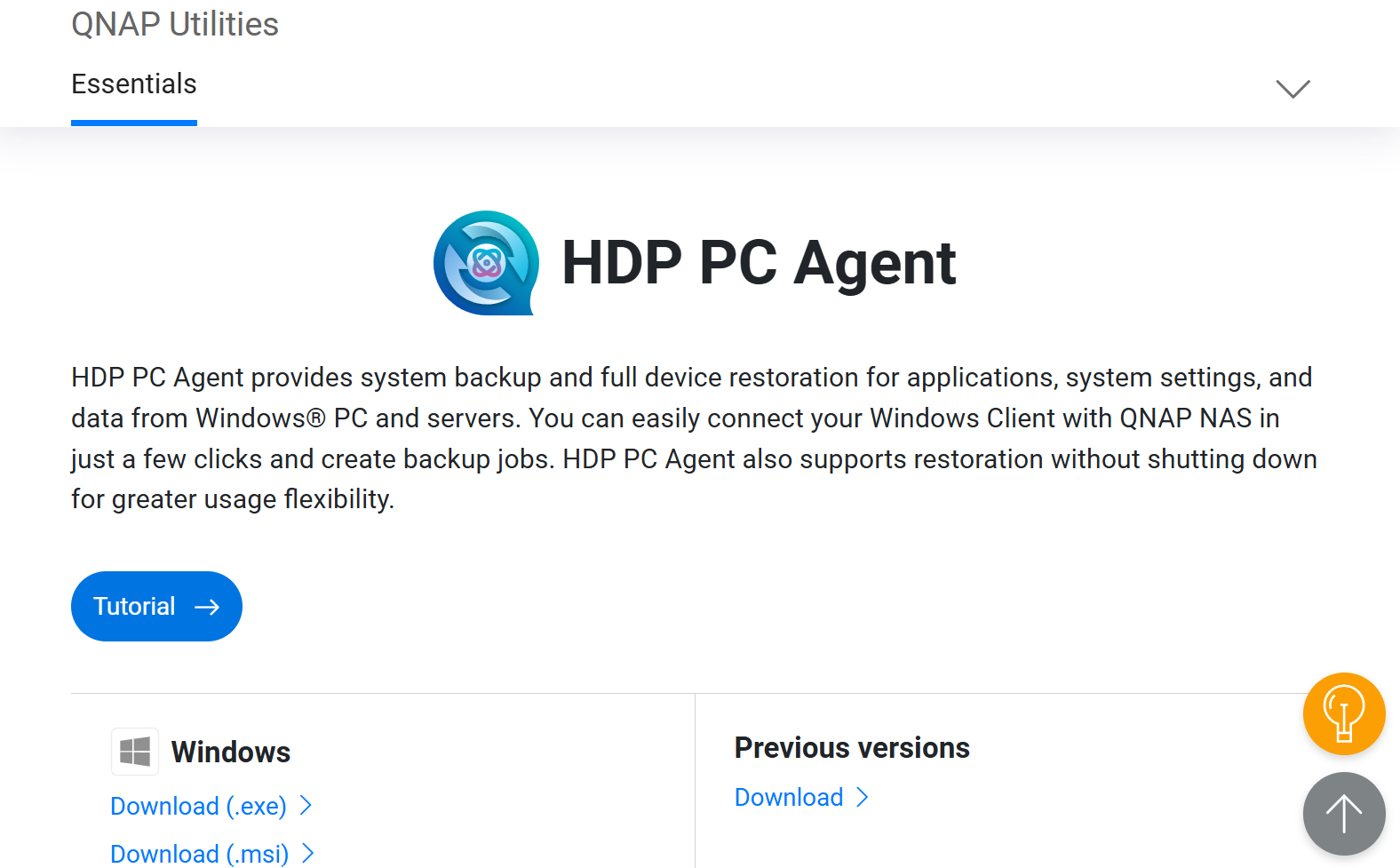
1. Go to the download page of QNAP Utilities.
2. Download the installer file of HDP PC Agent.
3. Run the installer file.
4. Select a language and click OK.
5. Read the License Agreement and then click I Agree.
6. Click Finish when the installation is complete.
7. Click Start.
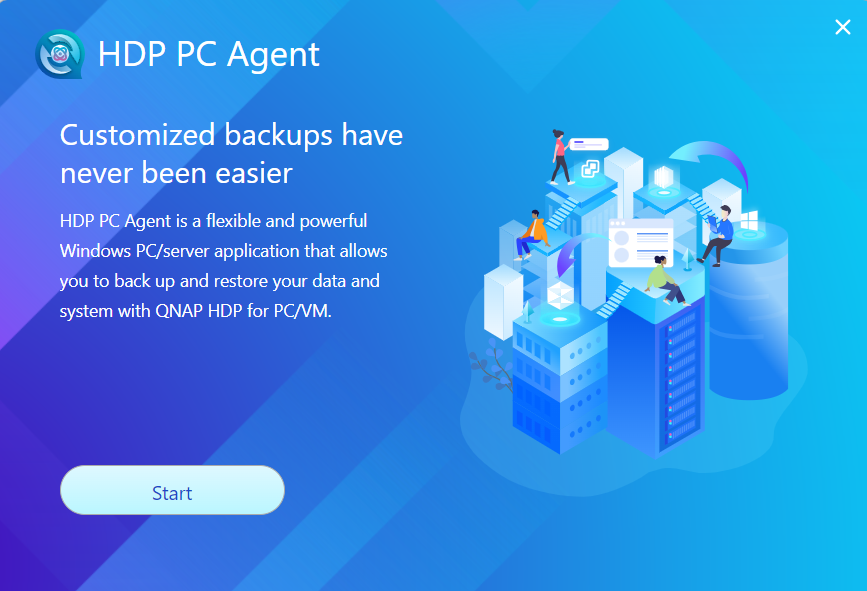
HDP PC Agent is now ready to use on your computer. See the next section for the initial setup.
Back Up Your Windows PC or Server
- Open HDP PC Agent on your Windows PC or server.
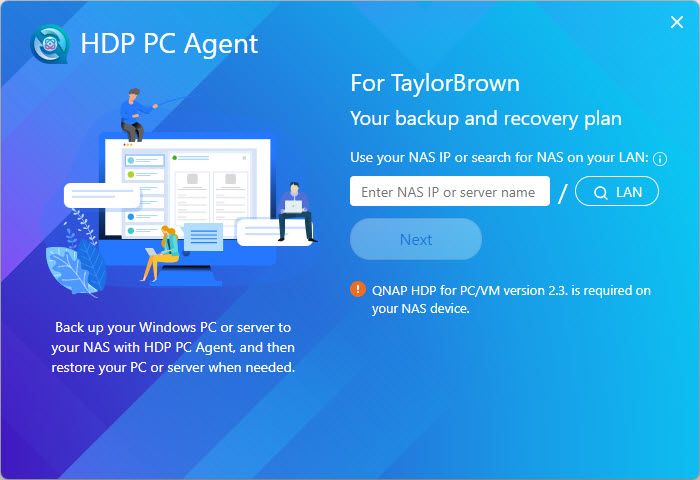
- Log into your QNAP NAS.
- Enter your NAS IP address or NAS server name. Alternatively, if your NAS is connected to your computer's local network, then you can find your NAS by clicking the search LAN button.
- Enter your NAS username and password.
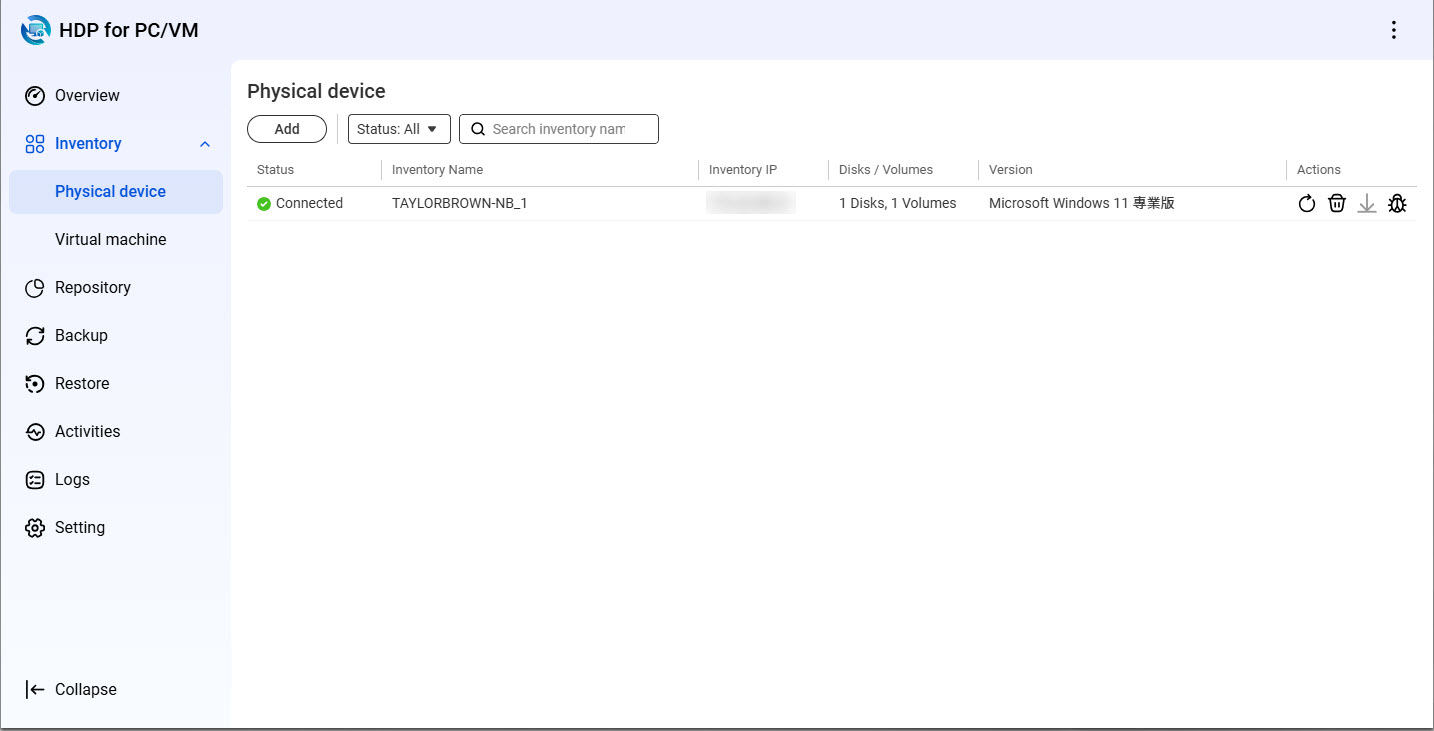
After logging in to the NAS, HDP PC Agent automatically creates an HDP inventory for this PC/server:
- Create a repository on your NAS. A repository is a location on your NAS where the backed-up data of your PC/server will be stored.
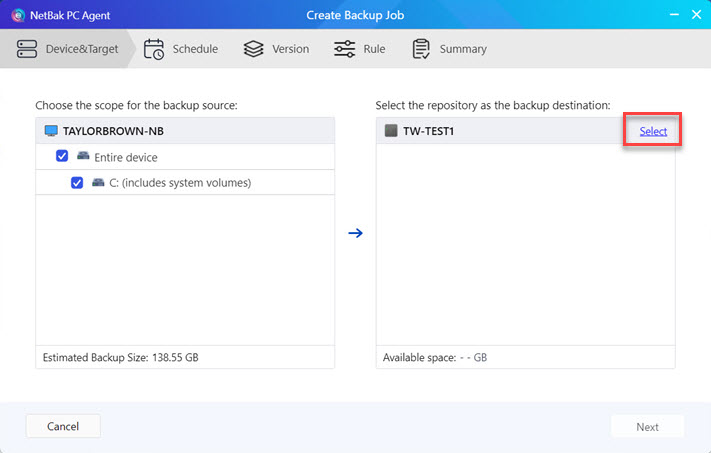
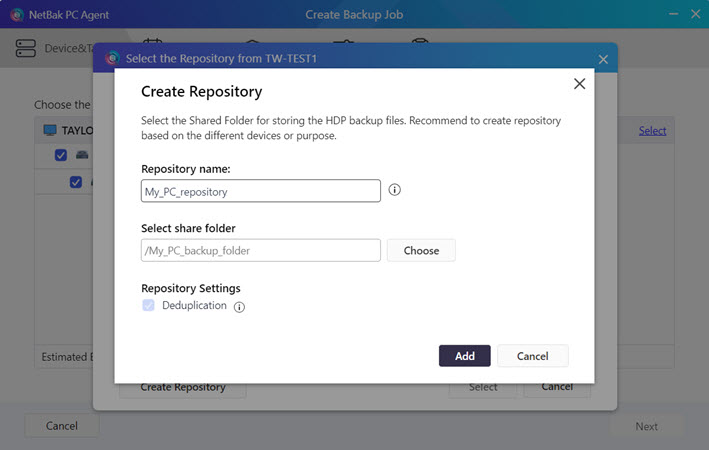
- Enter a name for the repository.
- Select a shared folder for the repository.
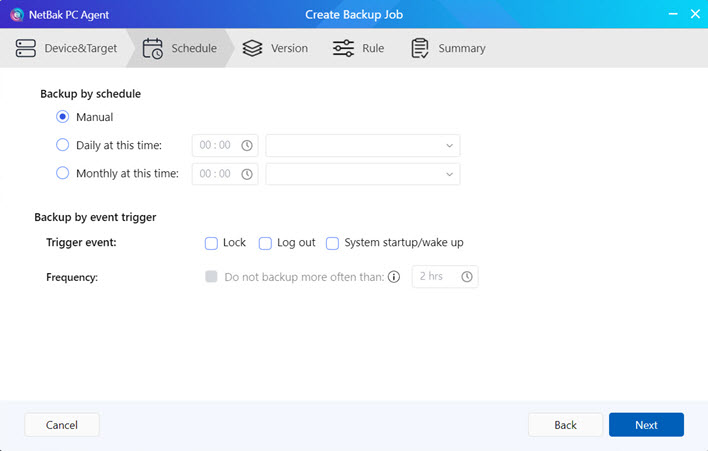
- Create a schedule for the backup job. Backups can be performed manually, automatically on a daily or monthly basis, or after certain system events are triggered.
Tip
Specifying a schedule with re-occurring backups will ensure your system is protected from data loss resulting from unexpected system failure.
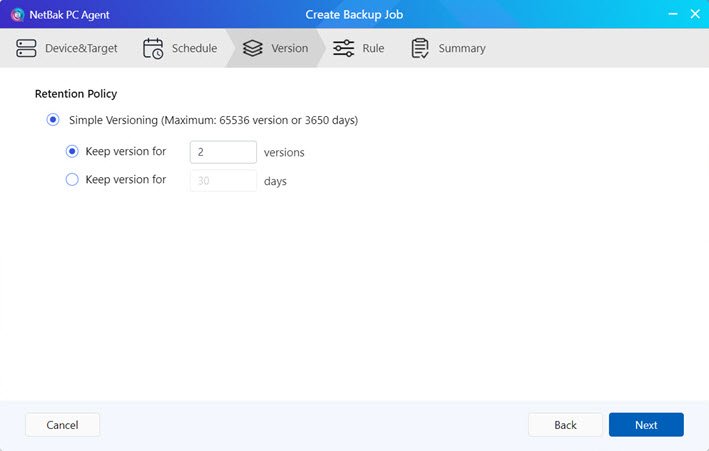
- Specify how many backup versions will be kept in the repository. When restoring your PC/server, you will select one of the backup versions to use for the restore.
- Specify further miscellaneous options to apply.
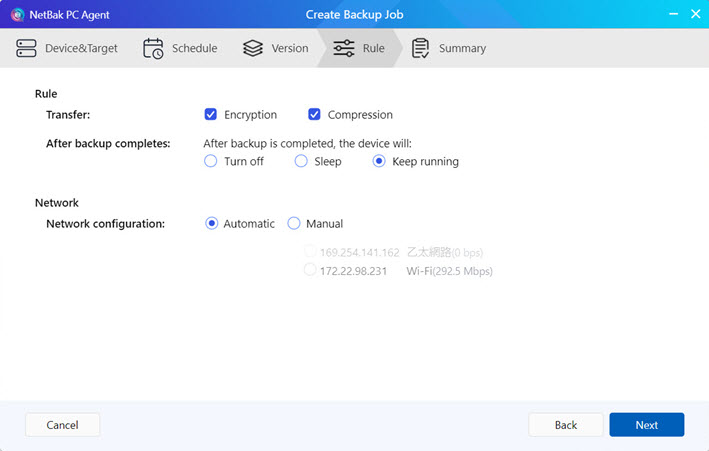
- Review the settings of your backup job before finishing.
- Complete the backup job creation.
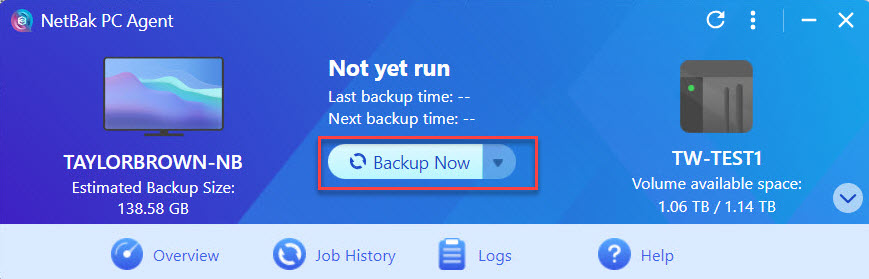
- After the backup job is created, perform an immediate backup.
Warning
Do not power off, sleep, or log out of your device while the backup job is running.
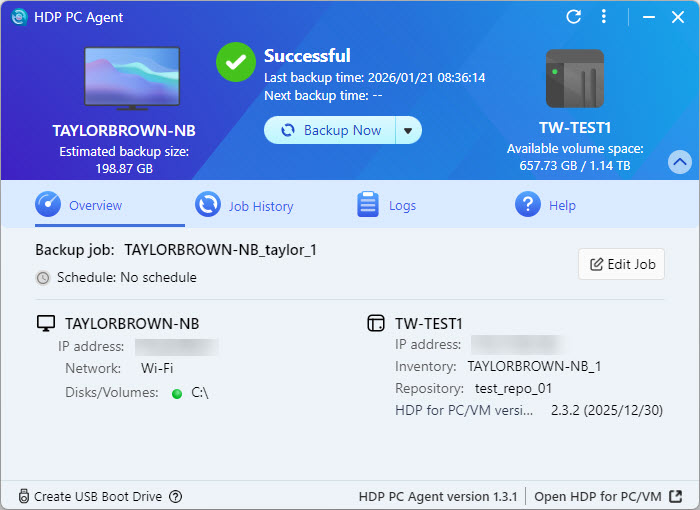
- After the backup job is finished, a backup version is created.
Further Reading
How to Restore Your Windows PC with HDP Recovery Media Creator
How do I restore files to my Windows PC or server with HDP Backup Explorer?
Using HDP for PC/VM to Back Up Hypervisors to a QNAP NAS
How to Back Up and Import HDP Repositories to a Remote QNAP NAS
적용되는 제품
HDP for PC/VM, HDP PC Agent
버전 2.3.1부터 이전에 HDP로 알려졌던 제품이 HDP for PC/VM으로 이름이 변경되었습니다.
버전 1.3.0부터 이전에 HDP PC Agent로 알려졌던 제품이 HDP PC Agent로 이름이 변경되었습니다.
HDP PC Agent 소개
HDP PC Agent는 Windows PC/서버를 QNAP NAS에 백업할 수 있는 강력한 Windows PC 및 Windows 서버 애플리케이션입니다. Windows PC/서버의 운영 체제와 데이터는 HDP for PC/VM을 통해 NAS에 백업됩니다. 백업은 필요할 때 수동으로 수행하거나 사용자 지정 일정에 따라 자동으로 수행할 수 있습니다.
PC/서버를 이전 백업 버전으로 복원하려면 HDP Recovery Media Creator를 사용하여 부팅 가능한 복구 미디어(USB 또는 ISO)를 생성할 수 있습니다. 복원 절차에 대한 자세한 내용은HDP Recovery Media Creator로 Windows PC를 복원하는 방법을 참조하십시오.
또한, HDP 백업 탐색기를 사용하여 인터넷을 통해 개별 파일과 폴더를 복원할 수 있습니다. 자세한 내용은HDP 백업 탐색기를 사용하여 Windows PC 또는 서버에 파일을 복원하려면 어떻게 해야 합니까?을 참조하십시오.
요구 사항
Windows PC/서버를 백업하려면 다음을 확인하십시오.
- QNAP NAS 사용자 계정이관리자계정인지 여부.
- QNAP NAS에 HDP for PC/VM 2.0 이상이 설치되어 있는지 여부.
- Windows PC/서버에 HDP PC Agent가 설치되어 있는지 여부.
HDP PC Agent 설치
1. QNAP 유틸리티 다운로드 페이지로 이동합니다.
2. HDP PC Agent 설치 파일을 다운로드합니다.
3. 설치 파일을 실행합니다.
4. 언어를 선택하고확인을 클릭합니다.
5. 라이선스계약을 읽고동의함을 클릭합니다.
6. 설치가 완료되면 완료를 클릭합니다.
7. 시작을 클릭합니다.
HDP PC Agent가 이제 컴퓨터에서 사용할 준비가 되었습니다. 초기 설정에 대한 다음 섹션을 참조하십시오.
Windows PC 또는 서버 백업
- Windows PC 또는 서버에서HDP PC Agent를 엽니다.
- QNAP NAS에 로그인합니다.
- NAS IP 주소 또는 NAS 서버 이름을 입력합니다. 또는 NAS가 컴퓨터의 로컬 네트워크에 연결된 경우, 검색 LAN 버튼을 클릭해서 NAS를 찾을 수 있습니다.
- NAS 사용자 이름과 암호를 입력합니다.
NAS에 로그인한 후, HDP PC Agent가 이 PC/서버에 대한 HDP 인벤토리를 자동으로 생성합니다:
- NAS에 리포지토리를 만듭니다. 리포지토리는 백업한 PC/서버의 데이터가 저장되는 NAS상의 위치입니다.
- 리포지토리 이름을 입력합니다.
- 리포지토리의 공유 폴더를 선택합니다.
- 백업 작업의 일정을 만듭니다. 백업은 수동으로 수행하거나 매일, 매달 또는 특정 시스템 이벤트가 작동한 후 등 자동으로 실행할 수 있습니다.
팁
반복 백업으로 일정을 지정하면 예기치 않은 시스템 오류로부터 발생하는 데이터 손실을 방지할 수 있습니다.
- 리포지토리에 보관할 백업 버전 수를 지정합니다. PC/서버를 복원할 때 복원에 사용할 백업 버전 하나를 선택합니다.
- 적용할 추가적인 기타 옵션을 지정합니다.
- 완료하기 전에 백업 작업의 설정을 검토합니다.
- 백업 작업 생성을 완료합니다.
- 백업 작업이 생성된 후, 즉시 백업을 수행합니다.
경고
백업 작업이 실행 중일 때 전원을 끄거나, 절전 모드로 설정하거나 장치를 로그아웃하지 마십시오.
- 백업 작업이 완료된 후, 백업 버전이 생성됩니다.
추가 읽기
HDP Recovery Media Creator로 Windows PC를 복원하는 방법
HDP 백업 탐색기를 사용하여 Windows PC 또는 서버에 파일을 복원하려면 어떻게 해야 합니까?
HDP를 사용하여 PC/VM을 QNAP NAS로 백업하는 방법
HDP 저장소를 원격 QNAP NAS로 백업 및 가져오는 방법


