Applicable Products
QuMagie
Analysis
If you can't see an image or video file in QuMagie, it may be caused by one or more of the following:
The file format of the image/video is not supported
If your file has a format or codec that is not supported by QuMagie, then that image/video will not appear in QuMagie or will not be displayed correctly. For a list of supported file formats, see What file formats and codecs do Photo Station & QuMagie support?
The file format of the image/video requires a license
Certain media file formats require a CAYIN Media Viewer license. If you do not have the required license activated, then the image/video will not appear in QuMagie or will be displayed with a default generic thumbnail. For details on how to purchase and activate licenses, see "Licenses" in the QTS User Guide or QuTS hero User Guide.
The image/video is not in a content source folder
QuMagie only displays images/videos from content source folders. To ensure that QuMagie displays your image/video, you can move your image/video file into an existing content source folder, or add the parent folder of the image/video to QuMagie's content source folder list. To add folders to QuMagie's content source folders list:
Warning
Only shared folders can be content source folders. When adding a folder to QuMagie's content source folder list, ensure that the folder is a shared folder. For details on shared folders, see "Shared Folders" in the
QTS User Guide or
QuTS hero User Guide.
Tip
You can also manage QuMagie's content source folder list in QuMagie > Settings > Content Management (tab) > Content Sources (setting).
- Open Multimedia Console.
- Go to Content Management.
- Select the QuMagie tab.
- Under Content Sources, click Edit.
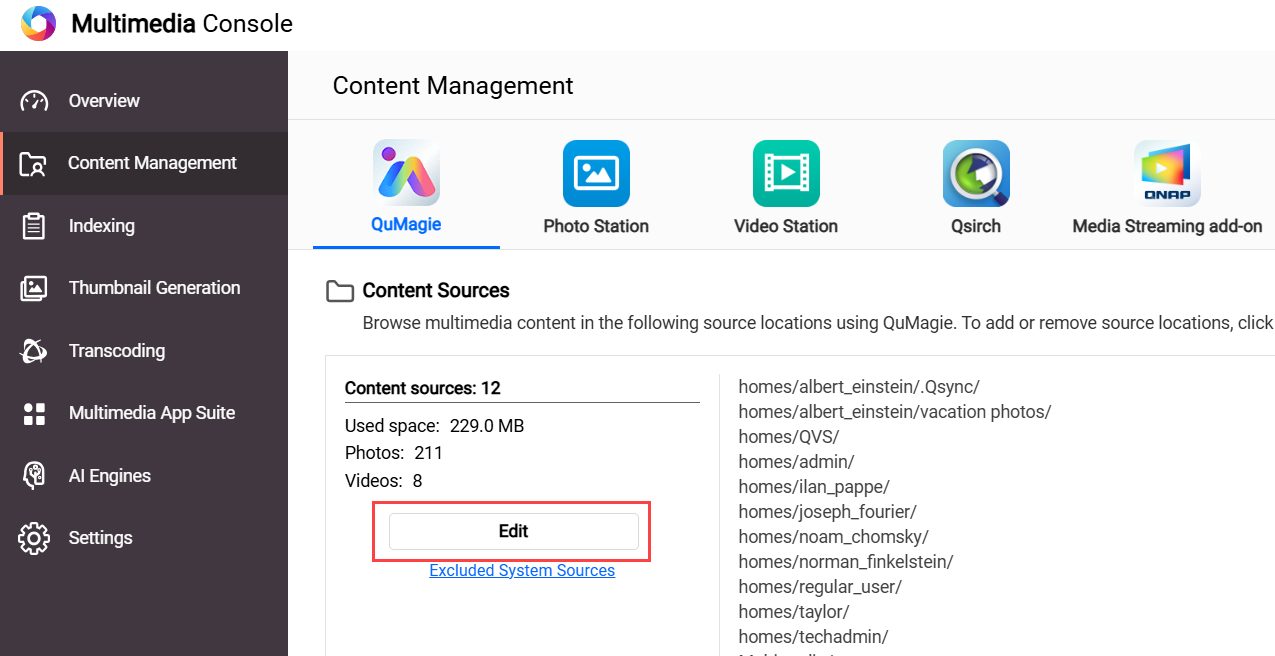 The Edit sources window opens.
 - In the Select Folders panel, select one or more folders.
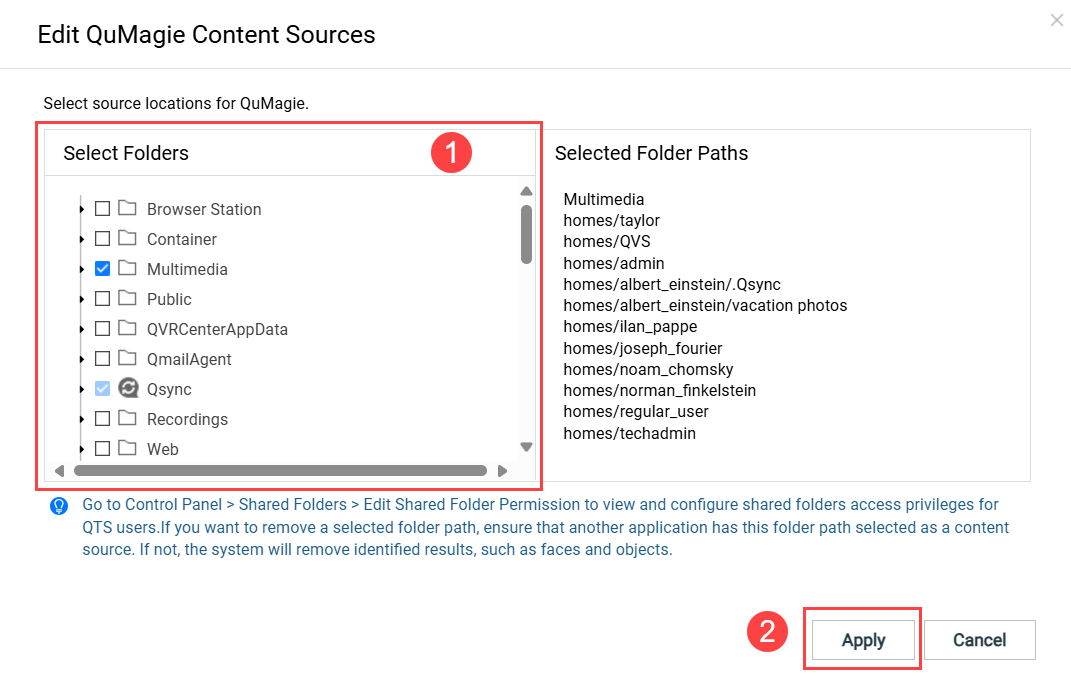
- Click Apply.
Multimedia Console adds the content sources.
You do not have read permissions for the image/video
If you do not have sufficient permissions for the image/video, then the image/video will not appear in QuMagie. To ensure you have sufficient permissions, do the following:
- Ensure you have sufficient permission for the content source folder.
- Open Control Panel.
- Go to Privilege > Shared Folders > Shared folder (tab).
- Locate the shared folder containing your image/video and click
 .
.
The Edit Shared Folder Permission window opens. - Enable either "Read Only" or "Read/Write" permissions for the appropriate users.
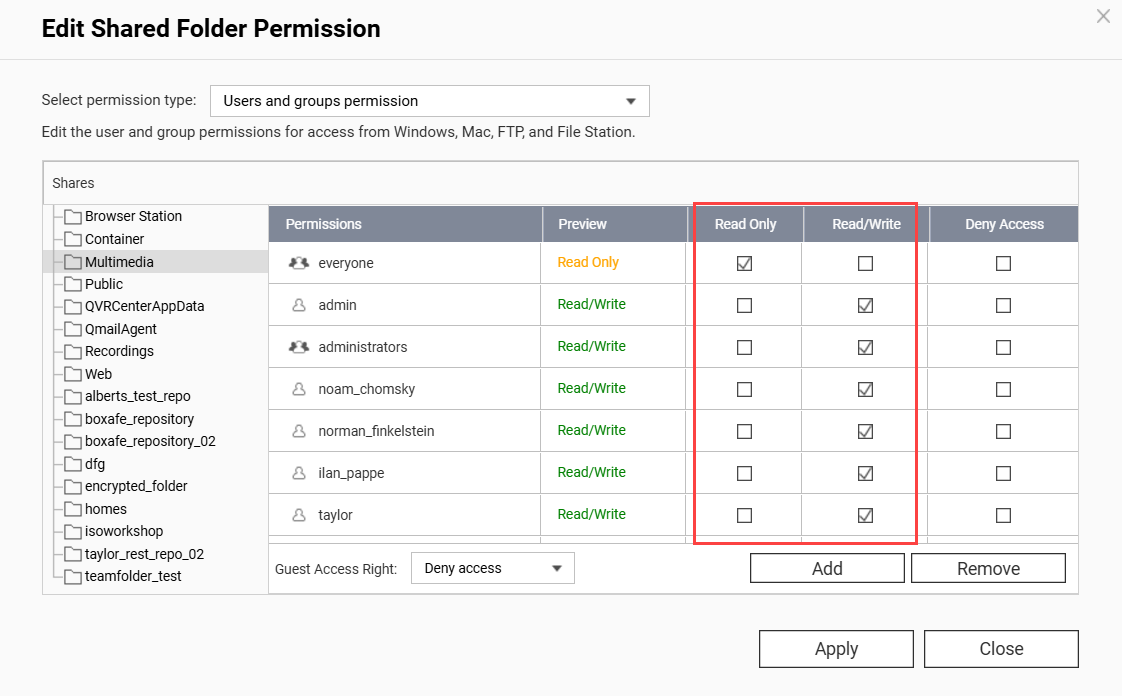
- Click Apply.
- Ensure you have sufficient permission on the individual image/video.
- Open File Station.
- Locate your image/video.
- Right click on the image/video to open the context menu and click Properties.
The Properties window opens. - Select the Permissions tab.
- Enable the "Read" permission for the appropriate groups.
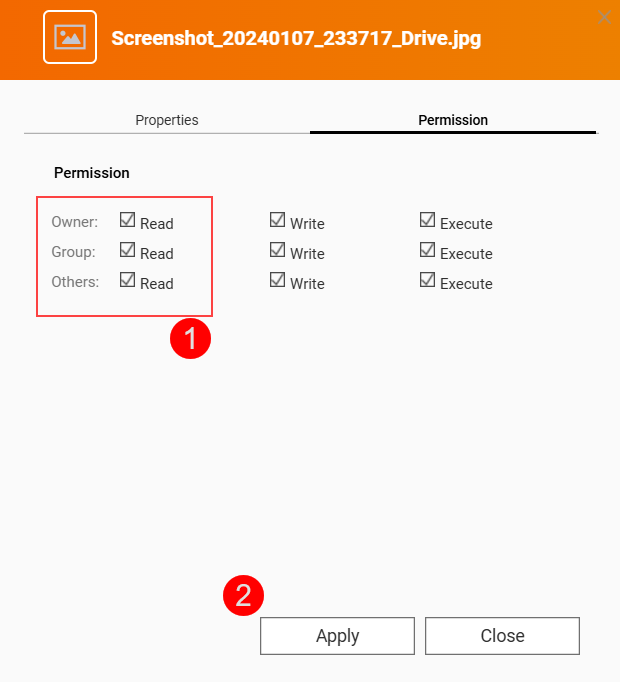
- Click Apply.
QuMagie now has sufficient permissions to display your image/folder.
Your image/video file is above the maximum supported size
QuMagie may not display your image/video correctly if any of the following apply:
- The width x height of the image/video is greater than 500,000,000 pixels.
- Your NAS device has 2058 MB of total RAM or less and the width x height of the image/video is greater than 240,000,000 pixels.
- Your NAS device has 1024 MB of total RAM or less and the width x height of the image/video is greater than 51,000,000 pixels.
- The file size of the image/video is greater than 1/8 of your NAS device's total RAM.
- For TAS files, if the file is greater than 60 MB.
QuMagie settings are hiding images/videos with no thumbnails
To allow QuMagie to display images/videos even when those images/videos do not have thumbnails, do the following:
- Click on your profile icon on the top right.
- Click on Settings.
The Settings window appears. - Go to Miscellaneous (tab) > Display.
- Disable Only display media files with generated thumbnails.
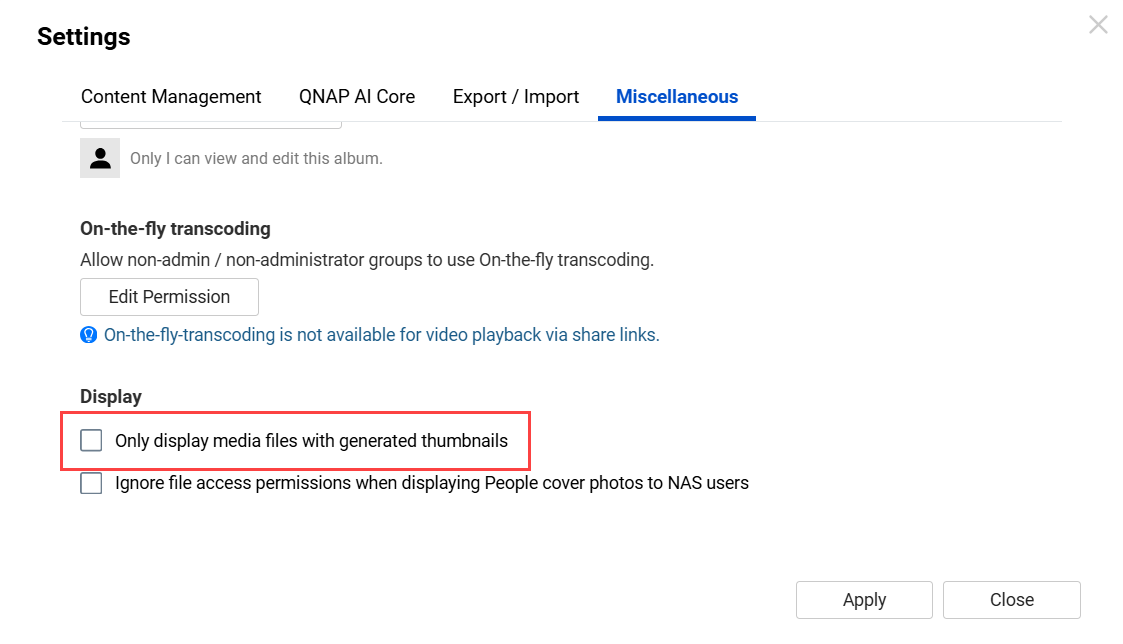
- Click Apply.
QuMagie now displays images/videos that do not have thumbnails.
The image/video file isn't indexed yet
For many multimedia apps, such as QuMagie, to display images/videos the image/video files must be indexed by your system. Indexing is a process of analyzing and storing media files so that they can be more efficiently used by multimedia apps. To ensure that your images/videos have been indexed, do the following:
- Open Multimedia Console.
- Go to Indexing.
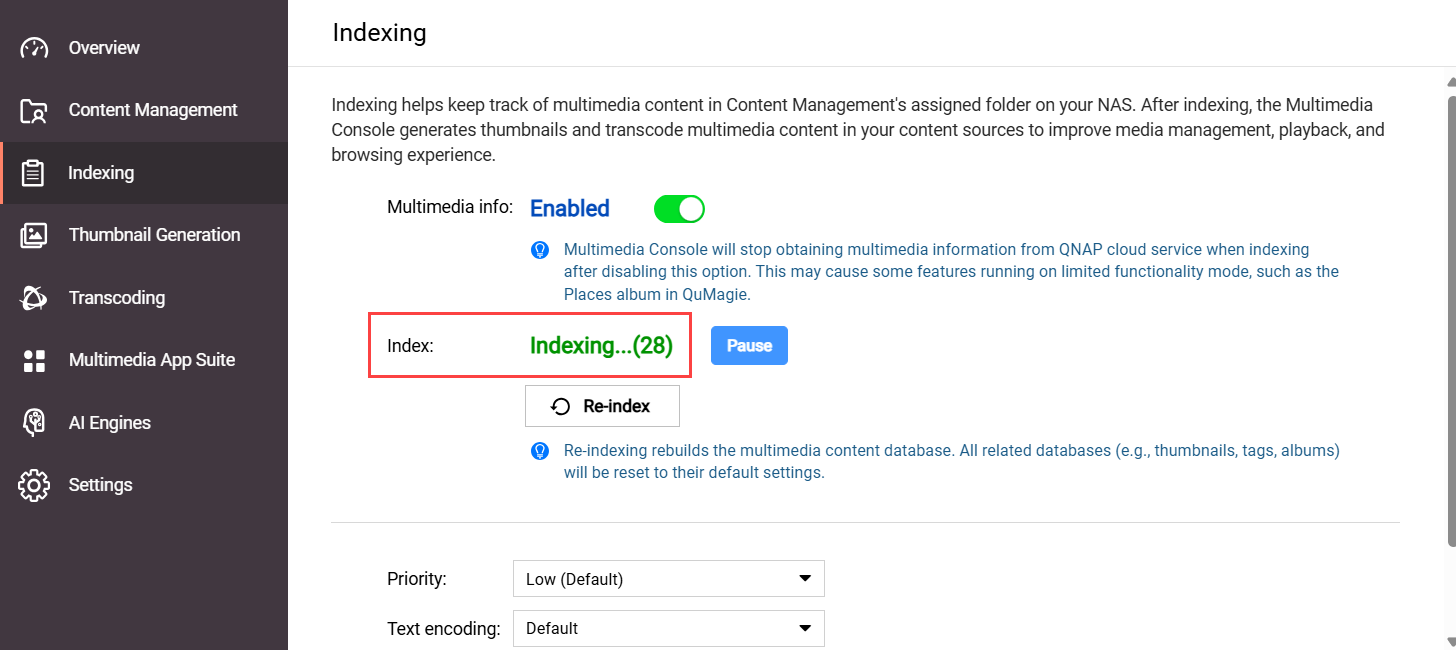
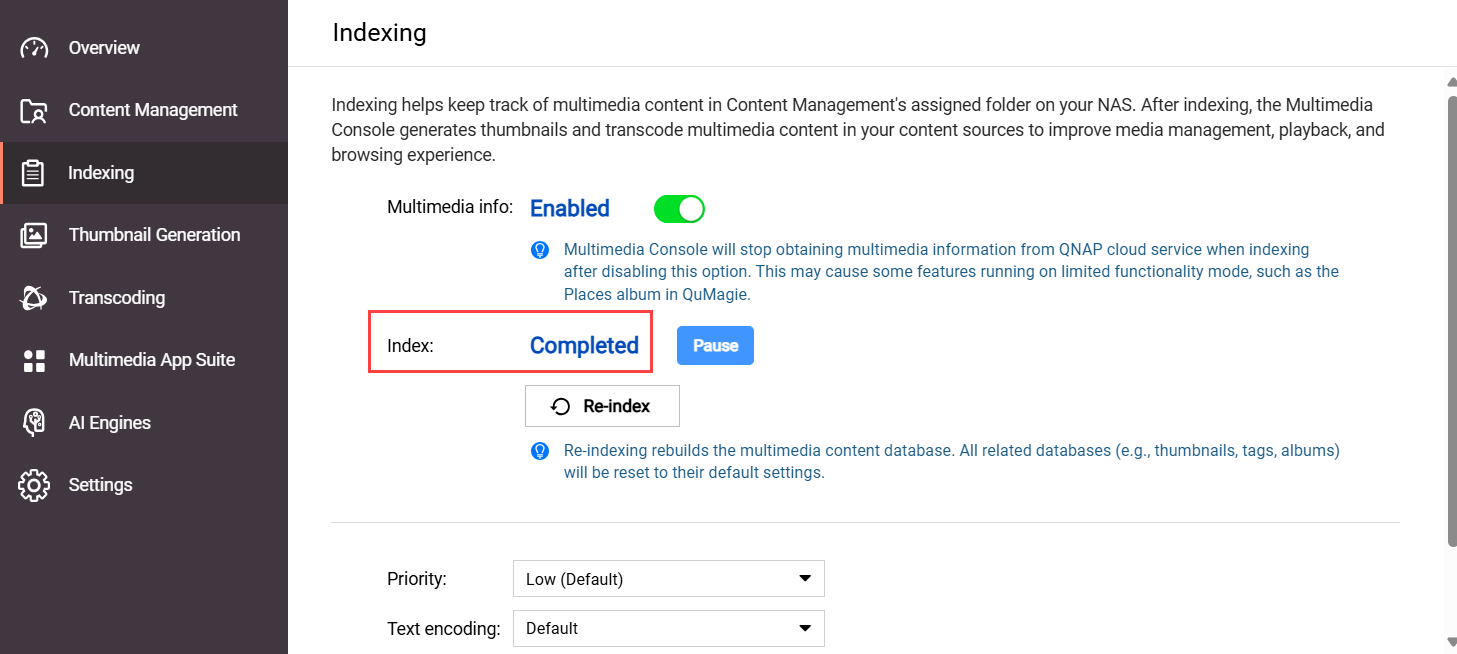
- Under Settings, locate the Index field.
If your system is still indexing files, the Index field will be "Indexing...":
 If your system has finished indexing files, the Index field will be "Completed":
- If your system is still indexing files, wait until the indexing finishes, and then check your image/video in QuMagie again.
If the indexing status is Completed, but your image/video is still missing from QuMagie or not displayed correctly, see the section "The system media file index has been corrupted" in this FAQ.
The system file index has been corrupted
QuMagie may not be able to display images/videos, or display them correctly, if the system media index (also sometimes called the "Multimedia Console index/database") has become corrupted. For various reasons, the system media index may become corrupted. There is no way to confirm if the system file index is corrupted or not, but you can re-index the system file index and see if that resolves your issue:
Warning
Re-indexing the system media file index will delete and rebuild all indexed data. Data that will be deleted includes thumbnails, media file tags, QuMagie albums, and other things. Media files themselves are not affected.
- Open Multimedia Console.
- Go to Indexing.
- Under Settings, click Re-index.
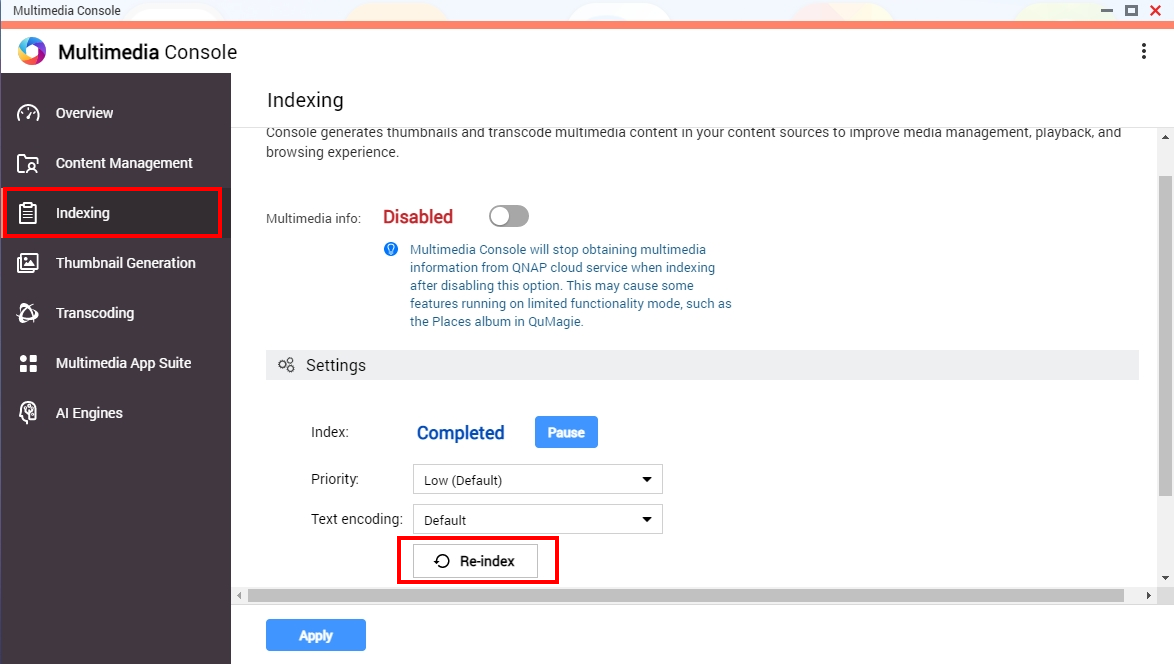 Your system will re-index all media files in your content source folders (not only QuMagie's content source folders). This may take some time. After the indexing is complete, you can check your image/video in QuMagie again.
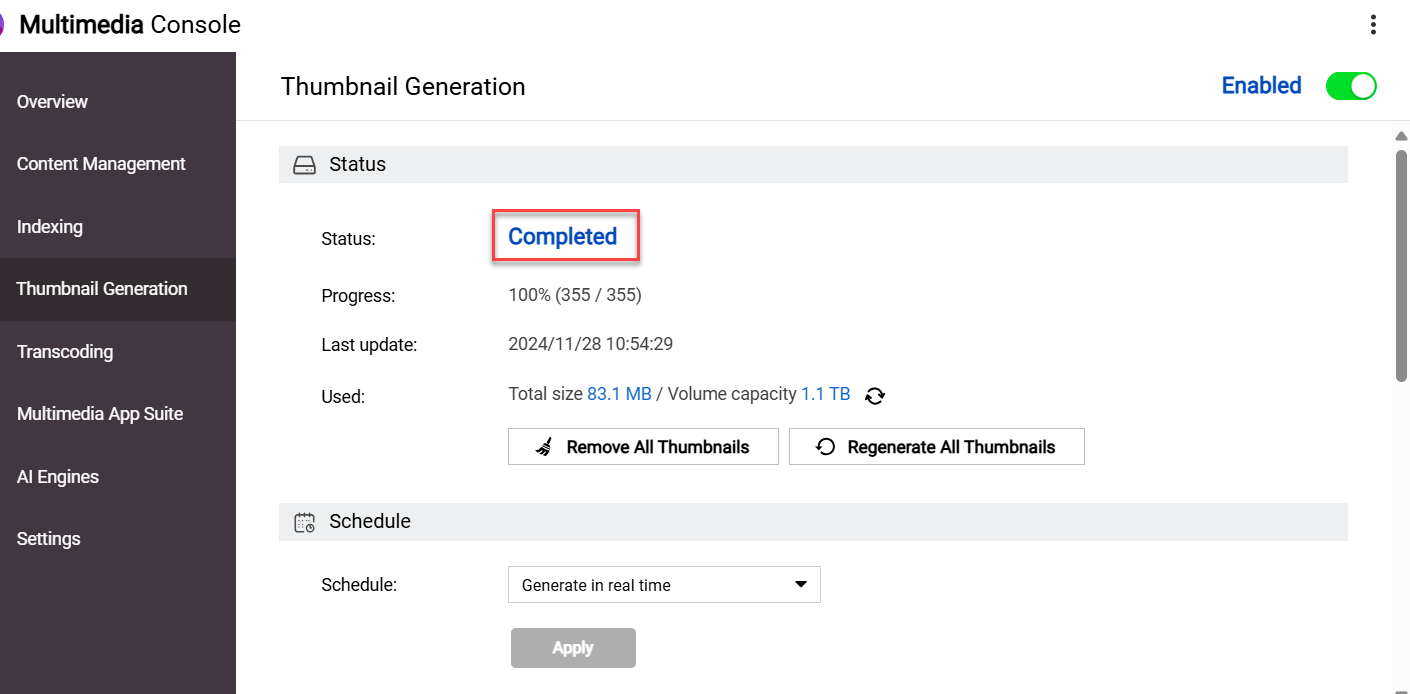
After resolving any of the above issues, you may still need to wait some time before seeing your image/video displayed correctly in QuMagie because your system must first generate a thumbnail for your image/video. To check the status of this thumbnail generation, go to Multimedia Console > Thumbnail Generation > Status. The status should be Completed:
If your images/videos appear in QuMagie but they are not displayed correctly, see Why are some images not displayed correctly in QuMagie?
If your images/videos are still not being displayed correctly in QuMagie, you can content QNAP support for further assistance.
Further Reading
対象製品
QuMagie
分析
QuMagie で画像や動画ファイルが表示されない場合、以下のいずれかが原因である可能性があります。
画像 / 動画のファイル形式がサポートされていない
ファイルが QuMagie でサポートされていない形式やコーデックの場合、その画像 / 動画は QuMagie に表示されないか、正しく表示されません。サポートされているファイル形式の一覧については、Photo Station と QuMagie はどのファイル形式とコーデックをサポートしていますか?をご覧ください。
画像 / 動画のファイル形式がライセンスを必要とする
画像 / 動画がコンテンツソースフォルダーにない
QuMagie はコンテンツソースフォルダーからの画像 / 動画のみを表示します。QuMagie が画像 / 動画を表示するようにするには、画像 / 動画ファイルを既存のコンテンツソースフォルダーに移動するか、画像 / 動画の親フォルダーを QuMagie のコンテンツソースフォルダーリストに追加できます。QuMagie のコンテンツソースフォルダーリストにフォルダーを追加するには:
警告
コンテンツソースフォルダーとして使用できるのは共有フォルダーのみです。QuMagie のコンテンツソースフォルダーリストにフォルダーを追加する際は、そのフォルダーが共有フォルダーであることを確認してください。共有フォルダーの詳細については、
QTS ユーザーガイドまたは
QuTS hero ユーザーガイドの「共有フォルダー」を参照してください。
ヒント
QuMagie > 設定 > コンテンツ管理 (タブ) > コンテンツソース (設定) で QuMagie のコンテンツソースフォルダーリストを管理することもできます。
- Multimedia Consoleを開く。
- コンテンツ管理に移動します。
- QuMagie タブを選択します。
- コンテンツソースの下で、編集をクリックします。
ソースを編集 ウィンドウが開きます。 - フォルダーを選択パネルで、1 つ以上のフォルダーを選択します。
- 適用をクリックします。
Multimedia Console がコンテンツソースを追加します。
画像 / ビデオの読み取り権限がありません
画像 / ビデオに対する十分な権限がない場合、画像 / ビデオは QuMagie に表示されません。十分な権限を持っていることを確認するために、以下を行ってください:
- コンテンツソースフォルダーに対して十分な権限を持っていることを確認してください。
- コントロールパネルを開く。
- 権限 > 共有フォルダー > 共有フォルダー (タブ) に移動します。
- 画像 / ビデオを含む共有フォルダーを見つけてをクリックします。
共有フォルダーの権限を編集ウィンドウが開きます。 - 適切なユーザーに対して「読み取り専用」または「読み取り / 書き込み」権限を有効にします。
- 適用をクリックします。
- 個々の画像 / ビデオに対して十分な権限を持っていることを確認してください。
- File Stationを開きます。
- 画像 / ビデオを見つけます。
- 画像 / ビデオを右クリックしてコンテキストメニューを開き、プロパティをクリックします。
プロパティウィンドウが開きます。 - 権限タブを選択します。
- 適切なグループに対して「読み取り」権限を有効にします。
- 適用をクリックします。
QuMagie は、画像 / フォルダを表示するための十分な権限を持っています。
画像 / ビデオファイルがサポートされている最大サイズを超えています。
以下のいずれかが該当する場合、QuMagie は画像 / ビデオを正しく表示できない可能性があります。
- 画像 / ビデオの幅×高さが 500,000,000 ピクセルを超えています。
- あなたの NAS デバイスの合計 RAM が 2058MB 以下で、画像 / ビデオの幅×高さが 240,000,000 ピクセルを超えています。
- あなたの NAS デバイスの合計 RAM が 1024MB 以下で、画像 / ビデオの幅×高さが 51,000,000 ピクセルを超えています。
- 画像 / ビデオのファイルサイズが NAS デバイスの合計 RAM の 1 / 8 を超えています。
- TAS ファイルの場合、ファイルが 60MB を超えている場合。
QuMagie 設定では、サムネイルのない画像 / ビデオを非表示にしています。
QuMagie がサムネイルのない画像 / ビデオを表示できるようにするには、次のことを行ってください:
- 右上のプロフィールアイコンをクリックします。
- 設定をクリックします。
設定ウィンドウが表示されます。 - その他 (タブ) > 表示に移動します。
- 生成されたサムネイルを持つメディアファイルのみを表示を無効にします。
- 適用をクリックします。
QuMagie は、サムネイルがない画像 / 動画を表示します。
画像 / 動画ファイルはまだインデックスされていません
QuMagie などの多くのマルチメディアアプリで画像 / 動画を表示するには、画像 / 動画ファイルがシステムによってインデックスされている必要があります。インデックス作成は、メディアファイルを分析して保存し、マルチメディアアプリで効率的に使用できるようにするプロセスです。画像 / 動画がインデックスされていることを確認するには、次の手順を行います:
- Multimedia Consoleを開きます。
- インデックス作成に移動します。
- 設定の下で、インデックスフィールドを見つけます。
システムがまだファイルをインデックスしている場合、インデックスフィールドは「インデックス作成中...」になります。
システムがファイルのインデックス作成を完了した場合、インデックスフィールドは「完了」となります。
- システムがまだファイルをインデックスしている場合は、インデックス作成が終了するまで待ってから、QuMagie で画像 / 動画を再確認してください。
インデックスのステータスが完了の場合でも、QuMagie に画像 / 動画がまだ表示されていないか、正しく表示されていない場合は、この FAQ の「システムメディアファイルインデックスが破損している」を参照してください。
システムファイルインデックスが破損しています
システムメディアインデックス(時には「Multimedia Console インデックス / データベース」とも呼ばれる)が破損している場合、QuMagie は画像 / 動画を表示できないか、正しく表示できないことがあります。様々な理由でシステムメディアインデックスが破損することがあります。システムファイルインデックスが破損しているかどうかを確認する方法はありませんが、システムファイルインデックスを再インデックスして問題が解決するかどうかを確認できます:
警告
システムメディアファイルインデックスを再インデックスすると、すべてのインデックスデータが削除され再構築されます。削除されるデータにはサムネイル、メディアファイルタグ、QuMagie アルバム、その他のものが含まれます。メディアファイル自体には影響はありません。
- Multimedia Consoleを開きます。
- インデックスに移動します。
- 設定の下で、再インデックスをクリックします。
システムはコンテンツソースフォルダ内のすべてのメディアファイルを再インデックスします(QuMagie のコンテンツソースフォルダだけではありません)。これには時間がかかる場合があります。インデックスが完了したら、QuMagie で画像 / 動画を再度確認できます。
上記の問題を解決した後でも、QuMagie で画像 / 動画が正しく表示されるまでにしばらく時間がかかる場合があります。システムがまず画像 / 動画のサムネイルを生成する必要があるためです。このサムネイル生成のステータスを確認するには、Multimedia Console > サムネイル生成 > ステータスに移動します。ステータスは完了:
であるべきです。
QuMagie に画像 / 動画が表示されているが、正しく表示されていない場合は、なぜ QuMagie で一部の画像が正しく表示されないのですか?を参照してください。
QuMagie で画像 / 動画がまだ正しく表示されていない場合は、さらなる支援のためにQNAP サポートに連絡できます。
さらに読む


