Applicable Products
- SSL Certificate
- myQNAPcloud
Overview
If you use a myQNAPcloud SSL certificate on your QNAP NAS, this article explains what is changing and what you need to do.
Your myQNAPcloud SSL certificate is issued by TWCA. To comply with international certificate standards, TWCA is updating its certificate infrastructure, and certificates issued under its old intermediate certificate stops being trusted on November 5, 2026 at 16:00 UTC (November 6, 2026 at 00:00 UTC+8).
What you need to do
Update the SSL Certificate app on your NAS to version 2.2.80 or later. After updating, a new certificate will be issued and installed automatically. No other action is needed.
If you do not update before the deadline, browsers will show a security warning, and services accessed through your myQNAPcloud domain may become unavailable.
This change does not affect the security of your NAS or your data, and there is no additional charge.
Frequently Asked Questions
Is my NAS affected by the TWCA intermediate certificate revocation?
Your NAS is affected if it uses a myQNAPcloud SSL certificate that:
- was purchased from QNAP for a domain such as
xxxx.myqnapcloud.com or xxxx.mycloudnas.com, and - was issued before November 1, 2026, 00:00 UTC.
The following certificates are not affected:
- Let's Encrypt certificates
- Certificates you uploaded yourself
- The default self-signed certificate on the NAS
To check your certificate, see How do I check in my browser whether my myQNAPcloud SSL certificate is new or old?
Which version of the SSL Certificate app do I need?
Update the SSL Certificate app to version 2.2.80 or later. The update is available for QTS, QuTS hero, QuTScloud, and QVP.
- Log in to your NAS.
- Open App Center.
- Find SSL Certificate.
- Click Update.
After I update the SSL Certificate app, how long does it take to get the new certificate?
After the update, your NAS automatically requests and installs a new certificate within 0 to 4 hours. You do not need to do anything else.
The wait time is random, so that many devices do not send requests to the certificate authority at the same time.
- Keep your NAS connected to the Internet during this time.
- When the new certificate is installed, web connections to the NAS may drop for a few seconds. This is normal.
If you need the certificate replaced urgently, contact QNAP Customer Service.
Why wasn't my myQNAPcloud SSL certificate replaced after I updated the SSL Certificate app?
The certificate is not replaced automatically in the following cases:
| Cause | Action |
|---|
| Your myQNAPcloud SSL license has expired. | Renew the license. |
| Your license has been moved to another NAS. | Make sure the license is assigned to this NAS. |
| Your NAS is not connected to the Internet. | Connect the NAS to the Internet and wait up to 4 hours. |
| The SSL Certificate app is older than version 2.2.80. | Check the version in App Center and update the app. |
If none of these apply and more than 4 hours have passed since the update, contact QNAP Customer Service.
How do I check in my browser whether my myQNAPcloud SSL certificate is new or old?
You can check two things in the certificate details:
| New certificate | Old certificate |
|---|
| Issue date | November 1, 2026, 00:00 UTC or later | Before November 1, 2026, 00:00 UTC |
| Authority Key Identifier (optional) | Starts with 93:44:9A:89 | Starts with F2:28:D4:F9 or 92:E7:FA:62 |
Checking the issue date is enough for most users. The Authority Key Identifier is a more precise check.
Before you start
- Open your NAS using your myQNAPcloud domain, for example
https://yourname.myqnapcloud.com. If you open it with an IP address, the browser shows a different certificate. - Use a private or incognito window, so the browser shows the certificate your NAS is using now.
Google Chrome or Microsoft Edge
- Open a new incognito window (Edge: InPrivate window). Press Ctrl+Shift+N on Windows, or Command+Shift+N on macOS.
- Enter your myQNAPcloud domain in the address bar, for example
https://yourname.myqnapcloud.com, and press Enter. - Click the icon on the left side of the address bar. Depending on the version, it looks like two sliders or a lock. If the address bar shows Not secure, click that instead.
- Click Connection is secure (or Your connection to this site isn't secure).
- Click Certificate is valid (or Certificate is not valid). In Edge, click the certificate icon in the upper-right corner of the panel.
Chrome: click the site information icon, then Connection is secure, then Certificate is valid
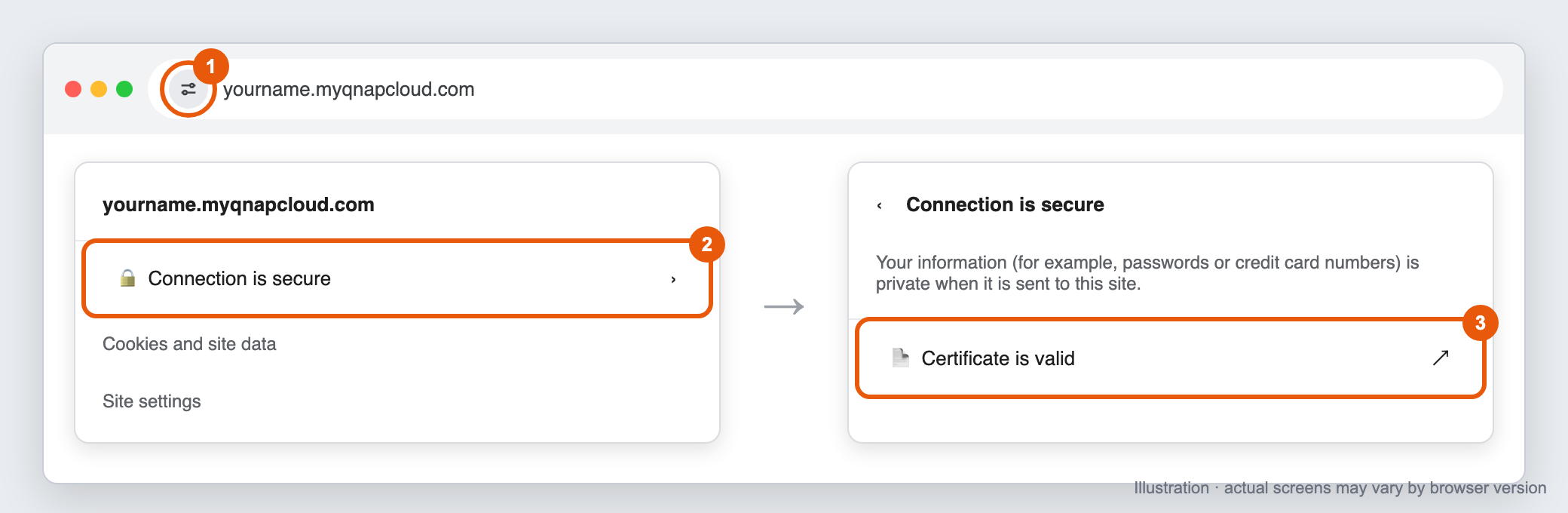
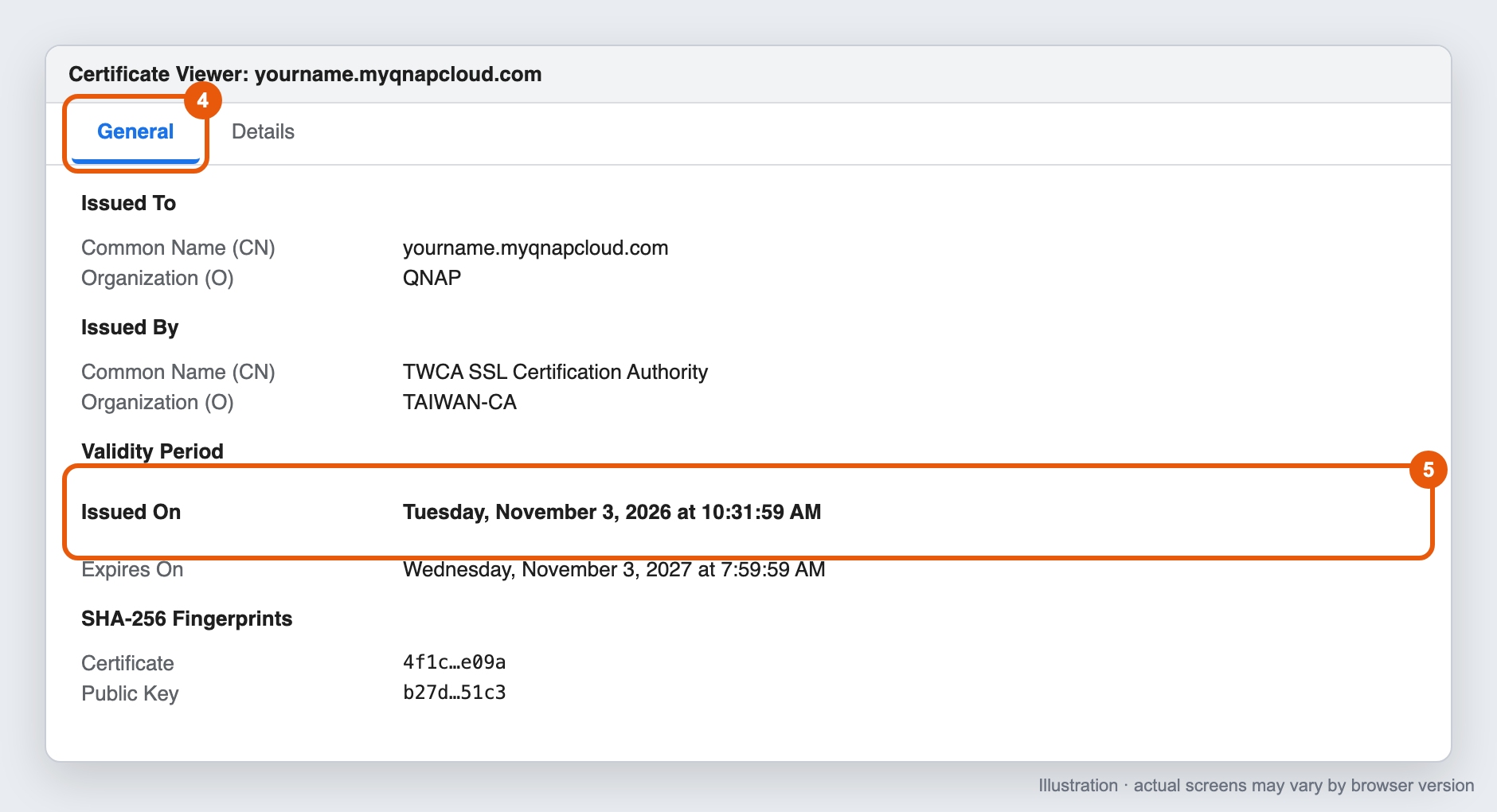
- The Certificate Viewer window opens. On the General tab, find Validity Period and check the Issued On date.
Chrome Certificate Viewer, General tab, showing the Issued On date under Validity Period
Optional: check the Authority Key Identifier
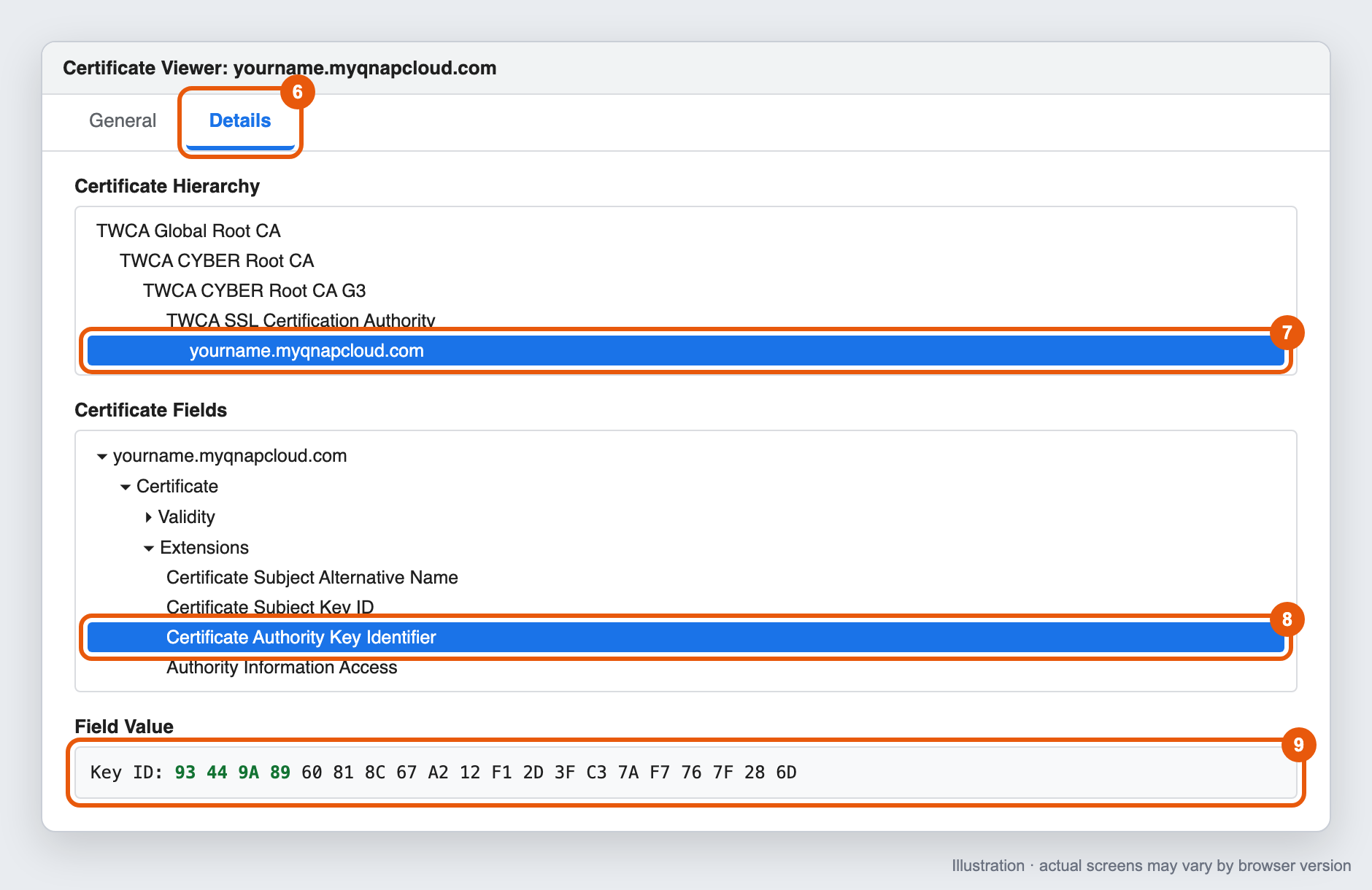
- In the Certificate Viewer, click the Details tab.
- Under Certificate Hierarchy, select the last item (your myQNAPcloud domain).
- Under Certificate Fields, expand Extensions and select Certificate Authority Key Identifier.
- Check the value under Field Value, for example
Key ID: 93 44 9A 89 ....
Chrome Certificate Viewer, Details tab, showing the Certificate Authority Key Identifier value
Mozilla Firefox
- Open a new private window. Press Ctrl+Shift+P on Windows, or Command+Shift+P on macOS.
- Enter your myQNAPcloud domain in the address bar and press Enter.
- Click the lock icon on the left side of the address bar.
- Click Connection secure (or Connection not secure), then click More information.
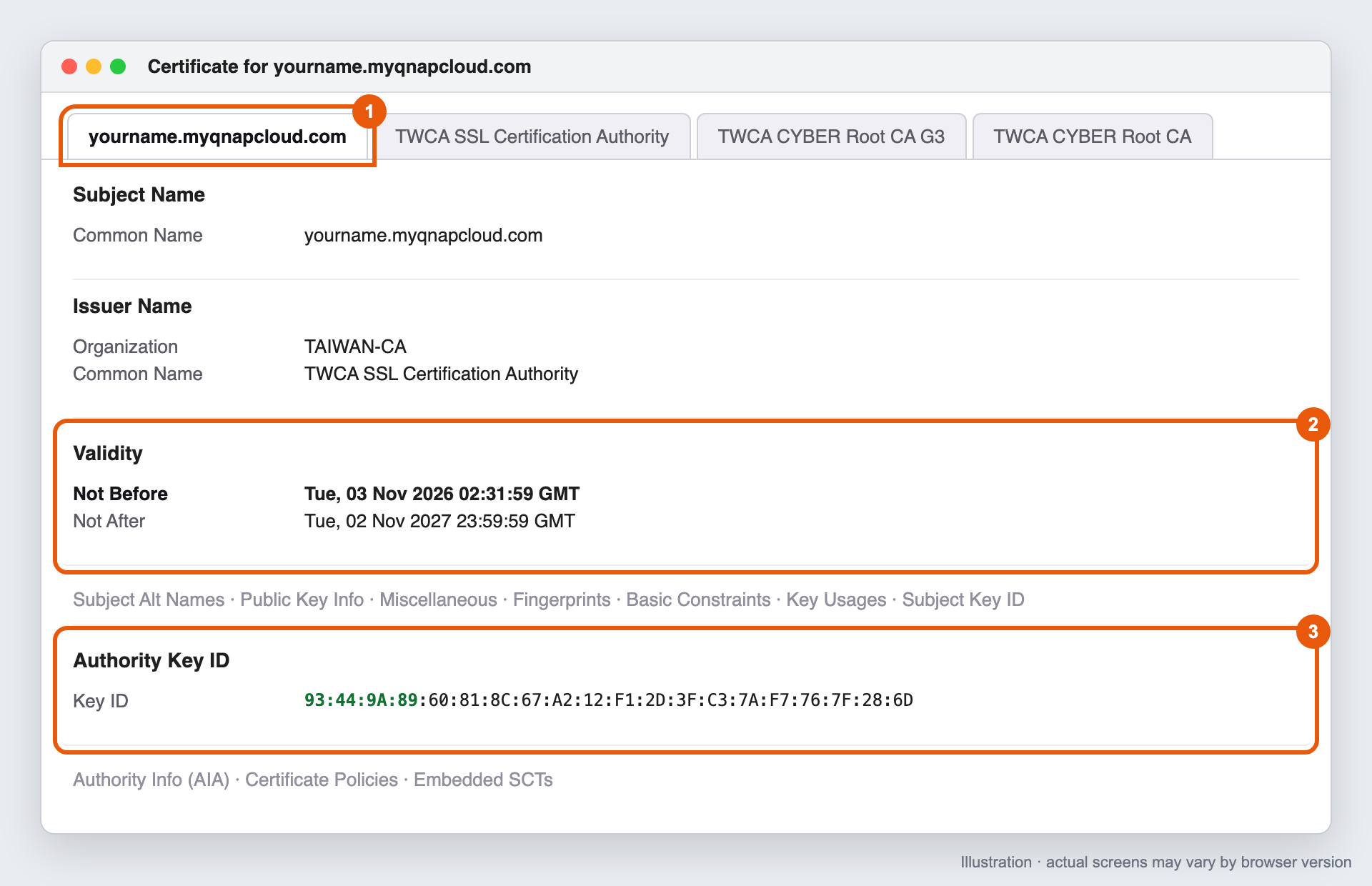
- In the Page Info window, on the Security tab, click View Certificate. A new browser tab opens. Each certificate in the chain has its own tab at the top of the page.
- Make sure the first tab (your myQNAPcloud domain) is selected.
- Under Validity, check the Not Before date.
- Optional: scroll down to Authority Key ID and check the Key ID value.
Firefox certificate page, showing Not Before under Validity and the Authority Key ID
Safari (macOS)
- Open a new private window. Choose File > New Private Window, or press Shift+Command+N.
- Enter your myQNAPcloud domain in the address bar and press Return.
- Click the lock icon in the address bar, then click Show Certificate.
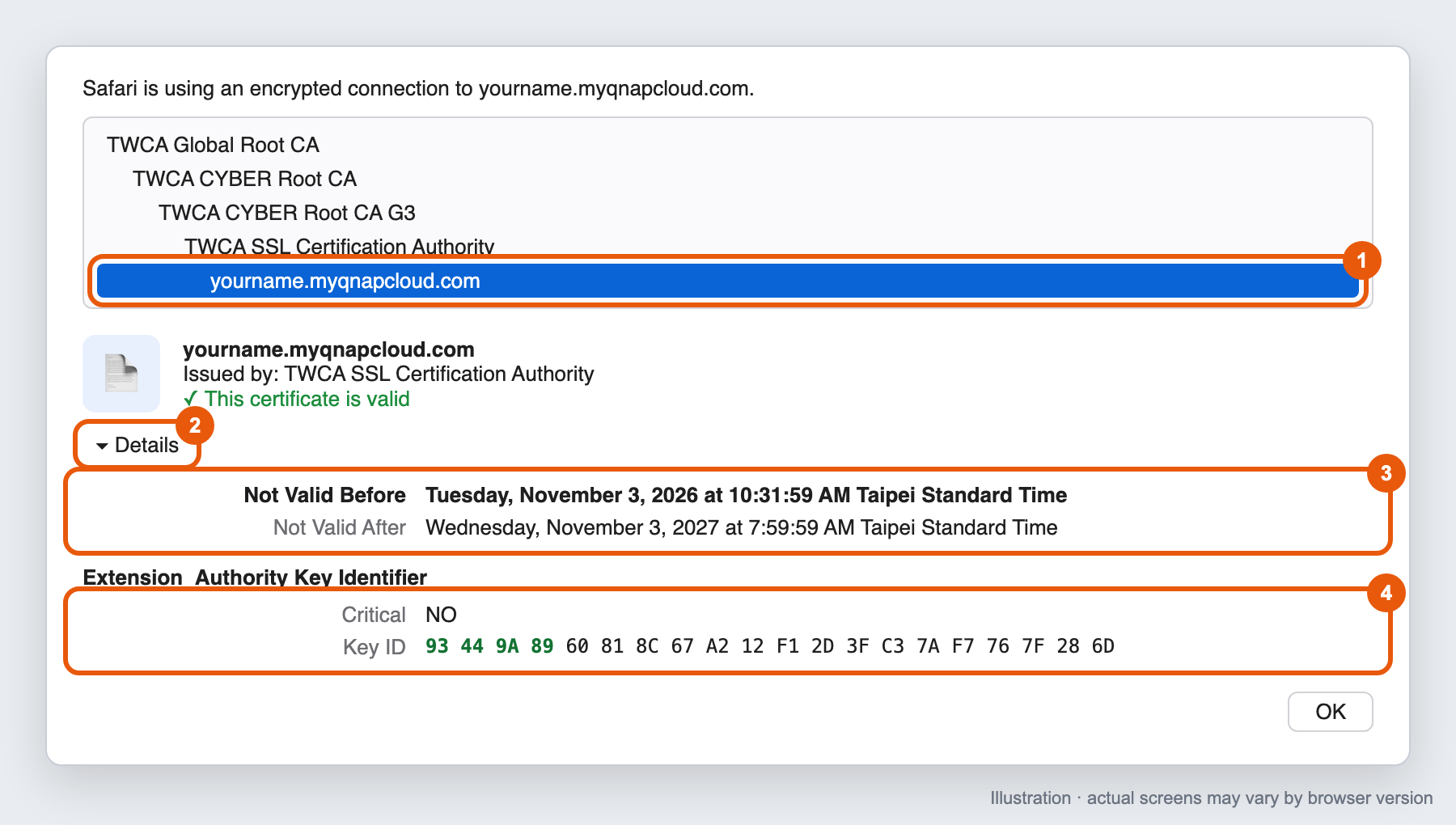
- In the certificate list, select the last item (your myQNAPcloud domain).
- Click the arrow next to Details to expand it.
- Check the Not Valid Before date.
- Optional: scroll down to Authority Key Identifier and check the Key ID value.
Safari certificate window, showing Not Valid Before and the Authority Key Identifier
What the results mean
| What you see | What to do |
|---|
| Issue date is November 1, 2026, 00:00 UTC or later | Your certificate has been replaced. No action needed. |
| Issue date is before November 1, 2026, 00:00 UTC, and you have not updated the app | Update the SSL Certificate app to version 2.2.80 or later. |
| Issue date is before November 1, 2026, 00:00 UTC, and you updated the app less than 4 hours ago | Wait up to 4 hours, then close all private windows, open a new one, and check again. |
| Issue date is before November 1, 2026, 00:00 UTC, and you updated the app more than 4 hours ago | See Why wasn't my myQNAPcloud SSL certificate replaced after I updated the SSL Certificate app? |
Note
- The cut-off is November 1, 2026, 00:00 UTC. Browsers show the date in your computer's time zone, so the cut-off appears differently depending on where you are. For example, it is November 1, 08:00 in Taiwan (UTC+8) and October 31, 20:00 in New York (UTC-4). If the date shown is close to the cut-off, also check the Authority Key Identifier.
- The old and new intermediate certificates can have the same name, such as TWCA SSL Certification Authority. Do not use the issuer name to decide whether your certificate is new or old.
Are myQNAPcloud SSL certificates purchased after November 1, 2026, 00:00 UTC affected by this change?
No. myQNAPcloud SSL certificates issued on or after November 1, 2026, 00:00 UTC are issued under TWCA's new intermediate certificate and are not affected by the revocation.
We still recommend updating the SSL Certificate app to version 2.2.80 or later, so that your NAS installs the complete certificate chain and all apps can connect normally.
What happens if I update the SSL Certificate app after November 5, 2026, 16:00 UTC?
You can still update the app after the deadline. After the update, your NAS replaces the certificate automatically within 0 to 4 hours.
Until the new certificate is installed:
- Browsers will show a security warning when you connect to your NAS through your myQNAPcloud domain.
- Qfile, Qsync, and other apps that connect through your myQNAPcloud domain may fail to connect.
To avoid these problems, update before the deadline.
対象製品
- SSL Certificate
- myQNAPcloud
概要
QNAP NAS で myQNAPcloud SSL 証明書を使用している場合、この変更内容と必要な対応について説明します。
あなたの myQNAPcloud SSL 証明書は TWCA によって発行されています。国際的な証明書基準に準拠するため、TWCA は証明書インフラを更新しており、古い中間証明書で発行された証明書は2026 年 11 月 5 日 16:00 UTC(UTC+ 8 では 2026 年 11 月 6 日 00:00)に信頼されなくなります。
必要な対応
NAS 上のSSL 証明書アプリをバージョン2.2.80以降に更新してください。更新後、新しい証明書が自動的に発行され、インストールされます。他の操作は必要ありません。
期限までに更新しない場合、ブラウザにセキュリティ警告が表示され、myQNAPcloud ドメインを通じてアクセスするサービスが利用できなくなる可能性があります。
この変更は NAS やデータのセキュリティに影響を与えず、追加料金も発生しません。
よくある質問
TWCA 中間証明書の失効によって私の NAS は影響を受けますか?
次の条件に該当する場合、あなたの NAS は影響を受けます:
- QNAP から
xxxx.myqnapcloud.comやxxxx.mycloudnas.comのようなドメイン用に購入されたもので、 - 2026 年 11 月 1 日 00:00 UTC 以前に発行されたもの。
以下の証明書は影響を受けません:
- Let's Encrypt 証明書
- 自分でアップロードした証明書
- NAS のデフォルトの自己署名証明書
証明書を確認するには、ブラウザで myQNAPcloud SSL 証明書が新しいか古いかを確認するにはどうすればよいですか?をご覧ください
どのバージョンの SSL 証明書アプリが必要ですか?
SSL 証明書アプリをバージョン 2.2.80 以降に更新します。この更新は QTS、QuTS hero、QuTScloud、QVP で利用可能です。
- NAS にログインします。
- App Centerを開きます。
- SSL 証明書を見つけます。
- 更新をクリックします。
SSL 証明書アプリを更新した後、新しい証明書を取得するのにどれくらい時間がかかりますか?
更新後、NAS は自動的に新しい証明書を0 から 4 時間以内に要求してインストールします。その他の操作は必要ありません。
待ち時間はランダムで、多くのデバイスが同時に認証局にリクエストを送信しないようにしています。
- この間、NAS をインターネットに接続したままにしてください。
- 新しい証明書がインストールされると、NAS へのウェブ接続が数秒間切断されることがあります。これは正常です。
証明書を緊急に交換する必要がある場合は、QNAP カスタマーサービスに連絡してください。
SSL 証明書アプリを更新した後、myQNAPcloud SSL 証明書が交換されなかったのはなぜですか?
以下の場合、証明書は自動的に交換されません:
| 原因 | 対策 |
|---|
| myQNAPcloud SSL ライセンスの有効期限が切れています。 | ライセンスを更新してください。 |
| ライセンスが別の NAS に移動されました。 | ライセンスがこの NAS に割り当てられていることを確認してください。 |
| NAS がインターネットに接続されていません。 | NAS をインターネットに接続し、最大 4 時間待ちます。 |
| SSL 証明書アプリはバージョン 2.2.80 より古いです。 | App Center でバージョンを確認し、アプリを更新してください。 |
これらのいずれにも該当せず、更新から 4 時間以上経過している場合は、QNAP カスタマーサービスに連絡してください。
ブラウザで myQNAPcloud の SSL 証明書が新しいか古いかを確認するにはどうすればよいですか?
証明書の詳細で次の 2 つを確認できます:
| 新しい証明書 | 古い証明書 |
|---|
| 発行日 | 2026 年 11 月 1 日 00:00 UTC 以降 | 2026 年 11 月 1 日 00:00 UTC 以前 |
| Authority Key Identifier(オプション) | 93:44:9A:89で始まります | F2:28:D4:F9または92:E7:FA:62で始まります |
ほとんどのユーザーにとって、発行日を確認するだけで十分です。Authority Key Identifier はより正確な確認方法です。
始める前に
- myQNAPcloud ドメインを使用して NAS を開いてください。例えば
https://yourname.myqnapcloud.com。IP アドレスで開くと、ブラウザは異なる証明書を表示します。 - プライベートまたはシークレットウィンドウを使用して、ブラウザが現在 NAS で使用している証明書を表示するようにしてください。
Google Chrome または Microsoft エッジ
- 新しいシークレットウィンドウを開きます(エッジ:InPrivate ウィンドウ)。Windows ではCtrl+Shift+Nを、macOS ではCommand+Shift+Nを押します。
- アドレスバーに myQNAPcloud ドメインを入力し、例えば
https://yourname.myqnapcloud.com、Enterを押します。 - アドレスバーの左側にあるアイコンをクリックします。バージョンによって、2 つのスライダーまたはロックのように見えます。アドレスバーにNot secureと表示されている場合は、それをクリックします。
- Connection is secure(またはYour connection to this site isn't secure)をクリックします。
- Certificate is valid(またはCertificate is not valid)をクリックします。エッジでは、パネルの右上にある証明書アイコンをクリックします。
Chrome: サイト情報アイコンをクリックし、次に Connection is secure、次に Certificate is valid をクリックします。
- Certificate Viewerウィンドウが開きます。GeneralタブでValidity Periodを見つけ、Issued Onの日付を確認します。
Chrome Certificate Viewer、General タブ、Validity Period の下にIssued Onの日付を表示
オプション: Authority Key Identifier を確認します
- Certificate Viewer でDetailsタブをクリックします。
- Certificate Hierarchyの下で、最後の項目(あなたの myQNAPcloud ドメイン)を選択します。
- Certificate Fieldsの下でExtensionsを展開し、Certificate Authority Key Identifierを選択します。
- Field Valueの下の値を確認します。例えば
Key ID: 93 44 9A 89 ...。
Chrome Certificate Viewer、Details タブ、Certificate Authority Key Identifier の値を表示
Mozilla Firefox
- 新しいプライベートウィンドウを開きます。Windows ではCtrl+Shift+Pを押し、macOS ではCommand+Shift+Pを押します。
- アドレスバーに myQNAPcloud ドメインを入力し、Enterを押します。
- アドレスバーの左側にある鍵アイコンをクリックします。
- 接続が安全(または接続が安全でない)をクリックし、次に詳細情報をクリックします。
- ページ情報ウィンドウのセキュリティタブで、証明書を表示をクリックします。新しいブラウザタブが開きます。チェーン内の各証明書はページ上部に独自のタブがあります。
- 最初のタブ(あなたの myQNAPcloud ドメイン)が選択されていることを確認します。
- 有効性の下で、開始日を確認します。
- 任意: 認証キー IDまでスクロールし、キー IDの値を確認します。
Firefox 証明書ページ、開始日が有効性の下に表示され、認証キー ID
Safari(macOS)
- 新しいプライベートウィンドウを開きます。ファイル > 新しいプライベートウィンドウを選択するか、Shift+Command+Nを押します。
- アドレスバーに myQNAPcloud ドメインを入力し、Returnを押します。
- アドレスバーの鍵アイコンをクリックし、次に証明書を表示をクリックします。
- 証明書リストで、最後の項目(自分の myQNAPcloud ドメイン)を選択します。
- 詳細の横にある矢印をクリックして展開します。
- 有効開始日を確認します。
- オプション: 認証キー識別子までスクロールし、キー IDの値を確認します。
Safari 証明書ウィンドウ、表示される有効開始日と認証キー識別子
結果の意味
| 表示される内容 | すべきこと |
|---|
| 発行日は 2026 年 11 月 1 日 00:00 UTC 以降です | 証明書が置き換えられました。特に行動は必要ありません。 |
| 発行日は 2026 年 11 月 1 日 00:00 UTC より前で、アプリを更新していません | SSL 証明書アプリをバージョン 2.2.80 以降に更新してください。 |
| 発行日は 2026 年 11 月 1 日 00:00 UTC より前で、アプリを更新してから 4 時間未満です | 最大 4 時間待ってから、すべてのプライベートウィンドウを閉じ、新しいウィンドウを開いて再度確認してください。 |
| 発行日は 2026 年 11 月 1 日 00:00 UTC より前で、アプリを更新してから 4 時間以上経過しています | SSL Certificate アプリを更新した後に myQNAPcloud SSL 証明書が置き換えられなかったのはなぜですか?を見る |
注意
- 締切は2026 年 11 月 1 日 00:00 UTCです。ブラウザはコンピュータのタイムゾーンで日付を表示するため、締切は場所によって異なります。例えば、台湾(UTC+8)では 11 月 1 日 08:00、ニューヨーク(UTC-4)では 10 月 31 日 20:00 です。表示される日付が締切に近い場合は、Authority Key Identifier も確認してください。
- 古い中間証明書と新しい中間証明書は、TWCA SSL Certification Authorityのように同じ名前を持つことがあります。発行者名で証明書が新しいか古いかを判断しないでください。
2026 年 11 月 1 日 00:00 UTC 以降に購入された myQNAPcloud SSL 証明書は、この変更の影響を受けますか?
いいえ。2026 年 11 月 1 日 00:00 UTC 以降に発行された myQNAPcloud SSL 証明書は、TWCA の新しい中間証明書の下で発行されており、失効の影響を受けません。
NAS が完全な証明書チェーンをインストールし、すべてのアプリが正常に接続できるように、SSL Certificate アプリをバージョン 2.2.80 以降に更新することをお勧めします。
2026 年 11 月 5 日 16:00 UTC 以降に SSL Certificate アプリを更新するとどうなりますか?
締切後もアプリを更新できます。更新後、NAS は 0〜4 時間以内に証明書を自動的に置き換えます。
新しい証明書がインストールされるまで:
- myQNAPcloud ドメインを通じて NAS に接続すると、ブラウザにセキュリティ警告が表示されます。
- Qfile、Qsync、および myQNAPcloud ドメインを通じて接続する他のアプリは接続に失敗する可能性があります。
これらの問題を避けるために、締切前に更新してください。


