


SSL certificate revocation: how to keep your myQNAPcloud SSL certificate working on your QNAP NAS
Applicable Products
- SSL Certificate
- myQNAPcloud
Overview
If you use a myQNAPcloud SSL certificate on your QNAP NAS, this article explains what is changing and what you need to do.
Your myQNAPcloud SSL certificate is issued by TWCA. To comply with international certificate standards, TWCA is updating its certificate infrastructure, and certificates issued under its old intermediate certificate stops being trusted on November 5, 2026 at 16:00 UTC (November 6, 2026 at 00:00 UTC+8).
What you need to do
Update the SSL Certificate app on your NAS to version 2.2.80 or later. After updating, a new certificate will be issued and installed automatically. No other action is needed.
If you do not update before the deadline, browsers will show a security warning, and services accessed through your myQNAPcloud domain may become unavailable.
This change does not affect the security of your NAS or your data, and there is no additional charge.
Frequently Asked Questions
Is my NAS affected by the TWCA intermediate certificate revocation?
Your NAS is affected if it uses a myQNAPcloud SSL certificate that:
- was purchased from QNAP for a domain such as
xxxx.myqnapcloud.comorxxxx.mycloudnas.com, and - was issued before November 1, 2026, 00:00 UTC.
The following certificates are not affected:
- Let's Encrypt certificates
- Certificates you uploaded yourself
- The default self-signed certificate on the NAS
To check your certificate, see How do I check in my browser whether my myQNAPcloud SSL certificate is new or old?
Which version of the SSL Certificate app do I need?
Update the SSL Certificate app to version 2.2.80 or later. The update is available for QTS, QuTS hero, QuTScloud, and QVP.
- Log in to your NAS.
- Open App Center.
- Find SSL Certificate.
- Click Update.
After I update the SSL Certificate app, how long does it take to get the new certificate?
After the update, your NAS automatically requests and installs a new certificate within 0 to 4 hours. You do not need to do anything else.
The wait time is random, so that many devices do not send requests to the certificate authority at the same time.
- Keep your NAS connected to the Internet during this time.
- When the new certificate is installed, web connections to the NAS may drop for a few seconds. This is normal.
If you need the certificate replaced urgently, contact QNAP Customer Service.
Why wasn't my myQNAPcloud SSL certificate replaced after I updated the SSL Certificate app?
The certificate is not replaced automatically in the following cases:
| Cause | Action |
|---|---|
| Your myQNAPcloud SSL license has expired. | Renew the license. |
| Your license has been moved to another NAS. | Make sure the license is assigned to this NAS. |
| Your NAS is not connected to the Internet. | Connect the NAS to the Internet and wait up to 4 hours. |
| The SSL Certificate app is older than version 2.2.80. | Check the version in App Center and update the app. |
If none of these apply and more than 4 hours have passed since the update, contact QNAP Customer Service.
How do I check in my browser whether my myQNAPcloud SSL certificate is new or old?
You can check two things in the certificate details:
| New certificate | Old certificate | |
|---|---|---|
| Issue date | November 1, 2026, 00:00 UTC or later | Before November 1, 2026, 00:00 UTC |
| Authority Key Identifier (optional) | Starts with 93:44:9A:89 | Starts with F2:28:D4:F9 or 92:E7:FA:62 |
Checking the issue date is enough for most users. The Authority Key Identifier is a more precise check.
Before you start
- Open your NAS using your myQNAPcloud domain, for example
https://yourname.myqnapcloud.com. If you open it with an IP address, the browser shows a different certificate. - Use a private or incognito window, so the browser shows the certificate your NAS is using now.
Google Chrome or Microsoft Edge
- Open a new incognito window (Edge: InPrivate window). Press Ctrl+Shift+N on Windows, or Command+Shift+N on macOS.
- Enter your myQNAPcloud domain in the address bar, for example
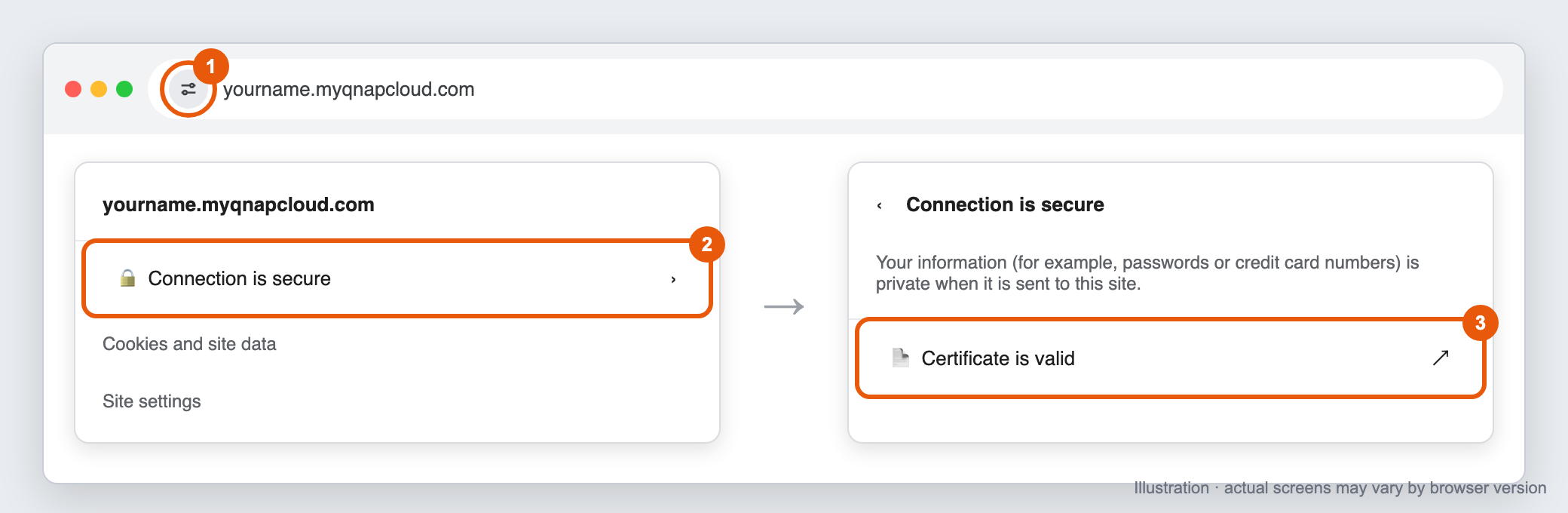
https://yourname.myqnapcloud.com, and press Enter. - Click the icon on the left side of the address bar. Depending on the version, it looks like two sliders or a lock. If the address bar shows Not secure, click that instead.
- Click Connection is secure (or Your connection to this site isn't secure).
- Click Certificate is valid (or Certificate is not valid). In Edge, click the certificate icon in the upper-right corner of the panel.
Chrome: click the site information icon, then Connection is secure, then Certificate is valid
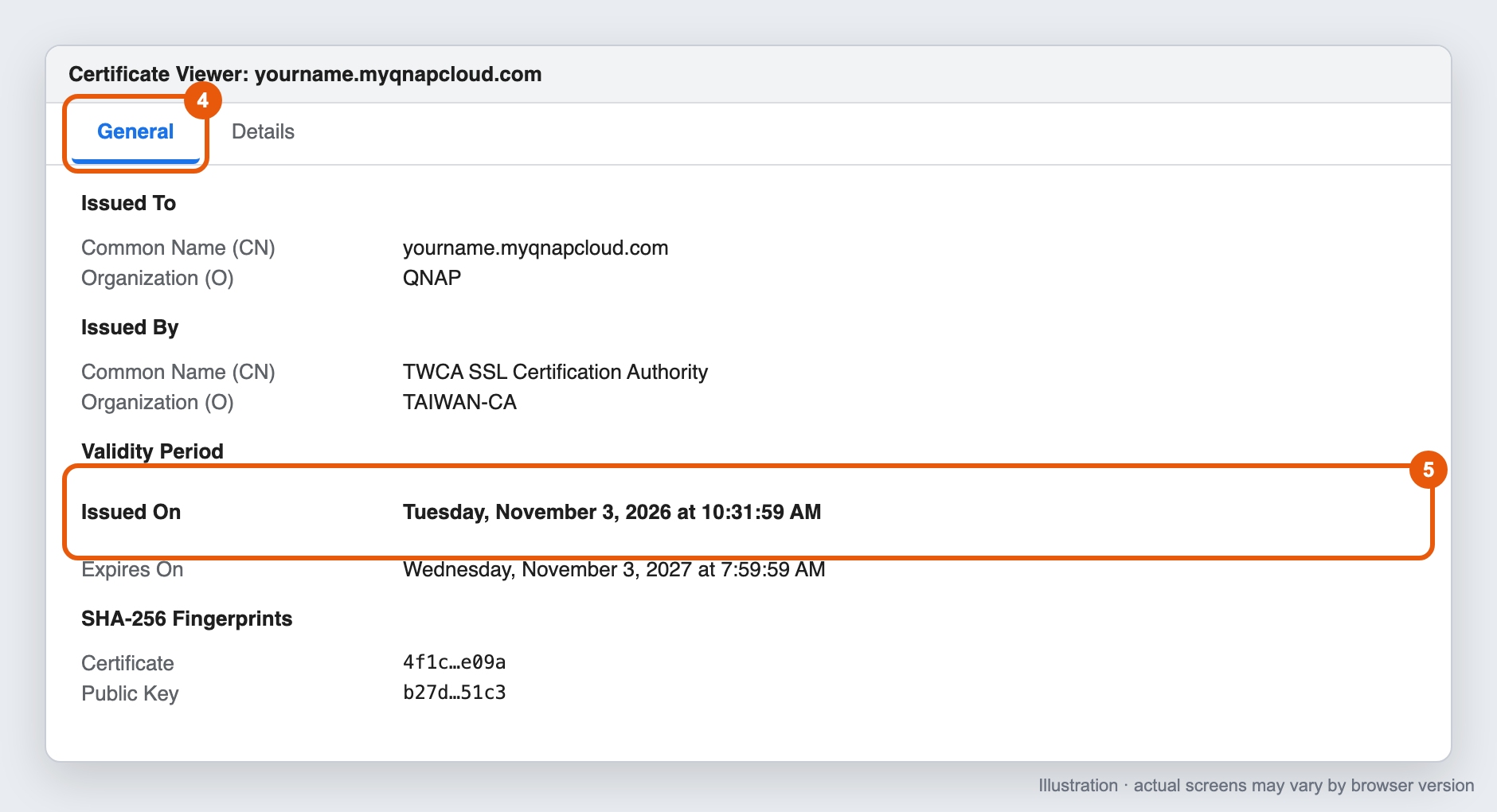
- The Certificate Viewer window opens. On the General tab, find Validity Period and check the Issued On date.
Chrome Certificate Viewer, General tab, showing the Issued On date under Validity Period
Optional: check the Authority Key Identifier
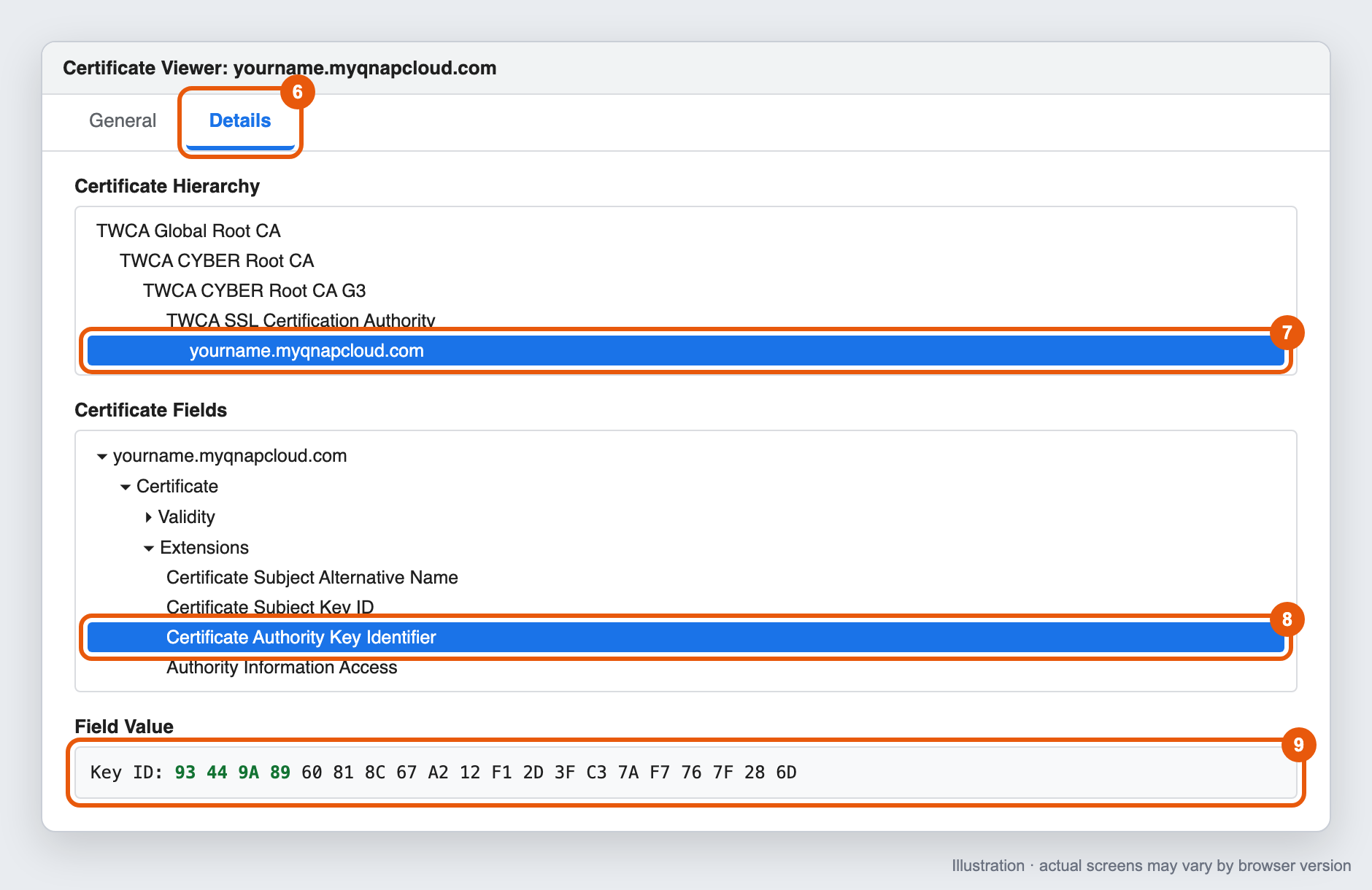
- In the Certificate Viewer, click the Details tab.
- Under Certificate Hierarchy, select the last item (your myQNAPcloud domain).
- Under Certificate Fields, expand Extensions and select Certificate Authority Key Identifier.
- Check the value under Field Value, for example
Key ID: 93 44 9A 89 ....
Chrome Certificate Viewer, Details tab, showing the Certificate Authority Key Identifier value
Mozilla Firefox
- Open a new private window. Press Ctrl+Shift+P on Windows, or Command+Shift+P on macOS.
- Enter your myQNAPcloud domain in the address bar and press Enter.
- Click the lock icon on the left side of the address bar.
- Click Connection secure (or Connection not secure), then click More information.
- In the Page Info window, on the Security tab, click View Certificate. A new browser tab opens. Each certificate in the chain has its own tab at the top of the page.
- Make sure the first tab (your myQNAPcloud domain) is selected.
- Under Validity, check the Not Before date.
- Optional: scroll down to Authority Key ID and check the Key ID value.
Firefox certificate page, showing Not Before under Validity and the Authority Key ID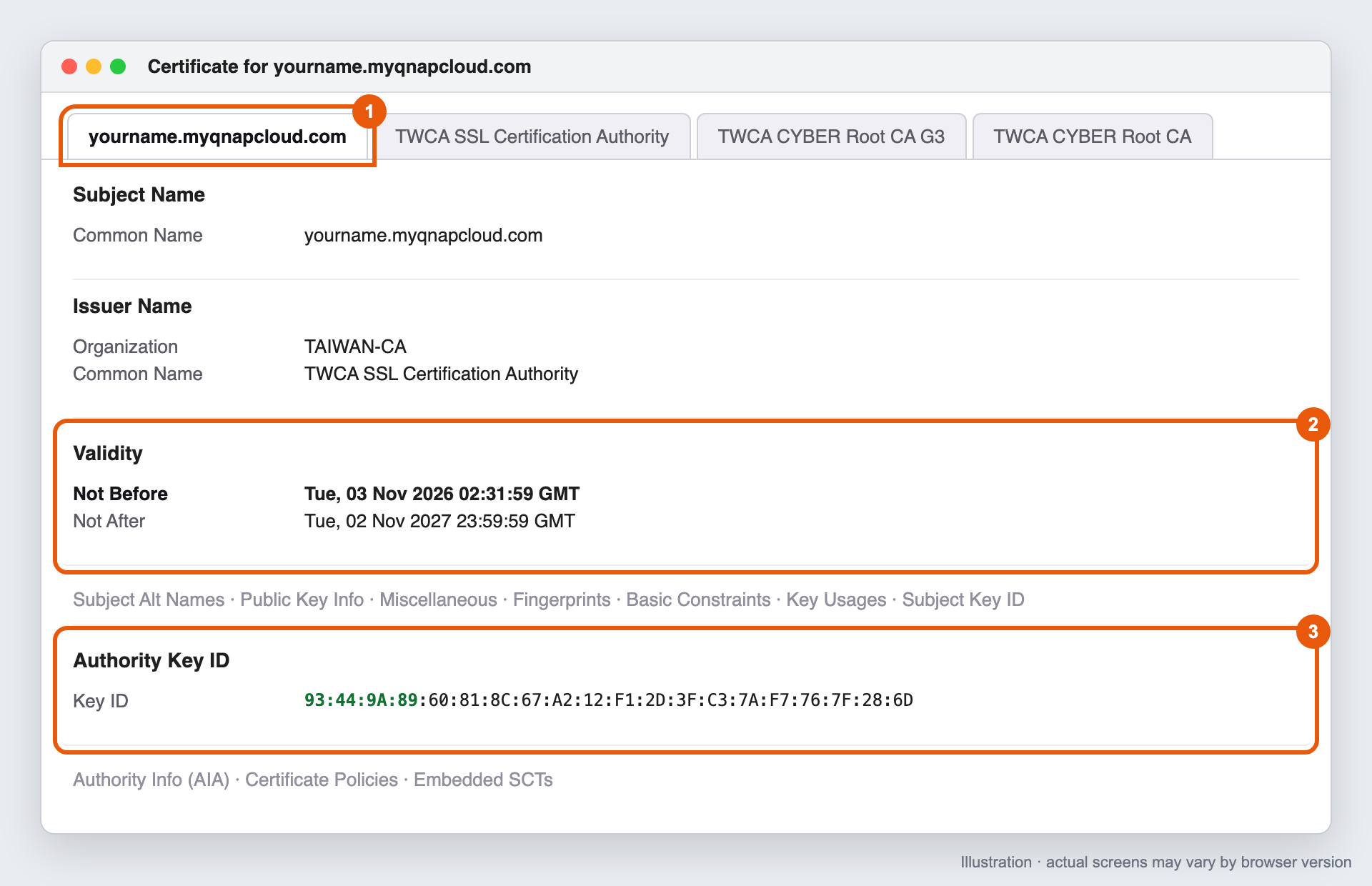
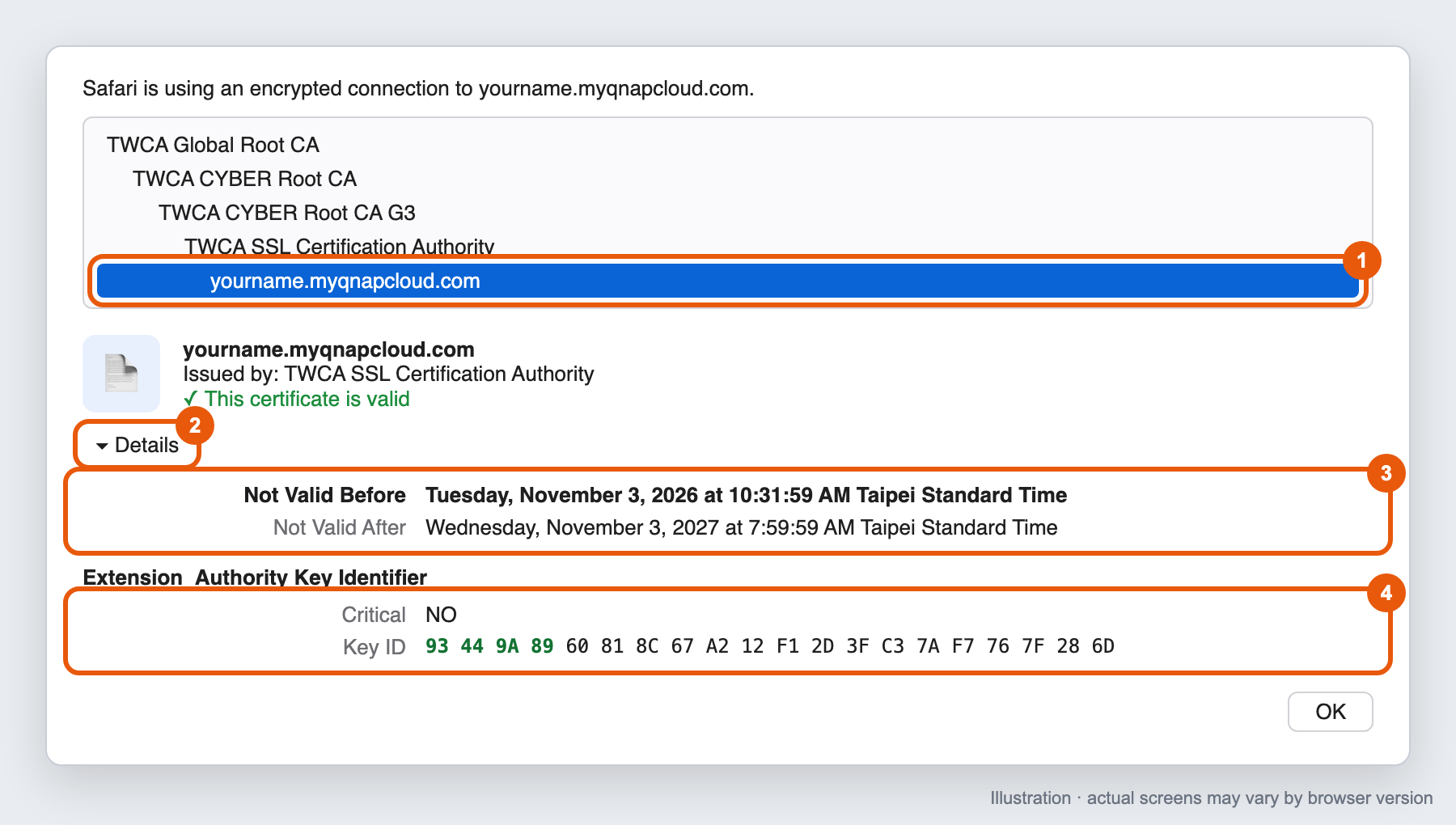
Safari (macOS)
- Open a new private window. Choose File > New Private Window, or press Shift+Command+N.
- Enter your myQNAPcloud domain in the address bar and press Return.
- Click the lock icon in the address bar, then click Show Certificate.
- In the certificate list, select the last item (your myQNAPcloud domain).
- Click the arrow next to Details to expand it.
- Check the Not Valid Before date.
- Optional: scroll down to Authority Key Identifier and check the Key ID value.
Safari certificate window, showing Not Valid Before and the Authority Key Identifier
What the results mean
| What you see | What to do |
|---|---|
| Issue date is November 1, 2026, 00:00 UTC or later | Your certificate has been replaced. No action needed. |
| Issue date is before November 1, 2026, 00:00 UTC, and you have not updated the app | Update the SSL Certificate app to version 2.2.80 or later. |
| Issue date is before November 1, 2026, 00:00 UTC, and you updated the app less than 4 hours ago | Wait up to 4 hours, then close all private windows, open a new one, and check again. |
| Issue date is before November 1, 2026, 00:00 UTC, and you updated the app more than 4 hours ago | See Why wasn't my myQNAPcloud SSL certificate replaced after I updated the SSL Certificate app? |
- The cut-off is November 1, 2026, 00:00 UTC. Browsers show the date in your computer's time zone, so the cut-off appears differently depending on where you are. For example, it is November 1, 08:00 in Taiwan (UTC+8) and October 31, 20:00 in New York (UTC-4). If the date shown is close to the cut-off, also check the Authority Key Identifier.
- The old and new intermediate certificates can have the same name, such as TWCA SSL Certification Authority. Do not use the issuer name to decide whether your certificate is new or old.
Are myQNAPcloud SSL certificates purchased after November 1, 2026, 00:00 UTC affected by this change?
No. myQNAPcloud SSL certificates issued on or after November 1, 2026, 00:00 UTC are issued under TWCA's new intermediate certificate and are not affected by the revocation.
We still recommend updating the SSL Certificate app to version 2.2.80 or later, so that your NAS installs the complete certificate chain and all apps can connect normally.
What happens if I update the SSL Certificate app after November 5, 2026, 16:00 UTC?
You can still update the app after the deadline. After the update, your NAS replaces the certificate automatically within 0 to 4 hours.
Until the new certificate is installed:
- Browsers will show a security warning when you connect to your NAS through your myQNAPcloud domain.
- Qfile, Qsync, and other apps that connect through your myQNAPcloud domain may fail to connect.
To avoid these problems, update before the deadline.
Bạn vẫn cần hỗ trợ?
Hãy đăng câu hỏi của bạn trong Cộng đồng QNAP. Nhân viên QNAP và những người dùng giàu kinh nghiệm sẽ trả lời.


