


Where to enable or disable the Multimedia Services?
Applicable Products
QTS, QuTS hero
Overview
Multimedia services (such as QuMagie, Video Station, Music Station, Media Streaming add-on, and CAYIN Media Viewer) are automatically enabled when you install Multimedia Console in the App Center. There is no standalone UI control to turn all services on or off at once. Instead, each service can be enabled or disabled individually. They can be disabled altogether by uninstalling Multimedia Console.
Solution
Option 1: Enable or disable an individual service
- Open Multimedia Console.
- Go to Multimedia App Suite.
- Find a service you want to check and click its status below the service name.
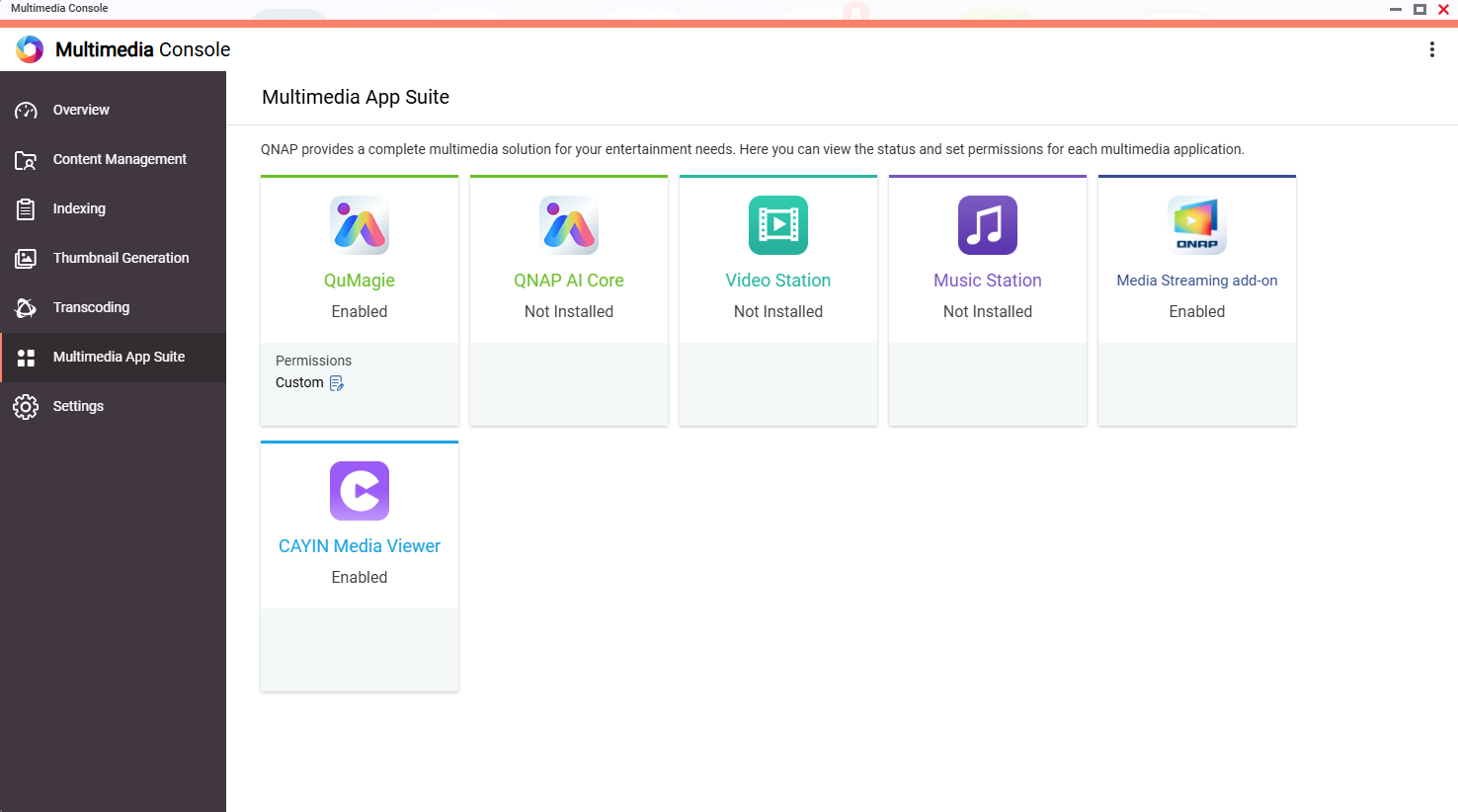
- The service opens in a new window, where you can enable or disable it in the App Center.
Option 2: Disable all multimedia services at once
If you want to disable all multimedia services, you can remove Multimedia Console from the App Center. This disables or removes all multimedia services that depend on Multimedia Console.
- Open App Center.
- Find Multimedia Console.
- Click Remove.
For further assistance, ask other users and QNAP experts in the community. Go to QNAP Community


