


How can I reset NAS settings but keep data intact?
Applicable products
- QTS
- QuTS hero
Overview
You may need to reset your QNAP NAS settings to resolve configuration issues or restore default settings. QNAP provides reset options that allow you to restore system settings without deleting user data stored on the disks.
Procedure
Soft Reset (3-second reset)
- Locate the reset button (usually on the rear panel of the NAS). Use a pointed object such as a paperclip to press and hold the button.
- Press and hold the reset button for 3 seconds until you hear a beep.
- This will:
- Reset the administrator password to default (admin for older models, or prompt for a new password on newer firmware).
- Reset network settings (DHCP enabled).
- Keep all user data, shared folders, and installed applications intact.
Advanced Reset (10-second reset)
- Press and hold the reset button for 10 seconds until you hear two beeps.
- This will:
- Reset all system settings to factory defaults (including users, groups, and network settings).
- Remove all installed apps and user accounts.
- Keep all user data and shared folders on the disks intact.
Important: Both reset methods do not delete user data stored in the data volumes. However, configuration settings and user accounts may be lost after a 10-second reset. Always back up your configuration if needed. For additional safety, regularly back up important data to another device or cloud service.
Factory Reset via No Disk Mode (if the NAS cannot boot properly)
- Turn off the NAS and unplug the power cord.
- Remove all hard drives from the drive bays, including M.2 SSDs (if any).
- Reconnect the power cord and power on the NAS.
- Wait for the NAS to complete its boot sequence. Connect to the NAS.
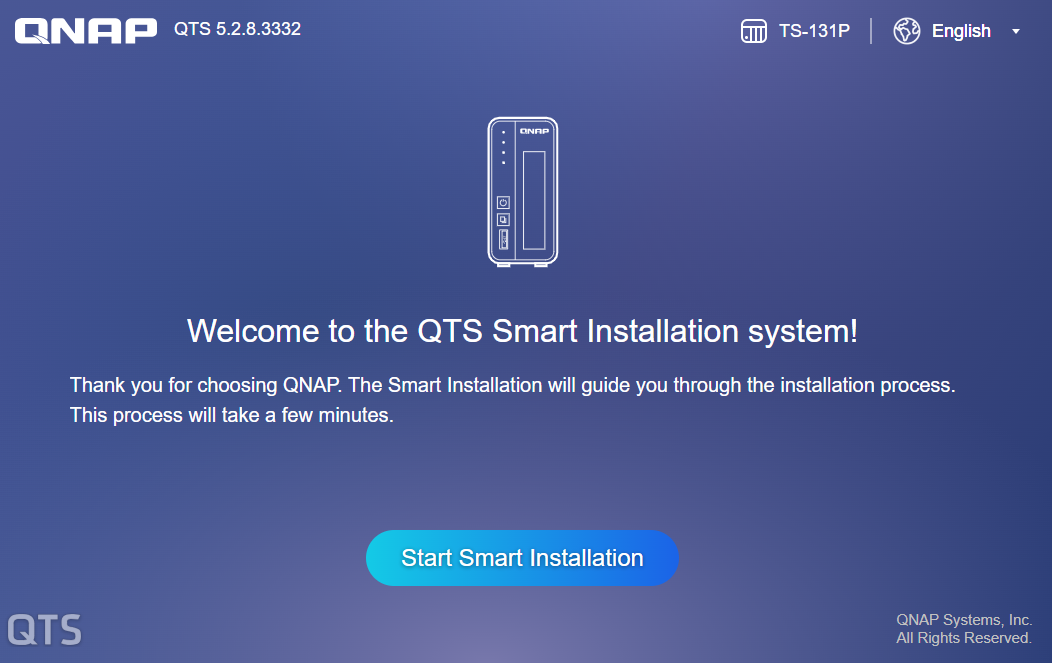
Click Start Smart Installation.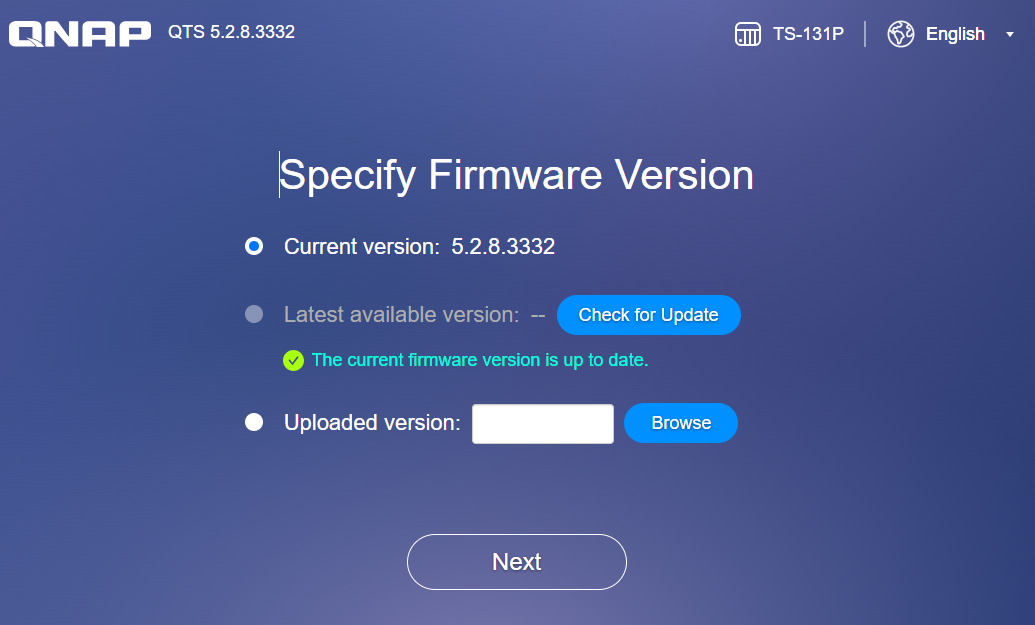
Click Next. - The system will enter a "no disk" mode.
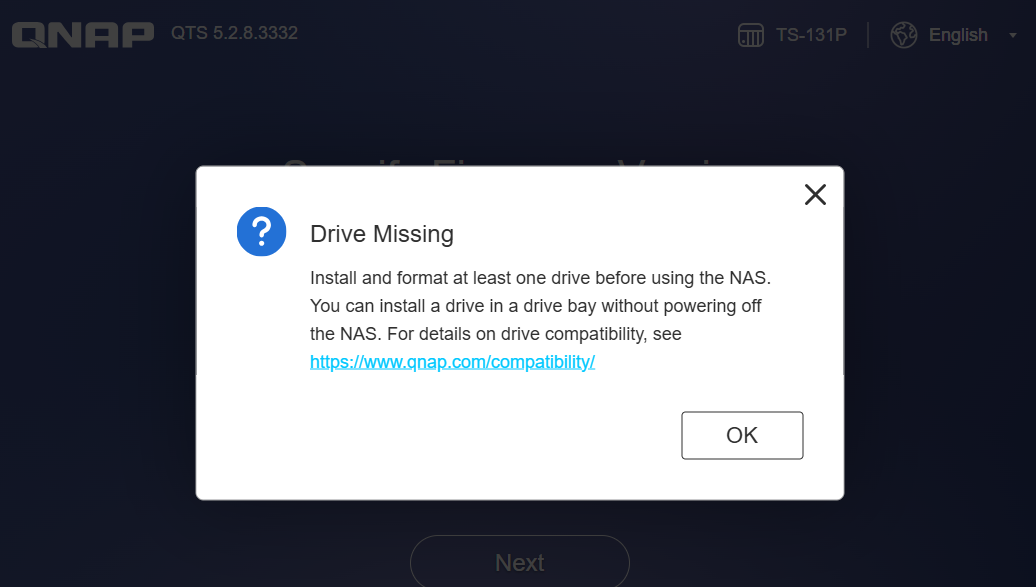
- Reinstall all disks into the NAS.
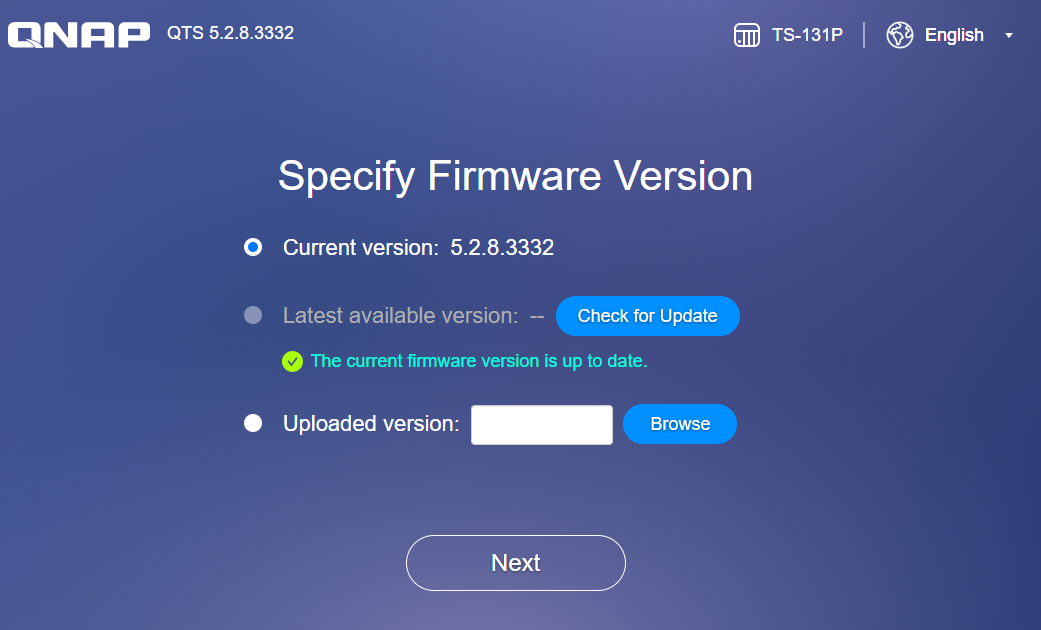
Click Next. - Select Restore the factory settings option. Caution: DO NOT select Initialize the system. This process does not erase data on the disks.
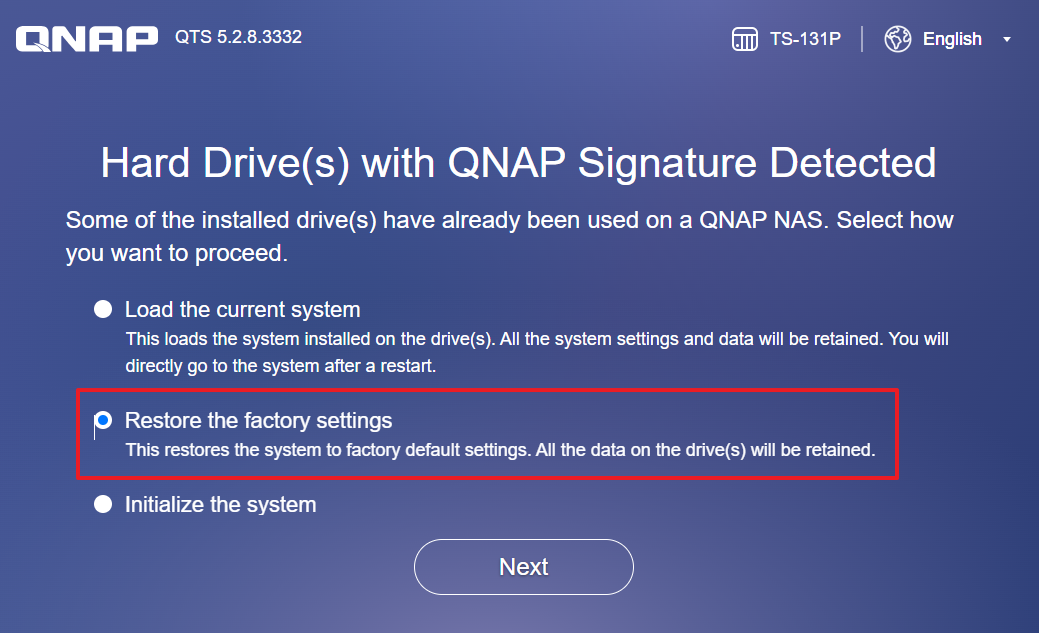 Click Next.
 - Enter the NAS name and administrator credentials.
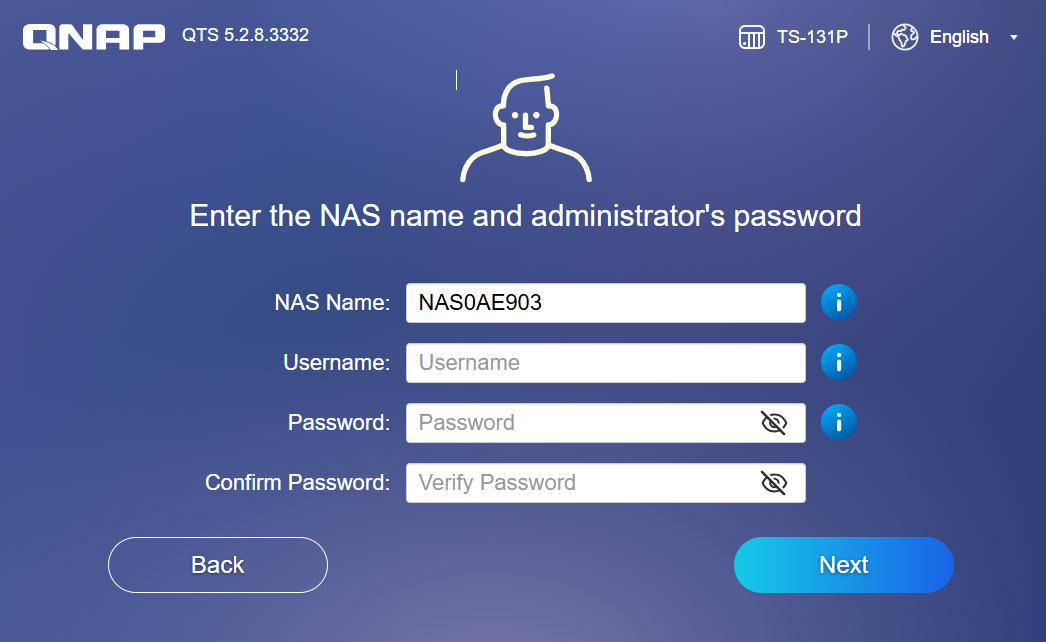
Click Next. - You will be prompted to confirm restoring factory settings.
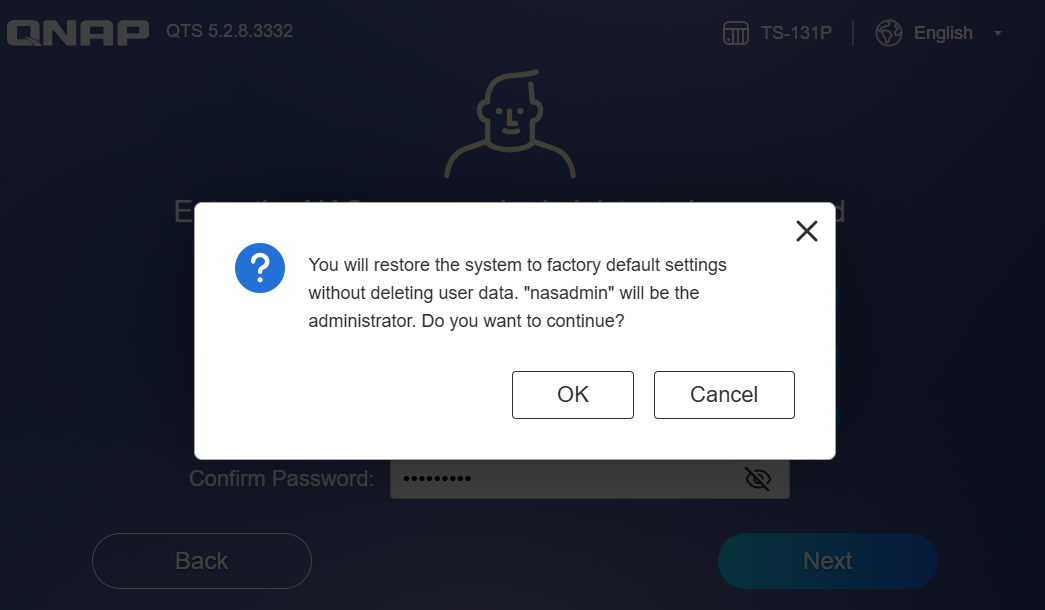
Click OK.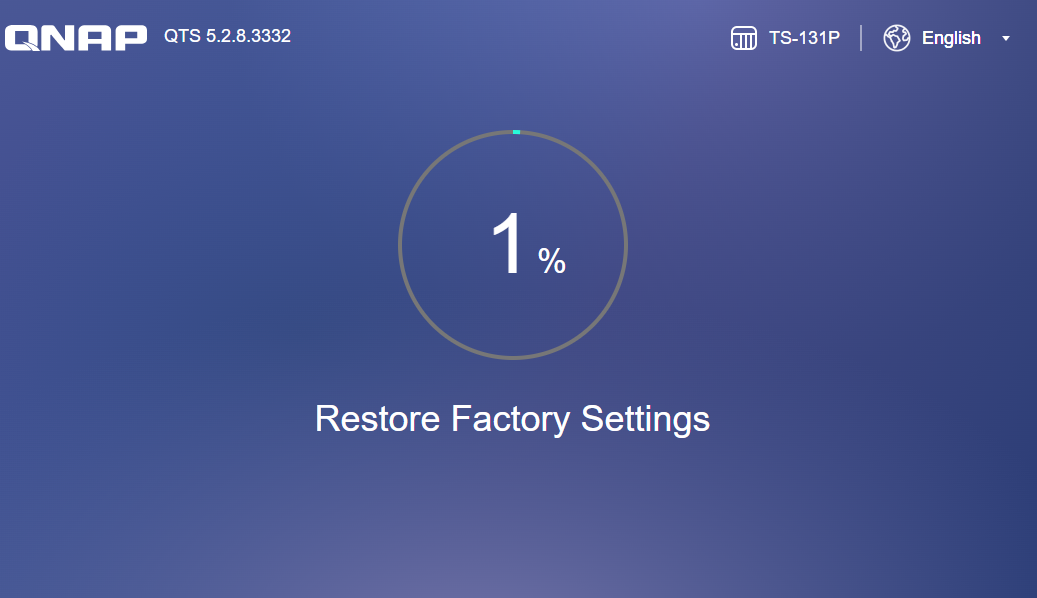
After Restore Factory Settings is done, the NAS will reboot.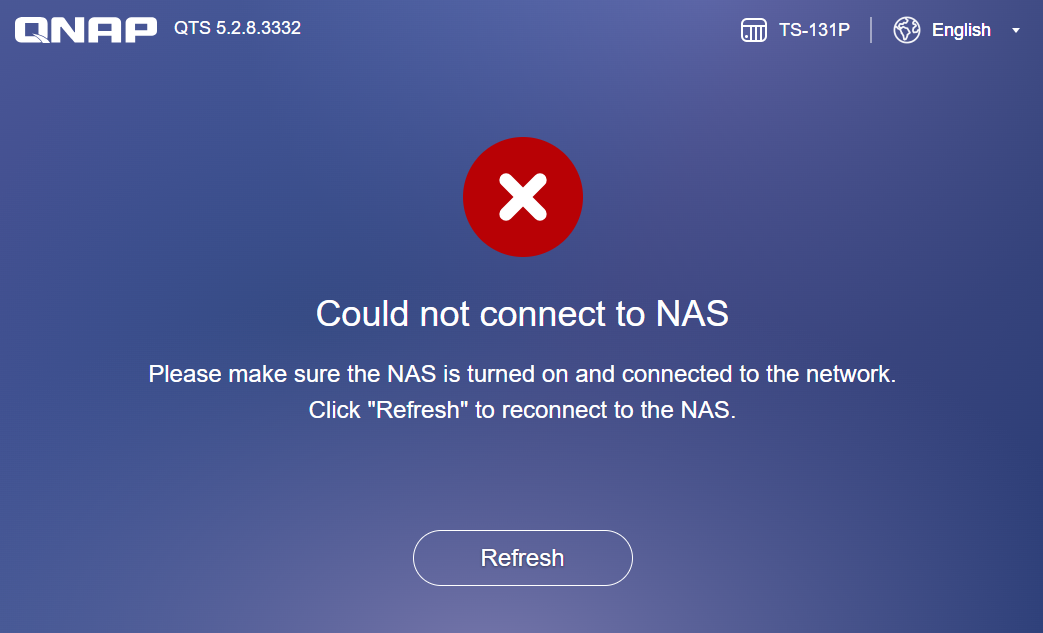
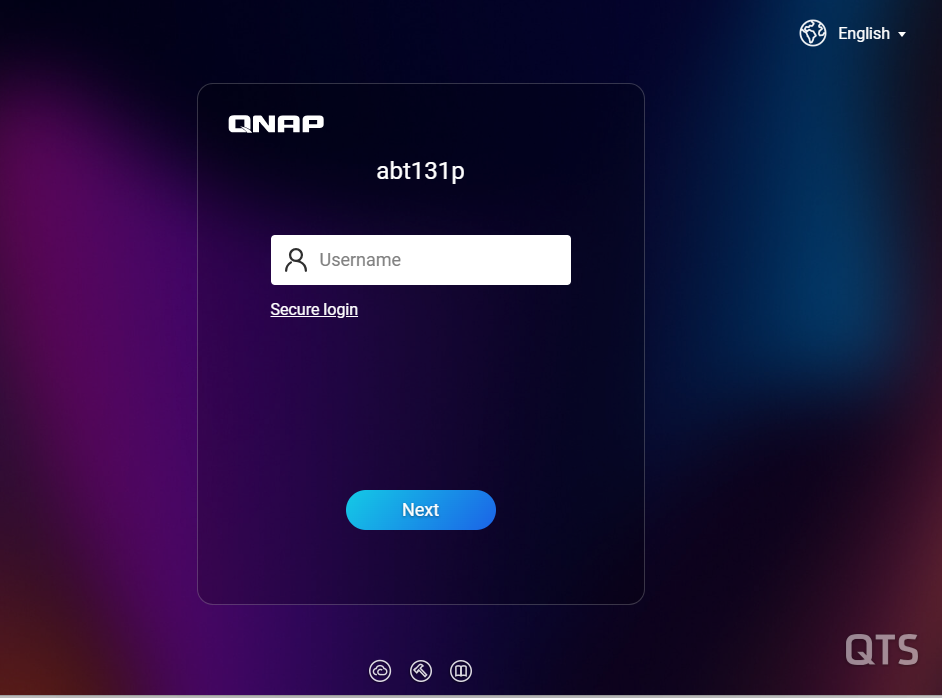
Wait for NAS to complete the reboot. - Connect to the NAS again and login.
Warning: When restoring factory settings via no disk mode, do not select Initialize the system, or all data on the disks will be erased.
Limitations
- The 10-second reset will remove all users and installed apps. You must reconfigure users, permissions, and reinstall applications after the reset.
- If you have encrypted shared folders, ensure you have the encryption key or password before resetting.
Further reading
For further assistance, ask other users and QNAP experts in the community. Go to QNAP Community


