


QNA-UC10G1T
USB 4 Type-C to 10GBASE-T RJ45 Network Adapter, Compatible with USB 4 and Thunderbolt™ 3/4 Ports

Enjoy stable 10GbE high-speed networking using a USB Type-C connection to greatly enhance work efficiency, even on computers without built-in network ports.
Broad interface compatibility
The QNA-UC10G1T includes a 1-meter USB 4 cable for connecting to your computer's USB 4 or Thunderbolt™ 3/4 ports.
● Windows: Compatible with USB 4 and Thunderbolt™ 4 ports.
● macOS: Compatible with Thunderbolt™ 4 and Thunderbolt™ 3 ports.Multi-system compatibility
Supports Windows®, macOS®, and Linux® computers (driver installation required).
Does not support Windows® OS on ARM-based processors or Mac systems via Boot Camp.
Important Note: To ensure optimal performance and compatibility, please verify that your host system meets the following hardware requirements prior to purchase:
1. The host device must be equipped with a USB4 or Thunderbolt™ 3 (or later) interface.
Note: Systems based on 11th Generation Intel® Core™ processors (Tiger Lake) may encounter compatibility issues when using Thunderbolt™ 4 or USB4 ports, where devices may not be properly recognized.
2. Please consult your motherboard manufacturer to confirm that the "USB Host Controller Support" option is supported and enabled in the system BIOS. Additionally, please enable the Extra Reserved resource allocation with the following minimum values:
● Extra Bus Reserved: 128 or higher
● Extra NP-Mem Reserved: 768 MB or higher
● Extra P-Mem Reserved: 1024 MB or higherMulti-speed support
Compatible with various network environments through Multi-Gigabit support for 10/5/2.5/1 GbE.
Low-noise operation
Fanless design ensures stable performance with reduced noise and maintenance, offering a quiet, reliable experience for long-term use.




Stylish metal finish and portable
Perfectly fits in with all your tech gear

Enjoy network upgrades anywhere with doubled efficiency
-
Creative Professionals
YouTubers, video editors, or game developers can accelerate their workflows by processing large files or assets faster.

-
Multimedia Entertainment
Seamlessly stream HD videos or games to ensure smooth playback without buffering.

-
Office Operations
Speed up file transfers and sharing and ensure smooth remote meetings and cloud backups for uninterrupted task execution.

Build a high-speed network environment with a 10GbE switch
In multi-user, multi-device environments, connect your computer to a QNAP 10GbE switch using the QNA-UC10G1T network adapter to create a high-bandwidth, high-speed collaborative network across multiple connected devices.
Explore enterprise high-speed networking solutions >


How to set the MTU
Note: When connecting to a network switch, please ensure the Jumbo Frame on the port is also set to 9000 (MTU size).
MacOS:
1. Open System Settings and go to Network.
2. Select QNA Thunderbolt Ethernet and click Details.
3. Go to Hardware, change Configure to Manually, and set MTU to Jumbo (9,000).
Windows:
1. Open Settings and go to Network & Internet.
2. Click Change your adapter options, right click the QNA adapter and click Properties.
3. Click Configure, go to the Advanced tab, select Jumbo Frame and set the value to 9KB MTU.
NAS:
1. Open Network & Virtual Switch
2. Go to Interfaces and find the Ethernet adapter on the Adapter List.
3. Open the adapter menu and select Configure.
4. Go to the IPv4 tab and set Jumbo Frame to 9000.
QNAP Accessories Store
Get all the original accessories in one place and easily upgrade your QNAP NAS.
Need help?
Contact us now to get more recommended products or solutions catered to your needs and requirements!
People Also Viewed
-
QNA-UC10G2T
USB 4 Type-C to Dual-Port 10GBASE-T RJ45 Network Adapter, Compatible with USB 4 and Thunderbolt™ 3/4 Ports

-
QNA-UC10G2SF
USB 4 Type-C to Dual-Port 10GbE SFP+ Network Adapter, Compatible with USB 4 and Thunderbolt™ 3/4 Ports

-
TL-R1600PES-RP
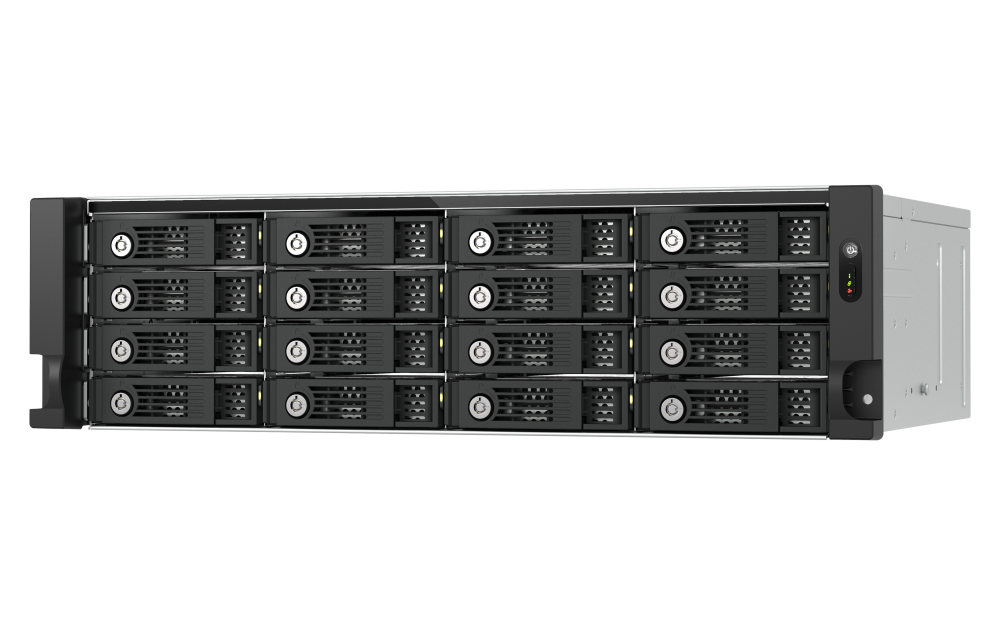
PCIe Interface 16-bay JBOD, supporting SATA drives, for petabyte-scale expansion designed specifically for QNAP NAS


QNA-UC10G2T
USB 4 Type-C to Dual-Port 10GBASE-T RJ45 Network Adapter, Compatible with USB 4 and Thunderbolt™ 3/4 Ports
QNA-UC10G2SF
USB 4 Type-C to Dual-Port 10GbE SFP+ Network Adapter, Compatible with USB 4 and Thunderbolt™ 3/4 Ports
TL-R1600PES-RP
PCIe Interface 16-bay JBOD, supporting SATA drives, for petabyte-scale expansion designed specifically for QNAP NAS


