


How to deploy Open WebUI on the QNAP NAS and connect to Ollama
Applicable Products
QTS, QuTS hero
Container Station
What is Open WebUI?
Open WebUI is a ChatGPT-style, self-hosted web interface designed to connect to local Large Language Models (LLMs) like Ollama. It provides a polished, user-friendly chat experience without requiring cloud subscriptions or sending your data to external servers. Once deployed on your QNAP NAS, you can access Open WebUI from any browser on your network.
What You'll Learn
This tutorial covers:
- Creating a Docker Compose YAML file for Open WebUI
- Configuring network connectivity between Open WebUI and Ollama
- Deploying the container and creating an admin account
- Selecting an LLM and testing the chat interface
- Connecting to a remote Ollama instance if needed
Understanding Docker Networking
When both Open WebUI and Ollama run in separate containers on the same QNAP NAS, they communicate via a shared Docker network. The key point: containers communicate using service names (for example: ollama, but not localhost).
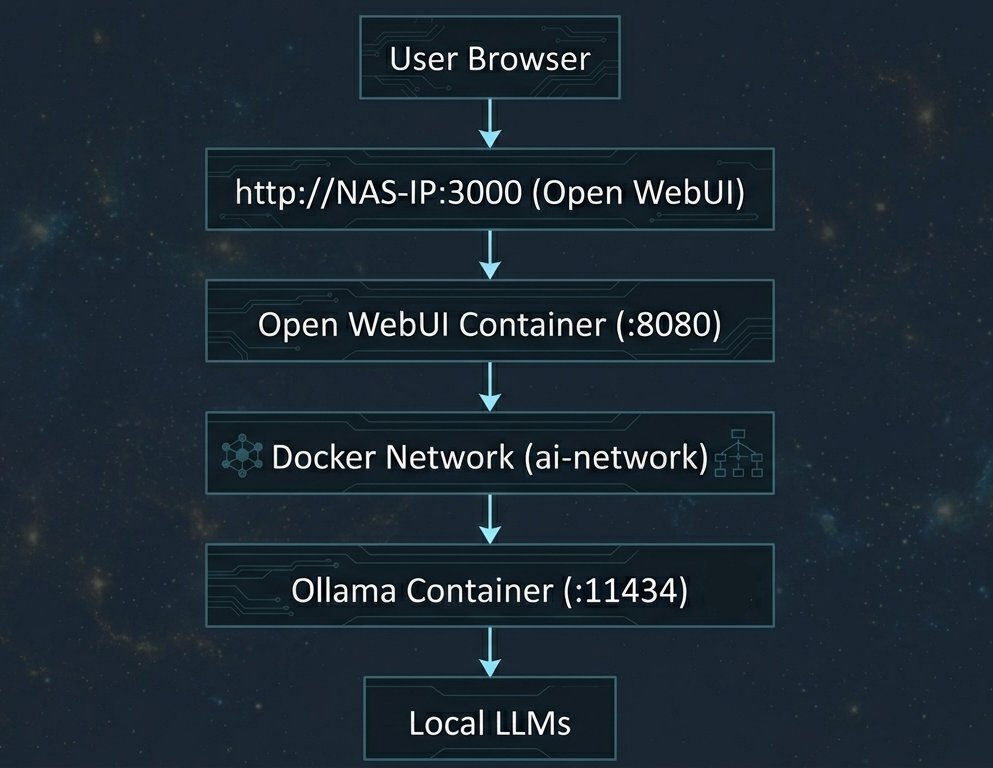
The OLLAMA_BASE_URL environment variable tells Open WebUI where to find Ollama. When both containers are on the same Docker network named ai-network, the URL is http://ollama:11434 (using the container service name).
Prerequisites
- QNAP NAS running QTS 5.2 / QuTS hero h5.2 or later versions
- Container Station 3
- Ollama, deployed on the same QNAP NAS
- At least 2GB of free space for the Open WebUI container and persistent data
- Familiarity with Container Station and Docker Compose basics
Procedure
Step 1: Create Storage Folder
Open SSH or File Station on your QNAP NAS. Create a directory for Open WebUI persistent data:/share/Container/open-webui
This directory stores chat history, user settings, and configuration data. Without this volume mount, all your conversations disappear when the container restarts.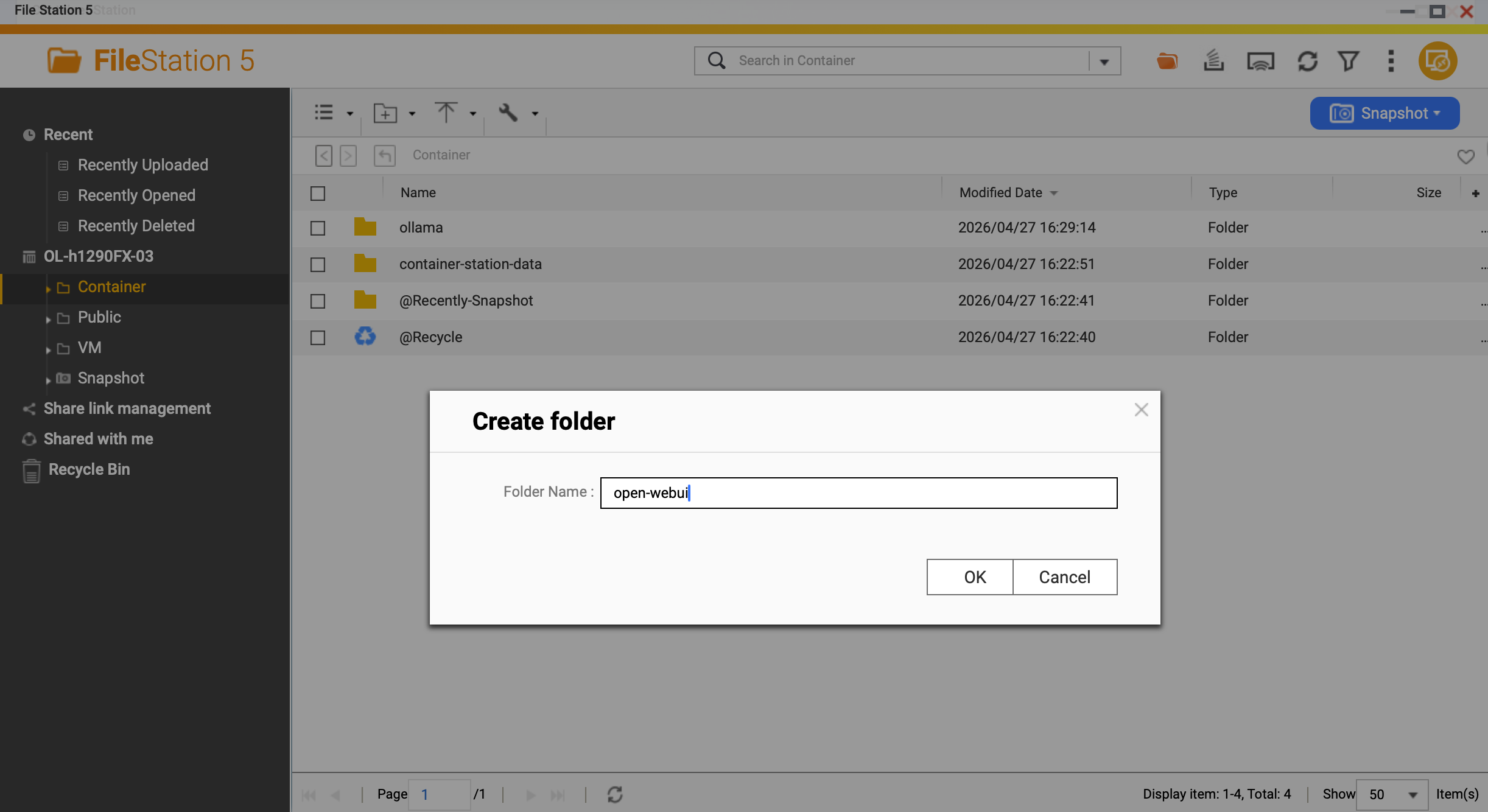
Step 2: Create the Application
In Container Station, create a new Application with the following content:
version: '3.8'
services:
  open-webui:
    image: ghcr.io/open-webui/open-webui:main
    container_name: open-webui
    ports:
      - "3000:8080"
    volumes:
      - /share/Container/open-webui:/app/backend/data
    environment:
      OLLAMA_BASE_URL: http://ollama:11434
    networks:
      - ai-network
    restart: unless-stopped

networks:
  ai-network:
    name: ai-network
    driver: bridge
Key Configuration Explained
- Image:
ghcr.io/open-webui/open-webui:main— Official Open WebUI image from GitHub Container Registry - Port:
3000:8080— Access from browser athttp://NAS-IP:3000, mapped to container port 8080 - Volume:
/share/Container/open-webui:/app/backend/data— Persistent storage for chats and settings - OLLAMA_BASE_URL:
http://ollama:11434— Must match your Ollama container service name and port - Network:
ai-network— Shared bridge network with Ollama container - Restart:
unless-stopped— Container restarts automatically after QNAP reboots
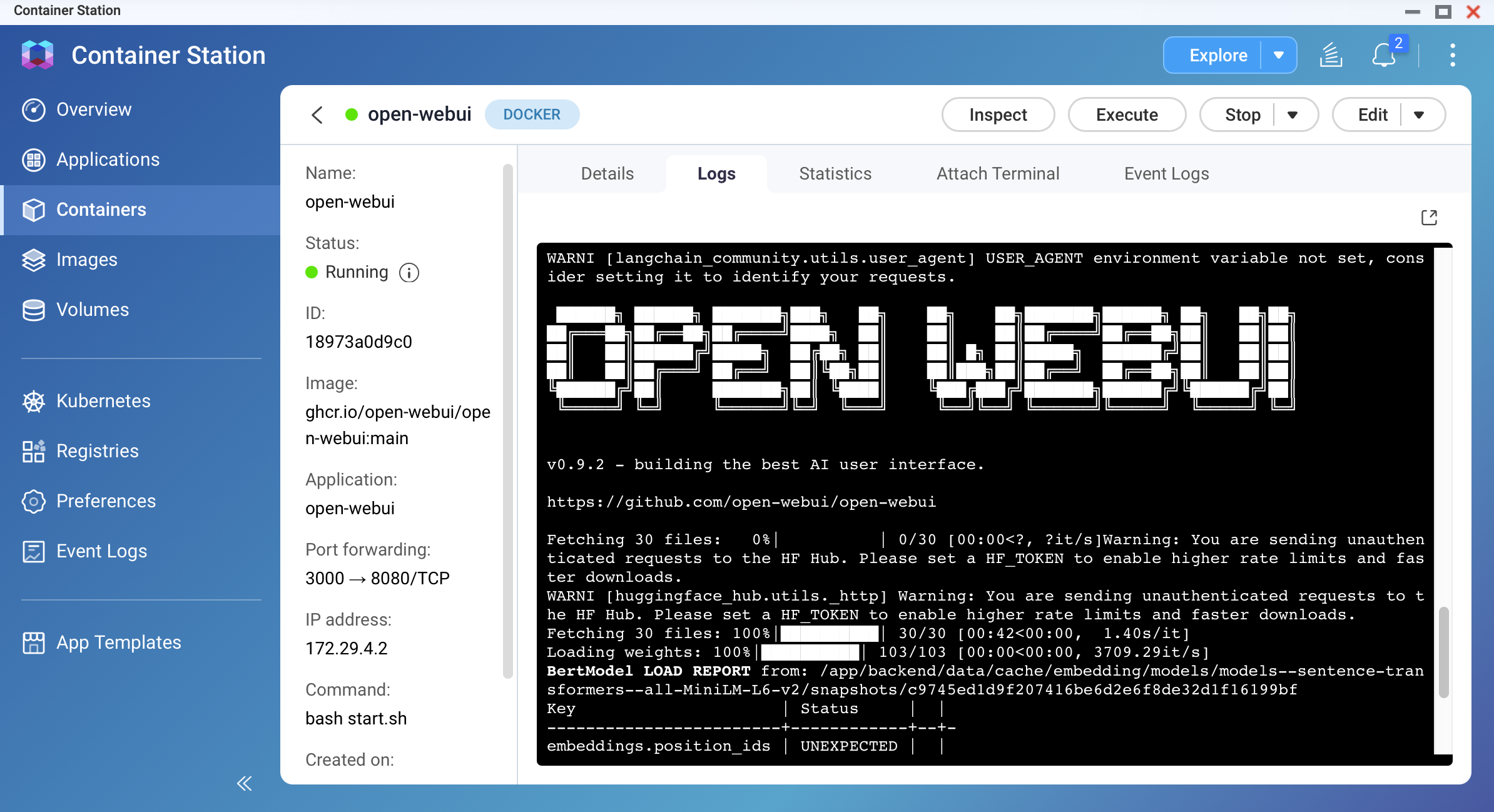
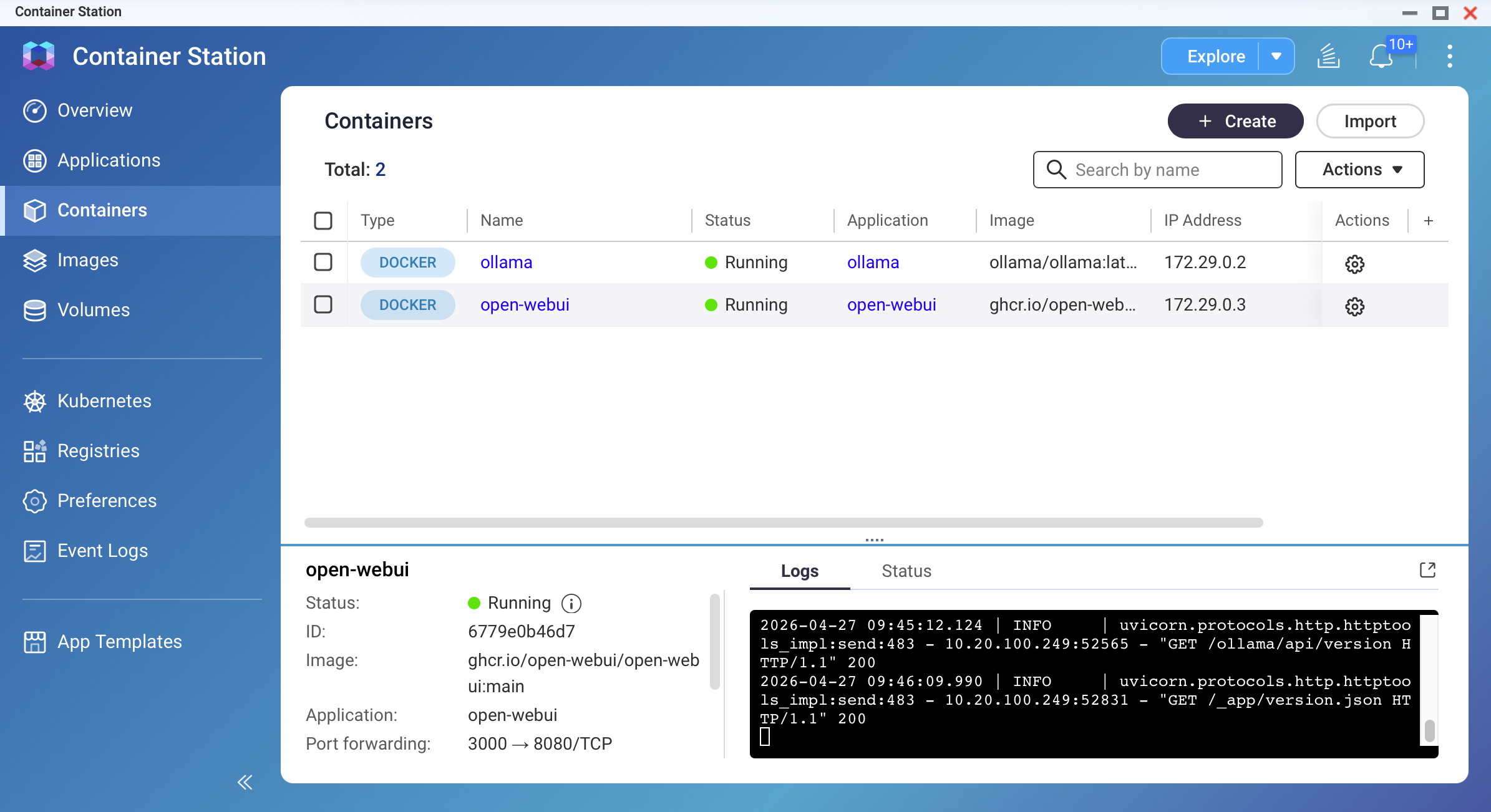
Wait 30-60 seconds for the container to start. Check logs in Container Station.
Step 3: Create Admin Account and Initial Setup
Open your browser and navigate to:http://YOUR-NAS-IP:3000
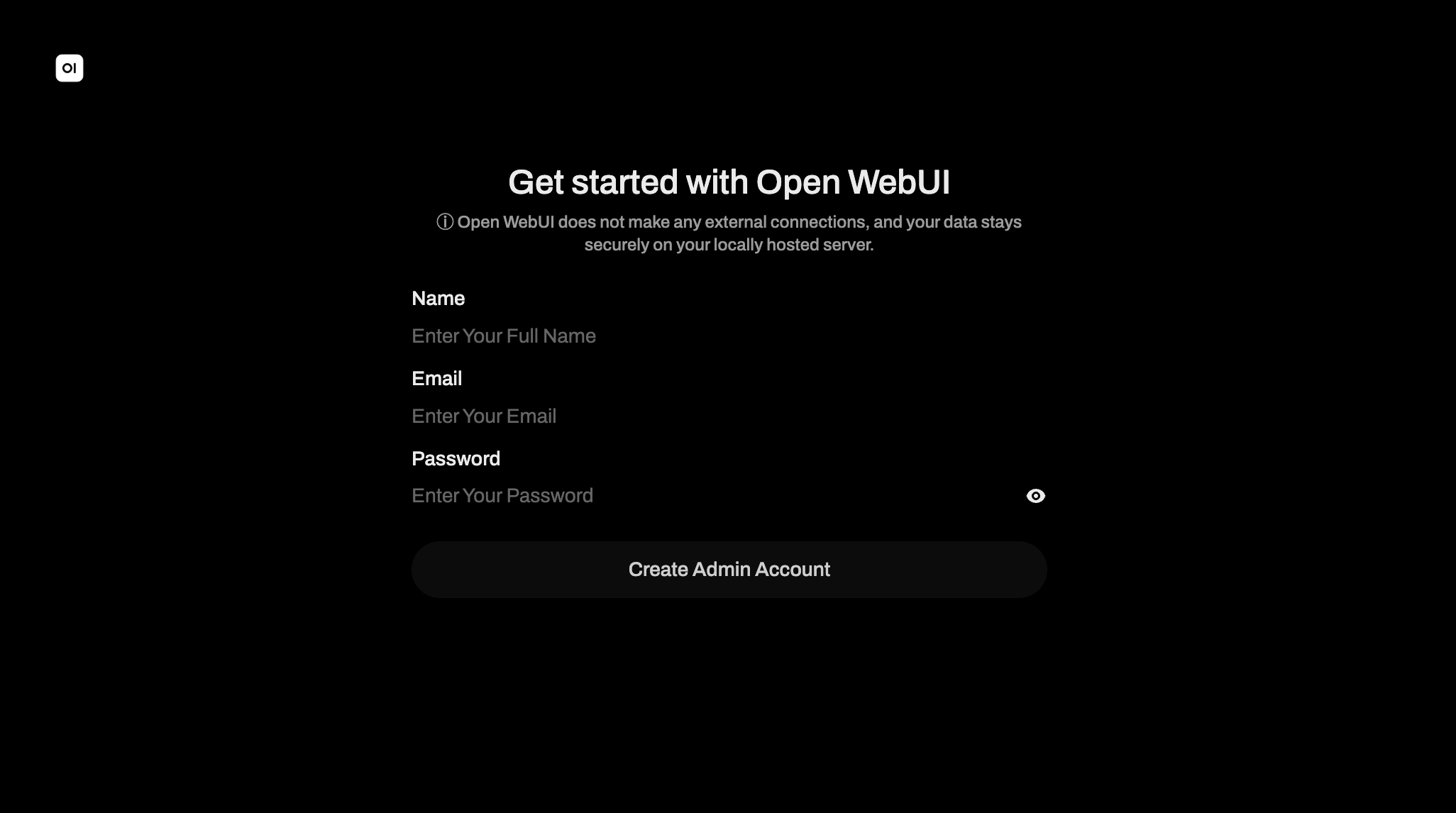 Screenshot: Open WebUI login screen with sign-up fields
On first access, Open WebUI displays a sign-up form. Fill in:
- Name: Your display name
- Email: An email address (does not need to be valid)
- Password: A secure password for your account
The first account created automatically becomes the admin account. You must create this account before the interface unlocks. Click Create Account.
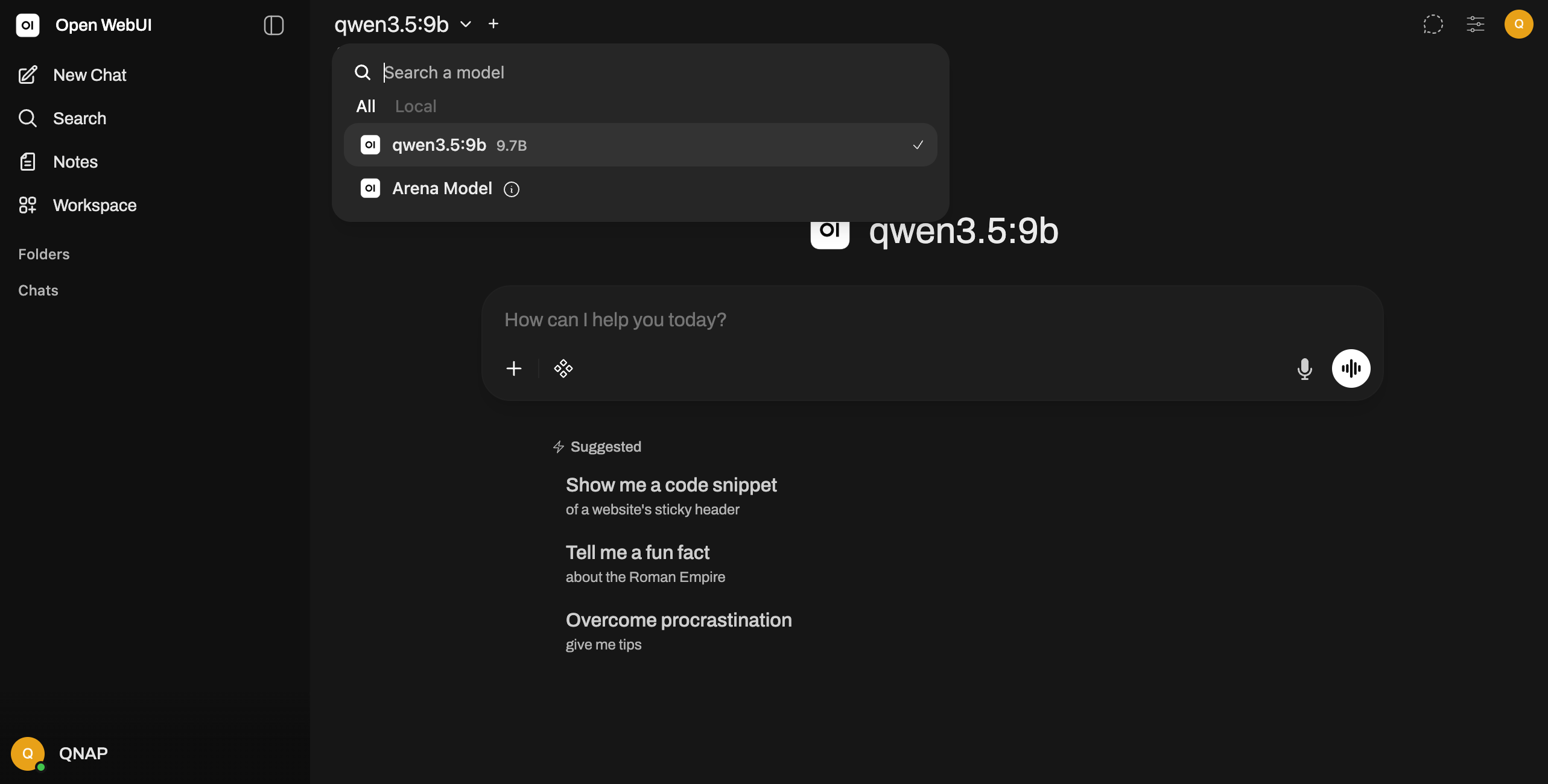
Step 4: Select a Model and Test
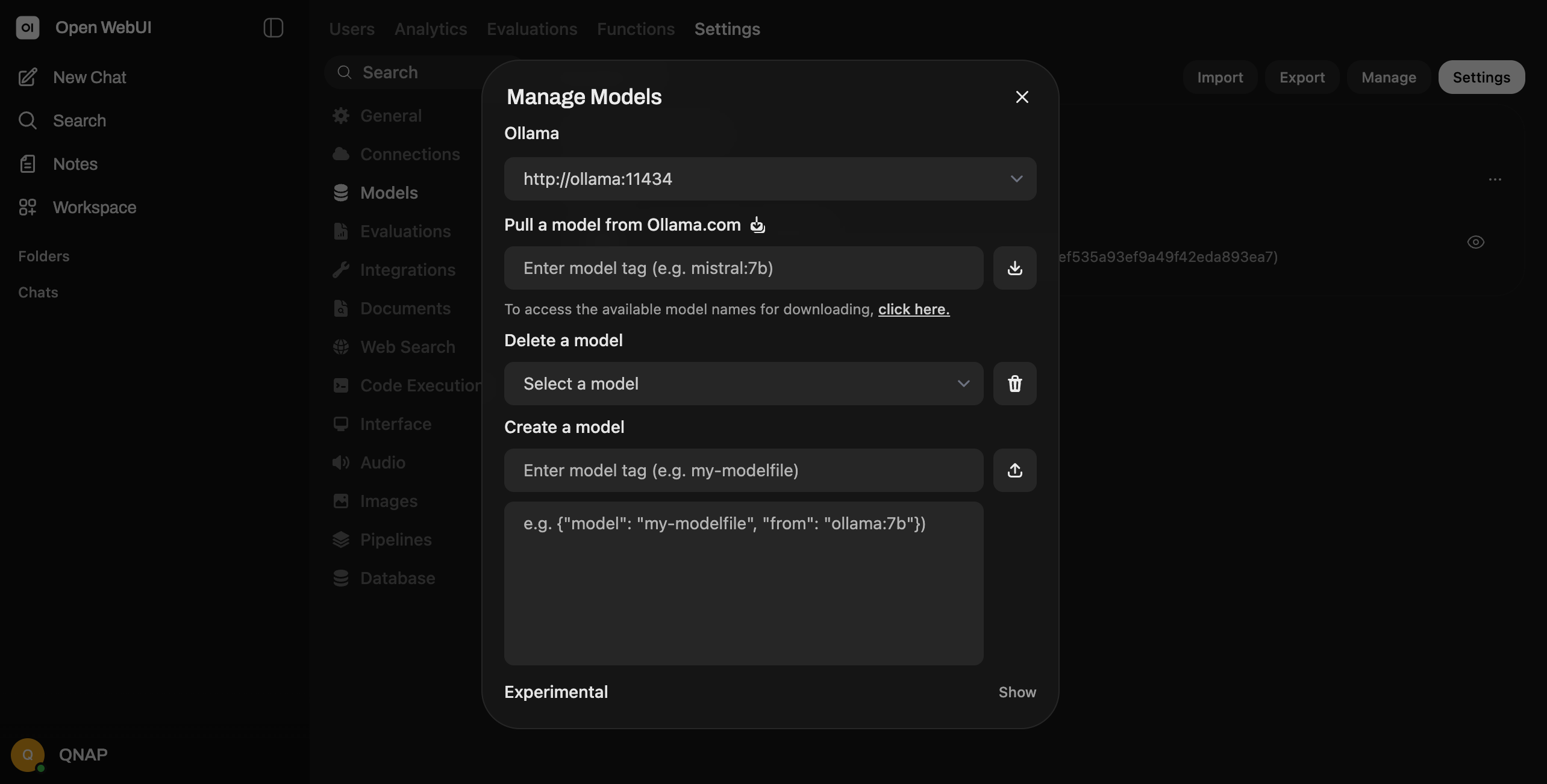
After signing in, Open WebUI shows a model selector. If you have already pulled models in Ollama, they appear here automatically. If no models are listed:
- Go to the Admin Panel menu
- Select Setting -> Models
- Verify Ollama connections and display model availability.
- Pull a model directly from Open WebUI or return to Ollama to pull one first
Select a model from the dropdown (e.g., Gemma, Qwen, Deepseek).
Step 5: Start Chatting
Type a message in the text box at the bottom and press Enter. Open WebUI sends your message to Ollama, which processes it using the selected model and returns a response. The interface stores the full conversation in your persistent volume.
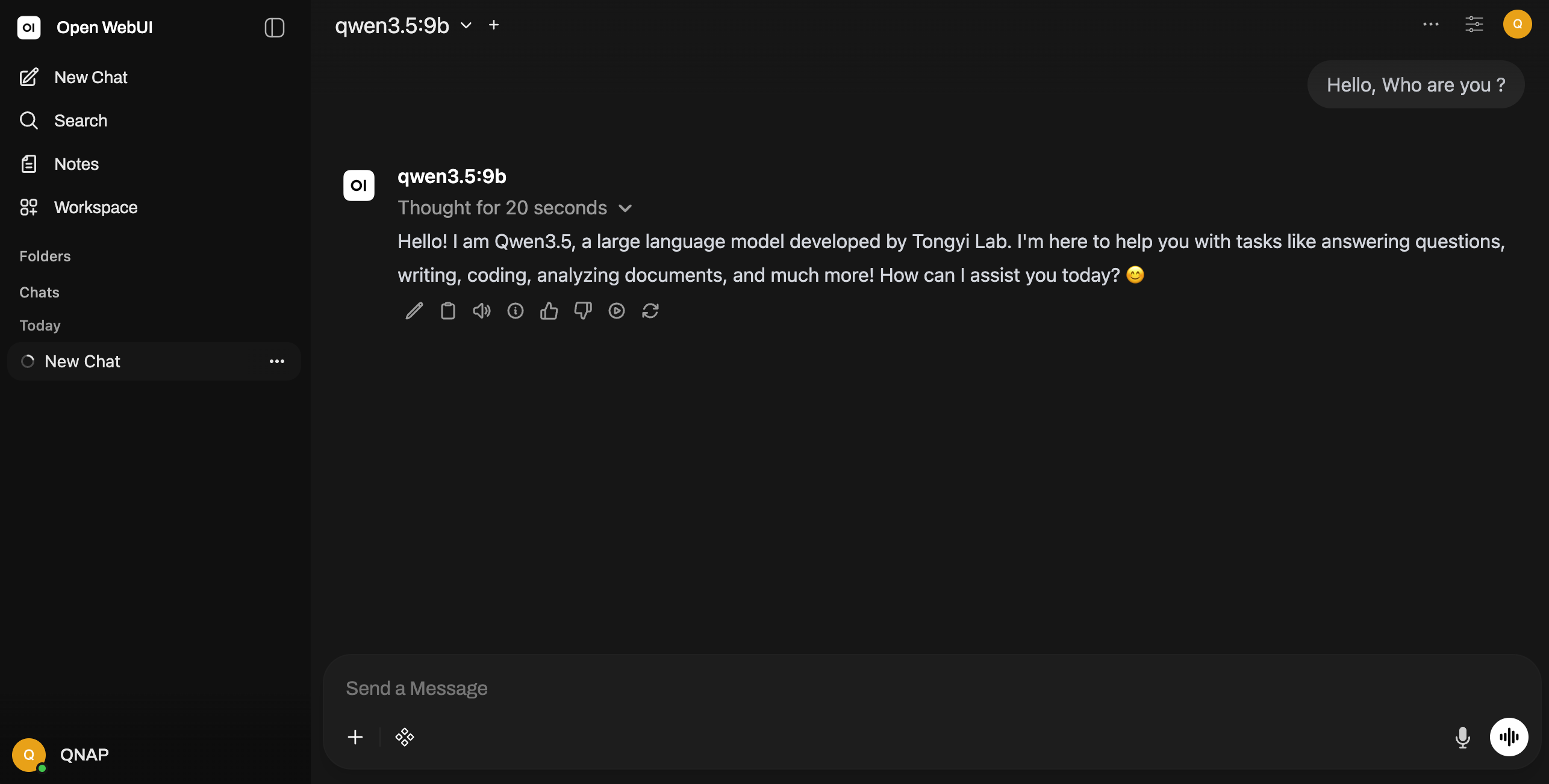
Screenshot: Open WebUI chat interface with a sample conversation
Connecting to a Remote Ollama Instance
If you want Open WebUI to connect to Ollama running on a different QNAP NAS or machine (not the same physical host), modify the environment variable:OLLAMA_BASE_URL: http://OTHER-NAS-IP:11434
Replace OTHER-NAS-IP with the IP address of the remote machine running Ollama. Ensure that machine's firewall allows port 11434 traffic from your QNAP NAS. Both machines must be on the same network or have proper routing configured.
For further assistance, ask other users and QNAP experts in the community. Go to QNAP Community


