


How to setup QuFirewall to allow VPN connections
Applicable Products:
- QuFirewall
- QVPN
If you want to allow VPN connections to the NAS and you enabled QuFirwall, you will need to add a couple of rules to allow the traffic to go through.
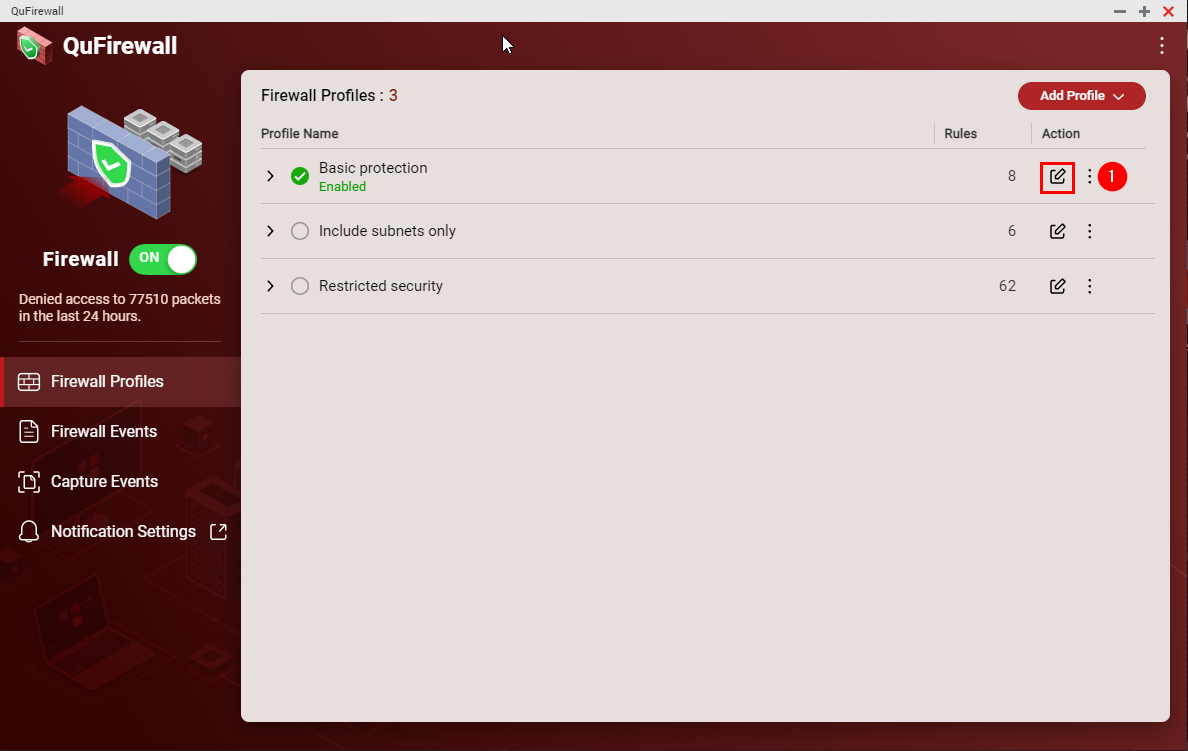
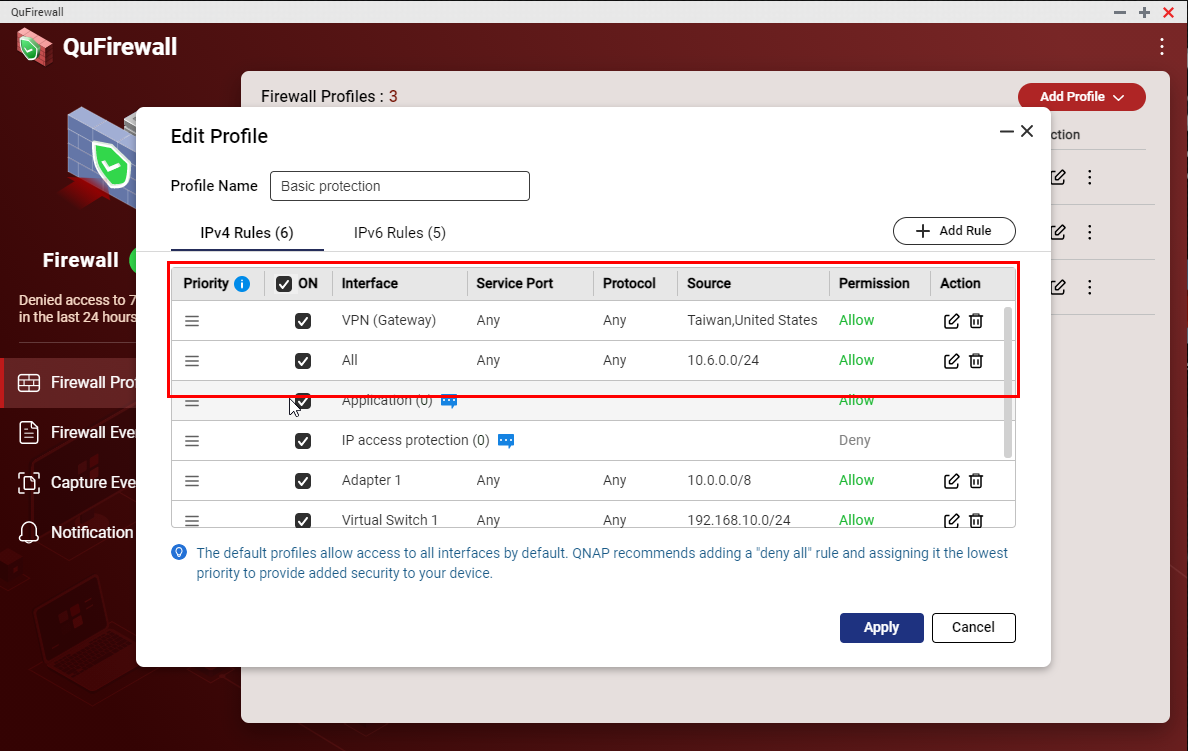
I will take the “Basic Protection” profile to add the rules. So first we need to edit the Profile:
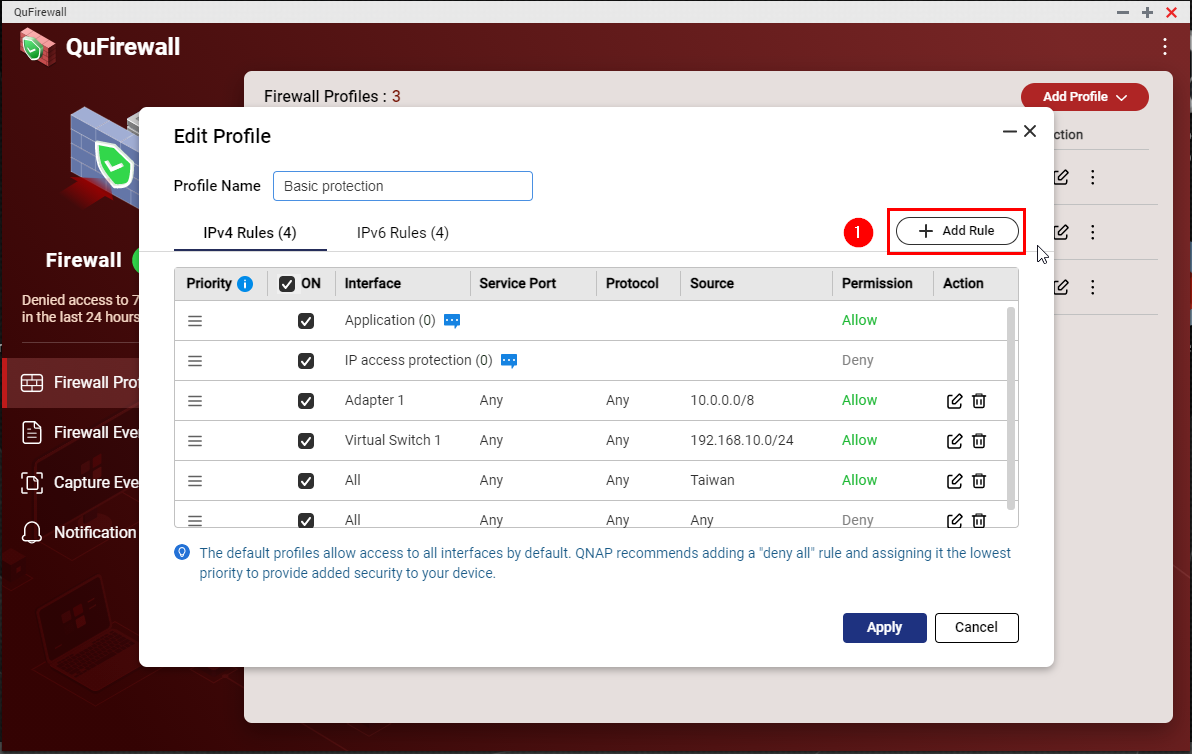
Then we need to add a new rule.
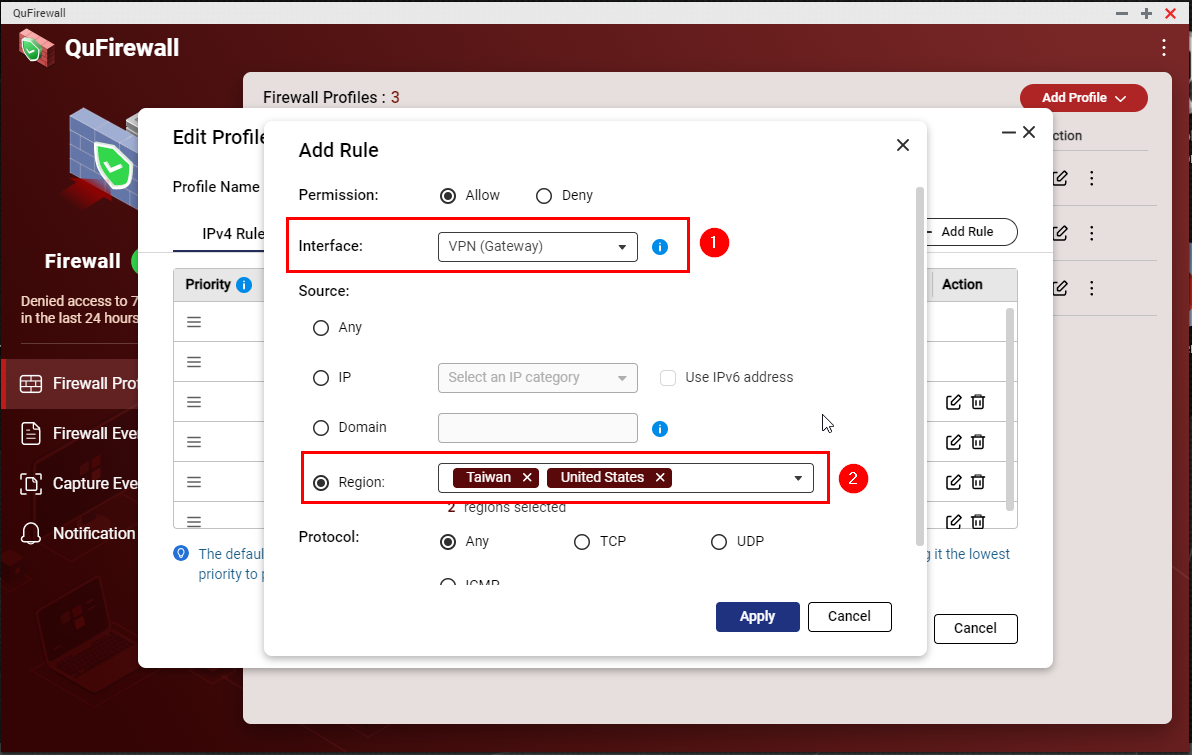
The next step is to allow “VPN (Gateway)” and select the allowed region to access the VPN server
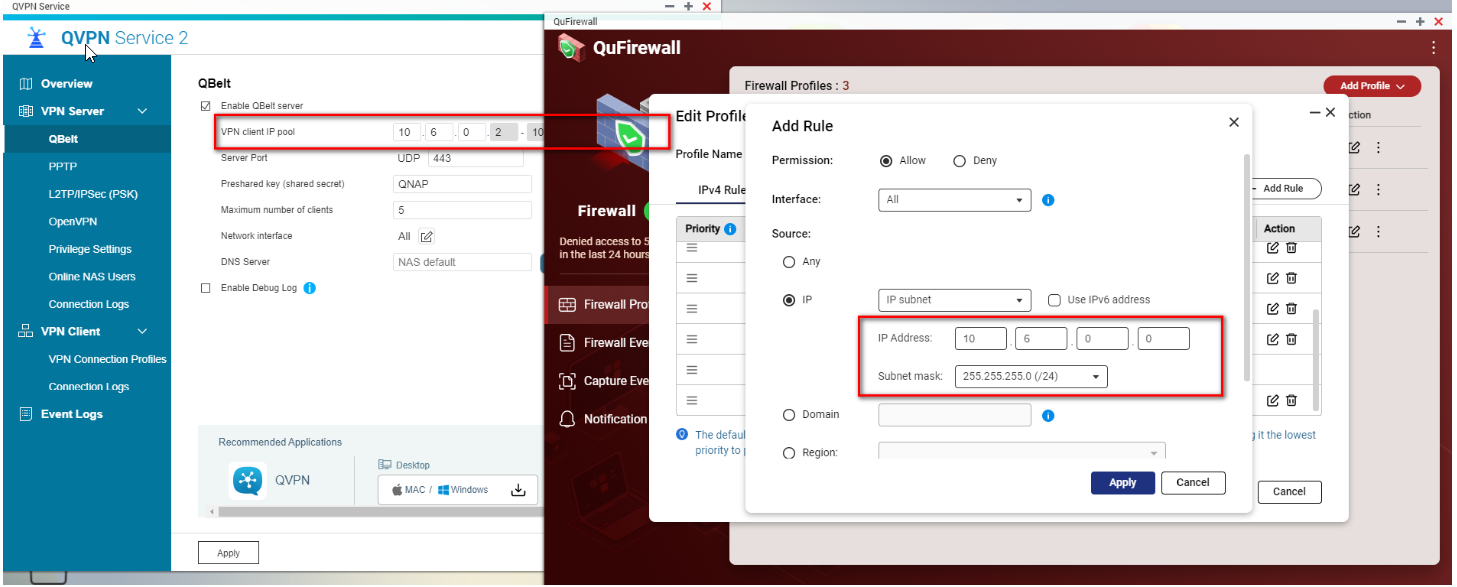
The next step is to create a new rule to allow your VPN IP pool access to the NAS.
Following are the default VPN IP pools
- Qbelt: 10.6.0.2 - 10.6.0.254
- PPTP: 10.0.0.2 - 10.0.0.254
- L2TP/IPsec: 10.2.0.2 - 10.2.0.254
- OpenVPN: 10.8.0.2 - 10.8.0.254
- WireGuard: 192.168.17.1/24
For instance, using QBelt VPN you must allow the connections from the IP pool 10.6.0.2 - 10.6.0.254. In other words, you need to add a QuFirewall Rule to allow permission for IP address 10.6.0.0/Subnet mask 255.255.255.0 (24)
Finally, we will need to move the rules to the top of the list.
For further assistance, ask other users and QNAP experts in the community. Go to QNAP Community


