


How to find my NAS model name, firmware version, serial number and MAC address?
Last modified date:
2026-10-14
Applicable Products:
All QNAP Products
Details
You can identify your NAS information using the following methods.
Method 1 and Method 4 only require you to check the NAS appearance.
Method 2 and Method 3 require you to connect to the NAS.
- Check the physical label on the NAS.
- Look for the label on your NAS device.
- It usually lists the model name, serial number, and MAC address. TipIf your label includes the serial number, but not the device model name, please skip to Method 4.
- Use Qfinder Pro.
- Open Qfinder Pro on your computer.
- Locate your NAS from the list.
- The following details are shown:
- Device Type: NAS model name
- Firmware Version: Current firmware version
- MAC Address: Network MAC address

- Check in QTS or QuTS hero.
- Log in to QTS or QuTS hero.
- Open Control Panel.
- You can see the NAS model name, firmware version, and serial number.

- Use your NAS serial number to find your NAS model name and warranty period.
- Find your serial number from the device label.
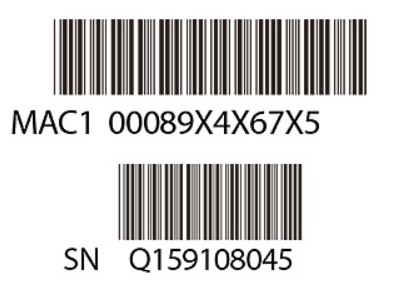
- Go to QNAP Warranty Service.
- Scroll down to Check Your Warranty Status.
- In the field Product Serial Number, enter your NAS serial number.
- Click Send.
- The website shows your NAS model name and warranty period. TipIf you can connect to the NAS, you can also find the serial number in Control Panel.

- Find your serial number from the device label.
For further assistance, ask other users and QNAP experts in the community. Go to QNAP Community


