


How to Set Up Push Service in Notification Center
Last modified date:
2026-09-09
Applicable Products
QTS
Overview
Push service delivers messages from a server to your device and is one of the notification delivery methods provided in Notification Center. You can receive push notifications via a web browser on your computer or via Qmanager on your mobile device.
Note
You cannot save push notifications. We recommend using push service for notifications that are not important or urgent.
System Requirements
- Mobile app: Qmanager iOS 1.8.0 or later, or Qmanager Android 2.1.0 or later
- Web browser: Chrome 42 or later, or Firefox 50 or later
Procedure
First, enable push service in Notification Center. Then choose a pairing method below.
- Log in to QTS.
- Go to Control Panel > System > Notification Center.
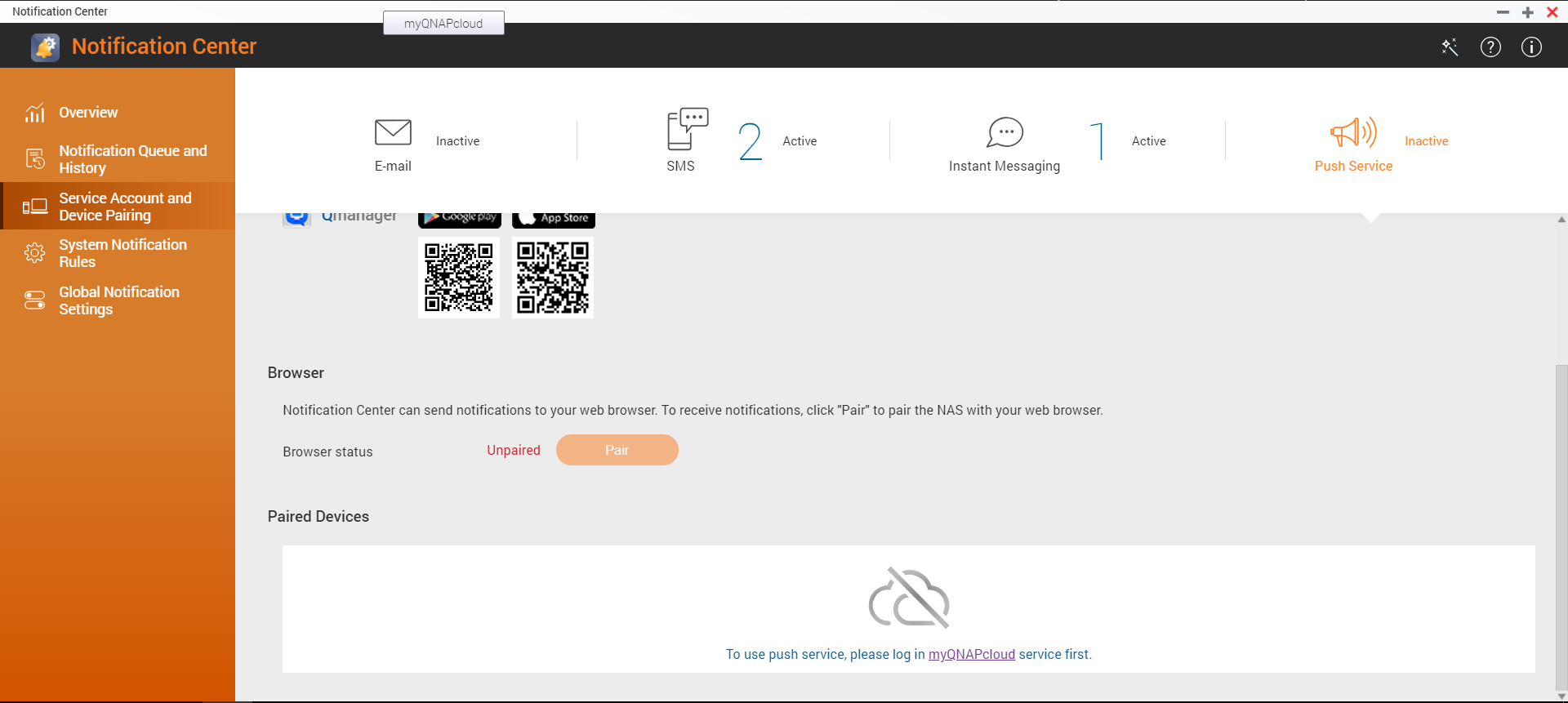
- Click Service Account and Device Pairing.
- Select the Push Service tab.
- Sign in to myQNAPcloud service with your QNAP account (QNAP ID).
Note
Push service uses myQNAPcloud as the server. You must sign in to the service before starting pairing.
Pair via Qmanager
- Install Qmanager on your mobile device.
- Log in to QTS using Qmanager.
- Pair the NAS with your mobile device using one of the following methods:
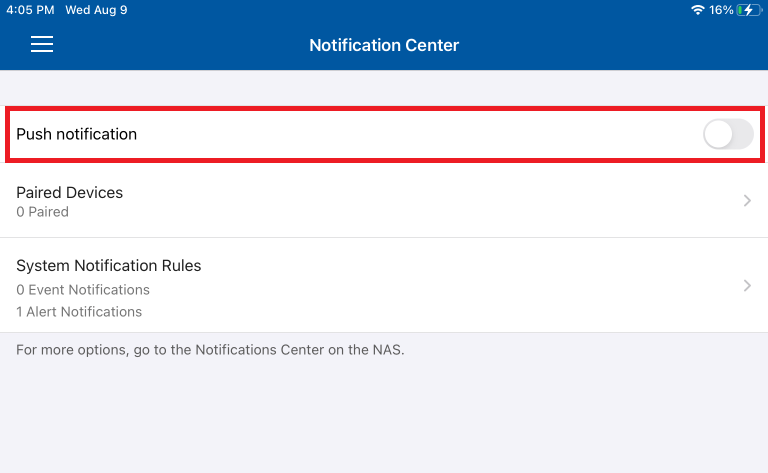
- Enable Push Notification in Notification Center on Qmanager.
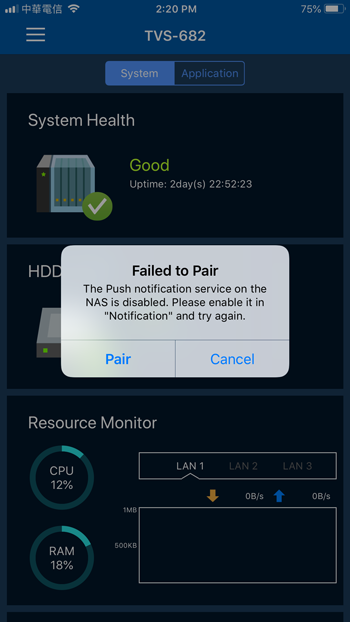
- Click Pair when a dialog box appears asking whether to pair the NAS.
Note
When you log in to QTS using Qmanager, Qmanager displays a dialog box asking whether to pair the NAS with your mobile device.
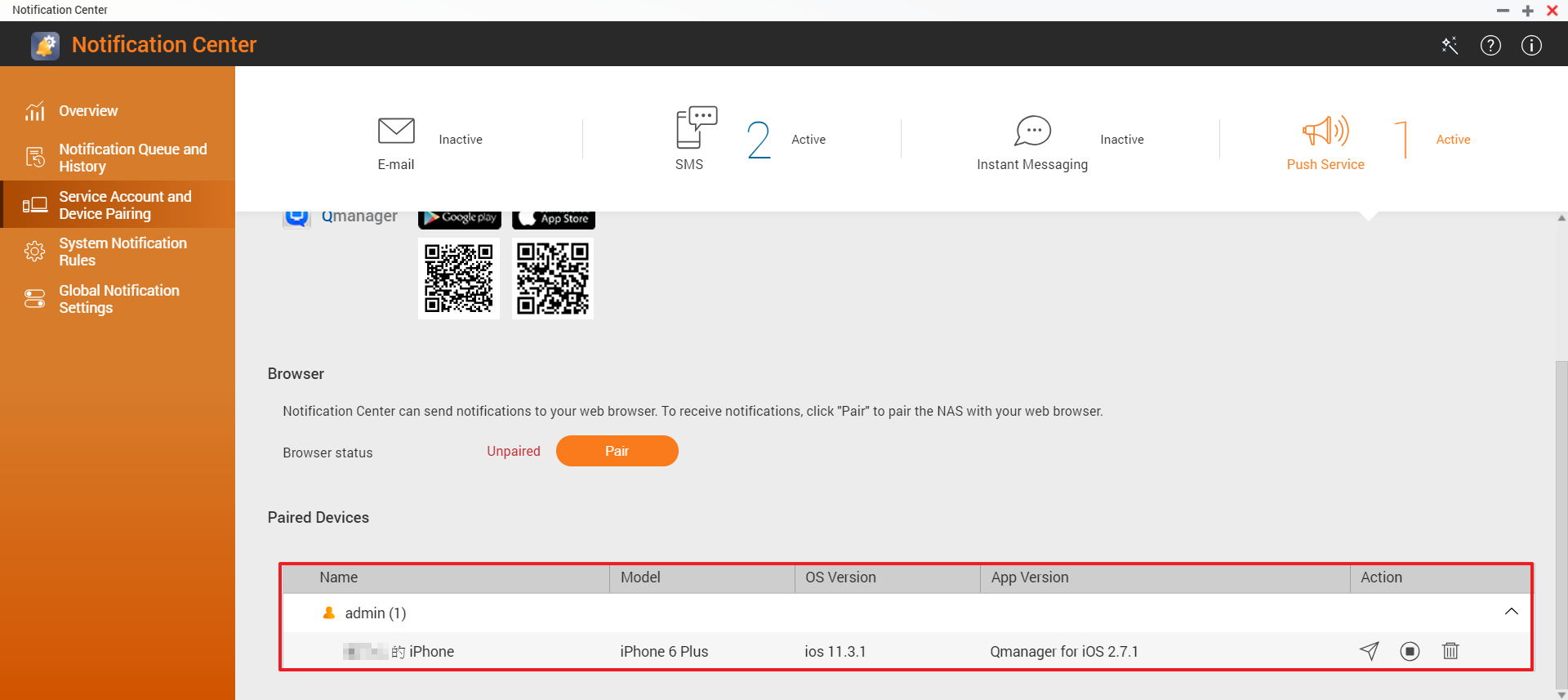
- In Notification Center, verify that the NAS has been paired with your mobile device via Qmanager.
The setup is now complete. You can click the  icon to send a test message.
Pair via web browser
- In Notification Center, click Pair.
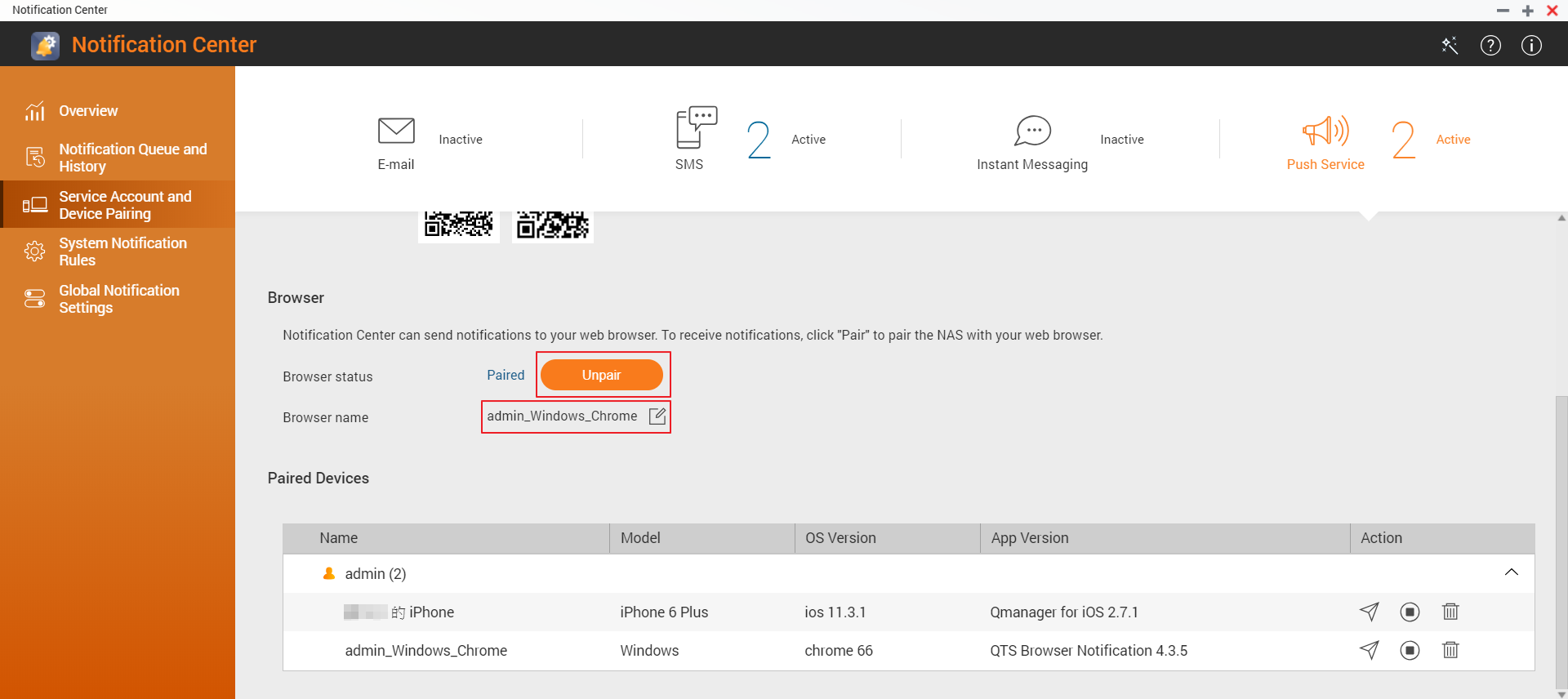
- (Optional) Edit the browser name.
The setup is now complete. You can click the icon to send a test message.
Still need help?
Post your question in QNAP Community. QNAP staff and experienced users will reply.


