


How can I collect more information when my NAS gets stuck during startup?
Last modified date:
2026-07-10
Applicable Products
- NAS models with HDMI™ output (like TVS series)
Solution
If your NAS gets stuck during startup, the most important thing is to identify where the boot process stops and capture the on-screen messages.
Prerequisites
- A monitor or TV with HDMI™ input.
- An HDMI™ cable.
- A USB keyboard.
- A phone or camera to take clear photos of the screen.
For TVS models that provide HDMI™ and USB ports, you can connect a monitor and keyboard to collect first-hand boot information for troubleshooting.
e.g. TVS-673e
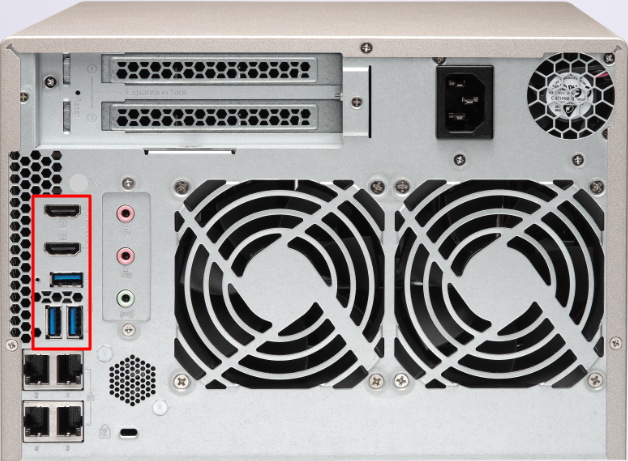
- Power off the NAS.
- Connect the NAS HDMI™ port to a monitor/TV.
- Connect a USB keyboard to the NAS.
- Switch the monitor/TV to the correct HDMI™ input source.
- Power on the NAS and watch the startup messages from the beginning.
- If startup appears stuck for more than 5-10 minutes, do not force power off immediately. First record:
- The exact last line shown on screen.
- Any error keywords such as "failed", "error", "timeout", or "kernel panic".
- Whether the cursor is still blinking or messages are still updating.
- NAS LED behavior and whether there is a buzzer/beep sound.
- Approximate time since power-on when it stops.
- Take one or more clear photos of the screen, including the last few lines.
- If available, capture additional photos from different angles or screens for context.
Additional system details to provide
- NAS model and serial number.
- Firmware version (if known).
- Any recent changes, such as:
- Firmware update.
- Unexpected power outage.
- Disk replacement or re-seating.
- Memory upgrade.
- New external device (USB/PCIe expansion card).
- Reproducibility: always stuck or only intermittent.
Minimum information package for support
- NAS model (for example, TVS-673e).
- Problem summary (startup stuck and approximate time to freeze).
- HDMI™ screen photos with readable error/last lines.
- LED and buzzer status.
- Recent environment or hardware changes.
Further Reading
Still need help?
Post your question in QNAP Community. QNAP staff and experienced users will reply.


