


How to Restore Your Windows PC with HDP Recovery Media Creator
Last modified date:
2026-04-01
Applicable Products
- HDP for PC/VM = 2.3.3 and later
- HDP PC Agent = 1.4.0 and later
- HDP Recovery Media Creator = 1.0.0 and later
This tutorial explains how to create recovery media and perform a full system restore of your Windows PC using HDP Recovery Media Creator.
Prerequisites
Before starting, ensure you have:
- At least one successful backup of your Windows PC stored on your QNAP NAS
- A Windows 7 or later PC (for creating recovery media)
- A USB drive larger than 1 GB, or more than 1 GB of storage space for an ISO file
Overview
HDP Recovery Media Creator creates bootable recovery media (USB or ISO) that contains the HDP Recovery Wizard and the necessary tools for system restoration. Once created, the recovery media can be reused to restore your PC to any available backup version.
Part 1: Create Recovery Media
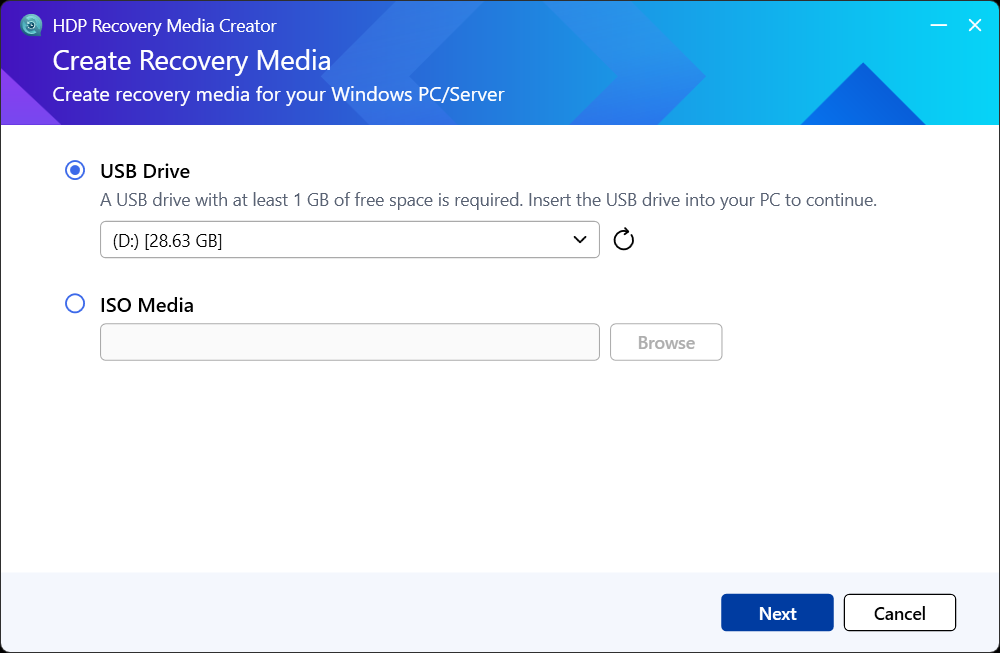
Step 1: Select Recovery Media Type
- Download and install HDP Recovery Media Creator
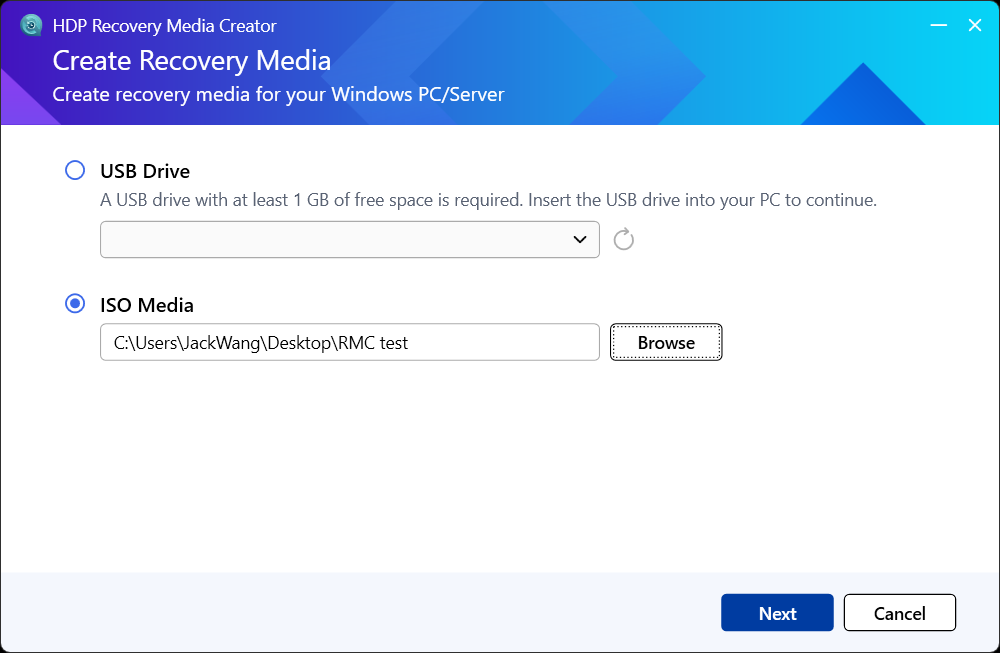
- Launch the application and select your media type:
- USB Drive: Create a bootable USB recovery drive
- ISO Media: Create an ISO image file (for CD/DVD or virtual machines)
Step 2: Create Recovery Media
Option A: USB Recovery Media
- Select USB Drive and insert a USB drive larger than 1 GB
- Select your USB drive and click Next
First-Time Setup: Install Required Components
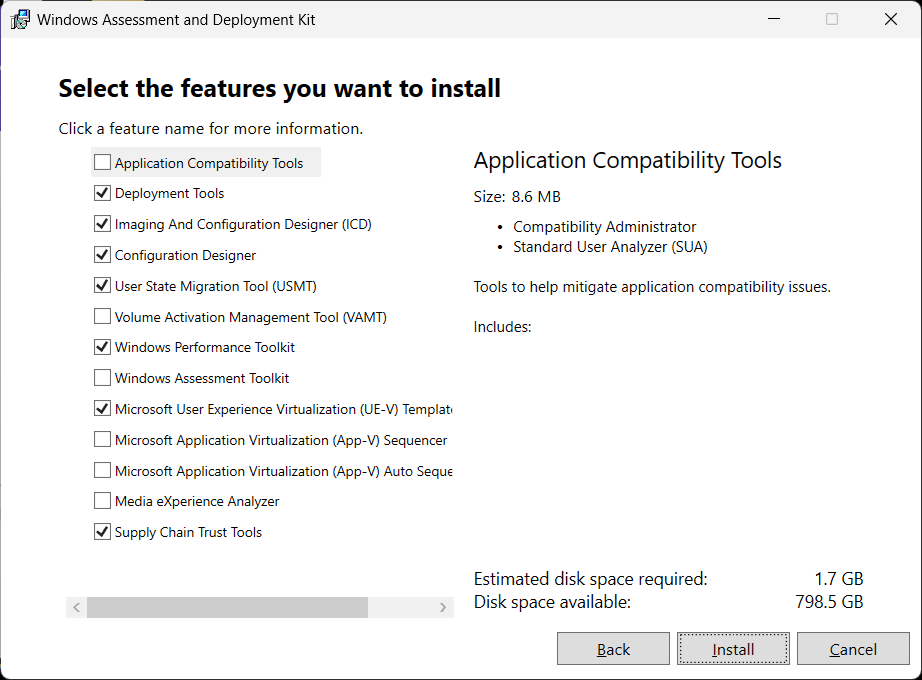
When creating recovery media for the first time, the system will automatically guide you to install:
- Windows ADK (Deployment
Tools): Check Deployment Tools and install
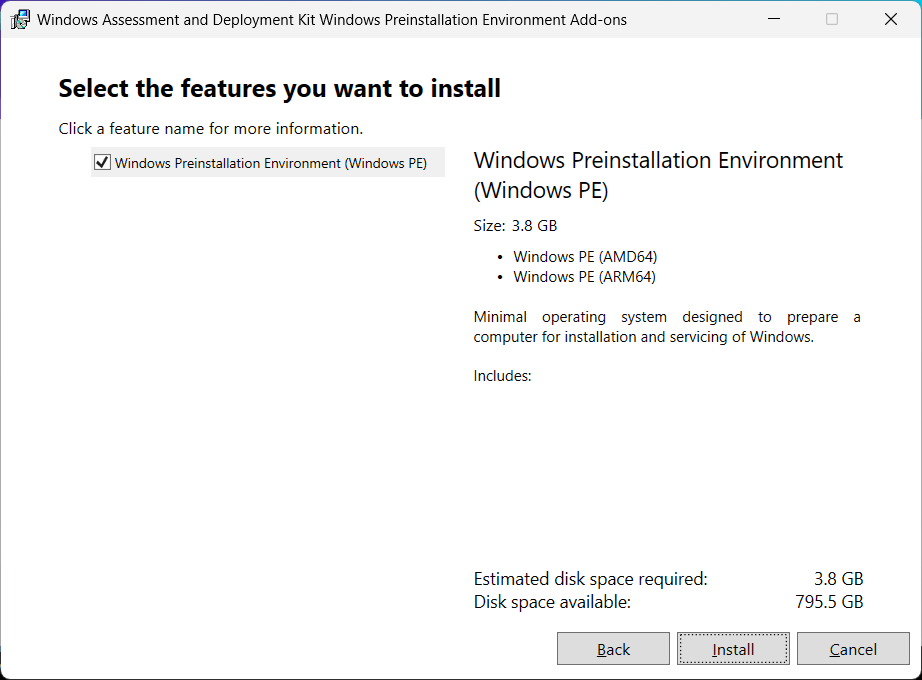
- Windows PE
Add-on: Check Windows PE and install (requires approximately
3.8 GB of disk space)
Complete Creation
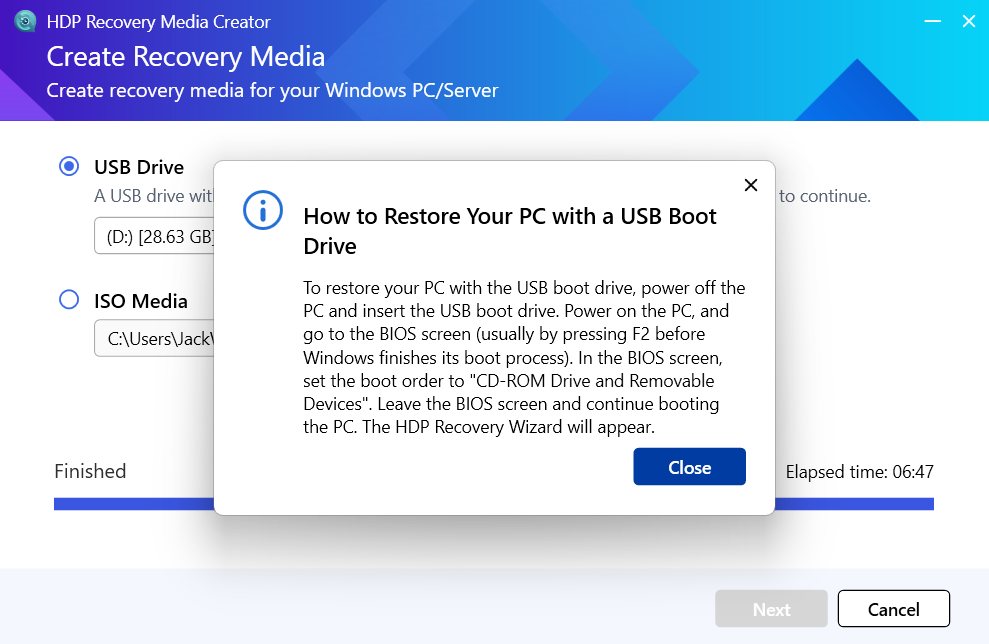
- Confirm the format warning (USB data will be erased) and click Continue
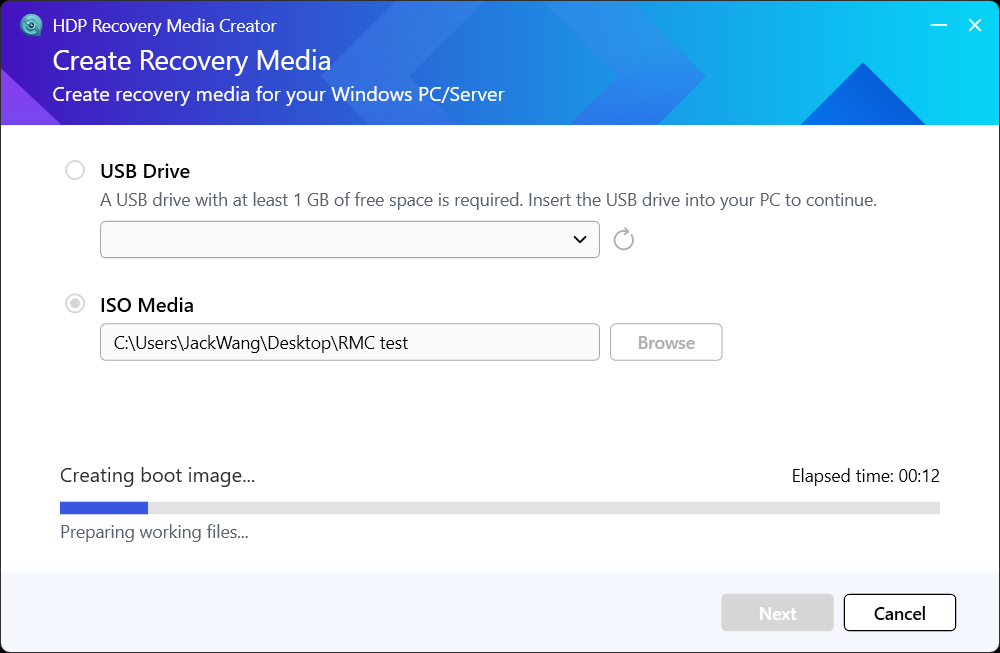
- Wait for the creation to complete (approximately 5-10 minutes)
Option B: ISO Recovery Media
- Select ISO Media
- Choose the save location and filename for the ISO file
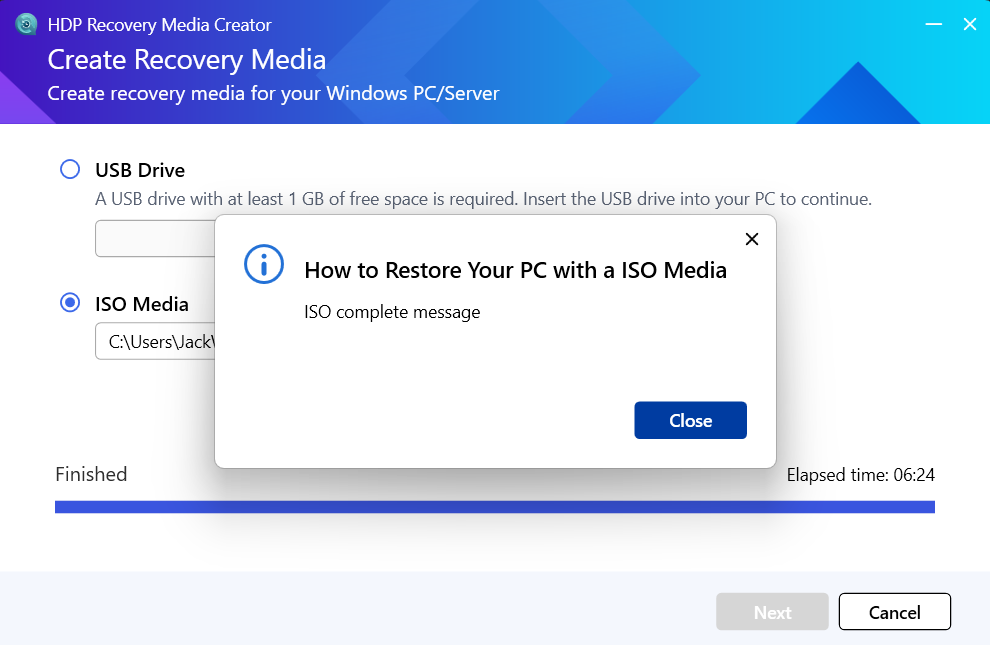
- Click Next and wait for the creation to complete
Part 2: Restore Your Windows PC
Step 3: Configure BIOS to Boot from Recovery Media
- Insert the USB recovery media into the target PC (or mount the ISO)
- Restart the PC and press the BIOS key (common keys: F2, F12, Del, or Esc)
- In the BIOS, move USB or CD-ROM to the top of the boot order
- Save changes (usually by pressing F10) and restart
Step 4: Launch the HDP PC Agent Restore Wizard
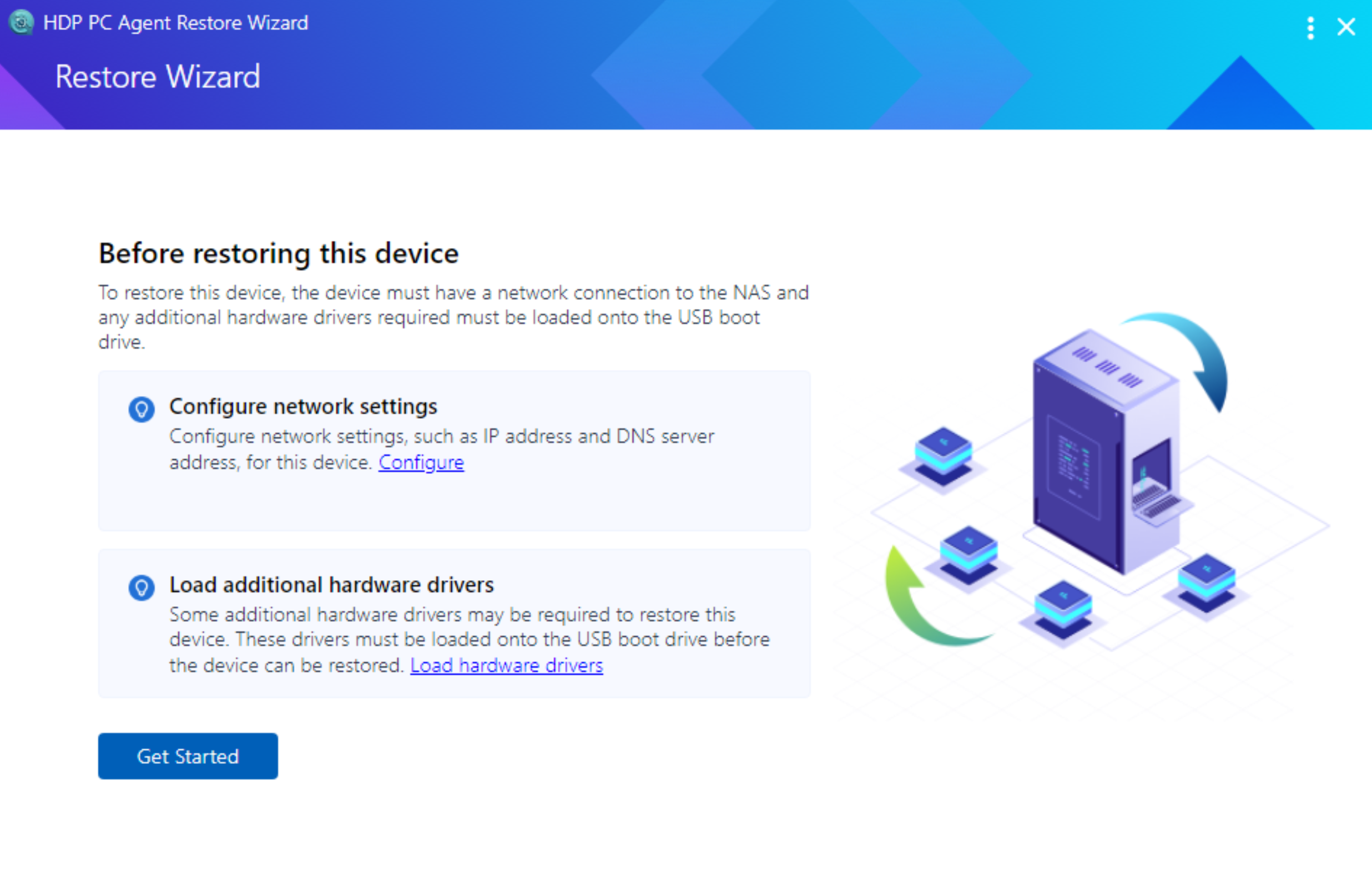
- After the system boots from the recovery media, the HDP PC Agent Restore Wizard will launch automatically
- To manually configure the network or load drivers, click the corresponding option on the welcome screen (optional)
- Click Get Started to begin the restore process
Step 5: Connect to QNAP NAS and Select Backup
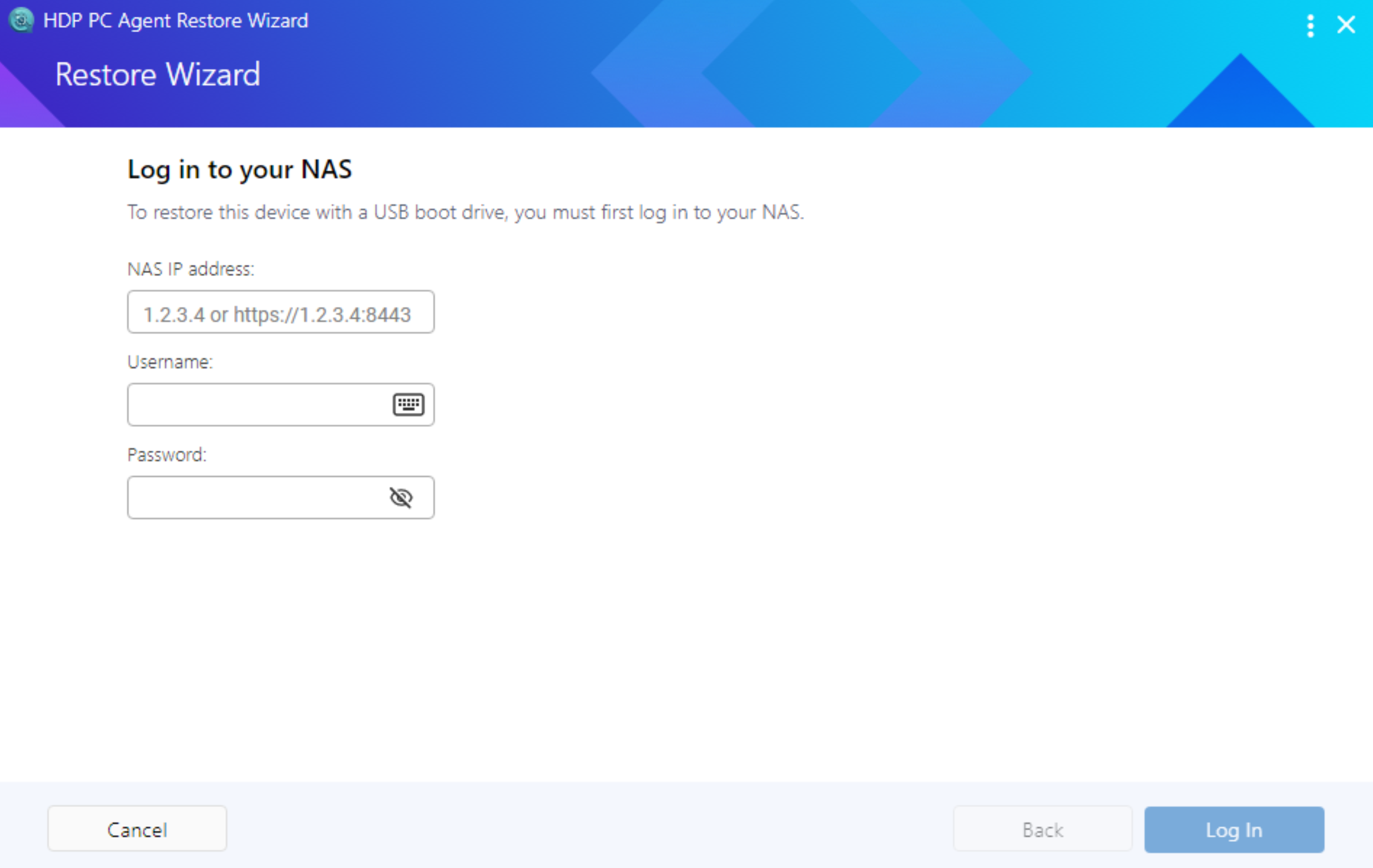
- Enter the NAS IP address, username, and password, then click Log In
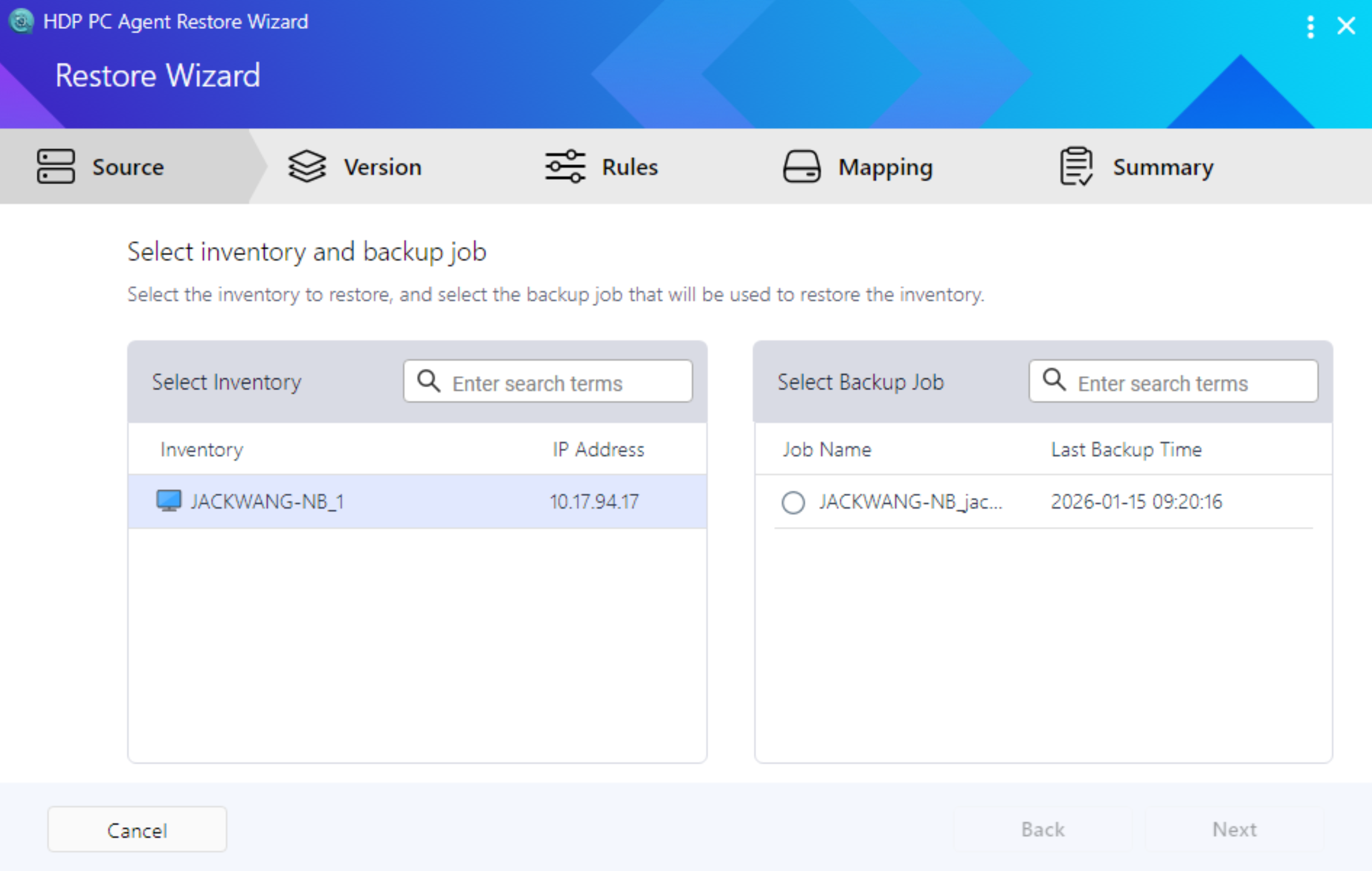
- Select the Inventory (device list) and Backup Job you want to restore
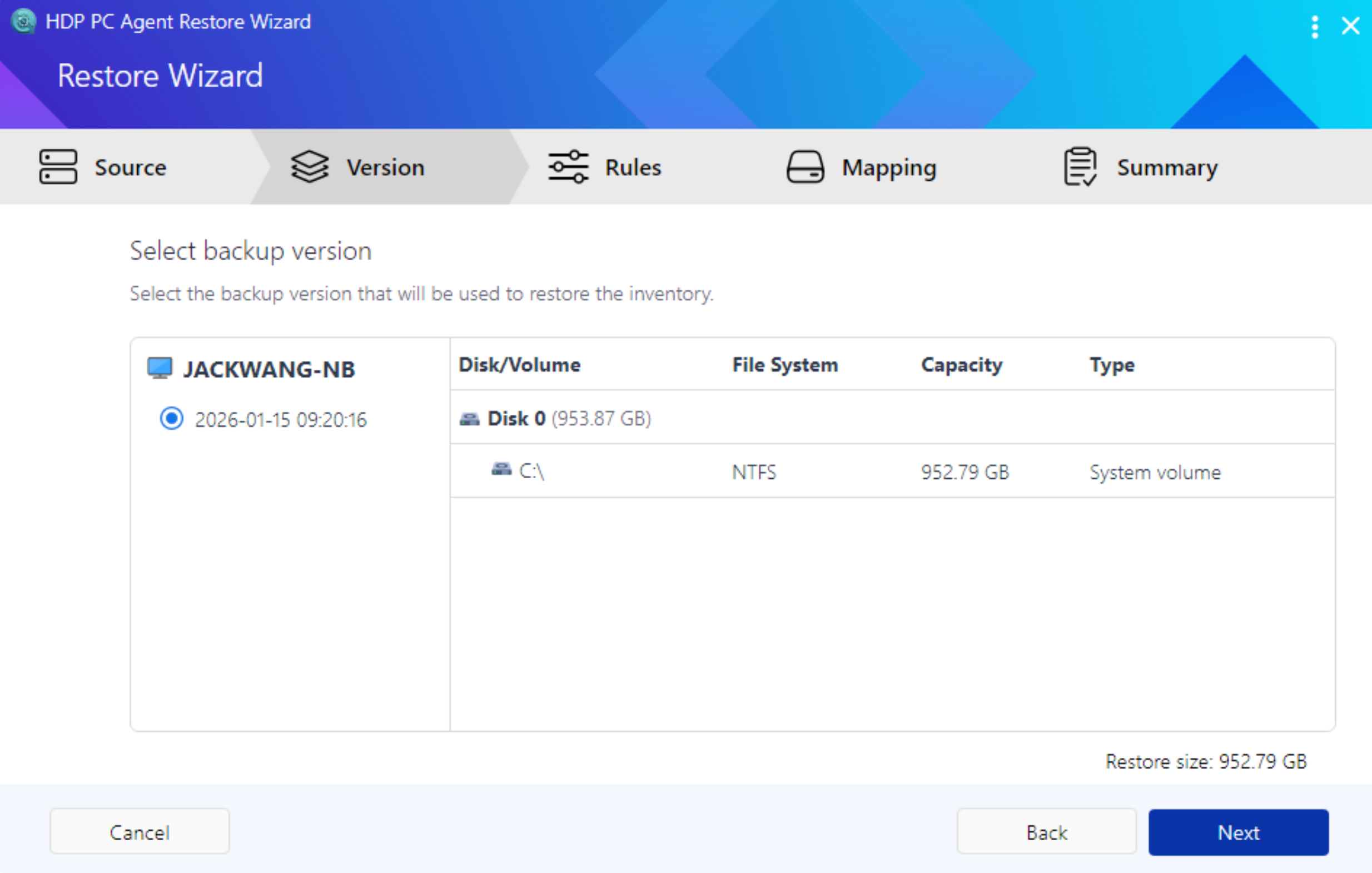
Step 6: Select Backup Version and Restore Type
- Select the backup version you want to restore from the left panel; disk information and restore size will be displayed on the right
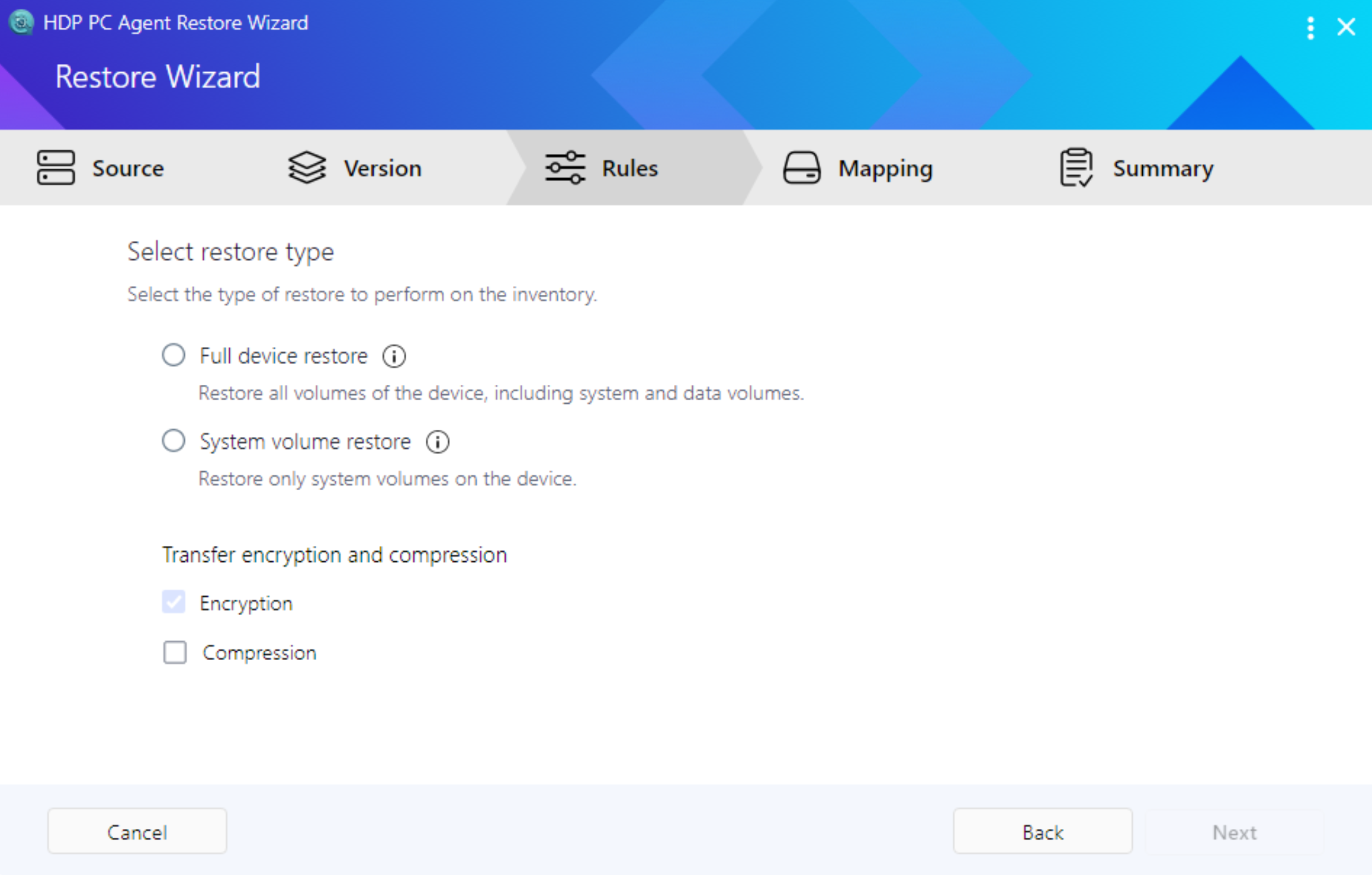
- Choose the restore type:
- Full device restore: Restore all disk volumes (system + data)
- System volume restore: Restore only the system volume
Step 7: Configure Disk Mapping and Start Restore
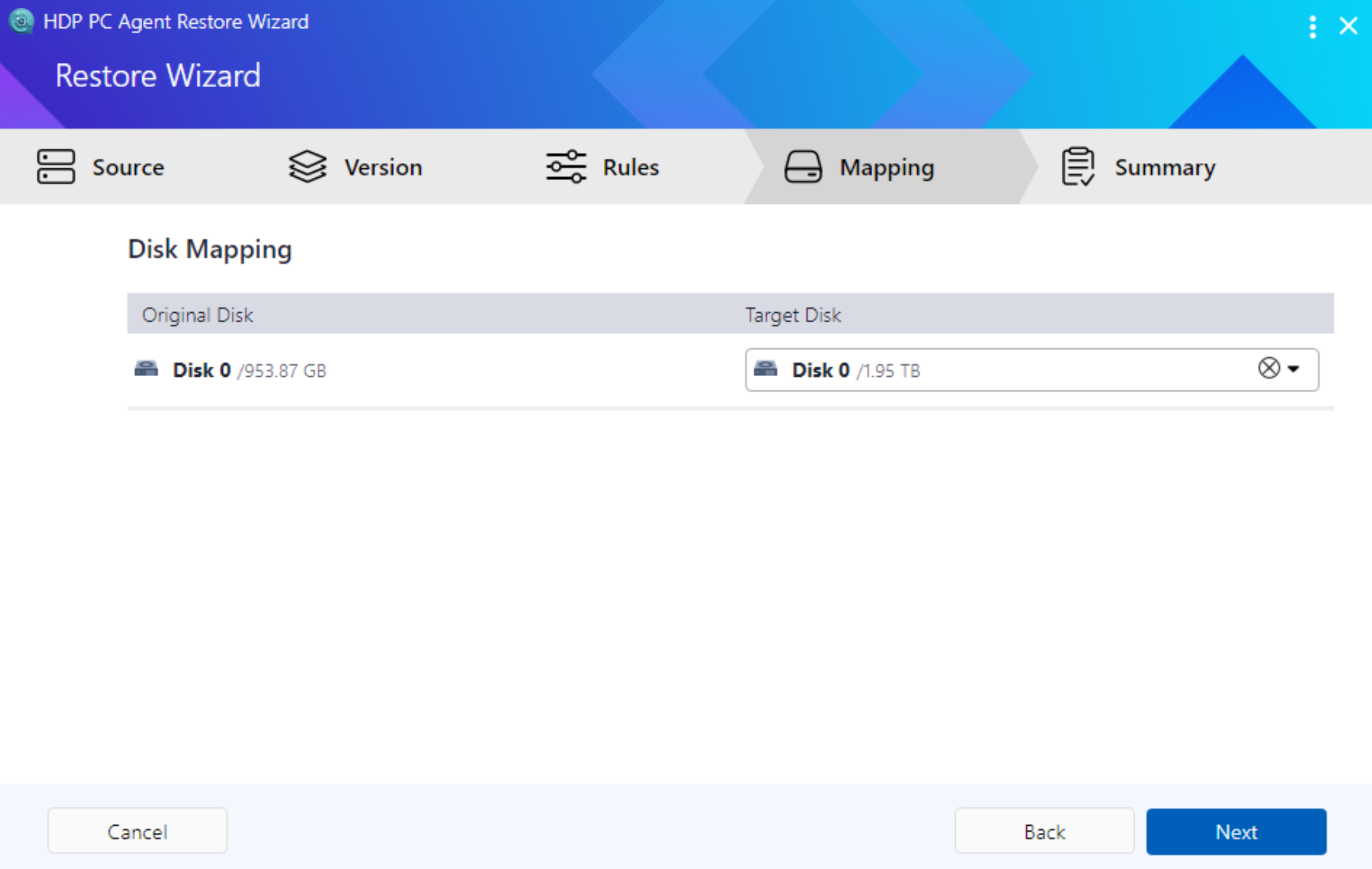
- Check the mapping relationship from source disks to target disks; you can change it by clicking the dropdown menu if needed
- Review the restore summary (Inventory, backup date, restore type, disk mapping)
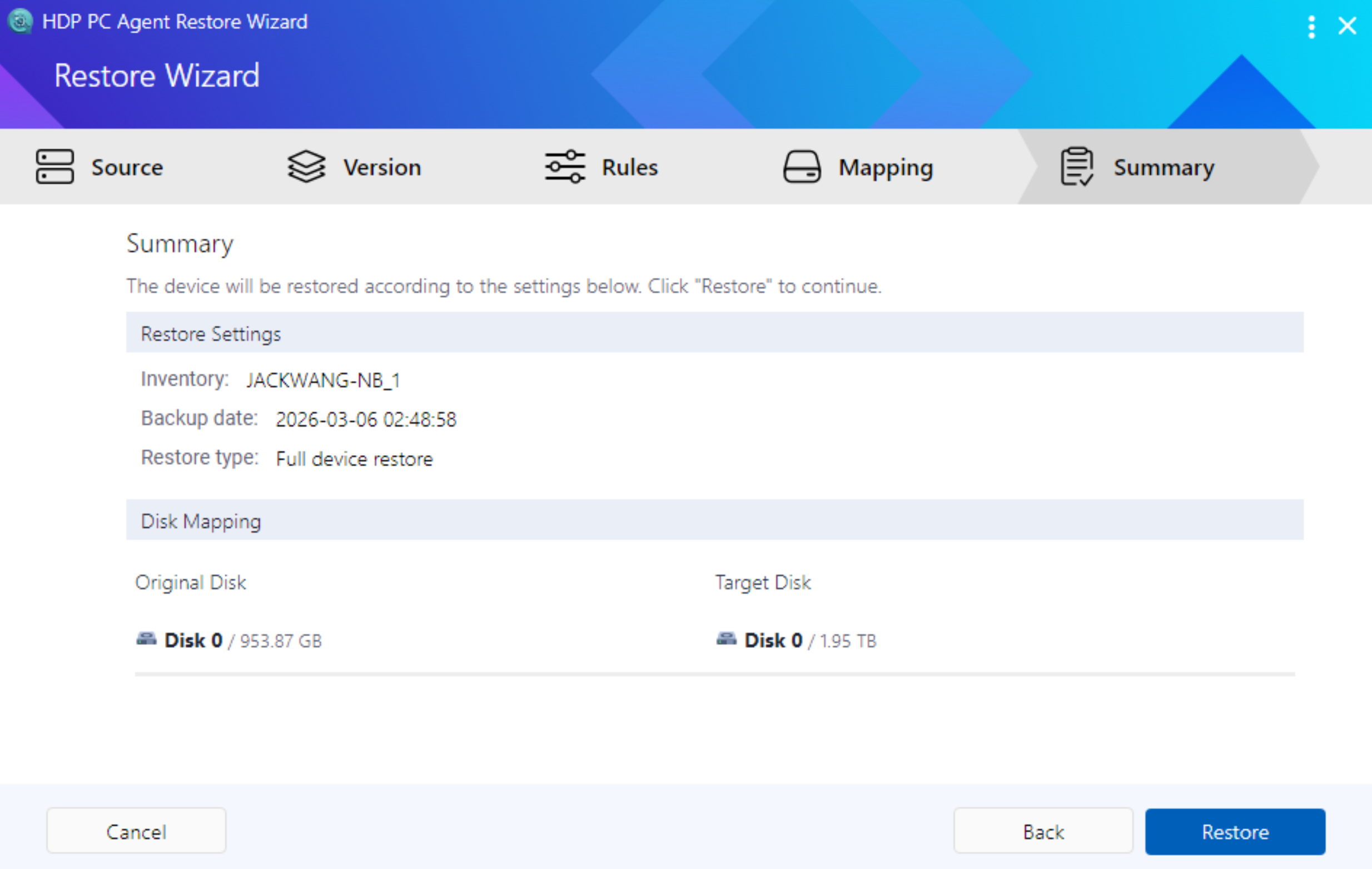
- After confirming everything is correct, click Restore to start the restore
Step 8: Complete the Restore
- Wait for the restore to complete (the wizard displays progress percentage and estimated time)
- After the restore is complete, remove the recovery media
- Choose to restart or shut down
- After the system restarts, it should display the desktop, settings, and data from the restore point
Further Reading
How do I back up my Windows PC or server with HDP PC Agent?
How do I restore files to my Windows PC or server with HDP Backup Explorer?


