


How do I install WordPress on an ARM-based QNAP NAS using Container Station?
Last modified date:
2025-11-27
Applicable Products
- QNAP NAS devices with ARM-based processors
- Container Station
Scenario
The built-in WordPress app is not available for ARM-based QNAP NAS devices. However, you can deploy WordPress by using Container Station and Docker Compose.
Procedure
- Install Container Station
- Open the App Center on your QNAP NAS.
- Search for Container Station and click Install.
- Launch Container Station after installation is complete.
- Create and deploy the WordPress application using Docker Compose
- Open Container Station.
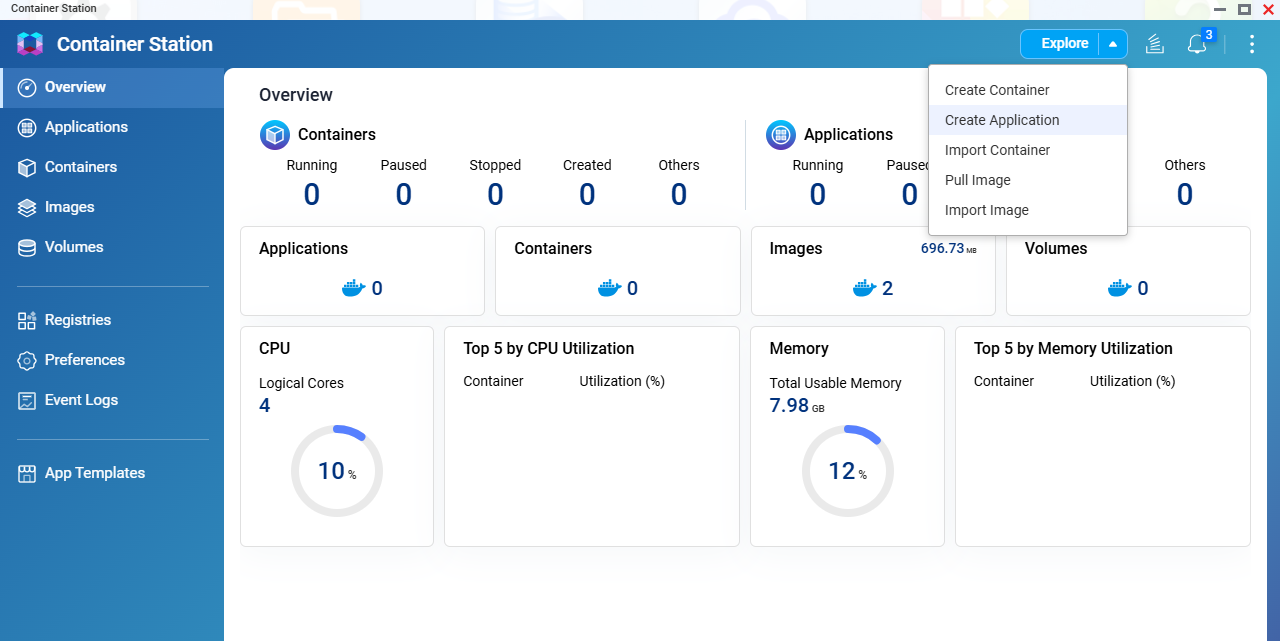
- Go to the Explore menu and select Create Application.
- Enter an application name, such as
wordpress. - If Docker Compose is supported in your version of Container Station, upload or paste your
docker-compose.ymlfile. - Copy and paste the following YAML code:
services: db: image: wlanboy/mariadb-arm32v7:latest container_name: wordpress-db restart: always environment: MYSQL_ROOT_PASSWORD: your_root_password MYSQL_DATABASE: wordpress MYSQL_USER: wpuser MYSQL_PASSWORD: your_wp_password volumes: - ./db:/var/lib/mysql wordpress: image: arm32v7/wordpress:php7.3-apache container_name: wordpress-web restart: always ports: - "8888:80" environment: WORDPRESS_DB_HOST: db:3306 WORDPRESS_DB_USER: wpuser WORDPRESS_DB_PASSWORD: your_wp_password WORDPRESS_DB_NAME: wordpress volumes: - ./wordpress:/var/www/html depends_on: - db- Security Reminder: For security, change the default database passwords in your
docker-compose.ymlfile before deploying.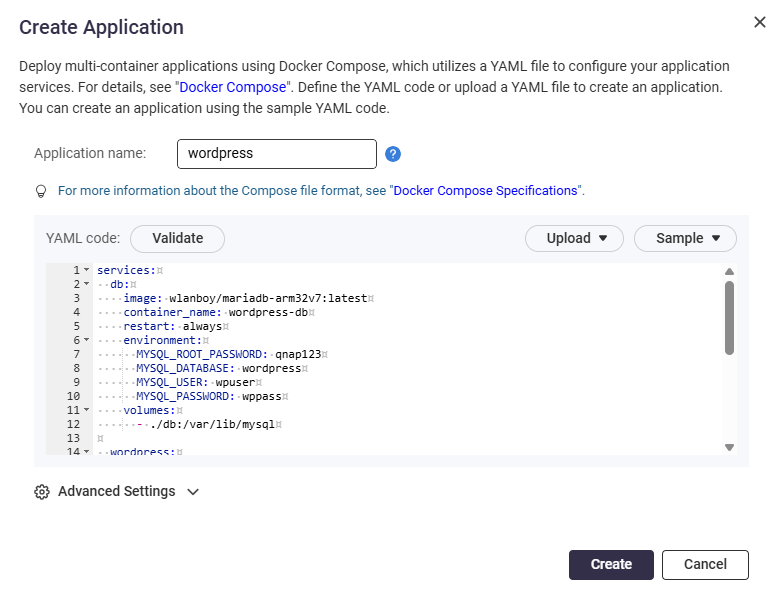
- Click Validate to check the code.
- Click Create to start creating the application.

- Note: The default web port is 8888. You may change this port if needed.
- Access WordPress
- After deployment, go to Application to confirm it is running.
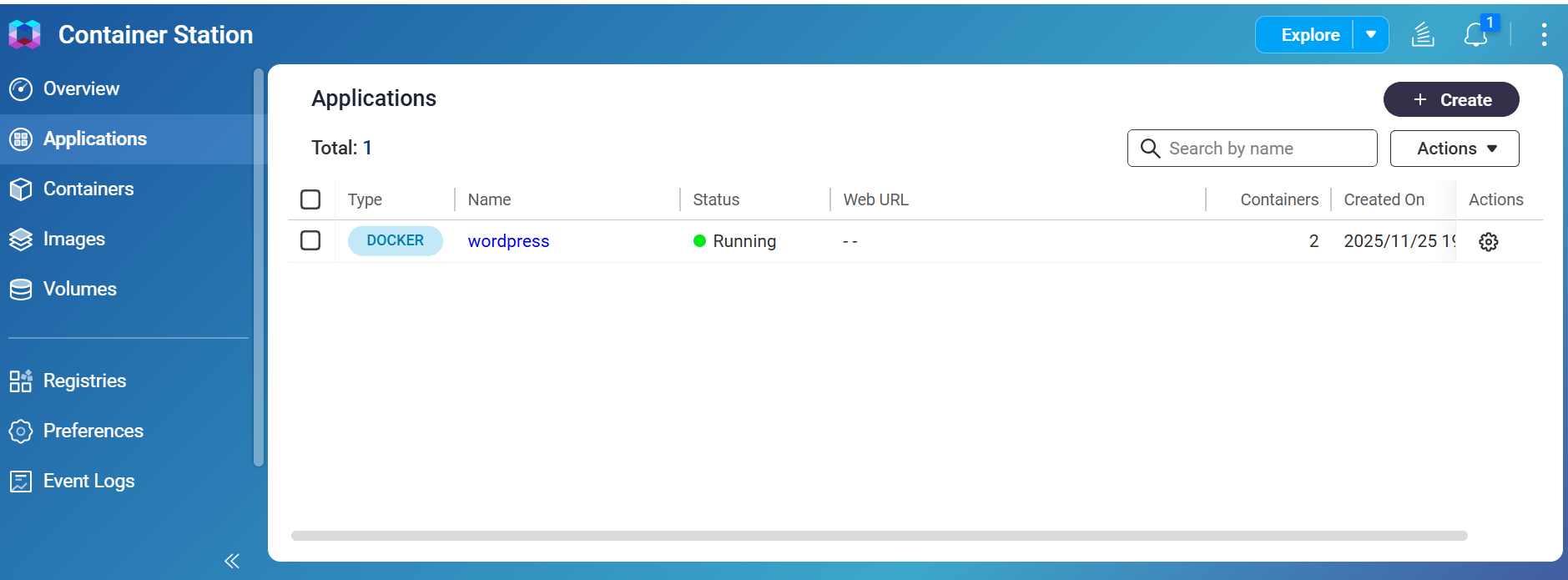
- Open a web browser and enter the NAS IP address and the port you assigned to the WordPress container (for example,
http://NAS-IP:8888).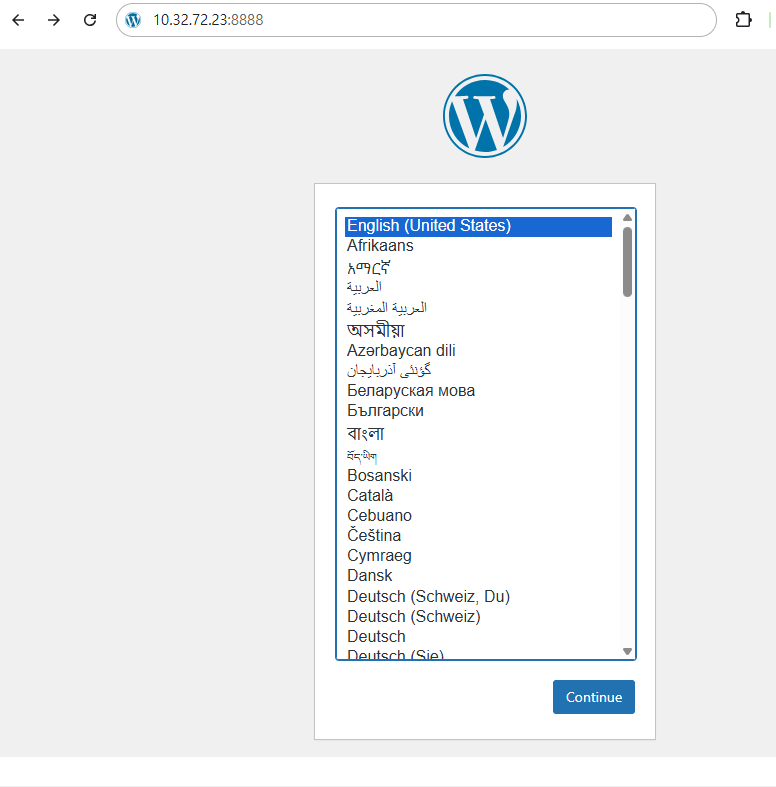
- Follow the on-screen instructions to complete the WordPress setup, then log in to WordPress.
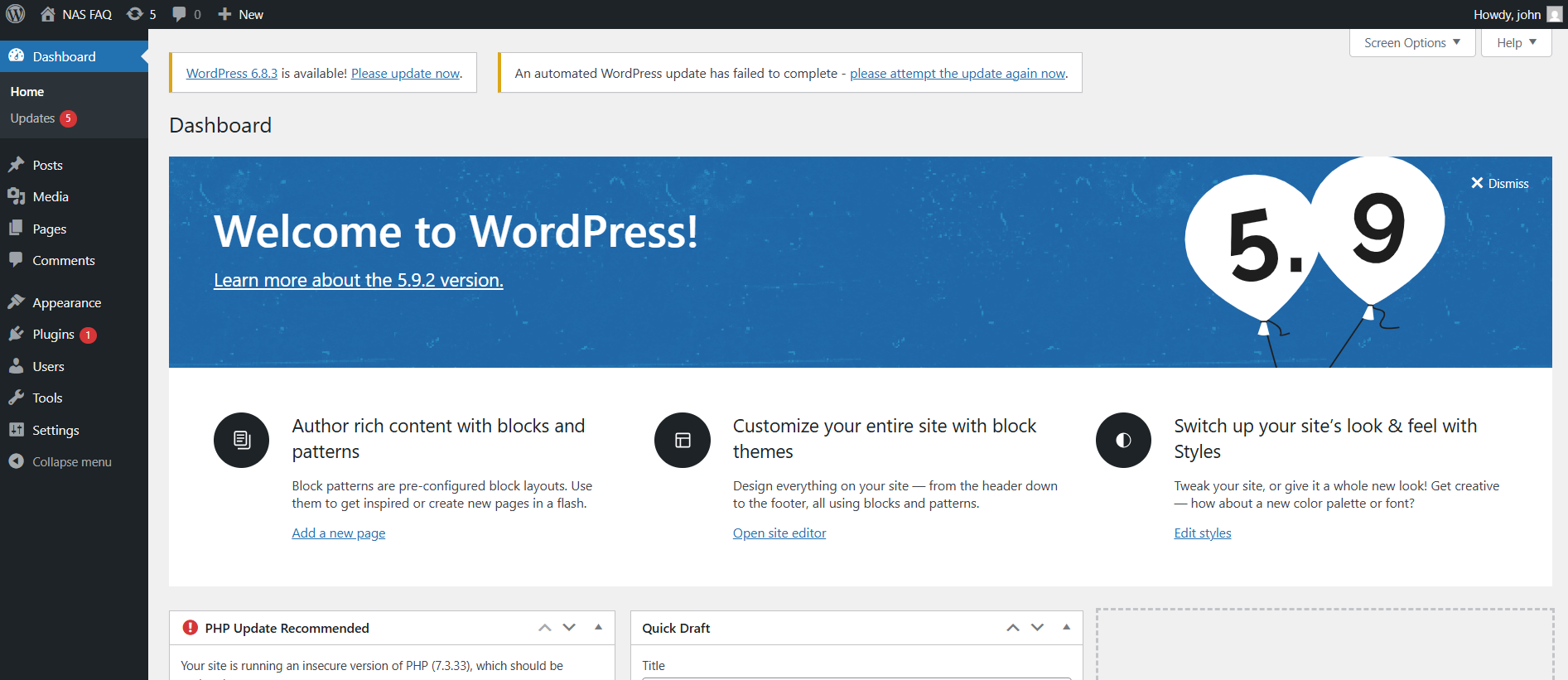
- After deployment, go to Application to confirm it is running.
Note: Docker Compose is a tool for defining and running multi-container Docker applications using a simple YAML file. Some older versions of Container Station may not support Docker Compose. Refer to your QNAP product documentation for details on feature availability.


