Applicable Products
Introduction
All NAS devices have the default system administrator account "admin". This account can configure settings, create users, and install applications. This account cannot be deleted and depending on your QTS/QuTS hero version may be disabled by default.
The default password of the "admin" account varies depending on your QTS/QuTS hero versions. Please check your versions before proceeding.
Concepts
Understanding NAS Account & Cloud Key & QNAP ID
Tip
- We recommend understanding the differences between these three concepts before proceeding to steps.
- Whenever you log in to your NAS or to a QNAP service, please double-check the account type you are prompted to provide.
NAS Account: A NAS account is a local account on your QNAP NAS, used to log in to this specific device. "admin" is the NAS account created by default on every NAS. For QTS/QuTS hero 5.2.0 and later, this account is disabled by default and is automatically re-enabled after a system reset. This FAQ explains how to retrieve the password of this default "admin" NAS account. If you have created a different administrator account during device setup, the passwords described in this FAQ do not apply to that account.
Cloud Key: A Cloud Key is a unique identifier that comes with every QNAP NAS, regardless of whether you have configured any cloud settings. You can usually find the Cloud Key on a sticker on your device, in your Quick Installation Guide or in your device details on Qfinder Pro. For QTS/QuTS hero 5.2.0 and later, this Cloud Key serves as the default password for the "admin" NAS account. Outside of that specific use, do not treat your Cloud Key as a login credential.
QNAP ID (QNAP Account): A QNAP ID (QNAP Account) is an account (typically your email address or phone number) used to access various QNAP services (such as myQNAPcloud) and to manage your NAS remotely. Your QNAP ID and your NAS account are separate credentials with separate passwords.
Details
QTS/QuTS hero 5.2.0 and later (such as 5.2.x, 5.3.x, 6.0.0)
Note
- The default "admin" account is disabled by default but will be automatically enabled after a system reset or system restore. To protect your system from malicious attacks, we recommend creating a new administrator account and disable the default administrator account "admin".
- To comply with the EU’s cybersecurity requirements, manufacturers must avoid universal default credentials. Corresponding EU/industry standards require no universal default passwords, mandating unique per-device credentials or enforcing a password change on first use. Accordingly, starting with QTS/QuTS hero 5.2.0, the default administrator password was changed to the device’s Cloud Key (earlier versions used the first NIC’s MAC; much older versions used admin/admin), aligning with these requirements.
The credentials of the default administrator NAS account:
- Username: admin
- Password: The Cloud Key of your device in uppercase letters and without any special characters. For example, if the Cloud Key is Q1234-5678, the password is Q12345678
Finding your device's Cloud Key
You can find the Cloud Key of your device with any of the following methods:
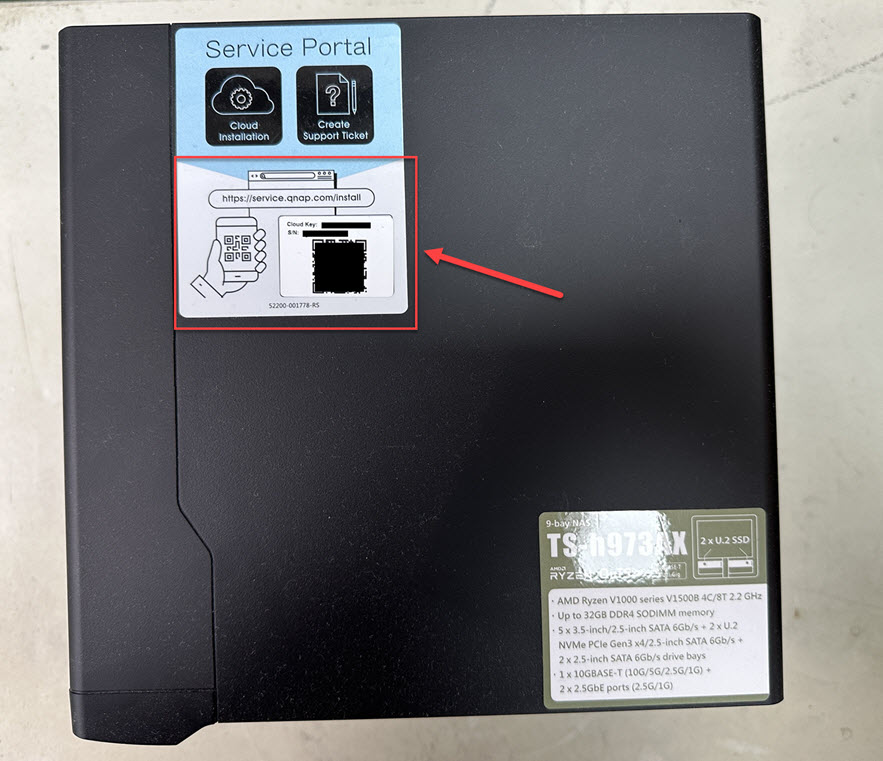
Method A: From the device sticker or the Quick Installation Guide
You can find your Cloud Key from the sticker attached to the cover of your NAS or from the Quick Installation Guide that comes with your NAS.
Method B: Use Qfinder Pro
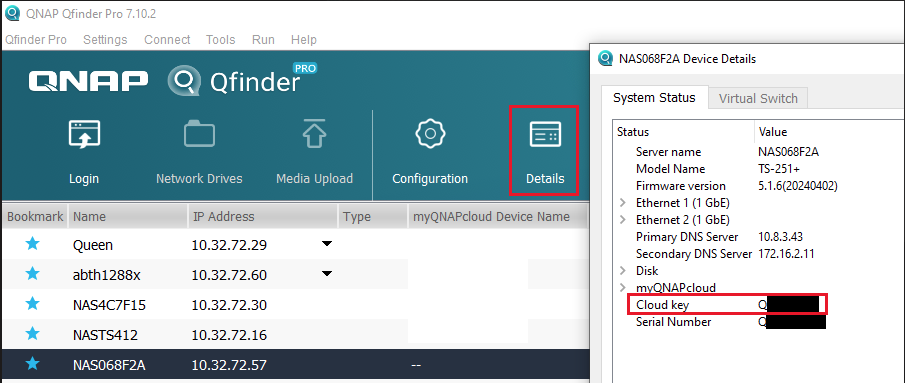
- Use Qfinder Pro without a NAS user account:
- Power off your NAS.
- Remove all hard drives from your NAS.
- Remove all internal M.2 SSDs and QM2 PCIe expansion card if any.
- Power on your NAS.
- Download and install Qfinder Pro.
- Open Qfinder Pro.
- Select your device.
- Click Details.
- The Device Details window appears.
Your device's Cloud Key is displayed in the Device Details window.
- Use Qfinder Pro with a NAS user account:
- Download and install Qfinder Pro.
- Open Qfinder Pro.
- Select your device.
- Click Details.
The Login window appears. Enter your NAS account username and password and click OK.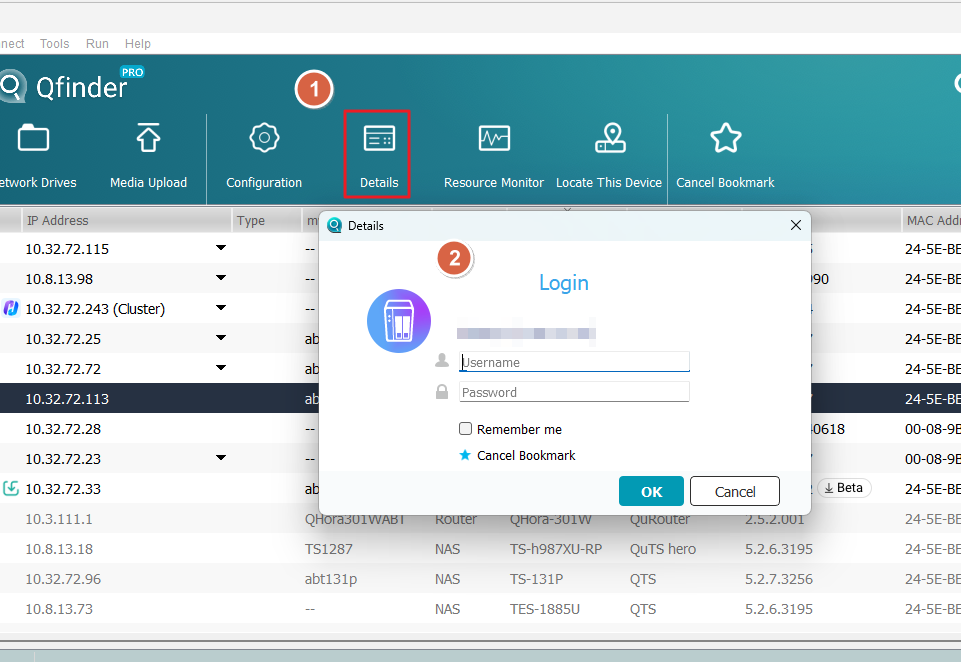
- The Device Details window appears.
Your device's Cloud Key is displayed in the Device Details window.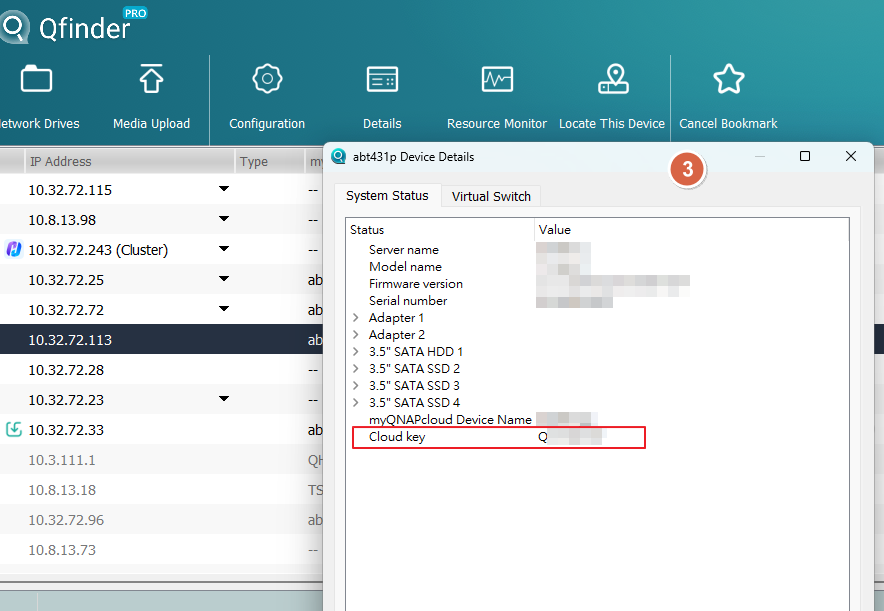
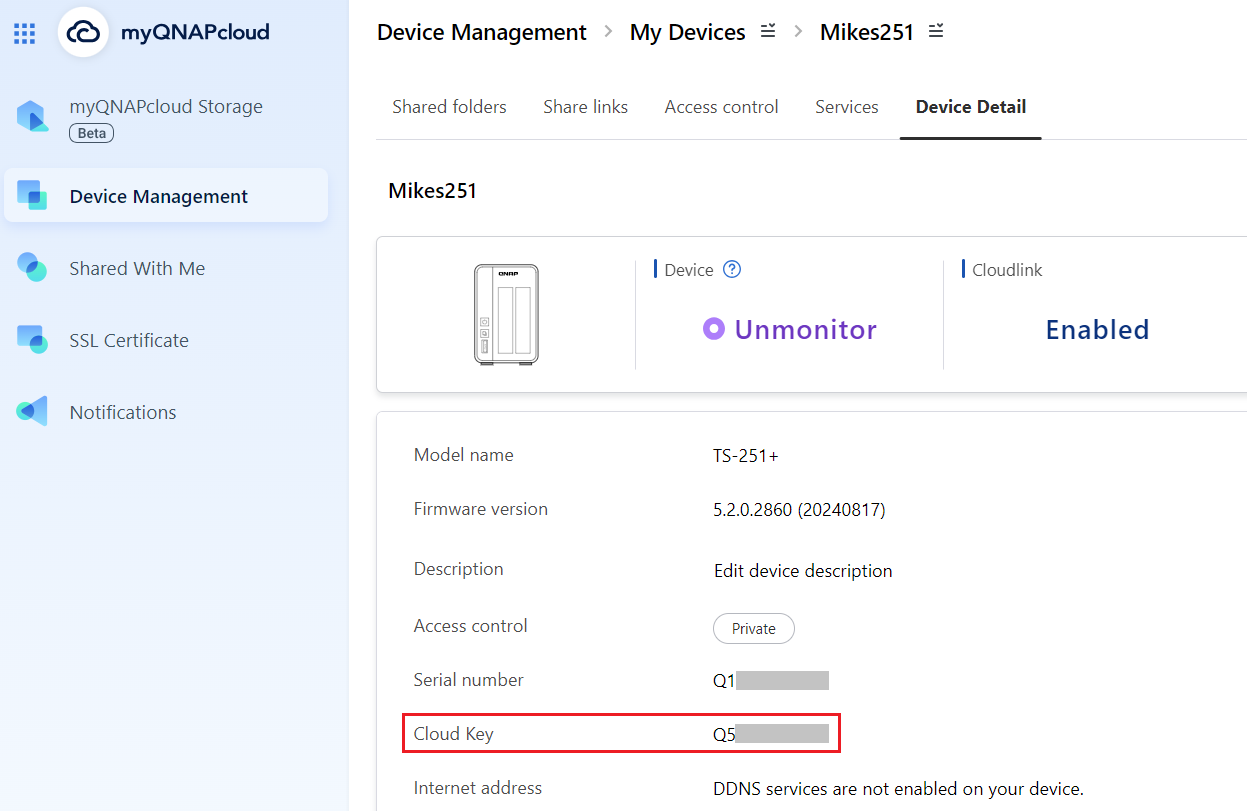
Method C: Use myQNAPcloud
- Log in to myQNAPcloudwith your QNAP ID:
- Login to myQNAPcloud.
- Go to Device Management.
- Locate and click on your device.
- Click Device Detail.
Your device's Cloud Key is displayed in the Device Detail tab.
If you cannot find your device's Cloud Key from the above methods, please contact QNAP customer support.
If you manually enable the "admin" account in Control Panel, you will need to specify a new password that is different from the Cloud Key of your device. If your firmware was updated from version 5.1.x or earlier, and you were using the default "admin" account with the default password, you will be required to change the password to something different than the Cloud Key of your device.
QTS/QuTS hero 4.4.2 - 5.1.x
The following default system administrator account is used:
Warning
To protect your system from malicious attacks, it is recommended to create a new administrator account and disable the default administrator account "admin".
- Username: admin
- Password: The first MAC address of the NAS in uppercase letters and without special characters. For example, if the MAC address was 00-08-9B-F6-15-75, the password is 00089BF61575
The MAC address sticker is physically attached to the rear of the NAS. If your NAS has multiple NICs, use the MAC address listed as MAC1: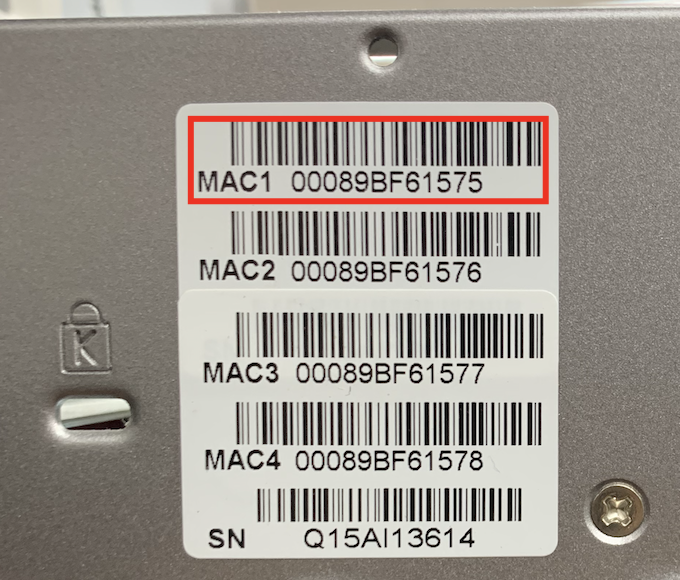
In Qfinder Pro, the value is listed in the MAC Address column: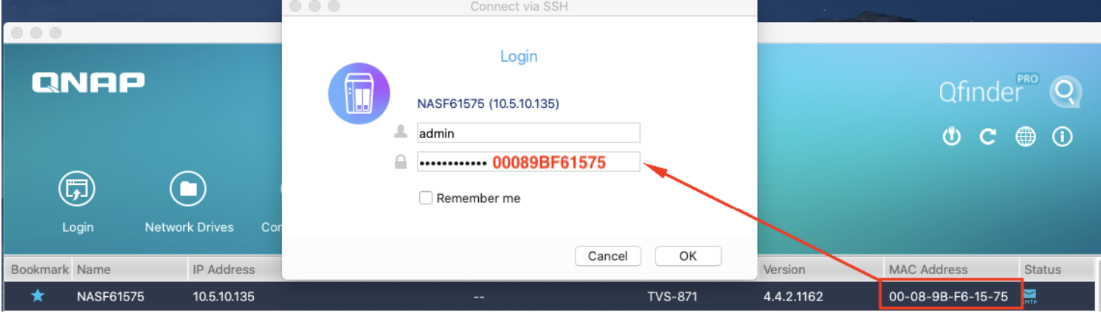
QTS/QuTS hero 4.4.1 - 4.3.6 or earlier
The following default system administrator account is used:
Warning
To protect your system from malicious attacks, it is recommended to create a new administrator account and disable the default administrator account "admin".
- Username: admin
- Password: admin
Further Reading
How do I find my NAS device's Cloud Key?
How do I reset the administrator password of my NAS?
How to disable the ''admin'' user account?
Are there any impacts if I disable the default admin account?
Why can't I disable admin account?
ผลิตภัณฑ์ที่รองรับ
บทนำ
อุปกรณ์ NAS ทั้งหมดมีบัญชีระบบ ผู้ดูแลระบบ เริ่มต้น "admin" บัญชีนี้สามารถกำหนดค่าการตั้งค่า สร้างผู้ใช้ และติดตั้งแอปพลิเคชัน บัญชีนี้ไม่สามารถลบได้และขึ้นอยู่กับเวอร์ชัน QTS/QuTS hero ของคุณ อาจถูกปิดใช้งานโดยค่าเริ่มต้น
รหัสผ่านเริ่มต้นของบัญชี "admin" จะแตกต่างกันไปตามเวอร์ชัน QTS/QuTS hero ของคุณ กรุณาตรวจสอบเวอร์ชันของคุณก่อนดำเนินการ
แนวคิด
ทำความเข้าใจบัญชี NAS & Cloud Key & QNAP ID
เคล็ดลับ
- เราแนะนำให้ทำความเข้าใจความแตกต่างระหว่างแนวคิดทั้งสามนี้ก่อนดำเนินการตามขั้นตอน
- เมื่อใดก็ตามที่คุณเข้าสู่ระบบ NAS หรือบริการ QNAP กรุณาตรวจสอบประเภทบัญชีที่คุณถูกขอให้ระบุอีกครั้ง
บัญชี NAS: บัญชี NAS คือบัญชีท้องถิ่นบน QNAP NAS ของคุณ ใช้สำหรับเข้าสู่ระบบอุปกรณ์นี้โดยเฉพาะ "admin" เป็นบัญชี NAS ที่สร้างขึ้นโดยค่าเริ่มต้นในทุก NAS สำหรับ QTS/QuTS hero 5.2.0 และใหม่กว่า บัญชีนี้จะถูกปิดใช้งานโดยค่าเริ่มต้นและจะเปิดใช้งานอีกครั้งโดยอัตโนมัติหลังจากรีเซ็ตระบบ คำถามที่พบบ่อยนี้อธิบายวิธีการดึงรหัสผ่านของบัญชี "admin" ที่เป็นค่าเริ่มต้น หากคุณได้สร้างบัญชี ผู้ดูแลระบบ ที่แตกต่างกันในระหว่างการตั้งค่าอุปกรณ์ รหัสผ่านที่อธิบายไว้ในคำถามที่พบบ่อยนี้จะไม่สามารถใช้กับบัญชีนั้นได้
Cloud Key: Cloud Key เป็นตัวระบุเฉพาะที่มาพร้อมกับทุก QNAP NAS ไม่ว่าคุณจะได้ตั้งค่าคลาวด์หรือไม่ก็ตาม คุณสามารถพบ Cloud Key ได้บนสติกเกอร์บนอุปกรณ์ของคุณ ในคู่มือการติดตั้งด่วน หรือในรายละเอียดอุปกรณ์ของคุณบน Qfinder Pro สำหรับ QTS/QuTS hero 5.2.0 และใหม่กว่า Cloud Key นี้ทำหน้าที่เป็นรหัสผ่านเริ่มต้นสำหรับบัญชี NAS "admin" นอกเหนือจากการใช้งานเฉพาะนั้น อย่าถือว่า Cloud Key ของคุณเป็นข้อมูลรับรองการเข้าสู่ระบบ
QNAP ID (บัญชี QNAP): QNAP ID (บัญชี QNAP) คือบัญชี (โดยทั่วไปคือที่อยู่อีเมลหรือหมายเลขโทรศัพท์ของคุณ) ที่ใช้ในการเข้าถึงบริการต่างๆ ของ QNAP (เช่น myQNAPcloud) และจัดการ NAS ของคุณจากระยะไกล QNAP ID ของคุณและบัญชี NAS ของคุณเป็นข้อมูลรับรองที่แยกจากกันและมีรหัสผ่านแยกกัน
รายละเอียด
QTS/QuTS hero 5.2.0 และใหม่กว่า (เช่น 5.2.x, 5.3.x, 6.0.0)
หมายเหตุ
- บัญชี "admin" ที่เป็นค่าเริ่มต้นจะถูกปิดใช้งานโดยค่าเริ่มต้น แต่จะเปิดใช้งานโดยอัตโนมัติหลังจากรีเซ็ตระบบหรือคืนค่าระบบ เพื่อป้องกันระบบของคุณจากการโจมตีที่เป็นอันตราย เราขอแนะนำให้สร้างบัญชี ผู้ดูแลระบบ ใหม่และปิดใช้งานบัญชี ผู้ดูแลระบบ ที่เป็นค่าเริ่มต้น "admin"
- เพื่อให้สอดคล้องกับข้อกำหนดด้านความปลอดภัยทางไซเบอร์ของสหภาพยุโรป ผู้ผลิตต้องหลีกเลี่ยงการใช้ข้อมูลรับรองเริ่มต้นที่เป็นสากล มาตรฐานของสหภาพยุโรป/อุตสาหกรรมที่เกี่ยวข้องกำหนดให้ไม่มีรหัสผ่านเริ่มต้นที่เป็นสากล โดยต้องมีข้อมูลรับรองเฉพาะต่ออุปกรณ์หรือบังคับให้เปลี่ยนรหัสผ่านในการใช้งานครั้งแรก ดังนั้น เริ่มต้นจาก QTS/QuTS hero 5.2.0 รหัสผ่านเริ่มต้นของ ผู้ดูแลระบบ ถูกเปลี่ยนเป็น Cloud Key ของอุปกรณ์ (เวอร์ชันก่อนหน้าใช้ MAC ของ NIC แรก; เวอร์ชันที่เก่ากว่ามากใช้ admin/admin) เพื่อให้สอดคล้องกับข้อกำหนดเหล่านี้
ข้อมูลรับรองของบัญชี ผู้ดูแลระบบ NAS เริ่มต้น:
- ชื่อผู้ใช้: admin
- รหัสผ่าน: Cloud Key ของอุปกรณ์ของคุณในตัวอักษรพิมพ์ใหญ่และไม่มีอักขระพิเศษ ตัวอย่างเช่น หาก Cloud Key คือ Q1234-5678 รหัสผ่านคือ Q12345678
การค้นหา Cloud Key ของอุปกรณ์ของคุณ
คุณสามารถค้นหา Cloud Key ของอุปกรณ์ของคุณด้วยวิธีการต่อไปนี้:
วิธี A: จากสติกเกอร์บนอุปกรณ์หรือคู่มือการติดตั้งด่วน
คุณสามารถค้นหา Cloud Key ของคุณจากสติกเกอร์ที่ติดอยู่บนฝาของ NAS หรือจากคู่มือการติดตั้งด่วนที่มาพร้อมกับ NAS ของคุณ
วิธี B: ใช้ Qfinder Pro
- ใช้ Qfinder Pro โดยไม่ต้องมีบัญชีผู้ใช้ NAS:
- ปิดเครื่อง NAS ของคุณ
- ถอดฮาร์ดไดรฟ์ทั้งหมดออกจาก NAS ของคุณ
- ถอด M.2 SSD ภายในและการ์ดขยาย QM2 PCIe ออกหากมี
- เปิดเครื่อง NAS ของคุณ
- ดาวน์โหลดและติดตั้ง Qfinder Pro.
- เปิด Qfinder Pro.
- เลือกอุปกรณ์ของคุณ.
- คลิก รายละเอียด.
- หน้าต่าง รายละเอียดอุปกรณ์ ปรากฏขึ้น.
Cloud Key ของอุปกรณ์ของคุณจะแสดงในหน้าต่าง รายละเอียดอุปกรณ์.
- ใช้ Qfinder Pro กับบัญชีผู้ใช้ NAS:
- ดาวน์โหลดและติดตั้ง Qfinder Pro.
- เปิด Qfinder Pro.
- เลือกอุปกรณ์ของคุณ.
- คลิก รายละเอียด.
หน้าต่าง เข้าสู่ระบบ ปรากฏขึ้น. ป้อนชื่อผู้ใช้และรหัสผ่านบัญชี NAS ของคุณแล้วคลิก ตกลง. - หน้าต่าง รายละเอียดอุปกรณ์ ปรากฏขึ้น
Cloud Key ของอุปกรณ์ของคุณจะแสดงในหน้าต่าง รายละเอียดอุปกรณ์
วิธี C: ใช้ myQNAPcloud
- เข้าสู่ระบบ myQNAPcloud ด้วย QNAP ID ของคุณ:
- เข้าสู่ระบบ myQNAPcloud
- ไปที่ การจัดการอุปกรณ์
- ค้นหาและคลิกที่อุปกรณ์ของคุณ
- คลิก อุปกรณ์ รายละเอียด
Cloud Key ของอุปกรณ์ของคุณจะแสดงในแท็บ รายละเอียดอุปกรณ์
หากคุณไม่สามารถหา Cloud Key ของอุปกรณ์ของคุณจากวิธีข้างต้นได้ กรุณาติดต่อ ฝ่ายสนับสนุนลูกค้า QNAP
หากคุณเปิดใช้งานบัญชี "admin" ใน แผงควบคุม ด้วยตนเอง คุณจะต้องระบุรหัสผ่านใหม่ที่แตกต่างจาก Cloud Key ของอุปกรณ์ของคุณ หาก เฟิร์มแวร์ ของคุณได้รับการอัปเดตจากเวอร์ชัน 5.1.x หรือก่อนหน้านั้น และคุณใช้บัญชี "admin" เริ่มต้นพร้อมรหัสผ่านเริ่มต้น คุณจะต้องเปลี่ยนรหัสผ่านให้แตกต่างจาก Cloud Key ของอุปกรณ์ของคุณ
QTS/QuTS hero 4.4.2 - 5.1.x
บัญชี ผู้ดูแลระบบ ระบบเริ่มต้นต่อไปนี้ถูกใช้:
คำเตือน
เพื่อป้องกันระบบของคุณจากการโจมตีที่เป็นอันตราย แนะนำให้สร้างบัญชี ผู้ดูแลระบบ ใหม่และปิดใช้งานบัญชี ผู้ดูแลระบบ เริ่มต้น "admin"
- ชื่อผู้ใช้: admin
- รหัสผ่าน: ที่อยู่ MAC แรกของ NAS ในตัวอักษรตัวใหญ่และไม่มีอักขระพิเศษ ตัวอย่างเช่น หากที่อยู่ MAC คือ 00-08-9B-F6-15-75 รหัสผ่านคือ 00089BF61575
สติกเกอร์ที่อยู่ MAC ติดอยู่ที่ด้านหลังของ NAS หาก NAS ของคุณมี NIC หลายตัว ให้ใช้ที่อยู่ MAC ที่ระบุว่า MAC1:
ใน Qfinder Pro ค่าจะถูกระบุในคอลัมน์ MAC Address:
QTS/QuTS hero 4.4.1 - 4.3.6 หรือก่อนหน้านั้น
บัญชี ผู้ดูแลระบบ ระบบเริ่มต้นต่อไปนี้ถูกใช้:
คำเตือน
เพื่อป้องกันระบบของคุณจากการโจมตีที่เป็นอันตราย แนะนำให้สร้างบัญชี ผู้ดูแลระบบ ใหม่และปิดใช้งานบัญชี ผู้ดูแลระบบ เริ่มต้น "admin"
- ชื่อผู้ใช้: admin
- รหัสผ่าน: admin
อ่านเพิ่มเติม
ฉันจะหาวิธีค้นหา Cloud Key ของอุปกรณ์ NAS ของฉันได้อย่างไร?
ฉันจะรีเซ็ตรหัสผ่าน ผู้ดูแลระบบ ของ NAS ได้อย่างไร?
วิธีปิดใช้งานบัญชีผู้ใช้ ''admin''?
มีผลกระทบใดบ้างหากฉันปิดใช้งานบัญชี admin เริ่มต้น?
ทำไมฉันถึงไม่สามารถปิดใช้งานบัญชี admin ได้?


