


What should I do if I accidentally unplugged healthy disks from a RAID group on my QNAP NAS?
Applicable Products
- QTS, QuTS hero
- Storage & Snapshots
Background
If you accidentally unplugged one or more healthy disks from your NAS, and the disks belonged in a RAID group, this will change the status of the affected storage pool or static volume (QTS only) to "Warning (Degraded)" or "Error".
Which status the storage pool or static volume changes to depends on (1) how many disks were removed from the affected RAID group and (2) how many disk failures the RAID group can tolerate according to its RAID type. Each RAID type can tolerate the following numbers of removed or failed disks:
| RAID Type | Disk Failure Tolerance |
|---|---|
| Single (QTS only) | 0 |
| JBOD (QTS only) | 0 |
| RAID 0 | 0 |
| RAID 1 | 1 |
| RAID 5 | 1 |
| RAID 6 | 2 |
| RAID 10 | 1 per pair of disks |
| RAID 50 | 1 per each disk subgroup |
| RAID 60 | 2 per each disk subgroup |
| Triple Mirror (QuTS hero only) | 2 |
| RAID-TP (QuTS hero only) | 3 |
Scenarios and Diagnosis
To determine how to recover from accidental removal of healthy disks from a RAID group, you need to check the status of the affected storage pool or static volume (QTS only), and also the status of the affected RAID group within the storage pool or static volume.
To check the statuses of your storage pools and static volumes, go to Storage & Snapshots > Storage > Storage/Snapshots, and check the Status column.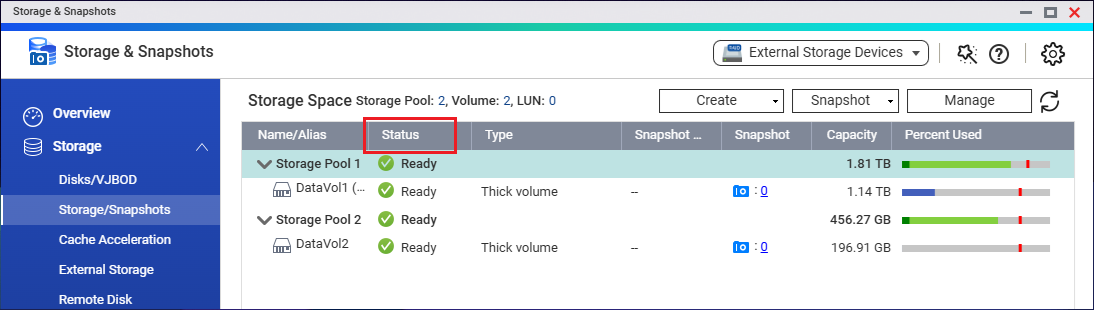
To check the status of a RAID group in a storage pool or static volume, go to Storage & Snapshots > Storage > Storage/Snapshots, double-click the storage pool or static volume to open its management window, go to the RAID group section, and then check the Status column.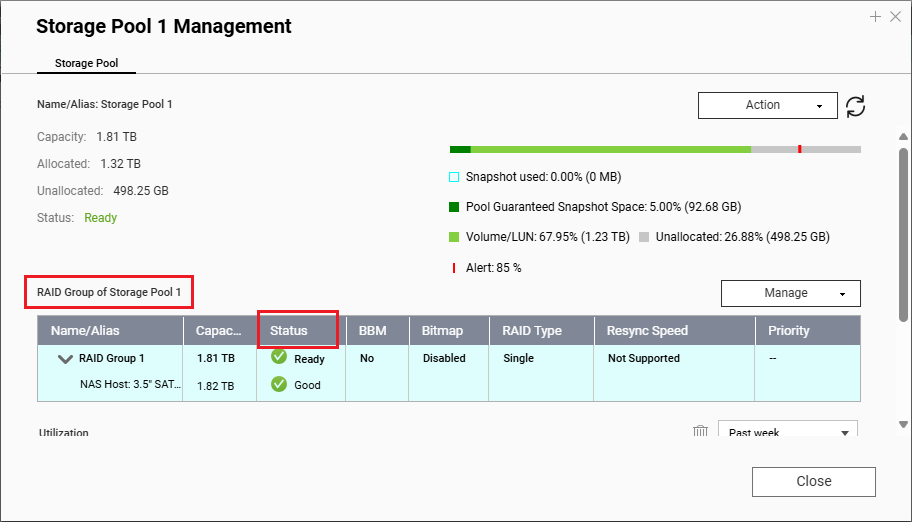
Next, identify the scenario that fits your situation and follow the recommended solution.
| Scenario 1 | Scenario 2 | |
|---|---|---|
| Status of Affected Storage Pool or Static Volume | "Warning (Degraded)" | "Error" |
| Status of Affected RAID Group | "Degraded" | "Error" |
| Cause | The number of removed disks in the affected RAID group is less than or equal to the RAID group's disk failure tolerance. | The number of removed disks in the affected RAID group is greater than the RAID group's disk failure tolerance. |
| Condition | You can still read and write data to the storage pool or static volume. | Data in the storage pool or static volume is inaccessible. |
| Solution | See Recovering a RAID group with the status "Degraded". | See Recovering a RAID group with the status "Error". |
Solutions
Recovering a RAID group with the status "Degraded"
- Reinsert each removed disk into the same drive bay that it was removed from.
The system automatically starts to rebuild the RAID group.Note- When rebuilding starts, the RAID group status changes to "Rebuilding" and the storage pool or static volume status changes to "Warning (Rebuilding)".
- Once rebuilding is complete, the statuses of both the RAID group and the storage pool or static volume returns to "Ready".
- If your NAS is running QTS, check each volume in the affected storage pool or check the affected static volume for file system errors.
For details, see Checking a volume for file system errors in QTS.
Recovering a RAID group with the status "Error"
- Reinsert each removed disk into the same drive bay that it was removed from.
- Open Storage & Snapshots.
- Go to Storage > Storage/Snapshots.
- Click a storage pool or static volume with the status "Error".
- Click Manage.
The storage pool or static volume management window opens. - Locate the RAID group section in the management window.
- Select a RAID group with the status "Error".
- Click Manage > Recover RAID Group.
The system starts to rebuild the RAID group.Note- When rebuilding starts, the RAID group status changes to "Rebuilding" and the storage pool or static volume status changes to "Warning (Rebuilding)".
- Once rebuilding is complete, the statuses of both the RAID group and the storage pool or static volume returns to "Ready".
- If your NAS is running QTS, check each volume in the affected storage pool or check the affected static volume for file system errors.
For details, see Checking a volume for file system errors in QTS.NoteIn some cases, the storage pool may remain in Error status even after performing the recovery steps above. If this occurs, restart your NAS. The storage pool status should return to normal after the restart.
Checking a volume for file system errors in QTS
If you recovered a RAID group in QTS, follow these steps for each volume in the affected storage pool or for the affected static volume.
- Open Storage & Snapshots.
- Go to Storage > Storage/Snapshots.
- Click a storage pool to view volumes in the storage pool.
- Select a volume.
- Click Manage.
The volume management window opens. - Click Actions > Check File System.
The system performs a file system check on the volume.
If you still encounter issues after trying the above solutions, please contact QNAP Customer Service.
Further Reading
For further assistance, ask other users and QNAP experts in the community. Go to QNAP Community


