


Protecting Your Data from Ransomware
Make a recovery plan against encryption-based locker viruses
Ransomware is a rising threat against both business and home users that targets computers and network-based devices. A simple yet effective method of mitigating the threat of ransomware is to ensure that you always have up-to-date, remotely-stored backups. QNAP NAS is an ideal backup center that includes comprehensive backup features and supports point-in-time snapshots to help individuals and organizations protect important data, restore files, and avoid downtime.

Ransomware attacks in 2021 marked a 105% increase over 2020 globally.
- SonicWall
Experts predict ransomware will cost $10.5 trillion annually by 2025, and that an attack will take place every 2 seconds by 2031.
- Cybersecurity Ventures
30% of organizations will adopt Zero Trust Network Access (ZTNA) models by 2024.
- Gartner
Ransomware is common and infectious.
Even Antivirus is not enough to protect your data!
What is locker ransomware?
Locker is a file-encrypting ransomware (Cryptolocker, CTB Locker, TeslaCrypt, and others) that encrypts files found on local drives, removable drives, mapped network drives, and even Dropbox mappings. Victims will be extorted a ransom to decrypt the affected files, or they will be unable to open the affect files ever again.


… And why is locker ransomware so troublesome?
- Ransomware is typically spread through phishing emails, and mostly hidden in emails as attachments like .zip, .pdf, .doc, .exe, .js files, and more. It is difficult to identify, and self-spreading.
- Traditional antivirus may not detect next-generation ransomware.
- Locker ransomware uses asymmetric encryption or more advanced encryption methods which can be difficult (if not impossible) to break locally.
- Victims are forced to pay (normally by untraceable means) to restore their files, or they face losing them forever.
Back up with QNAP NAS to save your files
While the first line of defense against being affected by malicious software is being careful and practicing sensible usage habits (regularly updating your software, not opening untrustworthy emails, not visiting unknown websites, etc), you should always remember to back up your data.
QNAP NAS provides a simple solution for backing up/restoring files and data. Its Linux-based QTS operating system makes it more secure than Windows® systems that are more at risk from being attacked. Moreover, the native support for point-in-time snapshots that are operated separately from the file system makes QNAP NAS a reliable backup solution for reacting quickly for backing up and restoring important files and system data.
Snapshots: React quickly for backing up and restoring
Snapshots record the metadata of files outside the file system and allow users to preserve and restore multiple versions of the same file, folder or even the entire volume. If ransomware attacks or an unexpected situation arises on your system, you can quickly and easily revert back to the previous state that the snapshot has recorded.
Note: Snapshots require a QNAP NAS with at least 1GB RAM.

Block-based snapshots
QNAP’s block-based snapshot supports incremental backups to save storage space. While copying only the changes made, it also saves time for backing up and restoring.

Restore in a click
Data recovery through snapshots only takes a few minutes. As they are separated from the file system, snapshots allow users to restore the original, unencrypted files even if the volume is affected by ransomware.
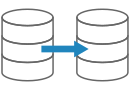
Snapshot Replica
After creating snapshots, you can efficiently copy them to another QNAP NAS for double protection.

Snapshot Reserve Space
Ransomware's continual writing of data may cause snapshot protection to fail due to running out of space. QNAP’s unique "Snapshot Reserve Space" helps prevent this by reserving dedicated space for snapshots.
Steps to restore your files with snapshots
QNAP Lab simulated a ransomware attack, and confirms that the following steps are suitable for recovering data with QNAP snapshots.

Step 1
Use QNAP NetBak Replicator (or another backup tool) to regularly back up files to the NAS with user accounts that only have limited access rights (highly recommended), and then configure the snapshot function with the administrator's account.

Step 2
Set up "Snapshot Reserve Space" to reserve an amount of space for snapshots and ensure that a specific number of snapshots will always be retained.
Step 3
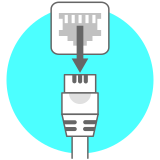
If you notice ransomware activity or are presented with a ransom message, immediately disconnect your computer from the Internet, and remove the connection between the infected computer and NAS. If possible, disconnect the network cable from the NAS too to prevent the virus from spreading.

Step 4
If you have a NAS with HDMI output you can connect a mouse, keyboard and HDMI monitor to the NAS, and access the NAS using HD Station. If your NAS lacks HDMI output, then when connecting to the NAS please ensure that your computer does not mount any infected shared folders until the snapshot is restored.

Step 5
Click “Storage Manager”, and check the “Snapshot Manager” to see a list of snapshots.

Step 6
Select a snapshot taken before the ransomware attack, delete all files in the infected folder, then restore those files with the snapshot. Your files should now be recovered and unencrypted.
Use the 3-2-1 backup strategy for robust disaster recovery planning
Easily build a complete 3-2-1 backup plan by using Hybrid Backup Sync to back up NAS data or snapshots to other storage spaces (including other NAS, remote servers, cloud services, storage expansion units or external hard drives). If your NAS is struck by a ransomware attack, data can be quickly restored from remotely-stored backup files to ensure uninterrupted work and services.
Learn more: Hybrid Backup Sync

Keep 3 copies of important files
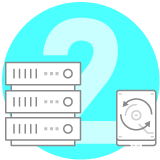
Keep the files on at least 2 types of storage media

Store 1 copy offsite
Prepare for Ransomware Attacks: Act now to secure your QNAP NAS
QNAP strongly urges all users to take the following steps to secure their QNAP NAS:
- Update your operating system/firmware (QTS, QuTS hero, QES, etc.) to the latest version.
- Install the latest version of Malware Remover, QuFirewall, and Security Center.
- Deactivate the default admin account and use stronger passwords for administrator accounts.
- Enable Network Access Protection to protect accounts from brute force attacks.
- Disable SSH, Telnet, and other services if not in use.
- Avoid using the default port numbers 443 and 8080.
- Unless you are proficient in setting up and maintaining network security, it is not recommended to enable manual port forwarding, auto port forwarding (UPnP, Universal Plug and Play) and demilitarized zone (DMZ) for QNAP NAS in your router or modem configuration.
- If you have no VPN for remote access to NAS, use myQNAPcloud Link for NAS remote connection.
Learn more: Malware Remover, QuFirewall, Security Center, myQNAPcloud Link


Connect to a secure VPN anytime, anywhere
Connect Edge devices
QNAP’s QHora Router is the ideal security solution for connecting Edge devices. Use the QHora Router as a VPN server for connecting to NAS and end devices with OpenVPN, L2TP/IPsec, and QNAP's proprietary QBelt VPN protocols for secure data transfer.
Learn more: QHora Router
Connect QNAP NAS
To access your QNAP NAS from the Internet, first establish a VPN connection to your router, and then connect to the QNAP NAS via VPN. You can also enable the QVPN service directly on the NAS for NAS remote connection.
Learn more: QVPN Service
Businesses can quickly establish VPNs for employees or offices
The traditional setup of point-to-point VPNs (Site to site VPN) is complex and time-consuming for businesses with multiple locations or branches. By using QuWAN, it automatically and rapidly establishes a mesh Virtual Private Network (Auto Mesh VPN), significantly simplifying the VPN settings. Through the dedicated QBelt VPN protocol, VPN network connections can be easily established for client devices (computers, mobile phones) and the VPN servers (QNAP devices).
Learn more: Quickly set up VPN for remote employees or offices


