


How to manually update the firmware by QTS web interface?
Last modified date:
2026-08-14
Applicable Products
QTS
Scenario
While trying to do the online update firmware, it may fail with error FW004. In that case, it is recommended to download the firmware image directly from QNAP website and perform the firmware update manually.
Procedure
This topic explains how to update the QTS firmware with the QTS web interface. You can use this process to upgrade the firmware.
- Locate the firmware for your device.
- Identify the model name and current firmware version of your device. For instructions, see here.
- Go to the Download Center.
- Under Product type, select NAS/Expansion.
- Under Bay, select the number of drive bays for your NAS.
- Under Model, select your NAS model.
- In the Download items section, click Operating System.
The list is filtered to only display firmware versions available for your device.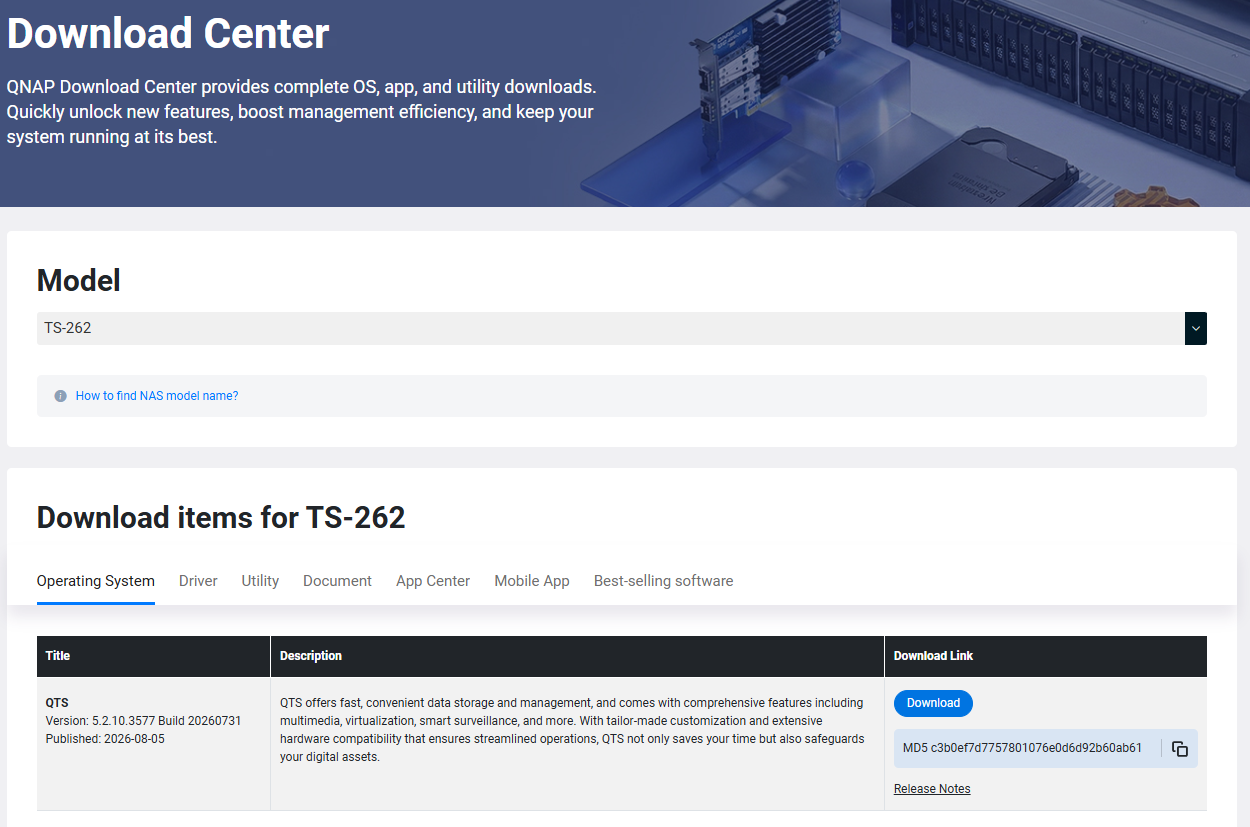
- Download the firmware file for your device.
- Identify a firmware version.
- Click Release Notes link to review the release notes for any specific instructions .
- Click Download icon in the Download Link column.
The firmware download is prepared. After the download completes, you must extract the firmware image from the .zip file.
- Log in to the NAS web interface.
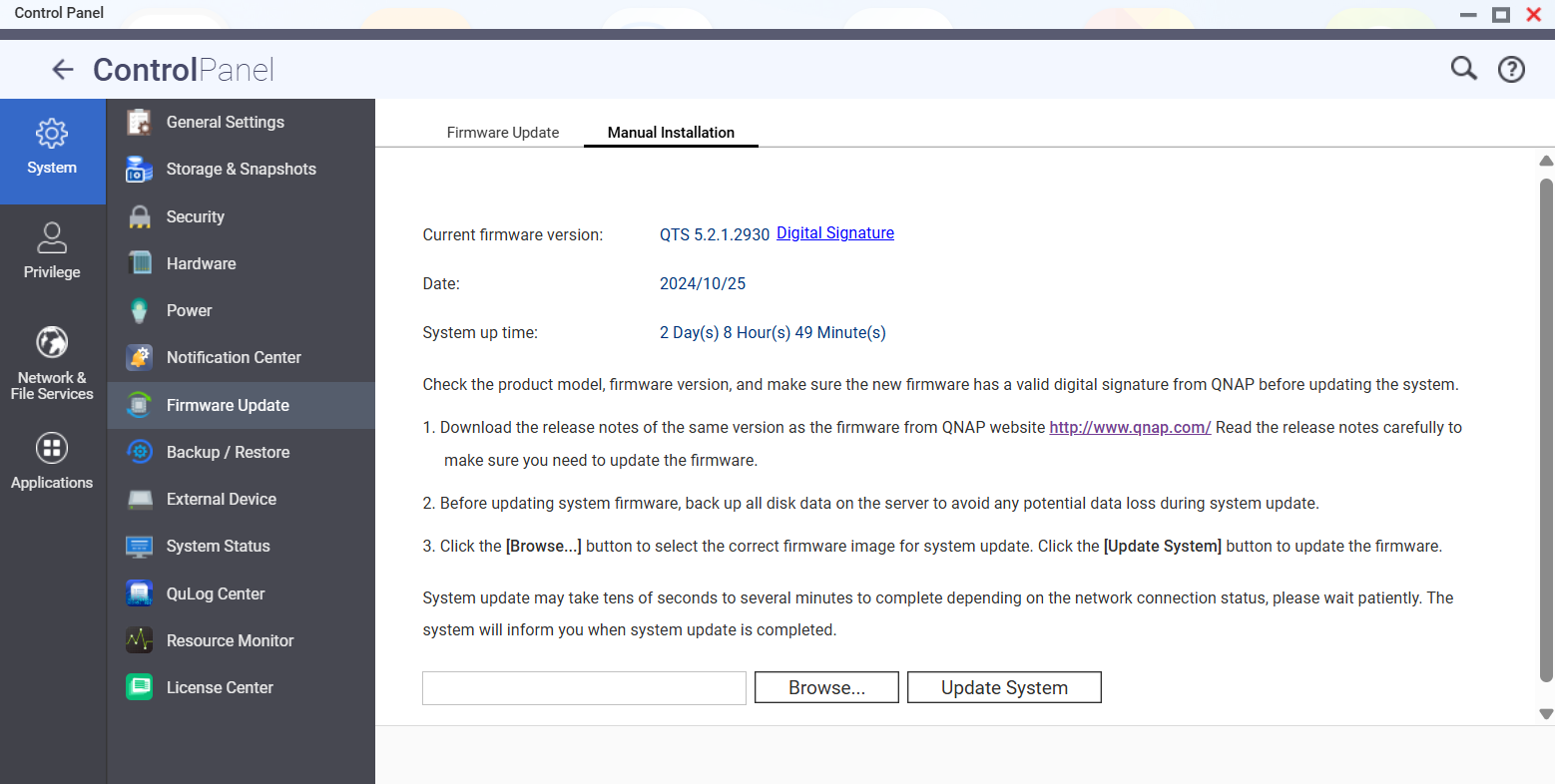
- Go to Control Panel > System> Firmware Update > Manual Installation.
- Click Browse.
A file explorer window opens. - Select the image file on your local device and click Open.
- Click Update System.
A confirmation window opens. - Click OK.
 NoteIf you are attempting to downgrade the firmware to a previous version, an additional window will open. You must review the notes and confirm you understand the risks.
Related links
For further assistance, ask other users and QNAP experts in the community. Go to QNAP Community


