


How can I restrict users from deleting files and folders?
Applicable Products
QuTS hero
Scenario
A user account needs permission to read, write, and modify data in a specific folder. You want to restrict the user from deleting anything within the folder.
Procedure
This process explains how to restrict delete permissions for a specific shared folder on your NAS. These permissions follow the Windows ACL standard. You can expect similar results to what you would encounter on a Windows computer.
By default, permissions for a folder are also applied to any subfolders or files within.
- Log in to the NAS as an administrator.
- Go to Control Panel > Shared Folders > Shared Folder
- Identify a shared folder and click
 .
.
The Edit Shared Folder Permission window opens. - Configure the folder for individual permissions.
- In the Users and Groups permission tab, identify a folder or subfolder on the NAS.
- Enable Individual permissions.
- In the ACL section, select the Windows Special Permissions permission style.

- Configure the user account.
- Click Add Users.
 The Add Users window opens.
 - In the Filter field, select a specific user account.
- Click Add.
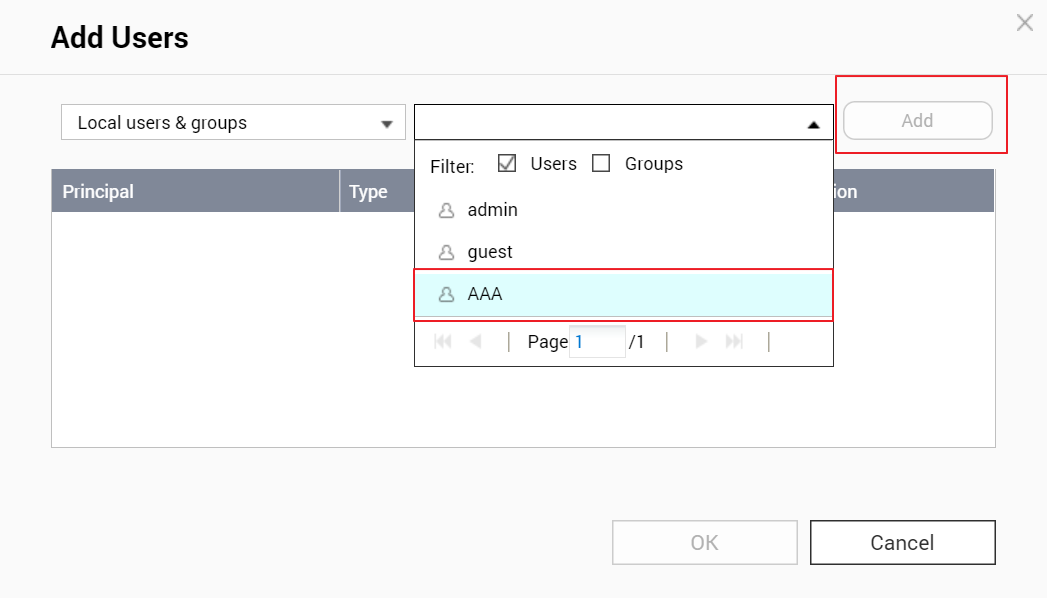 The Edit Principal window opens.
- Click Add Users.
- Configure account permissions.
- Under Type, select Deny.
- Select Delete subfolders and files.
- Select Delete (files only).
- Click OK.

The system restricts the user from deleting any data within the specific folder. This includes any subfolders or files.
Further Reading
For further assistance, ask other users and QNAP experts in the community. Go to QNAP Community


