


How do I enable Remote Support on my QNAP NAS?
Last modified date:
2024-11-04
Applicable Products
- QTS
- QuTS hero
Procedure
Follow the steps below to set up remote support in QTS and QuTS hero
Login into QTS/QuTS hero as an administrator
Open App Center and search Helpdesk
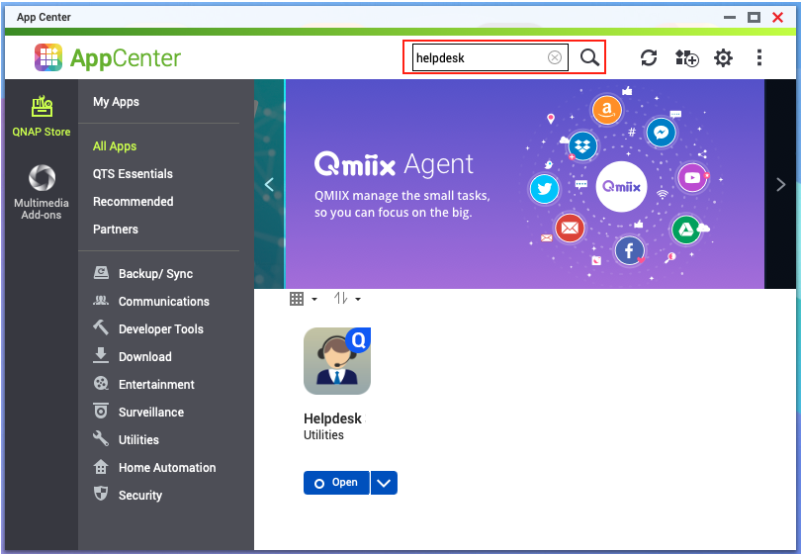
- Install Helpdesk when the app is not installed
- Update Helpdesk when there is an update
- Start Helpdesk when the app is disabled.
- If you can't find the Helpdesk app in the App center, contact QNAP support
Open Helpdesk
Click Remote Support in the left panel
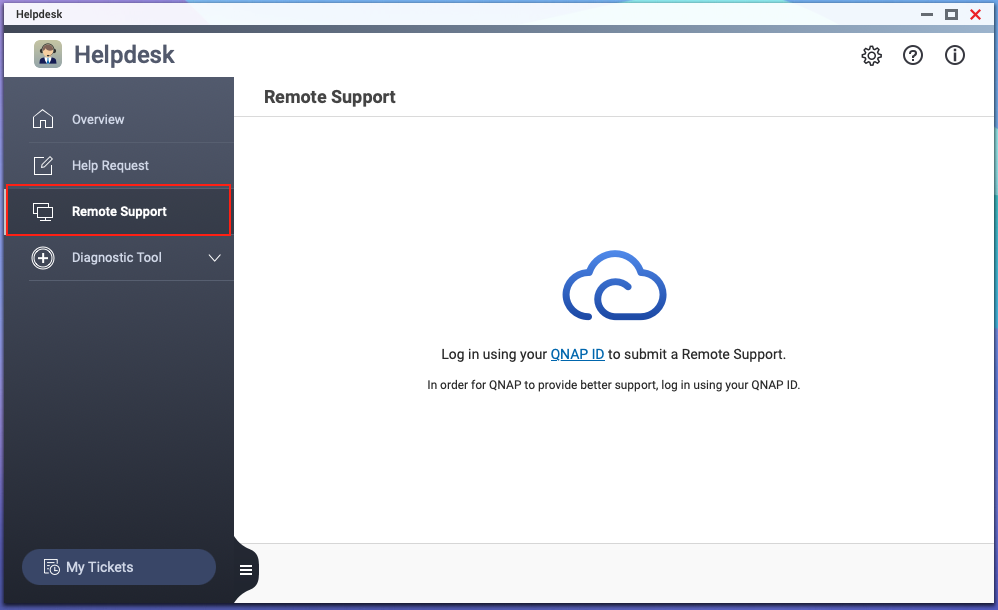
Login in your QNAP ID if prompted
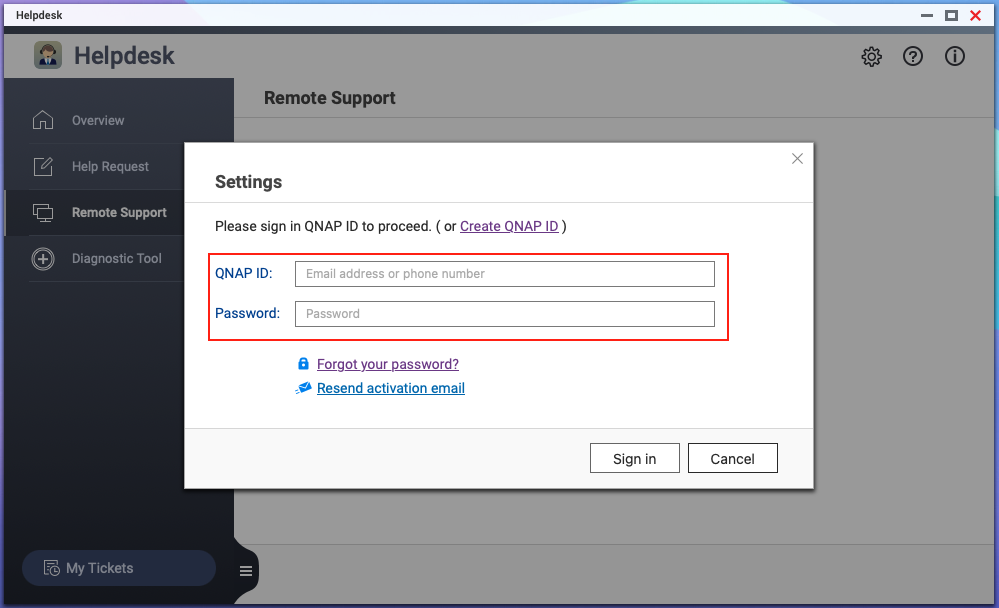
Fill in the following informationd
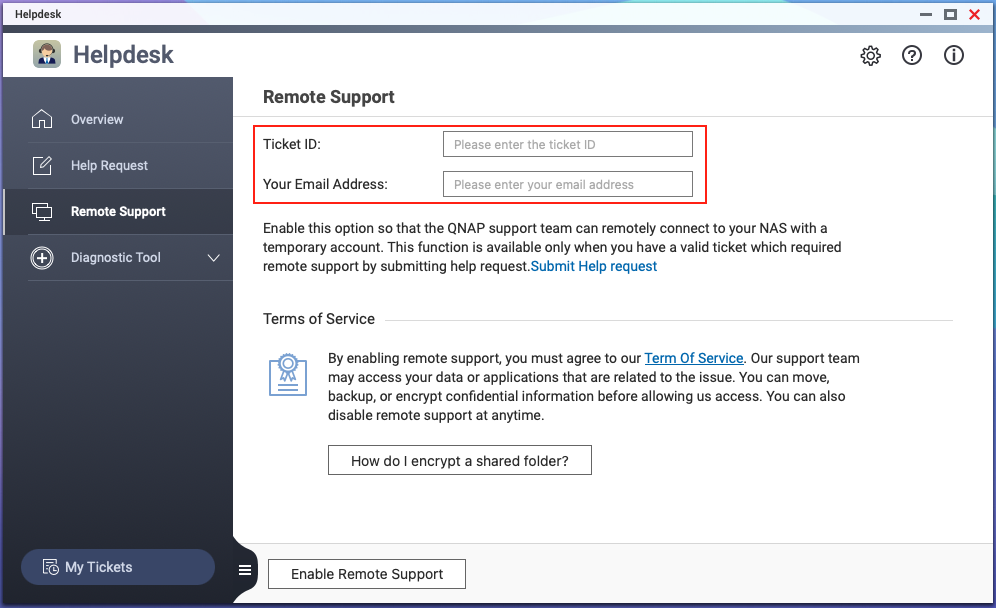
- Ticket ID
Note: the Ticket ID matches the Q-DDDDDD-DDDDD (D: numbers) pattern - Your Email Address
Note: your email address must match the email address while submitting the above ticket.
- Ticket ID
Click Enable Remote Support
The QNAP Helpdesk Terms of Service window appears.Accept the terms of service.
- Click I agree to these Terms of Service.
- Click Agree. The Enable Remote Support window appears.
Click Yes.
The Enable Remote Support window appears.
Click Confirm.
Helpdesk creates a private key and temporary account.
Troubleshooting: if you meet the error Failed to create the private key, please reply to the ticket and attach the following
- Diagnostic log
Note: In the left panel of the Helpdesk app, Click Diagnostic Tool > Download Logs > Download. - Screenshot with the error message and error code if there is.
- Diagnostic log


