Creating an Event Rule and Sending Notifications in QVR face


Datum poslední úpravy: 2020-03-20

QVR Face allows you to create event rules to trigger other applications via URLs and send notification e-mails or messages. For example, you can create an event rule for detecting unknown people. This allows you to respond instantly to any event alerts.

This topic uses QVR Pro and Gmail to demonstrate how to set up an event rule and send notifications. QVR Face also supports triggering third-party applications.

  1. Open QVR Pro.
  2. Open Event Management.
  3. Add a rule.

    Option

    Description

    +

    Click this to add the first rule.

    Add

    Click this to add more rules.

  4. Specify a name and a description for the rule.
  5. Specify a schedule.
  6. Click Next.
  7. Under If, click Add.
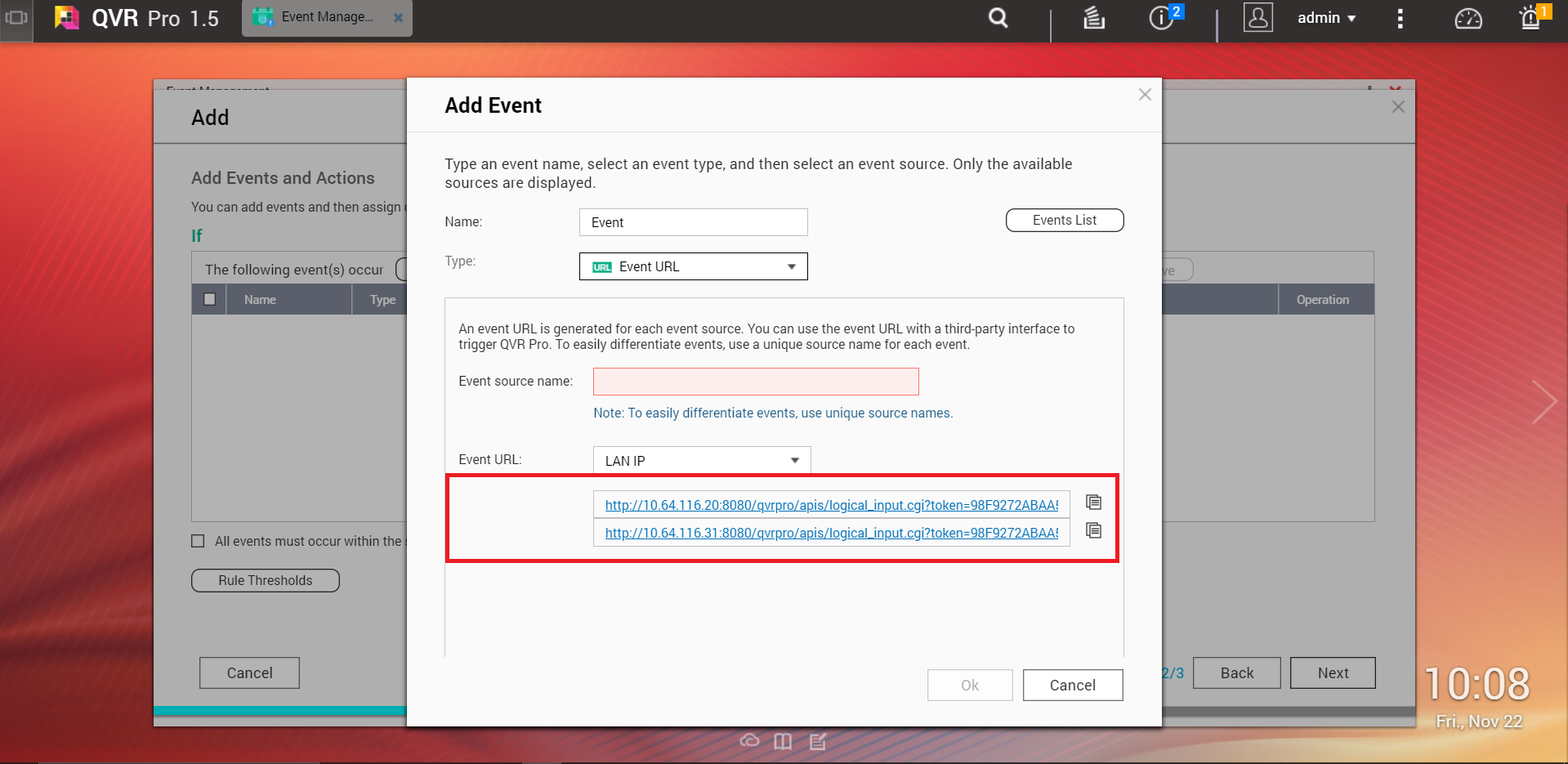
  8. Specify a name for the event.
  9. Under Type, select Event URL.
  10. Specify a source name.
  11. Copy the event URL for later use.
  12. Click OK.
  13. Under Then, click Add.
  14. Specify a name for the action.
  15. Under Type, select E-mail.
  16. Specify the following information.

    Field

    Action

    Select an e-mail account

    Select Gmail.

    E-mail

    Specify your Gmail account.

  17. Click OK.
  18. Click Next.
  19. Click Finish.
  20. Go to QVR Face.
  21. Go to Overview.
  22. Select a live analytics task.
  23. Click Create.

    The Create Event Rule window appears.

  24. Specify the event name.
  25. Paste the event URL created earlier.
  26. Select Unregistered people.
    Tip:

    You can also specify other criteria if needed.

  27. Click Apply.

QVR Face creates the event rule and sends a notification email to your Gmail inbox when detecting unknown people.

Byl tento článek užitečný?

29% lidí si myslí, že to pomáhá.
Děkujeme vám za vaši zpětnou vazbu.

Sdělte nám prosím, jak lze tento článek vylepšit:

Pokud chcete poskytnout další zpětnou vazbu, uveďte ji níže.

Zvolte specifikaci

      Zobrazit více Zobrazit méně

      Tato stránka v jiných zemích / oblastech:

      open menu
      back to top