Applicable Products
- All NAS series running QTS
Root Cause
In some cases, after performing a reset, the default admin credentials may not work due to persistent configuration files or compatibility issues, such as incomplete resets or system file corruption.
Solution
If you have tried to reset your NAS but are still unable to log in, please follow these steps to reset your admin password.
Important
- Removing or reinserting drives incorrectly can risk data loss. Please note the drive order and do not initialize the NAS during this process.
- This task requires SSH connections. If you are not familiar with SSH, please read this FAQ first. If you are still not sure how to do it, please contact QNAP Tech Support.
- Power off your NAS and remove all drives.
- Power on the NAS without any disks inserted. Wait until you hear a short beep, then a long beep, before proceeding.
- Download and install Qfinder Pro.
- Run Qfinder Pro to locate your NAS and note its IP address.
Important: If prompted to initialize the NAS, click No.

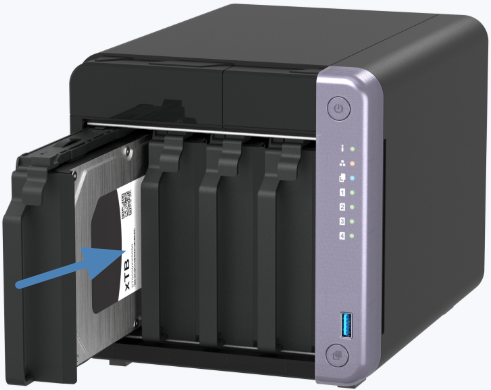
- Without powering off, re-insert the drives in their original order.

- Use SSH to access the NAS and log in using the default admin credentials.
Determine your NAS model:
To check which type of NAS model you have, run:
ls /sbin/hal_app
Observe the output:
- If you see:
ls: /sbin/hal_app: No such file or directoryYour NAS is a Legacy model. Use the steps under Legacy model below. - If there is no error message and the command completes silently, your NAS is a HAL model. Use the steps under HAL model below.
Legacy model
Enter the following commands, pressing Enter after each:
config_util 1
storage_boot_init 1
cd /mnt/HDA_ROOT/.config/
cp /etc/default_config/passwd ./
cp /etc/default_config/shadow ./
cp /etc/default_config/group ./
reboot
HAL model
Enter the following commands, pressing Enter after each:
storage_util --sys_startup
passwd (Follow the prompts to set a new admin password.)
reboot
After rebooting, your admin password will be updated.
Further Reading
적용되는 제품
- All NAS series running QTS
근본 원인
일부 경우에는 재설정을 수행한 후에도 기본admin자격 증명이 지속적인 구성 파일이나 호환성 문제로 인해 작동하지 않을 수 있습니다. 예를 들어 불완전한 재설정이나 시스템 파일 손상이 있을 수 있습니다.
해결책
NAS를 재설정하려고 했지만 여전히 로그인할 수 없는 경우, 다음 단계에 따라admin암호를 재설정하십시오.
중요
- 드라이브를 잘못 제거하거나 다시 삽입하면 데이터 손실 위험이 있습니다. 드라이브 순서를 기록하고 이 과정에서 NAS를 초기화하지 마십시오.
- 이 작업은 SSH 연결이 필요합니다. SSH에 익숙하지 않은 경우 먼저 이FAQ을 읽으십시오. 여전히 방법을 모르겠다면 QNAP 기술 지원에 문의하십시오.
- NAS의 전원을 끄고 모든 드라이브를 제거합니다.
- 디스크를 삽입하지 않은 상태로 NAS의 전원을 켭니다. 짧은 경고음이 울린 후 긴 경고음이 울릴 때까지 기다린 후 진행하십시오.
- Qfinder Pro를 다운로드하고 설치합니다..
- Qfinder Pro을 실행하여 NAS를 찾고 IP 주소를 기록하십시오.
중요: NAS 초기화 메시지가 표시되면아니요를 클릭하십시오.

- 전원을 끄지 않고 드라이브를 원래 순서로다시 삽입합니다.
- SSH를 사용하여 NAS에 액세스합니다.을 사용하여 로그인합니다기본 admin 자격 증명.
NAS 모델을 확인하십시오:
NAS 모델 유형을 확인하려면 다음을 실행하십시오:
ls /sbin/hal_app
출력을 관찰하십시오:
- 다음이 보이면:
ls: /sbin/hal_app: No such file or directory귀하의 NAS는Legacy 모델입니다. 아래의Legacy 모델에 있는 단계를 사용하십시오. - 오류 메시지 없음이 표시되고 명령이 조용히 완료되면, 귀하의 NAS는HAL 모델입니다. 아래의HAL 모델에 있는 단계를 사용하십시오.
Legacy 모델
다음 명령을 입력하고 각 명령 후에Enter를 누르십시오:
config_util 1
storage_boot_init 1
cd /mnt/HDA_ROOT/.config/
cp /etc/default_config/passwd ./
cp /etc/default_config/shadow ./
cp /etc/default_config/group ./
reboot
HAL 모델
다음 명령을 입력하고 각 명령 후에Enter를 누르십시오:
storage_util --sys_startup
passwd (새admin암호를 설정하려면 지시에 따르십시오.)
reboot
재부팅 후, admin암호가 업데이트됩니다.
추가 읽기