Applicable Products
Introduction
All NAS devices have the default system administrator account "admin". This account can configure settings, create users, and install applications. This account cannot be deleted and depending on your QTS/QuTS hero version may be disabled by default.
The default password of the "admin" account varies depending on your QTS/QuTS hero versions. Please check your versions before proceeding.
Concepts
Understanding NAS Account & Cloud Key & QNAP ID
Tip
- We recommend understanding the differences between these three concepts before proceeding to steps.
- Whenever you log in to your NAS or to a QNAP service, please double-check the account type you are prompted to provide.
NAS Account: A NAS account is a local account on your QNAP NAS, used to log in to this specific device. "admin" is the NAS account created by default on every NAS. For QTS/QuTS hero 5.2.0 and later, this account is disabled by default and is automatically re-enabled after a system reset. This FAQ explains how to retrieve the password of this default "admin" NAS account. If you have created a different administrator account during device setup, the passwords described in this FAQ do not apply to that account.
Cloud Key: A Cloud Key is a unique identifier that comes with every QNAP NAS, regardless of whether you have configured any cloud settings. You can usually find the Cloud Key on a sticker on your device, in your Quick Installation Guide or in your device details on Qfinder Pro. For QTS/QuTS hero 5.2.0 and later, this Cloud Key serves as the default password for the "admin" NAS account. Outside of that specific use, do not treat your Cloud Key as a login credential.
QNAP ID (QNAP Account): A QNAP ID (QNAP Account) is an account (typically your email address or phone number) used to access various QNAP services (such as myQNAPcloud) and to manage your NAS remotely. Your QNAP ID and your NAS account are separate credentials with separate passwords.
Details
QTS/QuTS hero 5.2.0 and later (such as 5.2.x, 5.3.x, 6.0.0)
Note
- The default "admin" account is disabled by default but will be automatically enabled after a system reset or system restore. To protect your system from malicious attacks, we recommend creating a new administrator account and disable the default administrator account "admin".
- To comply with the EU’s cybersecurity requirements, manufacturers must avoid universal default credentials. Corresponding EU/industry standards require no universal default passwords, mandating unique per-device credentials or enforcing a password change on first use. Accordingly, starting with QTS/QuTS hero 5.2.0, the default administrator password was changed to the device’s Cloud Key (earlier versions used the first NIC’s MAC; much older versions used admin/admin), aligning with these requirements.
The credentials of the default administrator NAS account:
- Username: admin
- Password: The Cloud Key of your device in uppercase letters and without any special characters. For example, if the Cloud Key is Q1234-5678, the password is Q12345678
Finding your device's Cloud Key
You can find the Cloud Key of your device with any of the following methods:
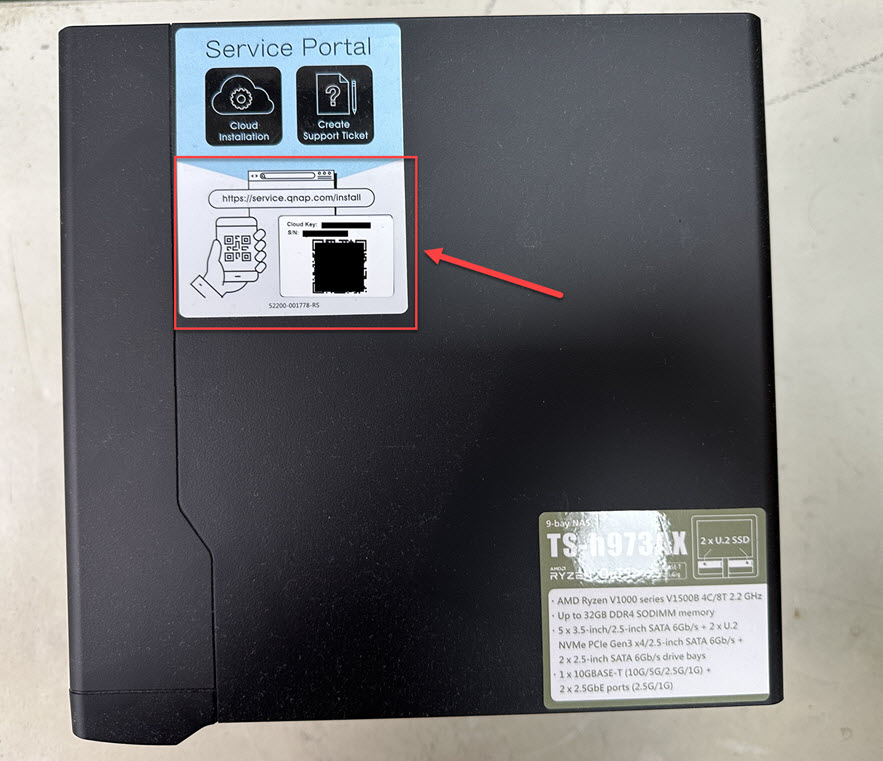
Method A: From the device sticker or the Quick Installation Guide
You can find your Cloud Key from the sticker attached to the cover of your NAS or from the Quick Installation Guide that comes with your NAS.
Method B: Use Qfinder Pro
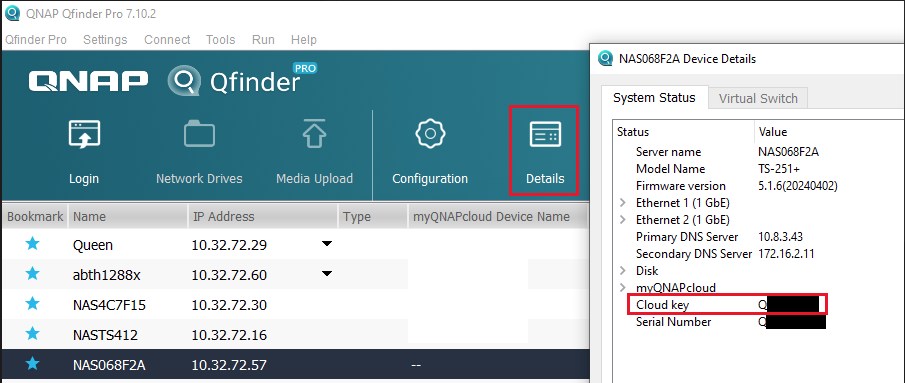
- Use Qfinder Pro without a NAS user account:
- Power off your NAS.
- Remove all hard drives from your NAS.
- Remove all internal M.2 SSDs and QM2 PCIe expansion card if any.
- Power on your NAS.
- Download and install Qfinder Pro.
- Open Qfinder Pro.
- Select your device.
- Click Details.
- The Device Details window appears.
Your device's Cloud Key is displayed in the Device Details window.
- Use Qfinder Pro with a NAS user account:
- Download and install Qfinder Pro.
- Open Qfinder Pro.
- Select your device.
- Click Details.
The Login window appears. Enter your NAS account username and password and click OK.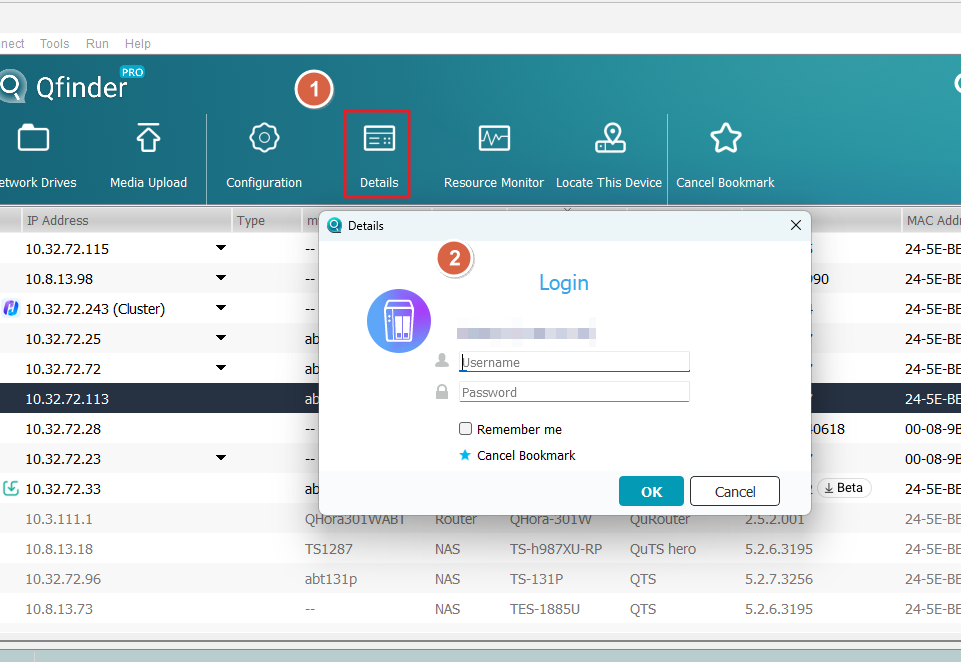
- The Device Details window appears.
Your device's Cloud Key is displayed in the Device Details window.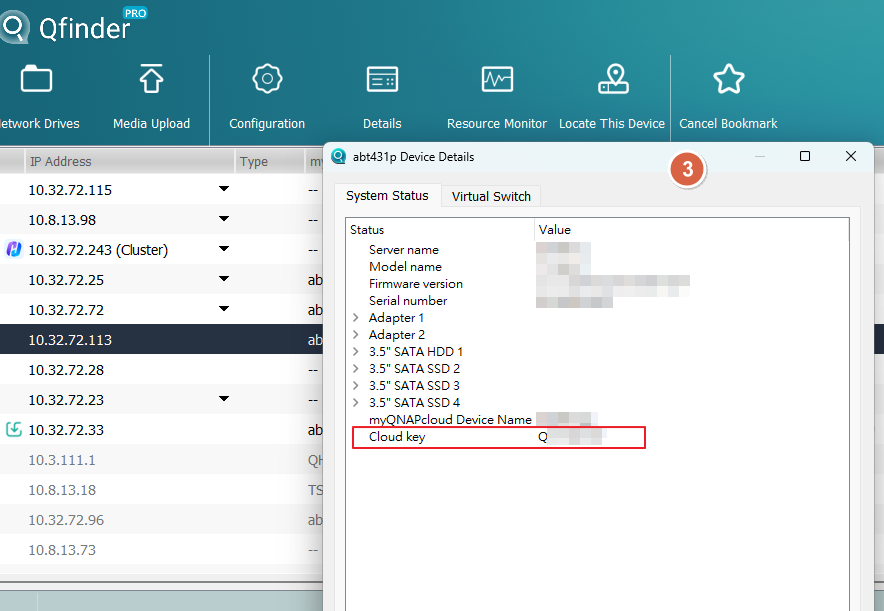
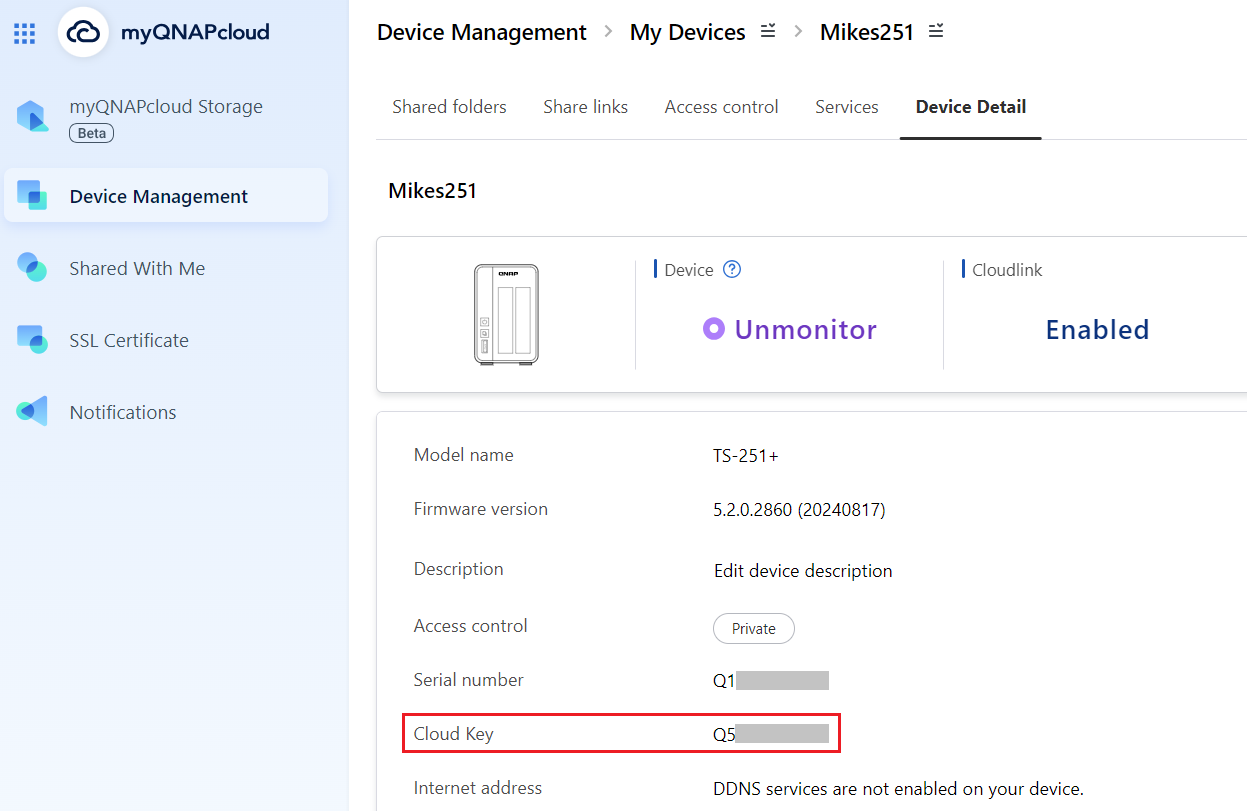
Method C: Use myQNAPcloud
- Log in to myQNAPcloudwith your QNAP ID:
- Login to myQNAPcloud.
- Go to Device Management.
- Locate and click on your device.
- Click Device Detail.
Your device's Cloud Key is displayed in the Device Detail tab.
If you cannot find your device's Cloud Key from the above methods, please contact QNAP customer support.
If you manually enable the "admin" account in Control Panel, you will need to specify a new password that is different from the Cloud Key of your device. If your firmware was updated from version 5.1.x or earlier, and you were using the default "admin" account with the default password, you will be required to change the password to something different than the Cloud Key of your device.
QTS/QuTS hero 4.4.2 - 5.1.x
The following default system administrator account is used:
Warning
To protect your system from malicious attacks, it is recommended to create a new administrator account and disable the default administrator account "admin".
- Username: admin
- Password: The first MAC address of the NAS in uppercase letters and without special characters. For example, if the MAC address was 00-08-9B-F6-15-75, the password is 00089BF61575
The MAC address sticker is physically attached to the rear of the NAS. If your NAS has multiple NICs, use the MAC address listed as MAC1: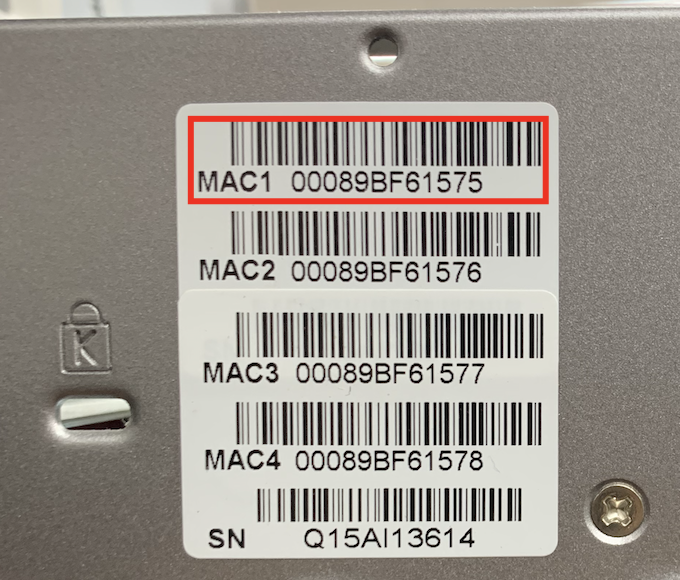
In Qfinder Pro, the value is listed in the MAC Address column: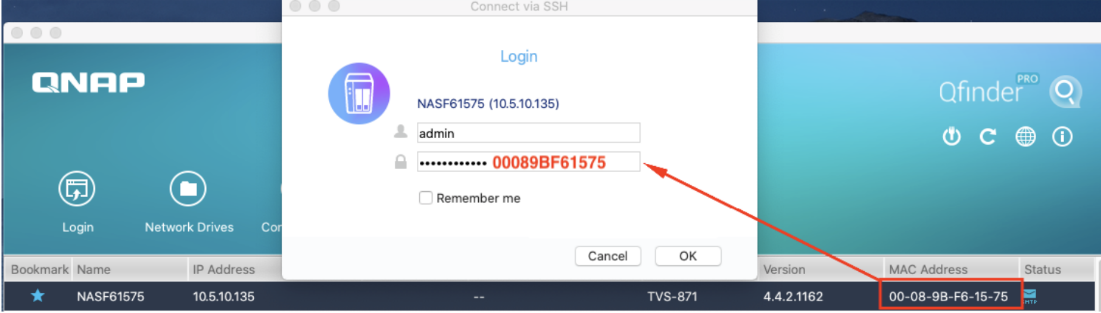
QTS/QuTS hero 4.4.1 - 4.3.6 or earlier
The following default system administrator account is used:
Warning
To protect your system from malicious attacks, it is recommended to create a new administrator account and disable the default administrator account "admin".
- Username: admin
- Password: admin
Further Reading
How do I reset the administrator password of my NAS?
How to disable the ''admin'' user account?
Are there any impacts if I disable the default admin account?
Why can't I disable admin account?
적용되는 제품
소개
모든 NAS 장치에는 기본 시스템관리자계정"admin"이 있습니다. 이 계정은 설정을 구성하고, 사용자를 만들고, 애플리케이션을 설치할 수 있습니다. 이 계정은 삭제할 수 없으며 QTS/QuTS hero버전에 따라 기본적으로 비활성화될 수 있습니다.
"admin"계정의 기본 암호는 QTS/QuTS hero버전에 따라 다릅니다. 진행하기 전에 버전을 확인하십시오.
개념
NAS 계정 & Cloud Key & QNAP ID 이해하기
팁
- 단계를 진행하기 전에 이 세 가지 개념의 차이점을 이해하는 것이 좋습니다.
- NAS 또는 QNAP 서비스에 로그인할 때마다 제공해야 하는 계정 유형을 다시 확인하십시오.
NAS 계정: NAS 계정은 특정 QNAP NAS에 로그인하는 데 사용되는 로컬 계정입니다. "admin"는 모든 NAS에 기본적으로 생성되는 NAS 계정입니다. QTS/QuTS hero 5.2.0 이상에서는 이 계정이 기본적으로 비활성화되어 있으며 시스템 재설정 후 자동으로 다시 활성화됩니다. 이 FAQ는 기본"admin" NAS 계정의 비밀번호를 검색하는 방법을 설명합니다. 장치 설정 중 다른관리자계정을 생성한 경우 이 FAQ에 설명된 비밀번호는 해당 계정에 적용되지 않습니다.
Cloud Key: Cloud Key는 모든 QNAP NAS에 제공되는 고유 식별자로, 클라우드 설정을 구성했는지 여부에 관계없이 제공됩니다. 일반적으로 장치의 스티커, 빠른 설치 안내서 또는Qfinder Pro의 장치 세부 정보에서Cloud Key를 찾을 수 있습니다. QTS/QuTS hero 5.2.0 이상에서는 이Cloud Key가"admin" NAS 계정의 기본 비밀번호로 사용됩니다. 그 특정 용도 외에는Cloud Key를 로그인 자격 증명으로 사용하지 마십시오.
QNAP ID (QNAP 계정): QNAP ID (QNAP 계정)는 다양한 QNAP 서비스(예: myQNAPcloud)에 액세스하고 NAS를 원격으로 관리하는 데 사용되는 계정(일반적으로 이메일 주소 또는 전화번호)입니다. QNAP ID와 NAS 계정은 별도의 비밀번호를 가진 별도의 자격 증명입니다.
세부 정보
QTS/QuTS hero 5.2.0 이상(예: 5.2.x, 5.3.x, 6.0.0)
참고
- 기본 "admin" 계정은 기본적으로 비활성화되어 있지만 시스템 초기화 또는 시스템 복원 후에는 자동으로 활성화됩니다. 시스템을 악의적인 공격으로부터 보호하려면 새관리자계정을 만들고 기본관리자계정 "admin"을 비활성화할 것을 권장합니다.
- EU의 사이버 보안 요구 사항을 준수하기 위해 제조업체는 범용 기본 자격 증명을 피해야 합니다. 해당 EU/산업 표준은 범용 기본 암호를 허용하지 않으며, 장치별 고유 자격 증명 또는 첫 사용 시 암호 변경을 강제합니다. 따라서 QTS/QuTS hero 5.2.0부터 기본관리자암호가 장치의Cloud Key로 변경되어 이러한 요구 사항에 맞추어 조정되었습니다(이전 버전은 첫 번째 NIC의 MAC을 사용했으며, 훨씬 이전 버전은admin/admin을 사용했습니다).
기본관리자 NAS 계정의 자격 증명:
- 사용자 이름: admin
- 암호: 장치의Cloud Key를 대문자로 표시하고 특수 문자를 제외한 것입니다. 예를 들어, Cloud Key가Q1234-5678이면 암호는Q12345678입니다.
장치의Cloud Key찾기
다음 방법 중 하나를 사용하여 장치의Cloud Key를 찾을 수 있습니다:
방법 A: 장치 스티커 또는 빠른 설치 안내서에서
NAS의 커버에 부착된 스티커 또는 NAS와 함께 제공되는 빠른 설치 안내서에서Cloud Key를 찾을 수 있습니다.
방법 B: Qfinder Pro사용
- NAS 사용자 계정 없이Qfinder Pro사용:
- NAS를 끕니다.
- NAS에서 모든 하드 드라이브를 제거합니다.
- 모든 내부 M.2 SSD와 QM2 PCIe 확장 카드를 제거합니다.
- NAS를 켭니다.
- Qfinder Pro을 다운로드하고 설치합니다.
- Qfinder Pro을 엽니다.
- 장치를 선택합니다.
- Details를 클릭합니다.
- Device Details 창이 나타납니다.
장치의Cloud Key가Device Details창에 표시됩니다.
- NAS 사용자 계정과 함께Qfinder Pro를 사용합니다:
- Qfinder Pro을 다운로드하고 설치합니다.
- Qfinder Pro을 엽니다.
- 장치를 선택합니다.
- 세부 정보를 클릭합니다.
로그인창이 나타납니다. NAS 계정 사용자 이름과 암호를 입력한 다음확인을 클릭합니다. - 장치 세부 사항 창이 나타납니다.
장치의Cloud Key가장치 세부 사항창에 표시됩니다.
방법 C: myQNAPcloud 사용
- myQNAPcloud에 QNAP ID로 로그인합니다:
- myQNAPcloud에 로그인합니다.
- 장치 관리로 이동합니다.
- 장치를 찾아 클릭합니다.
- 장치 세부 정보를 클릭합니다.
장치의Cloud Key가장치 세부 정보탭에 표시됩니다.
위의 방법으로 장치의Cloud Key를 찾을 수 없는 경우에는QNAP 고객 지원에 문의하십시오.
제어판에서 "admin" 계정을 수동으로 활성화하는 경우 장치의Cloud Key와 다른 새 암호를 지정해야 합니다. 펌웨어를 5.1.x 이전 버전에서 업데이트하고 기본 "admin" 계정과 기본 암호를 사용한 경우에는 암호를 장치의Cloud Key와 다른 것으로 변경하라는 메시지가 표시됩니다.
QTS/QuTS hero 4.4.2 - 5.1.x
다음 기본 시스템관리자계정이 사용됩니다:
경고
악성 공격으로부터 시스템을 보호하기 위해서는 새관리자계정을 만들고 기본관리자계정 "admin"은 비활성화하는 것이 좋습니다.
- 사용자 이름: admin
- 암호: NAS의 첫 번째 MAC 주소는 특수 문자가 없는 대문자입니다. 예를 들어 MAC 주소가00-08-9B-F6-15-75인 경우 암호는00089BF61575입니다.
MAC 주소 스티커는 NAS의 뒷면에 물리적으로 부착되어 있습니다. NAS에 여러 NIC가 있는 경우MAC1으로 나열된 MAC 주소를 사용하십시오:
Qfinder Pro에서 값은MAC 주소열에 나열되어 있습니다:
QTS/QuTS hero 4.4.1 - 4.3.6 또는 이전
다음 기본 시스템관리자계정이 사용됩니다:
경고
악성 공격으로부터 시스템을 보호하기 위해서는 새관리자계정을 만들고 기본관리자계정 "admin"은 비활성화하는 것이 좋습니다.
추가 읽기
내 NAS의관리자암호를 초기화하려면 어떻게 해야 합니까?
''admin'' 사용자 계정을 비활성화하려면 어떻게 해야 합니까?
기본admin계정을 비활성화하면 어떤 영향이 있습니까?
admin계정을 비활성화할 수 없는 이유는 무엇입니까?


