Why I am unable to add my QNAP NAS to Q’center?
Here are some common reasons why you cannot add a QNAP NAS to Q’center.
The system volume does not exist or is in an abnormal condition
To monitor a NAS, Q’center must install Q’center Agent on the system volume of the NAS. Ensure that the NAS has a working system volume.
The version of QTS running on the NAS is too old
Q’center Agent requires QTS version 4.1.0 or later. If the NAS is running an older version then update QTS to the latest version.
Q’center cannot connect to the NAS.
If there are any connection problems, Q’center will display the message “Can’t reach the server” when adding the NAS. If this occurs perform the following actions.
- Ensure the following ports are not blocked:
- Q'center server: 6600, 6606.
- NAS: 6600, 6621, 6623.
- Log into the NAS via SSH and verify that you can ping the Q’center server.
If the NAS is behind a NAT router, you can use the Connect to Q’center app to help establish a connection. On the NAS go to App Center, install Connect to Q’center, run the app and then specify the IP address of the Q’center server. Note: NAS added using Connect to Q’center can only be managed by one Q'center server at a time.
If the NAS and Q’center are connected via the internet, you can use the myQNAPcloud address of the Q’center server in Connect to Q’center. Ensure “Enable UPnP Port Forwarding” is enabled on the Q’center server at “myQNAPcloud” > “Auto Router Configuration”.
For more details, see the following application note.
https://www.qnap.com/en/how-to/tutorial/article/monitoring-your-qnap-nas-behind-a-nat-router-with-q-center
The NAS does not have a serial number.
Before Q’center version 1.1, Q’center would display the error message “The hardware serial number is not found” if you tried to add a NAS without a serial number. If you encounter this error then update Q’center to the latest version.
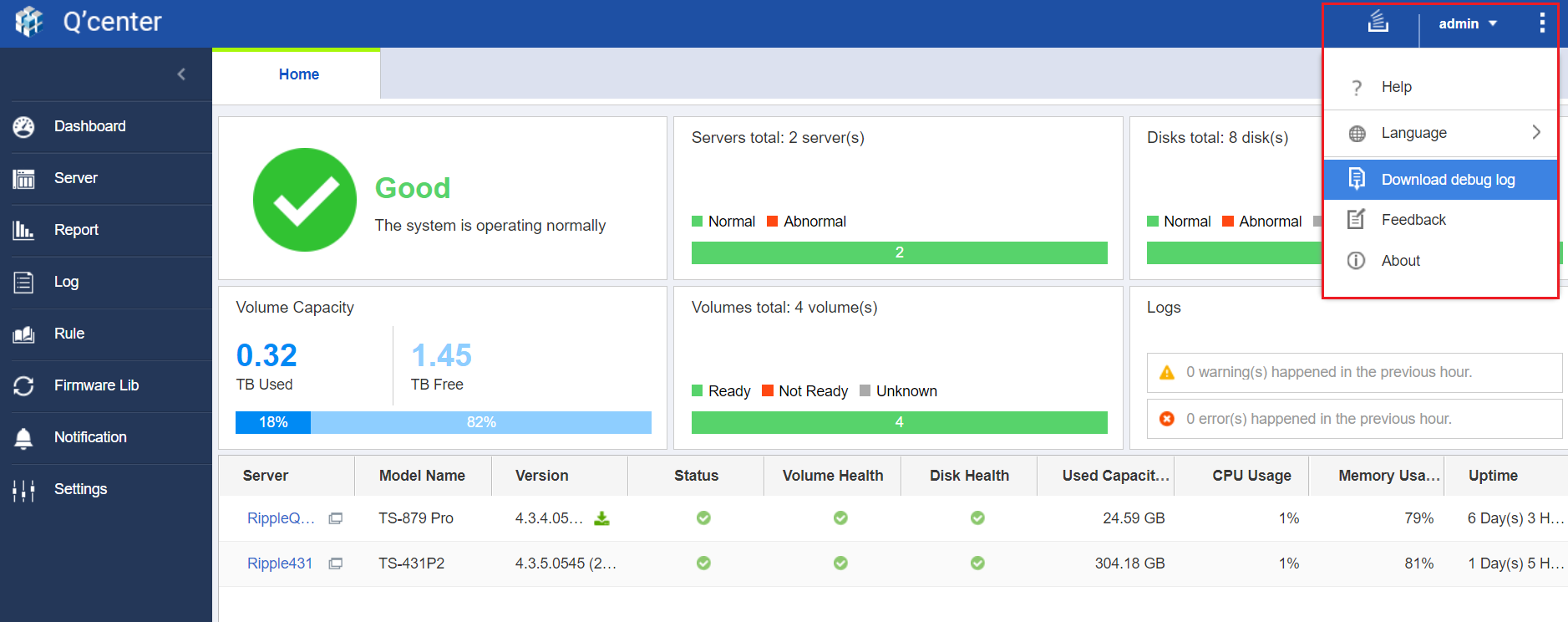
If you did not find the solution for your problem, you can download the Helpdesk app from App Center for further assistance. Go to Q'center > More and select "Download debug log". Then go to “Helpdesk” > “Help Request”, fill out the form, and attach the logs for submitting the help request.