


What should I do if Qfinder Pro fails to update via Live Update?
Applicable Products
- Qfinder Pro (Windows) 7.13.3.0521 (and earlier versions) updating to 7.14.0.0626
Scenario
This issue can occur when you use the Live Update feature in Qfinder Pro (Windows) 7.13.3.0521 (or earlier versions) to update to 7.14.0.0626.
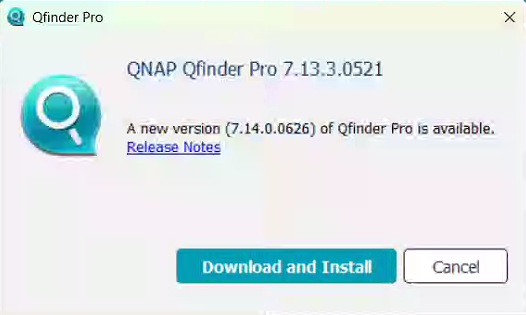
The background update process (QfinderUpdateMonitor) may not complete successfully and can block further update attempts.
When this issue happens, you may see the following symptoms:
- An error dialog appears: QfinderPro.exe - Entry Point Not Found — "The procedure entry point ??0QDebug@@QAE@$$QAV0@@Z could not be located in the dynamic link library
C:\Program Files (x86)\QNAP\Qfinder\Qt5Sql.dll."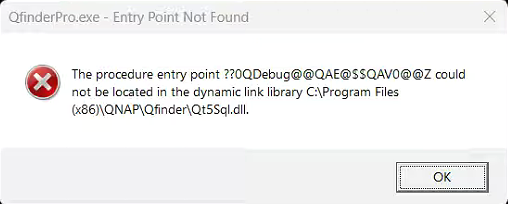
- The progress bar (Installing newest version of Qfinder Pro...) remains stuck and never completes.
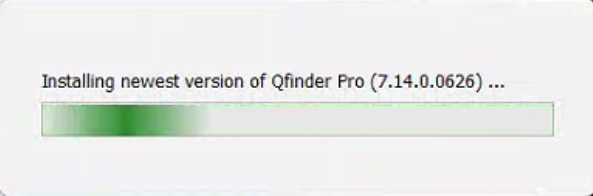
- The
QfinderUpdateMonitorbackground process keeps running and blocks further update attempts.
Solution
Step 1: Close the error message
Close the Entry Point Not Found dialog or other error messages that appear during the update.
QfinderUpdateMonitor process has already been terminated during the reboot. In that case, you can skip Step 2 and go directly to Step 3 to manually download and install the latest version.Step 2: End the QfinderUpdateMonitor process in Task Manager
- Right-click the Windows taskbar and select Task Manager (or press Ctrl+Shift+Esc).
- In the Processes tab, type Qfinder in the search box to filter the list.
- Locate QfinderUpdateMonitor under Background processes.
- Right-click QfinderUpdateMonitor and select End task.
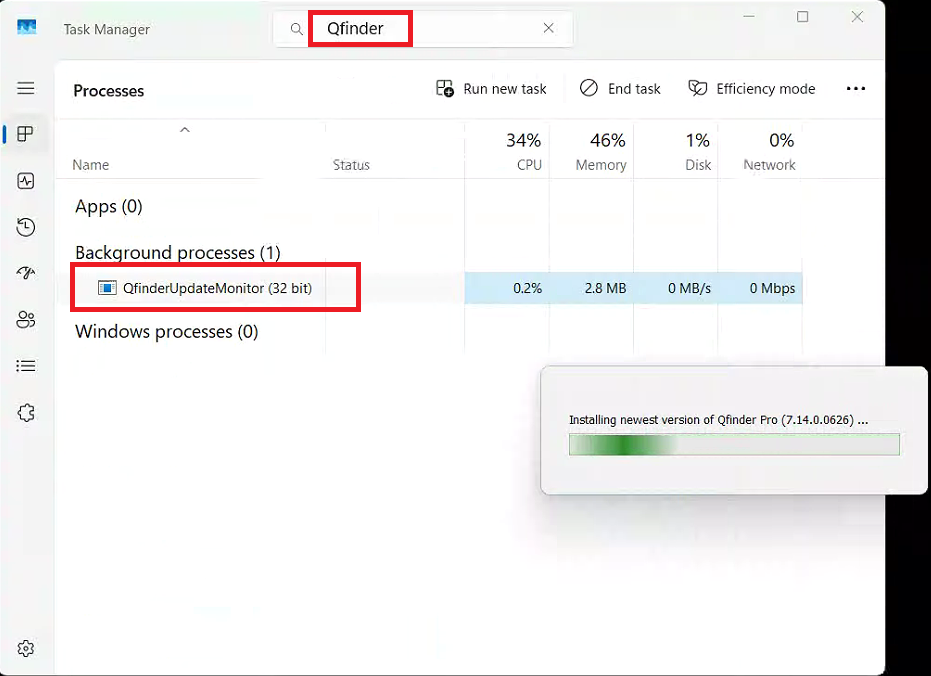
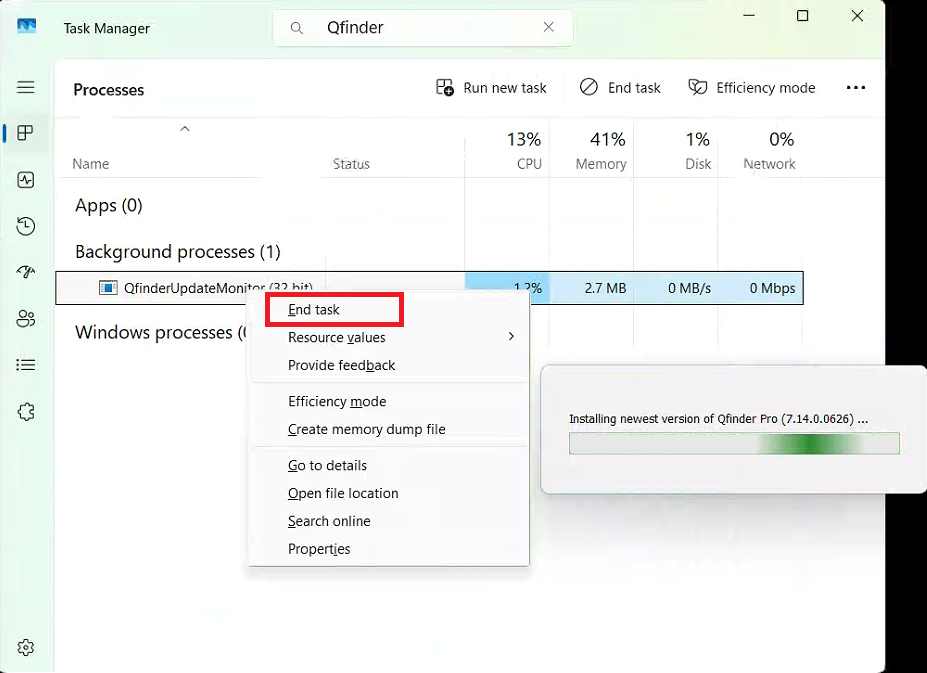
After you end the task, the Installing newest version of Qfinder Pro... progress bar closes, and the QfinderUpdateMonitor process disappears from the list.
Step 3: Manually download the latest version
Go to the QNAP download page and download the latest Qfinder Pro (Windows) installer:
QNAPQfinderProWindows-7.14.0.0626.msi
Step 4: Reinstall Qfinder Pro
After the download completes, run the .msi installer and follow the on-screen instructions to reinstall Qfinder Pro.
QfinderUpdateMonitor process in Task Manager before manually reinstalling Qfinder Pro. Otherwise, the remaining process may conflict with the new installation.After reinstalling, open Qfinder Pro and go to Help > About to confirm that the version information now shows 7.14.0.0626 or later.


