


How to Resize a Data Volume When the Storage Pool Still Has Free Space?
Applicable Products
- All NAS models running QTS or QuTS hero
Scenario
On my QNAP NAS, I have only stored a few hundred gigabytes of data, but I received a warning that there is not enough space. My NAS has two 4 TB hard drives in a RAID 1 configuration, so I expected to still have plenty of free space.
Explanation
On QTS and QuTS hero, the total capacity of your disks is divided into storage pools and volumes. Even if your disks still have free capacity, your data volume can become full if it is smaller than the storage pool. If your data volume is a thick volume and there is free space available in the storage pool, you can resolve the low disk space warning by expanding the volume.
Solution
If your storage pool still has free space, follow these steps to expand your thick volume.
Note: You can only expand a thick volume if there is enough free space in the storage pool. After you expand a volume, you cannot shrink it.
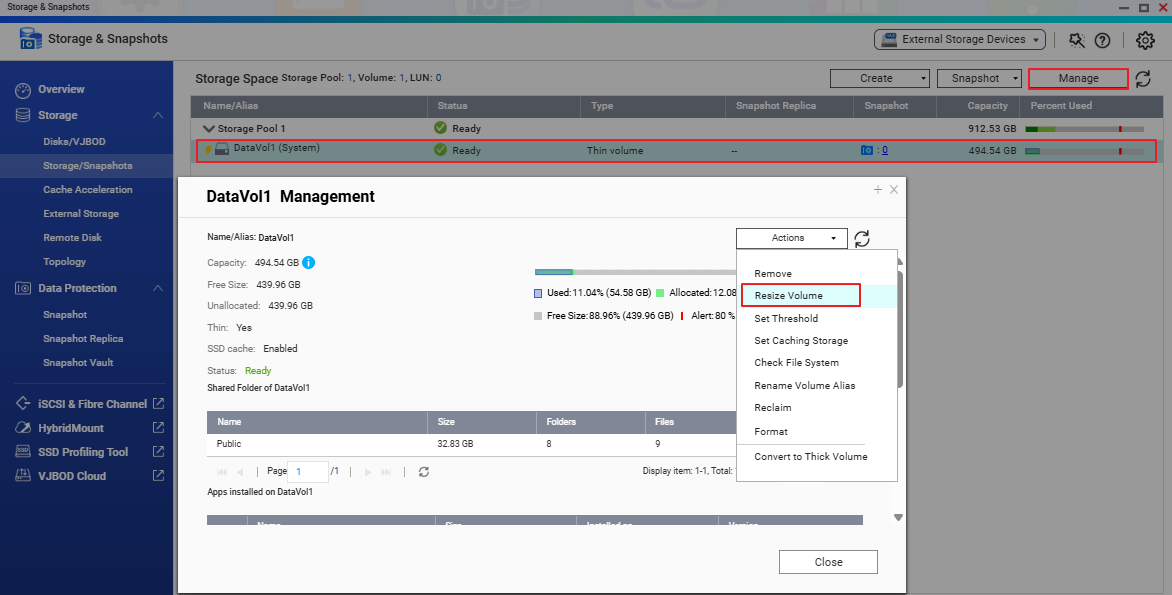
- Go to Storage & Snapshots > Storage/Snapshots.
- Under Storage Pool, select the data volume that you want to resize.
- Click Manage. The Data Volume Management window appears.
- Click Action, and then select Resize Volume.
- Enter a larger size in the New Capacity field (up to the limit of the available free pool space).
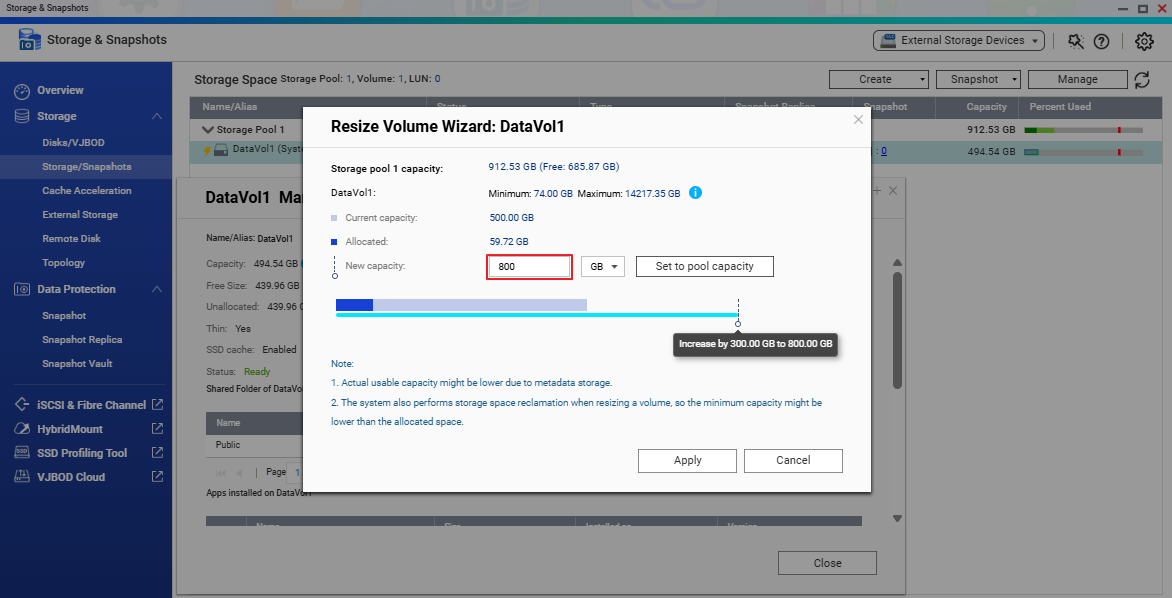
- Click Apply to start the online volume expansion.
- You can monitor the progress of the volume expansion in the Status field.
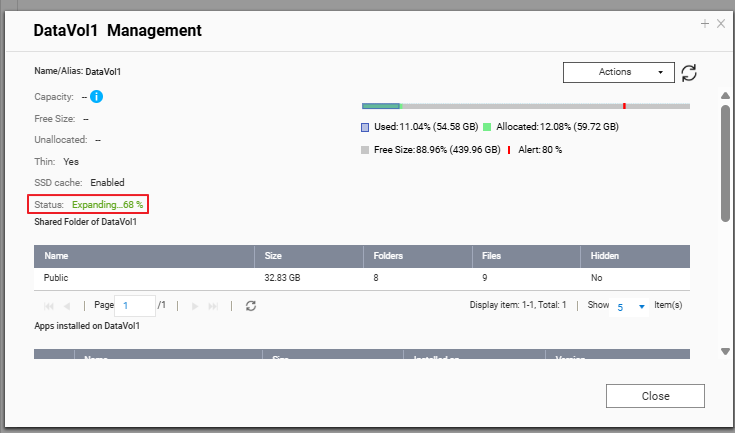
- After the task completes, confirm that the volume capacity has increased.



