


How to configure sub-folders ACL for NFS clients
Applicable Products:
- QTS 5.0 or later
- ACL
- NFS
This tutorial guides you to configure the ACL(Access Control List) of the sub-folders for NFS clients. Starting from the QTS 5.0 Public Beta Release (QTS 5.0.0.1716 build 20210701), it supports the NFS folder ACL.
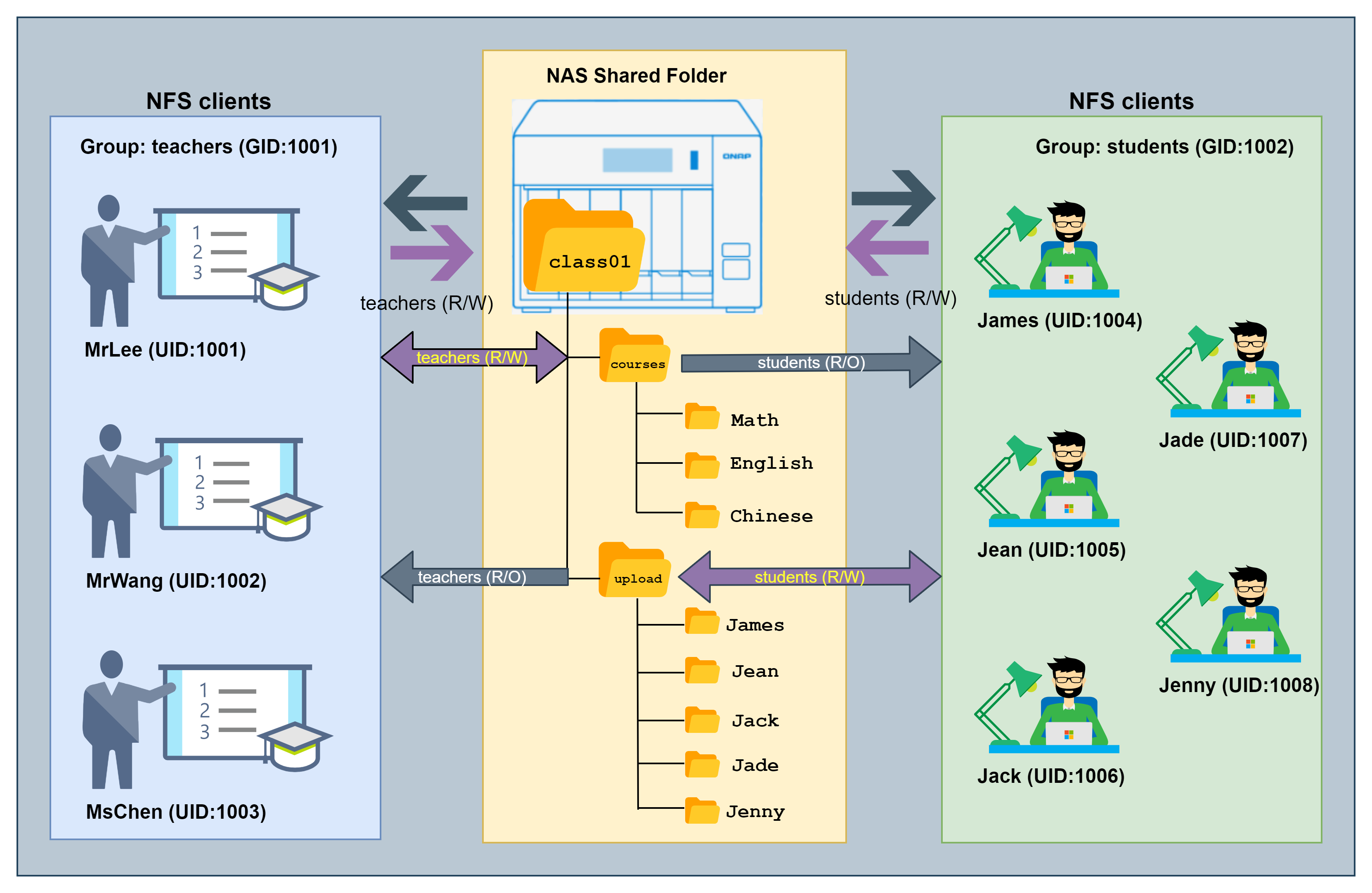
Before starting it, let me introduce the scenario first. We are going to simulate that there are 3 teachers in grade 10th, Math - Mr. Lee, English - Mr. Wang, and Chinese - Ms. Chen. 5 students James, Jean, Jack, Jade, and Jenny.
Due to the pandemic of COVID-19, the teachers and students cannot go to school and they must be in the class remotely. The teachers would prepare some materials of each course in the NAS shared folder for the students to download and study. The students need to read them and then upload their homework to the NAS shared folder after completing it daily.
For the permission settings, we would expect that teachers have read and write permission to one of the folders but the students can read only. Here, we named this folder as "courses" The teachers can upload and share the course with the students.
For the other folder, we would expect that students have read and write permissions but the teachers can read only. Here, we named this folder as "upload". In addition, each student has his own sub-folder to upload his homework there. Each teacher can read these sub-folders of every student and each student can only read and write his own folder. You can refer to the figure below to know more details.
To accomplish the above scenario in your NAS, you can refer to the step-by-step tutorial below.
- Tick Enable Advanced Folder Permissions option and apply it in the Control Panel > Privilege > Shared Folders > Advanced Permission tab.

- Create a shared folder (ex: class01) in Control Panel > Privilege > Shared Folders tab.
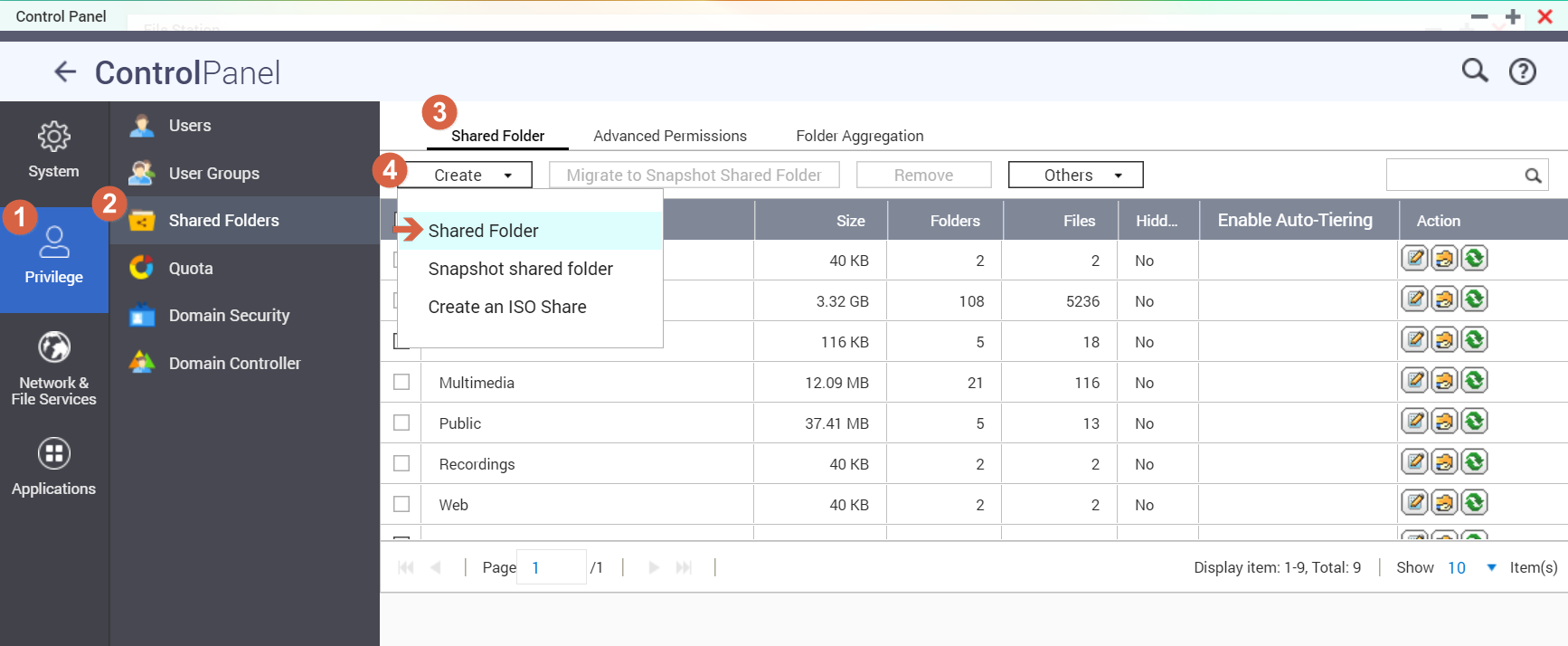
-
Launch the FileStation and create folders under the shared folder, class01.

- Create two folders, "courses" and "upload" under the shared folder, class01
- Create folders, "Math", "English", and "Chinese" under the folder, courses
- Create folders, "James", "Jean","Jack", "Jade", "Jenny" under the folder, upload

- Create two user groups, teachers and students in Control Panel > Privilege > User Groups .
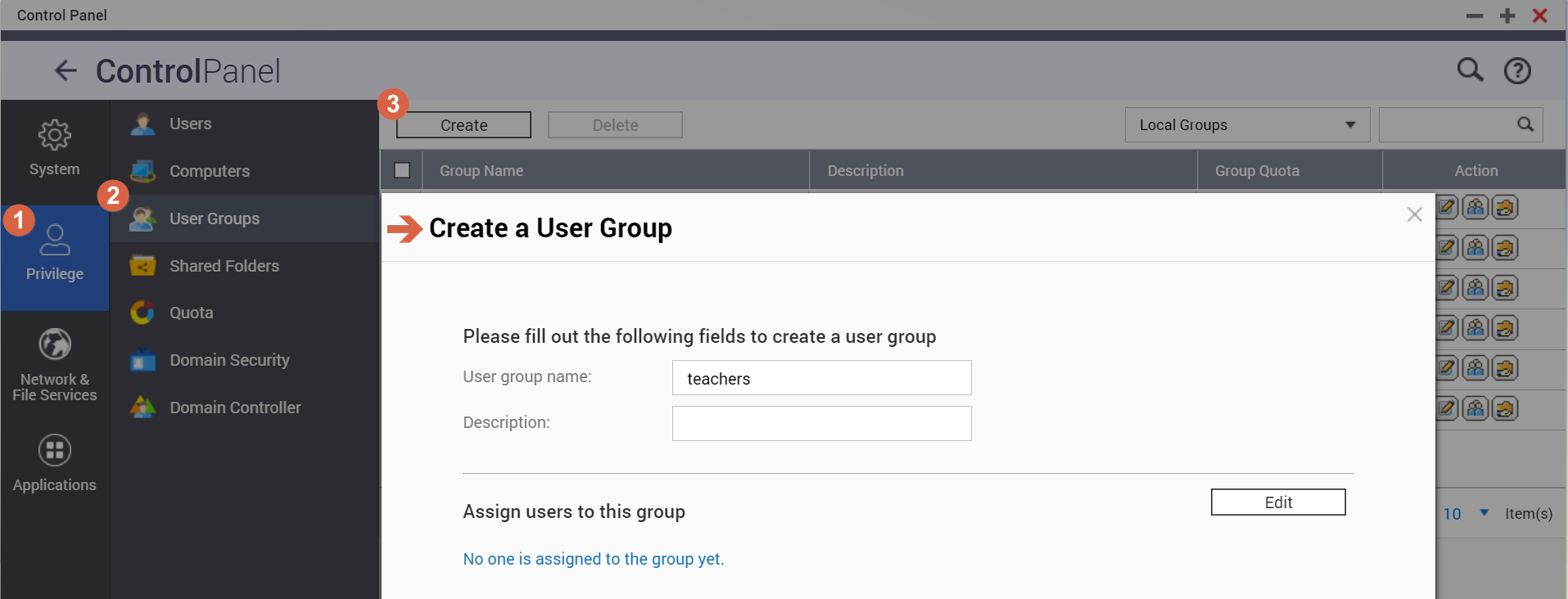
-
Create users
- Create three users, MrLee, MrWang and MsChen and assign them into the teachers group. in Control Panel > Privilege > Users
- Create five users, James, Jean,Jack, Jade, Jenny and assign them into the students group. in Control Panel > Privilege > Users
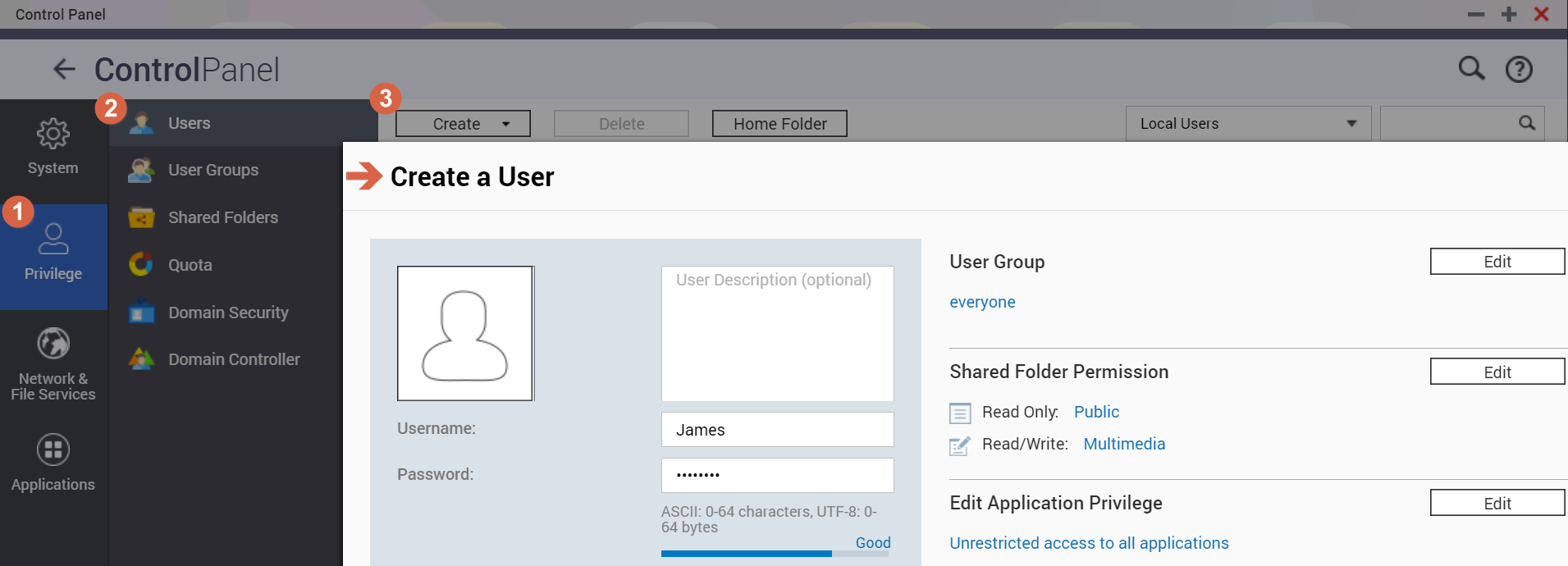
Now, we have completed the folders / users / user groups creation in the NAS with above steps. (see the figure below)

We are going to configure the access control permissions in the following steps.
-
Please open the Shared Folder page in Control Panel > Privilege > Shared Folder
- Click on Edit Shared Folder Permission icon of the share folder, "class01" to edit the permission.

- Select Users and groups permission as the permission type, choose the shared folder, "class01" and click on Add button.

- Select Local Groups from the menu, tick the RW checkbox for both of the groups, "teachers" and "students" and then click on Add button.

- Click on Apply button to apply the settings

This is what you have completed so far. Let's continue for more permissions settings.

-
Repeat the above steps to configure the permissions of the sub-folders, "courses" and "upload" as needed.
- Permissions settings of the sub-folder: "courses"

- Permissions settings of the sub-folder: "upload"

- Permissions settings of the sub-folder: "courses"
This is what we have completed so far.
-
Repeat the above steps to configure the permissions of the remaining sub-folders under the folders, "courses" and "upload" as needed.
- Permissions settings of the sub-folder: "/class01/courses/Math"

- Permissions settings of the sub-folder: "/class01/courses/English"

- Permissions settings of the sub-folder: "/class01/courses/Chinese"
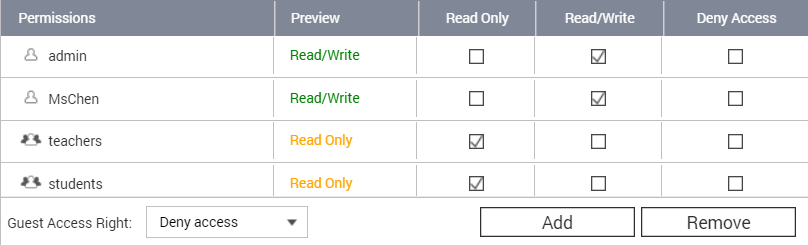
- Permissions settings of the sub-folder: "/class01/upload/James"

- Permissions settings of the sub-folder: "/class01/upload/Jean"

- Permissions settings of the sub-folder: "/class01/upload/Jack"

- Permissions settings of the sub-folder: "/class01/upload/Jade"

- Permissions settings of the sub-folder: "/class01/upload/Jenny"
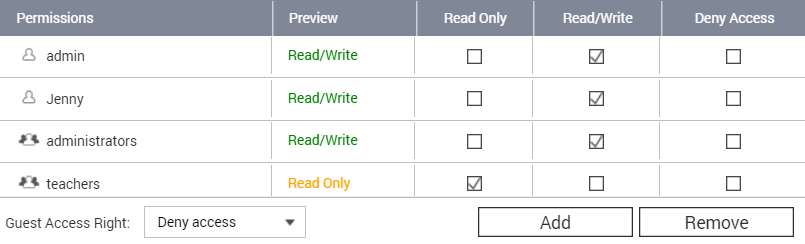
- Permissions settings of the sub-folder: "/class01/courses/Math"
With all of the above steps, we have completed all of the folders creation, users / groups creation and the permissions settings that we need.
See the figure below.

Furthermore, you can mount the shared folder using NFS and check the ACL settings from the Linux/Unix client.
- Mount the shared folder first. ( ex: NAS IP address: 172.17.24.188 )

- Using the getfacl command to check the ACL information of the folder.
# getfacl /mnt/class01

Group teachers own the r/w permission of /mnt/class01
Group students own the r/w permission of /mnt/class01
# getfacl /mnt/class01/courses

Group teachers own the r/w permission of /mnt/class01/courses
Group students own the r/o permission of /mnt/class01/courses
# getfacl /mnt/class01/upload
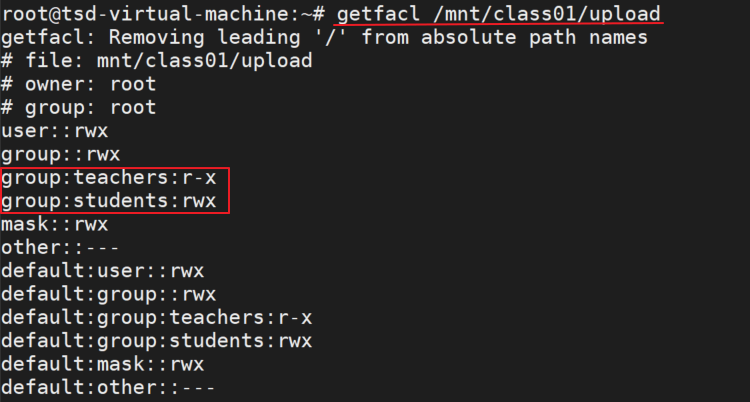
Group teachers own the r/o permission of /mnt/class01/upload
Group students own the r/w permission of /mnt/class01/upload
# getfacl /mnt/class01/courses/Math

User MrLee owns the r/w permission of /mnt/class01/courses/Math
Group teachers own the r/o permission of /mnt/class01/courses/Math
Group students own the r/o permission of /mnt/class01/courses/Math
# getfacl /mnt/class01/upload/James
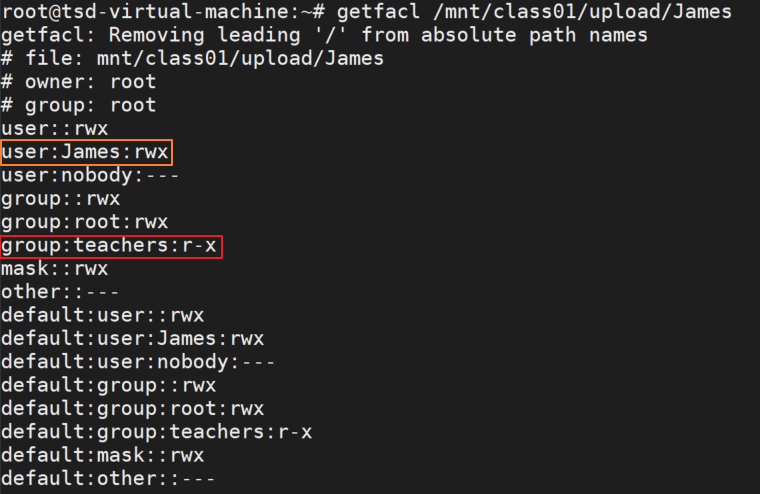
User James owns the r/w permission of /mnt/class01/upload/James
Group teachers own the r/o permission of /mnt/class01/upload/James
In addition, the client users can also create a folder to share with others using setfacl command. For example, the student James would like to create and share a folder with his team members, Jean and Jack but would not like other classmates to be able to access it. He can do it with the following steps.
- Create a folder that he would like to share under /mnt/class01/upload, ex: teamwork1 # mkdir -p /mnt/class01/upload/teamwork1

He can also check the ACL permission of this new folder.
# getfacl /mnt/class01/upload/teamwork1

- Use setfacl command to remove the permission and the default permission of students group to this folder
# setfacl -x g:students /mnt/class01/upload/teamwork1
# setfacl -x d:g:students /mnt/class01/upload/teamwork1

- Use setfacl command to assign the r/w permissions to his team members, Jean and Jack
# setfacl -m u:jean:rwx /mnt/class01/upload/teamwork1
# setfacl -m u:jack:rwx /mnt/class01/upload/teamwork1
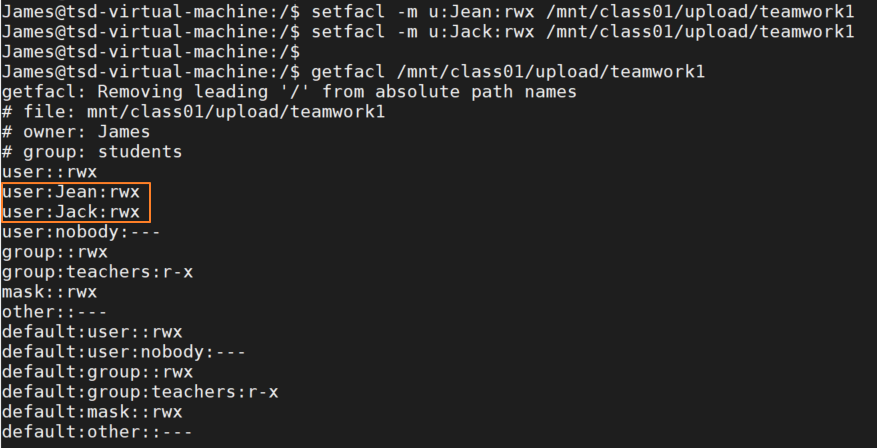
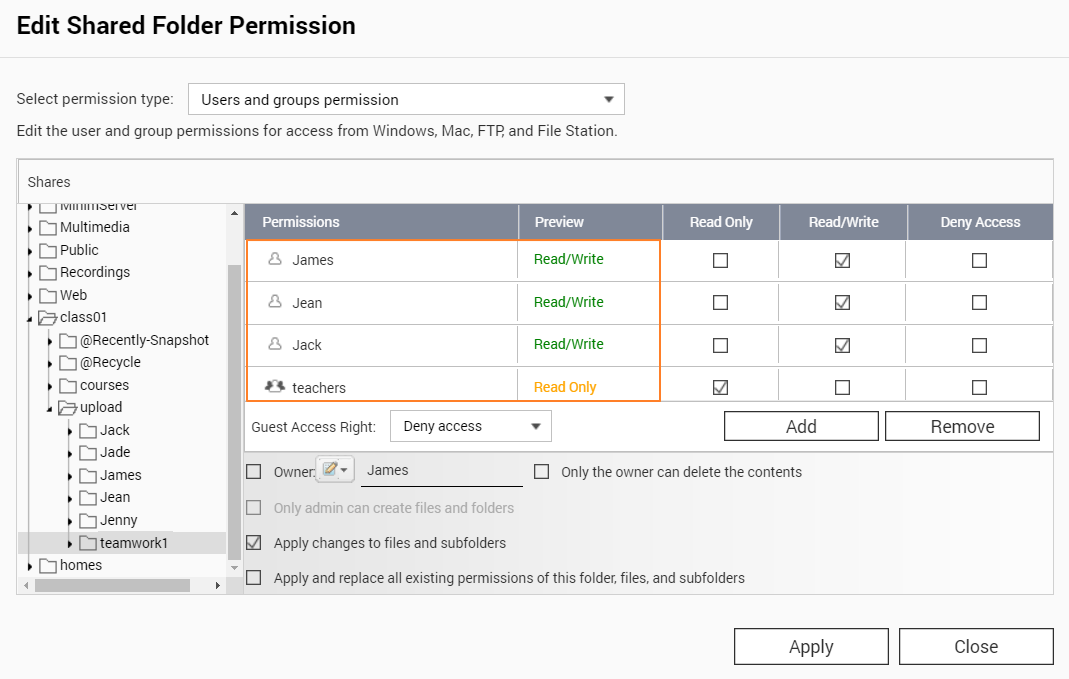
Now, this folder, teamwork1 can only be accessed by the students James, sJean and Jack and the teachers group.
And these changes can also be seen in the Shared Folder Permission web page of the NAS, like below:
 br />
br />


