


How do I enable QSAL?
Last modified date:
2023-10-31
Applicable Products
QuTS hero
Introduction
QNAP SSD Antiwear Leveling (QSAL) is a patented QNAP technology that prevents simultaneous multiple SSD failure in a RAID group in a storage pool. It works by setting a different amount of over-provisioning on each SSD so that they wear at different rates.
You can enable QSAL when creating a new storage pool. In QuTS hero h5.1.0 and later, you can also enable or disable QSAL on an existing storage pool at any time.
Instructions
To enable QSAL on a storage pool, the pool must contain a RAID group that meets the following requirements:
- The RAID group must be one of the following RAID types: RAID 5, 6, 50, 60, TP.
- The RAID group must contain at least two SSDs that can provide estimated life remaining.
- At least one SSD in the RAID group must have over 3% estimated life remaining.
Note
In QuTS hero h4.5.2–h5.0.1, QSAL can only be enabled during pool creation and cannot be disabled later.
Enabling QSAL when creating a new storage pool
- Open Storage & Snapshots.
- Go to Storage > Storage/Snapshots.
- Click Create, and then select New Storage Pool.
The Create Storage Pool Wizard window opens. - Click Next.
- Optional: Select an expansion unit from the Enclosure Unit list.
- Select three or more disks.Note
- At least two disks must be SSDs that can provide estimated life remaining.
- At least one SSD must have over 3% estimated life remaining.
- Select a RAID type of RAID 5, 6, 50, 60, or TP.
- Select Enable QNAP SSD Antiwear Leveling.
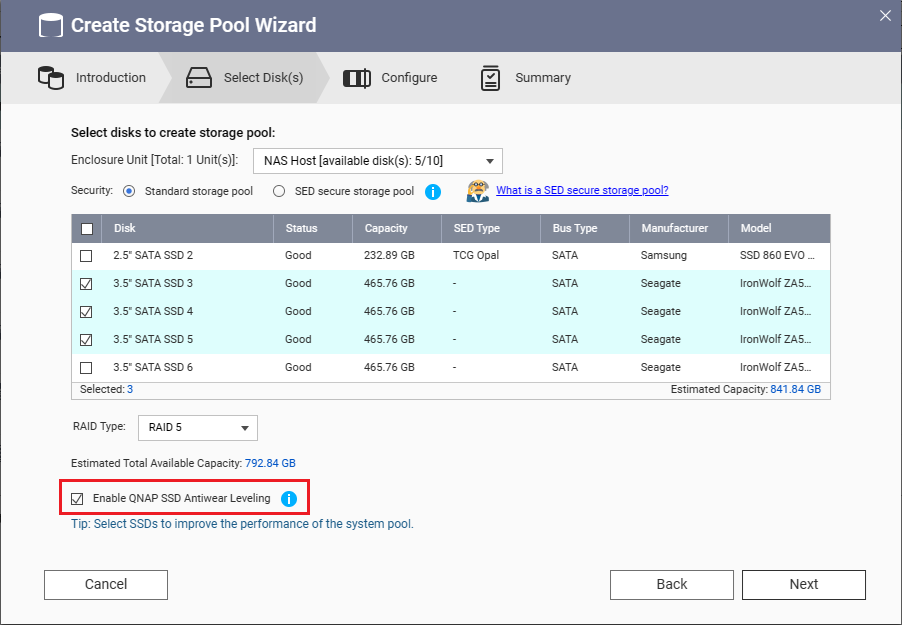
- Click Next.
- Follow the on-screen instructions to complete the wizard and create the storage pool.
Enabling or disabling QSAL on an existing storage pool (QuTS hero h5.1.0 and later)
- Open Storage & Snapshots.
- Go to Storage > Storage/Snapshots.
- Select a storage pool.
- Click Manage.
The storage pool management window opens. - Click QSAL.
This tab only appears if the storage pool contains a RAID group that meets the requirements for QSAL. - Optional: Select a different RAID group.
- Click the toggle button to enable or disable QSAL.
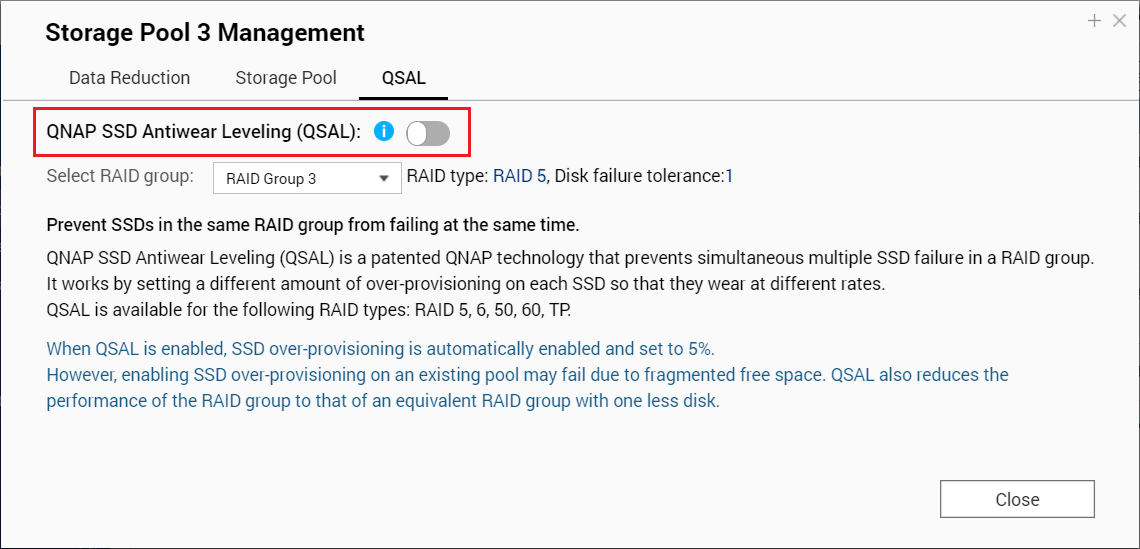
- Click Close.


