


What Should I Do If I Forgot My NAS Password?
Applicable Products
- All QNAP NAS devices
Scenario 1: Regular User Forgot Password → Ask the Administrator to Reset It
Note
Regular users cannot reset their own passwords. You must contact the NAS administrator, who can update your password from the Control Panel without affecting any other account settings. You can log in with the new password once the reset is complete.
NAS administrator Change sthe Password for a Local User Account
- Log in to QTS or QuTS hero as an administrator.
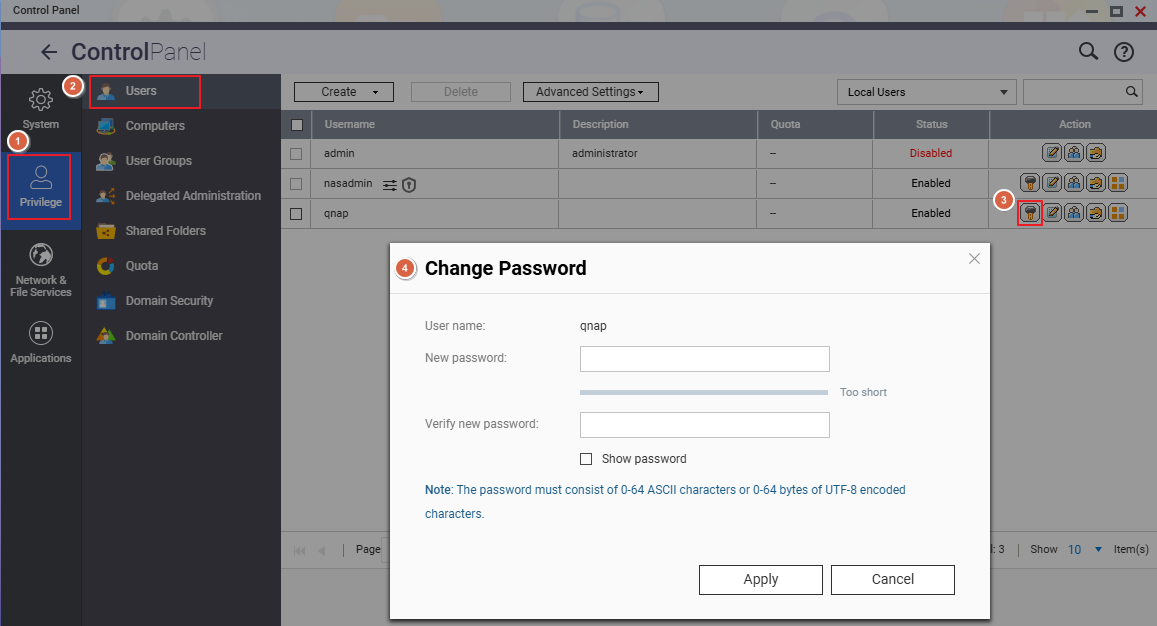
- Go to Control Panel > Privilege > Users.
- Locate the account that needs a password change.
- In the Action column, click Change Password.
- In the Change Password dialog:
- Enter the new password.
- Re-enter the password in the Verify New Password field.
- Click Apply to save the changes.
Important
Only an administrator can perform this action. The new password must meet the system's complexity requirements.
Scenario 2: Administrator Forgot the NAS Admin Password
Reset the Admin Password via the Reset Button
When to use: You have physical access to the back panel of the NAS.
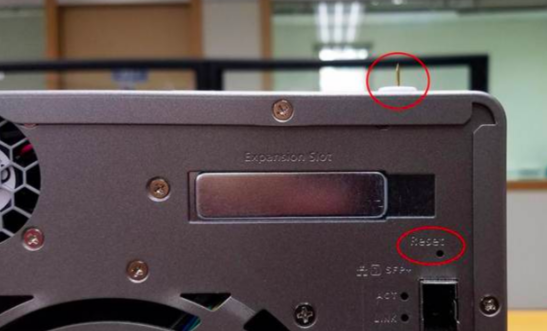
Insert a straightened paperclip or pin into the reset hole on the back of the NAS and press:
| Press Duration | Beep Indicator | Reset Effect |
|---|---|---|
| Short press (3 seconds) | 1 beep | ✅ All user data and shared folders preserved • Admin password reset to default • Security level reset to "Low" (allow all connections) • Service binding and system ports restored to default • Network (TCP/IP) settings: Switched to DHCP, disables Jumbo Frame and VLANs,Port Trunking set to Active Backup (on dual LAN models) |
| Long press (10 seconds) | 1 beep at 3 sec + 1 beep at 10 sec (2 beeps total) | ✅ User data on disks preserved • All shared folder configurations are deleted. To restore, see here • All system settings restored to default |
Warning
A 10-second long press deletes all shared folder configurations. To restore them, use the Backup/Restore function afterward.
After Reset — Log In with the Default Password
After completing a reset, log in using the default admin password. The default password depends on your firmware version:
| Firmware Version | Default Admin Account | Default Password |
|---|---|---|
| QTS/QuTS hero 5.2.0 and later | admin |
The device's Cloud Key printed on the label (typically an 8-character alphanumeric string) |
| QTS/QuTS hero 4.4.2 – 5.1.x | admin |
MAC address of the first network adapter (Adapter 1), colons removed, all uppercase |
| QTS/QuTS hero 4.4.1 and earlier | admin |
admin |
Example (MAC address)
MAC address00:08:9B:AA:BB:CC→ password is00089BAABBCC
Example (Cloud Key)
Cloud Key printed asQ1234-5678→ password isQ12345678(uppercase letters, special characters removed)
Where to Find Your Cloud Key and MAC Address
Finding the Cloud Key
| Method | Steps |
|---|---|
| ① Device label / Quick Installation Guide | Check the sticker on the back or bottom of the NAS chassis for a field labeled "Cloud Key", or refer to the included Quick Installation Guide (QIG). |
| ② Qfinder Pro (when unable to log in to NAS) | 1. Power off the NAS 2. Remove all hard drives, M.2 SSDs, and QM2 PCIe expansion cards 3. Power on the NAS 4. Open Qfinder Pro, select the device in the list 5. Click Details → the Cloud Key is shown in the Device Details window |
| ③ Qfinder Pro (when able to log in normally) | 1. Open Qfinder Pro and select the device 2. Click Details, then enter your NAS credentials when prompted 3. The Cloud Key is shown in the Device Details window |
| ④ myQNAPcloud website | 1. Go to myQNAPcloud and log in with your QNAP ID 2. Go to Device Management and click your device 3. Click Device Details → the Cloud Key is shown in the details tab |
Note
If none of the above methods work, contact QNAP Customer Support for assistance.
Finding the MAC Address
| Method | Steps |
|---|---|
| ① Device label | The sticker on the NAS chassis lists the model name, serial number, and MAC address (format: XX:XX:XX:XX:XX:XX). |
| ② Qfinder Pro | Open Qfinder Pro, locate your NAS in the list — the MAC Address field is shown directly in the device information. |
Note
When used as the default password, remove the colons from the MAC address and convert all letters to uppercase.
Example:00:08:9B:AA:BB:CC→ password is00089BAABBCC
Related Articles
Bạn vẫn cần hỗ trợ?
Hãy đăng câu hỏi của bạn trong Cộng đồng QNAP. Nhân viên QNAP và những người dùng giàu kinh nghiệm sẽ trả lời.


