


How do I use QuMagie AI Assistant on my mobile device?
Applicable Products
- QuMagie iOS 2.6.0 and later
- QuMagie Android 2.9.0 and later
Overview
QuMagie AI Assistant is built in QuMagie Mobile to help you perform photo and video management tasks with voice or text commands.
To ensure your privacy and data security, command interpretation is processed only through the AI model on your mobile platform, such Apple Intelligence on iOS and Gemini Nano on supported Android devices. Your request is analyzed locally on the device and is never sent to an external cloud AI service.
On the Gallery, Video, Album, and Folder pages, you can use QuMagie AI Assistant to:
- Upload photos and videos to the NAS
- Search media by time, location, people, or objects
- Batch-manage media files (including adding to albums, tagging, adding to favorites, and sharing)
- Perform system operations such as enabling Sleep Mode and configuring backup settings
- AI Assistant is currently not available on other QuMagie pages.
- QuMagie AI Assistant is designed to help you perform multimedia tasks, not as a general-purpose AI assistant.
Since QuMagie AI Assistant relies on local AI processing, it may not be as performant as cloud-based AI services for handling complex or long sentences, open-ended requests, or casual conversations. For optimal results, use short and clear sentences.
System Requirements
iOS
To use QuMagie AI Assistant on iOS, ensure the following:
- QuMagie has been updated to 2.6.0 or later.
- AI Assistant display is enabled in QuMagie > Settings > General > Show AI Assistant
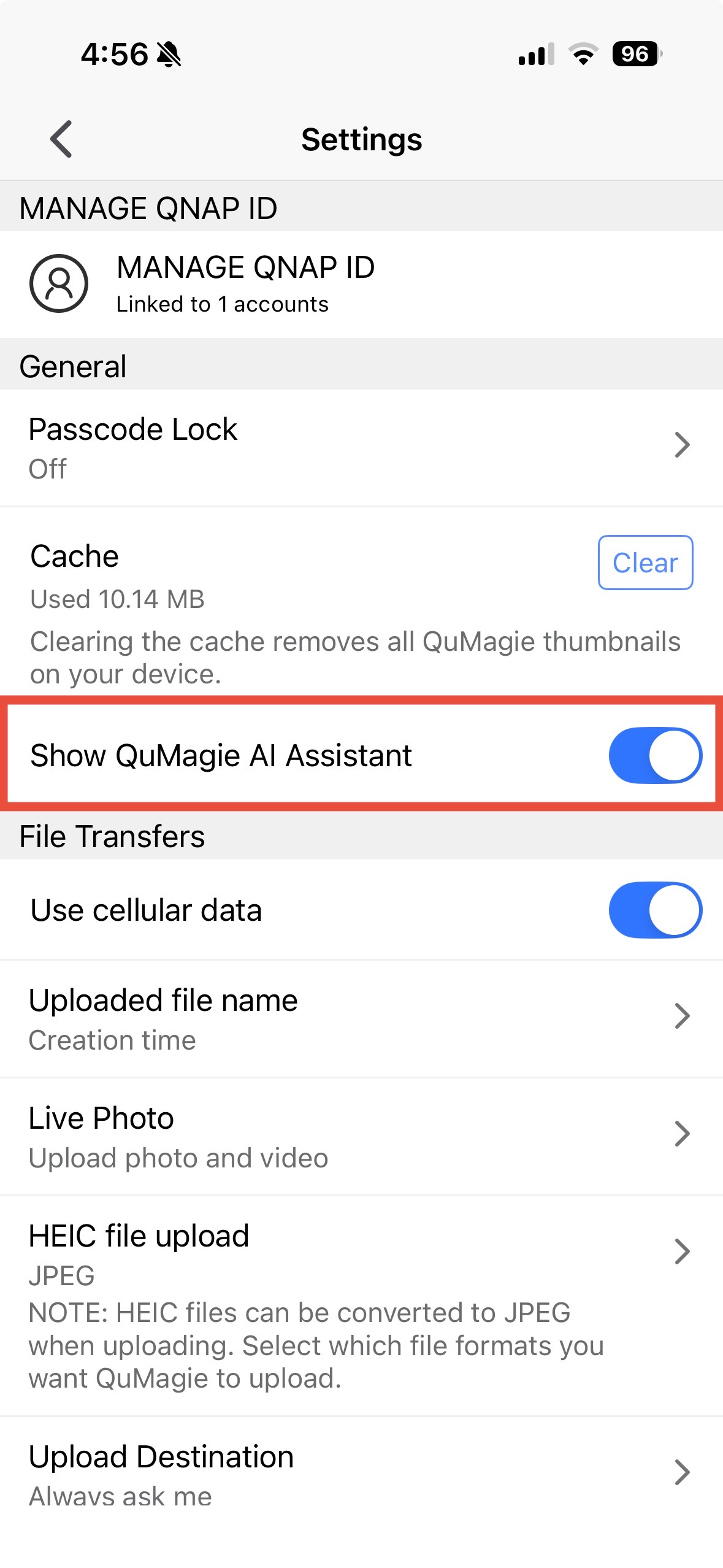
- Your iOS device has been updated to iOS 26 or later.
- Apple Intelligence is enabled on the device.
- The device system language is set to English, Traditional Chinese, or Simplified Chinese.
- Apple Intelligence language matches the system language, and the language pack download is complete. To configure language settings, go to Settings > Apple Intelligence & Siri > Language
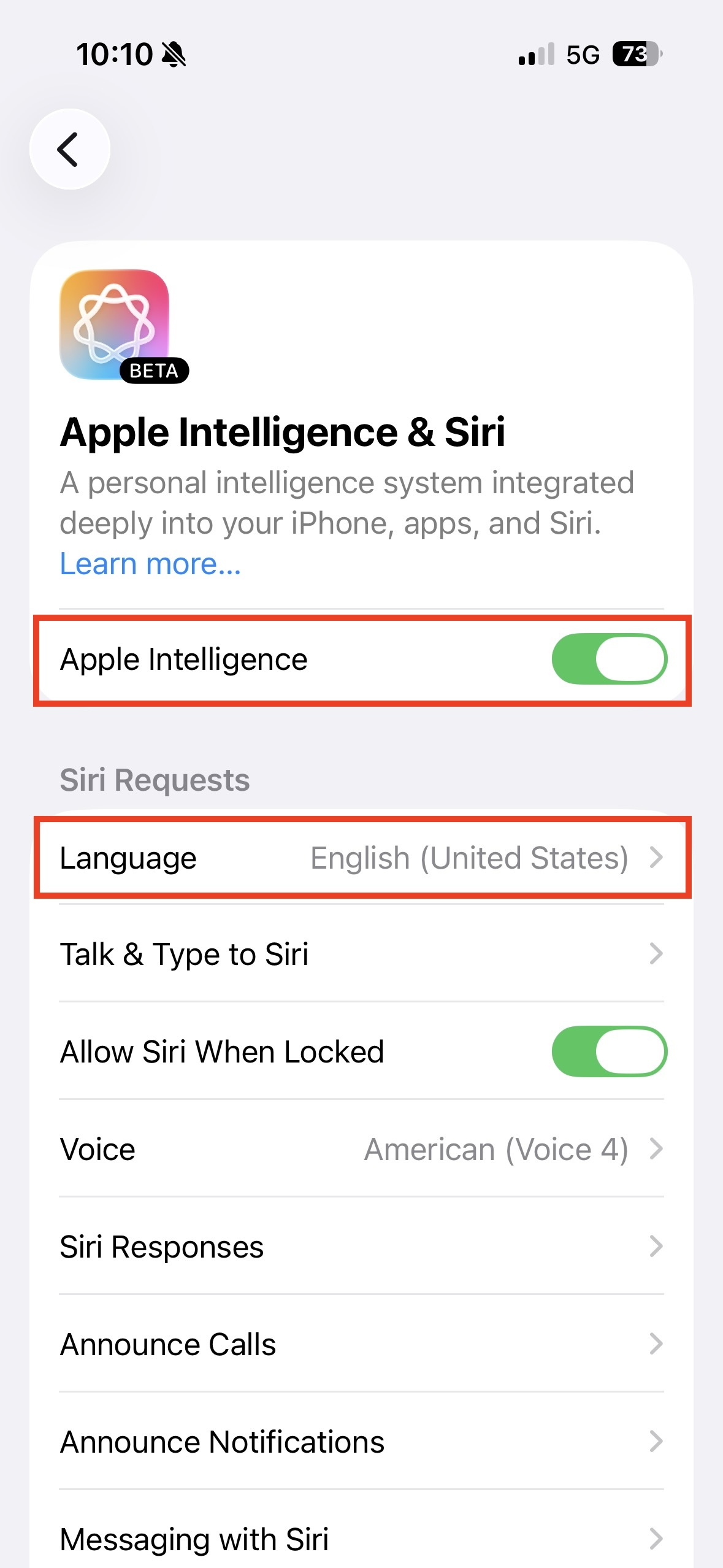
If you have not enabled Apple Intelligence yet, see Apple's official guide: Set up and use Apple Intelligence on iPhone
Troubleshooting
- Changing the language resets the downloaded language pack. QuMagie AI Assistant will not be available until the download is complete. Please wait until the download is complete.
- If you are using an iOS device in the China region, Apple Intelligence support may vary due to regional policies or vendor configurations. We recommend checking with Apple to confirm whether your device and region are supported.
Android
To use QuMagie AI Assistant on Android, ensure the following:
- QuMagie has been updated to 2.9.0 or later.
- AI Assistant display is enabled in QuMagie > Settings > General > Show AI Assistant
- The device system language is set to English, Traditional Chinese, or Simplified Chinese.
Your Android device must support Gemini Nano. The following models have been confirmed to support Gemini Nano:
- Google Pixel 9 / 10 series
- Samsung Galaxy S25 / S26 series
- Xiaomi 15 series
- OPPO Find X8 series
If your device is not listed above, check your device manufacturer's official website or related resources to confirm whether Gemini Nano is supported.
For details on Gemini Nano support for Android devices, see Overview of the ML Kit GenAI APIs
Troubleshooting
- Gemini Nano download issues:
- Gemini Nano model only supports downloading over Wi-Fi and may pause on mobile networks (4G/5G). Please connect to Wi-Fi and wait for the download to complete before trying again. If the download is interrupted due to switching to a mobile network midway, it will automatically resume once Wi-Fi is reconnected.
- If the device is downloading Gemini Nano and switches to a mobile network, the download will pause. Please switch back to Wi-Fi, and then the download will resume automatically. Once complete, manually toggle the switch again to enable the feature.
- If the device meets the above requirements but the feature still cannot be enabled, go to Settings > Apps > Show System Apps, search for AICore. Verify that the app has not been disabled or force-stopped, and then tap Enable. If the issue persists, restart the phone and try again.
- If you are using an Android device in the China region, Gemini Nano support may vary due to regional policies or vendor configurations. We recommend checking with Google or your device manufacturer to confirm whether your device and region are supported.
How to use QuMagie AI Assistant
- Open QuMagie Mobile.
- Connect to your NAS.
- On the Gallery, Video, Album, or Folder pages, tap the floating AI button.

- Type your command in the input field or tap the microphone icon to use voice commands.
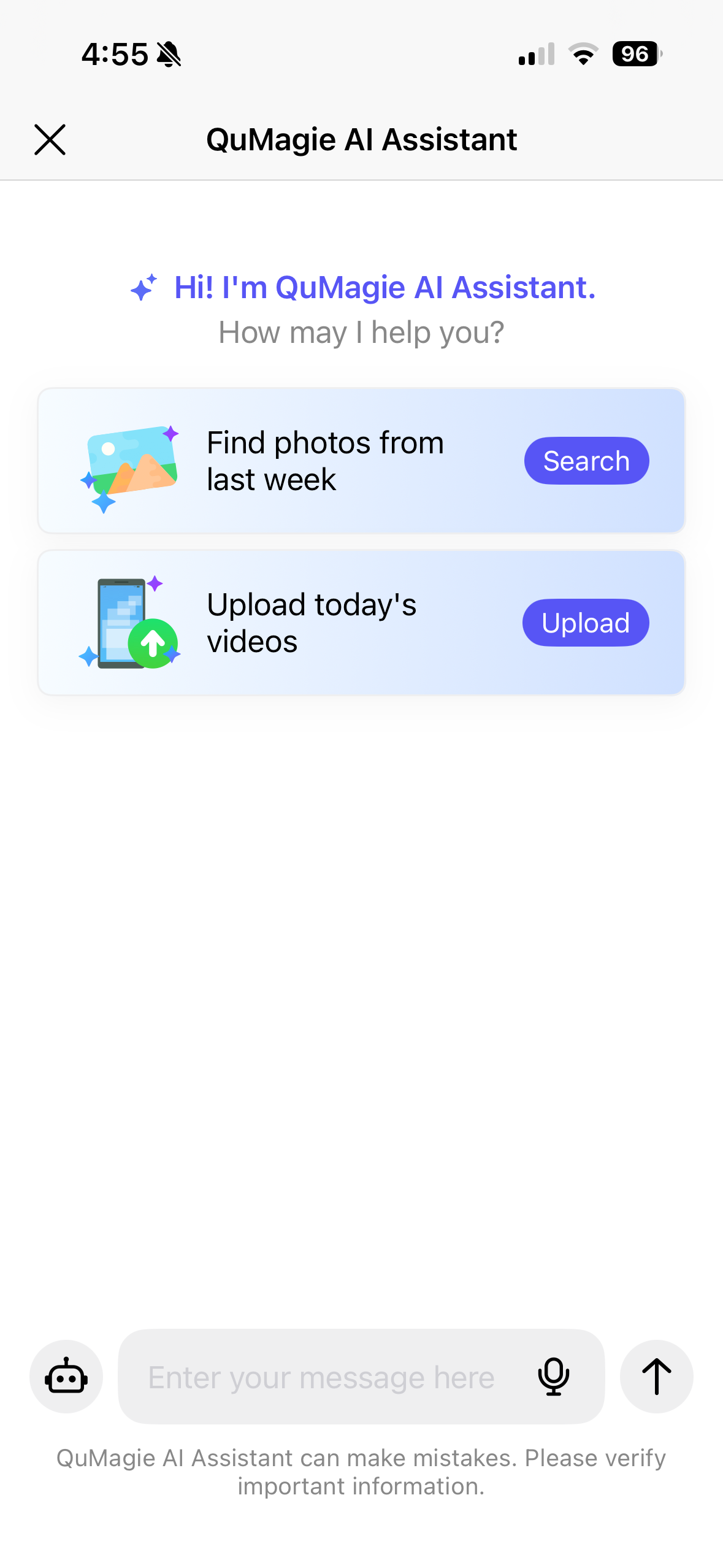
- AI interprets your command and executes the action. It may display a confirmation message for your approval before proceeding.
- (Optional) You can also tap the robot icon on the left side of the input field to see a full list of supported commands and examples.
How to Disable QuMagie AI Assistant
- Open QuMagie Mobile.
- Go to Settings > General.
- Disable Show QuMagie AI Assistant.
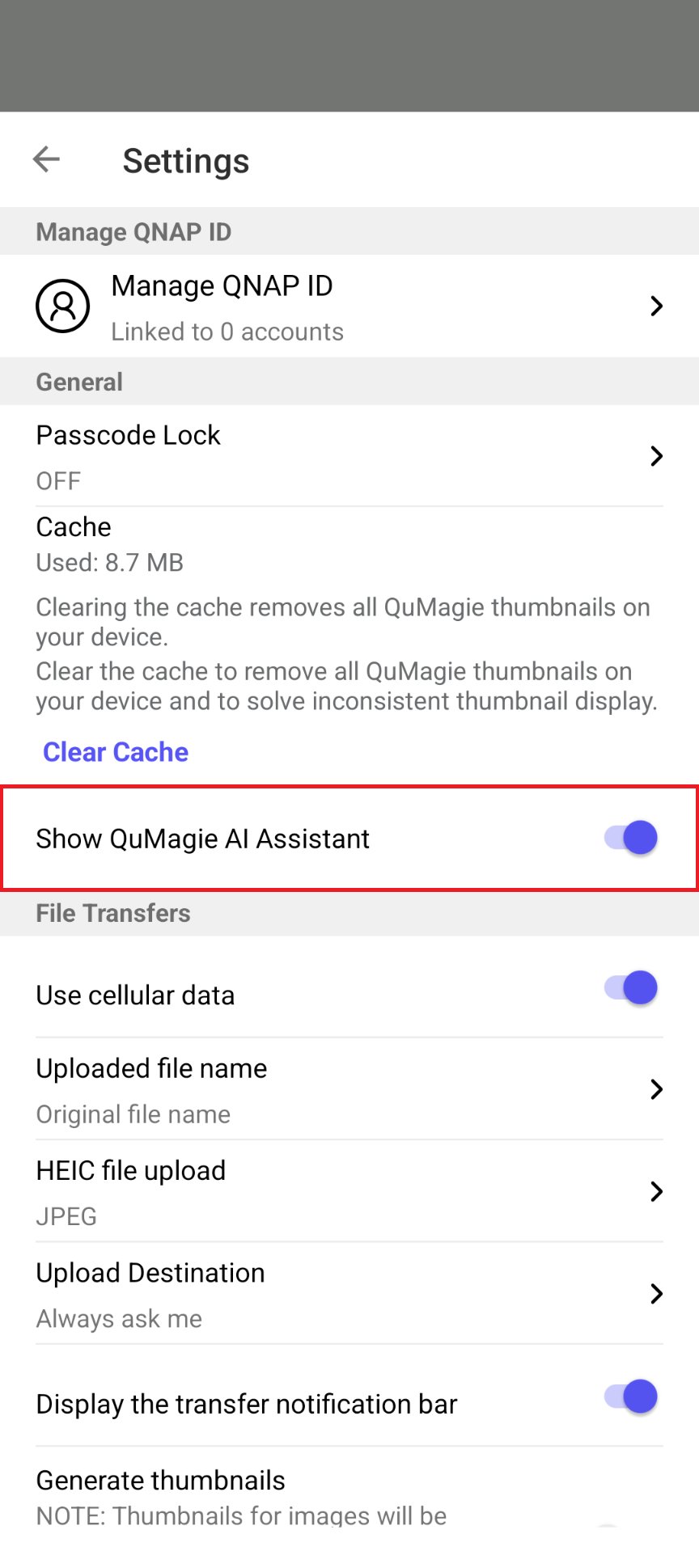
When you disable this option, the floating action button for QuMagie AI Assistant will disappear from the user interface. You may enable this option anytime if you want the button to appear again.
Command Examples
Here are some common use cases and useful commands for QuMagie AI Assistant:
- Upload and auto-archive
After a trip, use a command like this to organize your photos:
Upload today's photos and save them to the ‘2026 Japan Trip’ album.
The AI finds your photos, confirms their details, and uploads them to the specified album in one step.
- Search by time, location, or people
To find photos from a specific trip, use a command like these:
Find photos taken in Japan last year.
Find photos with Tom
AI Assistant searches your NAS and displays the results.
- Add to favorites
To organize your favorite photos, use a command like this:
Add last month's photos to my favorites.
AI Assistant batch-processes your photos, so you do not need to select them one by one.
- Quick share
To share multiple related photos with friends, use a command like this:
Share my photos taken in Taipei.
AI Assistant creates a share link and opens the share menu for you to choose how to share.
Để được hỗ trợ thêm, hãy hỏi những người dùng khác và chuyên gia QNAP trong cộng đồng. Đến Cộng đồng QNAP


