Applicable Products
QuTS hero h5.3.0 and later, HDP for SaaS
Starting from version 2.4, the product previously known as Boxafe has been renamed to HDP for SaaS.
Scenario A (HDP for SaaS 2.3.0 and later)
In a High Availability (HA) environment, you have activated licenses on both active node and passive node. When an HA switchover occurs, HDP for SaaS (Boxafe) automatically reassigns the licenses to your users and services. However, if the license on the new active node is missing, inconsistent, or expired, HDP for SaaS (Boxafe) cannot reassign licenses, and the license status will become Not Available. As a result, backup tasks on the new active node will fail.
Solutions
To continue backing up user/service data in HDP for SaaS (Boxafe) on the new active node after an HA switchover over, you must verify the statuses of your licenses or purchase and activate new licenses:
Verify license status on both nodes
- Log in to the new active node as an administrator.
- Open License Center.
- Go to HA License.
- HDP for SaaS (Boxafe) licenses appear both in the Active Node License tab and Passive Node License tab.
- Ensure that HDP for SaaS (Boxafe) licenses meet all of the following conditions:
- HDP for SaaS (Boxafe) licenses are activated on both the active node and the passive node.
- The license plans on both the active and passive node are the same. For example, the following licenses are the same:
- Active node: HDP for SaaS for Microsoft 365, 10 Users, 1 Month
- Passive node: HDP for SaaS for Microsoft 365, 10 Users, 1 Month
- The licenses are valid and not expired on both the active node and pasive nde.
- If all of the above conditions are met, HDP for SaaS (Boxafe) will automatically reassign licenses to users/services after the HA switchover, and backup tasks will continue.
Optional: Purchase and activate additional HDP for SaaS (Boxafe) licenses on both nodes
In order for HDP for SaaS (Boxafe) to support High Availability environments, you need to purchase two identical HDP for SaaS (Boxafe) licenses and activate one on the active node and one on the passive node. Both active and passive nodes must have the same HDP for SaaS (Boxafe) license for an HA switch over to successfully occur.
- Purchase two new HDP for SaaS (Boxafe) licenses.
- Log in to the active node as an administrator.
- Open License Center.
- Go to HA License.
- Go to the Active Node Licenses tab.
- Click on +Activate License.
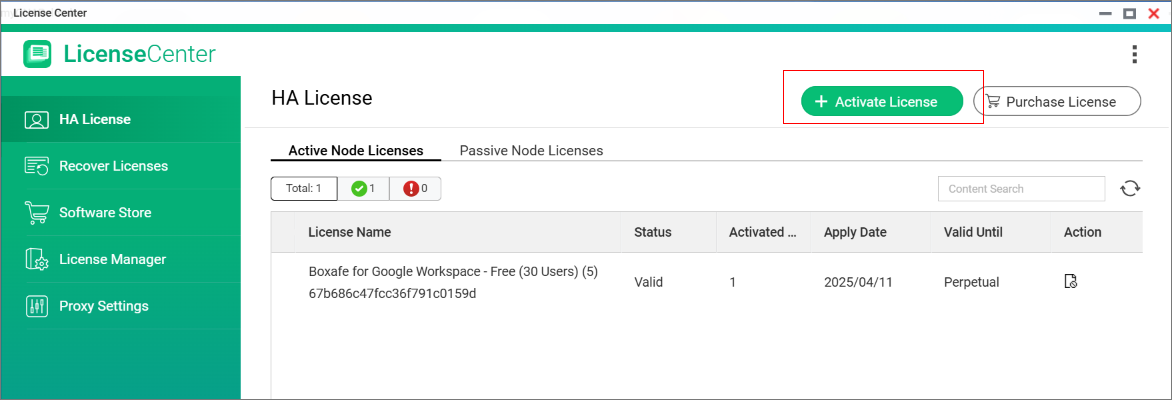 The License Activation - Active and Passive Nodes window opens.
- Select a HDP for SaaS (Boxafe) license.
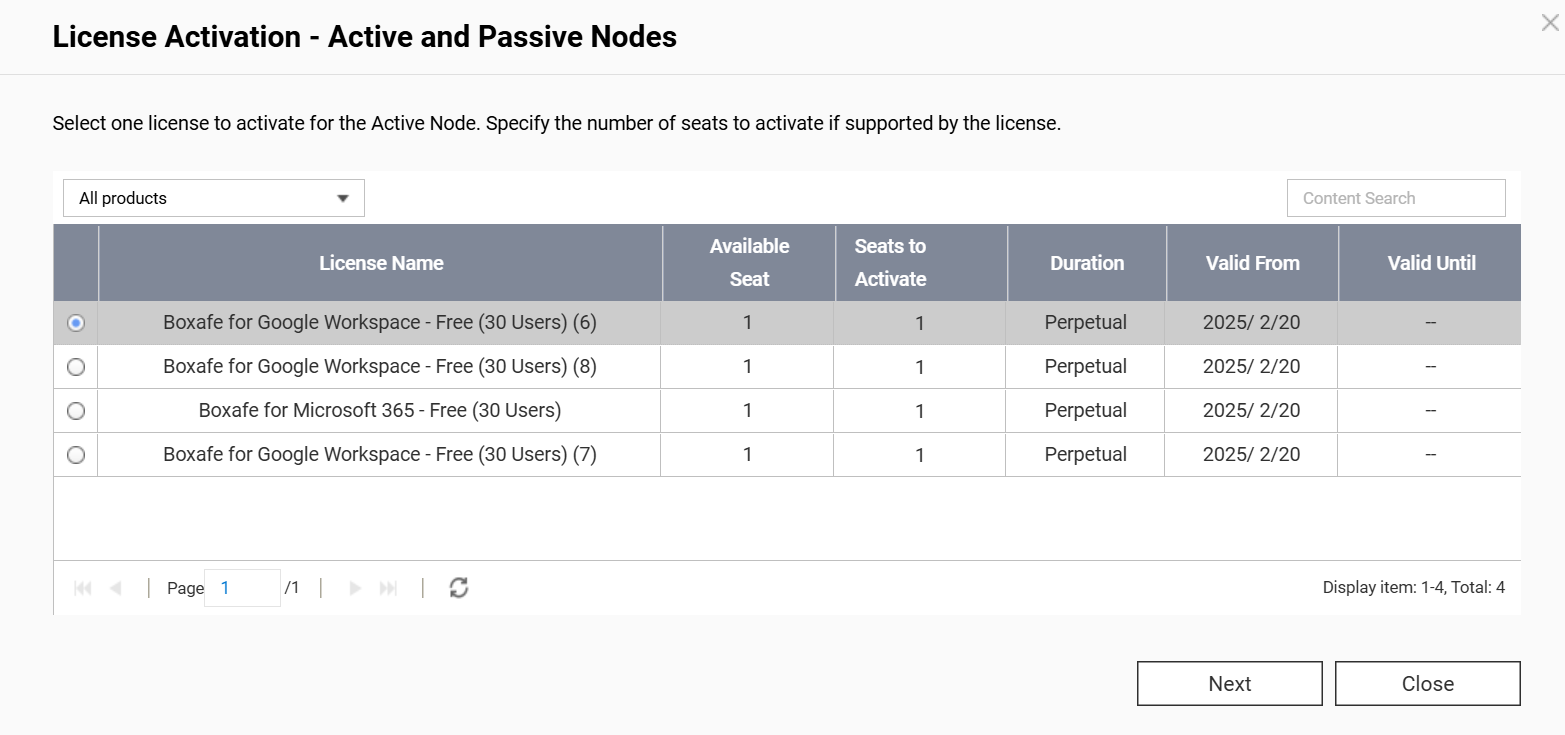
- Click Next.
- The License Activation - Active and Passive Nodes window asks you to additionally activate the same license type on the passive node. Click Yes to confirm license activation on the passive node.
- After the License Activation - Active and Passive Node window closes, view the status of your licenses on the Active Node Licenses and Passive Node Licenses tab. If the activation was successful, then the status of your licenses will be "valid" on both nodes.
- Activate remaining HDP for SaaS (Boxafe) licenses by repeating the previous steps 5-9.
- After activating all the licenses, HDP for SaaS (Boxafe) will automatically reassign licenses to any users/services.
Scenario B (HDP for SaaS 2.2.2 and earlier)
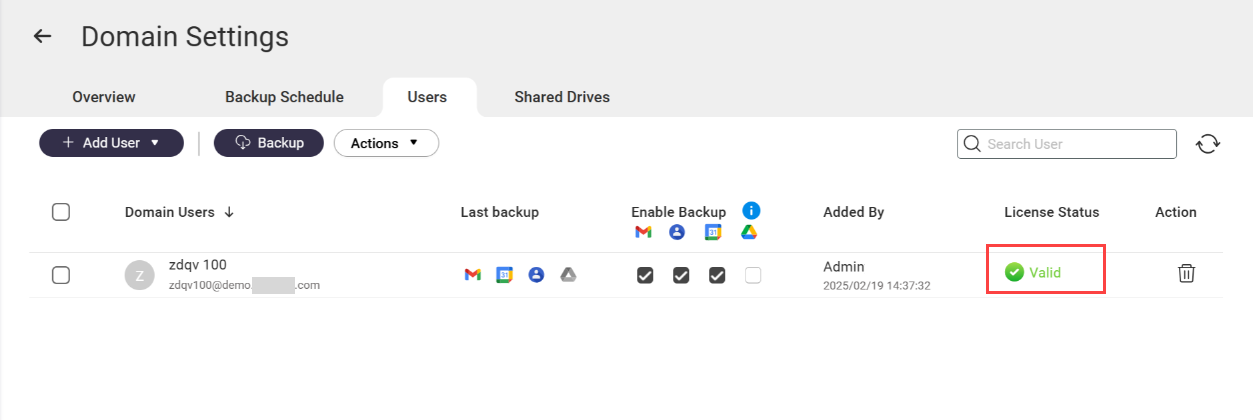
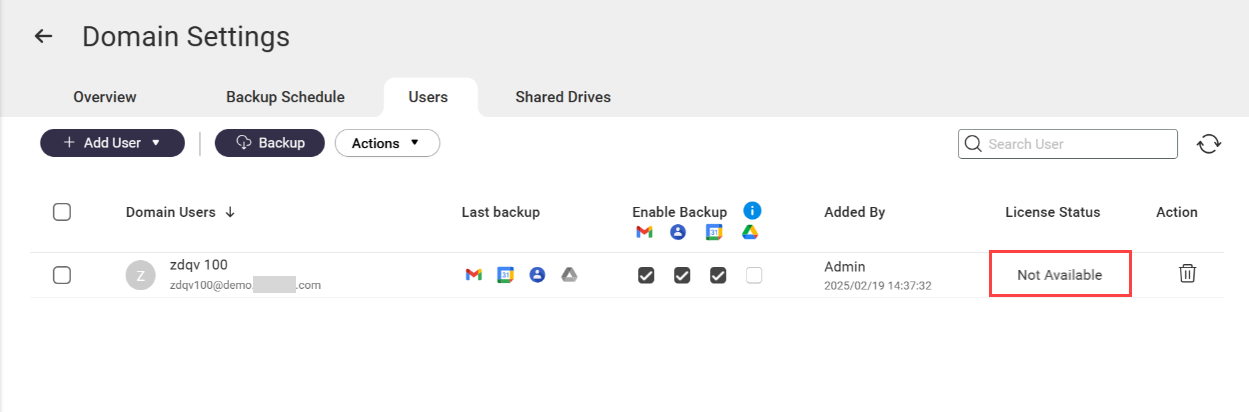
You have assigned HDP for SaaS (Boxafe) licenses to users or services on an active node in a High Availability (HA) environment and a HA switchover occurs. After the switchover, the HDP for SaaS (Boxafe) licenses on the new active node are not assigned to any users/services and they have the license status Not available. As a result, HDP for SaaS (Boxafe) cannot backup data for the users/services on the new active node.
Active node before switchover
New active node after switchover
Solution
To continue backing up user/service data in HDP for SaaS (Boxafe) on the new active node after an HA switcher over, perform the following steps:
1. Activate HDP for SaaS (Boxafe) licenses on the new active node
Important
If you previously activated HDP for SaaS (Boxafe) licenses on both active and passive nodes before the switchover occurred, you can skip this step.
- Log in to the new active node as an administrator.
- Open License Center.
- Go to HA License.
- Go to the Active Node Licenses tab.
- Click on +Activate License.
The License Activation - Active and Passive Nodes window opens. - Select a HDP for SaaS (Boxafe) license.
- Click Next.
- The License Activation - Active and Passive Nodes window asks you to actviate licenses for the passive node. Since you do not need to activate licenses for a passive node, click Close to skip this operation.
- After the License Activation - Active and Passive Node window closes, view the status of your licenses on the Active Node Licenses tab. If the activation was successful, then the status of your licenses will be "valid".
- Activate remaining HDP for SaaS (Boxafe) licenses by repeating the previous steps 5-9.
2. Assign HDP for SaaS (Boxafe) licenses on the new active node
To assign HDP for SaaS (Boxafe) licenses to the required users and services on the new active node, do the following:
- Open HDP for SaaS (Boxafe) on the new active node.
- Go to Domains.
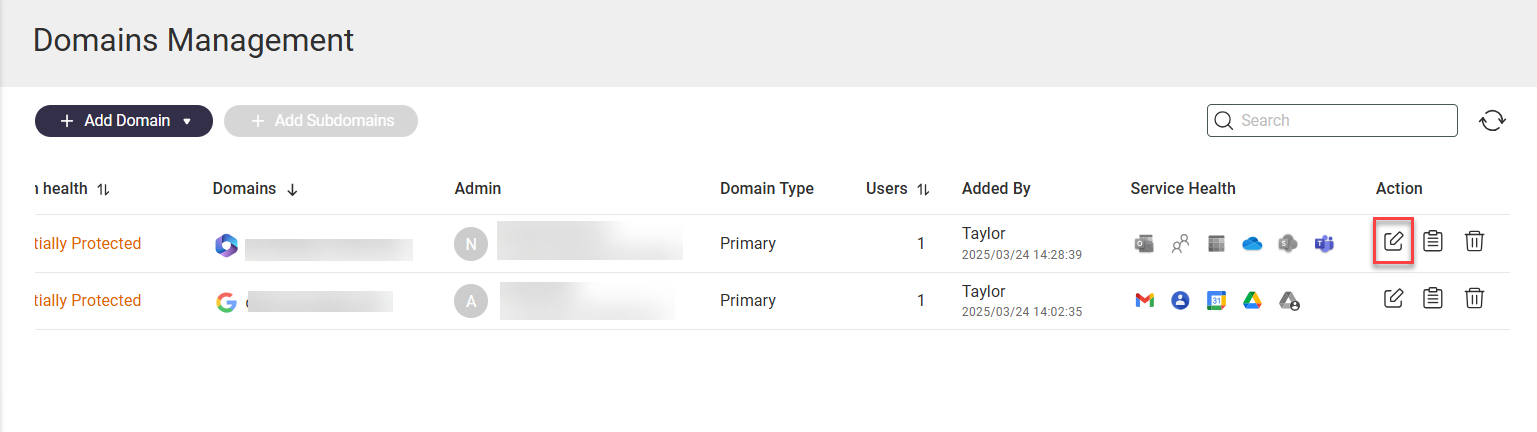
- Locate a domain and click
 in the Action column to open the Domain Settings page for the domain.
- Click the Users tab or a service tab such as Shared Drive.
- Select one or more user or service accounts.
- Click Actions > Licenses > Assign.
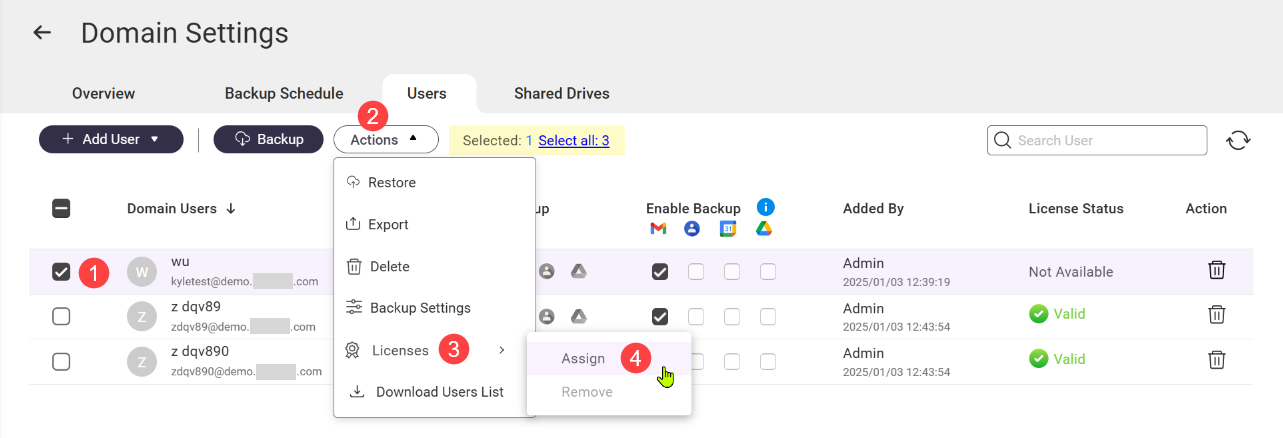 The Select HDP for SaaS (Boxafe) License for Users window opens.
- Select valid licenses.
- Click Select.
The selected licenses are applied to the selected users/services and HDP for SaaS (Boxafe) can now backup the selected users/services on the new active node.
Further Reading
Official Boxafe product page
QTS User Guide
QuTS hero User Guide
対象製品
QuTS hero h5.3.0 以降、HDP for SaaS
バージョン 2.4 から、以前は Boxafe として知られていた製品が HDP for SaaS に改名されました。
シナリオ A(HDP for SaaS 2.3.0 以降)
高可用性(HA)環境では、アクティブノードとパッシブノードの両方でライセンスを有効にしています。HA スイッチオーバーが発生すると、HDP for SaaS(Boxafe)は自動的にライセンスをユーザーとサービスに再割り当てします。ただし、新しいアクティブノードのライセンスが欠落している、一貫性がない、または期限切れの場合、HDP for SaaS(Boxafe)はライセンスを再割り当てできず、ライセンスのステータスは利用不可になります。その結果、新しいアクティブノードでのバックアップタスクは失敗します。
解決策
HA スイッチオーバー後に新しいアクティブノードでHDP for SaaS(Boxafe)でユーザー / サービスデータのバックアップを続けるには、ライセンスのステータスを確認するか、新しいライセンスを購入して有効化する必要があります。
両方のノードでライセンスのステータスを確認する
- 新しいアクティブノードに管理者としてログインします。
- ライセンスセンターを開きます。
- に移動しますHA ライセンス。
- HDP for SaaS(Boxafe)ライセンスは、アクティブノードライセンスタブとパッシブノードライセンスタブに表示されます。
- HDP for SaaS(Boxafe)ライセンスが以下のすべての条件を満たしていることを確認します。
- HDP for SaaS(Boxafe)ライセンスは、アクティブノードとパッシブノードの両方で有効化されています。
- アクティブノードとパッシブノードのライセンスプランは同じです。例えば、以下のライセンスは同じです。
- アクティブノード: HDP for SaaS for Microsoft 365、10 ユーザー、1 ヶ月
- パッシブノード: HDP for SaaS for Microsoft 365、10 ユーザー、1 ヶ月
- アクティブノードとパッシブノードの両方でライセンスが有効であり、期限切れでないこと。
- 上記の条件がすべて満たされると、HA スイッチオーバー後に HDP for SaaS (Boxafe) は自動的にライセンスをユーザー / サービスに再割り当てし、バックアップタスクが継続されます。
オプション: 両ノードで追加の HDP for SaaS (Boxafe) ライセンスを購入してアクティブ化する
HDP for SaaS (Boxafe) が高可用性環境をサポートするためには、2 つの同一の HDP for SaaS (Boxafe) ライセンスを購入し、1 つをアクティブノードに、もう 1 つをパッシブノードにアクティブ化する必要があります。HA スイッチオーバーが成功するためには、アクティブノードとパッシブノードの両方が同じ HDP for SaaS (Boxafe) ライセンスを持っている必要があります。
- 新しい HDP for SaaS (Boxafe) ライセンスを 2 つ購入します。
- 管理者としてアクティブノードにログインします。
- ライセンスセンターを開きます。
- 移動しますHA ライセンス。
- 移動しますアクティブノードライセンスタブ。
- + アクティブ化ライセンスをクリックします。
ライセンスアクティベーション - アクティブとパッシブノードウィンドウが開きます。 - HDP for SaaS (Boxafe) ライセンスを選択します。
- クリックします次へ。
- そのライセンスアクティベーション - アクティブとパッシブノードウィンドウは、パッシブノードで同じライセンスタイプを追加でアクティブ化するように求めます。クリックしますはいパッシブノードでライセンスのアクティベーションを確認するために。
- その後、ライセンスアクティベーション - アクティブノードとパッシブノードウィンドウが閉じた後、ライセンスのステータスを確認します。アクティブノードライセンスとパッシブノードライセンスタブで。アクティベーションが成功した場合、両方のノードでライセンスのステータスは「有効」となります。
- 残りのHDP for SaaS (Boxafe) ライセンスをアクティベートするには、前のステップ 5 - 9 を繰り返します。
- すべてのライセンスをアクティベートした後、HDP for SaaS (Boxafe)は自動的にライセンスを任意のユーザー / サービスに再割り当てします。
シナリオ B (HDP for SaaS 2.2.2 以前)
アクティブノードでHDP for SaaS (Boxafe) ライセンスをユーザーまたはサービスに割り当てている高可用性 (HA) 環境で HA 切り替えが発生します。切り替え後、新しいアクティブノードのHDP for SaaS (Boxafe) ライセンスはユーザー / サービスに割り当てられておらず、ライセンスのステータスは利用不可です。その結果、HDP for SaaS (Boxafe)は新しいアクティブノードのユーザー / サービスのデータをバックアップできません。
切り替え前のアクティブノード
切り替え後の新しいアクティブノード
解決策
HA 切り替え後、新しいアクティブノードでHDP for SaaS (Boxafe)のユーザー / サービスデータのバックアップを続けるために、次のステップを実行します。
1. 新しいアクティブノードで HDP for SaaS (Boxafe) ライセンスをアクティブ化します
重要
スイッチオーバーが発生する前に、アクティブノードとパッシブノードの両方で HDP for SaaS (Boxafe) ライセンスをアクティブ化していた場合、このステップをスキップできます。
- 新しいアクティブノードに管理者としてログインします。
- ライセンスセンターを開きます。
- に移動しますHA ライセンス。
- に移動しますアクティブノードライセンス タブ。
- +Activate ライセンスをクリックします。
ライセンスアクティベーション - アクティブおよびパッシブノードウィンドウが開きます。 - HDP for SaaS (Boxafe) ライセンスを選択します。
- クリックします次へ。
- そのライセンスアクティベーション - アクティブおよびパッシブノード ウィンドウはパッシブノードのライセンスをアクティベートするように求めます。パッシブノードのライセンスをアクティベートする必要がないため、クリックします閉じる この操作をスキップします。
- その後、ライセンスアクティベーション - アクティブおよびパッシブノード ウィンドウが閉じたら、ライセンスのステータスを確認しますアクティブノードライセンス タブ。アクティベーションが成功した場合、ライセンスのステータスは「有効」となります。
- 残りのHDP for SaaS (Boxafe) ライセンスをアクティベートするには、前のステップ 5 - 9 を繰り返します。
2. 新しいアクティブノードで HDP for SaaS (Boxafe) ライセンスを割り当てる
新しいアクティブノードで必要なユーザーとサービスに HDP for SaaS (Boxafe) ライセンスを割り当てるには、以下を行います:
- 新しいアクティブノードで HDP for SaaS (Boxafe) を開きます。
- ドメインに移動します。
- ドメインを見つけて、アクション列でをクリックし、そのドメインのドメイン設定ページを開きます。
- ユーザータブまたは共有ドライブなどのサービスタブをクリックします。
- 1 つ以上のユーザーまたはサービスアカウントを選択します。
- アクション > ライセンス > 割り当てをクリックします。
選択HDP for SaaS (Boxafe) ライセンス for Usersウィンドウが開きます。 - 有効なライセンスを選択します。
- 選択をクリックします。
選択されたライセンスは選択されたユーザー / サービスに適用され、HDP for SaaS (Boxafe) は新しいアクティブノードで選択されたユーザー / サービスをバックアップできるようになります。
さらに読む
公式 Boxafe 製品ページ
QTS ユーザーガイド
QuTS hero ユーザーガイド


