


What to do if QuTS hero shows "Warning (Threshold reached)" on thin shared folders
Applicable Products
- QNAP NAS running QuTS hero with a storage pool and thin shared folders or thin-provisioned volumes
Scenario
If QuTS hero shows Warning (Threshold reached) on thin shared folders even though the actual file data appears to be well below the physical pool capacity, the warning can still be valid.
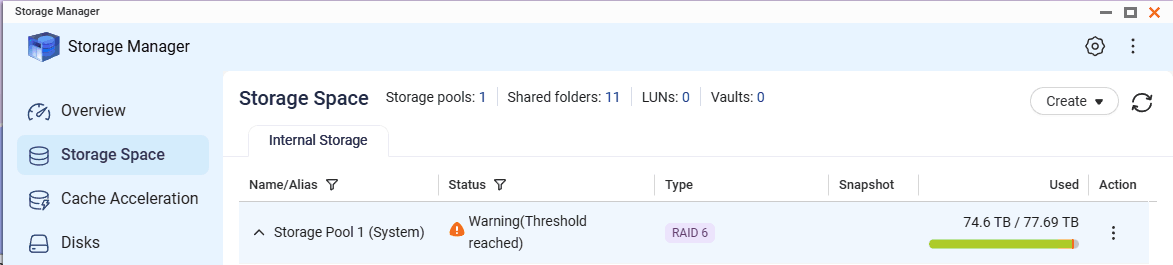
The direct cause was not ordinary file data alone. The warning was driven by a combination of:
- Thin provisioning / over-allocation across multiple shared folders
- Guaranteed snapshot space reserving capacity in the pool
- Pool usage being measured against real physical capacity, not only the visible file size reported by a client computer
Why this happens
Thin shared folders can be assigned more logical capacity than the storage pool physically has. This is called over-provisioning or over-subscription. That is not always wrong, but it means the pool warning is based on actual consumed and reserved space in the pool, not on the sum of user-visible file sizes alone.
If guaranteed snapshot space is enabled, QuTS hero reserves part of the pool for snapshots even when no snapshots are currently being used. That reserved space reduces the remaining usable capacity and can make the pool appear close to full much earlier than expected.
Recommended fix
- Open Storage & Snapshots.
- Select the affected storage pool.
- Review the following items:
- Total pool capacity
- Used pool capacity
- Provisioned capacity of thin shared folders or thin volumes
- Snapshot settings for the pool
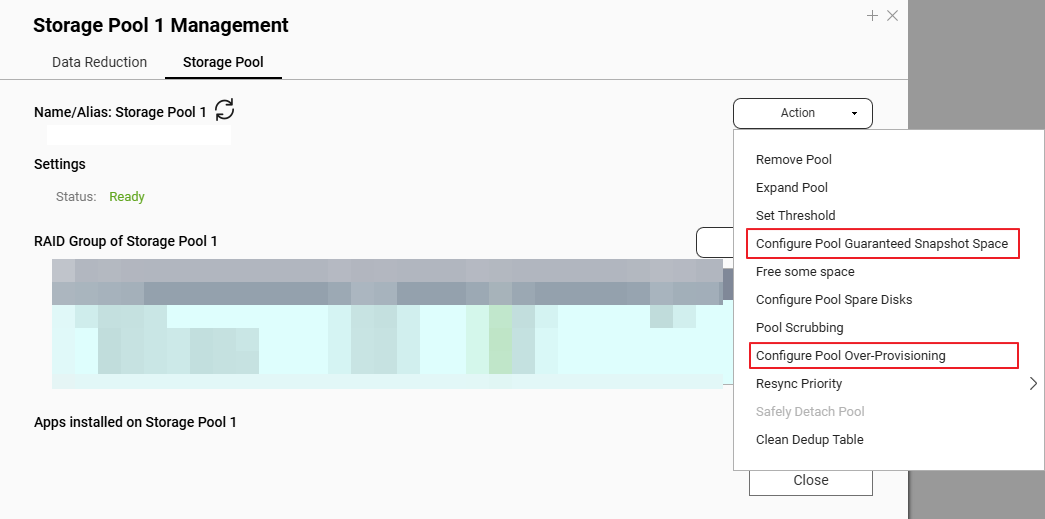
- If Guaranteed Snapshot Space is enabled and you do not need it, disable it or reduce it.
- Recheck the pool usage after the change.
- If the thin shared folders are heavily over-allocated, reduce the logical allocation or redesign the layout so the total provisioned size is closer to the real pool capacity.
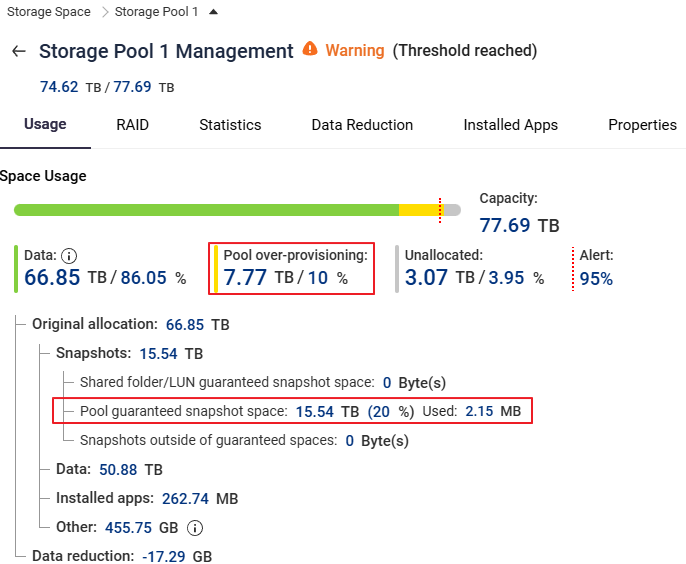
In this scenario, pool over-provisioning was configured at around 10% (about 7.77 TB on a 77.6 TB pool). If additional free space is needed, the percentage can be lowered, for example to 5%. However, the recommended first action is to disable Pool guaranteed snapshot space because snapshots were not used in this case.
If you want shared folders to behave more like normal folders
If your goal is to let multiple shared folders draw from the same common free space and only warn when the overall pool is genuinely getting full, use a simpler layout:
- Keep the storage design simple and avoid unnecessary over-allocation.
- Avoid enabling Guaranteed Snapshot Space unless you actually need snapshot reservation.
- Use fewer thin-provisioned objects, or consider a less fragmented layout.
- Create shared folders on top of a storage design that is sized close to real capacity rather than assigning large logical capacities to every folder.
This reduces the chance of threshold warnings caused by reserved or over-provisioned capacity rather than by real file growth.
Verification Steps
- In Storage & Snapshots, confirm the storage pool no longer shows excessive reserved snapshot space.
- Confirm the reported used pool capacity drops after disabling or reducing guaranteed snapshot space.
- Confirm the warning clears or the warning threshold is no longer reached.
- Compare the total provisioned thin capacity against the physical pool capacity and make sure the gap is understood and acceptable.
Tip
Thin provisioning is useful, but it requires active monitoring. If you prefer simpler capacity behavior, avoid large over-allocation.
Warning
Do not disable snapshot reservation or redesign the storage layout without confirming your backup and recovery plan.
Related Articles
For further assistance, ask other users and QNAP experts in the community. Go to QNAP Community


