


What can I do if the firmware update fails with FW004 error?
Applicable Products
All QNAP NAS models
Solution
You may try the following methods to see if it can resolve the FW004 error.
- Check the firmware file:
- Ensure you have downloaded the correct firmware version for your NAS model from the QNAP Download Center.
- Verify that the firmware file is not corrupted. If in doubt, download it again.
- If your device requires it, extract the firmware package before uploading.
- Perform the firmware update again.
- Reboot the NAS and retry the update:
- Restart your NAS.
- Attempt the firmware update again using the verified firmware file.
- Update firmware using Qfinder Pro:
- Power off your NAS and remove all hard drives. (Important: Label the drives and note their order for reinstallation.)
- Power on the NAS without disks. Wait for one short beep followed by one long beep.
- Run Qfinder Pro to locate your NAS.
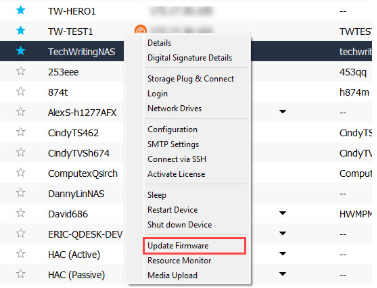
- Right-click your device's row and select Update Firmware to start the update process.
Note: Removing disks will not delete data, but please make sure disks are reinstalled in the same order after the update.
If you continue to receive the FW004 error after performing the above steps, the issue may be caused by a defective NAS DOM (Disk On Module). The DOM is an internal component that stores firmware. If it is faulty, firmware updates may fail.
In this case, please contact QNAP Support for assistance. Provide details about the error, your NAS model, and the troubleshooting steps you have already tried. Repair or replacement may be required.
Further Reading
For further assistance, ask other users and QNAP experts in the community. Go to QNAP Community


